
The issue second monitor keeps going black isn't just an annoyance, but a productivity killer, an entertainment buzzkill. The good news is that trouble is rarely a sign of permanent hardware failure. More often, it's a fixable glitch caused by settings, software, or connections. Today's guide will show you the most common reasons and proven solutions to get your dual-screen setup shining brightly again.
Why Does My Second Monitor Keep Going Black
The issue of your second monitor screen keeps going black can stem from simple connection problems to more complex software or hardware issues. Identifying the root cause is key to finding the right solution. Below is a list of common reasons this issue may occur, based on the diagnostic process outlined:
- Signal Issues: The second monitor isn't receiving a strong or stable signal.
- Power-Saving Mode: The computer is trying to save power, causing the second monitor to go black.
- Graphics System Confusion: Your graphics system is struggling to properly handle the second monitor.
- Physical Issues (Cables/Ports): Problems with cables, connectors, or ports causing connectivity issues.
- Software Issues (Drivers/Settings): Outdated or incorrect drivers, or misconfigured settings affecting the monitor.
- Communication Protocol Issues: Problems with wireless or casting setups preventing proper communication between devices.
How to Solve a Second Monitor Black Screen
Now that you have a better understanding of the common causes, you likely have an idea of what's causing the issue with your device. Don't worry, let's start with the easiest troubleshooting steps. Just follow along, and we'll guide you through the process.
Fix 1. Use PigeonCast for a Stable Mirroring
Sometimes, second monitor issues arise from unreliable physical connections. To avoid these problems, try using free PigeonCast for wireless screen mirroring. This no-ads app works seamlessly across Android, iOS, Windows, Mac, and TVs with no cables or adapters required. Plus, with end-to-end encryption, your content remains secure while streaming.

Step 1. Ensure your computer and the second monitor (TV, Windows PC, or Mac) are under the same wireless network.


Overall Rating:



Step 2. Install PigeonCast on your computer from the App Store or Microsoft Store, then launch it.
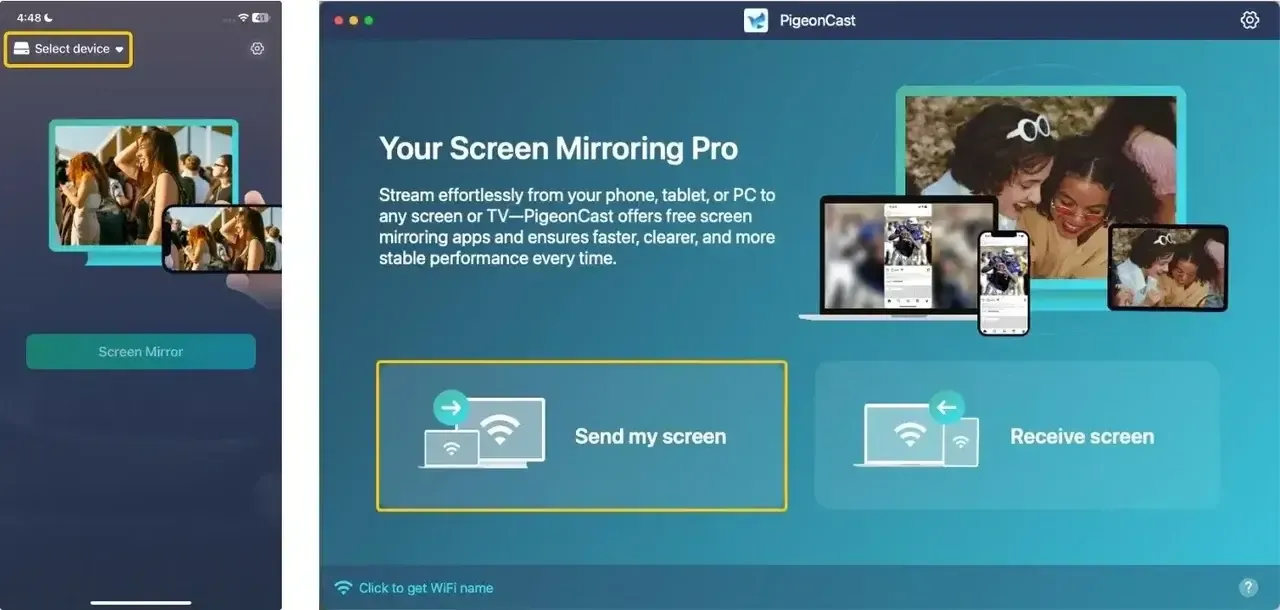
Step 3. Select Send my screen to choose your second device from the available list.
Step 4. Enter the PIN code to confirm your pairing requisition.
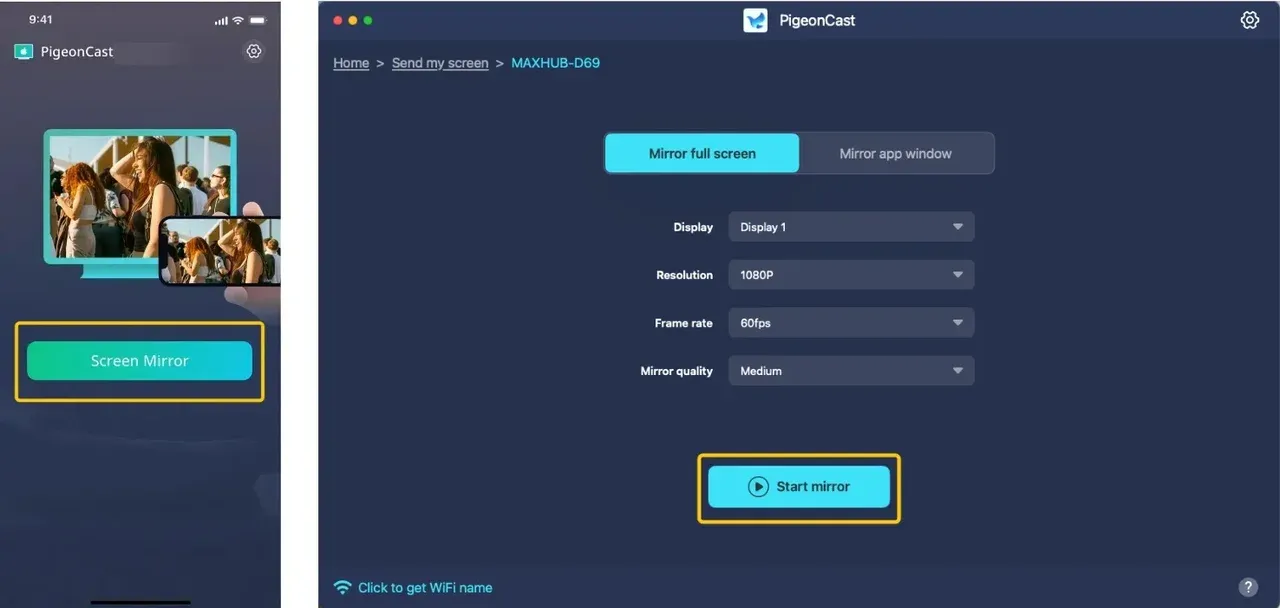
Step 5. When your connection succeeds, click Start mirror to begin your mirroring activities. You can choose to mirror the single window or the full screen to the second monitor.
Fix 2. Do Basic Checks
If you're not in a rush, you can often fix the "no signal on second monitor" issue on your second monitor with a few simple checks. After trying each solution, be sure to check your monitor to see if the issue is resolved. Ready to get started? Let's go!

- Check the cables and make sure there are no loose or damaged cables: Unplug and firmly reseat the video cable (HDMI, DisplayPort, etc.) on your computer and the monitor. Inspect the cable for any obvious bends, cuts, or damaged pins. If possible, try a different cable or a different port on your graphics card.
- Restart the devices: Shut down your PC and monitor, unplug them from power for 60 seconds, then plug them back in and power up.
- Check the power source: Ensure the monitor's power cable is securely plugged into both the monitor and the wall outlet or power strip. Try a different outlet to rule out a power issue.
- Make sure the monitor is not overheated: Feel the vents on the monitor. If it's excessively hot, turn it off and let it cool down. Ensure its vents are not blocked by papers, books, or walls.
Fix 3. Wake Up The Computer
How to solve my second monitor keeps going black? If your computer has gone into sleep mode, it might not properly wake up the second monitor. Try moving the mouse or pressing any key on the keyboard to "wake up" both your computer and monitor.
Fix 4. Change Power Settings
How to fix the second monitor keeps going black Windows 10 or MacBook? Power settings can also play a significant role in how your second monitor behaves. If your PC is set to enter power-saving mode, it may turn off the second monitor unintentionally.
- Windows:
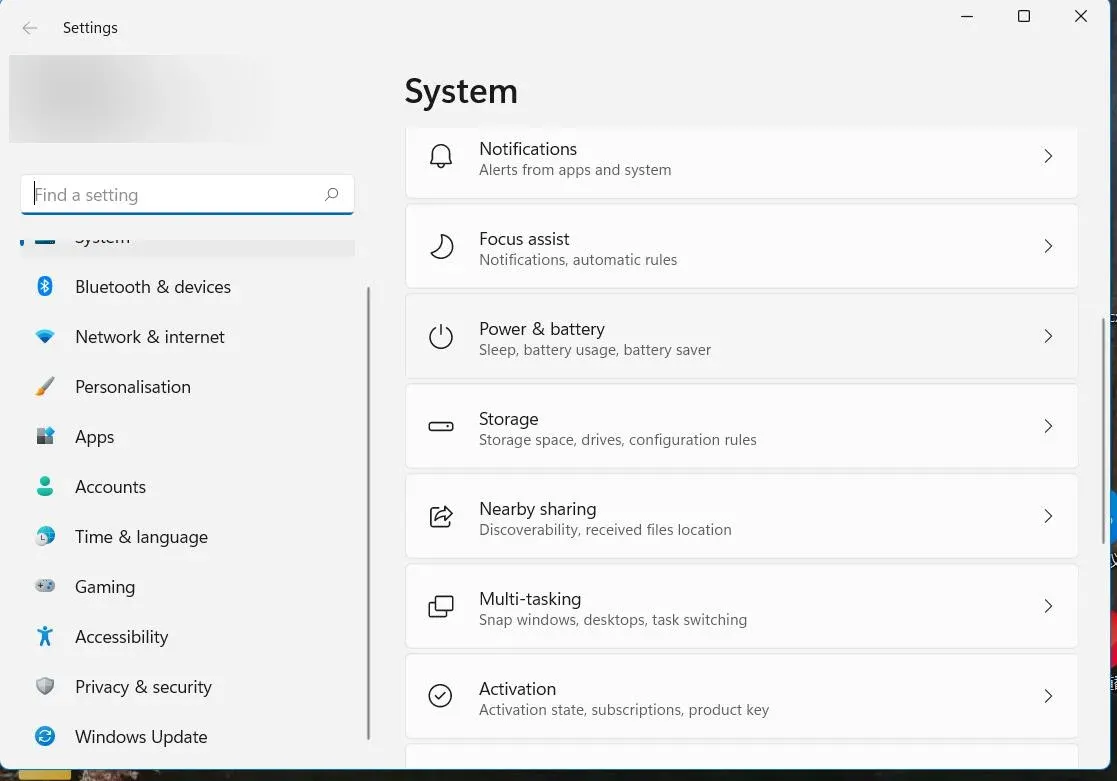
Step 1. Go to Control Panel > Power Options (or Power & sleep settings).
Step 2. Turn off the option under Screen and Sleep.
Step 3. Disenable Screen Saver feature.
- Mac:
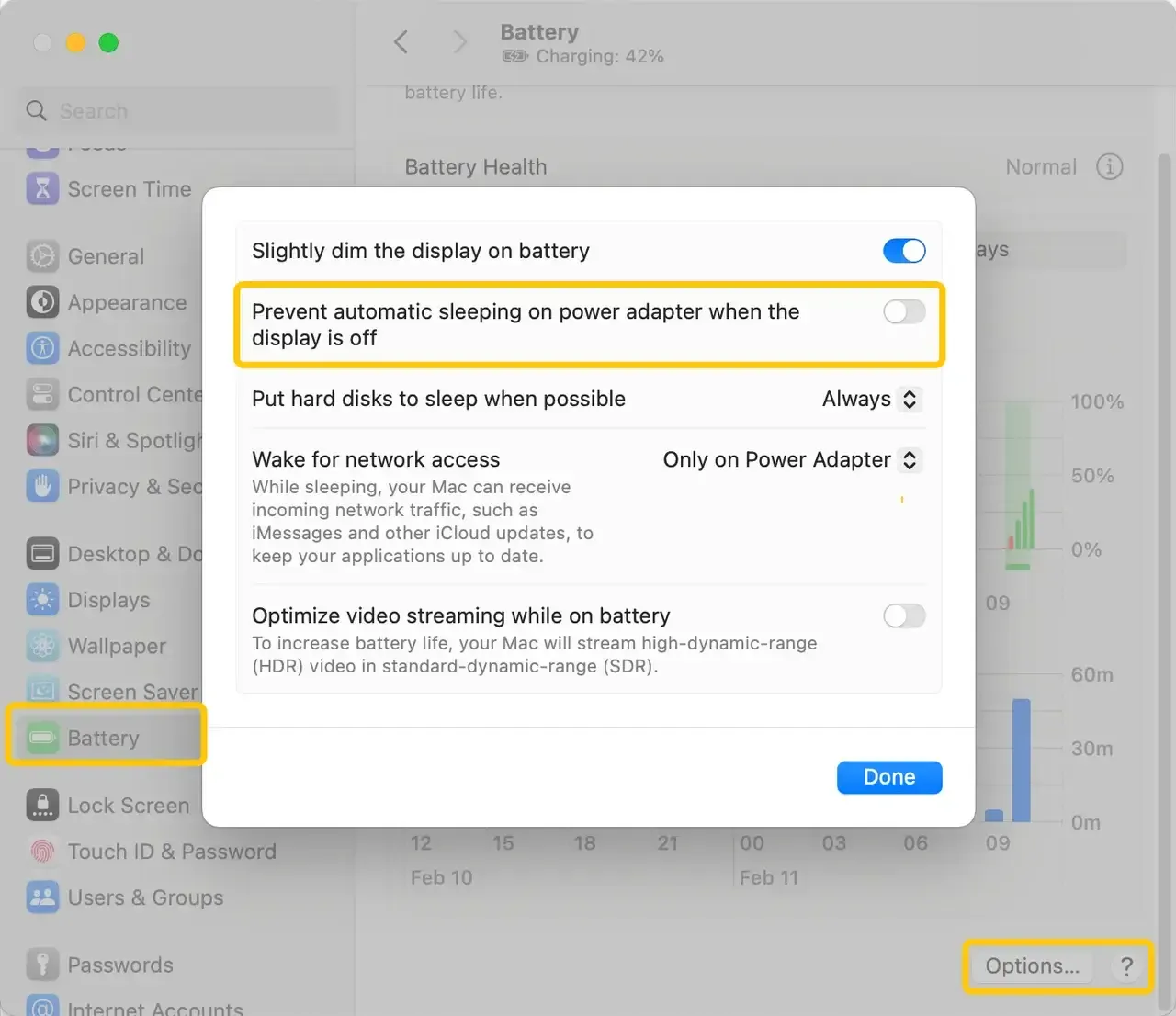
Step 1. Click System Preferences > Battery > Options on your Mac.
Step 2. Adjust the settings to prevent your Mac from entering sleep mode.
Fix 5. Update the Graphics and Monitor Drivers
Outdated or corrupt graphics drivers are a leading cause of a second monitor detected but not displaying issues. Make sure to check for the latest graphics card and monitor drivers, then install them to ensure compatibility and fix any known bugs.
- Windows:
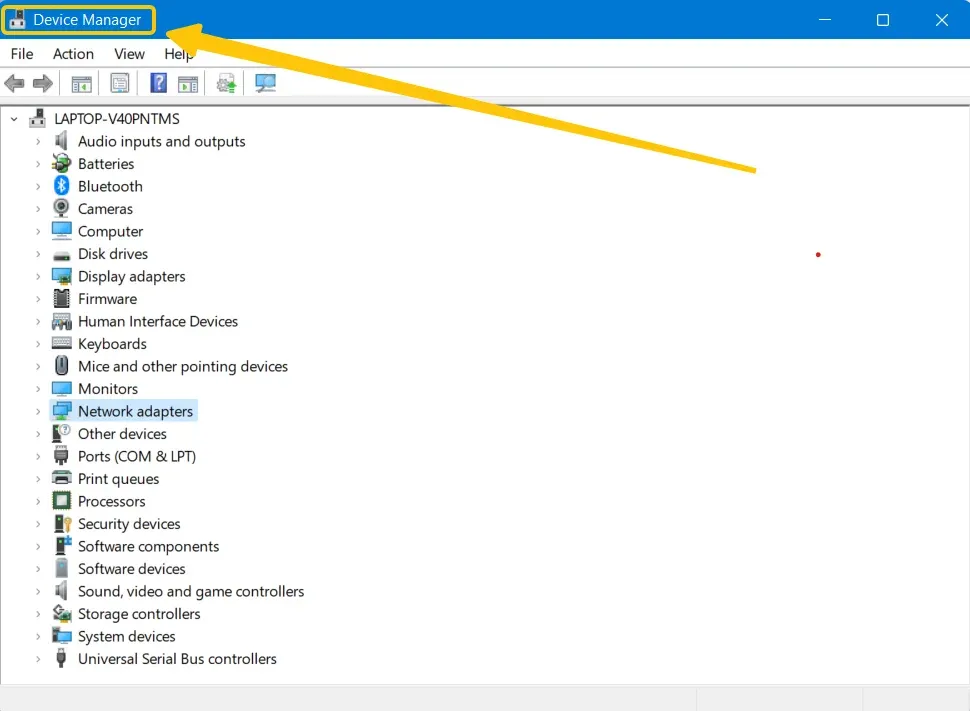
Step 1. Press the Windows key and type Device Manager in the search bar, then click on Device Manager from the search results.
Step 2. Right-click on the drivers and select Update Driver. Step 3: After updating the drivers, restart your computer and check if the issue with the second monitor going black is resolved.
- Mac:
On a Mac, you don't need to worry about separate drivers, as both graphics and display drivers are included with the operating system. To check if your macOS is up-to-date, follow these steps:
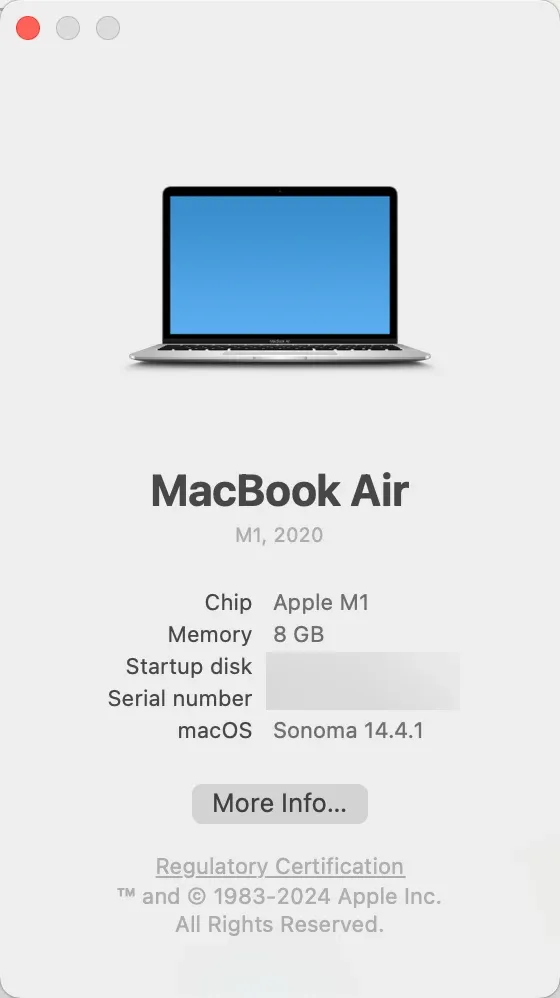
Step 1. Click on the Apple menu > About This Mac, and a screen will appear showing your current version.
Step 2. If there are any updates available, click on Upgrade Now to download and install them, which may include updates for your graphics drivers.
Fix 6. Try Lower Refresh Rates
If your second monitor keeps going black on your MacBook or Windows 11, it could be due to a high refresh rate, like 144Hz, putting too much strain on the cable or port, especially if you're using longer cables or older standards. Try lowering the refresh rate on the problematic monitor to see if that improves stability.
- Windows:
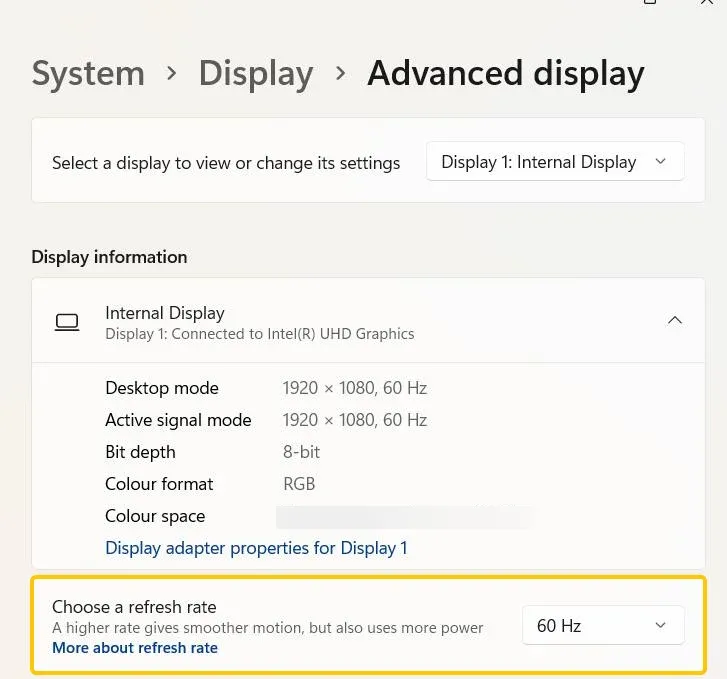
Step 1. Right-click on the desktop > Display Settings > Advanced Display Settings.
Step 2. Choose a lower refresh rate from the menu under the Refresh Rate settings.
- Mac:
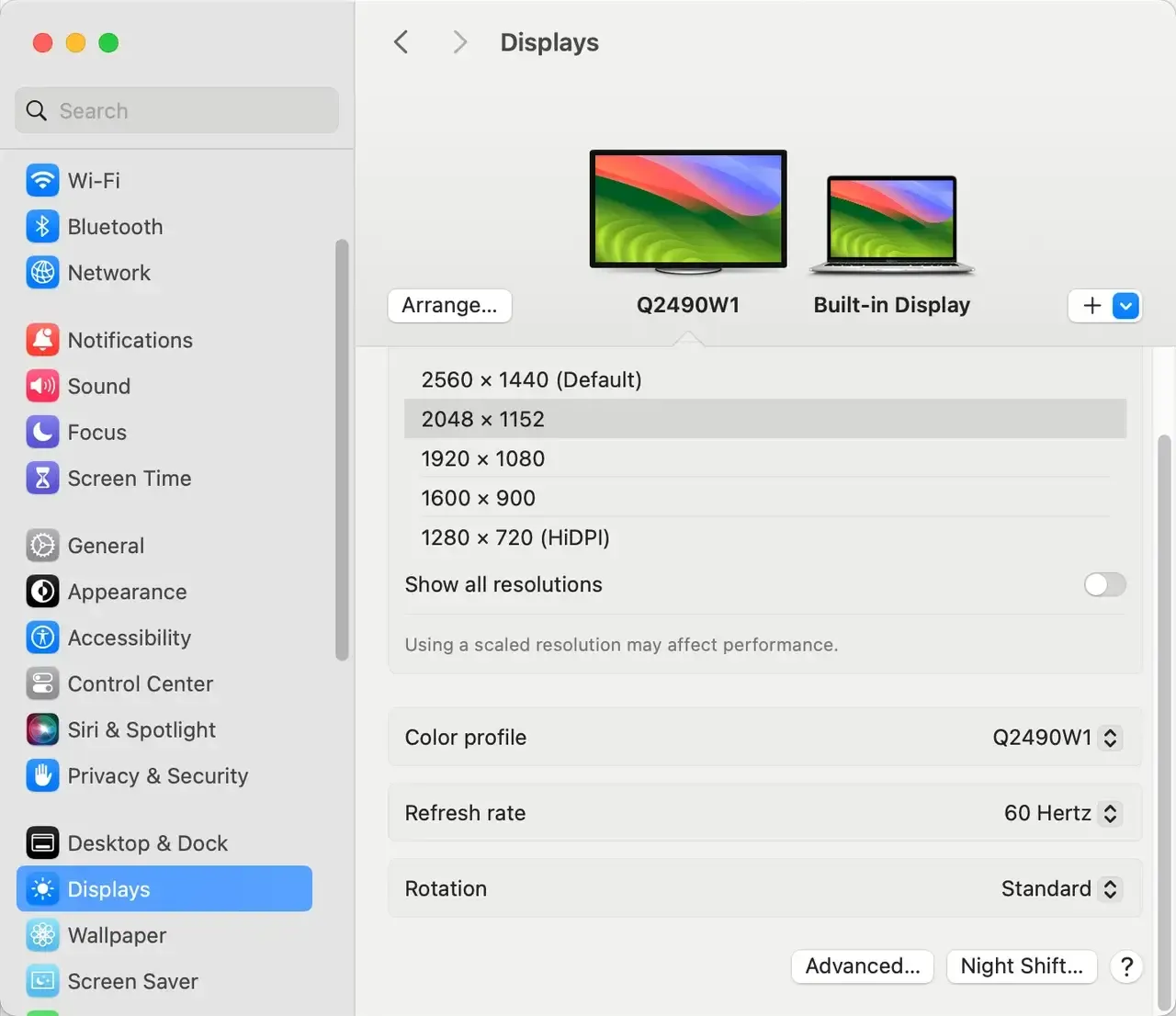
Step 1. Go to System Preferences > Displays.
Step 2. Choose your second monitor, and adjust the Refresh rate settings.
Fix 7. Disable Overclocking
Overclocking can boost your PC's performance by increasing the GPU or CPU frequency, but it also risks overheating the CPU if it exceeds safe temperature limits. By disabling overclocking, you allow your system to operate within its optimal frequency range, helping to prevent issues like your second monitor keeps going black Windows 11 or Mac.
- Windows:
Step 1. Select the Power & Sleep settings > Select Plan > Change plan settings.
Step 2. In the Advanced settings, you'll find options to adjust the Minimum processor state and Maximum processor state.
Step 3. Change both of the values to 99 to turn off overclocking.
- Mac:
On a Mac, overclocking features are disabled by default. While you can enable them using third-party apps, it's not recommended if you're experiencing issues with your monitor going black. Enabling overclocking could potentially worsen the problem.
Fix 8. System Restore
If the second monitor was working fine before and the Windows or Mac second monitor keeps going black problem appeared after a system update or software installation, a system restore might help. This will revert your computer to a point where the setup was functioning correctly.
- Windows:
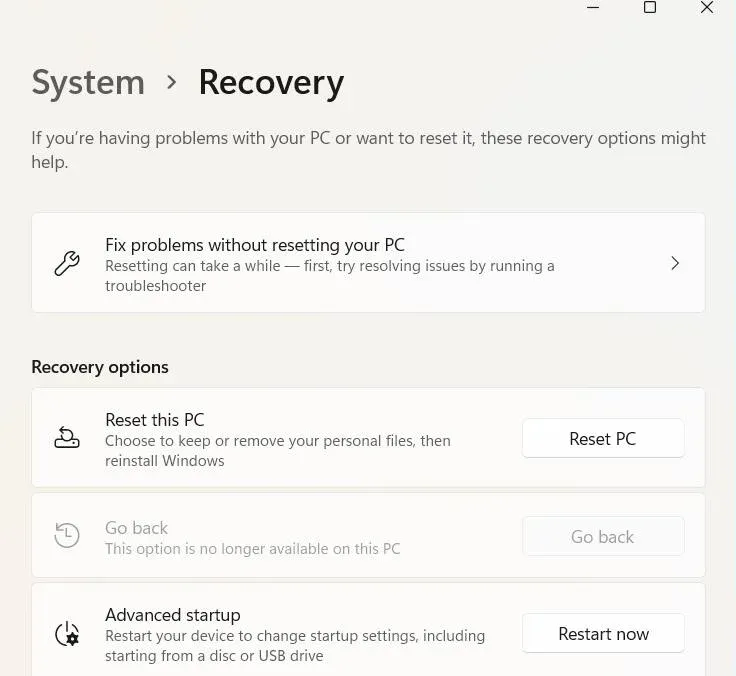
Step 1. Press the Windows key and type Recovery in the search bar, then click on the Recovery options.
Step 2. Here, you'll find different options to make a restore point or restore your system:
Step 3. Open the Restore system files and settings and find the point to which you want to restore your system.
Step 4. Once the restore process is complete, check if the second monitor has returned to working condition.
- Mac:
Step 1. Turn off your Mac, hold the Power button if you are using a Silicon Mac or the Command + R keys in an Intel-based Mac.
Step 2. Release the keys when you see the Recovery Mode screen, then select Disk Utility and continue.
Step 3. In Disk Utility, you'll have the option to reset and restore your Mac. Use this option to address any software issues that might be causing your monitor to go black.
Fix 9. Contact Support
If you've tried all the software and settings fixes, but "my second monitor is black", the issue may be hardware-related. Contact the technical support team for your monitor or your computer/laptop manufacturer, especially if you're using a dedicated GPU in a laptop, for further diagnosis and potential repairs.
To Sum Up
If your 2nd monitor keeps going black, it can be frustrating, but it's usually not a sign of permanent hardware failure. In most cases, the issue is caused by simple connection problems, power settings, outdated drivers, or software glitches. By following the troubleshooting steps in this guide, you should be able to resolve the problem and get your dual-monitor setup working again. If the issue persists, contact technical support for further assistance.
Second Monitor Keeps Going Black FAQ
How to solve the Dell second monitor keeps going black?
To solve the issue of your Dell second monitor going black, try the following steps:
- Ensure the cables (HDMI, DisplayPort, etc.) are securely connected and not damaged. Try a different cable or port.
- Make sure your computer's power-saving settings aren't turning off the monitor. Disable any screen savers or sleep settings.
- Update your graphics card and monitor drivers to the latest versions from Dell or the manufacturer.
- If the refresh rate is too high (e.g., 144Hz), try lowering it to 60Hz or 120Hz.
- Make sure your monitor isn't overheating and that vents are not blocked.
- Connect the monitor to another device (laptop/PC) to see if the issue is with the monitor or your computer.
- For wireless connections, use PigeonCast for stable screen mirroring.
Why does my 2nd monitor keep going in and out?
Here are the possible reasons why your 2nd monitor keeps going in and out:
- Loose or faulty connections
- Outdated Graphics Drivers
- Power Saving Settings
- High Refresh Rate
- Overheating Monitor
- Hardware issues
- Cable or port compatibility
How to stop screen from randomly going black?
To stop your screen from randomly going black, consider the following steps:
- Ensure all cables (HDMI, DisplayPort, etc.) are securely connected and undamaged. Try using a different cable or port.
- Outdated or corrupted drivers can cause display issues. Update your graphics card drivers to the latest version.
- Disable any sleep mode or screen saver settings that could be turning the screen off. In Windows, go to Control Panel > Power Options and adjust the settings. On Mac, go to System Preferences > Battery and disable sleep mode.
- Set your display's refresh rate to a lower value (e.g., 60Hz) if it's too high for the monitor or cable to handle.
- Ensure your monitor and computer are not overheating. Clear any vents or obstructions and keep the devices in a well-ventilated area.
- Connect the monitor to a different computer or laptop to check if the issue is with the monitor or your PC.
- Overclocking can cause instability. Disable overclocking settings in your computer's BIOS or software.
How to fix the second monitor that keeps going black for a few seconds?
To fix a second monitor that keeps going black for a few seconds, try the following solutions:
- Ensure all cables (HDMI, DisplayPort, etc.) are securely connected and free from damage. Try using a different cable or port to rule out connection issues.
- Outdated or corrupted graphics drivers can cause display interruptions. Update your graphics card drivers through the Device Manager on Windows or Software Update on Mac.
- Make sure your computer's power-saving settings aren't causing the screen to turn off. Disable sleep mode or screen savers in your power settings.
- A high refresh rate (e.g., 144Hz) can strain the cable or port, causing flickering. Lower the refresh rate to 60Hz or 120Hz to see if it stabilizes.
- Ensure the monitor itself is set to the correct input and is not experiencing any internal settings issues.
- Connect the second monitor to another device to check if the issue is with the monitor or the computer.
- If using a wireless connection (e.g., screen mirroring or casting), ensure no interference or unstable signal is causing blackouts.
- Overclocking can sometimes cause instability. Disable any overclocking settings if enabled to prevent issues with the second monitor.
Why does the second monitor keep going black after sleep?
Here's a list of common causes and solutions for a second monitor going black after sleep:
- Outdated Display Drivers
- Power Settings
- Cable/Connection issues
- Monitor settings
- Display configuration
- Operating system bugs
- Graphics card issues
How to restore an HP monitor that keeps going black for a few seconds?
If your HP monitor keeps going black for a few seconds, here are some steps you can try to restore it:
- Ensure that all cables (HDMI, DisplayPort, VGA, etc.) are securely connected. Try using a different cable to rule out a faulty one.
- Outdated or corrupted drivers can cause display issues. Update your graphics drivers to the latest version via Device Manager or the manufacturer's website.
- Adjust Power Settings:
- Go to Control Panel > Power Options.
- Select Change plan settings, then set the computer to Never to turn off the display.
- Disable any settings that allow the monitor to turn off or sleep.
- Check Refresh Rate:
- Right-click on the desktop, select Display Settings > Advanced Display Settings.
- Ensure the refresh rate matches the monitor's specifications (usually 60Hz or higher).
- Connect the monitor to a different computer or laptop. This will help you determine whether the issue lies with the monitor or the original computer.
- Use the on-screen menu of the HP monitor to reset it to factory settings.
- Sometimes, certain applications with hardware acceleration can cause flickering or blackouts.
- For example, disable hardware acceleration in web browsers like Chrome or Firefox if the issue occurs while using them.
- Ensure the monitor isn't near devices that could cause interference, and make sure it's not overheating.
- If your monitor has multiple input ports (HDMI, DisplayPort, etc.), try switching between them to see if the issue persists.
- Perform a Monitor Self-Test:
- Turn off the monitor.
- Disconnect the cable from the computer and turn the monitor back on.
- If the monitor shows a message like "No Signal", the monitor itself is likely working fine, and the issue may be with the computer.
Clara Rossi is an experienced technology editor and a seasoned expert in screen mirroring and casting technologies. With a keen eye for detail and a deep understanding of how to seamlessly connect devices, Clara excels at optimizing user experiences for effortless sharing and streaming. Whether you're seeking quick fixes or advanced tips, her expertise and responsiveness ensure that every query is met with a well-informed and efficient solution.