
Using Chromecast Windows 10 opens up a world of possibilities, from presenting work on a big screen to enjoying movies from your computer on your TV. While the process is straightforward, it differs from casting from a phone. This guide will walk you through everything from the two casting methods, ensuring you can seamlessly connect your Windows 10 world to your television.
Before You Cast from Windows 10 to Chromecast
Windows 10 does not require a dedicated Chromecast app for basic casting. You just need to make sure the Chromecast device is properly set up and powered on, and that your TV is set to the correct HDMI input.
Once your Chromecast is ready, you can easily cast your Windows 10 PC to your TV, whether you want to share your desktop, a browser tab, or local media files. Now, let’s look at two ways to use Chromecast from a computer to a TV.
Method 1: Use the Google Chrome Browser
To mirror your entire Windows 10 desktop to the big screen or only share content from a single website or streaming service, casting a Chrome browser tab is the ideal option. Just follow this simple method to quickly cast your entire screen or single interface to Chromecast from computer to TV:
Step 1. Ensure your PC and Chromecast are connected to the same wireless network.
Step 2. Click the three dots in the upper-right corner of Chrome and choose Cast.
Step 3. Choose Cast desktop (whole screen) or Cast tab (single web page) option and then your Chromecast device name from the device list. Your desktop will take a few seconds to start casting.
Step 4. Chromecast will ask you whether you want to display a Chrome tab or your entire desktop. When you select the screen, your TV will display the selected screen.
Method 2: Use a Windows Casting App: PigeonCast
While Google Chrome's built-in casting is effective, it can sometimes be laggy, especially when casting your entire desktop or struggling with certain video formats. If you're looking for a more robust, versatile, and user-friendly casting solution from Windows cast to Chromecast, PigeonCast is an excellent choice.

PigeonCast is a dedicated Windows screen mirroring app designed to provide a stable, high-performance connection between your devices and your TV. It's not limited to Chromecast; it works smoothly with Android, iOS, Windows, Mac, and smart TVs. Lightweight and efficient, it ensures casting without errors or delays, and there is no need for extra cables or adapters, making it a simple and reliable way to Chromecast for Windows 10 to TV:
Step 1. Ensure Chromecast is correctly plugged into your TV, and your TV is on the corresponding HDMI.


Overall Rating:


Step 2. Install PigeonCast on your Windows PC from the app store.
Step 3. Ensure your Windows PC and smart television are covered by the same wireless network.
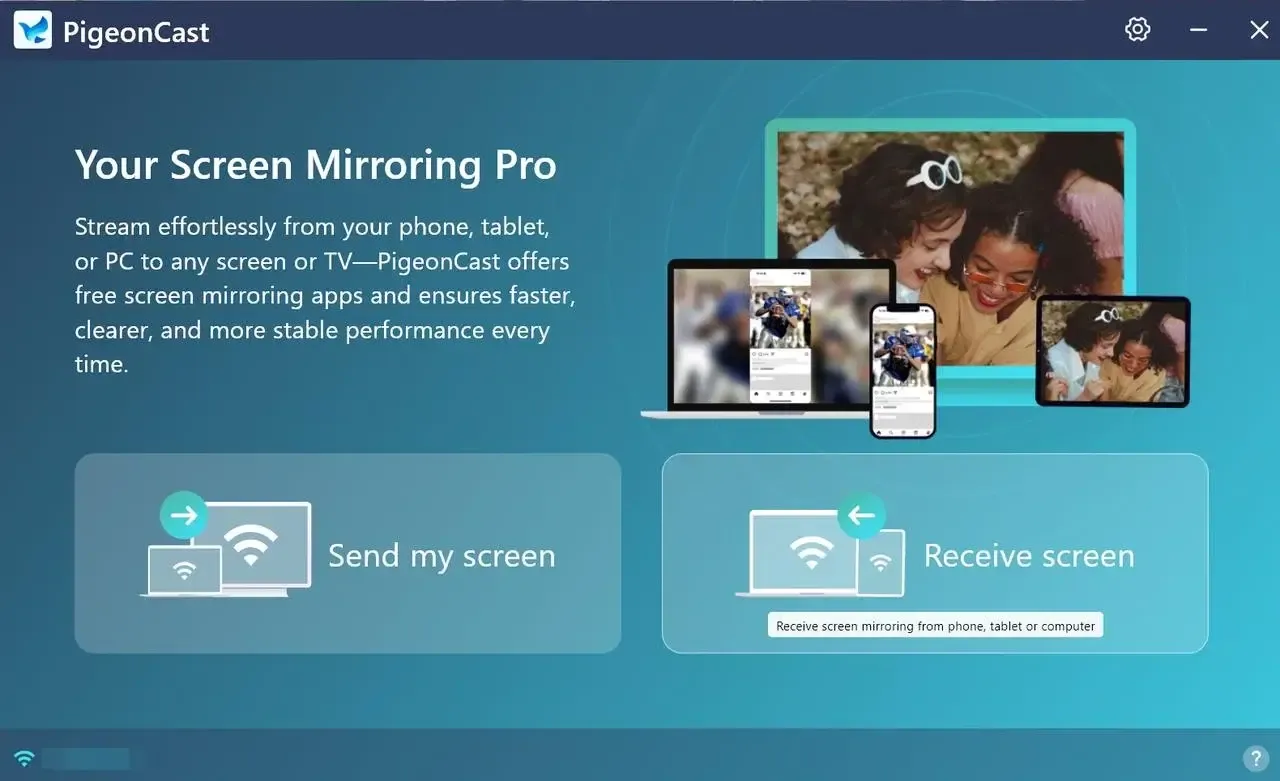
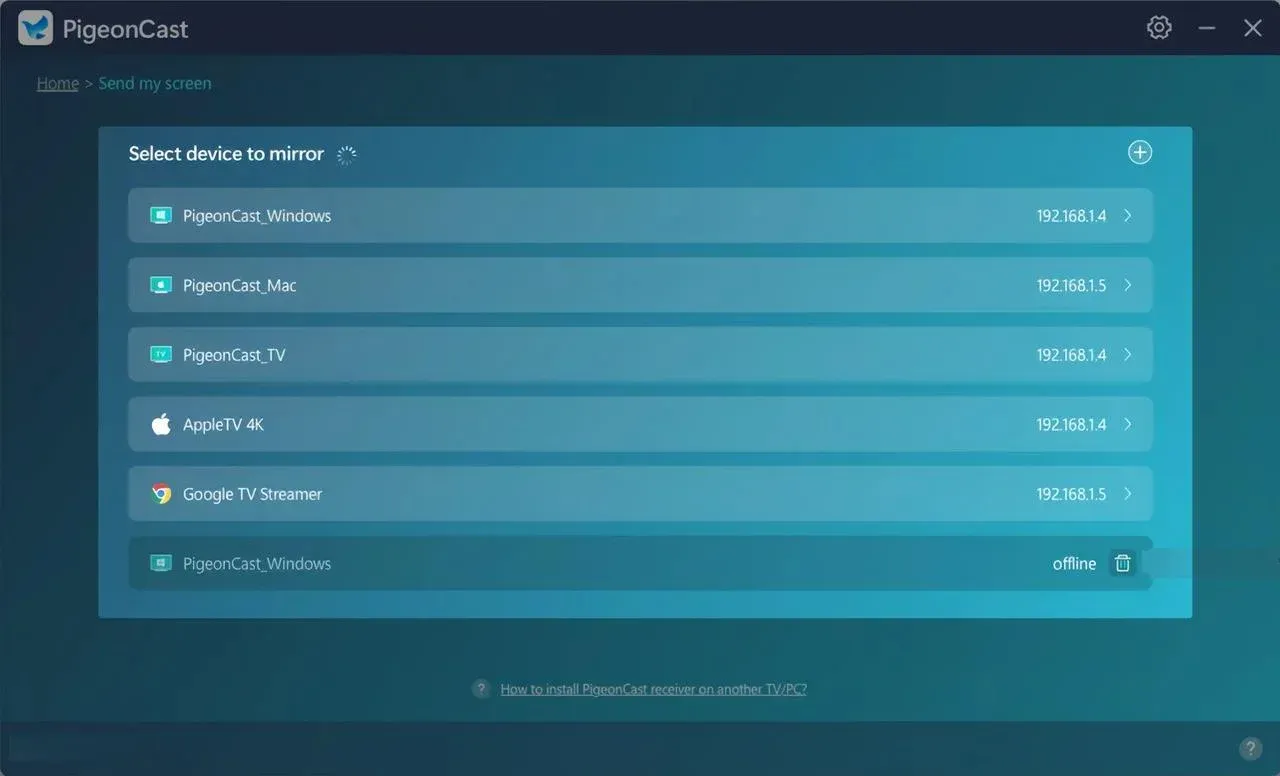
Step 4. Open the app and click Send my screen option to choose your TV from the device list to connect.
Step 5. If prompted, enter the onscreen PIN code to finish the pairing.
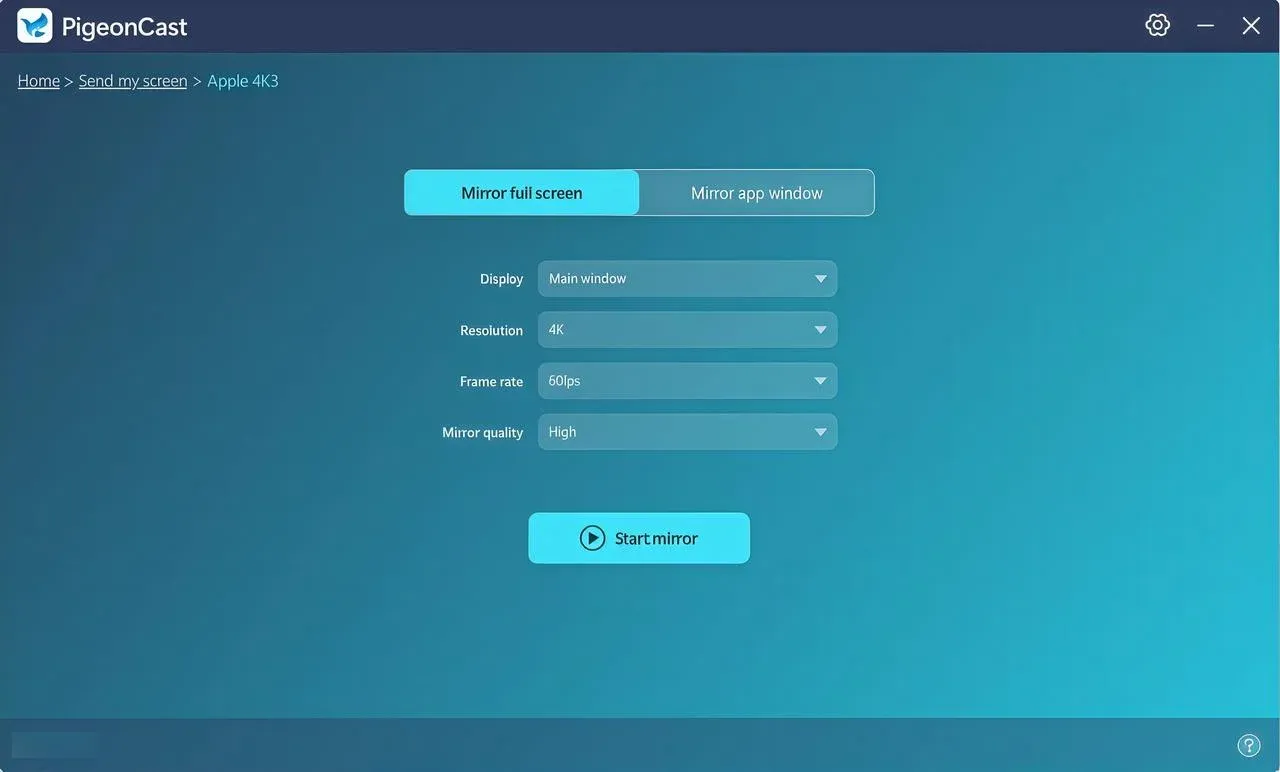
Step 6. Once you're successful, you can choose Mirror full screen or Mirror app window option, then click Screen Mirror to see your PC's screen on your big TV screen.
Why consider PigeonCast for Windows 10:
- Superior Performance: Often provides a smoother, lower-latency connection for casting your desktop or playing local video files compared to the native Chrome method.
- Wide Format Support: Easily cast local videos, photos, and music stored on your PC without worrying about browser compatibility.
- Multi-Device Compatibility: It's a universal tool. If you have Android, iOS, Windows, Mac, and TVs (tvOS, Android TV, etc.) in your home, PigeonCast works with them, simplifying your workflow.
- Ease of Use: The app is designed with a simple interface dedicated solely to casting, making the process more intuitive than navigating browser menus.
To Sum Up
Using Chromecast Windows 11 makes it easy to share your PC screen or stream content to your TV, from presentations to movies. You can cast directly from Chrome by selecting a tab or your desktop, or use PigeonCast for a smoother, more versatile experience with better performance, wider format support, and multi-device compatibility.
Chromecast Windows 10 FAQ
Can I use Chromecast with Windows 10?
Yes, you can use Chromecast with Windows 10. By using the Google Chrome browser, you can cast a browser tab or your entire desktop to your TV. For enhanced performance and wider device compatibility, third-party tools like PigeonCast can also be used.
Why can't I Chromecast from my PC?
If you can't Chromecast from your PC, common reasons include:
- Your PC and Chromecast are not on the same Wi-Fi network.
- Google Chrome is outdated, and casting requires the latest version.
- Firewall or antivirus software is blocking the connection.
- The Chromecast device isn't set up correctly or isn't powered on.
- Network or router issues are causing connectivity problems.
- Checking these points usually resolves most PC-to-Chromecast casting issues.
Is Chromecast setup on a computer no longer supported?
No, Chromecast setup on a computer is still supported. However, Google no longer supports setting up Chromecast devices directly through a computer. To set up your Chromecast, you must use the Google Home app on a mobile device or tablet.
What's compatible with Chromecast?
Chromecast is compatible with a wide range of devices and platforms, including:
- Operating Systems: Windows 10/11, macOS, Android, iOS, and Chrome OS.
- Browsers: Google Chrome (for casting tabs, desktop, or files).
- Apps & Services: YouTube, Netflix, Disney+, Hulu, Spotify, Prime Video, Plex, and many others that support Google Cast.
- Third-Party Tools: Apps like PigeonCast can expand compatibility to additional formats and devices, including smart TVs, Mac, Windows, Android, and iOS.
Clara Rossi is an experienced technology editor and a seasoned expert in screen mirroring and casting technologies. With a keen eye for detail and a deep understanding of how to seamlessly connect devices, Clara excels at optimizing user experiences for effortless sharing and streaming. Whether you're seeking quick fixes or advanced tips, her expertise and responsiveness ensure that every query is met with a well-informed and efficient solution.