

Want to enjoy your favorite content on a bigger screen? Whether it's streaming movies, sharing presentations, or gaming, screen mirroring PC to TV allows you to wirelessly cast what's on your computer to your television. This guide covers everything you need to know about screen mirroring PC to TV, including what it is and how it works on Windows.
What Is Screen Mirroring
Screen mirroring allows you to display the content from your computer or mobile device to another screen, such as a TV, either wirelessly or through a wired connection. It sends the exact visual content of your PC to another device in real-time. Unlike an extended display, where you have different content on each screen, screen mirroring shows the same image on both devices.
Screen mirroring is perfect for a variety of situations. You can use it to present during meetings, watch movies or TV shows on a larger screen, share photos with friends and family, stream games to a bigger display, or even conduct online tutorials or classes. It's also great for displaying instructional videos, showcasing your creative work, or browsing the web on a larger screen while you relax.
Can I Screen Mirror on Windows
Yes. Most Windows 10 and 11 PCs support wireless screen projection through Miracast on PC, as long as both the computer and TV support the same standard.
The exact setup can vary by device. For example, screen mirroring an HP laptop to a TV may use Miracast, Google Cast, or an app-based method depending on the TV's receiving capabilities.
Windows 7 is different because it does not include native Miracast support. In that case, screen mirroring a Windows 7 PC to TV usually relies on options such as HDMI, Chrome casting, or DLNA.
Windows can also use the built-in Project feature to connect to compatible wireless displays or another Windows PC. If your device doesn't support Miracast, you can use alternatives such as Chromecast, Roku, Fire TV, or other casting methods instead.
Here's a quick comparison to help you choose the right option:
| Method | Connection Type | Extra Hardware Needed | Setup Difficulty | Stability | Latency | Best For |
|---|---|---|---|---|---|---|
| Miracast | Wireless | No (if TV supports Miracast) | Easy | Medium | Medium | Quick wireless mirroring for meetings and casual streaming |
| PigeonCast App | Wireless | No (app only) | Easy | Medium | Medium | Users who want a simple app-based option without Chromecast |
| HDMI Cable | Wired | Yes (HDMI cable) | Very Easy | High | Low | Gaming, presentations, and stable video playback |
| Chromecast | Wireless | Yes (Chromecast device) | Medium | Medium-High | Medium | Google ecosystem users, browser and content casting |
| Roku / Fire Stick | Wireless | Yes (Roku or Fire Stick) | Medium | Medium | Medium | Households already using a streaming stick |
Quick pick:
- Choose Miracast for built-in wireless mirroring.
- Choose PigeonCast if you need flexible mirroring modes for work, study, and daily streaming.
- Choose Chromecast/Roku/FireStick if you already use those ecosystems.
- Choose HDMI for the most stable and lowest-lag experience.
How to Start PC Screen Mirroring to TV
After acquiring a brief understanding of screen mirroring, let's dive into how to PC to TV screen mirroring. There are several easy ways to do screen mirroring for PC to TV, depending on whether you prefer a wired or wireless connection.
Use Miracast for Wireless Screen Projection
Miracast is a convenient way to project your PC screen to a TV wirelessly, without using extra cables. Whether you're using a standard Windows PC or trying to screen mirror on a Dell laptop, the setup is generally the same.
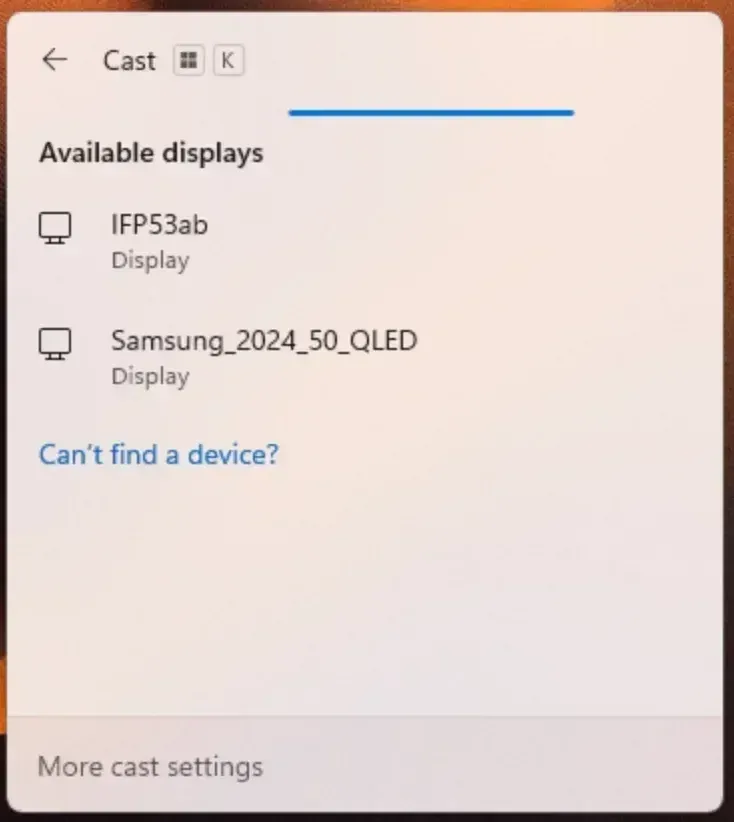
Step 1. Ensure both your PC and TV are Miracast-compatible. Usually, you can search for production information online or check the user manual.
Step 2. On your PC, press Windows + K on the keyboard to open the device list, and select your TV from the list of available devices.
Step 3. Press Windows + P to choose either Duplicate (to mirror your screen exactly) or Second Screen Only (to use the TV as the only display).
Use a Free Windows Screen Mirror App
If you're looking for another easy and cost-effective way to wireless screen mirroring PC to TV, you can use a free Windows screen mirroring app. This method is perfect if you don't have devices like Chromecast.

PigeonCast Screen Mirroring

Official Download


Step 1. Download and install PigeonCast for Windows on your Windows PC.
Step 2. Make sure your Windows and smart television are connected to the same wireless network.
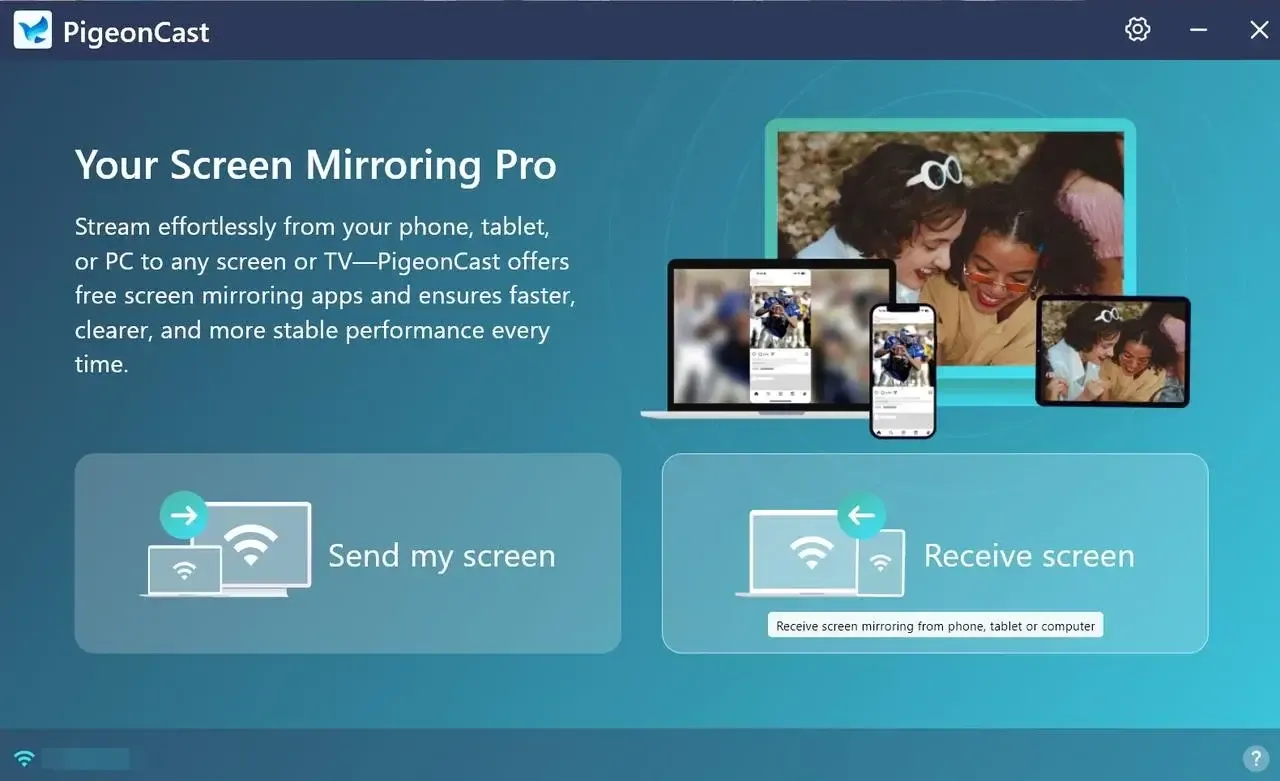
Step 3. Launch the app on your PC, click Send my screen and follow the onscreen instructions to choose your TV from the device list to connect.
Step 4. In the settings menu (gear icon), you can also choose Mirror full screen or Mirror app windows.
Step 5. Once paired successfully, you will see the PC screen on your TV and you can mirror anything you want on your TV.
Use an HDMI Cable
Using an HDMI cable is a reliable and straightforward way to screen mirroring PC to TV Windows 11, especially when you want a stable connection without any wireless interruptions. If you're attempting to view the phone screen on PC via USB, here are the steps you can refer to.
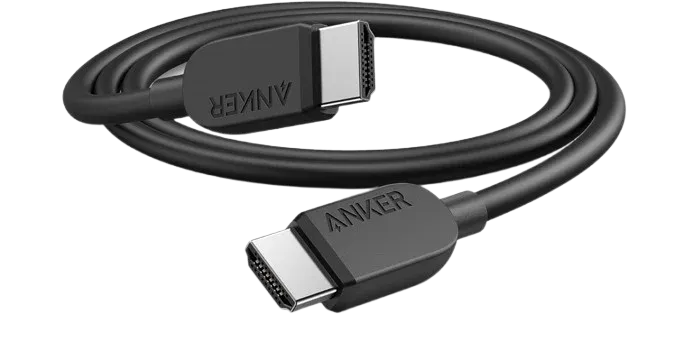
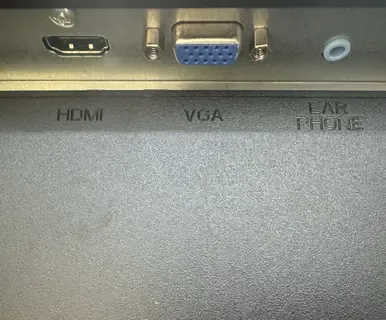
Step 1. Plug one end of the HDMI cable into the HDMI port on your PC, and the other end into an available HDMI port on your TV.
Step 2. Press the Input or Source button on the TV remote and select the HDMI port that corresponds to where you plugged in the cable. Most modern TVs label HDMI ports (e.g., HDMI 1, HDMI 2), so just pick the one you used.
Step 3. On your PC, press Windows + P to open the display options menu. You'll have a few choices:
- PC Screen Only: Use only your PC screen.
- Duplicate: Show the same screen on both your PC and TV.
- Extend: Expand your desktop across both your PC and TV, which is useful if you want to have multiple windows open on different screens.
- Second Screen Only: Display everything on the TV, turning it into your primary screen.
Use Chromecast to Mirror Screen
Chromecast offers a simple way to wirelessly connect your laptop to TV, especially if you're already in the Google ecosystem. Here's how to set it up and get started:
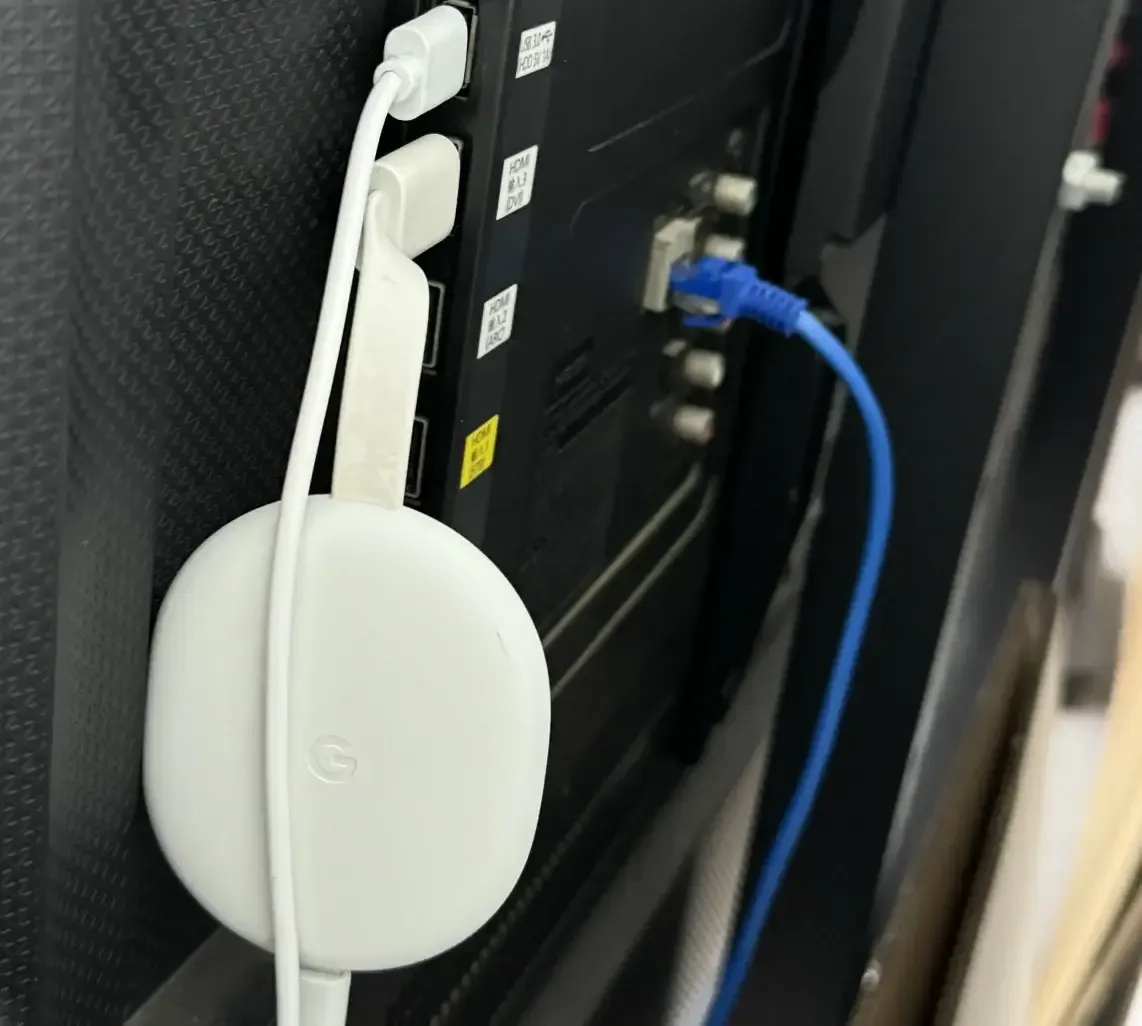
Step 1. Plug the Chromecast device into an available HDMI port on your TV and connect it to a power source using the included USB cable. If you haven't set up Chromecast yet, download the Google Home app on your smartphone or tablet and follow the on-screen instructions to connect Chromecast to your Wi-Fi network.
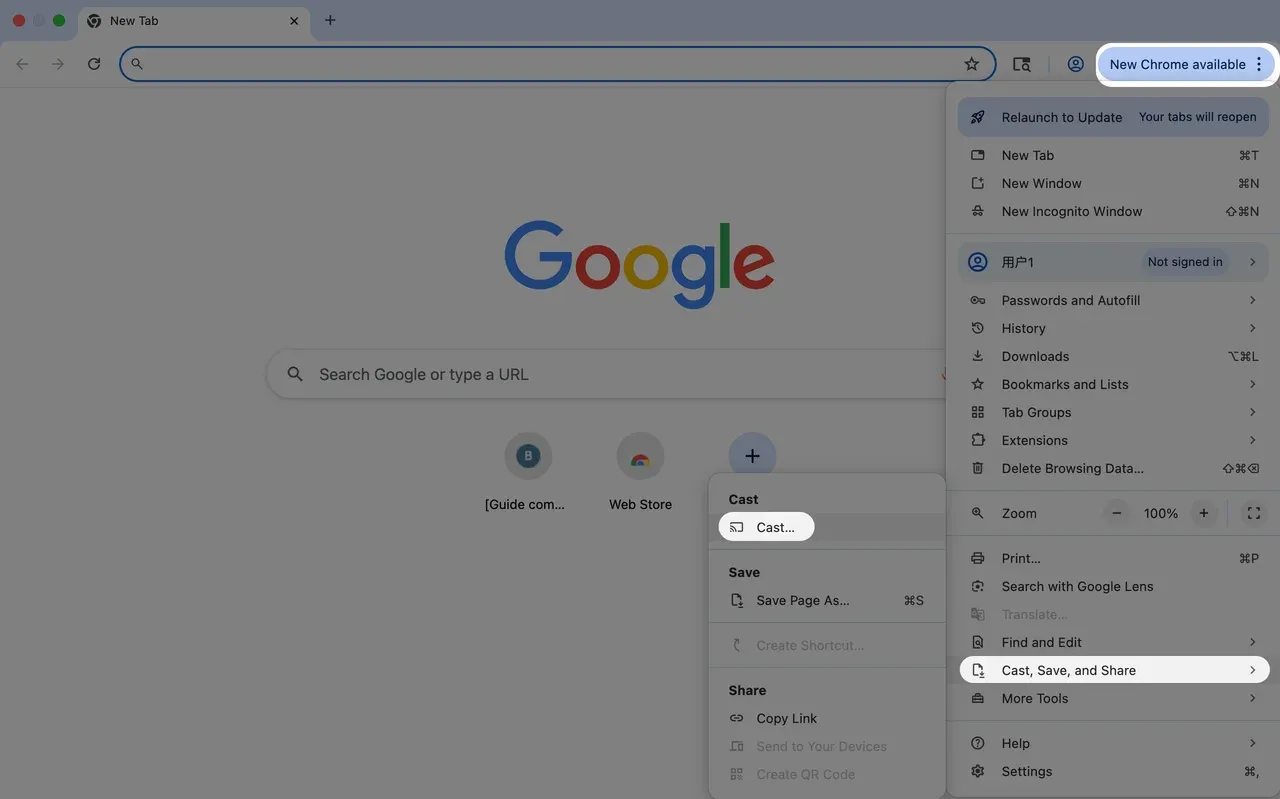
Step 2. Open Chrome on your Windows PC, select your Chromecast device to connect your PC from the available device list (it should show up with the name you gave it during setup).
Step 3. After selecting your Chromecast, you'll be given the option to cast specific content (like a tab or media). To mirror your entire screen, choose Cast Desktop. This option allows you to share everything that's on your PC screen, including open applications, websites, and even system notifications.
Use a Streaming Device like Roku, FireStick
If you're using a Roku or FireStick, you can easily cast your PC screen to your TV, giving you a smooth streaming experience. Here's how to set it up:
Step 1. Plug your Roku or FireStick into an available HDMI port on your TV and ensure it's powered on. Make sure both the device and your PC are connected to the same Wi-Fi network.
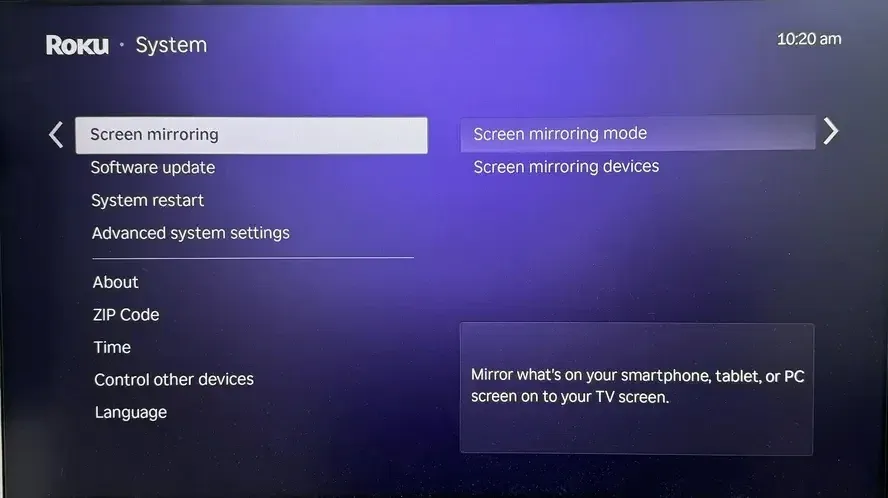
Step 2. Enable Screen Mirroring on your streaming device. On your Roku: go to Settings > System > Screen Mirroring > Enable Screen Mirroring; On your FireStick: Press and hold the Home button on the remote, choose Mirroring from the menu that pops up.
Step 3. On your PC, press Windows + K to open the Connect menu, select your streaming device from a list of available devices that are ready to accept the connection.
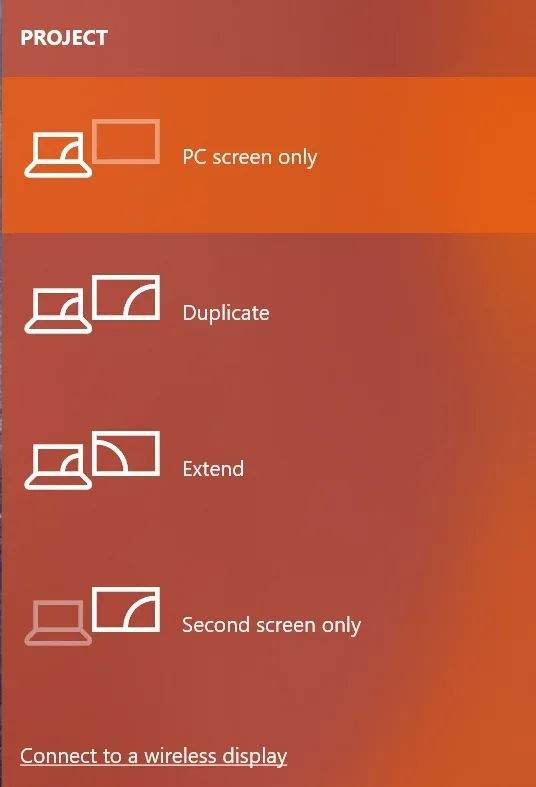
Step 4. Once connected, you can press Windows + P to choose how you want your screen displayed:
- Duplicate: This mirrors your PC's screen to the TV exactly.
- Extend: This turns the TV into an extended display, allowing you to use your TV as a second monitor.
Bottom Line
Screen mirroring pc to TV Windows 10 or 11 is a convenient way to enjoy your digital content on a larger display. Whether you're using Miracast, HDMI, a streaming device like Chromecast or Roku, or a free Windows screen mirroring app, after the right setup, your entertainment, productivity, and presentations become a lot more immersive.
Screen Mirroring PC to TV FAQ
How can I mirror my computer to my TV without HDMI?
You can mirror your PC wirelessly using technologies like Miracast, Chromecast, or devices like FireTV and a Windows screen mirroring app. Make sure both your PC and TV (or streaming device) are connected to the same Wi-Fi network. Then, use the Windows + K shortcut to connect.
Can I mirror my PC to my TV?
Yes, you can mirror your PC to your TV using several methods. If your TV supports Miracast, you can connect wirelessly through the Windows + K shortcut. Alternatively, you can use a Chromecast device to cast from Google Chrome or use a screen mirroring app from PigeonCast for wireless connections. You can also use an HDMI cable for a wired connection if preferred.
Why is my screen mirroring not working?
In addition to common issues, screen mirroring may fail due to the following reasons:
- Weak or unstable Wi-Fi signal
- Different network bands (2.4GHz vs 5GHz)
- TV input/source not set correctly
- Miracast not supported or disabled
- Graphics or network drivers issues
- VPN or proxy enabled
- Firewall or antivirus blocking connections
- Device discovery turned off
- Too many connected devices on the network
- Latency or hardware performance limitations
- Incorrect projection settings on Windows
- TV firmware outdated
- App compatibility issues
Which method is best for low latency and stable quality?
Using HDMI for screen mirroring is usually the best choice for the lowest latency and the most stable connection. Wireless methods are more convenient, but they can introduce slight delay or quality drops when Wi-Fi is busy. If you care most about gaming responsiveness, HDMI is generally the safest recommendation.
Can I mirror audio from my PC to the TV too?
Yes, most mirroring methods support audio output to the TV. If video appears but audio stays on your laptop, change the Windows sound output device to your TV or cast receiver. You should also confirm the TV input source and volume settings before troubleshooting deeper.
Do I need the internet to mirror my PC to my TV?
For HDMI, you do not need internet at all because it is a direct wired connection. For wireless mirroring, both devices usually need to be on the same local network, even if internet access is limited. Some streaming ecosystems may still require internet during initial setup or authentication.
Clara Rossi is an experienced technology editor and a seasoned expert in screen mirroring and casting technologies. With a keen eye for detail and a deep understanding of how to seamlessly connect devices, Clara excels at optimizing user experiences for effortless sharing and streaming. Whether you're seeking quick fixes or advanced tips, her expertise and responsiveness ensure that every query is met with a well-informed and efficient solution.