
Connecting your Android phone to a computer opens up a world of possibilities. In this guide, we'll walk you through how to connect Android to PC (including Windows, MacBook, and Chromebook) different types of computers, including both wired and wireless solutions. Whether you're looking to transfer files, mirror your screen, or sync your data, you'll find a method that suits your needs.
Can I Connect My Android to My PC
Yes, connecting your Android phone to a Windows PC is simple and widely supported. Whether you want to transfer files, back up photos, or share your phone screen, Windows makes it easy to work with Android devices.
The most common method to connect phone to computer is using a USB cable. Once you plug your phone into your PC, you'll usually see a prompt on your phone asking you to choose how you want to use the connection. If you choose file transfer, your PC will recognize the device and allow you to browse your phone's internal storage just like a USB drive.
Windows also supports wireless options. You can use PigeonCast's screen mirroring apps to view your Android phone on your Windows PC or Microsoft Phone Link to sync messages, notifications, and photos between the two devices.
All in all, your Android device and Windows PC can work well together. As for the question of how to connect Android to PC, we showcase four different solutions, wired or wireless.
Method 1. Use the USB Cable [Best for File Transfer]
How to connect Android phone to computer? You can use the USB cable that comes with your Android phone. Connecting the two devices via a USB cable allows transferring or backing up files, charging the phone, or USB tethering (sharing your phone's internet connection with your computer).
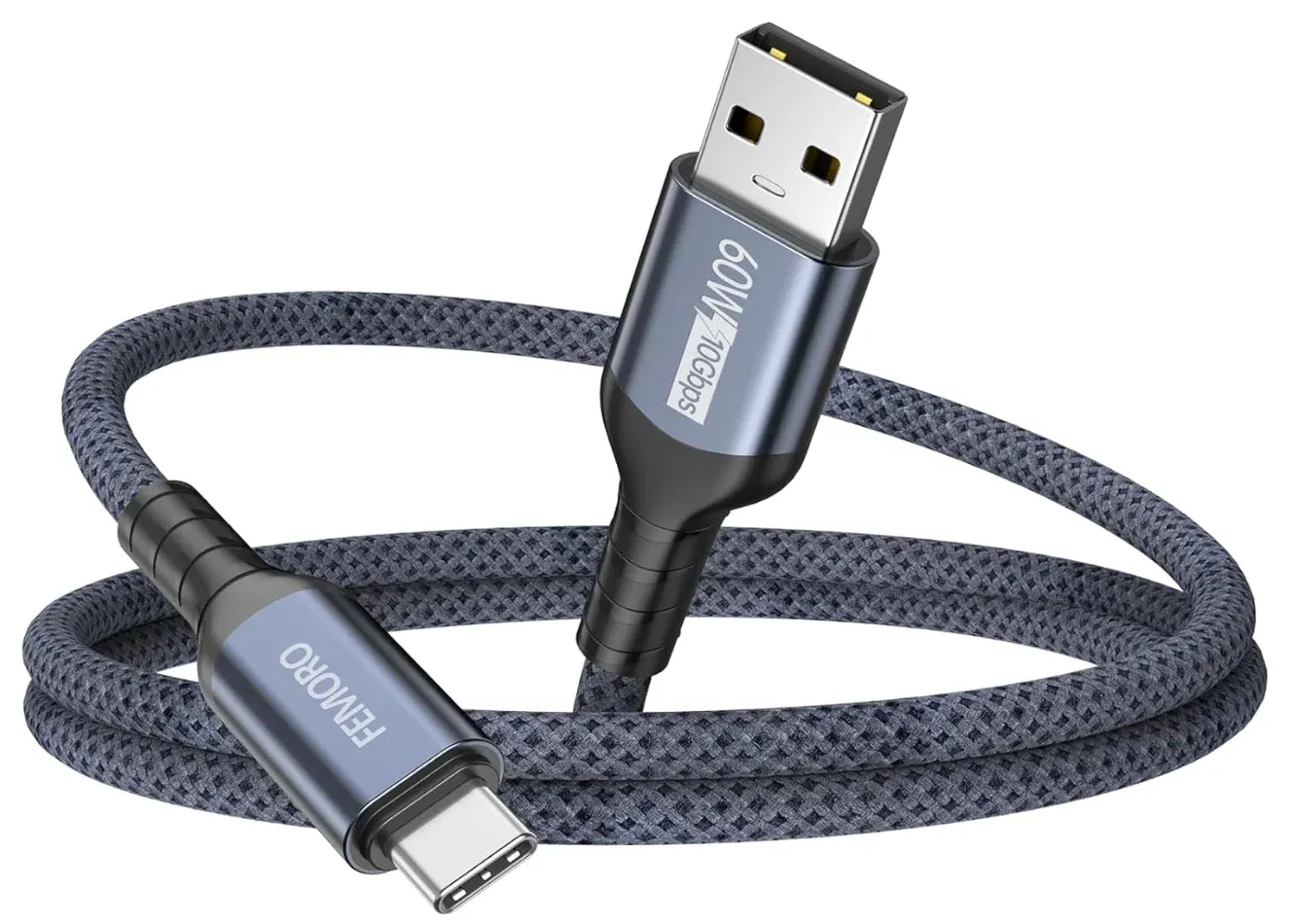
Using a USB cable is the easiest solution to link Android to Windows 11 or 10, whereas you can't remotely control your Android using this connection. Certainly, if you only need to transfer files from your Android phone to your PC, this method is a solid pick.
Step 1. Connect one end of your USB cable to your Android phone and the other to your Windows computer.
Step 2. Wait for a notification on your Android phone. Once you see the Transfer files (or something similar), tap the option.
Tip: If you don't see any prompt, go to Settings > Connected devices > USB > File transfer on your smartphone.
Step 3. On your Windows laptop, open This PC, and you should see a folder named after your phone, like OnePlus 13.
Step 4. Double-click the folder and check the files on your Android phone. You can also move your photos or videos from your phone to your computer to free up your phone's storage.
Method 2. Use the PigeonCast App [Best for Screen Mirroring]
The connection between an Android phone and a Windows PC also allows screen mirroring. A big-screen watching can offer you a better entertainment experience, especially when you are watching a movie or playing a game. How to share your Android screen with Windows? You have several options, from Windows Miracast to a Windows screen mirroring app.
Many Windows PCs support Miracast, which allows wireless screen mirroring from compatible Android devices. In this case, you can enable the Cast feature on your Android phone, choose your PC from the list of available devices, and wait for the connection to be established.
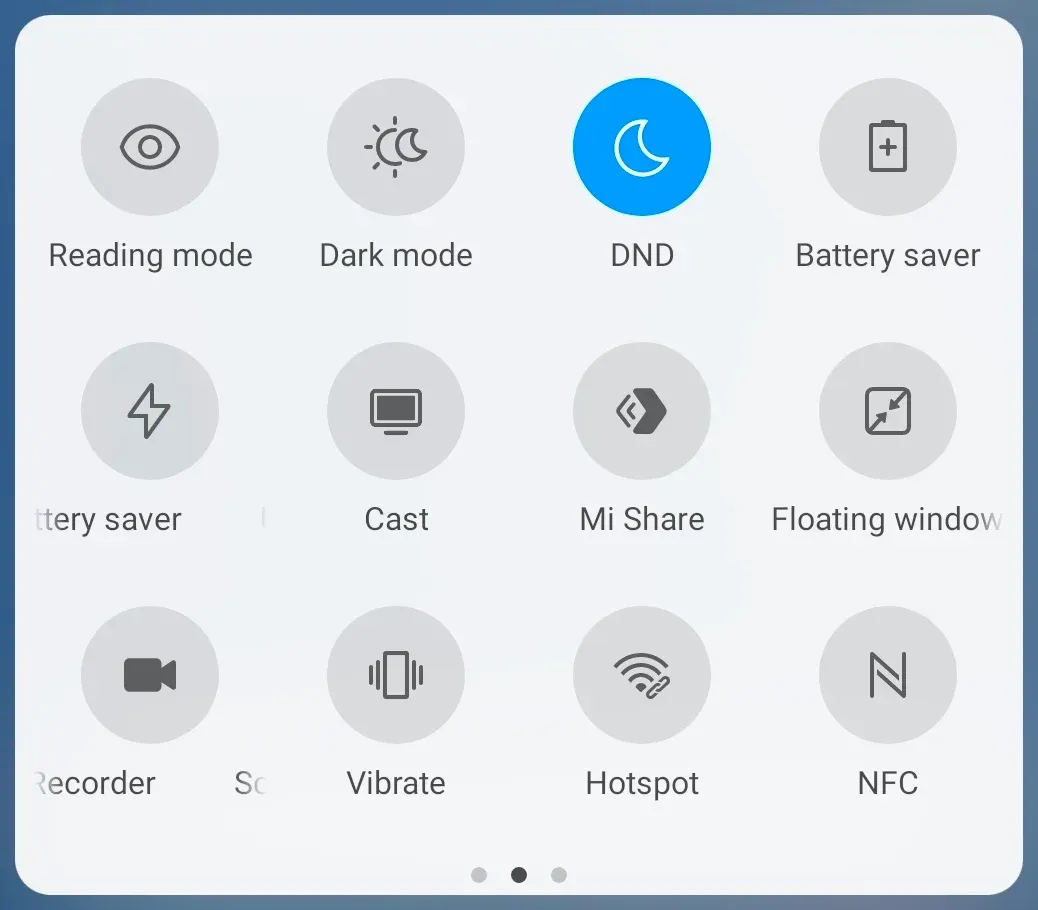
Compared to using Miracast, using the PigeonCast for Windows app could be better. The third-party app is designed for Windows 10 and Windows 11, turning the Windows PC into a universal receiver, compatible with AirPlay, Google Cast, and DLNA.
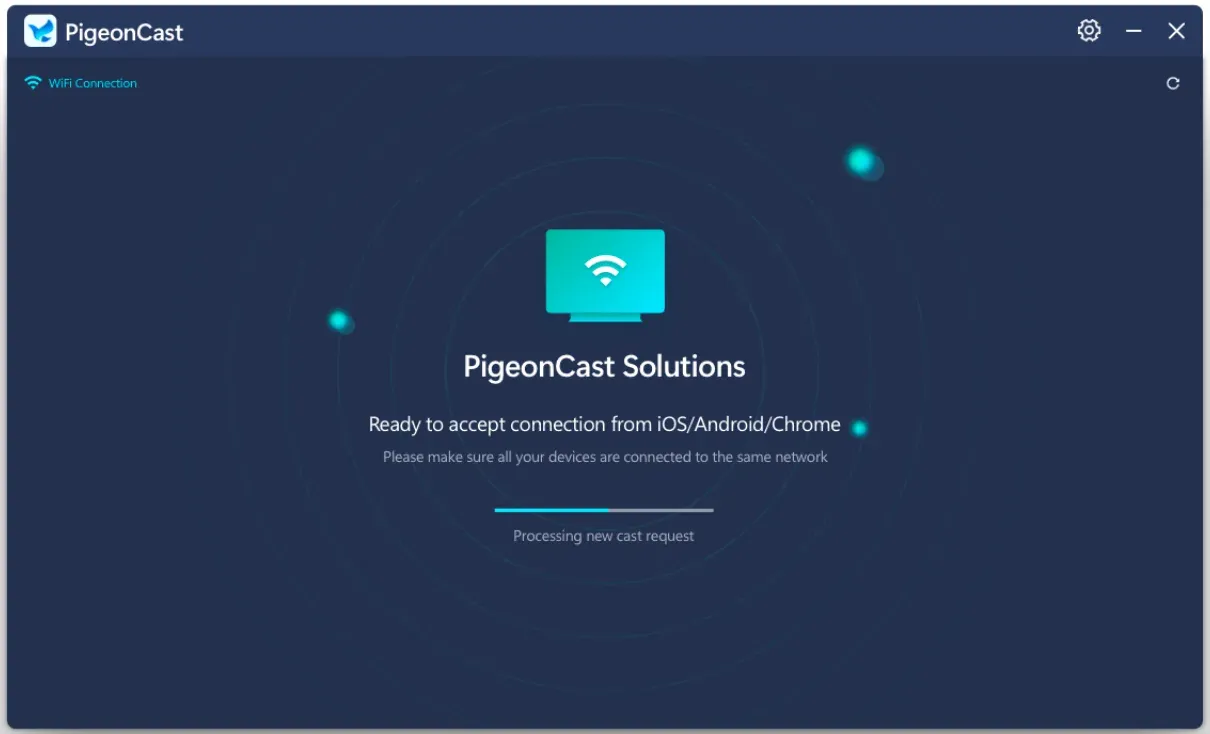
The app works when your Android phone and Windows PC are on the same Wi-Fi network. So, check the network connection on both devices. Then, check the guide on how to connect Android to PC via WiFi:
Step 1. Download and install the Windows screen mirroring app from PigeonCast on your Windows PC.

PigeonCast Screen Mirroring

Official Download


Step 2. On your Android phone, swipe down the screen and tap the Cast feature (or something similar).
Step 3. Choose your Windows computer from the device list (your Windows is named after something like PigeonCast_xxx).
Step 4. Once the app connects your Android phone to Windows PC, everything on your phone screen will appear on the PC screen immediately.
The PigeonCast app for Windows screen mirroring makes it easy to stream to your Windows PC from an Android phone, iPhone, or MacBook. It's an unmissable tool for screen mirroring to Windows.
Method 3. Use Bluetooth
Yes, you can also rely on Bluetooth to connect Android to Windows 10 or 11 when you want to transfer a few files between them. Compared to the above two connections, this connection requires neither cables nor a network connection. Moreover, you can start file transfers effortlessly through Bluetooth.
How to connect Android phone to PC via Bluetooth? There are a few taps and clicks:
Step 1. On your Android phone, swipe down from the top of the screen and enable Bluetooth from the Quick Settings menu.
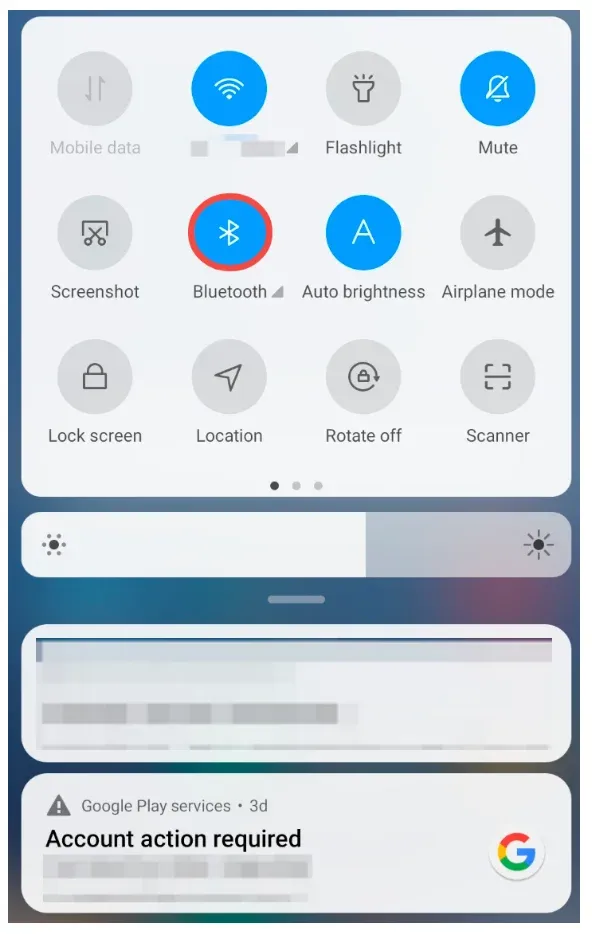
Step 2. On your Windows PC, go to Start > Settings > Devices > Bluetooth & other devices, and turn on Bluetooth.
Step 3. Go to Add Bluetooth or other device > Bluetooth, and choose your Android phone from the list.
Step 4. Accept the pairing request on both devices (you may see a code to confirm).
Step 5. Once connected, right-click the files you want to send and send them to your Android phone over Bluetooth.
You can link Android to Windows 10 or 11 over Bluetooth and transfer files wirelessly. However, Bluetooth is typically slower than USB or Wi-Fi, so it's not the best option if you need to move multiple or large files.
Method 4. Use Link to Windows App
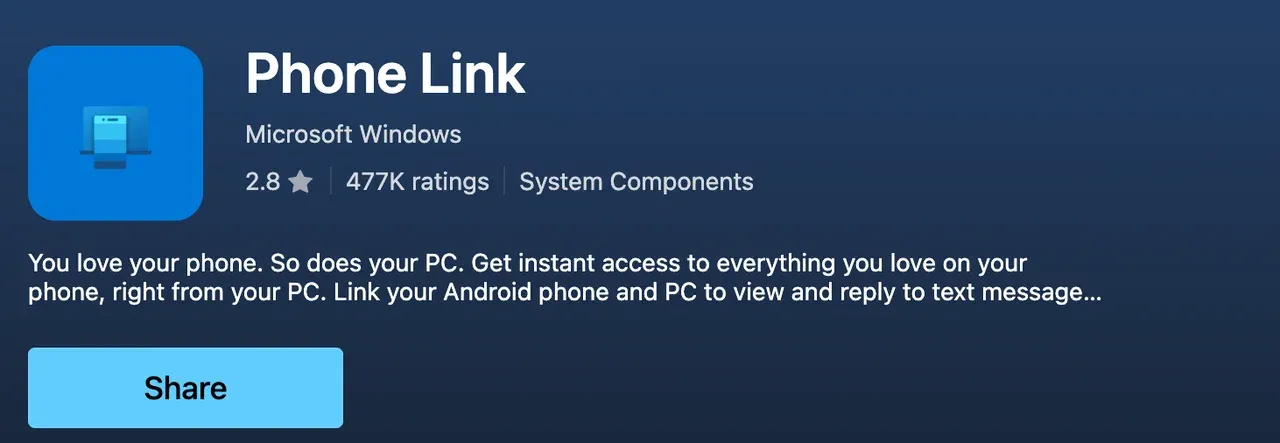
Microsoft offers a way to connect Android phone to Windows PC wirelessly through its Link to Windows app on mobile, which works together with the Microsoft Phone Link app on your PC.
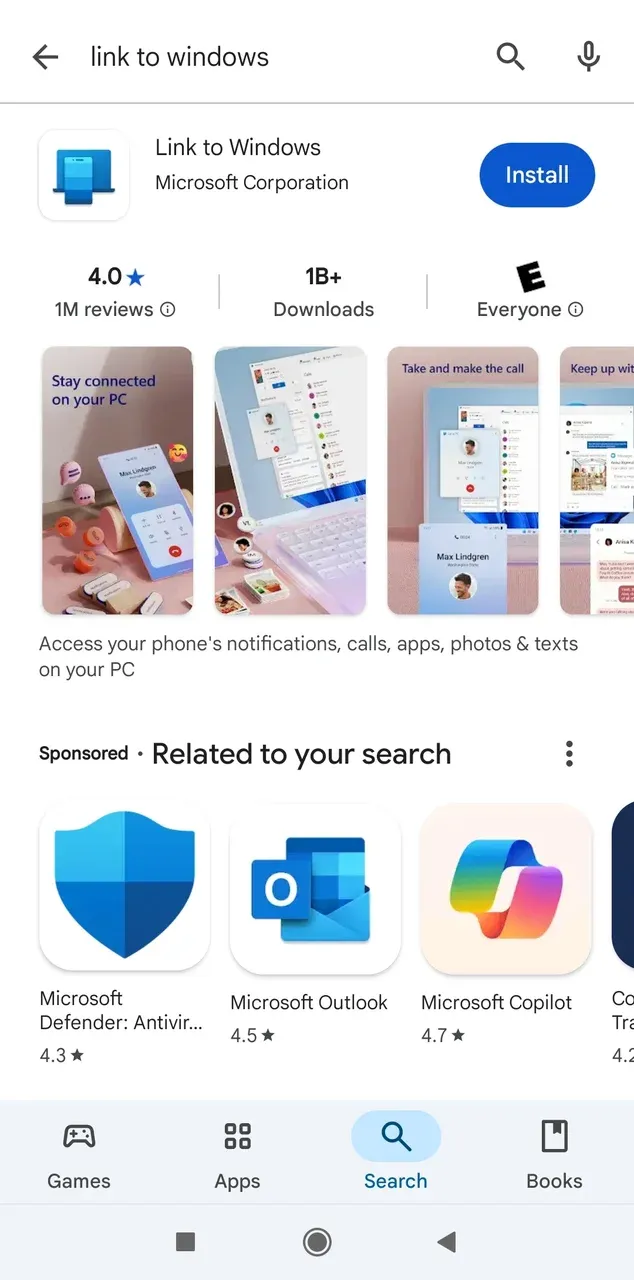
This connection allows you to manage calls and texts and view messages from your phone on a Windows PC. On some Samsung or Honor models, you can also initiate screen mirroring and copy and paste across devices.
How to connect Android phone to PC? You can try this Microsoft solution:
Step 1. Install the Link to Windows app on your Android phone and the Phone Link app on your Windows PC.
Tip: The Windows app comes preinstalled on Windows 11 v22H2 or later. If your PC is running that version or newer, you can launch it directly from the Start menu.
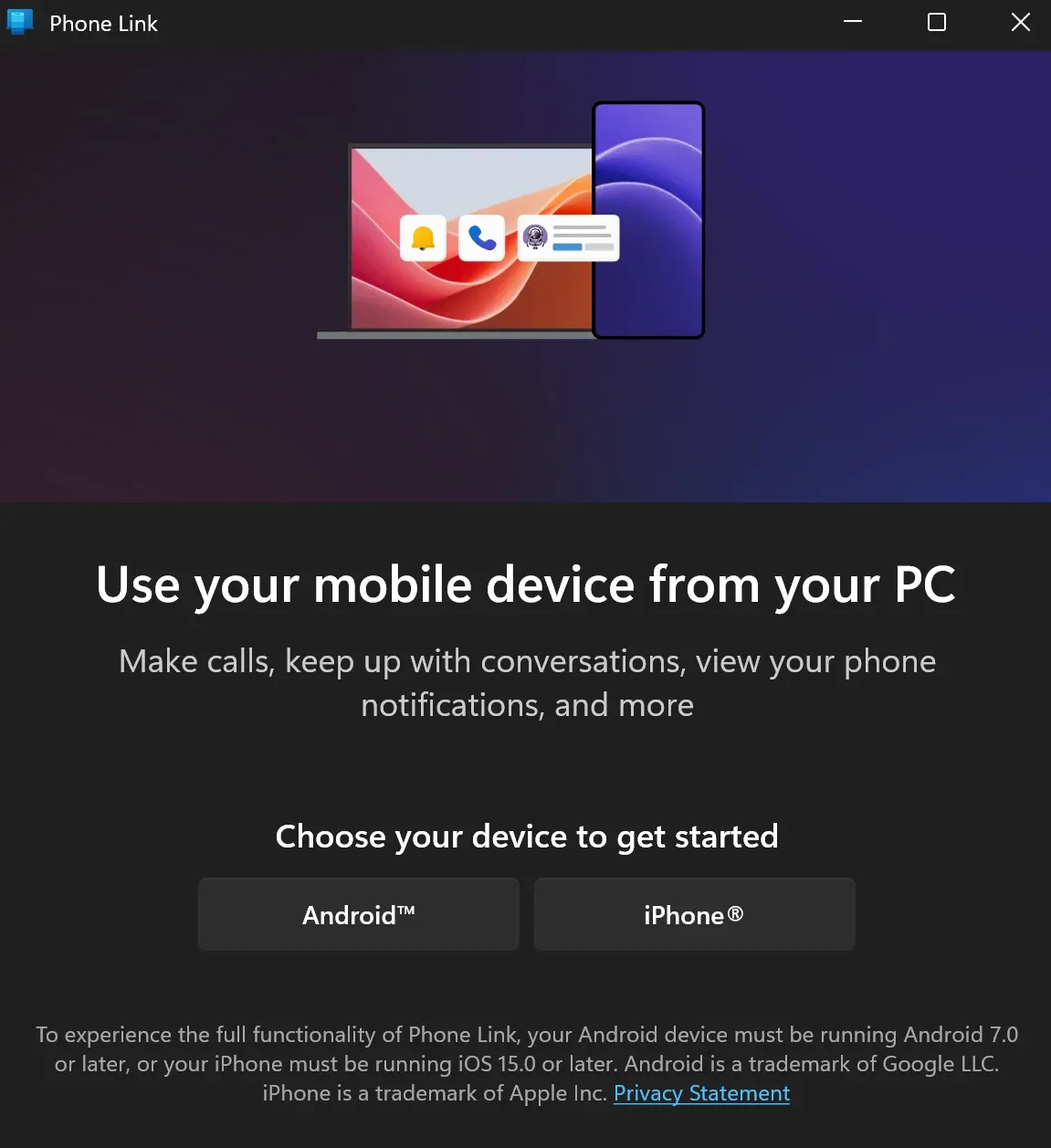
Step 2. Open the Phone Link app on Windows and choose Android on the first screen.
Step 3. Open the Link to Windows app on your phone and tap Sign in using the QR code on your PC.
Step 4. Use the app's built-in camera to scan the QR code showcased on your PC screen.
Step 5. Tap Continue on your phone and enter the code displayed on your PC to connect the two.
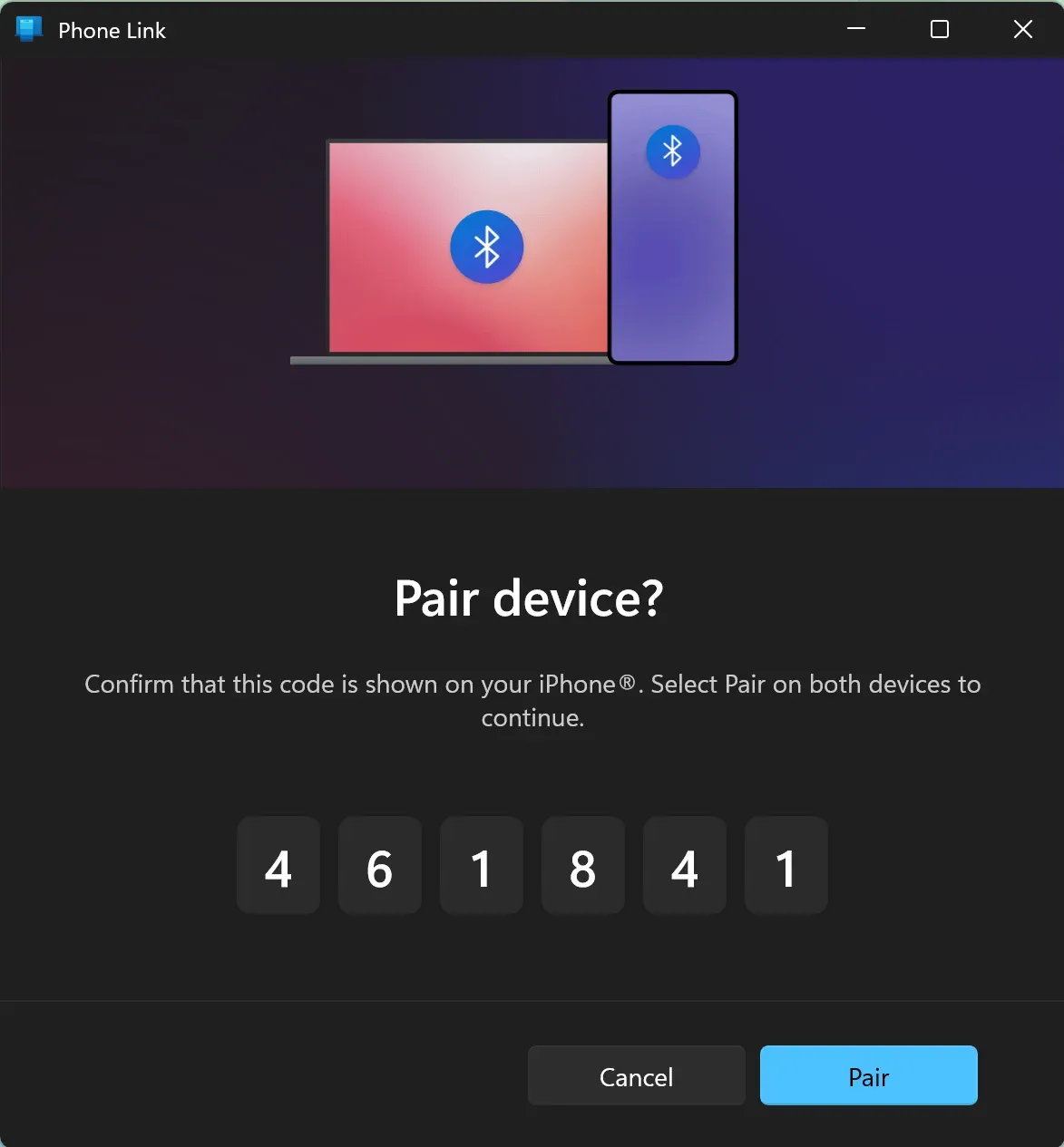
Step 6. Allow the Phone Link app to access your messages, calls, and other data.
Step 7. On your Android phone, tap Done. Then, switch to your PC and click Continue.
Step 8. Your Android phone is now connected to your Windows computer. You can switch among the Messages, Calls, and Photos tabs to view your phone on your Windows.
How to Connect Android to MacBook?
If you have an Android and a MacBook, you may wonder how to connect the two. MacBooks can also be connected to Android phones in different ways. Whether you're looking to transfer files or mirror your phone screen, here are the main options:
- Use Android File Transfer for Transferring files from Android to Mac
macOS doesn't natively support direct file transfer from Android devices, so you'll need a tool like Android File Transfer to bridge the gap. This free app allows you to transfer files over a USB connection. If your MacBook only has USB-C ports, you may need a USB-C to USB-A adapter or a compatible cable to connect your phone.
To connect Android to MacBook with Android File Transfer, you need to perform like this:
Step 1. On your MacBook, go to the website to download Android File Transfer and install it.
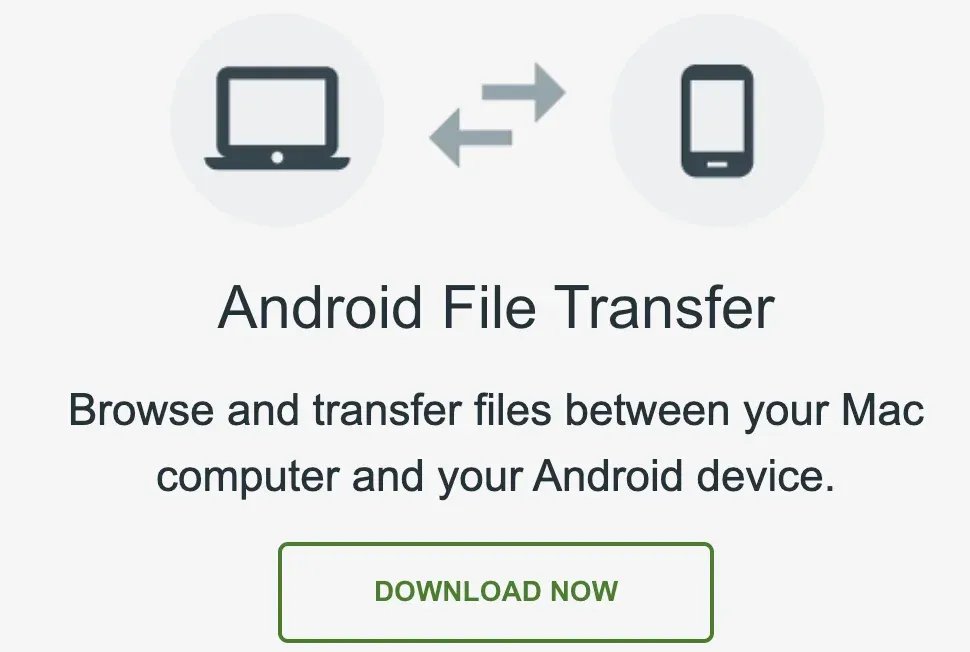
Step 2. Connect your Android to your Mac using a compatible USB cable. This will prompt the Android File Transfer app to launch automatically.
Step 3. On your Android phone, tap the option Charging this device via USB. If the option isn't visible, swipe down from the top of the home screen, and you'll see it.
Step 4. Choose the File Transfer option from the Use USB for menu. Then, your MacBook will recognize your Android as a hard drive.
Step 5. Browse your Android files in the app window.
- Use PigeonCast apps for Screen Mirroring Android to Mac
Nowadays, screen mirroring technology allows you to connect two devices wirelessly. However, Android and macOS use different native screen mirroring protocols—Android typically uses Google Cast and Miracast, while macOS (and iOS) relies on AirPlay.
Google Cast and AirPlay are not natively cross-compatible. A Mac cannot receive a Google Cast stream without third-party apps. Similarly, Android cannot send an AirPlay signal unless specific apps bridge the gap. Moreover, Miracast is not supported on macOS at all.
How to mirror Android to Mac? Use third-party apps like Android Screen Mirroring and Mac Screen Mirroring from PigeonCast. The Android app enhances your device with AirPlay compatibility, while the Mac app includes built-in Google Cast support, effectively bridging the protocol gap between Android and macOS.
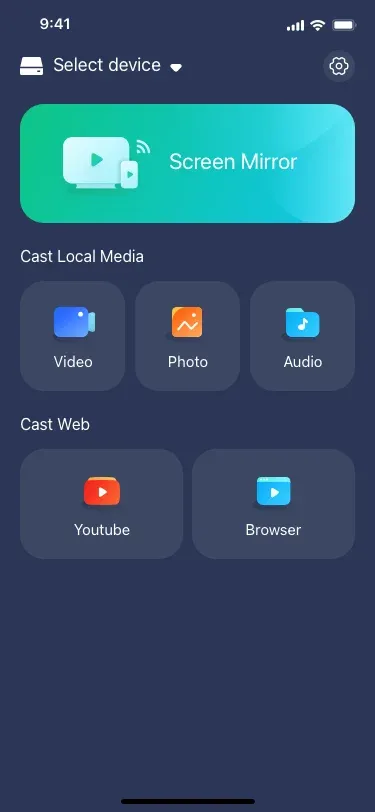
To use these third-party apps, make sure both devices are on the same Wi-Fi network. Then, start screen mirroring. Here's how to do it using the Android app:
Step 1. Download and install the Android Screen Mirroring app on your Android phone.
Step 2. Launch the Android app, tap the Select device option, and choose your MacBook from the device list.
Step 3. Enter the PIN code if asked.
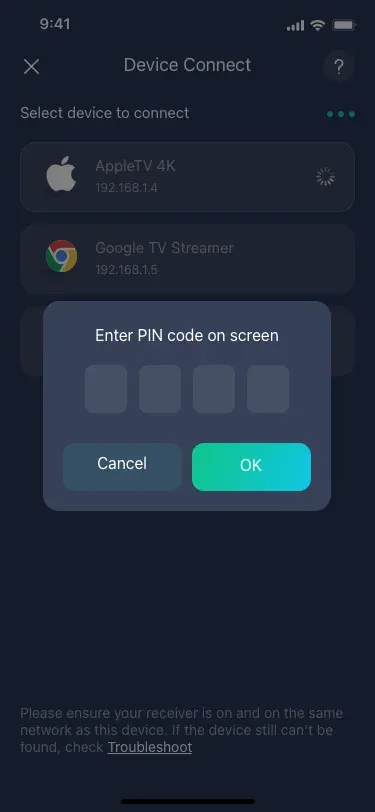
Step 4. Now your devices should be connected. You can tap the Screen Mirroring option to project your Android screen onto your Mac screen.
How to Connect Android to Chromebook?
If you're using a Chromebook and an Android phone, you'll be glad to know that these two devices are designed to work closely together, both being part of the Google ecosystem. Whether you're looking to transfer files or mirror your Android screen, here are two practical methods to get started.
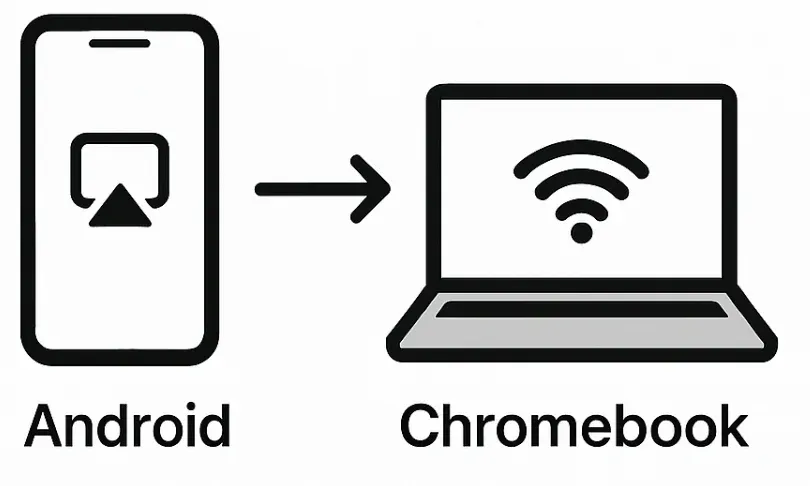
- Transfer files between Android and Chromebook
Transferring files between an Android phone and a Chromebook is straightforward. You can do it using a USB cable or wirelessly via Nearby Share, Google's native file-sharing tool.
Option 1: Use a USB cable
Step 1. Connect your Android phone to your Chromebook using a USB cable.
Step 2. On your Android device, swipe down from the top and tap Charging this device via USB.
Step 3. Choose File Transfer / Android Auto as the connection mode.
Step 4. On your Chromebook, the Files app will open automatically (or you can launch it manually).
Step 5. You'll see your phone listed in the sidebar. Click it to browse and copy files between the devices.
Option 2: Use Nearby Share
Step 1. On your Chromebook, go to Settings > Connected devices > Nearby Share, and turn it on.
Step 2. On your Android phone, swipe down from the top and enable Nearby Share.
Step 3. Choose the file you want to send, tap Share, and select Nearby Share.
Step 4. Select your Chromebook from the list of available devices.
Step 5. Accept the transfer request on your Chromebook, and the file will be received instantly.
- Mirror Android screen to Chromebook
While Chromebooks don't support Miracast or AirPlay, they work seamlessly with Google Cast, which is natively supported by most Android phones.
Option 1: Use the built-in Cast feature
Step 1. Make sure both your Android phone and Chromebook are on the same Wi-Fi network.
Step 2. On your Android phone, swipe down to access Quick Settings and tap the Cast or Smart View icon.
Step 3. Your Chromebook should appear in the list of available devices (it may show as "Chromecast" or the device name).
Step 4. Tap your Chromebook to begin mirroring your Android screen.
Option 2: Use third-party apps like PigeonCast
If your Chromebook doesn't show up in the default cast list or you want more control, you can install PigeonCast Screen Mirroring on your Android phone.
Step 1. Install the Android app from PigeonCast on your phone.
Step 2. Launch the Android app, select your Chromebook from the list, and start mirroring.
This method bridges any protocol gaps and works even on older Chromebook models that lack native cast support.
What's Your Opinion
In this guide, we mainly focused on how to connect your Android phone to a Windows PC, covering both wired and wireless options. Whether you prefer using a USB cable for quick file access or apps like PigeonCast and Phone Link for a wireless experience, Windows offers solid support for Android integration.
We also briefly mentioned ways to connect with MacBooks and Chromebooks, where additional apps or built-in tools can help bridge the gap in compatibility.
Now we'd like to hear from you: Which connection method do you use most—USB, Bluetooth, screen mirroring, or something else?
Connect Android to PC FAQs
Q: How can I connect my Android phone to my PC?
You can connect your Android phone to a PC using a USB cable or wirelessly. For a wired connection, plug your phone into the PC using a compatible cable and choose File Transfer on your phone. For wireless connection, use apps like Phone Link (Windows) or PigeonCast for screen mirroring.
Q: How do I enable USB transfer on Android?
After connecting your phone to a PC via USB, swipe down the notification bar and tap the USB charging this device notification. Then select File Transfer, Media Transfer Protocol (MTP), or Transferring files, depending on your Android version.
Q: How do I enable USB ports on my Android phone?
Android phones don't have a setting to "enable" USB ports, but you must select a USB mode after connecting to a PC. If you're not seeing options, try another cable or port, and go to Settings > Connected devices > USB to manually choose File Transfer mode.
Q: How to get an Android phone to show up on a computer?
Connect your phone via USB, then choose File Transfer when prompted. Your PC should detect it as a media device. If it doesn't appear, try a different USB port or cable, install the latest USB drivers, or unlock your phone screen during the connection.
Q: Why can't I transfer files from Android to PC?
This usually happens if your phone is set to Charge Only mode. Change it to File Transfer (MTP). Other causes include a faulty USB cable, missing drivers on your PC, or restricted permissions. Make sure your screen is unlocked and your USB cable supports data transfer.
Q: Why is my phone not connecting to PC via USB cable?
Common reasons include a damaged cable, USB debugging disabled, or the phone set to the wrong USB mode. Try another USB port, use an official or high-quality cable, and go to Settings > Developer options > USB debugging if needed. Restarting both devices may also help.
Mia Clarke is a technology editor specializing in screen mirroring and casting solutions across multiple platforms. Mia provides clear, practical guides and in-depth insights to help users seamlessly connect their devices. Passionate about enhancing digital experiences, Mia is dedicated to keeping readers updated on the latest trends and tools in cross-platform screen sharing. Whether you’re looking to mirror your smartphone, laptop, or smart TV, Mia’s content delivers reliable, user-friendly advice to simplify your tech setup.