
Screen Mirror iPhone to Roku TV
Mirror videos, photos, apps, games, and presentations from your iPhone or iPad to Roku TV with PigeonCast. Enjoy fast Roku screen mirroring wirelessly, and watch everything on a bigger screen in just a few taps.

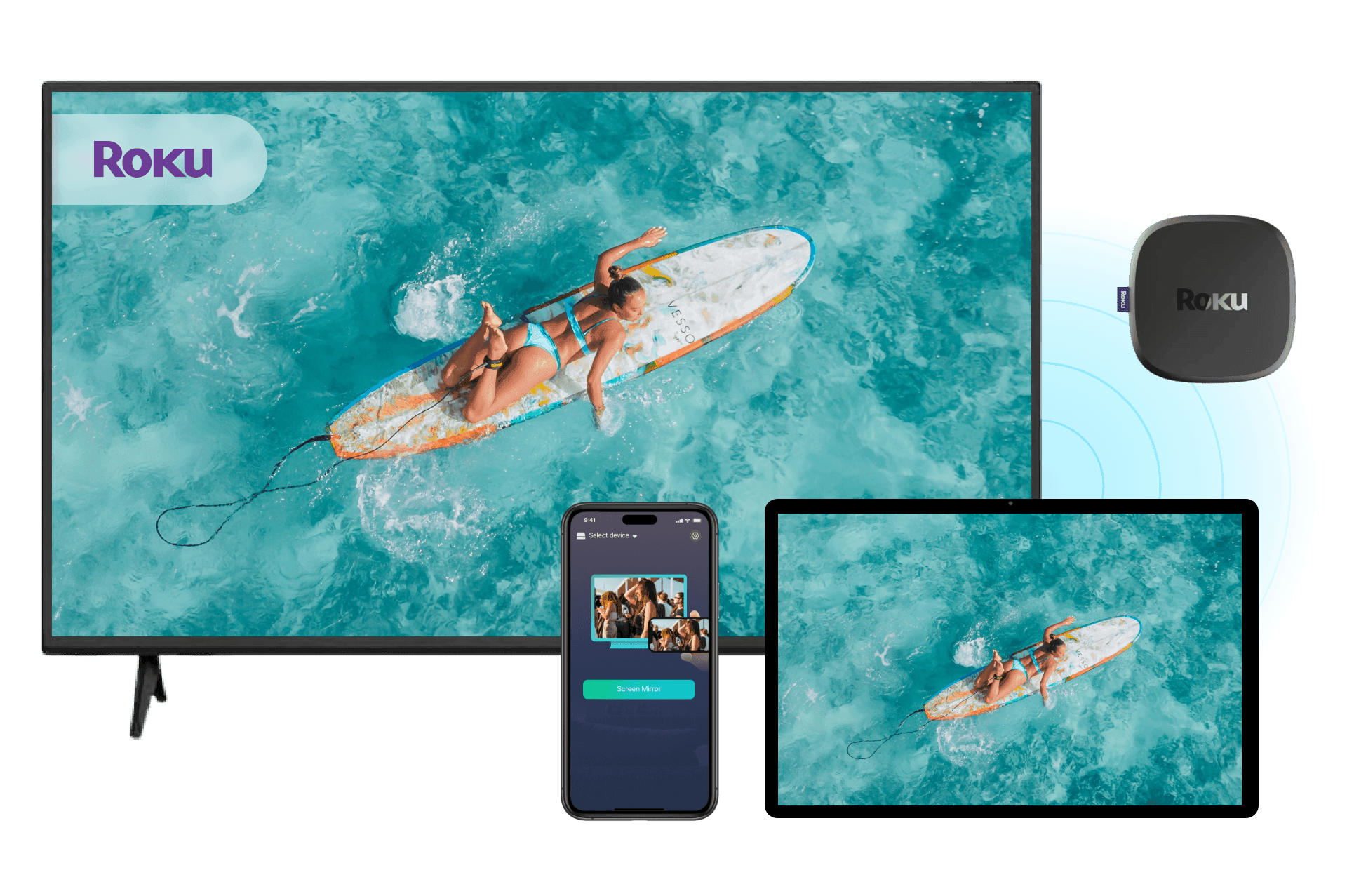
Why Choose PigeonCast for iPhone-to-Roku Screen Mirroring

No Apple TV Required
Use PigeonCast as your Roku screen mirroring app to project iPhone to Roku TV directly. No Apple TV or extra hardware needed.
Wireless Screen Mirroring
Enjoy seamless iPhone-to-Roku screen mirroring over Wi-Fi with no adapters, wires, or complicated setup.
Broad Roku Compatibility
Works with most Roku TVs and streaming devices, including Roku Stick, Roku Ultra, and more.
Apps & Videos Streaming
Mirror content from popular streaming and social media apps, including YouTube, TikTok, and more.
How to Mirror iPhone to Roku TV with PigeonCast
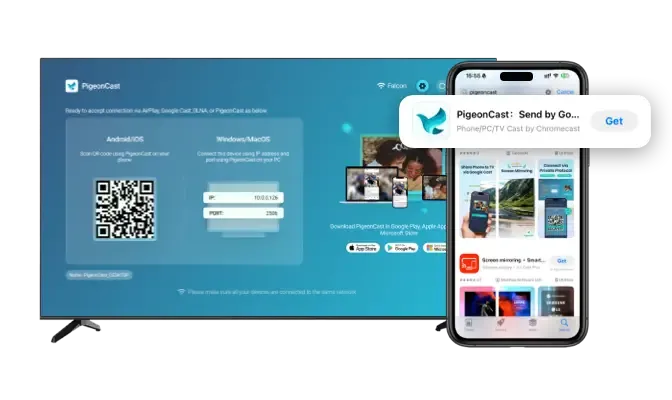
Download and Install PigeonCast
Install PigeonCast on your iPhone and Roku TV to get started. Setup takes less than a minute and works with most Roku-powered devices.
Quick installation
Easy-to-use interface
Supports Roku TV, Roku Stick, Roku Express, and Roku Ultra
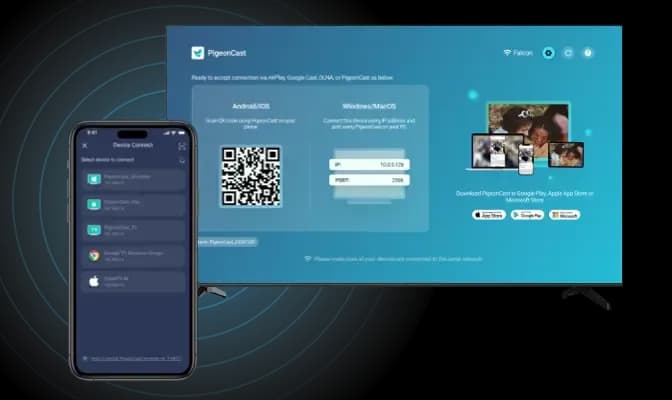
Connect to the Same Wi-Fi
Make sure your iPhone and Roku device are connected to the same Wi-Fi network. PigeonCast automatically finds available Roku devices nearby.
Automatic device discovery
Fast pairing process
One-tap connection
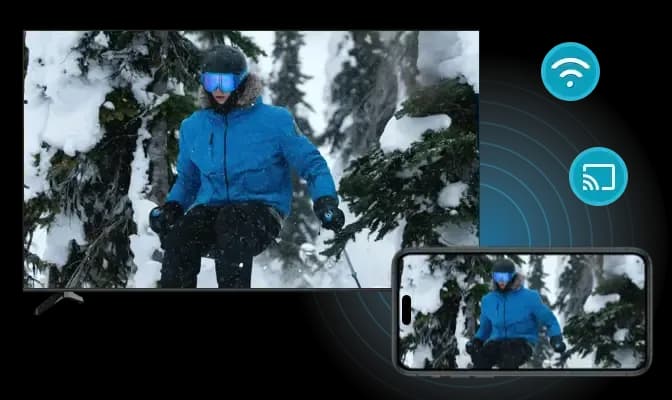
Start Roku Screen Mirroring
Select your Roku TV or Roku device and start mirroring instantly. Enjoy photos, videos, apps, and more on the big screen.
Instant Roku TV cast
Mirror apps, photos, and videos
Smooth wireless performance
What Can You Do with Our Roku Screen Mirroring App
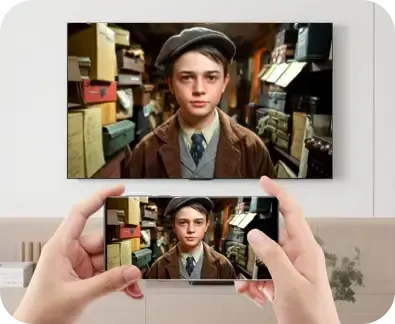
Watch Movies
Mirror movies, YouTube videos, and streaming content from your iPhone to Roku Stick for a more immersive viewing experience.
Watch Live Sports
Cast live games, concerts, and special events from your iPhone to Roku TV and enjoy every moment on a larger screen.
Whether you want to watch movies, share memories, stream live events, or present content, PigeonCast makes screen mirroring for Roku simple and reliable.

Play iPhone Games
Enjoy mobile games on a bigger display with smooth Roku TV screen mirroring iPhone while keeping controls on your phone.
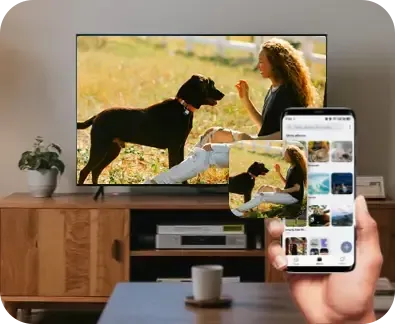
Share Photos
Display photos and albums on your Roku TV instantly, making it easy to share memories with everyone in the room.
Present Content
Mirror presentations, documents, and educational content to your Roku TV for meetings, classes, and collaborative learning.
FAQ
Start Mirroring iPhone to Roku TV for Free
Download PigeonCast and enjoy your favorite content on Roku TV with fast and easy screen mirroring.