

How to connect phone to computer? Connecting your phone to a computer might sound simple, but depending on what you want to do, such as file transfer, screen mirroring, data backup, or mobile internet sharing, the best method can vary. In this ultimate guide, I'll walk you through all the major ways to set up the connection between an Android or iPhone and a Windows or Mac computer.
How Do I Connect My Phone to My Computer
Before we jump into the step-by-step connection methods, it's helpful to understand the major ways your devices can connect. Generally, there are four ways to let your phone and computer "talk" to each other:
- Wireless Connection: Connect your phone to your computer over the same Wi-Fi network or via Bluetooth. This way cuts the cord, but sometimes it works at slow speeds.
- Special Software: Apps like PigeonCast are designed to make connections easier and unlock extra features like screen mirroring and data transferring.
- Could Services: Thanks to Google Drive, iCloud, and Dropbox, you can use the internet to sync files across devices without a direct connection.
- Wired Connection: Connect your phone to your computer using a USB cable. This is often the fastest and most stable option for data transfer.
No matter which method you choose, your computer and phone need to be compatible and, in most cases, authorized to connect to each other. Usually, this means confirming permissions on your phone when prompted.
Method 1. Use PigeonCast Apps
How to connect your phone to your computer? When you want to go beyond file transfer and view and control your phone on your computer, screen mirroring is your best option. To mirror your phone to your computer, try PigeonCast solutions.
PigeonCast designs screen mirroring solutions for various operating systems, including Android, iOS, Windows, and macOS, enabling you to wirelessly connect a phone to a computer.
- PigeonCast for Android app: Enable you to connect your Android phone to a Windows or macOS computer, even a TV, without compatibility issues.
- PigeonCast for Windows app: Allow you to screen mirror from an Android or iPhone, even a computer, to your Windows within a few taps.
- PigeonCast for MacBook app: Allow you to screen mirror from an Android or iPhone, even a computer, to your MacBook within a few taps.
- PigeonCast for iOS app: Enable you to connect your iPhone or iPad to a Windows or macOS computer, even a TV, without compatibility issues.
How to connect your phone to your computer wirelessly via PigeonCat apps? For example,
- Use the app for Android
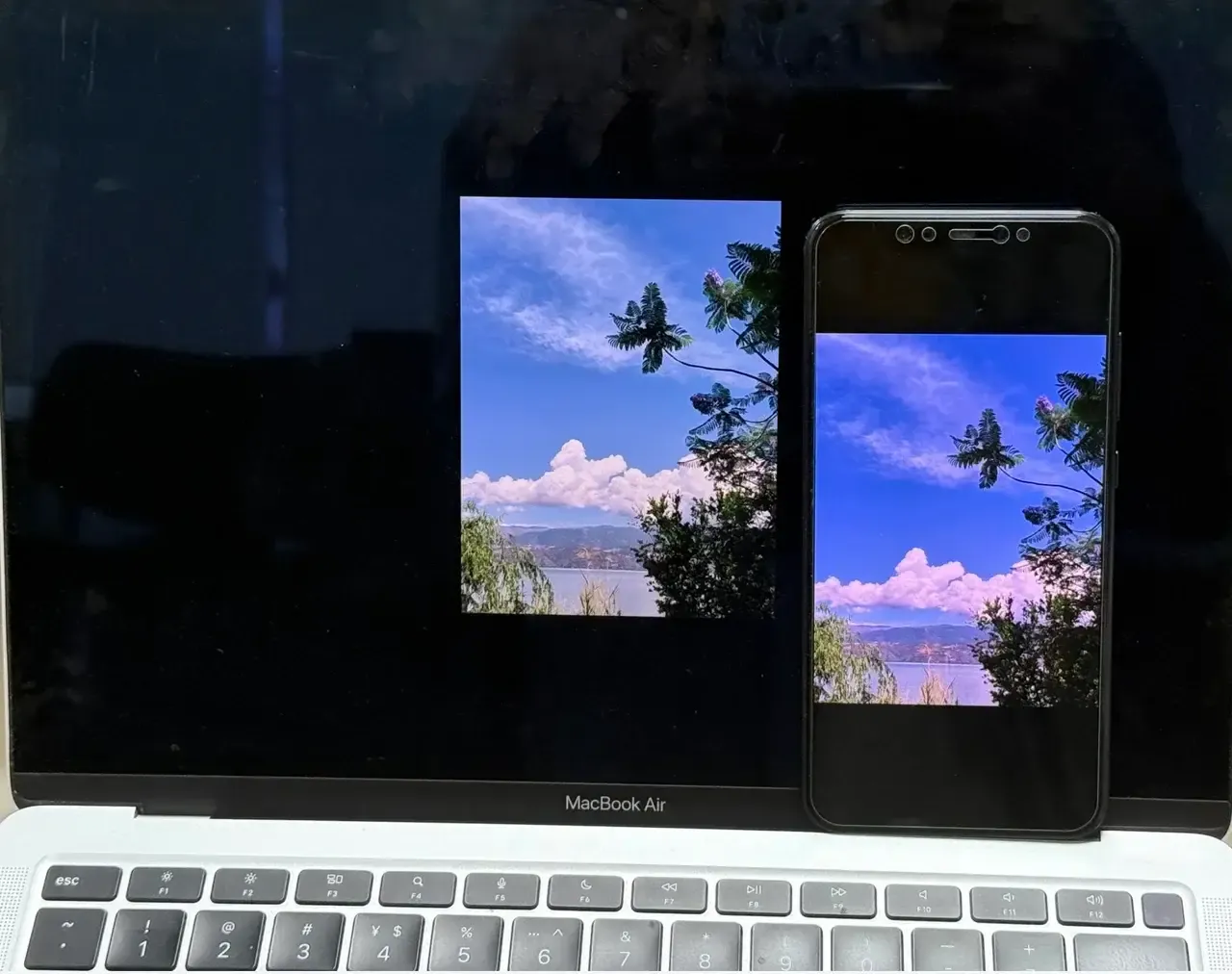
Step 1. Download and install the PigeonCast app on your Android phone.

PigeonCast Screen Mirroring

Official Download


Step 2. See if your Android phone and computer are on the same Wi-Fi network.
Step 3. Once the network connection is confirmed, launch the app on your Android device.
Step 4. Your computer should be displayed in the device list. Tap it to connect your phone to the computer and enter the PIN code.
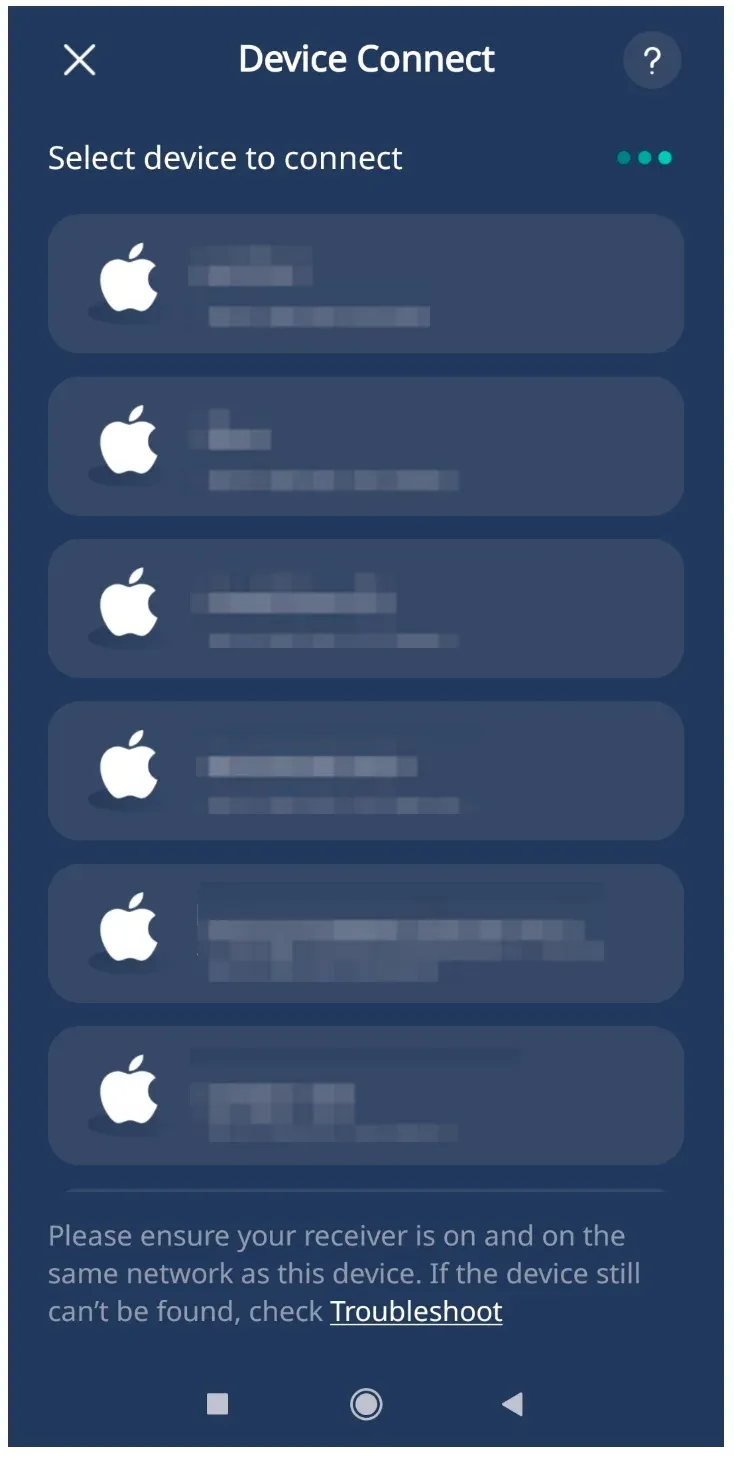
Step 5. Wait for the connection to be done. That requires only a few seconds.
Once the app shows a successful connection, you can tap a feature to share your phone's screen or media.
- Use the app for Windows
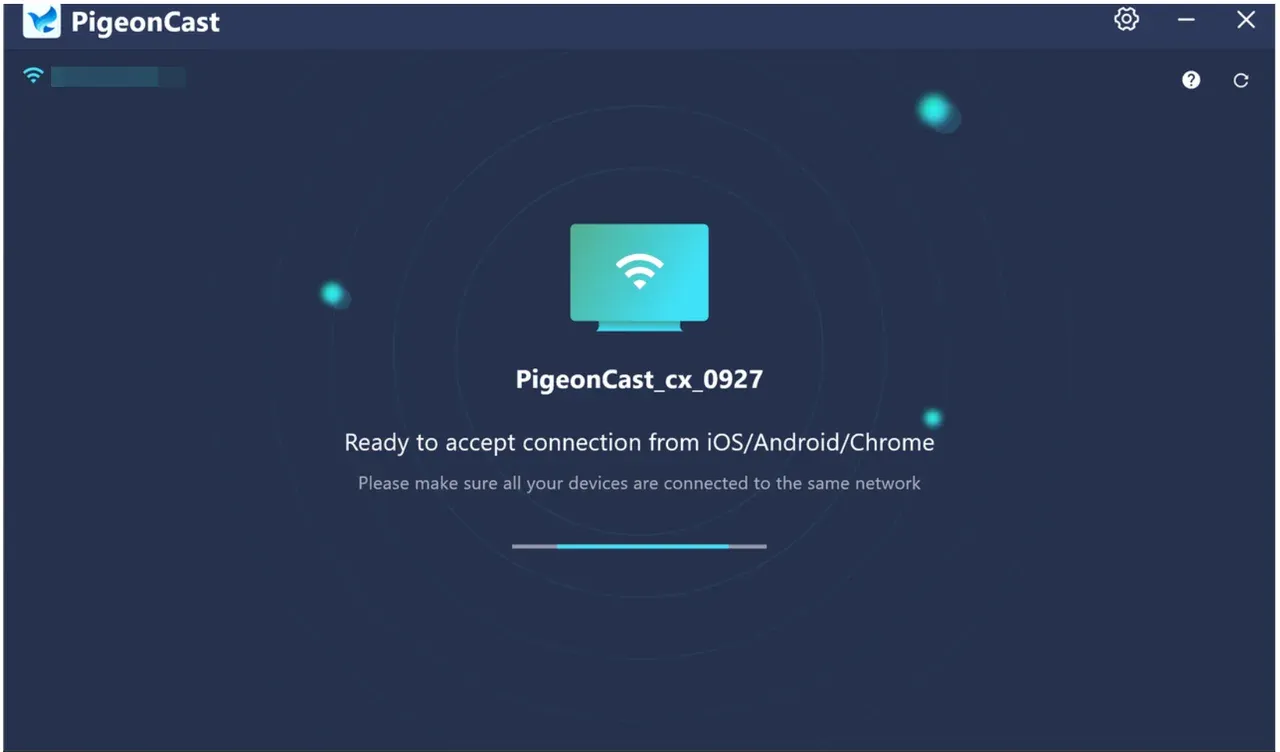
Step 1. Download and install the PigeonCast app on your Windows computer and launch the app. Then, the device turns into a universal receiver to cast from Android, iPhone, Windows, or Mac.
PigeonCast Screen Mirroring
Official Download

Step 2. Ensure that your iPhone and Windows have the same Wi-Fi network connection.
Step 3. On your iPhone, swipe down the screen to access the Control Center.
Step 4. Tap the Screen Mirroring feature from the Control Center.
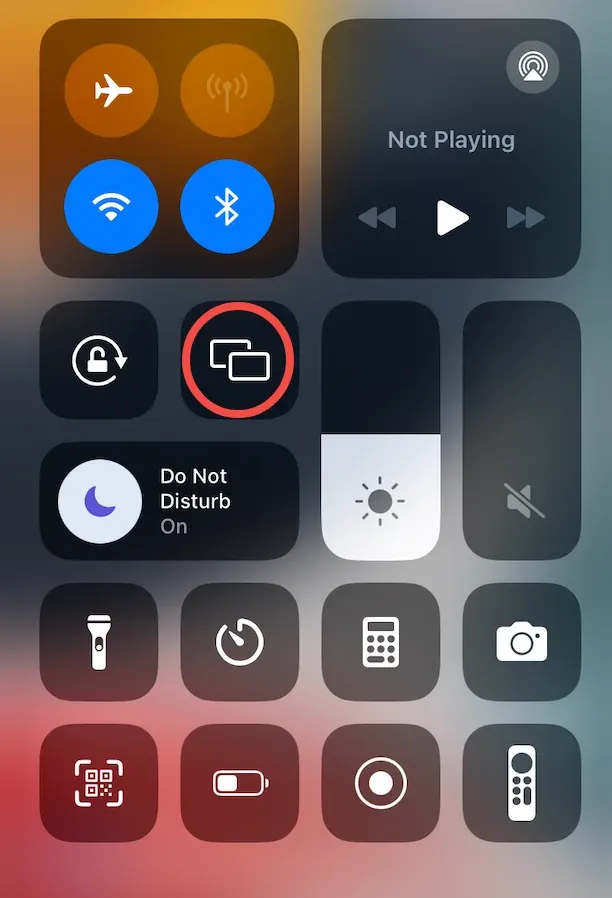
Step 5. Look for your Windows name the app displays, like PigeonCast_xx_xxx, and tap it.

Step 6. Enter the PIN code if prompted.
Step 7. Once connected, your iPhone screen will appear on the big computer screen.
Method 2. Use a USB Cable
How to connect phone to PC? Whether you're looking to transfer files, charge your phone, mirror the screen, or back up data, a USB connection usually does the job. However, you can't remotely control your Android using this connection.
How to connect Android phone to computer via USB? Here are the steps:
Step 1. Connect one end of the USB cable to your Android phone and the other to your computer. Note that you need an adapter or a different cable if your computer doesn't support USB-C.
Step 2. Once a notification pops up on your Android screen, tap the Transfer files button (or something similar) to allow the computer to access the phone's storage.
Step 3. On your computer, open File Explorer. Your Android phone should appear as a connected device. Now you can move files from your Android to your computer.
How to connect iPhone to PC via USB? The steps are slightly different:
Step 1. Get a compatible USB cable. Plug one end into your iPhone and the other end into your computer.
Step 2. When you see a window saying "Trust This Computer" on your iPhone, tap Trust to allow your iPhone to connect to the computer.
Step 3. On your Mac, open Finder, and your iPhone should be listed. Then you can access your iPhone's storage for file transfer or backup.
Method 3. Use Bluetooth
How to connect phone to computer? Bluetooth is another wireless option to connect phone to computer, but it's best for lightweight tasks, like transferring small files. If you want to connect a phone to a computer to transfer a few files, Bluetooth is the best option.
Most modern computers come with built-in Bluetooth capabilities. If you have such a one, set up the connection via Bluetooth now:
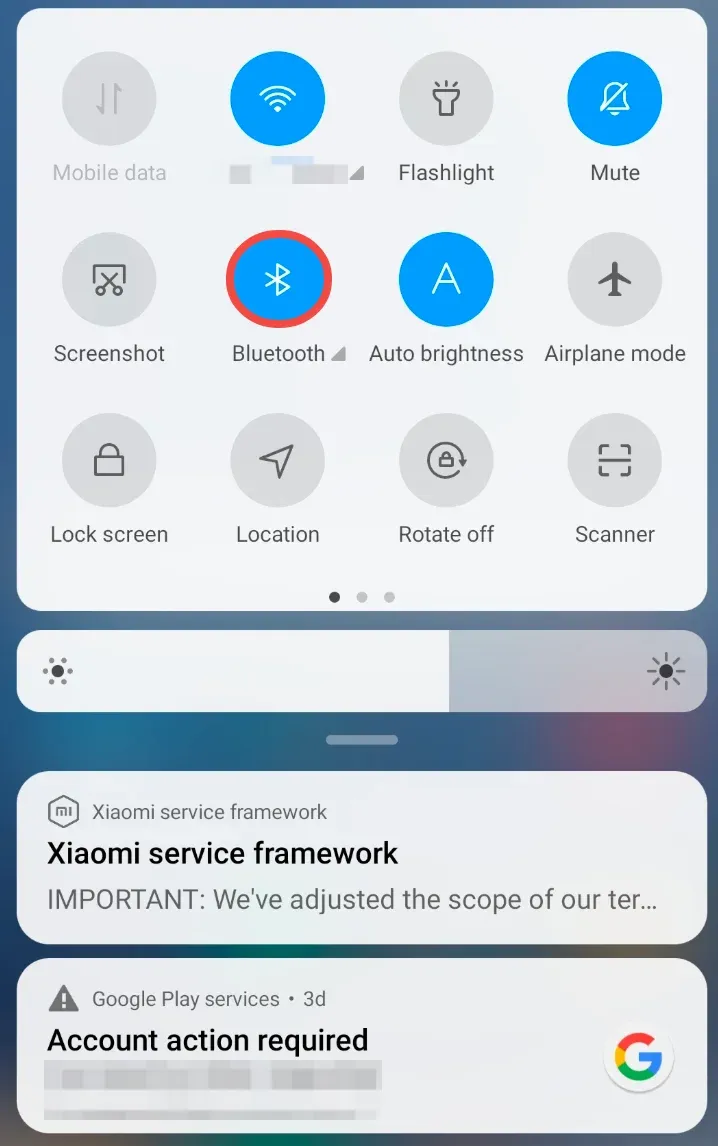
Step 1. Turn on Bluetooth on your phone. Whether you have an Android or iPhone, just swipe down the phone screen, look for the Bluetooth icon, and tap it. When the icon turns blue, Bluetooth is enabled. Alternatively, you can open the Settings app and activate Bluetooth from there.
Step 2. Turn on Bluetooth on your computer.
- On Windows: go to Start > Settings > Devices > Bluetooth & other devices, and turn on Bluetooth.
- On Mac: go to Settings > Bluetooth, and turn on Bluetooth.
Step 3. Set up your phone as a Bluetooth device from your computer.
- Still in the Bluetooth & other devices window on Windows, click Add Bluetooth or other device, choose Bluetooth in the pop-up window, choose your phone you want to connect to in the list, and follow the on-screen steps to complete the connection.
- Still in the Bluetooth window on Mac, click the phone you want to connect to from the device list, and click the Connect button.
Method 4. Use Link to Windows App
How to connect iPhone to Windows PC? Whether you have an Android or an iPhone, you can use the Link to Windows app to set up its connection to a Windows computer. The app is free and official, and here's how to set it up:
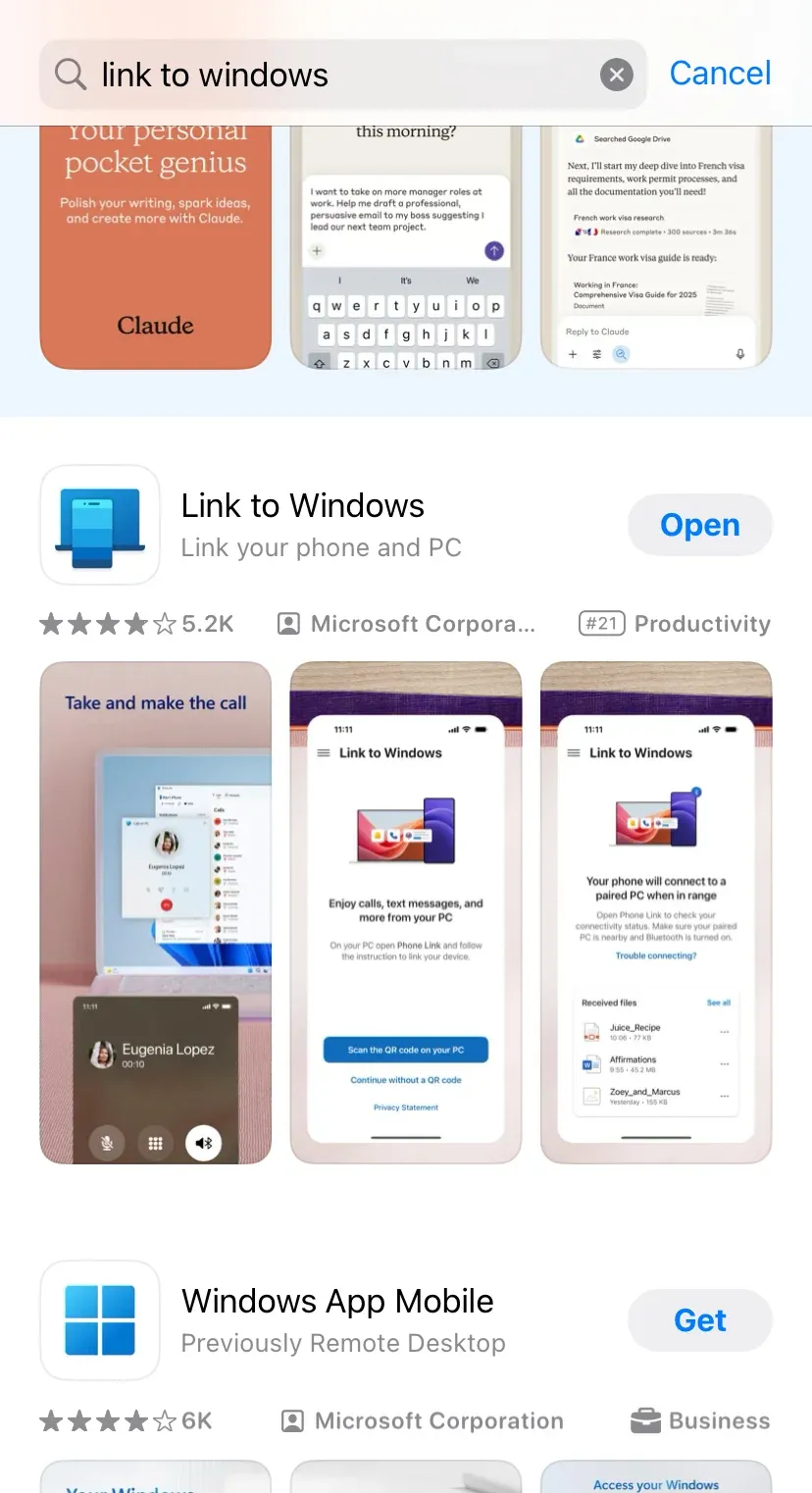
Step 1. Download and install the Link to Windows app from the Google Play Store or Apple App Store.
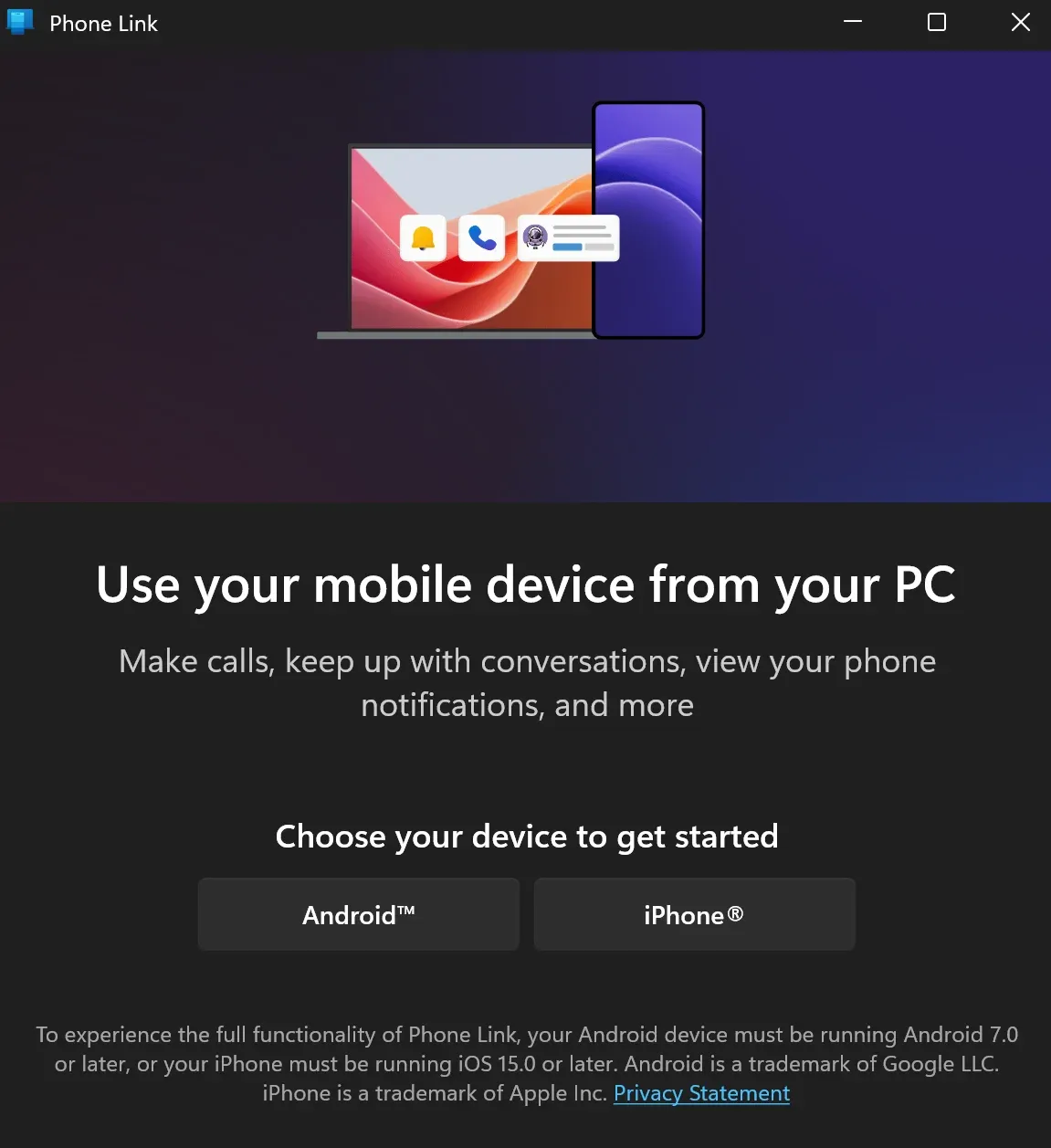
Step 2. On your Windows PC, find the Phone Link app. The app is preinstalled on Windows 11 v22H2 or higher. If you can't find it, you can get it from the Microsoft Store.
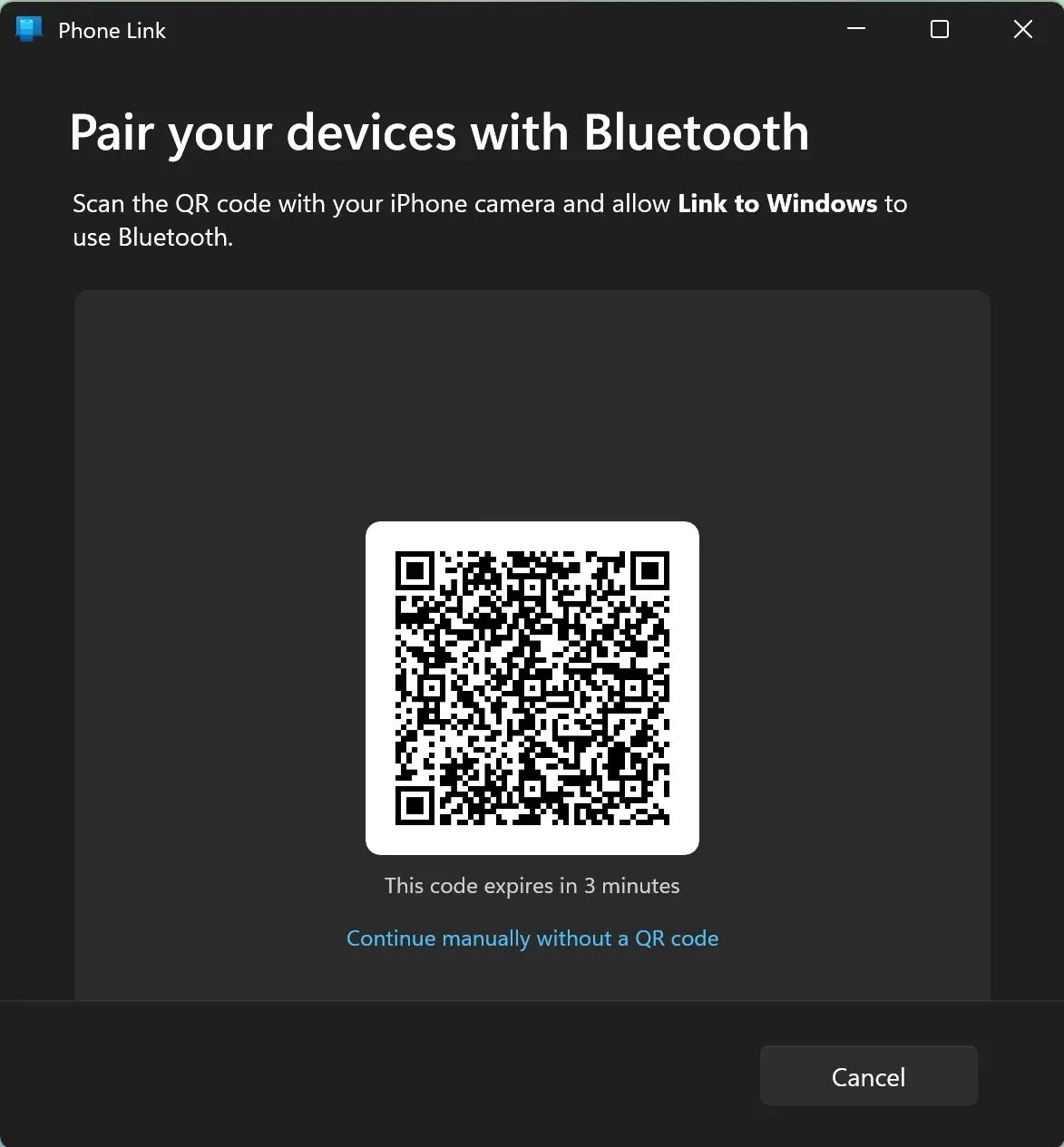
Step 3. Open Phone Link and choose Android or iPhone. Then, the app will show you a QR code, which will expire in 3 minutes.
Step 4. On your phone, open Link to Windows and tap Scan the QR code on your PC.
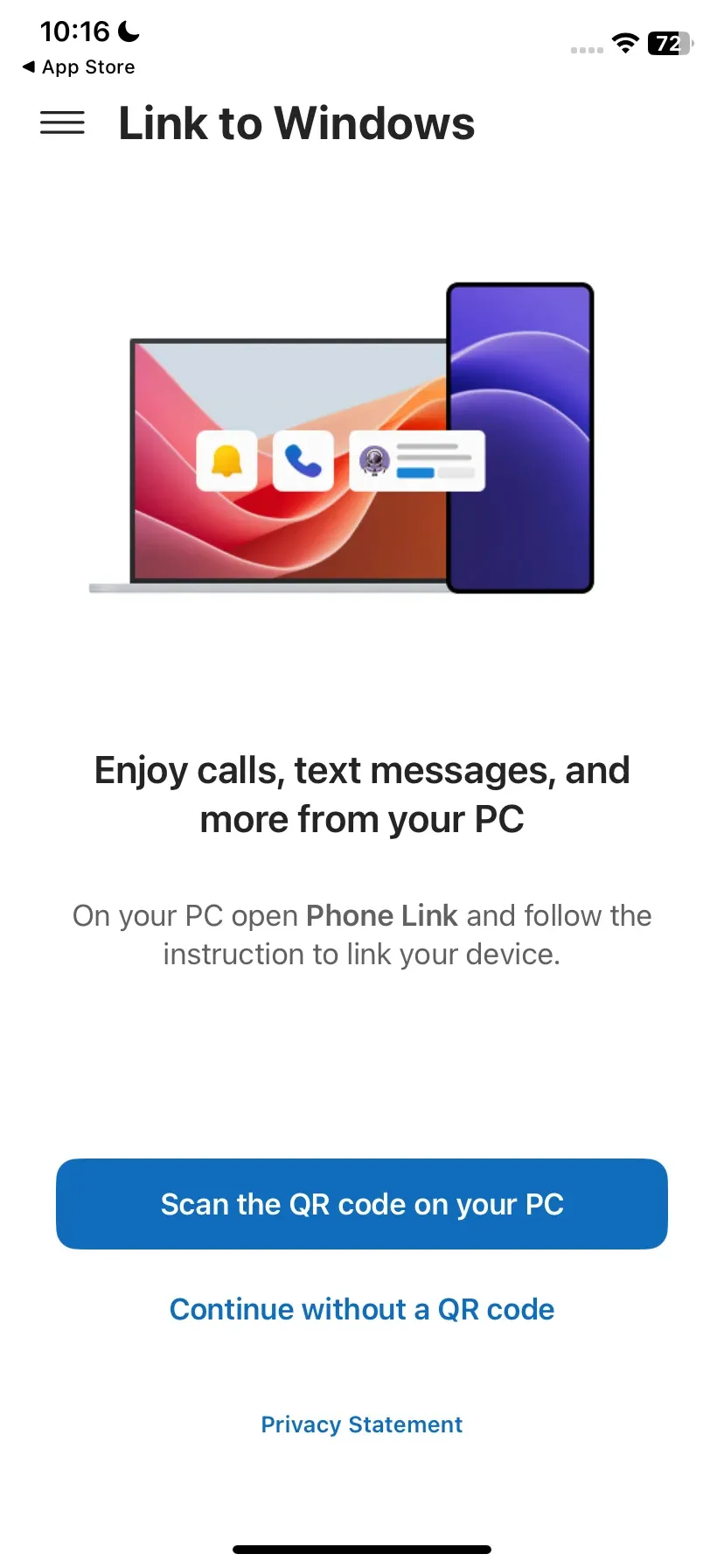
Step 5. Scan the QR code displayed on your computer using the app's built-in camera function.
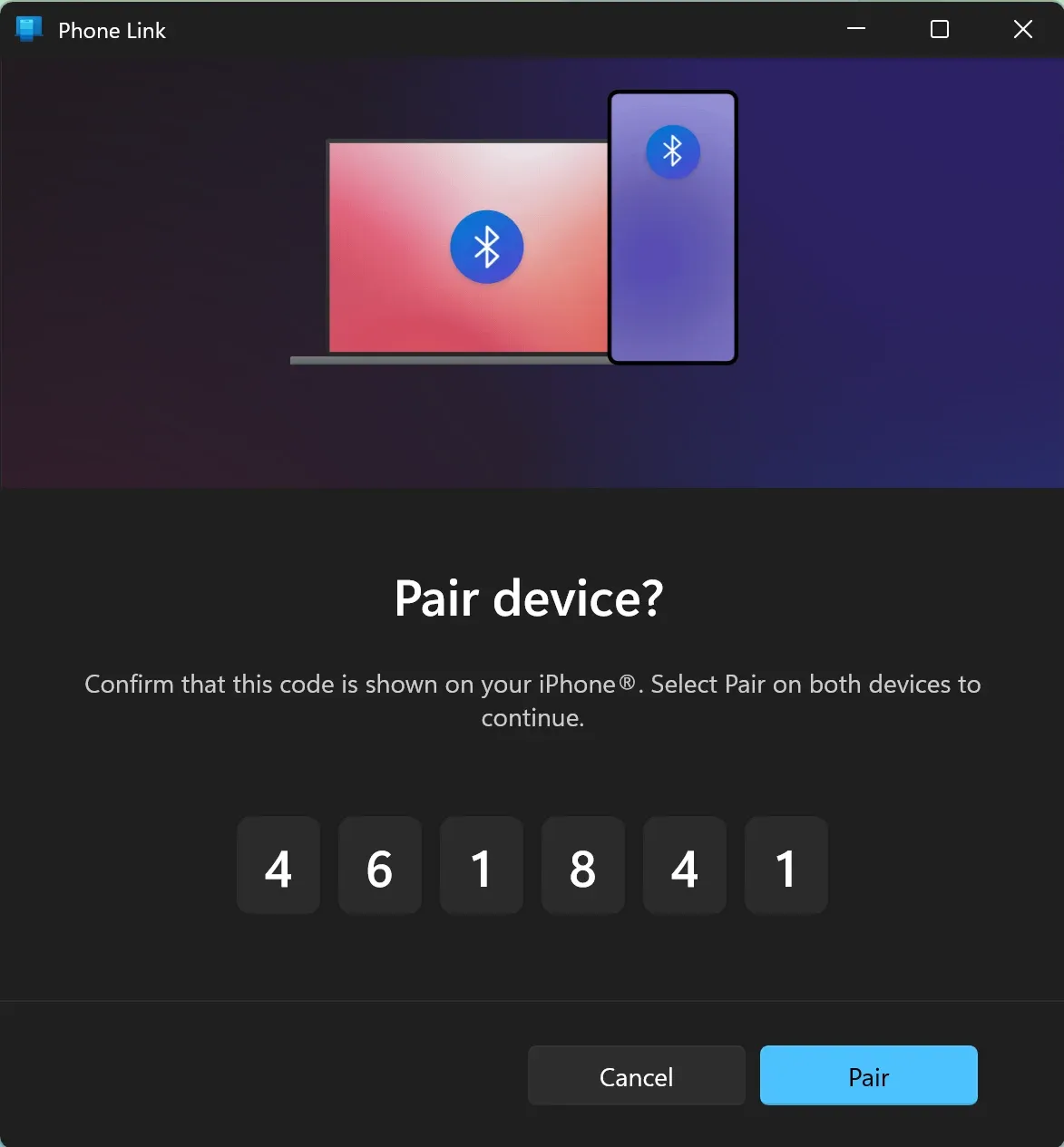
Step 6. Tap Continue on your phone, then enter the code offered by the Phone Link app to connect the phone to the computer.
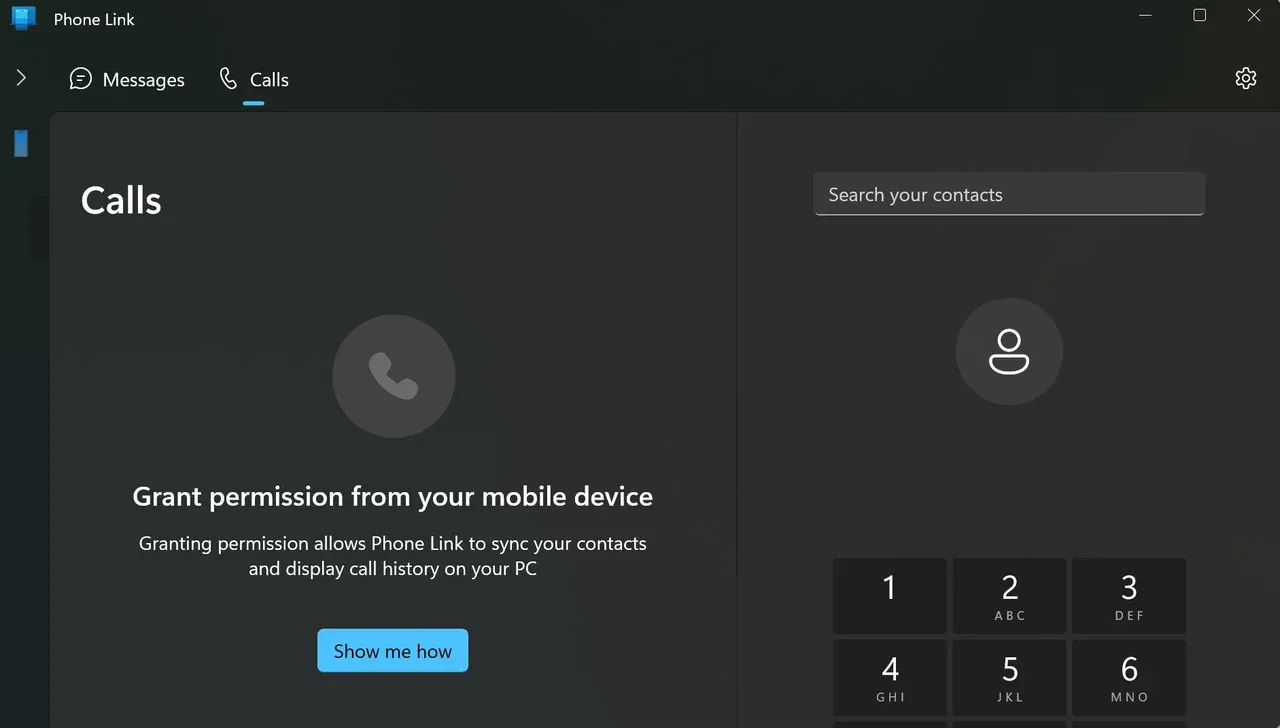
Step 7. Allow all permissions to allow the app to access your messages, contacts, and so on.
Step 8. Tap Down on your phone, and click Continue on your Windows computer to sign in to your Microsoft account.
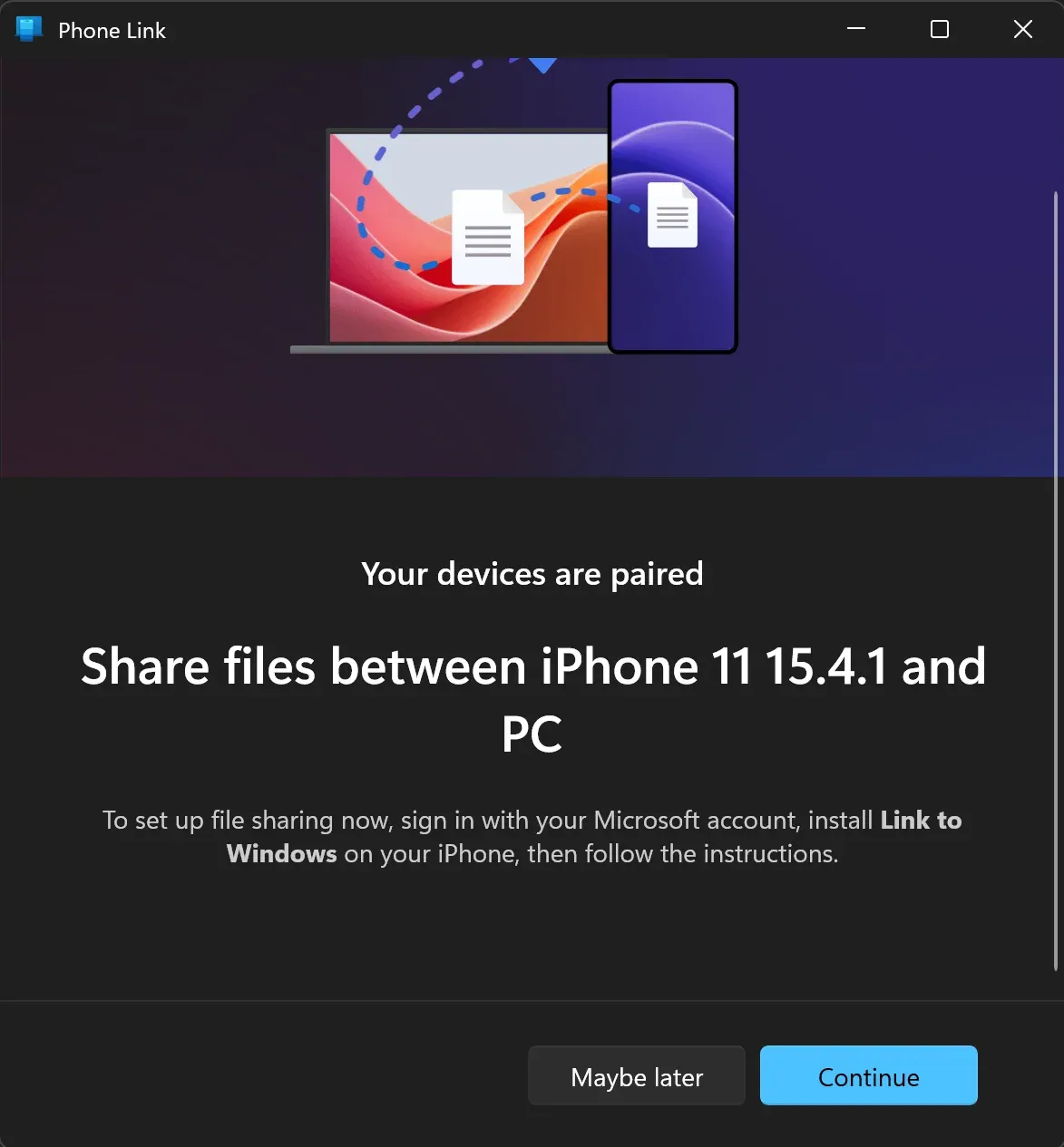
Step 9. Now your phone and computer are connected. You can view messages, calls, and photos from your phone on your computer.
Alternatively, you can use the Apple Devices app to connect iPhone to computer (Windows) for syncing your files, photos, movies, and so forth.
Method 5. Use Mobile Hotspot
Another common purpose of connecting a phone to a computer is to share the phone's network connection with the computer. How to connect computer to phone's hotspot? If your phone can connect to a Wi-Fi network but your computer does not, you can make your computer connected.
Follow the guide on how to connect phone to computer:
Step 1. Ensure that your phone is connected to a Wi-Fi network. Certainly, you can use mobile data, but the next operations will swallow it.
Step 2. Swipe down your phone screen and enable hotspot from the Control Center or Quick Settings. Long-press can access the info about the hotspot, like the name and password.
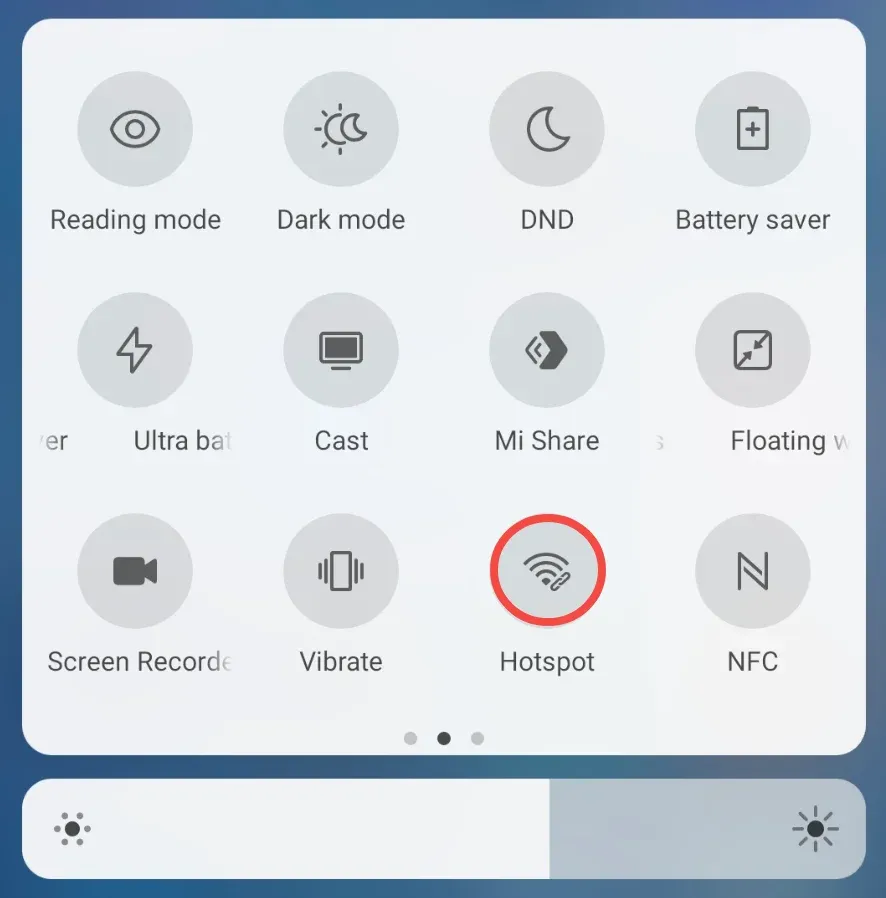
Step 3. On your computer, go to Wi-Fi settings, find your phone's network name, enter tthe password, and tap Connect.
Now your phone is connected to your computer through the mobile hotspot.
Method 6. Use the Cast Feature
An alternative method for screen mirroring is using the Cast feature. For example, connecting Samsung phone to computer can be done with Samsung Smart View, a built-in feature on Samsung smartphones. This way asks neither app nor cable; however, compared to PigeonCast solutions, this way is not universal due to compatibility issues.
Here's how to connect phone screen to computer via the casting feature, like Smart View:
Step 1. Ensure the phone and the computer use the same Wi-Fi network.
Step 2. Open Quick Settings on the phone and enable Smart View.
Step 3. Select the computer from the device list and set up a connection.
Method 7. Use Cloud Service
A cloud service, such as Google Drive, offers a straightforward approach to file transfer between your phone and your computer. Although this way doesn't connect the two devices at all, it lets you access your files from anywhere, across any device.
Here I would like to show you how to connect phone to computer via Google Drive:
Step 1. Install Google Drive on your phone.
Step 2. Sign in with your Google account.
Step 3. Upload files from your phone to Google Drive.
Step 4. Visit drive.google.com on your computer.
Step 5. Sign in with the same Google account.
Step 6. Download files you uploaded from your phone.
Fixed: Phone Not Connecting to Computer
How to connect my phone to my computer? Whether you're trying to transfer files, mirror your screen, or charge your phone, the connection is the first step. If your phone won't connect to PC, the possible reasons and solutions are:
- Different network connections
If you are trying to mirror your phone to your computer via apps like PigeonCast or using the Cast feature, you need to ensure the two devices are connected to the same Wi-Fi network. What's more, update your device firmware to the latest version in case of a compatibility issue and restart the two devices, considering temporary glitches.
- Faulty USB cable or port
If there is no charging, no notification on the phone, or nothing detected on your computer, the USB cable you use or the USB port on the computer is damaged. In such cases, you can try a different USB cable, then switch USB ports on your computer.
When you are trying to connect a phone to a computer using a USB cable, avoid USB hubs or extenders; plug the cable directly into the computer if possible.
- Wrong USB mode
If you can charge your phone by plugging a USB cable into your computer, but the phone does not show up on the computer, the USB mode you selected may not be correct. Just unplug your phone, then replug it, and choose the File Transfer or MTP mode.
- Permission not granted
If your computer doesn't recognize your phone, especially an iPhone, some permissions may be overlooked. While connecting phone to computer, unlock the phone and allow permissions, like "Trust This Computer" on the iPhone.
- Software conflicts or restrictions
If your phone disconnects from your computer randomly, you can restart both devices. If many apps are running in the background, you can choose to close them to remove possible interference. What's more, you can try disabling battery optimization or USB debugging on Android if mirroring.
- Outdated OS or app version
If the connection works partially or inconsistently, there might be an issue with the operating system or app. To fix it, update your OS and mirroring or file transfer software.
Bottom Line
With the guide on how to connect phone to computer, you may find it easy to connect your Android or iPhone to Windows or Mac. If you want to see your phone content on a big screen, try the PigeonCast apps. If you just want to transfer files, other methods are doable.
How to Connect Phone to Computer FAQ
Q: How do I connect my phone screen to my computer screen?
There are two ways to mirror your phone to your computer: wireless and wired. To connect the two devices wirelessly, use the screen mirroring apps like PigeonCast, which allow you to connect an Android or iPhone to Windows or Mac effortlessly. Alternatively, you can plug a USB cable or HDMI cable into the two devices for screen mirroring.
Q: How do I access my phone from my computer?
Use a USB cable to access your phone from your computer. First, plug one end of the cable into your phone and the other end into your computer, then, allow the computer to access files on your phone, and go to This PC on Windows or Finder on Mac. You should see your phone displayed, and double-click it to access your phone files.
Q: How to connect iPhone to PC wirelessly?
Use apps like PigeonCast or Link to Windows. If you are going to mirror to your PC from your iPhone, choose PigeonCast. With the same network connection on the two devices, follow the app on-screen instructions to set up a connection, then you can view your iPhone screen or file on PC screen. Alternatively, you can install Link to Windows app on your iPhone, open Phone Link on Windows, and follow the on-screen prompts to link the two devices. Once linked, you can view messages, contacts, and photos from iPhone on Windows.
Mia Clarke is a technology editor specializing in screen mirroring and casting solutions across multiple platforms. Mia provides clear, practical guides and in-depth insights to help users seamlessly connect their devices. Passionate about enhancing digital experiences, Mia is dedicated to keeping readers updated on the latest trends and tools in cross-platform screen sharing. Whether you’re looking to mirror your smartphone, laptop, or smart TV, Mia’s content delivers reliable, user-friendly advice to simplify your tech setup.