
Yes, you can AirPlay from Windows laptop or desktop to TV, even if it is an Apple TV. While AirPlay is often associated wth Macs and iOS devices, Windows users are not left out. The key is finding the right tools and following clear steps. Whether you want to mirror your Windows PC screen for a presentation, stream movies from your PC, or enjoy music on your TV speaker, there are ways to make it work reliably.
In this guide, you will learn how to AirPlay from Windows to TV using practical methods, including sending to Apple TV and using compatible software.
How to AirPlay from Windows to TV
If your goal is to send content from Windows directly to Apple TV or an AirPlay-integrated TV, this method is straightforward with the right software like PigeonCast for Windows screen mirroring.
Windows devices don't support AirPlay natively, but with the free PigeonCast app, you can easily AirPlay from Windows to Apple TV. Here's how to AirPlay from Windows to Apple TV:
Step 1. Ensure your Windows device and TV are connected to the same Wi-Fi network.
Step 2. On your Windows device, go to the Microsoft Store, search for PigeonCast, and install the app.


Overall Rating:


Step 3. Launch the software on your Windows device, and tap Send my screen.
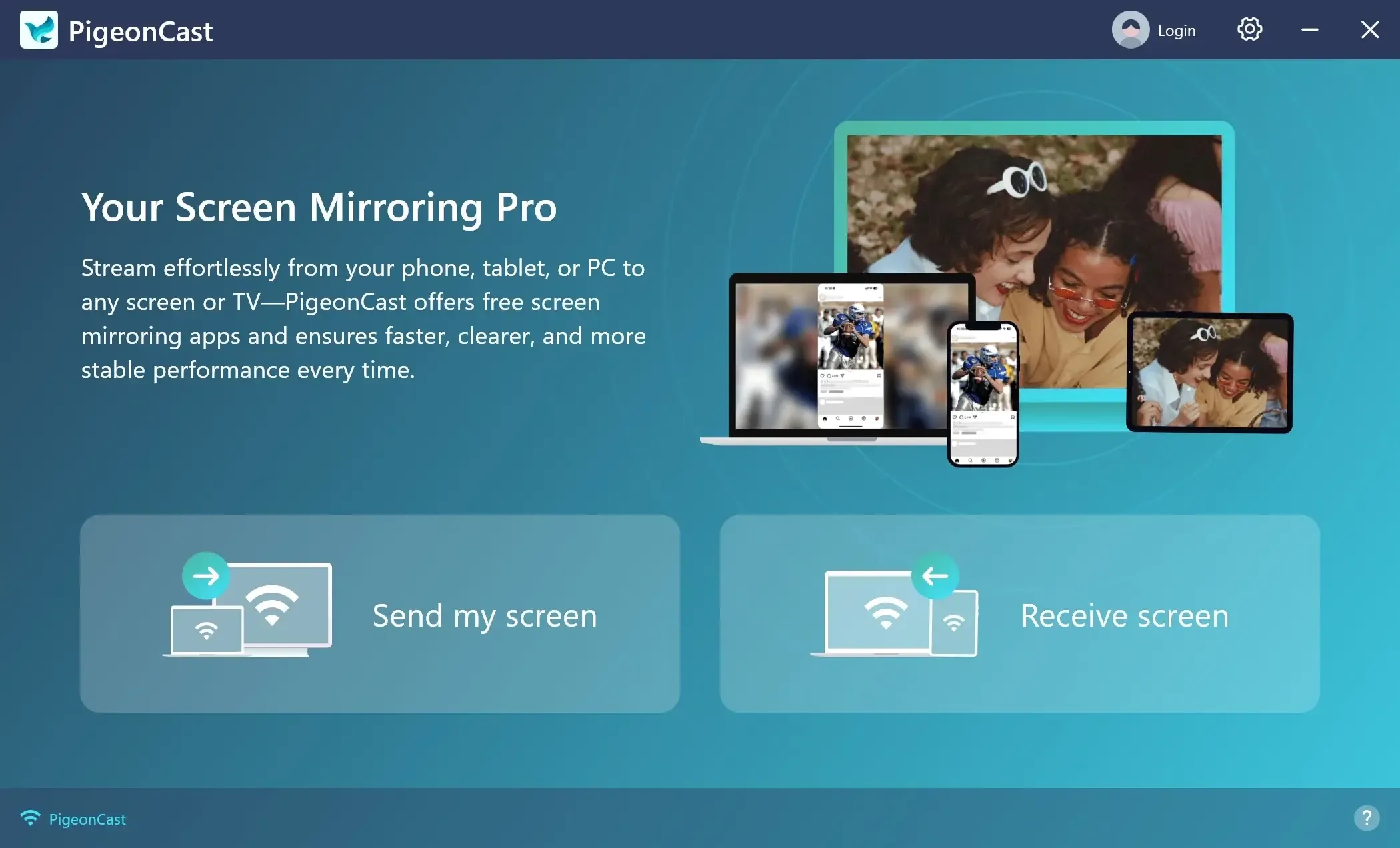
Step 4. Choose your TV from the available devices.
Step 5. Once connected, choose Mirror full screen or Mirror app window.
Step 6. Set the resolution, frame rate, and mirror quality, and click Start mirror.
Your Windows screen or an app window will appear on the big screen, delivering a better visual and audio experience.
How to Mirror Windows to TV Without AirPlay
If you don't have an Apple TV or your TV does not support AirPlay, alternative protocols can help you cast Windows content to your TV:
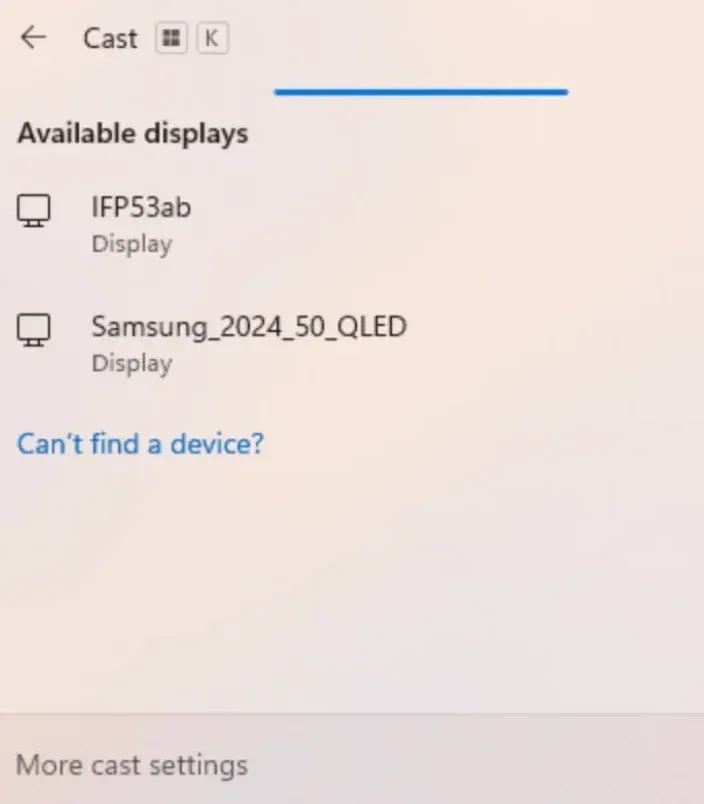
Windows has a built-in "Project to this PC" feature that allows wireless mirroring to Miracast-compatible TVs, including Roku, Samsung, LG, and more.
Step 1. Ensure your Windows PC and TV are on the same Wi-Fi network.
Step 2. Press the Windows + K shortcut and choose your TV from the list.
- Google Cast through Chrome
Many modern TVs have Chromecast built in, or you can use a separate Chromecast device. This method lets you cast your entire desktop from Windows.
Step 1. Ensure your Windows PC and TV are on the same Wi-Fi network.
Step 2. Open the Chrome browser on your Windows PC.
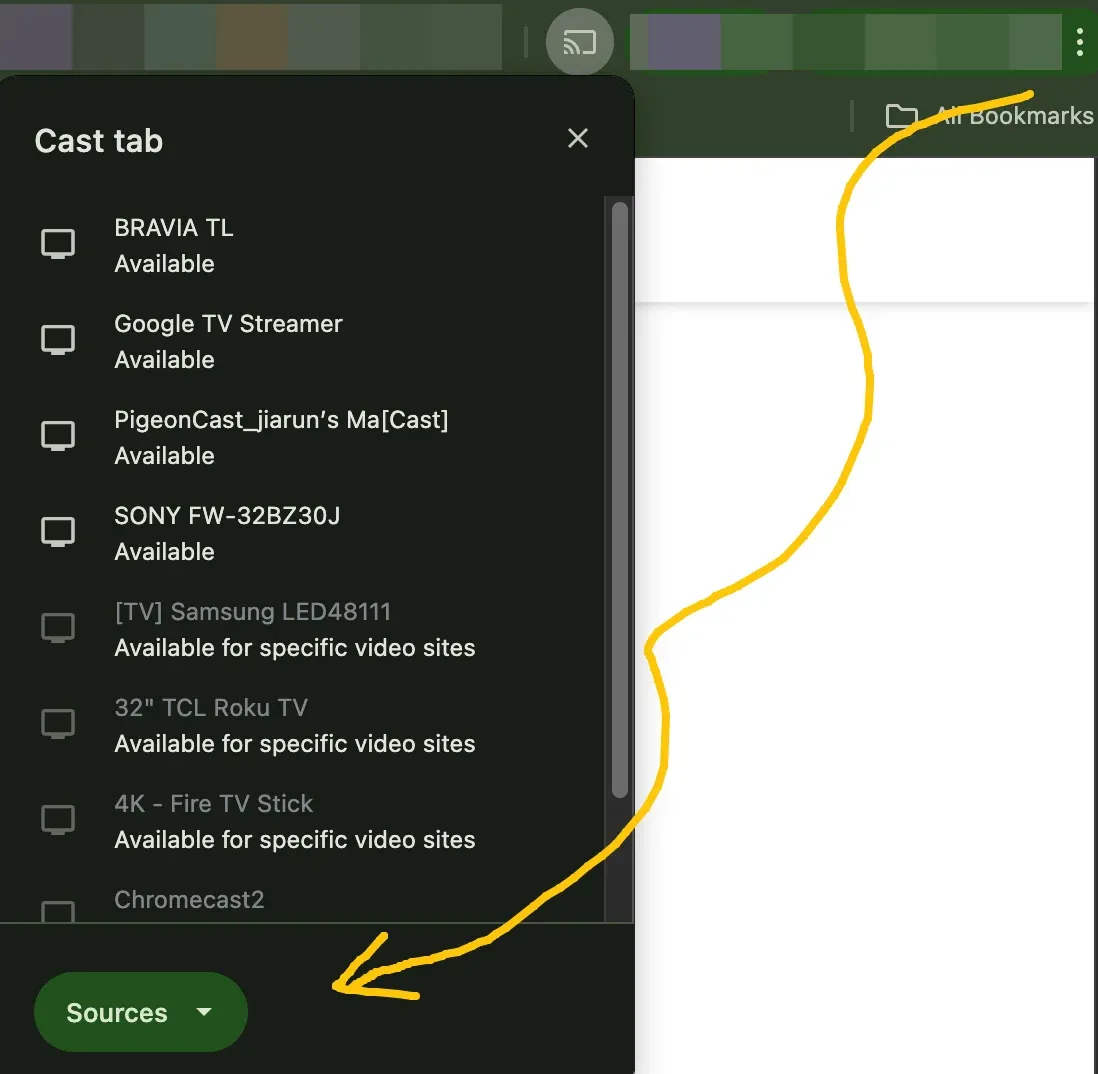
Step 3. Click the Menu icon in the top right corner and choose Cast, Save, and Share > Cast.
Step 4. Choose your TV from the list and choose Cast screen from the Sources menu.
You might be interested in Chromecast Available for Specific Video Sites: Fixed in 2025
- Try screen mirroring apps
If you want maximum flexibility, apps like PigeonCast can bridge AirPlay, Miracast, and Google Cast. This lets you stream Windows content to most smart TVs without worrying about protocol compatibility.
Step 1. Ensure your Windows PC and TV are on the same Wi-Fi network.
Step 2. Set up PigeonCast on your Windows PC and TV and launch the app.
Step 3. Follow the onscreen instructions to start mirroring.
Final Thoughts
Windows does not support AirPlay natively, but third-party screen mirroring tools can still connect a Windows PC to an Apple TV or an AirPlay-compatible smart TV. The best method depends on whether you want to mirror your full screen, share a presentation, or play local media on a larger display.
If your goal is only to watch Apple TV+ shows or access purchased and rented Apple content on your PC, you do not need an AirPlay tool. The Apple TV app for Windows is designed for that purpose, but it does not add AirPlay screen mirroring to Windows.
How to AirPlay from Windows to TV FAQs
How to AirPlay from computer to TV?
For MacBooks, AirPlay is built in. Click the AirPlay icon in the menu bar, select your Apple TV or compatible smart TV, and start mirroring.
For other systems like Windows, Chromebooks, or Linux computers, you'll need third-party tools that bridge AirPlay or use compatible streaming protocols such as DLNA.
Does Windows PC support AirPlay?
Not natively. Windows PCs require third-party software such as PigeonCast, AirServer, or Reflector to send content to Apple TV or AirPlay-compatible TVs or receive content from iPhone, iPad, or Mac.
Can I hook my PC up to my TV?
Yes. You can connect via HDMI for a wired connection, which offers stable, HD screen mirroring.
Can I connect my PC to my TV wirelessly?
Yes, you can connect your PC to your TV wirelessly through AirPlay, Miracast, Google Cast, or a screen mirroring app like PigeonCast.
Why won't AirPlay from Windows to TV connect?
The common issues include: devices not on the same Wi-Fi network, firewall or antivirus blocking the connection, or outdated AirPlay software. Restarting both devices often resolves the issue.
Can I AirPlay Windows laptop to non-Apple TV?
Yes, you can AirPlay your Windows laptop without Apple TV. AirPlay-compatible software like PigeonCast can bridge protocols and allow Windows devices to mirror to many smart TVs that support AirPlay.
Which is the best software for AirPlay from PC to TV
PigeonCast is highly recommended for its reliability, multi-protocol support, and easy setup. AirServer and Reflector are also good alternatives depending on your device and preferences.
Mia Clarke is a technology editor specializing in screen mirroring and casting solutions across multiple platforms. Mia provides clear, practical guides and in-depth insights to help users seamlessly connect their devices. Passionate about enhancing digital experiences, Mia is dedicated to keeping readers updated on the latest trends and tools in cross-platform screen sharing. Whether you’re looking to mirror your smartphone, laptop, or smart TV, Mia’s content delivers reliable, user-friendly advice to simplify your tech setup.