
Ever wanted to share a video from your iPhone to your Apple TV, but there's no WiFi around? This is a common question: can you AirPlay without WiFi? The short answer is yes, thanks to something called Peer-to-Peer AirPlay. In this guide, we'll explore how AirPlay works, whether you really need WiFi, and some practical alternatives for seamless screen mirroring.
Does AirPlay Require WiFi
Typically, AirPlay relies on WiFi. Your iPhone, iPad, or Mac and your Apple TV or AirPlay-compatible TV need to be on the same network to communicate. This setup makes streaming smooth and responsive, but it can be a problem when WiFi is unavailable. So, do you need WiFi for AirPlay? Not always!
How to AirPlay Without WiFi
Can you AirPlay without WiFi? Yes, even without a WiFi network, there are ways to enjoy AirPlay. In the following sections, we'll explore Peer-to-Peer AirPlay and other reliable alternatives to help you AirPlay without WiFi.
Method 1. Use Peer-to-Peer AirPlay
Apple introduced Peer-to-Peer AirPlay, which lets you connect devices directly without relying on a WiFi network. It works by using Bluetooth to discover the Apple TV and then creating a direct WiFi connection to transfer content.
Here is how AirPlay without WiFi via Peer-to-Peer AirPlay:
Step 1. Make sure your Apple devices are compatible and powered on.
- Apple TV HD with tvOS 9 or later, or Apple TV 4K with tvOS 11 or later
- iPhone, iPad, and MacBook from late 2012 or later with the latest version of their operating system
Step 2. Enable Bluetooth and WiFi on your iPhone, iPad, or MacBook (don't let your Apple device get connected to any WiFi).
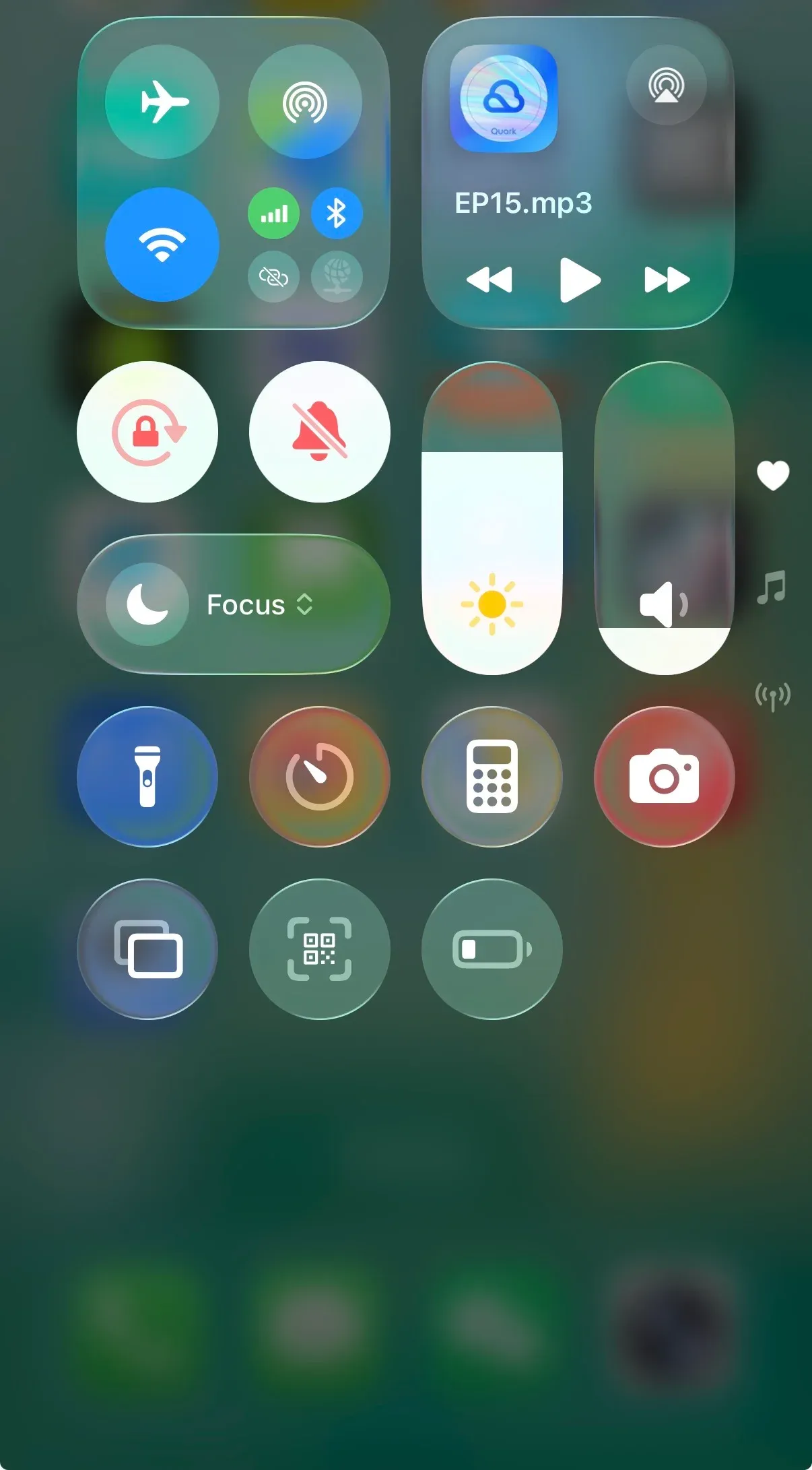
Step 3. Open the Control Center, choose Screen Mirroring, and choose your Apple TV from the list of available devices.
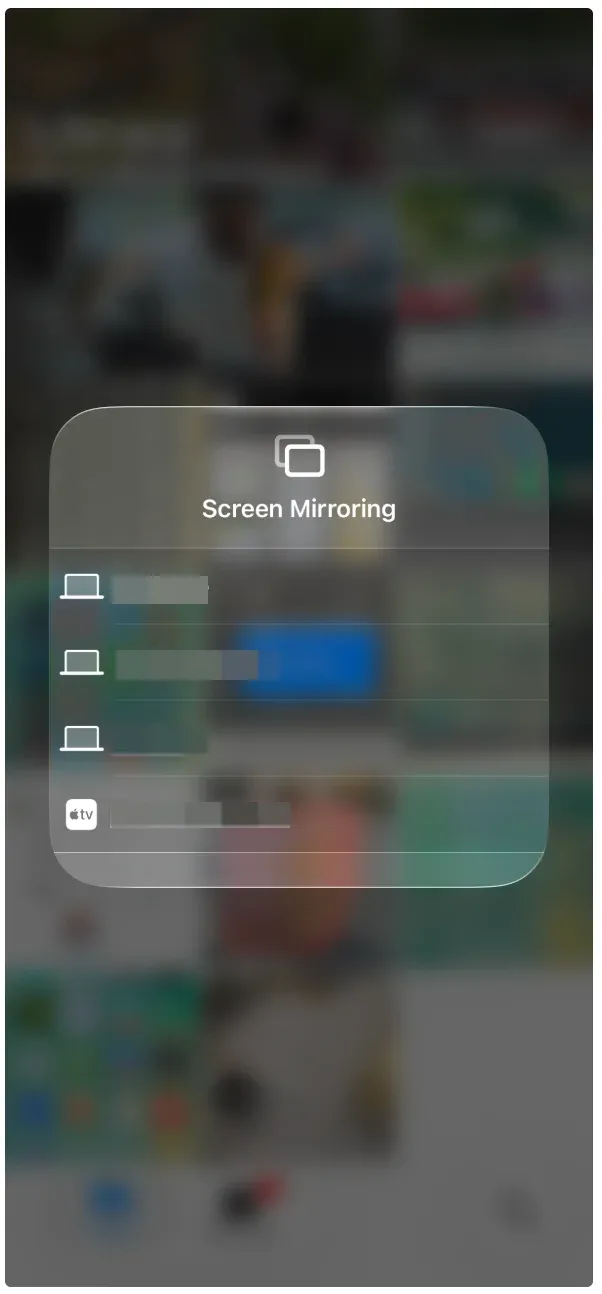
Step 4. Your iPhone, iPad, or MacBook will ask for a four-digit code for the first connection to your TV. Enter the verification code displayed on the TV.
Step 5. You can watch everything from your Apple device on the big screen.
With this setup, you can mirror your iPhone screen or stream content even without a WiFi network. However, keep in mind the connection is usually limited to 30 feet, and some older devices may not support Peer-to-Peer AirPlay.
Method 2. Use an HDMI Adapter
While Peer-to-Peer AirPlay is convenient, it's not perfect. Some high-definition streams may experience lag or reduced quality. Apps that rely heavily on internet access may still require WiFi. So, can you use AirPlay without WiFi? Yes, but your experience may vary depending on your devices and content.
Another option is connecting your iPhone or MacBook to a TV using an HDMI adapter. Although this method is wired and less flexible, it offers a more stable connection and consistently high-quality screen mirroring, making it ideal for situations where WiFi is unavailable or unreliable.
How to screen mirror without WiFi:
Step 1. Connect a compatible HDMI adapter to your iPhone or MacBook (like the Lightning digital AV adapter or USB-C to HDMI adapter).
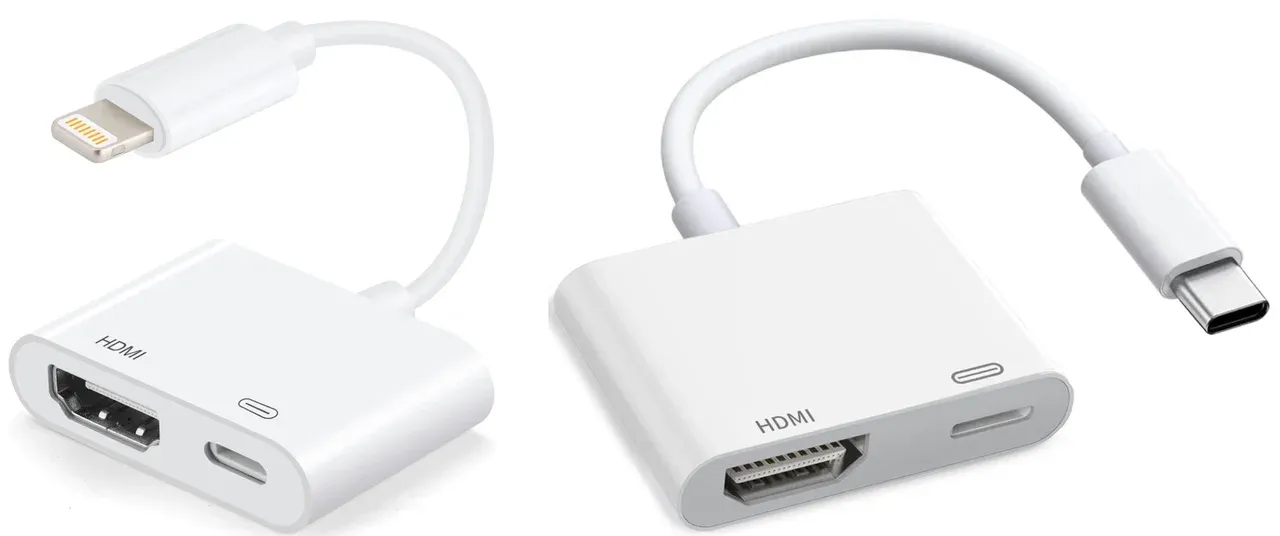
Step 2. Plug one end of an HDMI cable into the HDMI adapter and connect the other end to the HDMI port of your TV.
Step 3. Power on your TV, enter the source menu, and choose the correct source.
Peer-to-Peer AirPlay and HDMI cables are useful when WiFi isn't available, but they have limitations, such as compatibility issues, distance restrictions, or the inconvenience of carrying extra accessories. Another workaround is using your personal hotspot to create a temporary WiFi network. This can get AirPlay working, but it often drains battery quickly and may not deliver the smoothest streaming experience.
Beyond AirPlay: A Smarter Way to Connect Apple Devices
If you prefer a more versatile solution when WiFi is available, consider PigeonCast, a free third-party screen mirroring app.
Unlike Apple's built-in AirPlay, PigeonCast works seamlessly across all major Apple devices, like iPhone, iPad, MacBook, and Apple TV, and also supports Windows PCs, Android devices, and smart TVs. That means you're not locked into one ecosystem, and you can mirror or cast content between different platforms effortlessly.

With just one app, you can stream a presentation from your MacBook, watch movies from your iPhone, or share photos from your iPad directly on a bigger screen. It's a flexible, reliable solution whether you're at home, using a WiFi network, or even tethered to a personal hotspot.
How to use PigeonCast on your iPhone:
Step 1. Download and install PigeonCast on iPhone.

PigeonCast Screen Mirroring

Official Download


Step 2. Connect your iPhone to the WiFi network your TV is using.
Step 3. Launch the screen mirroring app for iPhone and choose your TV from the list of available devices.
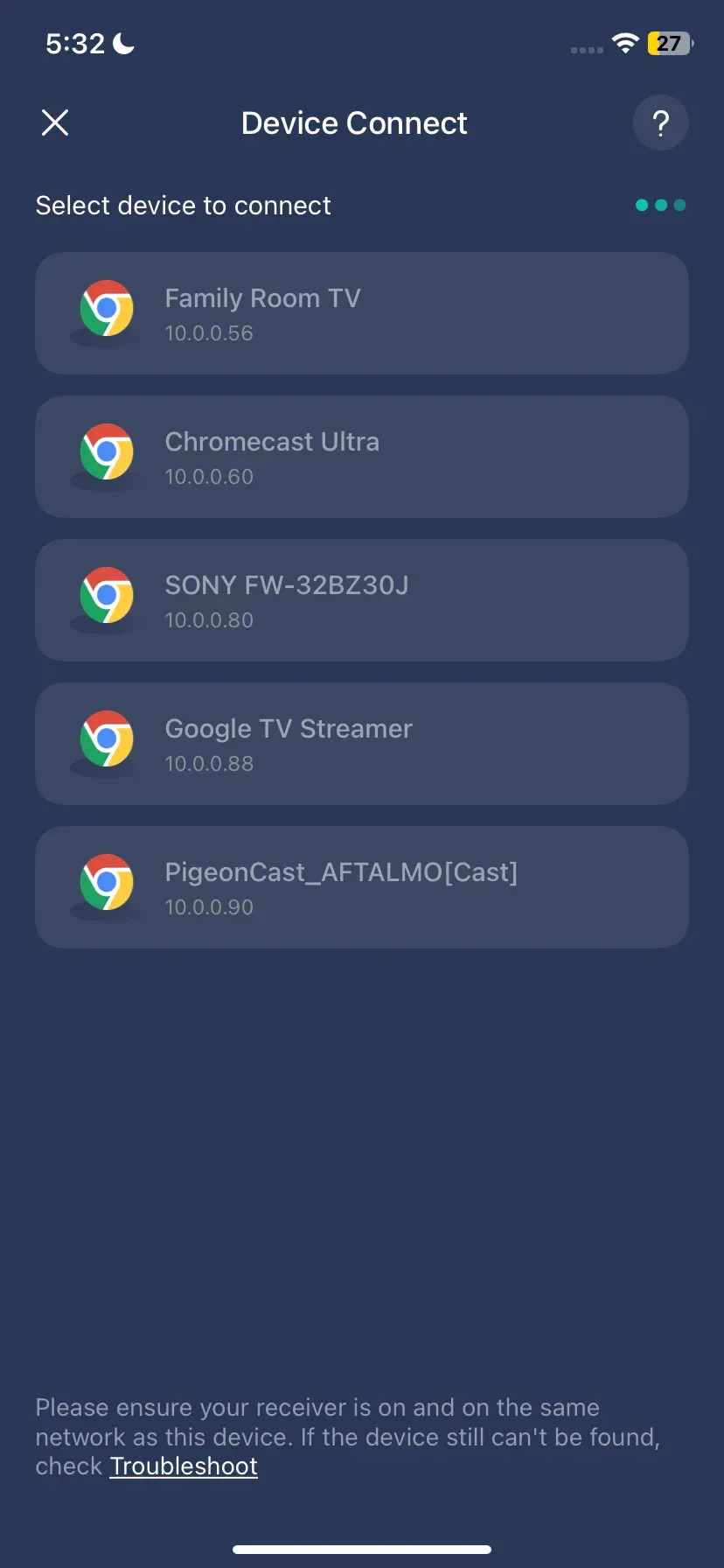
Step 4. Once connected, tap the Screen Mirror option.

Step 5. Enjoy your game, video, or song on the big screen.
The End
So, can you AirPlay without WiFi? Yes, you can use Peer-to-Peer AirPlay for direct connections, rely on an HDMI cable for a stable wired setup, or even use a personal hotspot in a pinch. Each method has pros and cons, and the right choice depends on your situation.
For everyday use when WiFi is available, tools like PigeonCast make the process even easier by supporting all Apple devices and extending compatibility to Windows, Android, and smart TVs. Whether you're sharing a presentation, streaming a movie, or mirroring your iPhone screen, you'll always have a reliable way to connect.
Can You AirPlay Without WiFi FAQs
Can you AirPlay without WiFi?
Yes. With Peer-to-Peer AirPlay, you can connect an iPhone, iPad, or MacBook directly to an Apple TV without needing a WiFi network.
What is Peer-to-Peer AirPlay?
It's a feature that uses Bluetooth for discovery and a direct WiFi link to stream content between Apple devices without an internet connection.
Can I use a personal hotspot for AirPlay?
Yes. You can set up your iPhone's hotspot to create a temporary WiFi network for AirPlay, though it may drain battery quickly and isn't always as stable.
Can I screen mirror if my TV is not connected to Wi-Fi?
Can I screen mirror if my TV is not connected to Wi-Fi?
Yes. Some devices can mirror directly to a TV without connecting both devices to a traditional Wi-Fi network. For example, Apple devices may support Peer-to-Peer AirPlay, while many Windows and Android devices can use Miracast or Wi-Fi Direct. These direct connections can also make laptop screen mirroring without internet possible on compatible devices. Keep in mind that support varies by TV and device, and some apps may still require an internet connection to load or stream content.
Can you AirPlay over Bluetooth?
Not entirely. Bluetooth alone cannot stream video or audio for AirPlay. On Apple devices, Bluetooth is mainly used to detect and establish the connection between devices when using Peer-to-Peer AirPlay, but the actual streaming still happens over a direct Wi-Fi connection. So, while Bluetooth helps the devices find each other, you still need Wi-Fi for the data transfer.
Why won't my TV let me AirPlay?
There are several common reasons your TV might not appear as an AirPlay option: your devices may not be compatible with AirPlay, AirPlay might be disabled in your TV's settings, or the devices aren't on the same network. Software that's outdated or network restrictions, such as firewalls or VPNs, can also block AirPlay. Double-check your TV's AirPlay settings, ensure both devices are updated, and make sure they can see each other on the same network.
Mia Clarke is a technology editor specializing in screen mirroring and casting solutions across multiple platforms. Mia provides clear, practical guides and in-depth insights to help users seamlessly connect their devices. Passionate about enhancing digital experiences, Mia is dedicated to keeping readers updated on the latest trends and tools in cross-platform screen sharing. Whether you’re looking to mirror your smartphone, laptop, or smart TV, Mia’s content delivers reliable, user-friendly advice to simplify your tech setup.