
It's easy to screen mirror an iPhone to other devices over AirPlay. However, iPhone mirroring not working is a common issue among iPhone users, and they have the same question: "Why is my screen mirroring not working on my iPhone?"
Whether your issue is screen mirroring iPhone to TV not working, or Mac iPhone mirroring not working, in this guide, we'll walk you through the most common causes behind the issue, how to fix them, and introduce an easier, more reliable method for screen mirroring iPhone to Mac or TV. With the troubleshooting guide, no guesswork, no vague advice.
Common Issues with iPhone Screen Mirroring
Before we dive into why things go wrong, here's a snapshot of the most common issues users report when iPhone mirroring doesn't work:
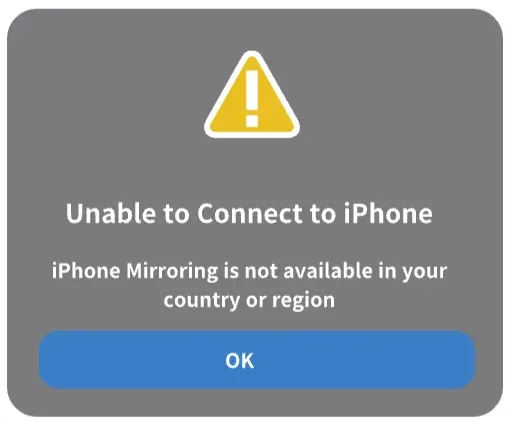
- AirPlay target not showing up: Your TV, Mac, or other receiver doesn't appear in the list when you open Screen Mirroring in Control Center.
- Connection fails after a few seconds: iPhone screen mirroring starts but drops unexpectedly.
- Audio-only streaming: Only audio is cast, with no video.
- Control Center button unresponsive: The Screen Mirroring button doesn't respond or does nothing.
- No option for mirroring: AirPlay settings are grayed out or missing.
These can be caused by anything from network glitches and firmware issues to compatibility problems.
Why Is iPhone Mirroring Not Working
Before diving into solutions, it's helpful to understand what might be going wrong. iPhone screen mirroring relies primarily on AirPlay, Apple's proprietary wireless streaming protocol. AirPlay enables your iPhone to discover and connect with compatible devices over the same Wi-Fi network.
However, when AirPlay doesn't function properly, iPhone screen mirroring can fail completely. This is often due to issues such as:
- Network problems: if your iPhone and the receiving device (such as a Mac or Samsung TV) aren't on the same Wi-Fi network, AirPlay can't detect the receiving device, and you'll see a spinning icon on the Screen Mirroring window.
- Device compatibility: not all receivers or TVs support AirPlay. For example, older smart TVs or certain Android TVs may lack built-in AirPlay support, causing screen mirroring iPhone to TV not working. Here are some examples:
- Compatible device: Apple TV (4th generation and later), AirPlay 2-compatible smart TVs from brands like LG (2019+), Samsung (2018+), Sony (2019+), and Vizio (2019+).
- Partially compatible or incompatible: many TCL Roku TVs, older Panasonic and Sharp smart TVs, and Android TV models without AirPlay built in. These may require external adapters or third-party apps to mirror properly. If your TV doesn't show up as an AirPlay target or the connection fails, it's worth checking your TV's specs or manual to confirm AirPlay support.
- AirPlay disabled on target device: your TV or MacBook must have AirPlay enabled in its settings.
- Firewall or router restrictions: some network configurations block AirPlay traffic.
- Software bugs or iOS updates: especially following major updates like iOS 18, AirPlay can behave unpredictably, resulting in iPhone mirroring not working iOS 18.
- Outdated firmware: if the receiving device's firmware isn't updated, it may not be compatible with AirPlay from the latest iPhones.
So if you're asking "Why is iPhone mirroring not working?" or "Why is my screen mirroring not working on my iPhone?", chances are the problem lies with how AirPlay is functioning on your devices or whether the receiving device supports it in the first place.
How to Fix iPhone Mirroring Not Working on Mac or TV
So you've tried swiping into Control Center and tapping Screen Mirroring, but nothing happens. Or worse, it connects and immediately fails. Here's a checklist of things you should try.
#1. Make Sure Both Devices Are on the Same Wi-Fi Network
AirPlay works over Wi-Fi instead of Bluetooth or cellular data, and it requires that both your iPhone and the receiving device (TV, Mac, or Apple TV) are connected to the same Wi-Fi network.
If they're on different networks (for example, one is on guest Wi-Fi, while the other is on your main home Wi-Fi), the devices won't find each other. Furthermore, different router bands are also not allowed; both devices should be on 2.4GHz or 5GHz.
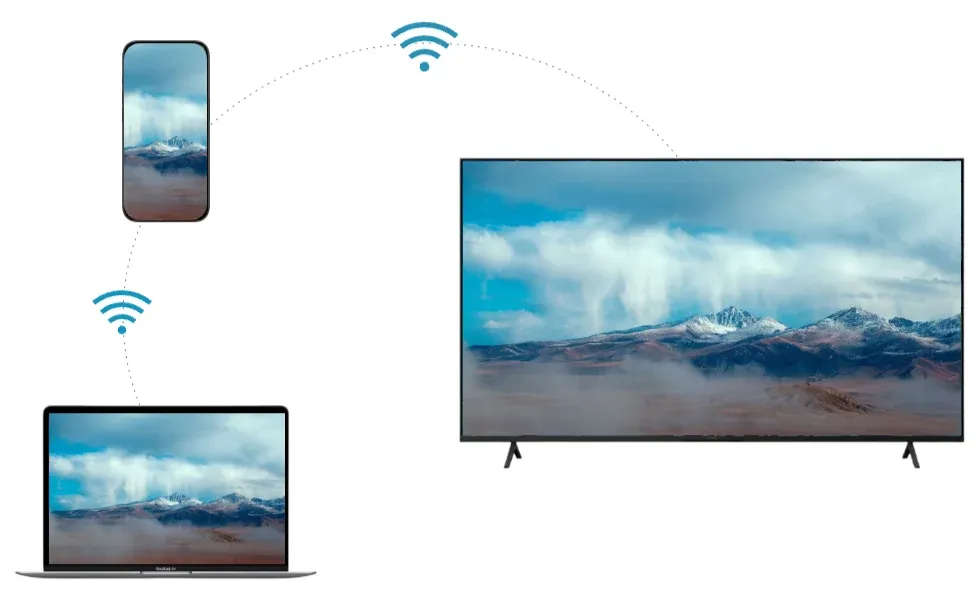
If both your devices are on the same Wi-Fi network, you can try turning Wi-Fi off and back on for both your iPhone and receiver to force a reconnection. Avoid using mobile hotspots or mobile data during mirroring.
#2. Restart Your iPhone, Mac or TV, and Router
A quick restart can clear temporary software bugs, reconnect lost services, and fix device discovery issues. So, try restarting your iPhone, Mac or TV, and even your router when you can't mirror from iPhone to Mac or TV over AirPlay.
First, restart your iPhone:
Step 1. Press and hold the power button and volume up button (or just the power button for older models).
Step 2. Swipe to power off.
Step 3. Wait 10 seconds and power back on.
Then, restart your receiving devices:
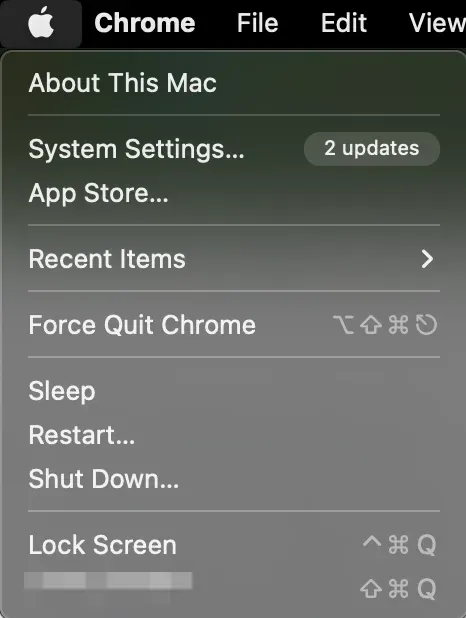
- For a Mac: click the Apple icon in the top left corner and choose the Restart option from the drop-down menu.
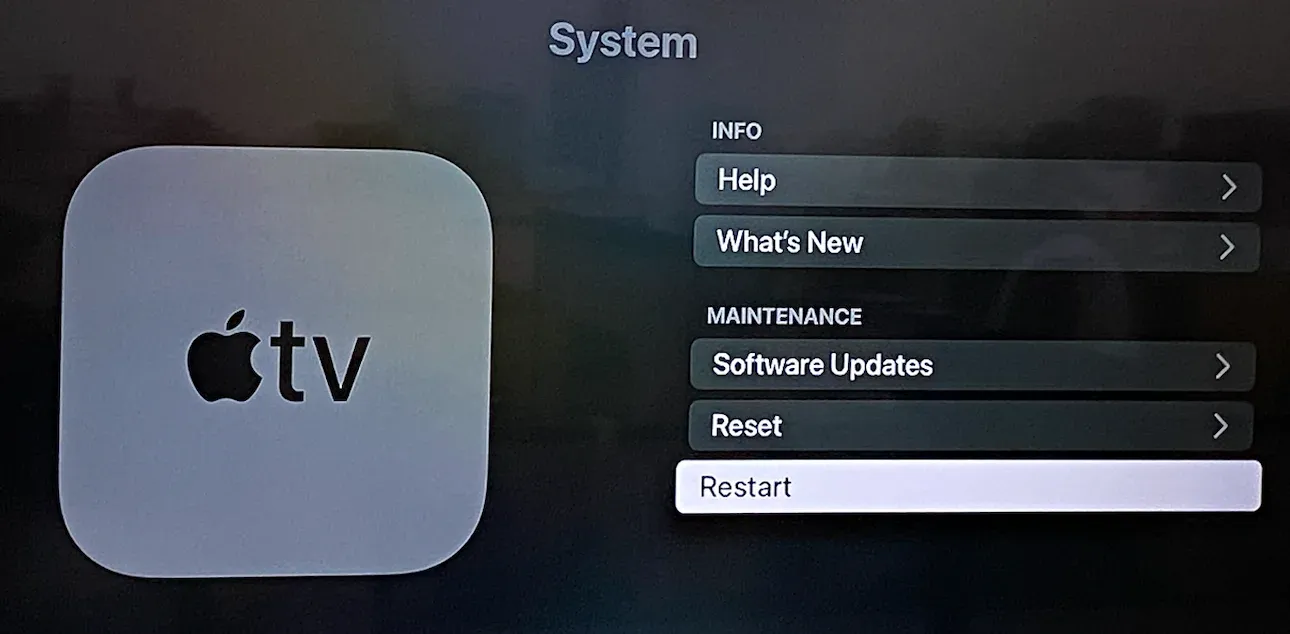
- For Apple TV: go to Settings > System or General > Restart.
- For a smart TV: turn off the TV, unplug it from the outlet, wait 30 seconds, and plug it back in.
Last, restart your router:
Step 1. Unplug your router from power.
Step 2. Wait at least 30 seconds.
Step 3. Plug it back in and wait for it to fully boot. This will take about 2 minutes.
#3. Update iOS and the Receiver's Firmware
iOS updates frequently patch bugs related to AirPlay. Similarly, outdated firmware on Macs, TVs, or Apple TVs can prevent them from recognizing new iPhones or supporting the latest AirPlay protocols.
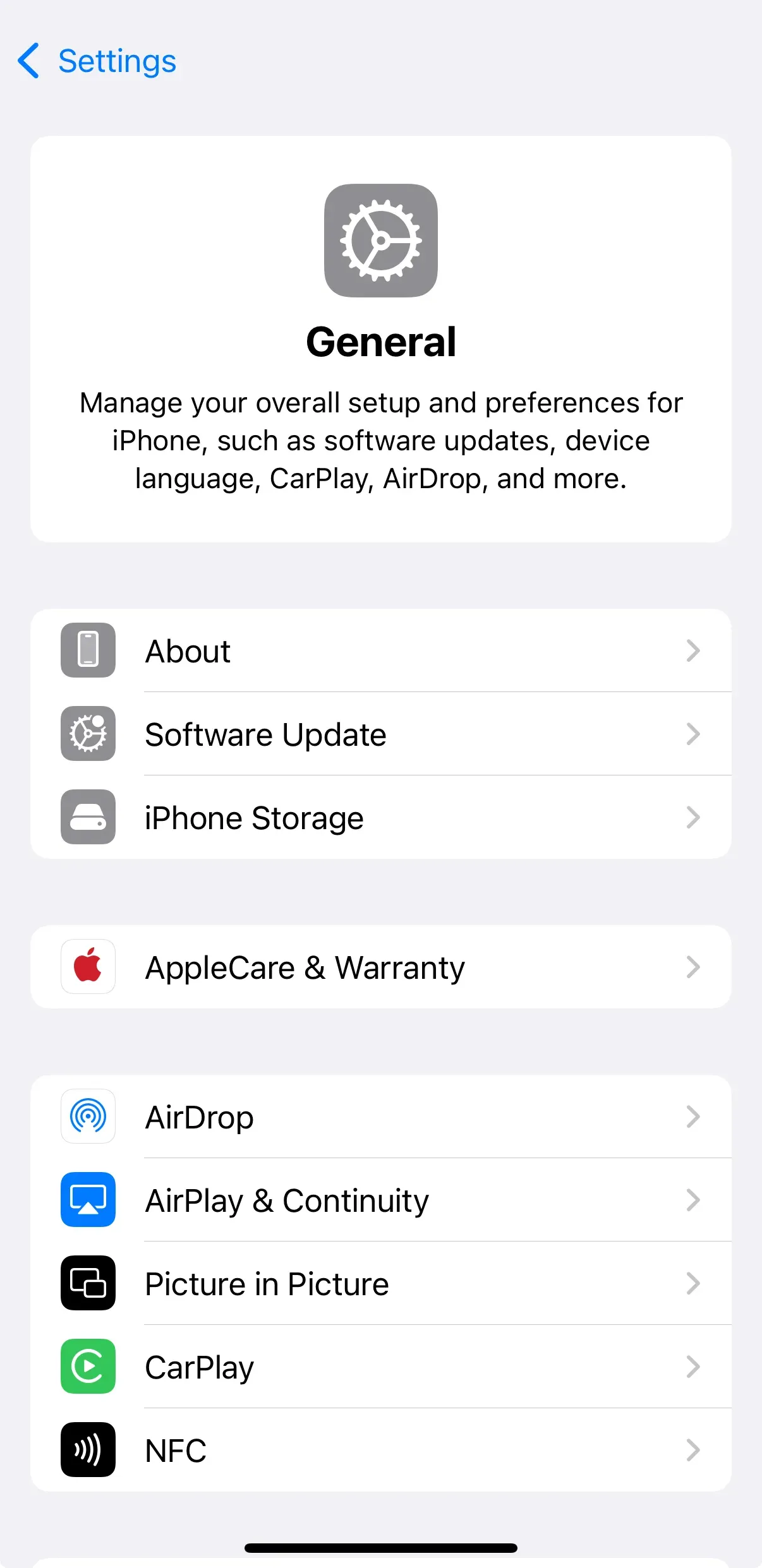
Step 1. On your iPhone, go to Settings > General > Software Update. Install any available updates, especially if you're on iOS 18; early versions introduced multiple AirPlay-related bugs.
Step 2. Update the operating system on the receiving device:
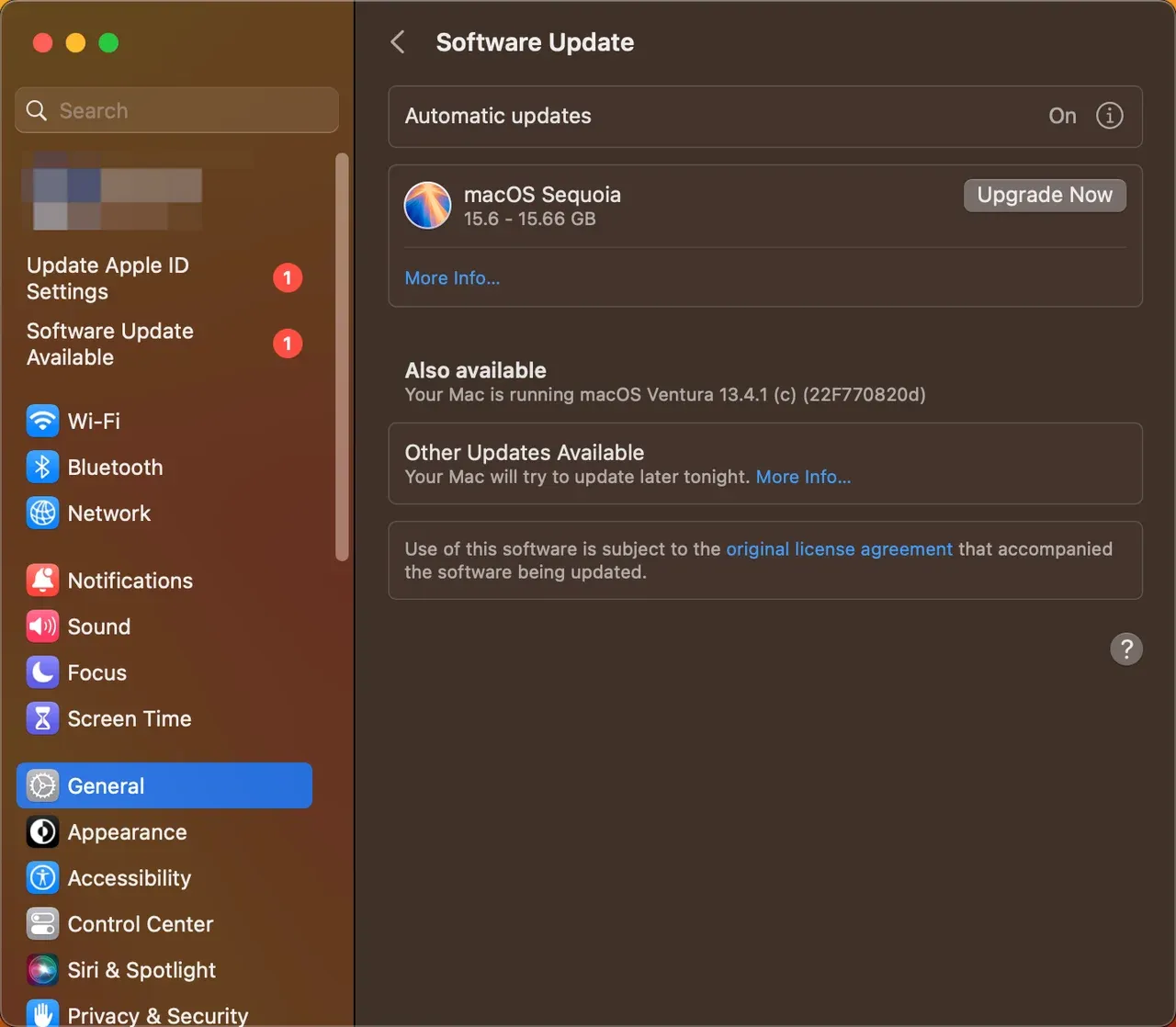
- On MacBook: go to Settings > General > Software Update, wait for the device to check available updates, and click Upgrade Now.
- On Apple TV: go to Settings > System > Software Updates and check for new firmware.
- On smart TV (such as Samsung, LG, Sony, etc.): look under Settings > Support > Software Update (varies by brand). Alternatively, you can also update your TV via USB if possible.
#4. Check That AirPlay Is Enabled on the Receiving Device
AirPlay must be explicitly turned on on the receiving end, such as a Mac or TV. Some TV or macOS settings disable AirPlay by default to preserve security or bandwidth.
So, to troubleshoot iPhone screen mirroring not working, ensure that AirPlay is enabled on your MacBook, Apple TV, or smart TV:
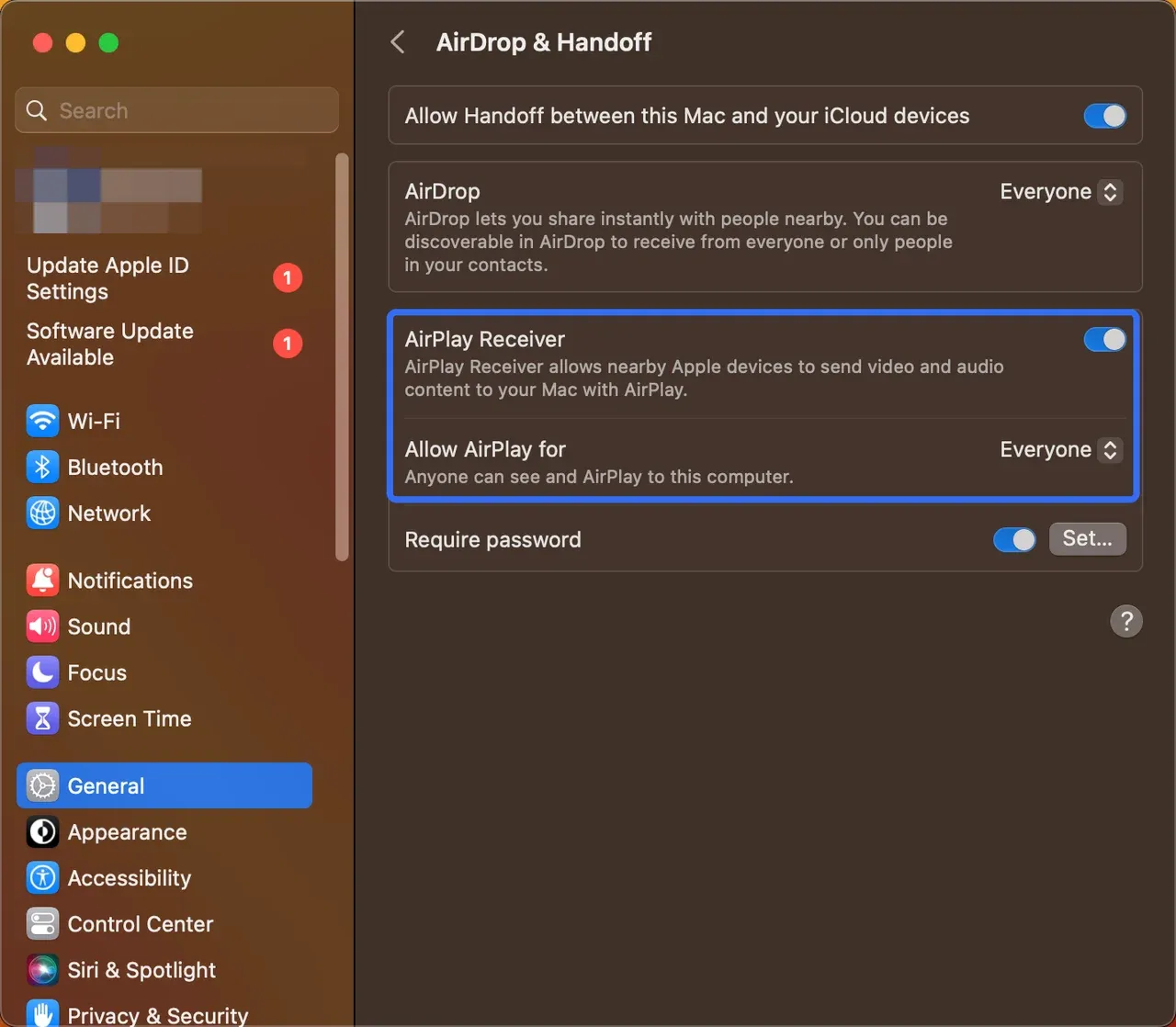
- On MacBook: go to Settings > General > AirDrop & Handoff, then enable AirPlay Receiver and set Allow AirPlay for to Current user or Everyone on same network.
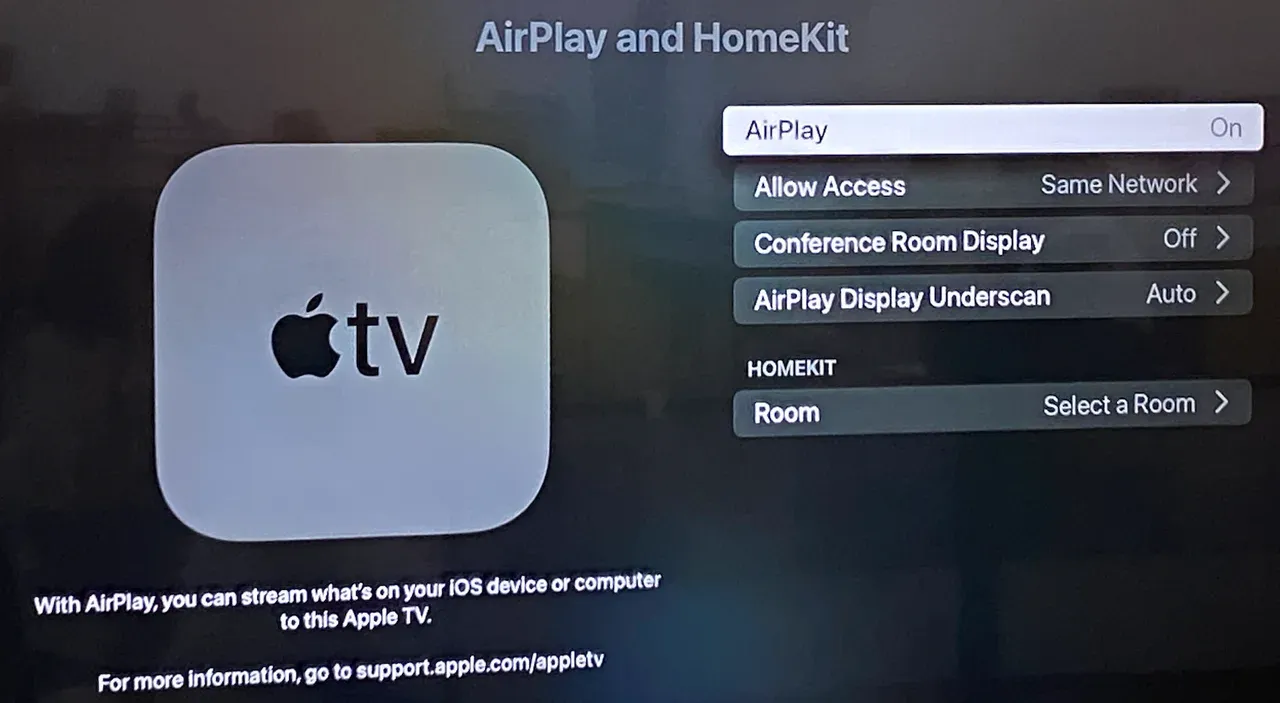
- On Apple TV: go to Settings > AirPlay and HomeKit, and confirm AirPlay is on.
- On smart TV: go to Settings > General > Apple AirPlay Settings and switch the toggle for AirPlay to On.
#5. Confirm the TV Is Set to the Correct Input
If you're using a streaming device, such as Apple TV or Roku Stick, make sure the TV is set to the correct HDMI input. To do this, use your TV remote to cycle through HDMI ports (HDMI 1, HDMI 2, etc.) and wait a few seconds for each input to allow the device to wake up or respond.
#6. Disable VPN, Firewall, or Ad-Blockers
VPNs and firewalls can isolate network traffic even when both devices appear to be on the same Wi-Fi. Ad blockers like Pi-hole can block the multicast traffic that AirPlay uses.
The steps to fix iPhone mirroring on Mac not working are:
Step 1. Turn off VPN on your iPhone.
Step 2. Disable VPN or advanced DNS/firewall settings on your router.
Step 3. Temporarily disable ad-blocking tools or parental controls to test iPhone mirroring.
If these steps don't work, try enabling Multicast, Bonjour, or UPnP (Universal Plug and Play) settings in your router dashboard.
#7. Reset Network Settings on iPhone
Misconfigured network settings, expired caches, or corrupted DNS entries can prevent iPhone from detecting or connecting to AirPlay devices. So, when you're stuck in screen mirroring iPhone not working, try resetting network settings on your iPhone like this:
Step 1. Go to the Settings app on your iPhone.
Step 2. Choose General.
Step 3. Choose Transfer or Reset iPhone.
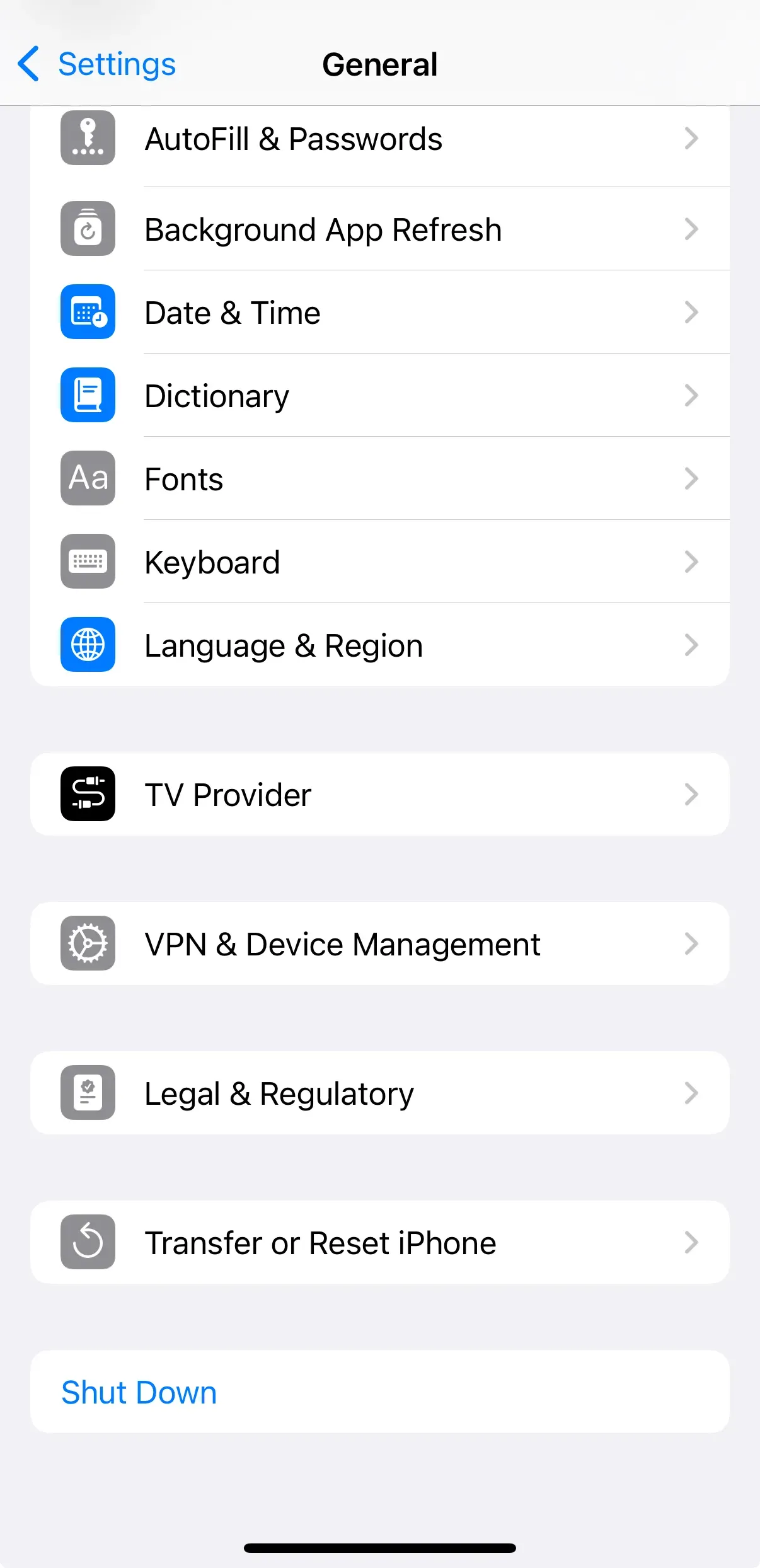
Step 4. Choose Reset.
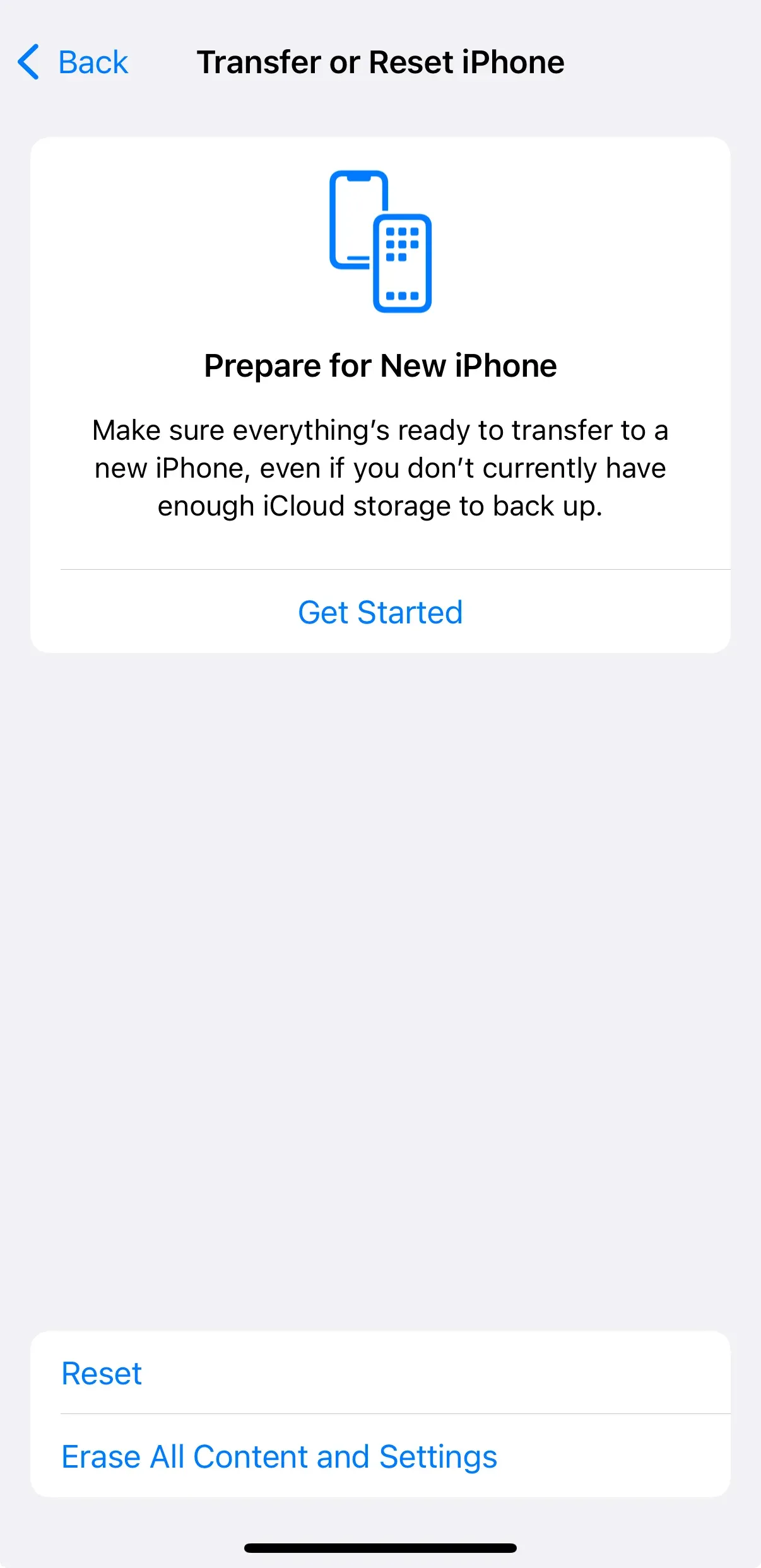 Step 5. Choose Reset Network Settings from the pop-up menu.
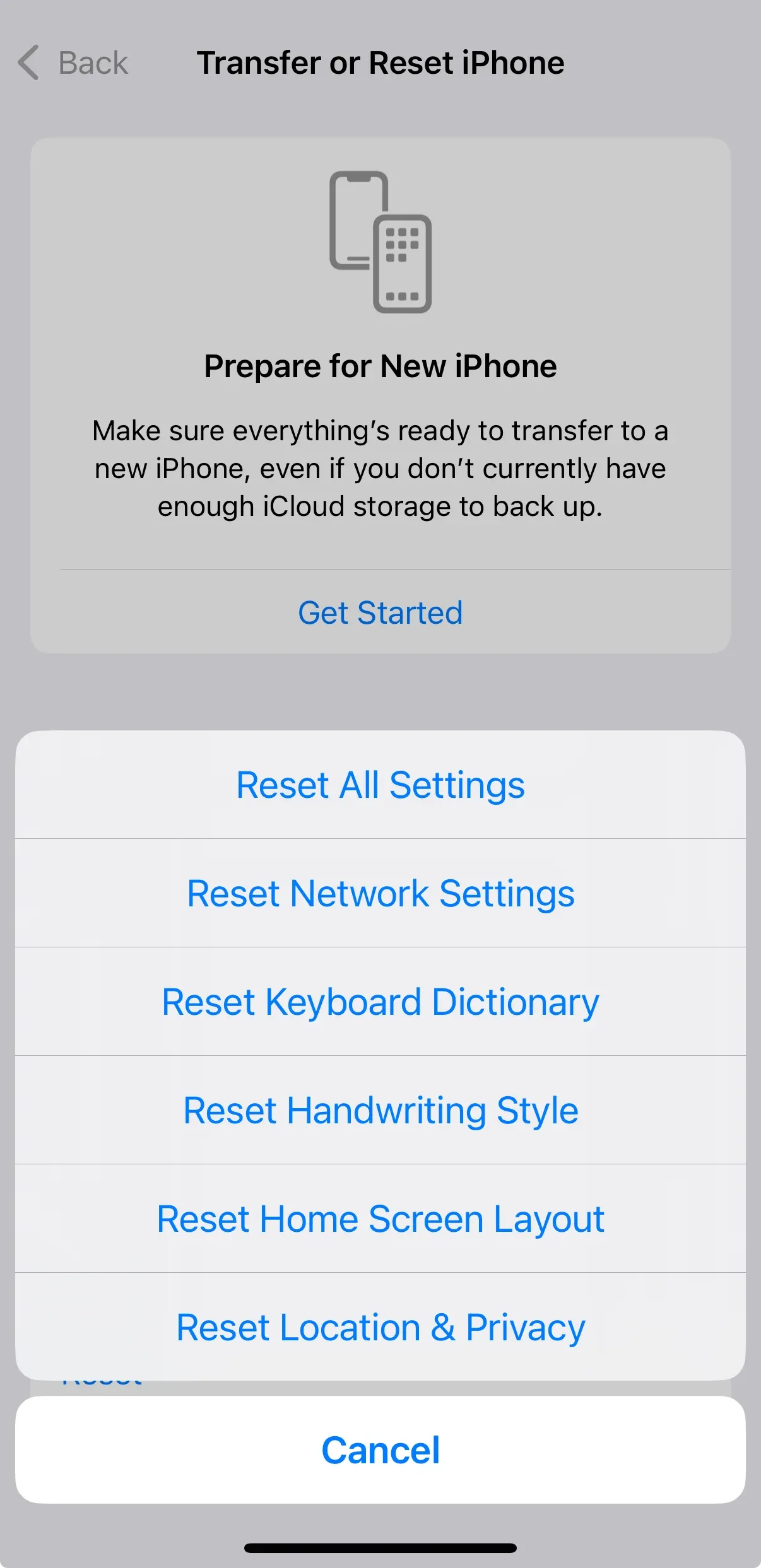
Step 6. Wait for your iPhone to reboot and clear all saved Wi-Fi networks and VPN settings.
Step 7. Once your iPhone reboots, connect your iPhone to the Wi-Fi network again and turn on screen mirroring.
#8. Toggle Bluetooth and Wi-Fi
While AirPlay uses Wi-Fi to send video/audio, Bluetooth helps with device discovery during the initial pairing process. So, another fix to the screen mirroring not working on iPhone goes like:
Step 1. Access Control Center on your iPhone.
Step 2. Tap both Wi-Fi and Bluetooth to turn them off.
Step 3. Wait 5 seconds, then turn them back on.
#9. Sign in With the Same Apple ID (for Mac Mirroring)
Is your Mac iPhone mirroring not working? You can try mirroring from iPhone to Mac using peer-to-peer AirPlay:
There are some requirements:
- A MacBook should be running macOS Sequoia or later
- An iPhone should be running iOS 18 or later.
- Both the iPhone and Mac must be signed into the same Apple ID.
- Two-Factor Authentication must be enabled.
- Devices must be nearby, and the iPhone must be unlocked.
#10. Avoid Conflicts with Other Devices
AirPlay only supports one active mirroring session per receiver. If someone else is already casting YouTube from another iPhone to your Mac or TV, you may not see the device in your screen mirroring list. If you were in that case, you could ask others to disconnect or restart the receiving device if it seems "locked" to someone else's session.
Try Screen Mirroring iPhone to Mac/TV with PigeonCast Solution
If you've tried everything and iPhone screen mirroring not working remains an issue, you may benefit from using an app that's purpose-built for reliability and ease. PigeonCast for iPhone Screen Mirroring app offers seamless, high-definition streaming to your Mac or TV. Here's how:
Step 1. Free to download and install the free third-party app on your iPhone.

PigeonCast Screen Mirroring

Official Download


Step 2. Ensure that your iPhone, and Mac or TV are on the same Wi-Fi network.
Step 3. Launch the app on your iPhone. The app will automatically detect available devices on the same Wi-Fi network.
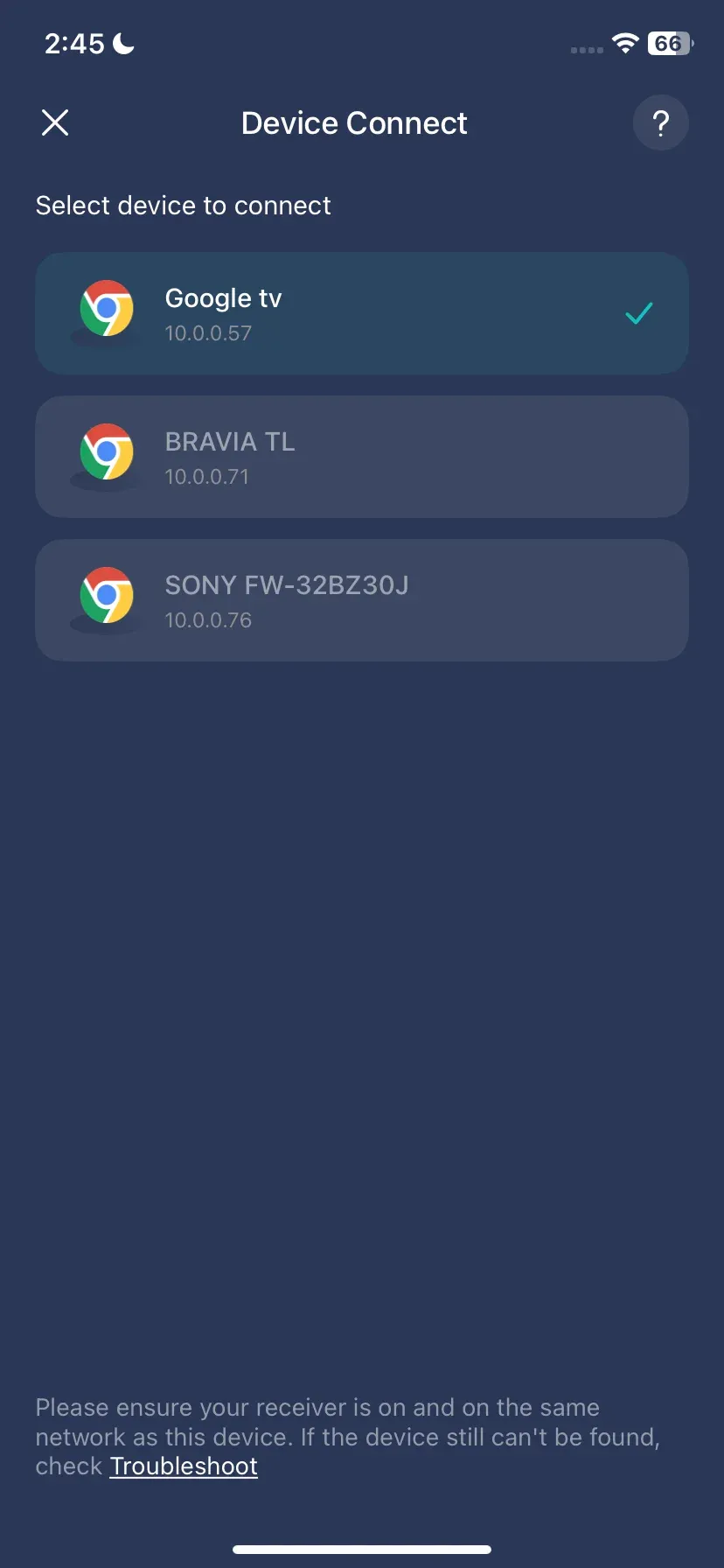
Step 4. Once your Mac or TV is listed, tap it and connect to it.
Step 5. Once connected, you can screen mirror or cast media from your iPhone to the target device.
Why Choose PigeonCast for iPhone App
PigeonCast for iPhone isn't just a backup when AirPlay fails — it's a reliable, universal solution for all your screen mirroring needs. Whether you're casting to a Mac, Apple TV, Android TV, or Google TV, PigeonCast makes the process seamless and stress-free.
Key benefits:
- Completely Free & Easy to Use: Get started in seconds — no account, no subscription, no hidden fees.
- 100% Wireless Connection: Mirror your screen over Wi-Fi. No cables or adapters required.
- Compatible with Both iPhone & iPad: Enjoy full support across iOS and iPadOS devices.
- Supports Multiple Casting Protocols: Whether your target device uses AirPlay, Google Cast, or DLNA, PigeonCast lets you mirror effortlessly — perfect for TVs, Macs, and streaming devices.
The End
When iPhone screen mirroring not working becomes a headache, knowing what to look for and how to fix it can save you time and stress. Whether it's a minor network hiccup or a compatibility glitch, our checklist has you covered.
But if you want a foolproof, frictionless experience, give PigeonCast a try. It's the best way to avoid the vague errors and unpredictable performance that come with traditional mirroring.
iPhone Mirroring Not Working FAQs
Q: Why is screen mirroring iPhone not working even though Wi-Fi is connected?
Even if your iPhone is connected to Wi-Fi, AirPlay won't work unless both your iPhone and the target device (TV, Mac, etc.) are on the same Wi-Fi network. Some routers use dual-band configurations (2.4GHz and 5GHz), and if your iPhone is on one band and your TV is on another, they may fail to detect each other. Other possible causes include: AirPlay turned off on the receiving device, firewall or router settings blocking peer-to-peer traffic, VPNs interfering with network discovery, and Bluetooth disabled.
Q: Can I mirror my iPhone to an Android TV if screen mirroring isn't working natively?
Yes, you can mirror your iPhone to Android TV using third-party apps like PigeonCast. Android TVs don't natively support AirPlay (unless stated otherwise), so you'll need an app to bridge the gap and start cross-platform mirroring successfully.
Q: Is screen mirroring iPhone to TV not working because of hardware issues?
Sometimes, yes. If your TV or streaming device doesn't support AirPlay, screen mirroring won't work, no matter what you try in iOS settings. Other possible hardware limitations include old Apple TV models that may not support iOS 17/18 AirPlay versions, smart Tvs with outdated firmware that can fail to respond to AirPlay requests, and cheap HDMI dongles or generic smart boxes that may not support AirPlay protocols.
Q: Did Apple remove screen mirroring?
No, Apple has not removed screen mirroring. The feature is still available and works through AirPlay, which is built into Control Center on all modern iPhones (iOS 11+).
Q: How to mirror iPhone to smart TV?
To mirror your iPhone to a smart TV, you have a few options depending on what your TV supports:
Option 1: Native AirPlay
If your TV supports AirPlay 2:
- Connect both the iPhone and TV to the same Wi-Fi
- Open Control Center on iPhone
- Tap Screen Mirroring
- Select your TV from the list
Option 2: Use PigeonCast (DLNA or Google Cast options are also supported in apps like PigeonCast, making it easier to connect to more TV models)
If your TV doesn't support AirPlay:
- Install PigeonCast for iPhone
- Connect both devices to the same Wi-Fi
- Open the app and start mirroring in seconds
Q: How do I add screen mirroring to my iPhone Control Center?
If you don't see the Screen Mirroring icon in Control Center:
- Go to Settings > Control Center
- Under "More Controls", find Screen Mirroring
- Tap the green plus (+) icon to add it
- It will now appear when you swipe down from the top-right corner
Q: Can screen mirroring be blocked?
Yes, network settings, device permissions, or firewalls can block screen mirroring. This often happens in:
- Enterprise or school Wi-Fi networks with strict security policies
- Routers with isolation mode or AP/client isolation enabled
- TVs or receivers with disabled AirPlay or DLNA settings
- Parental control apps or profiles that limit screen-sharing features
Mia Clarke is a technology editor specializing in screen mirroring and casting solutions across multiple platforms. Mia provides clear, practical guides and in-depth insights to help users seamlessly connect their devices. Passionate about enhancing digital experiences, Mia is dedicated to keeping readers updated on the latest trends and tools in cross-platform screen sharing. Whether you’re looking to mirror your smartphone, laptop, or smart TV, Mia’s content delivers reliable, user-friendly advice to simplify your tech setup.