
Want to see your iPhone on a bigger screen? Whether you're recording, presenting, or just multitasking, mirroring your iPhone to a Mac is easier than ever in 2025. From Apple's new iPhone Mirroring feature to trusted tools like QuickTime and third-party apps, there are multiple ways to get the job done. In this post, we'll explore 6 simple and effective methods to mirror iPhone to Mac.
Can You Mirror iPhone to MacBook?
Yes, you can screen mirror your iPhone to your Mac, and in recent years, it's easier than ever. Apple now offers multiple ways to screen mirror your iPhone to your MacBook, both wirelessly and via USB. With the release of iPhone Mirroring in iOS 18 and macOS Sequoia, you can now control your iPhone directly from your MacBook, even when it's locked.
But that's not the only option. Third-party tools like PigeonCast simplify the mirroring process for presentations and real-time interaction. Moreover, for years, users have relied on tools like QuickTime Player and AirPlay to project their iPhone screen on MacBook effortlessly.
Whether you're looking for built-in solutions or third-party apps, wired or wireless connection, there's a method that fits your needs. We'll break down six of the best ways to mirror your iPhone to a MacBook, step by step.
Method 1: Mirror iPhone to MacBook via AirPlay
How to mirror iPhone to MacBook? One of the simplest and most wireless ways to mirror your iPhone to a MacBook is by using AirPlay. AirPlay is Apple's built-in screen sharing protocol, found on both iPhone and MacBook. It's fast, intuitive, and requires no cables or third-party apps.
If you're looking for a quick and easy way to display your iPhone on your Mac, this method is a great starting point. How to AirPlay from iPhone to Mac? To use AirPlay from iPhone to Mac, you should have an iPhone 7 or later and Mac mini 2020 or later, or Mac 2019 models.
Step 1. Confirm your iPhone and MacBook are connected to the same Wi-Fi network.
Step 2. On your iPhone, swipe down the screen to access the Control Center.
Step 3. Locate the Screen Mirroring icon and tap it.
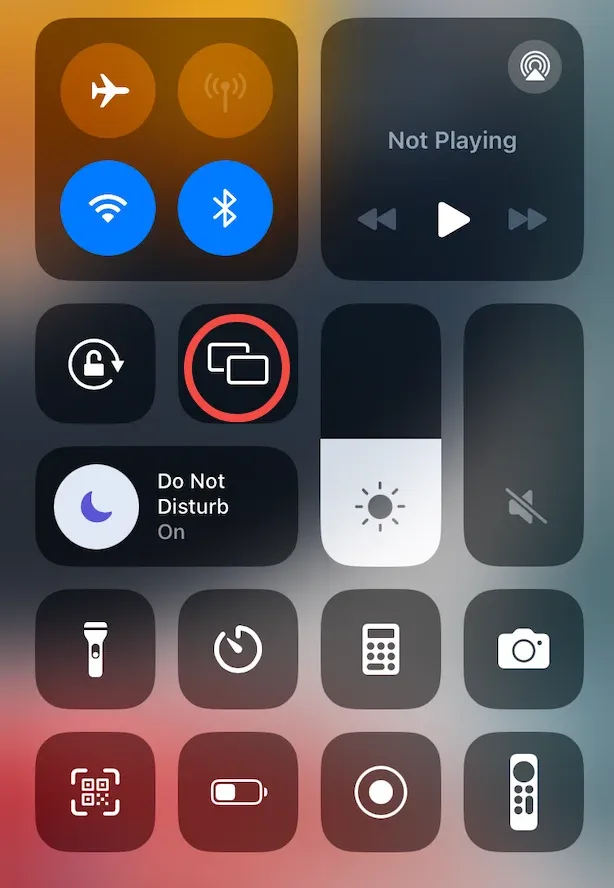
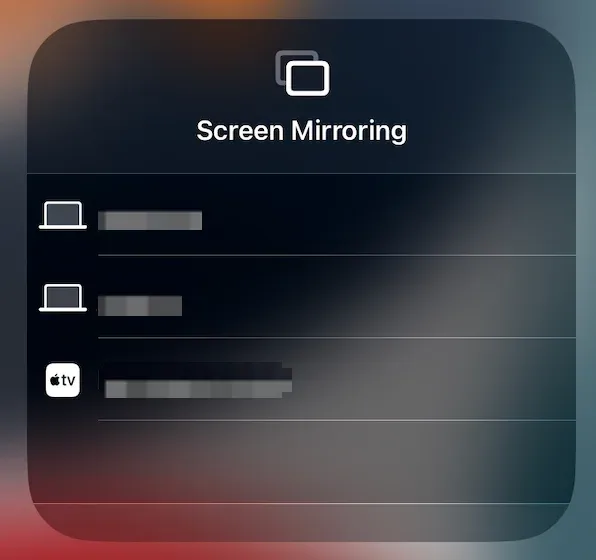
Step 4. When your iPhone shows a list of available devices, choose your MacBook from the list.
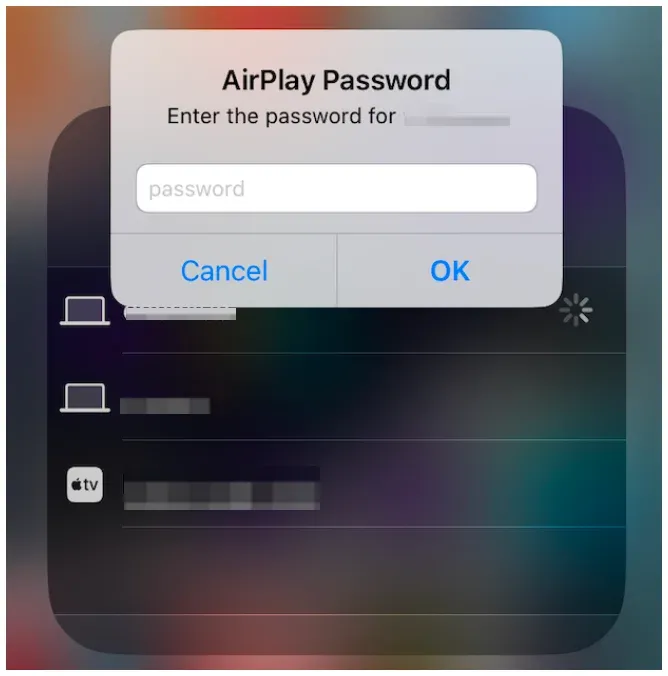
Step 5. Enter the AirPlay passcode shown on your MacBook on your iPhone to verify the connection.
Step 6. Once connected, your iPhone screen will appear on your MacBook. You can launch an app on your iPhone or play a video, then enjoy it on the bigger screen.
Step 7. To disconnect your phone from Mac, click the X button on your Mac screen.
Method 2: Mirror iPhone to MacBook via PigeonCast
If you're looking for a flexible, cross-platform solution beyond Apple's ecosystem, PigeonCast for MacBook is an excellent choice. Unlike native AirPlay, the free third-party app transforms your MacBook into a universal wireless receiver, thanks to the integration of AirPlay, Google Cast, and DLNA.
In other words, the app allows you to mirror not just your iPhone, but also Android devices and Windows PCs without a cable. This makes it an ideal option for users who want a versatile mirroring setup, especially in mixed-device environments.
Here's how to screen mirror iPhone to Mac via PigeonCast:
Step 1. Download and install the PigeonCast for MacBook app on your Mac.

PigeonCast Screen Mirroring

Official Download


Step 2. Ensure that your MacBook and iPhone are on the same Wi-Fi network.
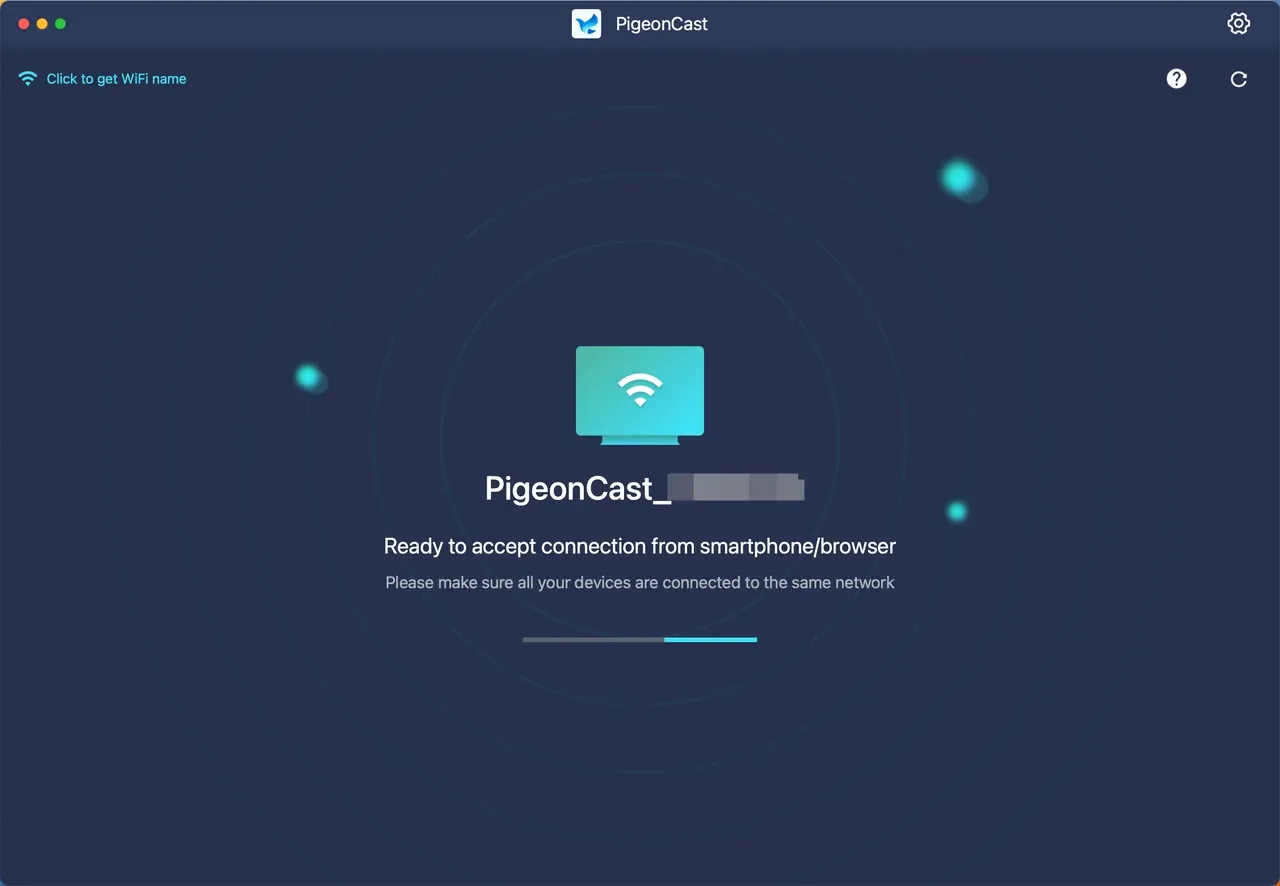
Step 3. Launch the PigeonCast app on your MacBook and notice the device name the app displays. Your device is now ready for screen mirroring from an iPhone or an Android.
Step 4. Navigate to your iPhone and open the Control Center.
Step 5. Locate the Screen Mirroring icon and tap it.
Step 6. Once your iPhone displays your MacBook's name, tap it.
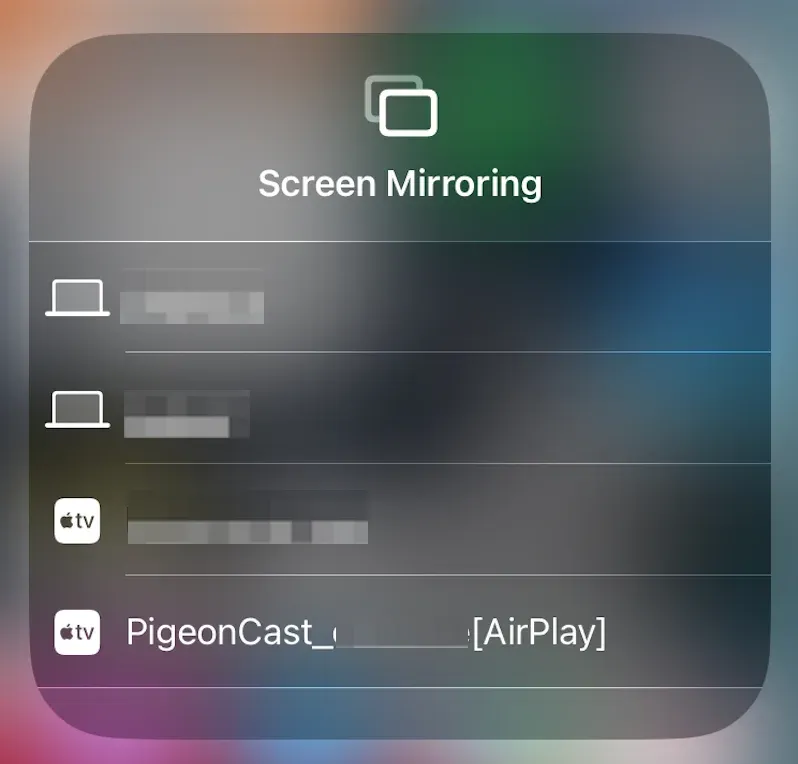
Step 6. If prompted, enter the passcode and wait for the connection to finish.
Step 7. Once connected, you can view your iPhone on your MacBook.
Method 3: Mirror iPhone to MacBook via iPhone Mirroring
The first two methods use AirPlay to mirror iPhone to MacBook. How to mirror iPhone to Mac without AirPlay? There is an AirPlay-free option: use iPhone Mirroring.
In 2024, Apple introduced a game-changing feature: iPhone Mirroring, part of the Continuity suite in macOS Sequoia and iOS 18. Unlike traditional tools, this method allows you not only to view your iPhone screen on your Mac but also to control it directly using your Mac's keyboard and mouse.
This method is seamless, a wireless experience designed for productivity, multitasking, and total device integration. However, before screen mirroring iPhone to Mac via iPhone Mirroring, there are a few items you need to confirm:
- Your iPhone must be running iOS 18
- Your Mac must be running macOS 15 Sequoia, and be:
- A Mac with Apple Silicon, or
- A Mac with a T2 Security Chip (2018+ models)
- Your iPhone and Mac are signed into the same Apple ID with two-factor authentication enabled
- Your iPhone and Mac are on the same Wi-Fi network and have Bluetooth turned on
- Your iPhone and Mac are close to each other
Note: The option is not available in the European Union due to regulatory restrictions (Digital Markets Act).
How to mirror iPhone to Mac iOS 18? Get started with iPhone Mirroring:
Step 1. Launch the iPhone Mirroring app from your Applications folder or via Spotlight.
Step 2. If prompted, unlock your iPhone and allow the connection on both devices.
Step 3. Your iPhone screen will appear in a window on your MacBook. You can scroll, tap, drag, and type using your Mac's trackpad and keyboard. For example:
- Press Command + 1 on your keyboard to go to the home screen.
- Press Command + 2 on your keyboard to open the app switcher.
- Press Command + 3 on your keyboard to open Spotlight.
Method 4: Mirror iPhone to MacBook via QuickTime Player
How do you screen mirror from an iPhone to a Mac? If you prefer a stable, low-latency connection and want to screen record on a Mac at the same time, QuickTime Player is a practical option. This built-in macOS app mirrors an iPhone through a USB cable, making it useful for content creation, app demonstrations, and teaching.
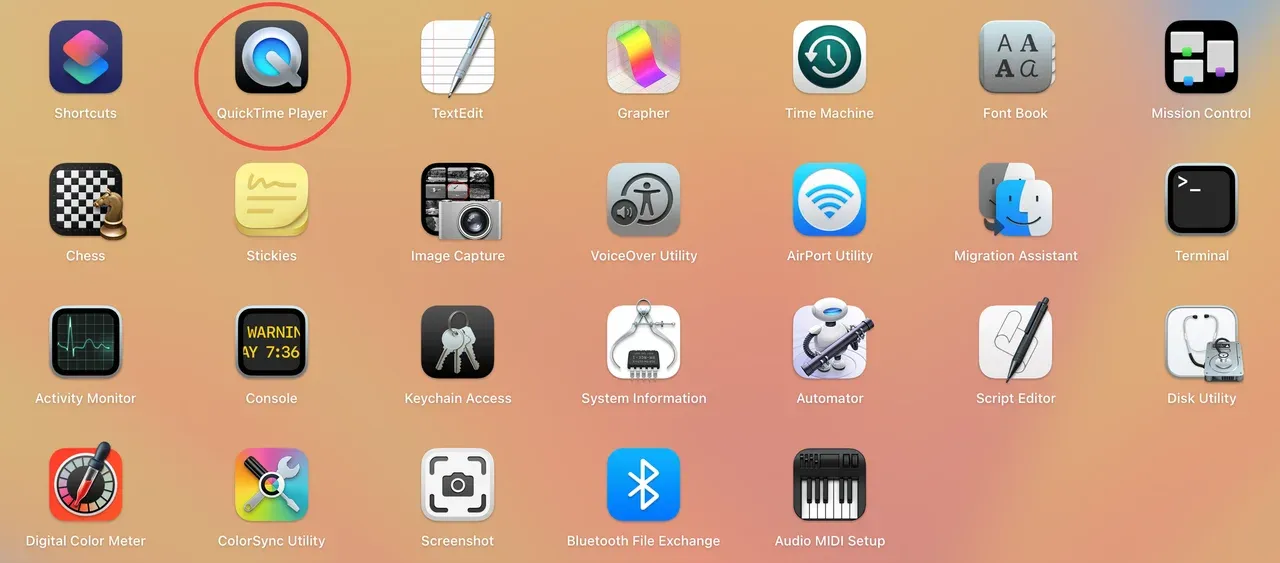
Unlike wireless methods, QuickTime Player provides a stable, high-quality connection with very little delay. It is available on Macs running OS X Yosemite or later and requires a compatible USB-to-Lightning or USB-C cable for an iPhone running iOS 8 or later.
Once everything is ready, follow these steps to mirror your iPhone to your Mac with USB:
Step 1. Connect your iPhone to your MacBook with a USB cable.
Step 2. Open QuickTime Player on your MacBook.
Step 3. From the menu bar, click File and select New Movie Recording.
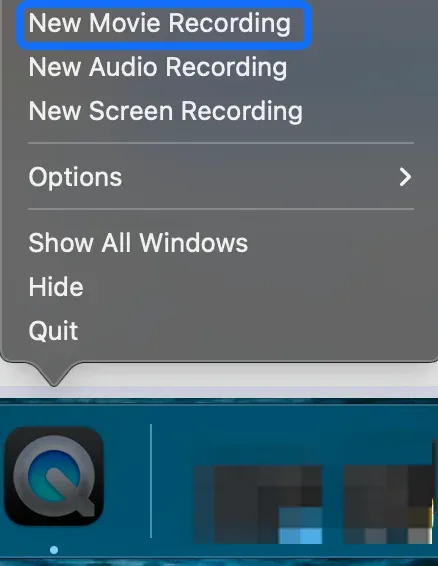
Step 4. Click the arrow next to the Record button.
Step 5. Select your iPhone from the available camera options.
Step 6. Your iPhone screen will appear on the Mac. Click the Record button if you also want to capture the session.
Method 5: Mirror iPhone to MacBook via ApowerMirror
If you need more than just basic screen mirroring, ApowerMirror is a great upgrade. The third-party app allows you to show iPhone screen on Mac wirelessly and adds powerful tools like screen recording, screenshots, and annotation features.
However, to mirror iPhone to Mac via ApowerMirror, you need to install the app on the two devices. Here are the steps:
Step 1. Make sure that both your iPhone and Mac are connected to the same Wi-Fi network.
Step 2. Open the ApowerMirror app on your iPhone and MacBook.
Step 3. Click the blue LocalCast button on your iPhone to initiate the connection between the two devices.
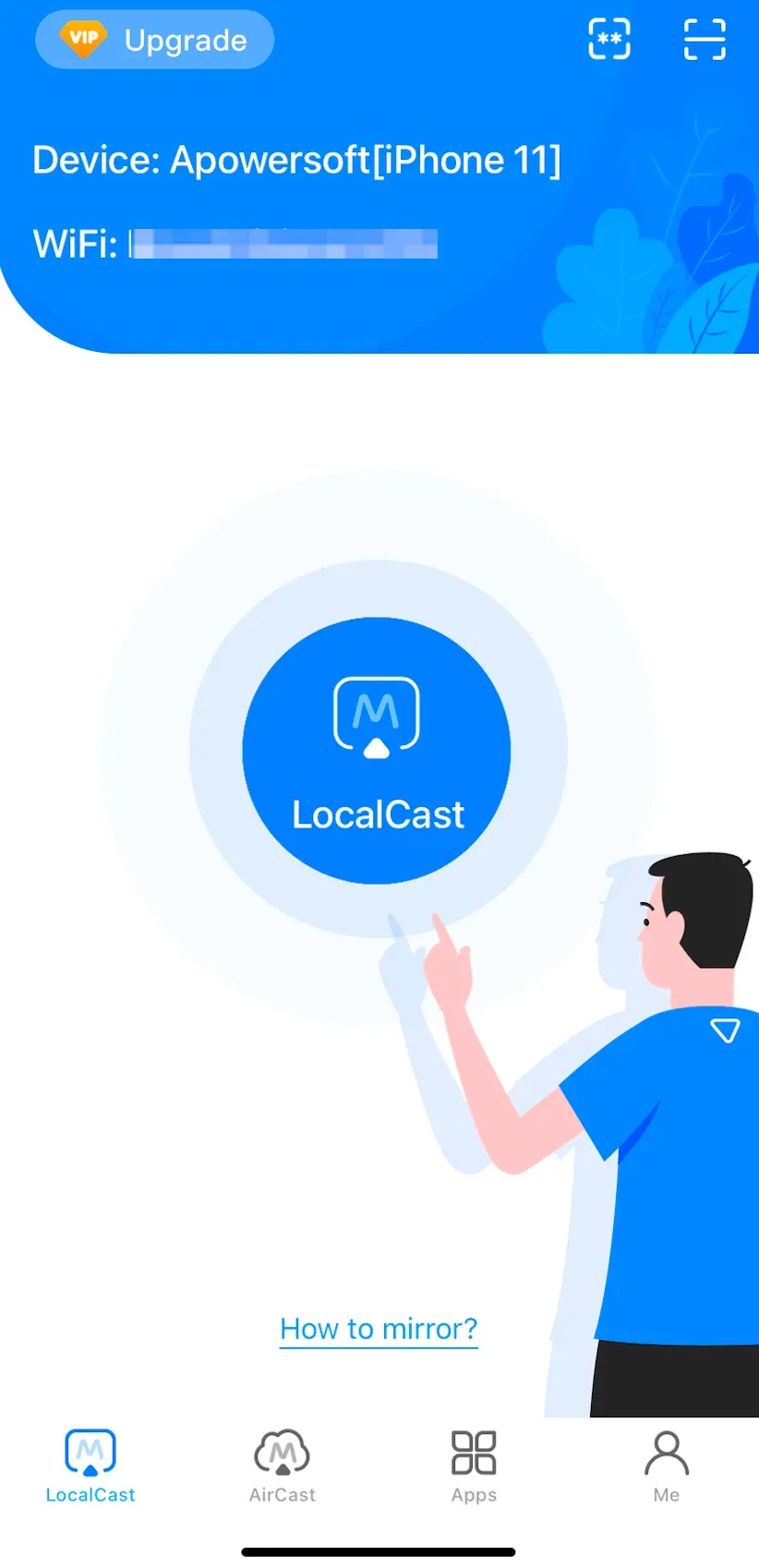
Step 4. When the app detects your MacBook, tap the device name to set up a connection.
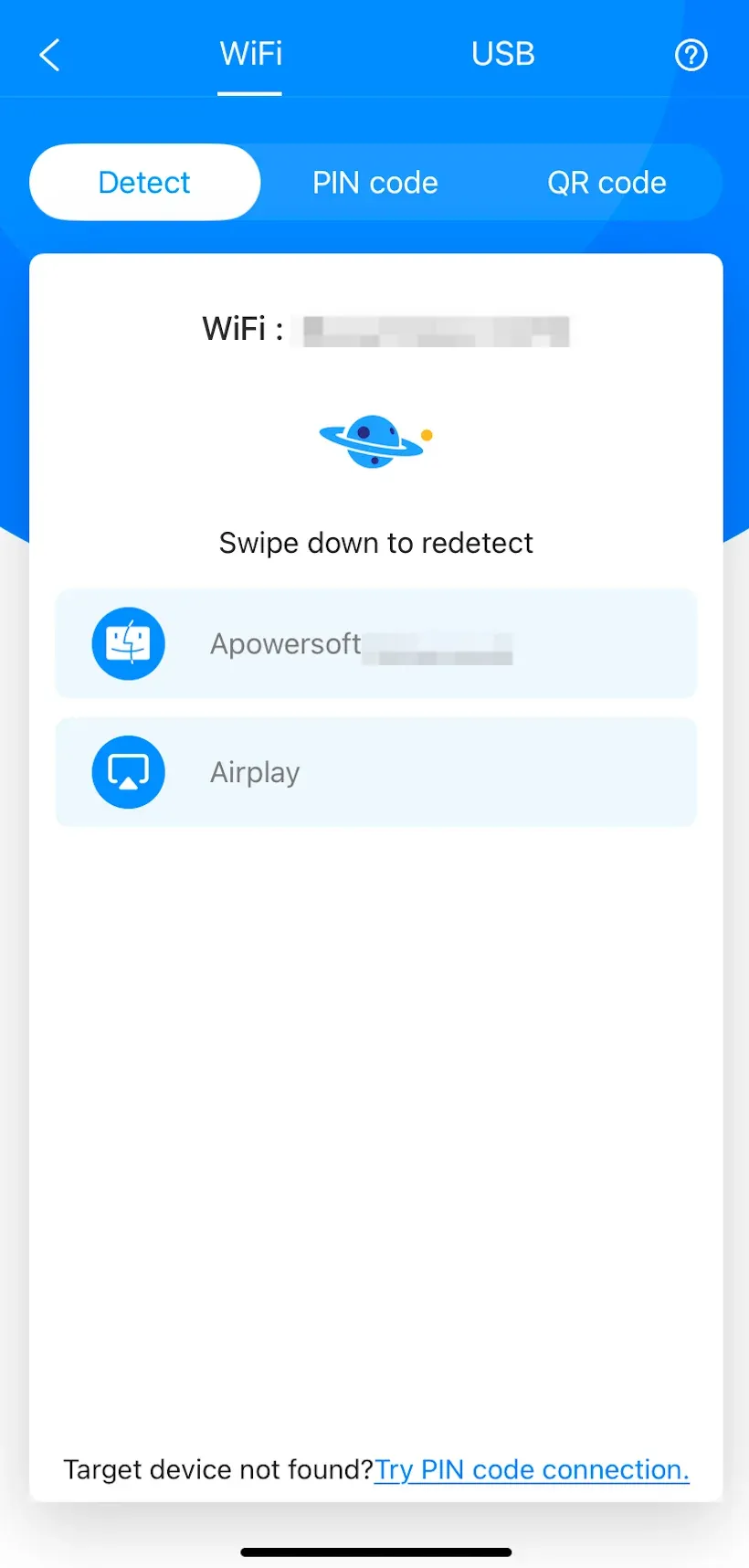
Step 5. On the pop-up window, tap the Start Broadcast option and wait for the countdown to finish.
Step 6. Your iPhone screen should seamlessly mirror your Mac screen. Enjoy the screen mirroring.
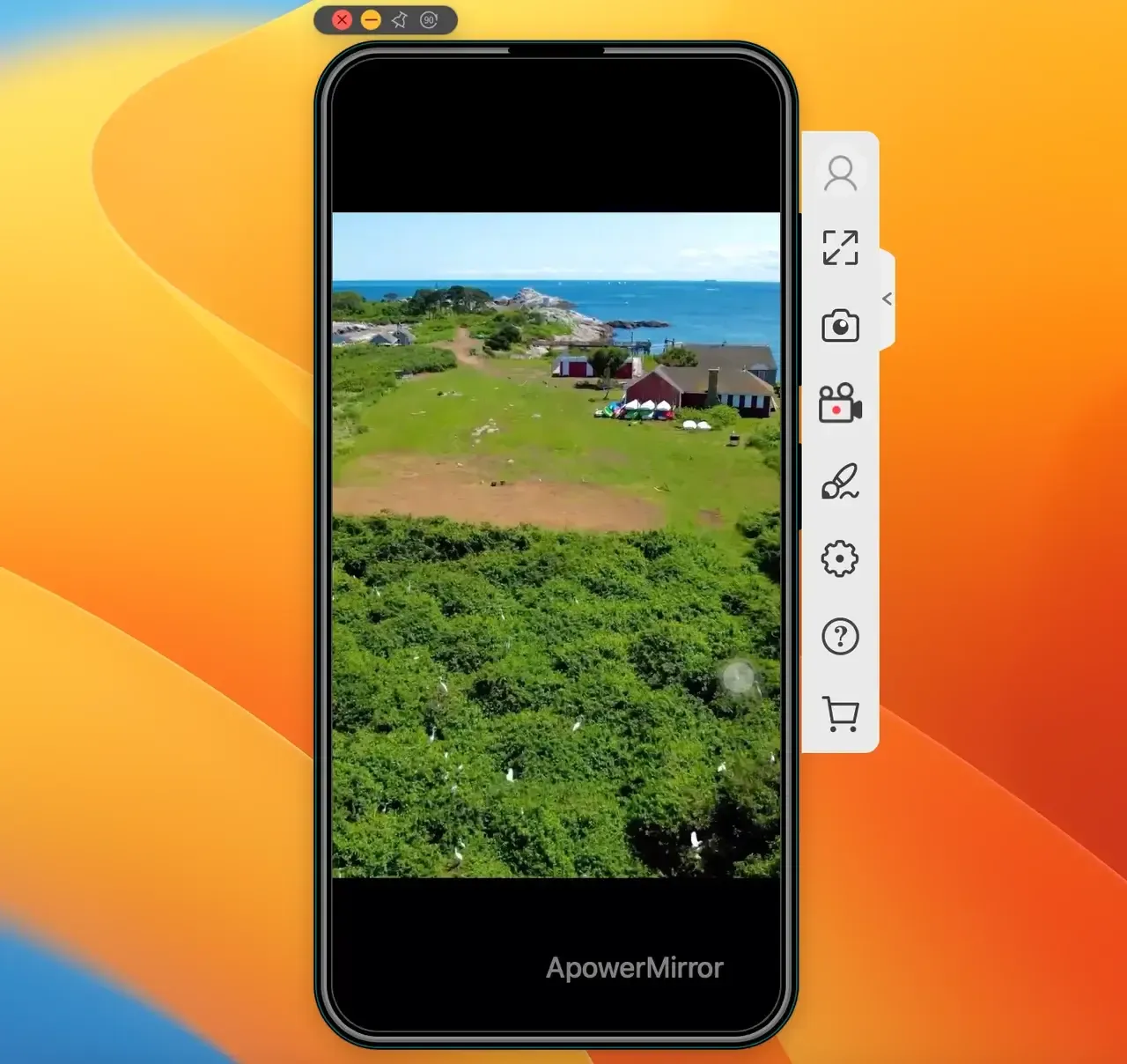
This is how to connect iPhone to Mac wirelessly via the ApowerMirror app. If you prefer a wired way, you can use the app to set up a wired connection by following the on-screen instructions.
Method 6: Mirror iPhone to MacBook via Reflector
Reflector is a polished, professional-grade mirroring app that turns your MacBook into an AirPlay, Google Cast, and Miracast receiver. If you want a seamless, customizable mirroring experience beyond Apple's default tools, the third-party app is a strong pick.
Here is how to connect iPhone to Mac wirelessly by using the Reflector app:
Step 1. Download and install the Reflector app on your Mac and iPhone.
Step 2. Confirm the two devices are connected to the same Wi-Fi network.
Step 3. Launch the app on your MacBook.
Step 4. On your iPhone, access the Control Center.
Step 5. Tap the Screen Mirroring option and choose your Mac's name from the list of available devices.
Step 6. Your iPhone screen should be wirelessly displayed on your MacBook. Enjoy wireless mirroring.
Mirror iPhone to MacBook in Wiredly or Wirelessly?
Now that you've seen the top ways to mirror an iPhone to a MacBook, you might be wondering which method is best for your specific needs. Whether you're recording tutorials, sharing content, or just multitasking more efficiently, each solution has its own strengths.
And if you're dealing with a damaged device, you may be asking: how to mirror a broken iPhone screen on Mac? The answer depends on the type of damage and whether your iPhone is still responsive. Some methods, like QuickTime Player or iPhone Mirroring, can help, especially if touch input still works.
| Method | Type | Price | Pros | Cons |
|---|---|---|---|---|
| AirPlay | Wireless Connection | Free (built-in) | ✔ No installation needed ✔ Easy setup ✔ Good for streaming | ✖ View-only ✖ Slight delay ✖ Require same network |
| PigeonCast | Wireless Connection | Free | ✔ Cross-platform ✔ No Apple ID needed ✔ Simple to use | ✖ Minimal latency |
| iPhone Mirroring (Apple) | Wireless Connection | Free (built-in) | ✔ Full iPhone control ✔ Works while iPhone is locked ✔ Deep OS integration | ✖ Limited to newer Macs ✖ Not available in the EU ✖ Apple ID required |
| QuickTime Player | Wired Connection | Free (built-in) | ✔ Zero lag ✔ Built-in screen recording ✔ No Wi-Fi needed | ✖ Requires USB cable ✖ No iPhone control ✖ Mirrors only active screen |
| ApowerMirror | Wireless Connection | Free / Paid | ✔ Screen recording ✔ Annotations ✔ Multi-platform support | ✖ Watermarks in free version ✖ Requires installation ✖ Slight delay |
| Reflector | Wireless Connection | Paid ($19.99) | ✔ Clean UI ✔ Multi-device support ✔ Live streaming + recording | ✖ Trial limitations ✖ No iPhone control ✖ Performance depends on Wi-Fi |
The End
From Apple's seamless iPhone Mirroring to flexible third-party apps like PigeonCast, ApowerMirror, and Reflector, you now have six solid ways to mirror your iPhone to a Mac, whether you're aiming for full control, a clean recording setup, or a wireless one-click experience.
No matter your use case — teaching, streaming, troubleshooting, or even figuring out how to mirror screen from iPhone to Mac — there's a solution that fits your situation and skill level.
Mirror iPhone to MacBook FAQs
How do I make my Mac discoverable for mirroring?
You can use third-party apps like PigeonCast for MacBook to make your MacBook discoverable by many devices, including iPhone, Android, and Windows. This benefits from the app supports AirPlay, Google Cast, and DLNA. To use the app for screen mirroring, ensure your Mac and the other device are on the same Wi-Fi network, open the app on your Mac, enable AirPlay on iPhone or Cast on Android, and choose your Mac's name. You can view your phone screen on your MacBook.
How do I get my Macbook to see my iPhone?
To get your MacBook to see your iPhone, you can try 6 methods: AirPlay, PigeonCast for Mac, iPhone Mirroring, QuickTime Player, ApowerMirror, and Reflector. Each method has its own advantages, and choose the one that fits your needs.
Why is my iPhone mirroring not connecting to my Mac?
If your iPhone isn't connecting to your Mac for screen mirroring, here are some common causes and how to fix them:
- Make sure both devices are on the same Wi-Fi network.
- Some corporate or public Wi-Fi networks may block AirPlay or similar services.
- Restart both your iPhone and Mac to resolve temporary issues.
- Check that both devices are signed in to the same Apple ID.
- Make sure your software is up to date and that necessary permissions are enabled.
- Confirm that your Mac supports the feature. iPhone Mirroring only works with Apple Silicon or T2 Macs running macOS Sequoia and iPhones with iOS 18 or later.
If built-in methods fail, third-party apps like PigeonCast or Reflector can be useful alternatives with fewer restrictions.
Tags
Mia Clarke is a technology editor specializing in screen mirroring and casting solutions across multiple platforms. Mia provides clear, practical guides and in-depth insights to help users seamlessly connect their devices. Passionate about enhancing digital experiences, Mia is dedicated to keeping readers updated on the latest trends and tools in cross-platform screen sharing. Whether you’re looking to mirror your smartphone, laptop, or smart TV, Mia’s content delivers reliable, user-friendly advice to simplify your tech setup.