
Traditional screen mirroring has always had one obvious limitation: you can usually see your iPhone on a larger screen, but you cannot really control it there. That works for passive viewing, yet it falls short if you want to reply to messages, open apps, or navigate your phone without constantly picking it up.
Apple’s answer is iPhone Mirroring. Instead of acting like a basic casting tool, it lets you access and control your iPhone from your Mac while the phone stays locked nearby. That is why many readers search for an iPhone mirroring app on Mac, even though Apple’s approach is not a typical third-party app at all.
From a screen-mirroring perspective, iPhone Mirroring is more than a larger display view. It is a built-in Apple feature designed to connect two devices into one workflow. The real question is whether that built-in experience is enough for everyday mirroring needs or whether traditional tools still make more sense in some setups.
What Is iPhone Mirroring on Mac?
If you are asking what is the iPhone mirroring app on Mac, the simplest answer is this: it is a built-in Apple feature that lets you mirror, control, and interact with your iPhone directly from your Mac.
The important detail is that it is not a separate App Store download and not a standalone utility you install like a traditional screen mirroring tool. Apple includes it with supported versions of macOS, and it works as part of the wider Continuity experience between Apple devices.
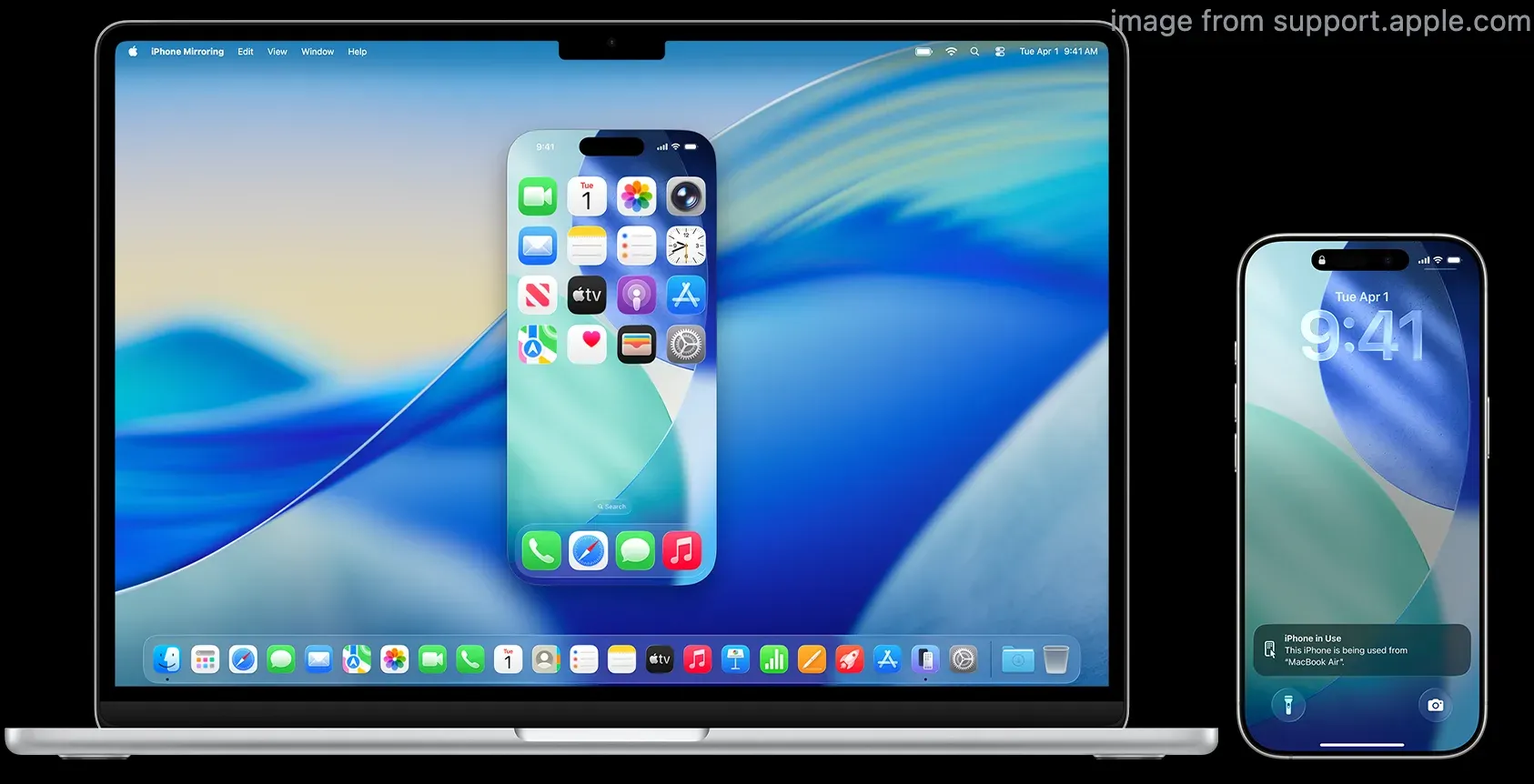
The “iPhone mirroring app” on Mac is actually a native Apple feature, not a separate app download.
In practical use, iPhone Mirroring combines three things at once:
- It mirrors your iPhone screen inside a Mac window.
- It lets you control the iPhone with your Mac mouse, trackpad, and keyboard.
- It keeps the session integrated with your Apple account, notifications, and device handoff behavior.
That makes it more interactive than standard screen mirroring. Instead of just watching the phone display, you can open apps, move around the Home Screen, interact with notifications, and continue tasks from your Mac.
Apple also supports cross-device content movement through features such as drag and drop, AirDrop, and Universal Clipboard, though the exact experience still depends on the app and file type you are using.
iPhone Mirroring App Mac vs Traditional Screen Mirroring
From a review perspective, the most useful question is not whether Apple created another mirroring tool, but how the iPhone mirroring app Mac experience differs from older screen mirroring models.
Apple is redefining what an “iPhone mirroring app” means. Traditional screen mirroring is mostly about displaying content on another screen. iPhone Mirroring tries to turn your Mac into a practical control surface for the iPhone itself.
| Feature | iPhone Mirroring | AirPlay | Third-party apps |
|---|---|---|---|
| Control iPhone | Yes | No | Limited or varies |
| Built-in | Yes | Yes | No |
| Latency | Generally low-feeling in normal use | Usually acceptable for viewing | Varies by app and network |
| Setup | Simple once requirements are met | Simple for playback/viewing | Often more setup-dependent |
This table explains why iPhone Mirroring stands out. AirPlay is still useful, but it is mainly designed for viewing or playback on a compatible display. Third-party apps can be more flexible, especially across ecosystems, but they often trade convenience for compatibility. Apple’s built-in approach sits in the middle: more capable than passive mirroring, but more limited in scope than broad cross-platform tools.
How Does iPhone Mirroring Work?
iPhone Mirroring works through Apple’s device ecosystem rather than through a generic receiver app. Your Mac connects wirelessly to your iPhone as long as both devices meet Apple’s current requirements and are signed in to the same Apple Account.
Apple’s current requirements include:
- a Mac running macOS Sequoia 15 or later
- an iPhone running iOS 18 or later
- the same Apple Account on both devices with two-factor authentication
- Wi-Fi and Bluetooth turned on
- the iPhone locked and nearby
Apple also says your Mac cannot be sharing its internet connection or actively using AirPlay or Sidecar at the same time.
Once connected, the experience feels less like a separate streaming session and more like an extension of macOS. You open the mirrored iPhone in a window, interact with it using Mac input devices, and keep working without switching physical devices every few seconds. That deep integration is the main reason the feature feels more responsive and lower-friction than many older mirroring methods, even if Apple does not position it as a performance benchmark product.
How to Get iPhone Mirroring App on Mac
Apple treats iPhone Mirroring as a built-in feature, so you do not install it separately like a traditional iPhone mirroring app.
Here's is how to get iPhone Mirroring app on Mac:
Step 1. Update your Mac to macOS Sequoia 15 or later.
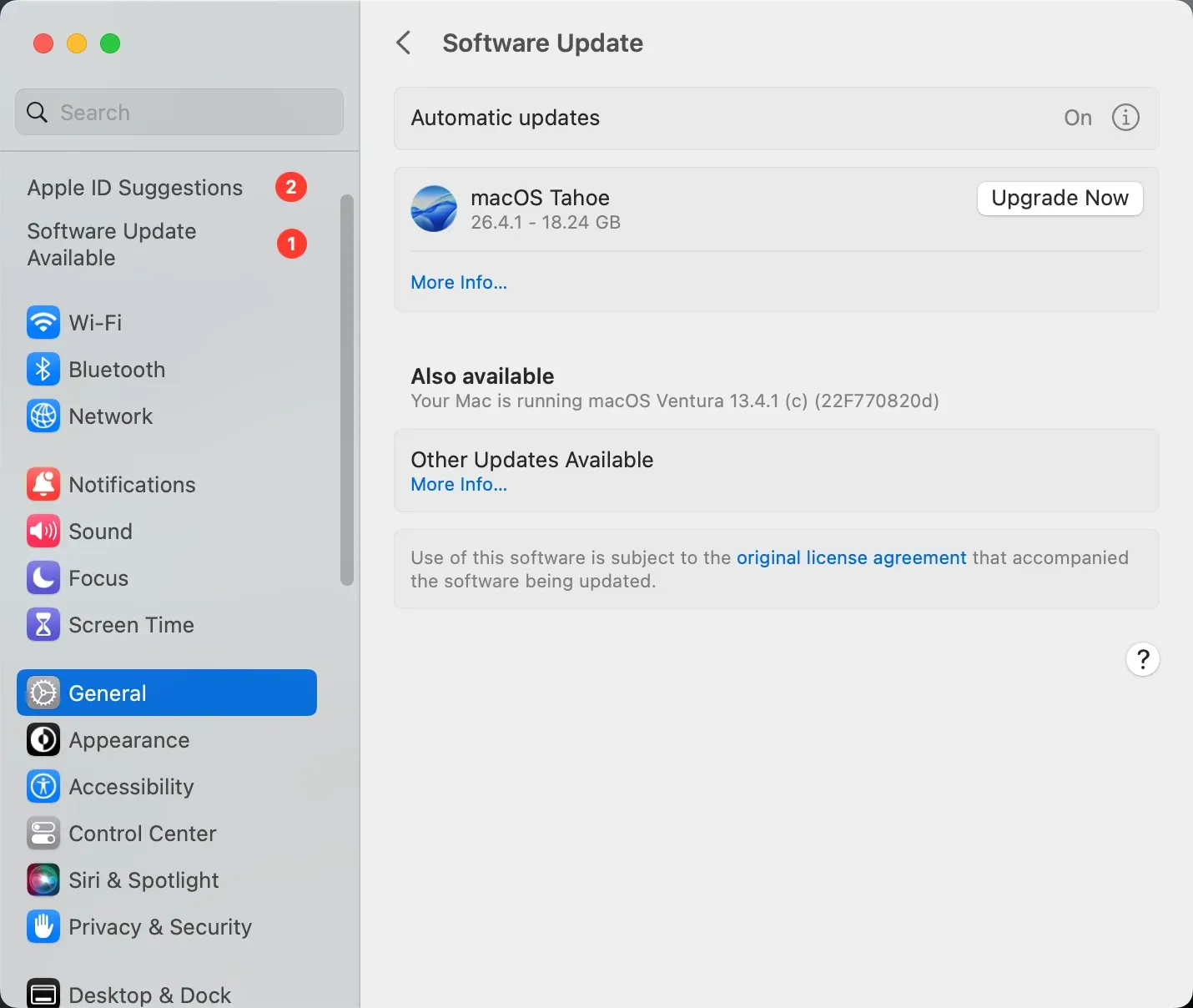
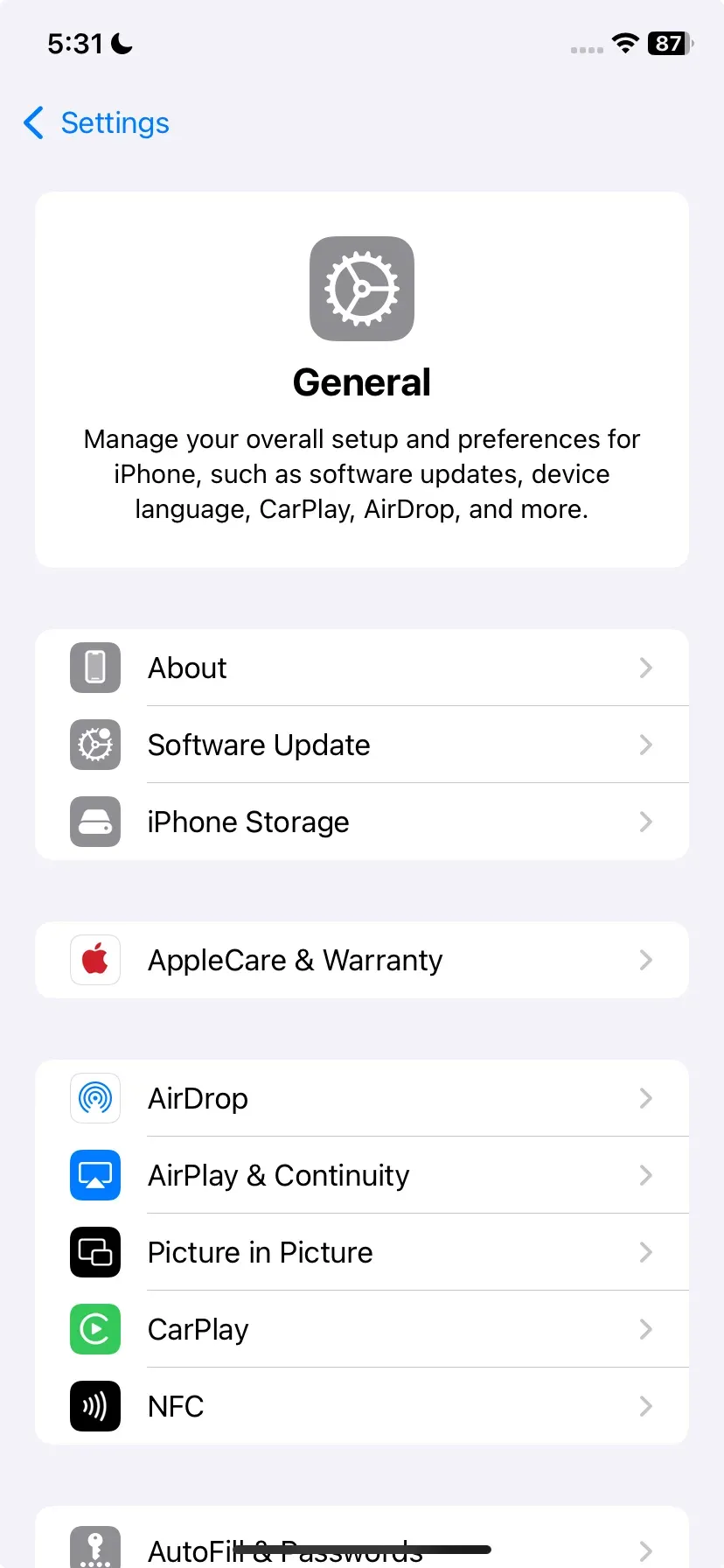
**Step 2.**Update your iPhone to iOS 18 or later.
Step 3. Make sure both devices are signed in to the same Apple Account with two-factor authentication enabled.
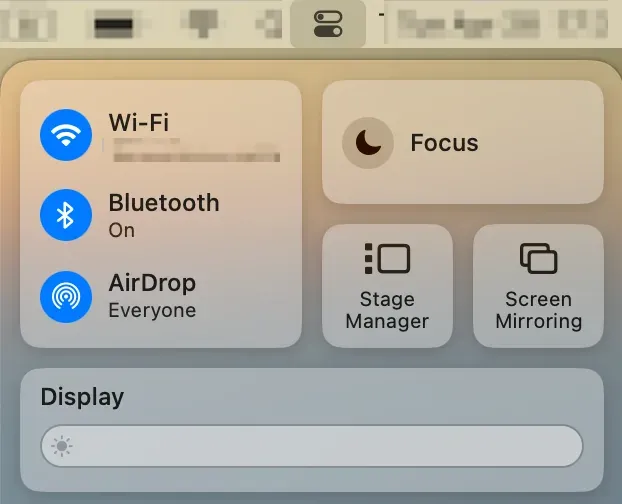
4Step 4. Turn on Wi-Fi and Bluetooth on both devices.
Step 5. Open iPhone Mirroring on your Mac and complete the setup prompts.
Apple’s version is available as part of the operating system, so “getting it” usually means updating your devices and meeting the feature requirements rather than installing software from scratch.
Where Is the iPhone Mirroring App on Mac?
You can usually open iPhone Mirroring from:
- the Applications folder
- Spotlight by searching for iPhone Mirroring
- the Dock after you have used it once
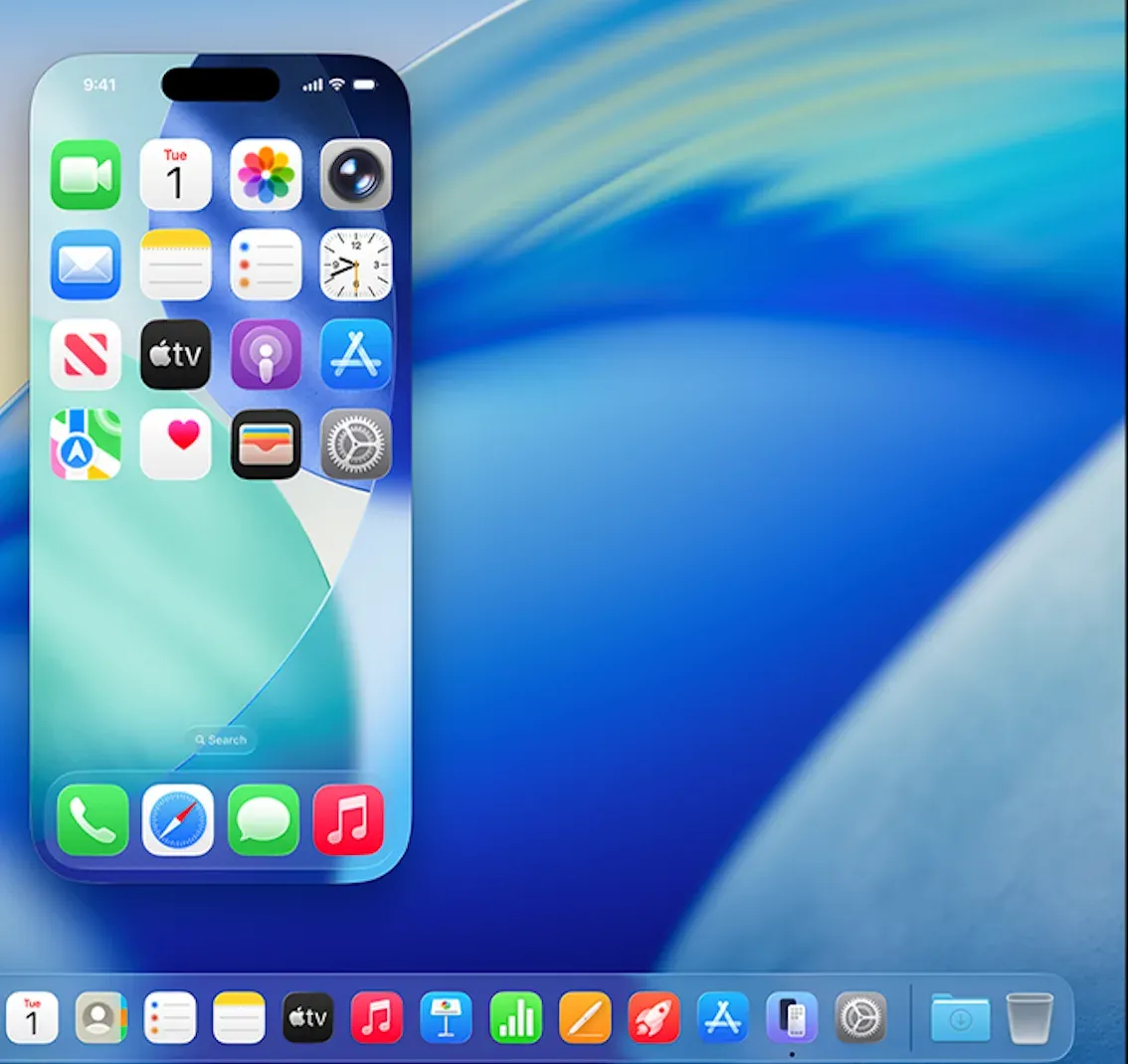
This is one of the easiest parts of the experience. Unlike third-party screen mirroring tools that may hide behind menu bar icons, browser dashboards, or paired-device prompts, Apple places iPhone Mirroring like a standard Mac app entry point.
If you cannot find it at all, the most likely reason is not that the app is missing but that your system is not eligible yet. In most cases, that means:
- your Mac is not updated to a supported macOS version
- your iPhone is not updated to a supported iOS version
- your Mac hardware does not meet Apple’s requirements
Key Features That Make iPhone Mirroring Stand Out
The main reason to use iPhone Mirroring is not that it shows your phone on a Mac. Plenty of tools can do that. The real advantage is that Apple built control into the mirroring experience from the start.
Full device control
You can click where you would normally tap, move through apps, access the Home Screen, and work through the App Switcher from your Mac. That makes the feature much more useful than plain wireless display duplication.
Keyboard and mouse input
Using a Mac keyboard and pointing device is a major upgrade for routine tasks. It is easier to type, search, navigate, and manage small interactions from the desktop than by constantly switching back to the phone.
Notifications sync
Once the feature is set up, your Mac can receive iPhone notifications and Live Activities. That adds a productivity layer that ordinary screen mirroring apps usually do not provide.
Seamless app usage on Mac
Because iPhone apps appear inside the mirrored environment, the experience feels like an extension of your Mac workflow rather than a disconnected cast session. For users who already live inside the Apple ecosystem, that is the feature’s biggest strength.
Privacy while the iPhone stays locked
Apple’s design keeps the iPhone locked during mirroring, which adds a useful privacy and control layer. You can keep using the phone from the Mac without leaving the handset openly accessible on the desk.
Limitations of iPhone Mirroring
For all its strengths, iPhone Mirroring is not a universal answer to screen mirroring.
First, it only works on newer Apple software and supported Mac hardware. If your devices are older, the feature is unavailable no matter how useful the concept sounds.
Second, it is tightly tied to the Apple ecosystem. That is part of why it works so smoothly, but it also means the feature stops being helpful the moment your workflow extends to Windows PCs, many smart TVs, or mixed-device households.
Third, it is not available on Windows at all. If your goal is to control or mirror an iPhone on a Windows computer, Apple’s built-in path does not help.
Fourth, it offers less customization than some dedicated tools like PigeonCast for iPhone. Third-party apps may give you more options for receiver roles, cross-platform pairing, presentation flows, or device-to-TV workflows that go beyond Apple’s native design.
It is also worth keeping the use case in perspective. iPhone Mirroring is not the same thing as broad screen casting. If all you want is to watch media on a bigger display, AirPlay may be simpler. If you need a repeatable workflow across Apple and non-Apple devices, a third-party app may still fit better.
Best Alternatives to iPhone Mirroring Apps
If you are outside the Apple ecosystem or need a broader iPhone mirroring app workflow, alternatives still matter.
PigeonCast is the more relevant option when your priority is cross-device screen mirroring rather than Apple-only continuity. It makes more sense for people who want one tool across iPhone, Android, Mac, Windows, or TV setups.
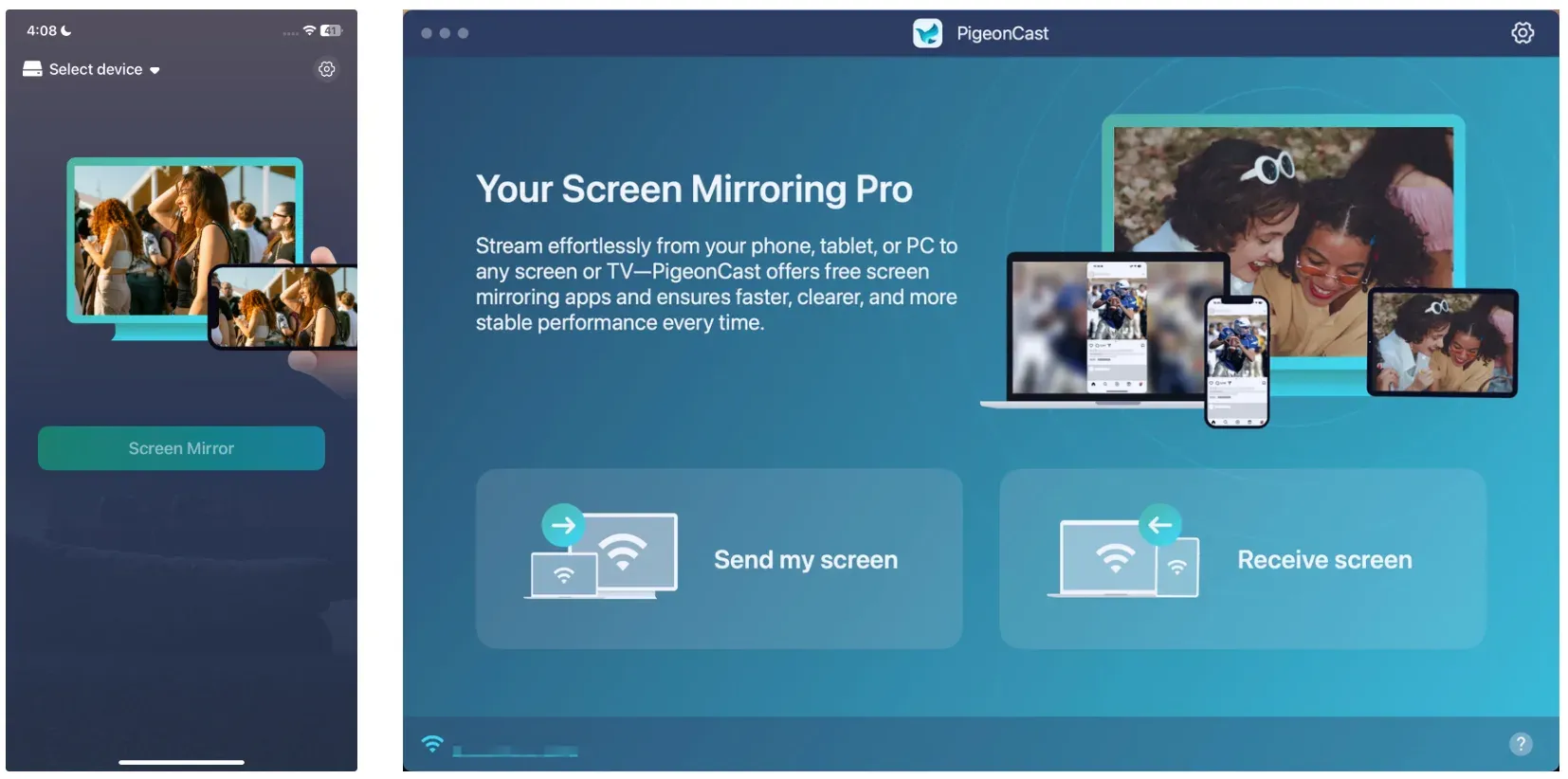


Overall Rating:


LetsView is another option worth checking if you want a lightweight third-party mirroring tool and are comfortable with a more traditional app-based setup.
Neither of these replaces Apple’s native integration on a Mac-to-iPhone workflow. Their value is different: they stay relevant when compatibility across ecosystems matters more than Apple’s built-in convenience.
Conclusion
From a screen-mirroring point of view, Apple’s iPhone Mirroring is valuable because it goes beyond passive viewing. It turns mirroring into a control experience, which is a meaningful shift from what many users expect when they search for an iPhone mirroring app.
That does not make it the best fit for every setup. It is still limited to newer Apple devices and it does not replace broader cross-platform mirroring tools like PigeonCast. But for Mac users who want a built-in way to access and control an iPhone from the desktop, it is one of Apple’s more practical ecosystem features.
iPhone Mirroring is not just another iPhone mirroring app. It is Apple’s tightly integrated vision of how screen mirroring should work when your devices already belong to the same ecosystem.
iPhone Mirroring FAQ
Is iPhone Mirroring an app or a feature?
It is best understood as a built-in Apple feature. While it appears as an app entry on the Mac, it is not a separate third-party download in the usual sense.
Do I need to download iPhone Mirroring on Mac?
No. If your Mac and iPhone support the feature, iPhone Mirroring is included with the operating system. In most cases, you only need to update your devices and complete the setup.
Why can’t I find iPhone Mirroring on my Mac?
The most common reasons are that your Mac is not on a supported version of macOS, your iPhone is not on a supported version of iOS, or your hardware does not meet Apple’s current requirements.
Is iPhone Mirroring the same as AirPlay?
No. AirPlay is mainly for viewing or streaming content on a compatible screen. iPhone Mirroring is for interacting with and controlling your iPhone from your Mac.
Can I use iPhone Mirroring on Windows?
No. Apple’s iPhone Mirroring feature is designed for Mac and iPhone only. If you need a similar workflow on Windows, you will need to look at third-party tools (such as PigeonCast) instead.
Mia Clarke is a technology editor specializing in screen mirroring and casting solutions across multiple platforms. Mia provides clear, practical guides and in-depth insights to help users seamlessly connect their devices. Passionate about enhancing digital experiences, Mia is dedicated to keeping readers updated on the latest trends and tools in cross-platform screen sharing. Whether you’re looking to mirror your smartphone, laptop, or smart TV, Mia’s content delivers reliable, user-friendly advice to simplify your tech setup.