
How to connect iPhone to Windows PC? Whether you're transferring photos, syncing music, or sharing your iPhone screen, connecting your iPhone to a Windows PC opens up numerous possibilities. However, since iPhones are designed to work best with Macs, determining the optimal method for Windows can be challenging. In this guide, we'll walk you through 4 simple ways to connect your iPhone to a Windows PC (Windows 10 or 11), each for a slightly different purpose.
Can You Connect iPhone to Windows PC?
Yes, you don't even need to jailbreak your device to set up the connection. While iPhones and Windows PCs are made by different companies, they follow common data protocols like Bluetooth, USB, and Wi-Fi for basic functions. Apple also supports Windows through software like iTunes and by allowing AirPlay-style mirroring through third-party apps, like PigeonCast.
You just need to choose the right method depending on what you're trying to do. Want to move photos? Use a USB cable. Want to check messages on your PC? Phone link can help. Need a full-screen view of your iPhone? PigeonCast does the trick. Want to back up everything or sync music? That's where iTubes shines.
How to connect iPhone to Windows laptop? Let's go through each method one by one.
Connect iPhone to Windows PC via USB Cable
The simplest way to link iPhone to Windows 11 or 10 PC is still the classic wired connection. When you plug your iPhone into your computer using a USB cable, Windows will recognize it as a media device, similar to a camera. This allows you to access photos and videos stored in your iPhone, ideal for fast and reliable data transfer or backup.
How to connect iPhone to PC Windows 11 via a USB cable? To do this:
Step 1. Connect your iPhone to the PC using a compatible USB cable, like a Lightning to USB cable or USB-C cable.
Step 2. Tap the Trust This Computer option when prompted on your iPhone.
Step 3. On your Windows PC, open File Explorer and find your iPhone listed under Devices and drives.
Step 4. Go into the DCIM folder and copy whatever photos or videos you need.
This method is easy to connect your phone to your computer, but only gives you access to local media files. If you want to view apps, messages, or music from your iPhone on a Windows PC, you'll need a different approach.
Connect iPhone to Windows PC via PigeonCast
Now, if you're looking to mirror your iPhone to Windows PC for presentations, gaming, or tutorials, the PigeonCast for Windows app is a great tool.
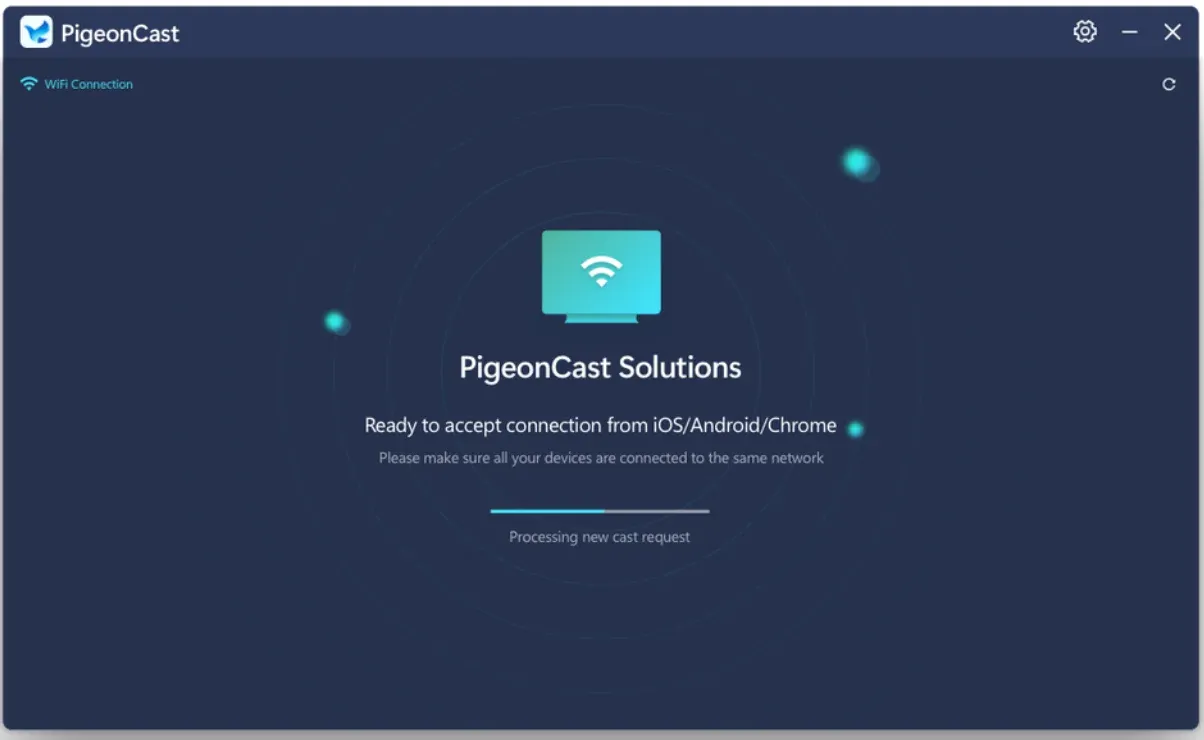
Simply put, the third-party app uses your Wi-Fi network and the iPhone's built-in AirPlay feature to wirelessly send your screen to your PC. Or, in other words, the third-party app upgrades your PC to an AirPlay receiver. This is especially useful when your Windows computer is a laptop rather than a desktop monitor. If you use a Dell model, you can screen mirror iPhone to Dell laptop by making the laptop discoverable on the same Wi-Fi network and allowing the receiver app through Windows network permissions.
To connect iPhone to Windows 10 through the PigeonCast app, you need to:
Step 1. Free download and install the app on your Windows PC.

PigeonCast Screen Mirroring

Official Download


Step 2. Make sure both devices are connected to the same Wi-Fi network.
Step 3. Launch the PigeonCast app on your PC, then enable Screen Mirroring from the Control Center on your iPhone.
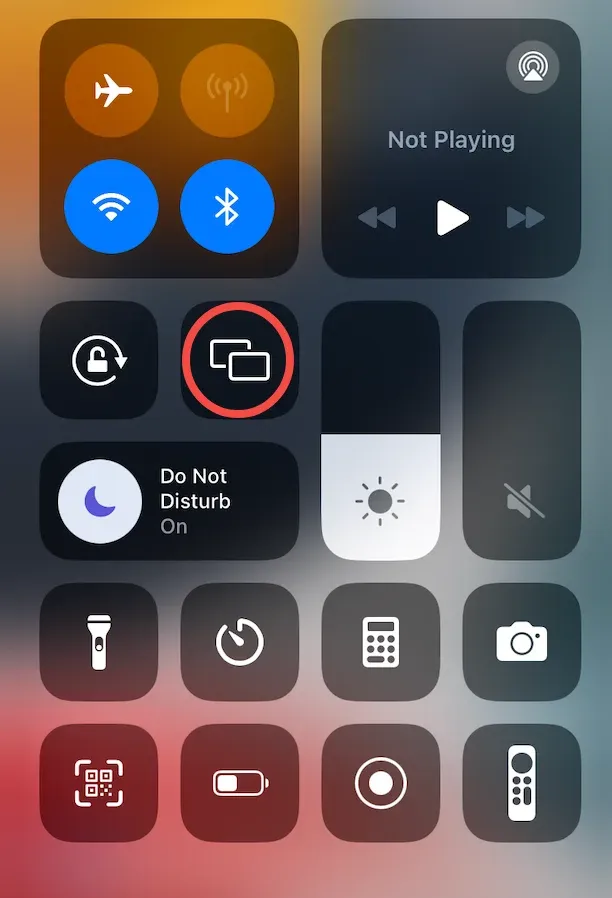
Step 4. In the device list, look for something like PigeonCast_xxx, and tap it to connect your iPhone to Windows.
In a few seconds, your iPhone screen will appear on your computer. You can now show apps, play videos, or even demonstrate how to use a feature right from your phone.
How to connect iPhone to Windows PC wirelessly? You can use PigeonCast to make your Windows PC AirPlay-compatible and connect from your iPhone's Control Center. Alternatively, you can mirror your iPhone to a PC without AirPlay through a compatible app-to-app connection or a supported USB method. For wireless mirroring, screen quality and response time still depend on your Wi-Fi connection.
Connect iPhone to Windows PC via Phone Link
How to connect iPhone messages to Windows PC? If you're looking for a seamless way to check messages or answer calls from your Windows 11 computer, Microsoft's Phone Link app is worth trying.
The official app connects your iPhone to your PC over Bluetooth and lets you view text messages, make calls, and receive notifications directly from your desktop. If you're looking for more integration between your iPhone and Windows PC, the app is a solid choice.
To get started, you need to install the Link to Windows app on your iPhone and the Phone Link app on your Windows 10 (the app is preinstalled on Windows 11), and turn on Bluetooth on both devices. Then, you're ready to connect iPhone to Windows 11:
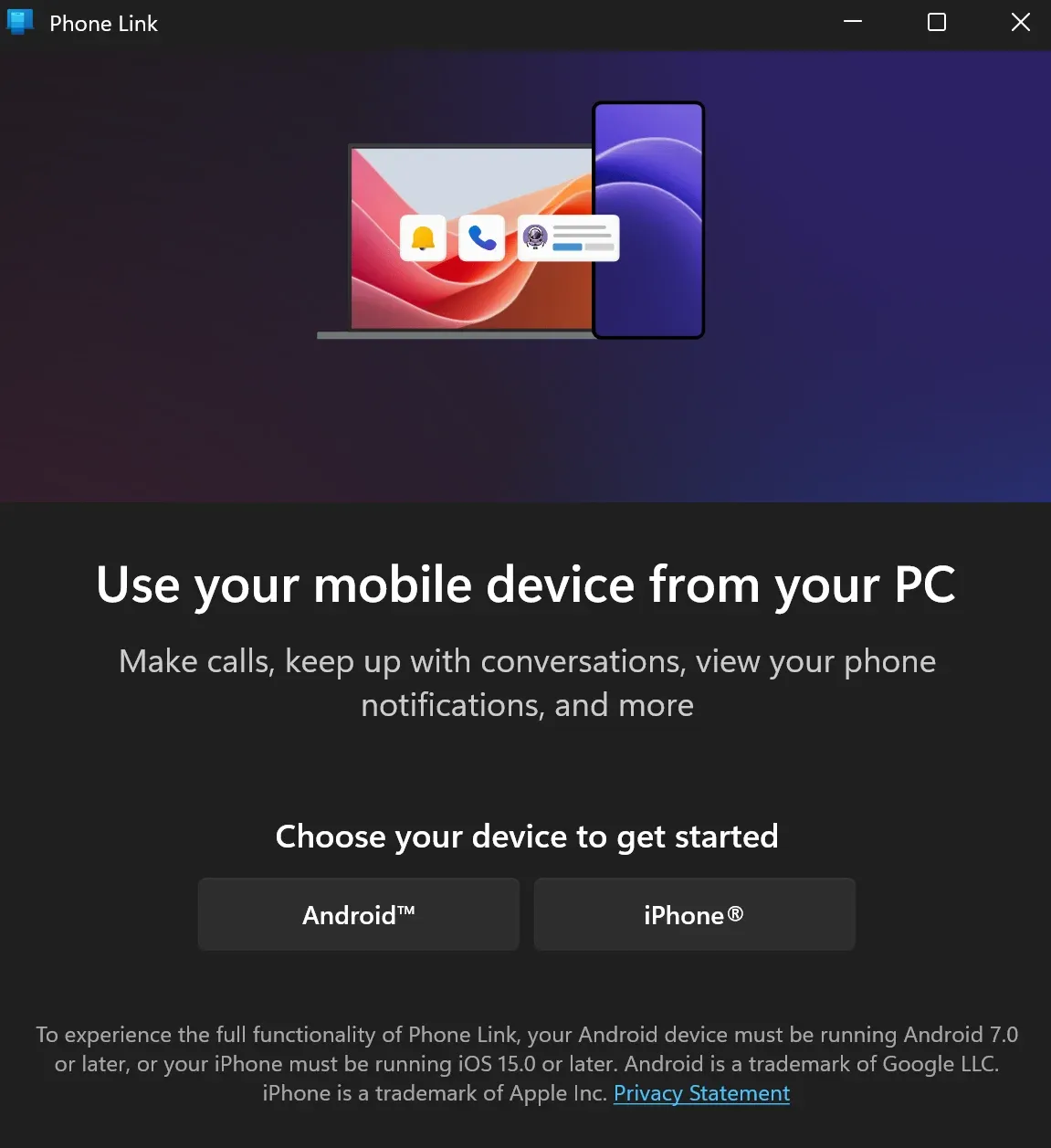
Step 1. Open the Phone Link app on your Windows PC and choose iPhone. It will give you a QR code.
Step 2. On your iPhone, open the Link to Windows app and tap the Scan the QR code on your PC option.
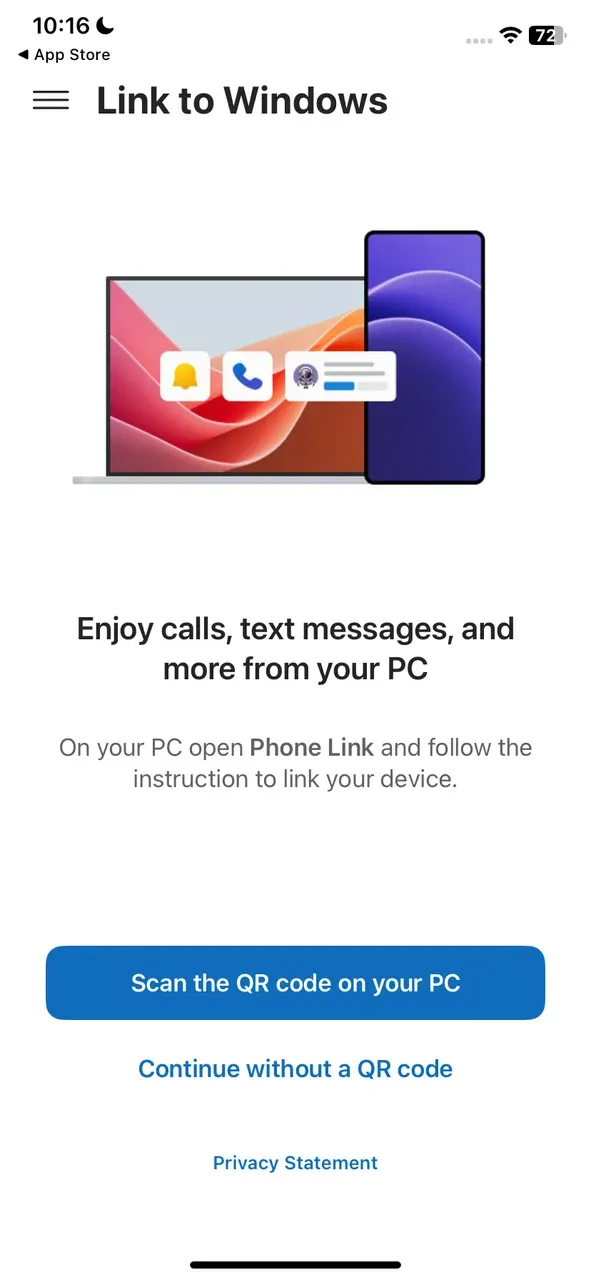
Step 3. Scan the QR code using the app's built-in camera function.
Step 4. Tap Continue on your iPhone. Then, enter the 6-digit code displayed on your PC to connect the two devices and tap the Pair button.
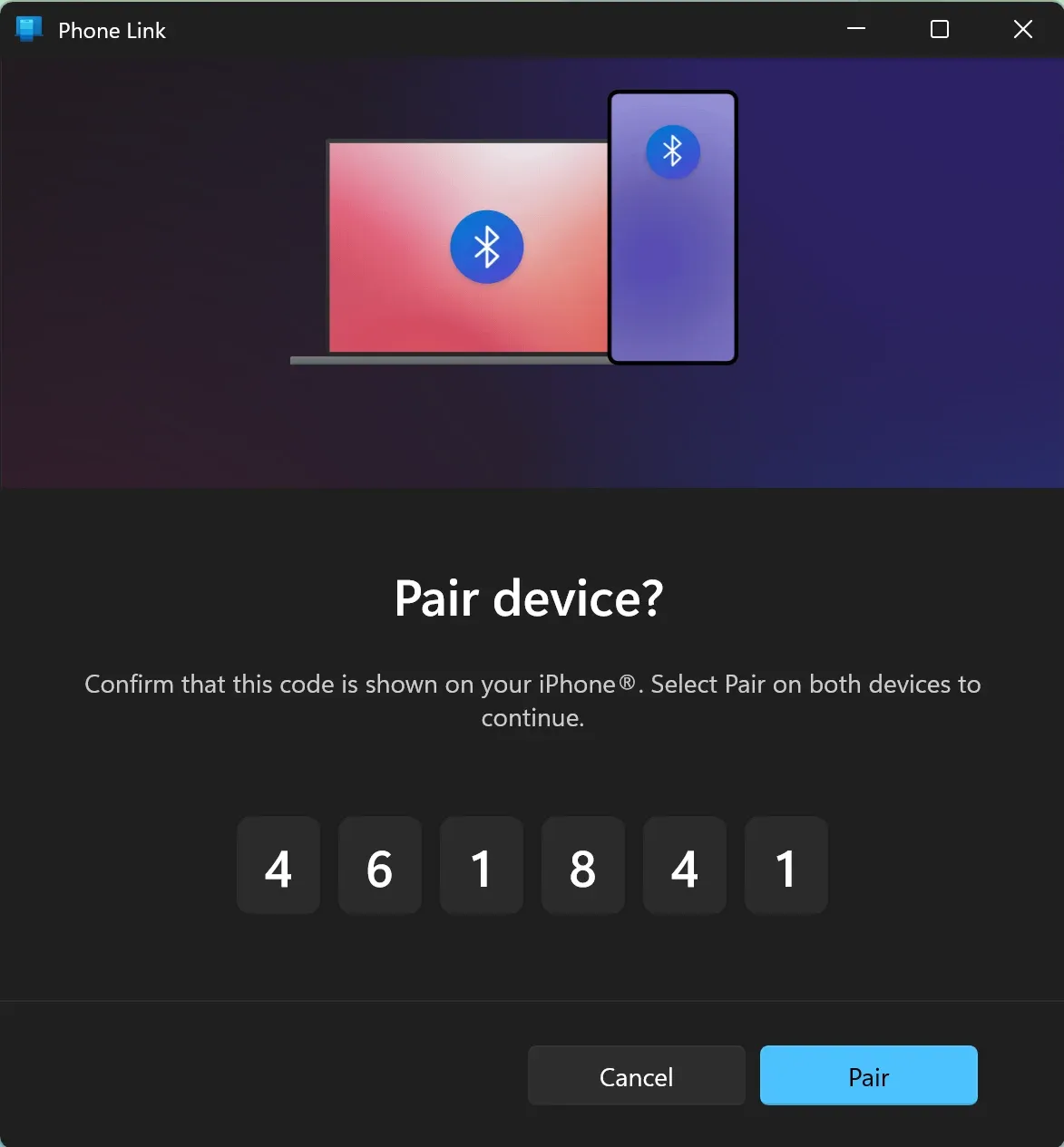
Step 5. Grant the app access to your messages, contacts, etc.
Step 6. Follow the on-screen instructions to sign in to your Microsoft account.
Step 7. When paired, Phone Link keeps you synced in real time. Your texts appear on your screen, calls ring through your PC's speakers, and notifications show up just like on your iPhone.
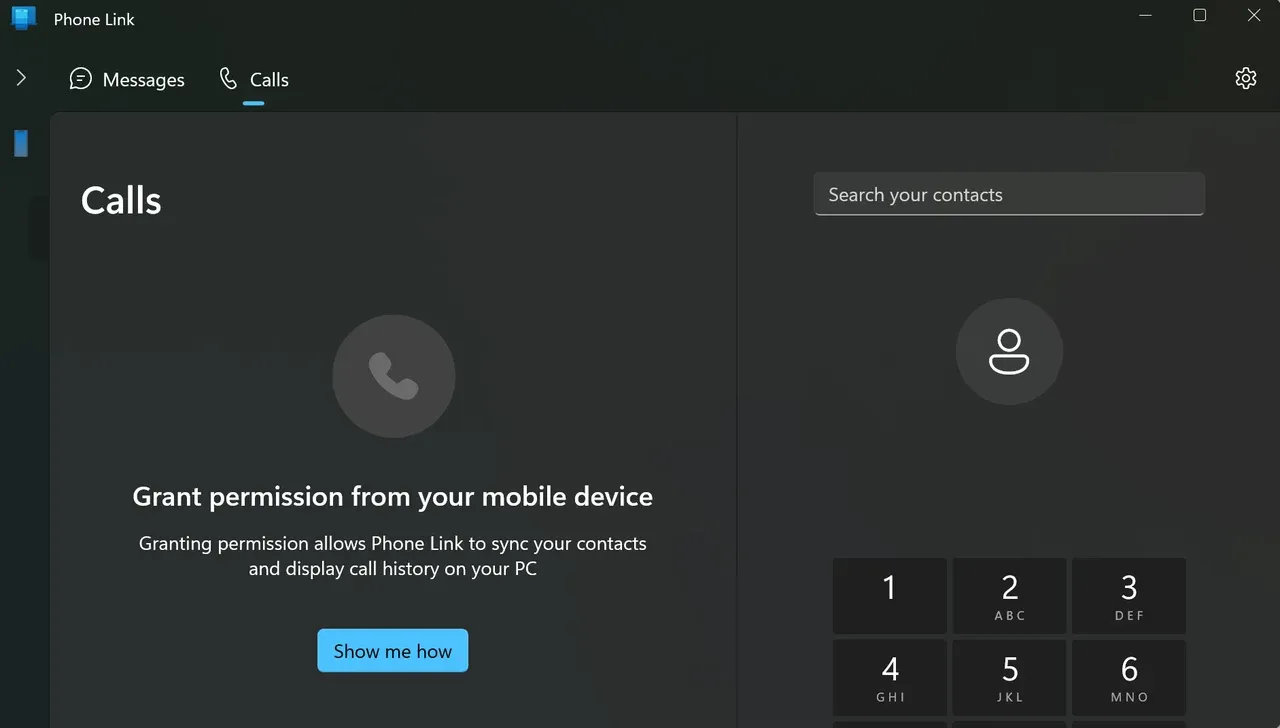
The Microsoft app easily pairs your iPhone with your Windows PC, ideal for staying productive without picking up your phone every few minutes. However, it doesn't offer file transfer or screen sharing. Well, how to link iPhone to Windows 11 for screen mirroring? Follow us to explore a different tool.
Connect iPhone to Windows PC via iTunes
How to connect iPhone to PC Windows 10? Last but not least, Apple's official tool for managing iPhone data on a PC is iTunes.
Despite being around for years, it's still the go-to option for syncing music, creating backups, and restoring your device. However, compared with the other methods, the setup process for this method is a bit long and complicated.
How to use iTunes to connect iPhone to Windows PC? This method is not 100% wireless, as you still need a USB cable:
Step 1. Download and install the latest version of iTunes for Windows from Apple's website.
Step 2. Link your iPhone to a Windows PC with a USB cable.
Step 3. While connecting, launch the iTunes app on your Windows laptop (if the app isn't launched automatically).
Step 4. Look for the iPhone icon on the iTunes interface. If you find it, your iPhone and Windows PC have already successfully connected.
Step 5. Use iTunes for file backup or media syncing. For example, click the Back Up Now button on the iTunes interface, then choose content to sync, hit the Apply and Sync buttons to begin the process, and wait for a while till the process ends.
Final Thoughts
Connecting an iPhone to a Windows PC doesn't have to be complicated. You just need to pick the method that fits your needs: use a USB for simple file transfers, try Phone Link to handle messages, calls, and notifications on your laptop, go with PigeonCast if you want to mirror your iPhone to Windows wirelessly, or stick with iTunes for full backups and media syncing.
Each of these options has its strengths, and using more than one might give you the best overall experience.
How to Connect iPhone to Windows PC FAQ
Q: Can I link my iPhone to my Windows PC?
Yes, you can link your iPhone to your Windows PC. The method depends on what you want to do. For example, use a USB for simple file transfers, try Phone Link to handle messages, calls, and notifications on your laptop, go with PigeonCast if you want to mirror your iPhone to Windows wirelessly, or stick with iTunes for full backups and media syncing.
Q: How to connect iPhone to PC via USB?
To get started with USB cable, connect your iPhone to the PC using a compatible USB cable, like a Lightning to USB cable or USB-C cable, tap the Trust This Computer option when prompted on your iPhone, then, on your Windows PC, open File Explorer and find your iPhone listed under Devices and drives, and go into the DCIM folder and copy whatever photos or videos you need.
Mia Clarke is a technology editor specializing in screen mirroring and casting solutions across multiple platforms. Mia provides clear, practical guides and in-depth insights to help users seamlessly connect their devices. Passionate about enhancing digital experiences, Mia is dedicated to keeping readers updated on the latest trends and tools in cross-platform screen sharing. Whether you’re looking to mirror your smartphone, laptop, or smart TV, Mia’s content delivers reliable, user-friendly advice to simplify your tech setup.