
Chromecast is a powerful device that allows you to stream content from your computer, smartphone, or tablet directly to your TV. If you're a Mac user and want to cast your screen or stream media to your Chromecast device, you can do so quickly and easily using Google Chrome. In this guide, we'll introduce how to Chromecast from Mac step by step.
Can I Chromecast From Mac
Yes, you can Chromecast from a Mac by casting your entire screen, a Chrome browser tab, or supported media (like videos or music) to your Chromecast device. Chromecast is a streaming device developed by Google that plugs into your TV's HDMI port and allows you to wirelessly cast content from your phone, tablet, or computer to your TV.
Chromecast uses a proprietary protocol developed by Google called Google Cast, which enables casting in two major ways: casting content and screen mirroring. It is commonly used on Android devices and in the Google Chrome browser.
While on iOS and iPadOS, system-level screen mirroring is not supported via Chromecast, only content-based casting is available (e.g., from YouTube, Netflix, and other supported apps). Here are the basic functions of Chromecast:
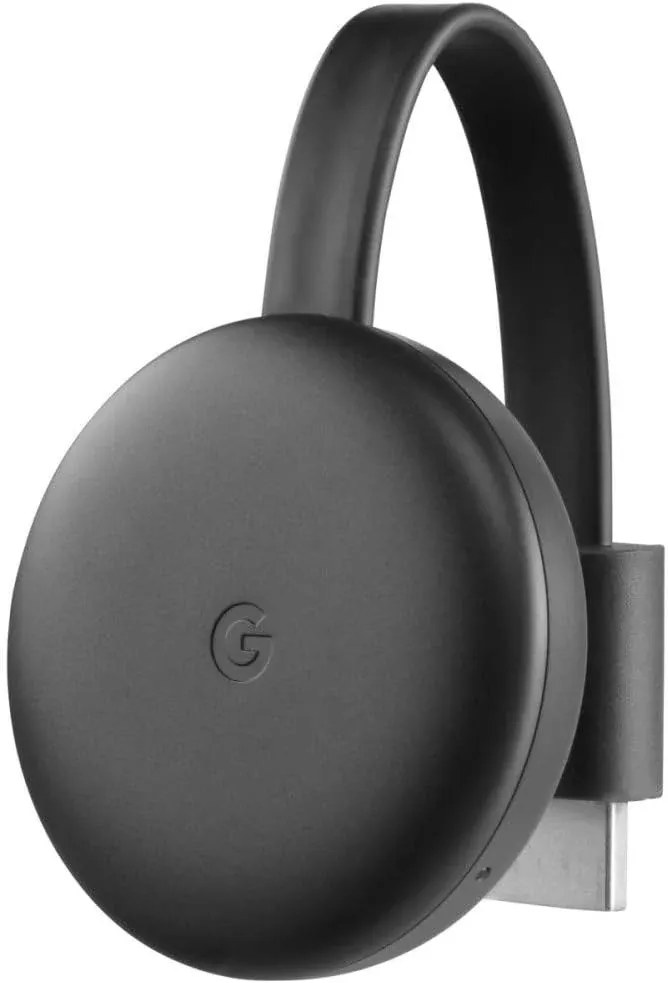
- Streaming Media: Cast videos (YouTube, Netflix), music (Spotify), and photos from apps.
- Screen Mirroring: Share your Mac/PC/phone screen on the TV.
- Browser Casting: Send a Chrome browser tab to your TV.
- Multi-Device Support: Works with Android, iOS, Windows, and macOS.
How to Cast to Chromecast From Mac
Before you start how to cast from Mac to Chromecast, just make sure a couple of things are in place: First, ensure you're running the latest version of Google Chrome for the best experience. Also, double-check that both your Mac and Chromecast are connected to the same Wi-Fi network. Once that's sorted, you're good to go!
Move 1. Set Up Your Chromecast
The first thing is to get your Chromecast set up and connected to your TV. Some TVs have built-in chromecast functionality. If everything's ready, you should see the Chromecast home screen on your TV. Here's the step of how to stream to Chromecast from Mac:
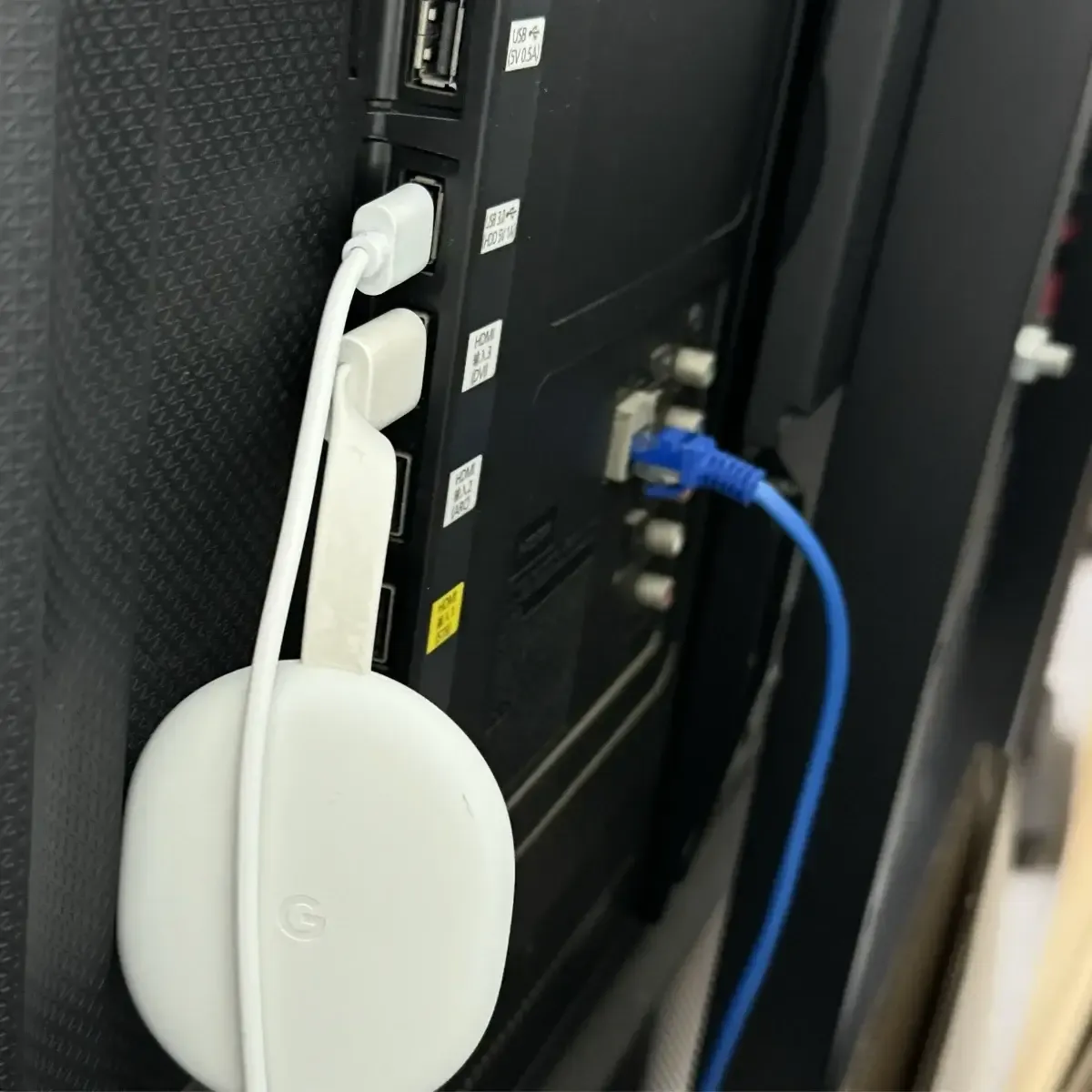
Step 1. Take your Chromecast and plug it directly into one of the HDMI ports on your TV. Don't forget to also connect the power cable to the Chromecast and plug it into a USB port on your TV or a wall adapter.
Step 2. Now, grab your phone and open the Google Home app. If you don't have it, you can download it from the App Store or Google Play.
Step 3. Follow the on-screen instructions to connect your Chromecast to your Wi-Fi network. Ensure your Mac is also connected to the same network so they can communicate with each other.
Move 2. Cast from Chrome to Your Chromecast
Now that your Chromecast is set up and connected to your Wi-Fi, it's time to start streaming from your Mac. Here's how to connect to Chromecast from Mac:
Step 1. Open Google Chrome on your Mac. If you don't already have Chrome installed, go to Google Chrome's download page, click Download Chrome and follow the installation prompts.
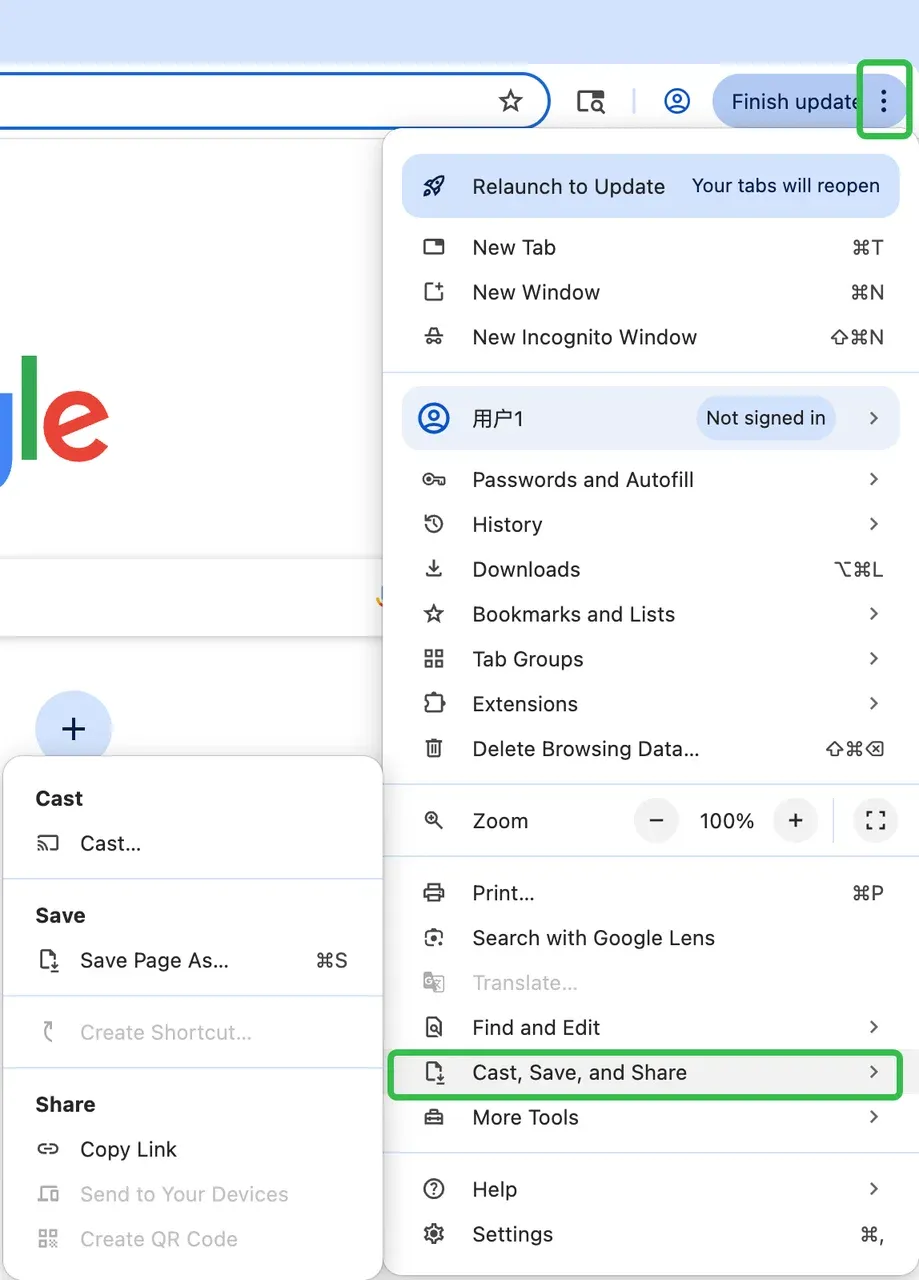
Step 2. Launch Chrome from your Dock or Applications folder. In the upper-right corner of your Chrome browser, you'll see three dots. Click on these to open the menu, then select the Cast option from the drop-down options.
Step 3. Select your Chromecast from the list of available devices, and then your Mac screen will now be mirrored on your TV. You'll be given a few options on what you can cast from your Mac:
- Cast Tab: Streams just the current browser tab (best for videos).
- Cast Desktop: Mirrors your entire Mac screen (useful for presentations).
- Cast File: Cast a specific file, like a video or a presentation
- Stop Casting: Click the Cast icon again and select "Stop".
3 Alternative Methods: Cast MacBook to TV
If your Chromecast stops working unexpectedly, there are three easy alternatives to keep things running smoothly: use AirPlay for AirPlay-compatible TVs, a Mac mirroring app for universal compatibility, or simply connect via an HDMI cable. All these options are straightforward to set up, just follow the steps carefully, and you'll be back on track in no time.
Alternative 1. AirPlay For Apple TV or AirPlay-Compatible TVs
If you have an Apple TV or a TV that supports AirPlay, you can easily mirror your Mac screen using AirPlay. Please make sure both your Apple TV and Mac are connected to the same Wi-Fi network.
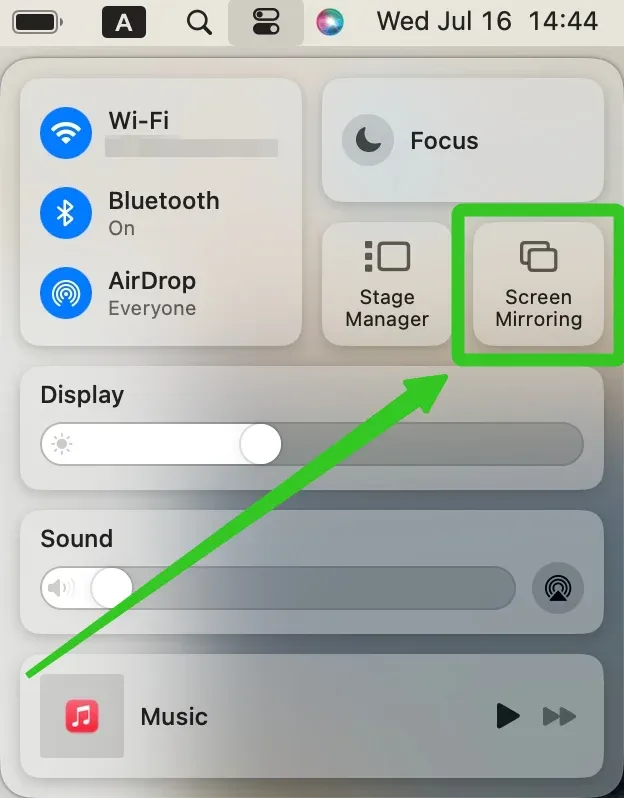
Step 1. On your Mac, click the Screen Mirroring icon in the menu bar at the top of your screen.
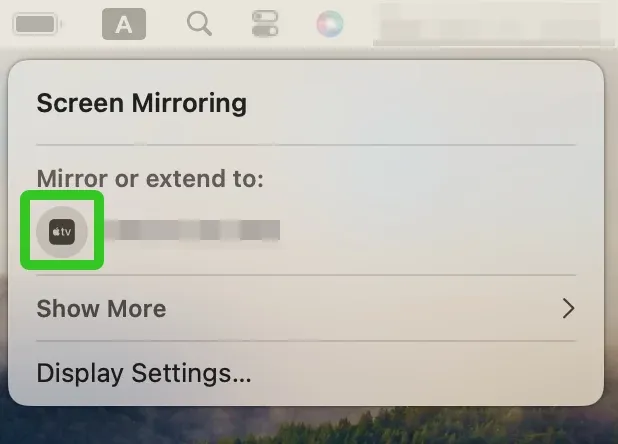
Step 2. Select your Apple TV or AirPlay-compatible device from the device list. You can choose to mirror your display or use your TV as a second display.
Step 3. Once your screen is mirrored, you can adjust the Display Settings if needed.
Alternative 2. Universal Mac Mirroring App
Fortunately, there's a universal MacBook screen mirroring app from PigeonCast that integrates AirPlay, Google Cast, and DLNA, can effortlessly mirroring your MacBook to any TV, such as Apple TV or Android TV. Perfect for movies, presentations, and big-screen multitasking.
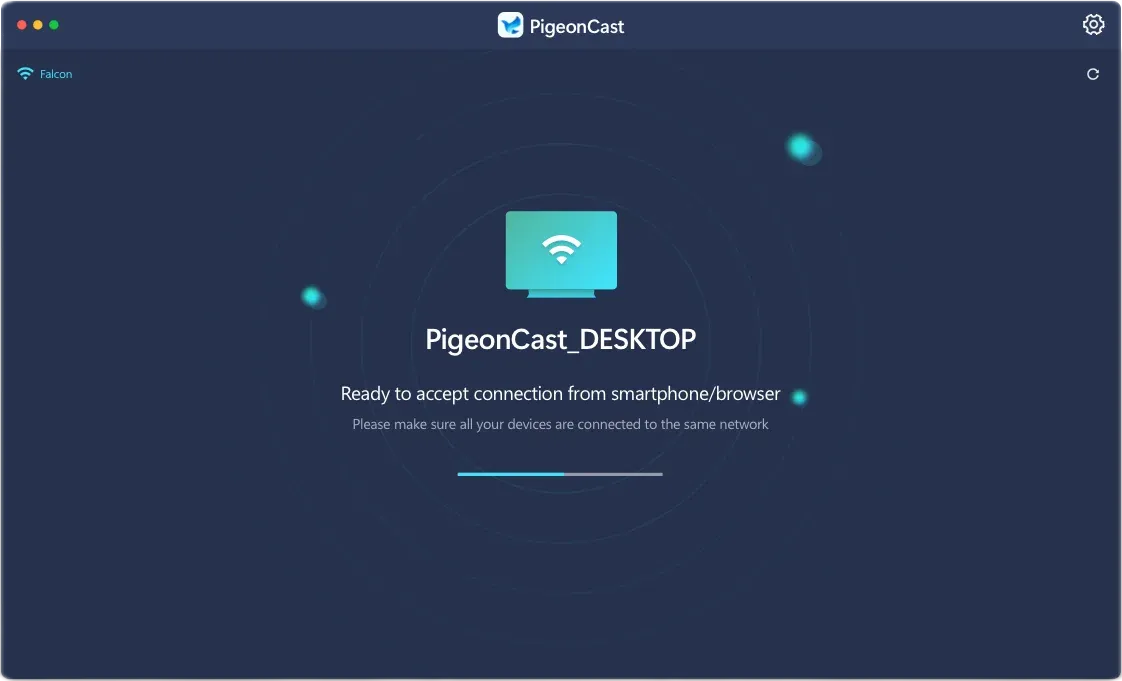
Step 1. Ensure your Mac and TV are covered by the same wireless network.
Step 2. Install this Mac mirroring application on your MacBook and allow all its permissions.
Step 3. Launch the app and follow the onscreen instructions to finish the simple pairing process.
Step 4. When the connection succeeds, you can start MacBook screen mirroring on your smart television.
A universal mirroring app is especially useful when you cast to more than one type of TV, while a Chromecast-focused app may be enough if Google Cast is all you need. The best Chromecast apps for MacBook differ mainly in screen mirroring, media casting, device compatibility, and free-use limits, so the right choice depends on how you normally cast from your Mac.
Alternative 3. Use an HDMI Cable
If you're looking for a more stable, lag-free connection, the best option is to use an HDMI cable. This wired connection is usually the most reliable, especially when you're streaming high-quality video or doing something that requires minimal delay.
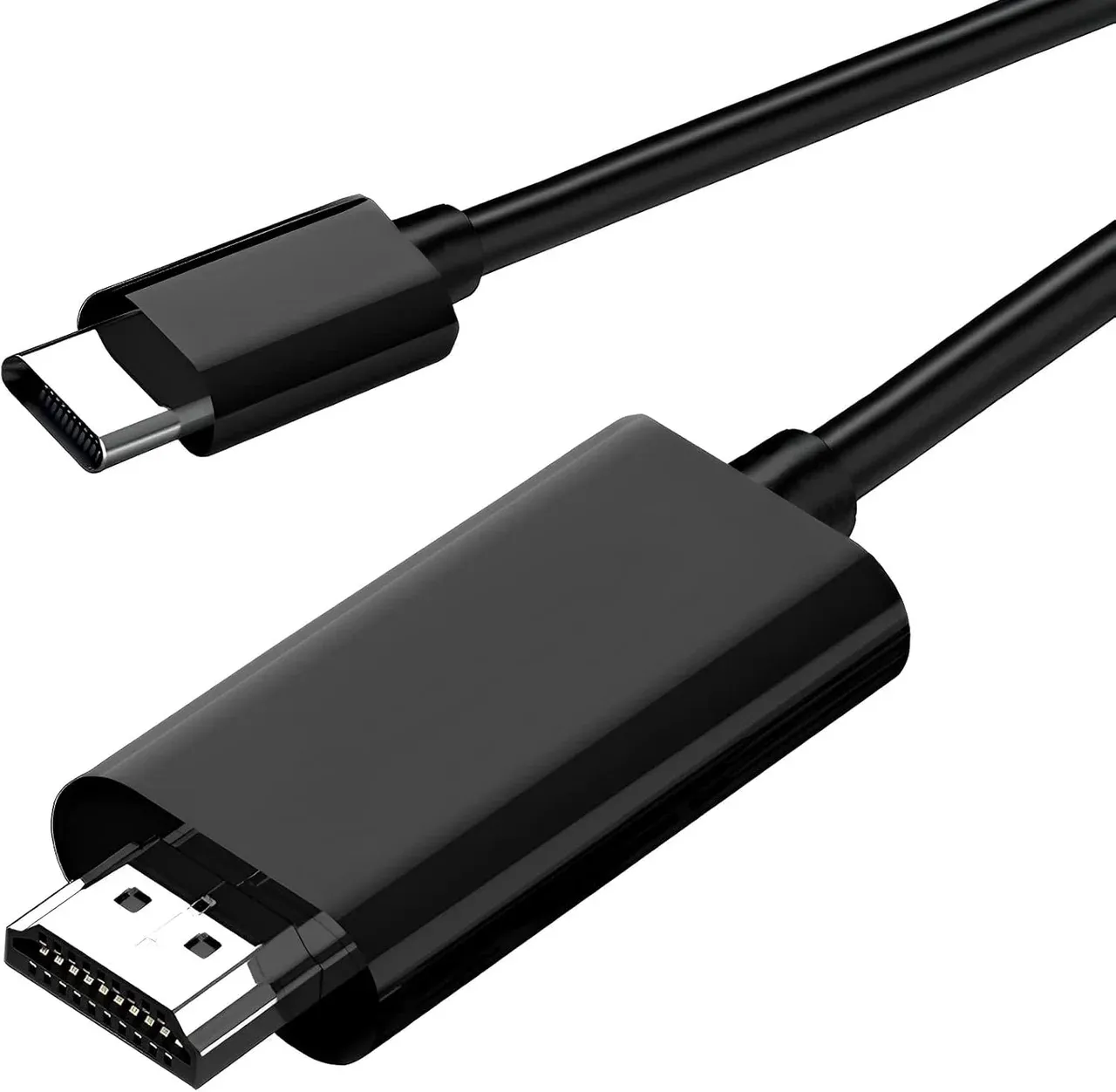
Step 1. Depending on your Mac model, you might need a specific adapter. For newer Macs, you'll likely need a USB-C to HDMI adapter, while older models may require a Mini DisplayPort to HDMI adapter.
Step 2. Connect one end of the HDMI cable to your TV and the other end to the adapter, then plug the adapter into your Mac.
Step 3. On your TV, switch to the correct HDMI input. Use your TV remote to set the input/source to the HDMI port where the cable is plugged in.
Step 4. Your Mac screen should appear on the TV right away. If it doesn't, go to System Preferences on your MacBook, select Displays, and configure the display arrangement to mirror or extend.
Wrapping Up
How to Chromecast from Mac to TV? After reading the post, you will find that the procedure is straightforward to understand. Even if there's something worse during the process, you can still have 3 backups to screen mirror your Mac to the smart television with the AirPlay feature, a universal Mac mirroring app, and an HDMI cable.
How to Chromecast From Mac FAQ
Can you Chromecast from Mac to TV?
Yes, you can Chromecast from a Mac to a TV using Google Chrome. Just open Chrome, click the three-dot menu, select "Cast" and choose your Chromecast device. You can cast a specific tab, your entire desktop, or even media files directly to the TV. Make sure both your Mac and Chromecast are on the same Wi-Fi network.
How do I show my Mac screen on Chromecast?
To show your Mac screen on Chromecast, open Google Chrome, click the three-dot menu in the top-right corner, and select "Cast". From the options, choose "Cast desktop," then select your Chromecast device. This will mirror your Mac's entire screen to the TV, as long as both devices are connected to the same Wi-Fi network.
How to enable Chromecast on MacBook settings?
Chromecast doesn't need to be enabled in your MacBook settings. To use it, simply open Google Chrome, click the three-dot menu in the top-right corner, and select "Cast". Make sure your MacBook and Chromecast are connected to the same Wi-Fi network, and then choose whether to cast a specific tab, your entire desktop, or media files to the TV.
Why is my Mac not casting to TV?
If your Mac isn't casting to the TV, it could be due to several reasons:
- Mac and TV/Chromecast are on different Wi-Fi networks.
- Google Chrome is outdated.
- The Cast option is not selected correctly.
- Chromecast or TV is not properly connected or set up.
- Display settings on Mac are not detecting the TV.
- Network or connection issues.
- Outdated macOS or Chromecast firmware
Clara Rossi is an experienced technology editor and a seasoned expert in screen mirroring and casting technologies. With a keen eye for detail and a deep understanding of how to seamlessly connect devices, Clara excels at optimizing user experiences for effortless sharing and streaming. Whether you're seeking quick fixes or advanced tips, her expertise and responsiveness ensure that every query is met with a well-informed and efficient solution.