
Chromecast makes it easy to stream videos, music, tabs, and screens from your phone or computer to a TV. But setting it up and getting it to work smoothly is not always straightforward. Whether you are trying to cast from an iPhone, connect a laptop, fix a device that is not showing up, or compare Chromecast with AirPlay and screen mirroring apps, this guide covers the full process in one place.
As one of the most widely used wireless streaming technologies, Chromecast supports everything from Netflix streaming to Chrome tab casting across Android, iPhone, Windows, and Mac. At the same time, users often run into issues with Wi-Fi detection, Google Home setup, compatibility, or device discovery.
Below, you will learn how Chromecast works, how to set it up on different devices, how to troubleshoot common problems, and when an alternative streaming or mirroring solution may work better.
Quick Answer: Is Chromecast Still Worth It in 2026?
Chromecast is still one of the easiest ways to stream content to a TV, but it no longer feels like the automatic choice it once was.
A few years ago, Chromecast stood out because many TVs had weak built-in streaming systems. In 2026, the situation is different. Smart TVs now ship with better native apps, AirPlay support is far more common, and wireless screen mirroring has become easier across most devices. That changes what Chromecast is actually best at.
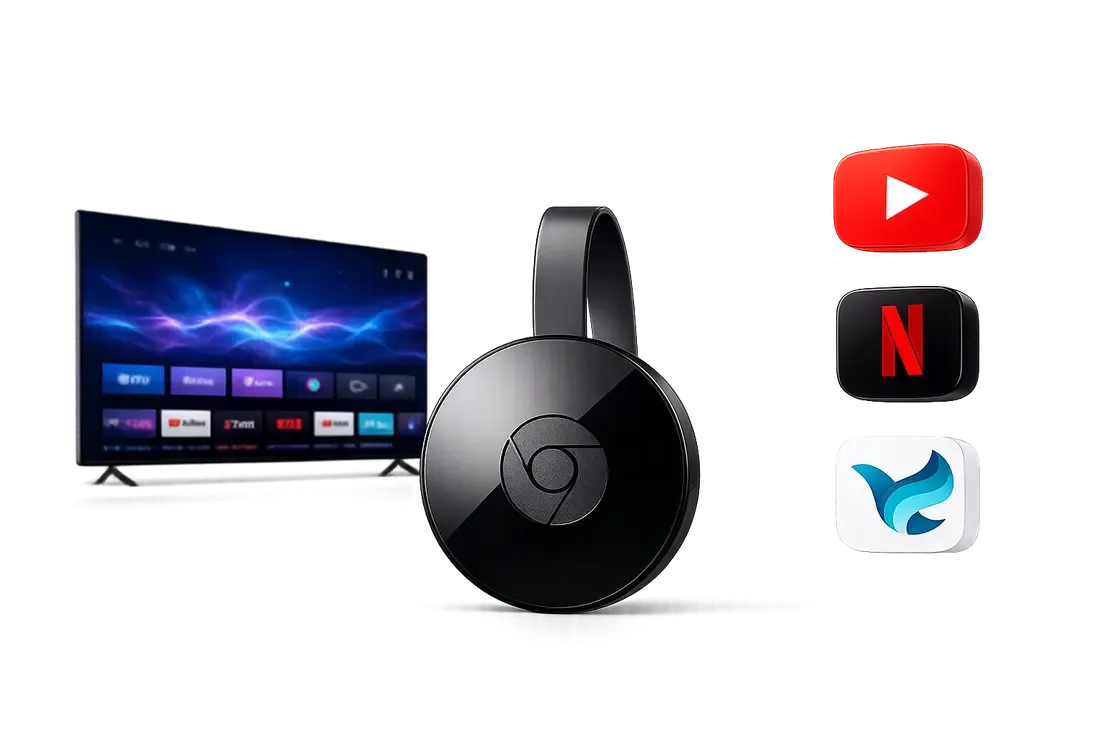
Today, Chromecast works particularly well when you already live inside Google-friendly apps and services. Watching YouTube, streaming Netflix, casting Chrome tabs from a laptop, or sending videos from Android still feels smooth and convenient. It also remains one of the better options for mixed-device households where people use both Android and iPhone.
But Chromecast is not always the most flexible solution anymore.
iPhone users still run into apps that do not support Google Cast properly. Hotel or public WiFi networks often break device discovery. And if your goal is true full-screen duplication instead of app-based streaming, screen mirroring tools usually feel more direct and predictable.
In practice, Chromecast works best when your apps already support casting natively. When they do not, many users eventually switch to AirPlay, HDMI, or dedicated mirroring apps instead.
For most people, the real question is no longer “Does Chromecast work?” It does. The better question is whether Chromecast matches the way you actually use your devices today.
How Chromecast Works
One reason Chromecast still confuses many users is that it does not behave like a traditional HDMI connection or a standard screen mirroring tool.
- Sometimes it streams video directly to the TV.
- Sometimes it mirrors a browser tab.
- Sometimes it depends entirely on whether an app supports Google Cast.
Chromecast Is More Than Just a Dongle
People often use the word “Chromecast” to describe two different things. The first is the physical Chromecast device that plugs into a TV through HDMI. The second is Google Cast, the wireless casting technology itself.
That distinction matters because many modern TVs already support Google Cast without needing a separate Chromecast dongle. In those cases, your phone or laptop can cast directly to the TV even if no external device is connected.
The casting feature itself generally does not require a separate subscription, although you may need to purchase compatible hardware or pay for the streaming services you use. The full breakdown of device costs, app fees, and subscriptions is covered in Is Chromecast free to use.
This is also why Chromecast compatibility can feel inconsistent from one TV to another. Some TVs support full Google Cast features natively, while others only provide limited casting behavior.
Chromecast Is Not Traditional Screen Mirroring
Traditional screen mirroring continuously duplicates your entire display onto the TV. Chromecast often works differently.
In supported apps like YouTube or Netflix, your phone usually does not stream the video itself. Instead, it tells the TV what to play, and the TV handles playback directly.
That approach has a few advantages:
- smoother video playback
- lower battery usage
- less wireless lag
- more stable long-form streaming
But it also creates limitations. If an app does not support Google Cast properly, Chromecast may not work at all. In those situations, screen mirroring is often the easier option because it simply copies whatever appears on your screen.
In practice:
- Chromecast is usually better for supported streaming apps
- screen mirroring is usually better for unsupported content or full-screen duplication
Why Chromecast Sometimes Feels Unreliable
Chromecast depends heavily on three things working correctly at the same time:
- app compatibility
- local network discovery
- device support
That is why the experience can feel excellent in one setup and frustrating in another.
For example:
- Android devices usually integrate with Chromecast very smoothly
- iPhone support depends more heavily on individual apps
- hotel or public WiFi often blocks device discovery
- browser casting behaves differently from native app casting
Many Chromecast problems are not hardware failures at all. They are usually network visibility or compatibility issues happening behind the scenes.
Which Devices Work Best With Chromecast
Chromecast works across most major platforms, including:
- Android phones and tablets
- iPhone and iPad
- Windows laptops and desktops
- Mac computers
- Chrome browser
- smart TVs with Google Cast built in
- Google TV and Chromecast devices
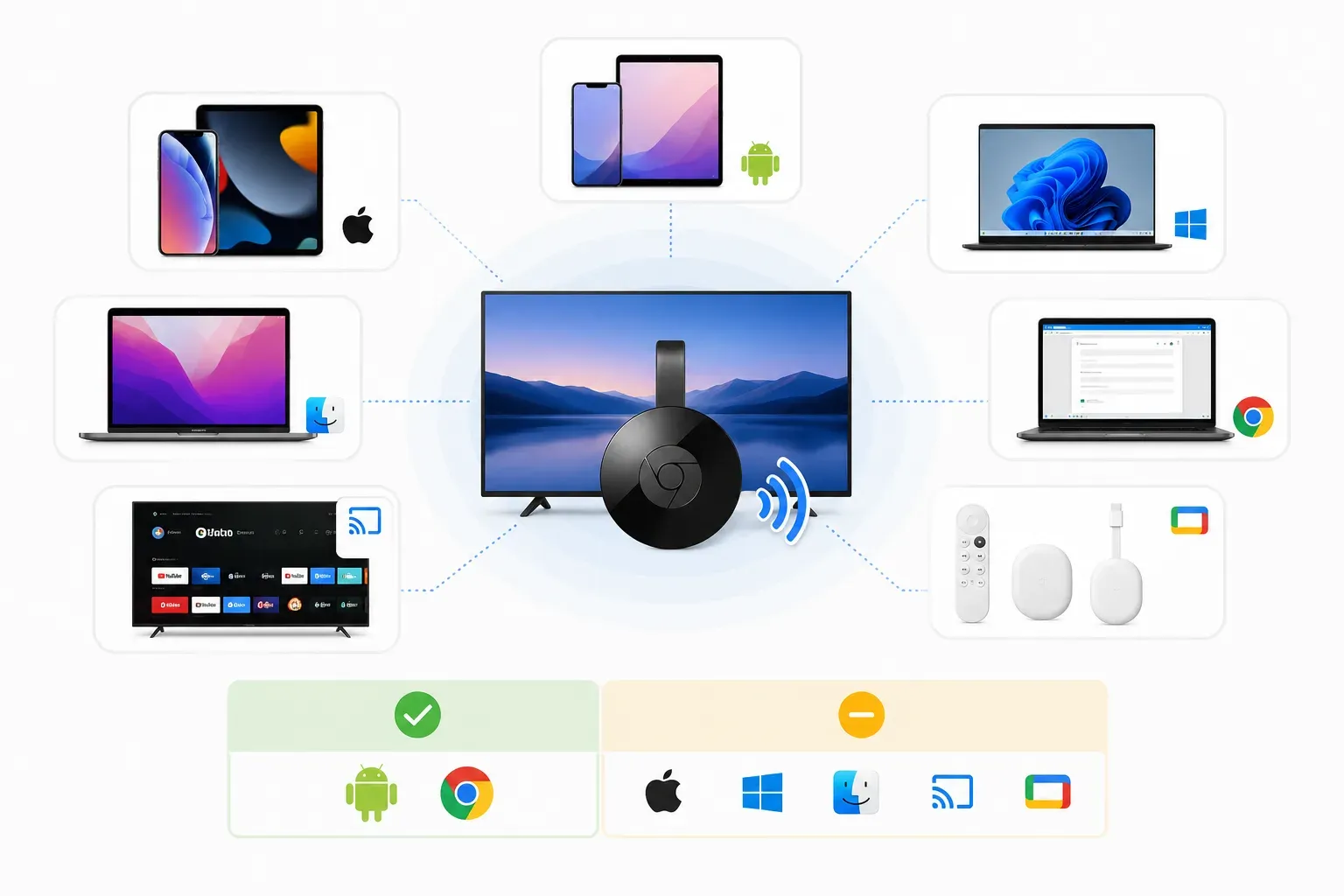
But the experience is not identical everywhere. Android and Chrome browser environments tend to offer the smoothest casting experience because Google Cast support is deeply integrated into many Google services and apps. Apple users can still use Chromecast successfully, but AirPlay often feels more native inside the Apple ecosystem.
Chromecast vs Google TV: What’s the Difference?
Chromecast and Google TV are related, but they are not the same thing. Chromecast refers to the casting technology itself — the system that sends content from one device to another. Google TV is the interface and operating system layer found on some smart TVs and streaming devices.
A simple way to think about it:
- Chromecast helps you send content to the TV
- Google TV helps you browse and launch content on the TV itself
Some devices include both.
When Chromecast Is Still the Best Option
Chromecast has been around long enough that it is no longer a “must-have” gadget for every TV setup. Most smart TVs now come with built-in streaming apps, and Apple users often default to AirPlay instead.
Even so, Chromecast still solves a few problems surprisingly well,especially when you understand what it is actually designed to do.
Chromecast vs HDMI
The biggest advantage Chromecast still has over HDMI is convenience. You do not need to keep your laptop physically connected to the TV. You can start a video from your phone, pause it from another device, and continue watching without cables stretched across the room。 For everyday streaming, that feels much lighter than plugging and unplugging HDMI every time.
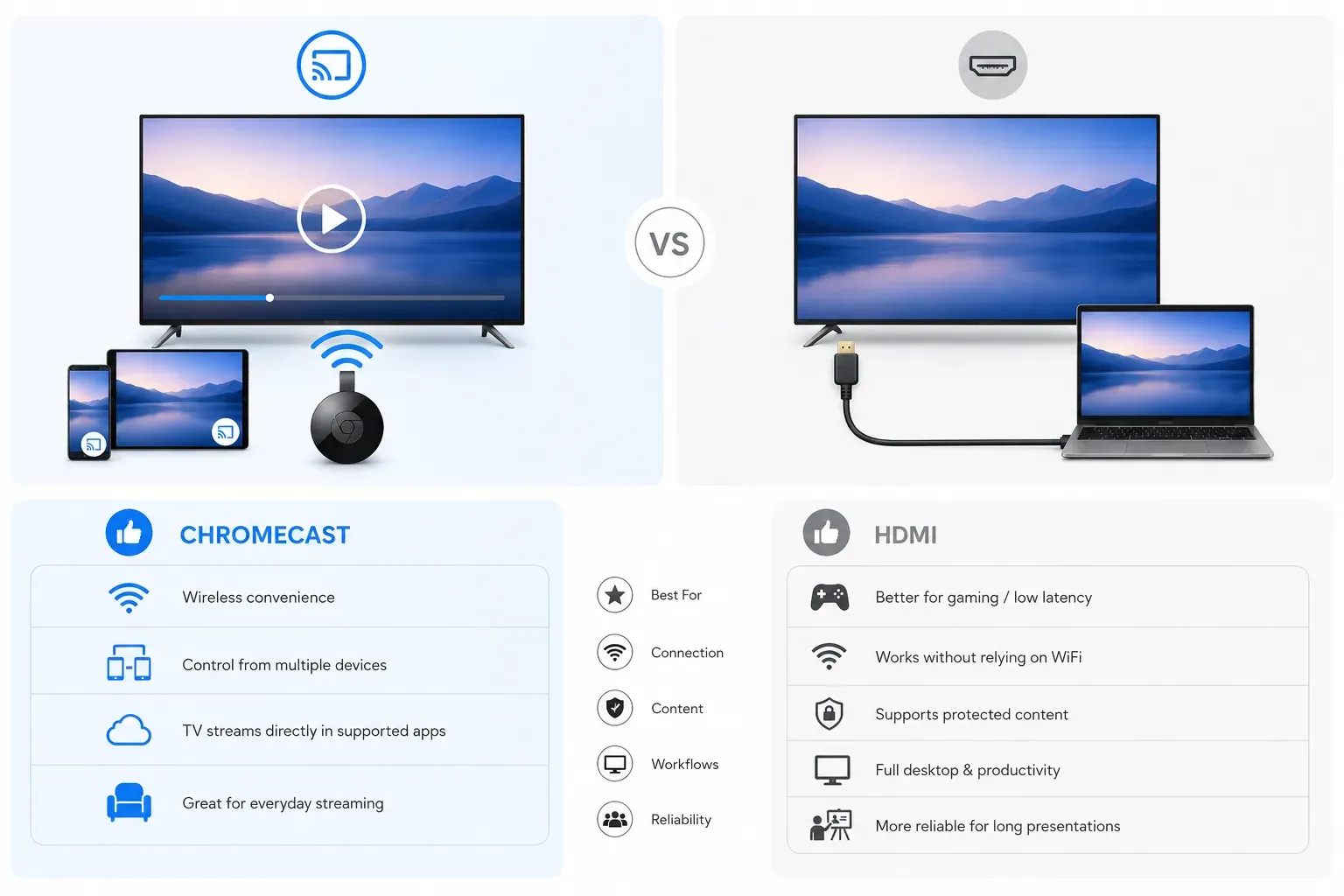
Chromecast also handles supported apps differently from traditional screen mirroring. In many cases, the TV streams the content directly after receiving the casting request, which is why playback often feels smoother than duplicated wireless displays.
That said, HDMI still wins in some situations:
- gaming or low-latency use
- unstable WiFi environments
- protected content that blocks casting
- full-screen desktop workflows
- long presentations where reliability matters more than convenience
In practice, Chromecast works best when you want casual wireless streaming rather than a permanent desktop-to-TV connection.
Best Chromecast Use Cases
Chromecast tends to feel most natural in environments where people already move constantly between phones, laptops, browsers, and TVs.
Some of the most common real-world use cases include:
- watching YouTube or Netflix from a phone
- casting Chrome tabs during meetings or classes
- streaming local videos from a laptop
- sharing photos or slides on a larger screen
- sending music to speakers or TVs without cables
- switching playback between devices around the house
It also works particularly well in mixed-device households. For example, a home using both Android phones and Windows laptops can usually share content to the same TV without worrying too much about ecosystem restrictions. That flexibility is one reason Chromecast still remains popular even as smart TVs improve.
What Chromecast Still Does Better Than Smart TVs
One reason Chromecast survives despite modern smart TVs is that many built-in TV systems still age badly.
Streaming apps on older TVs often become slow, unsupported, or inconsistent long before the screen itself becomes obsolete. Chromecast avoids some of that problem because the casting experience depends more heavily on your phone, browser, or streaming app than the TV interface itself.
In many setups, using Chromecast actually feels faster than navigating the TV operating system directly.
Chromecast also still works especially well with:
- Chrome browser casting
- YouTube streaming
- cross-platform device sharing
- lightweight wireless playback
- Google-based services and apps
For users who spend most of their time inside Chrome or YouTube, Chromecast still feels unusually seamless compared with many built-in TV ecosystems.
Where Chromecast Still Feels Limiting
Chromecast works best when apps support Google Cast properly. When they do not, the experience can become frustrating very quickly. This is especially noticeable on iPhone, where app support varies much more than many users expect. Some apps cast perfectly. Others barely recognize Chromecast at all.
Network dependency is another limitation. Chromecast relies heavily on local WiFi visibility, which is why hotel networks, guest WiFi, or restricted public connections often cause discovery problems. Many “Chromecast not showing up” issues are really network issues underneath.
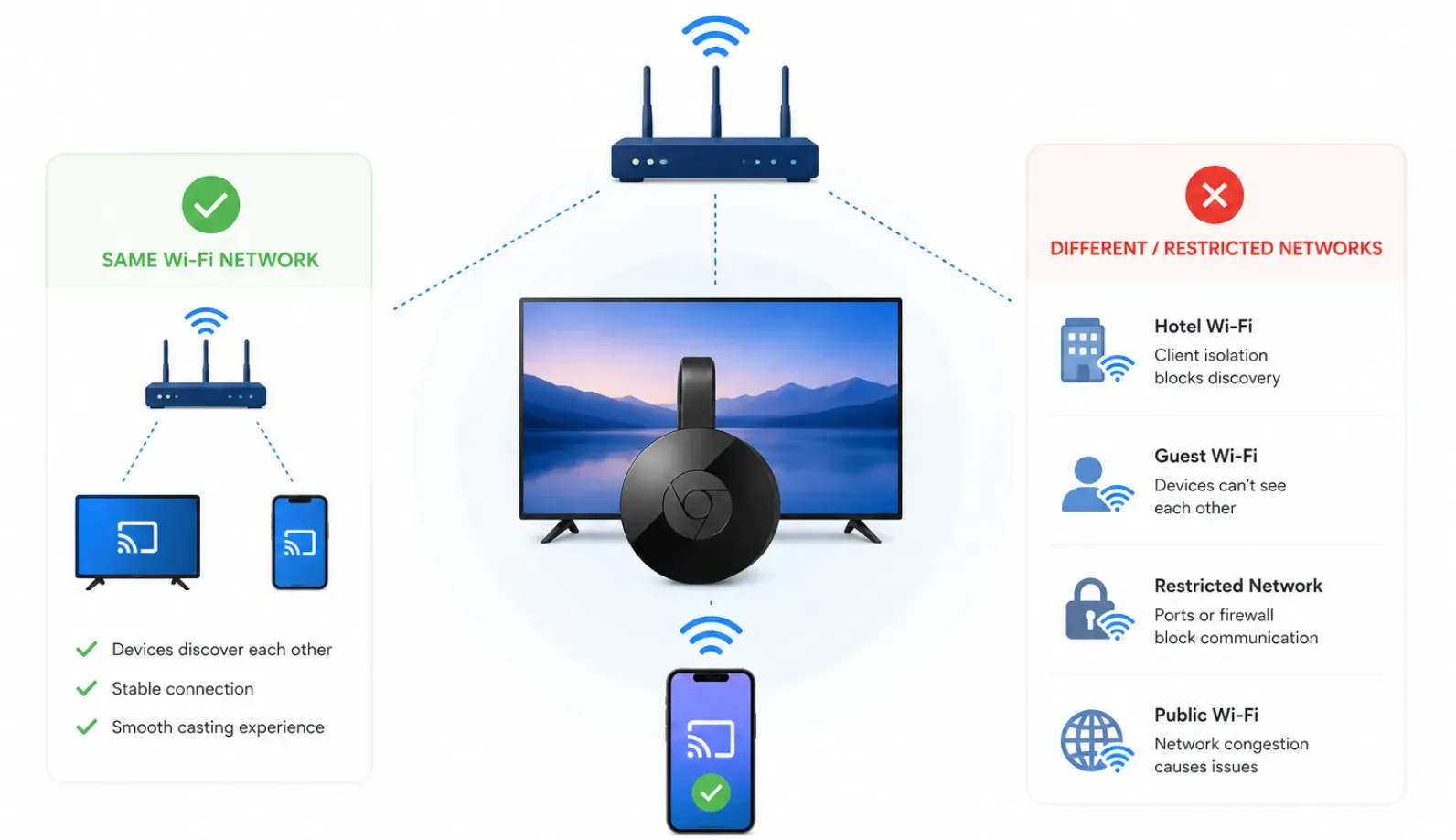
And while Chromecast is excellent for supported streaming apps, it is not always ideal for true full-screen duplication. If your goal is simply to mirror everything exactly as it appears on your device, AirPlay, Miracast, HDMI, or dedicated screen mirroring apps can feel more direct and predictable.
That is why many people eventually stop thinking of Chromecast as a universal casting solution.
Instead, it becomes one tool among several — excellent in the right setup, but not necessarily the best fit for every screen-sharing situation.
Chromecast Feels Different on Every Platform
One reason Chromecast continues to confuse people is that the experience changes dramatically depending on the device you use. On Android, Chromecast often feels built in. On iPhone, it can feel inconsistent. On laptops, Chrome browser usually works better than many native apps. And on some streaming devices or TVs, Chromecast compatibility barely works at all. If you already have the device set up and just want to cast to Chromecast, the steps depend on whether you are using Android, iPhone, Chrome, Windows, or Mac.
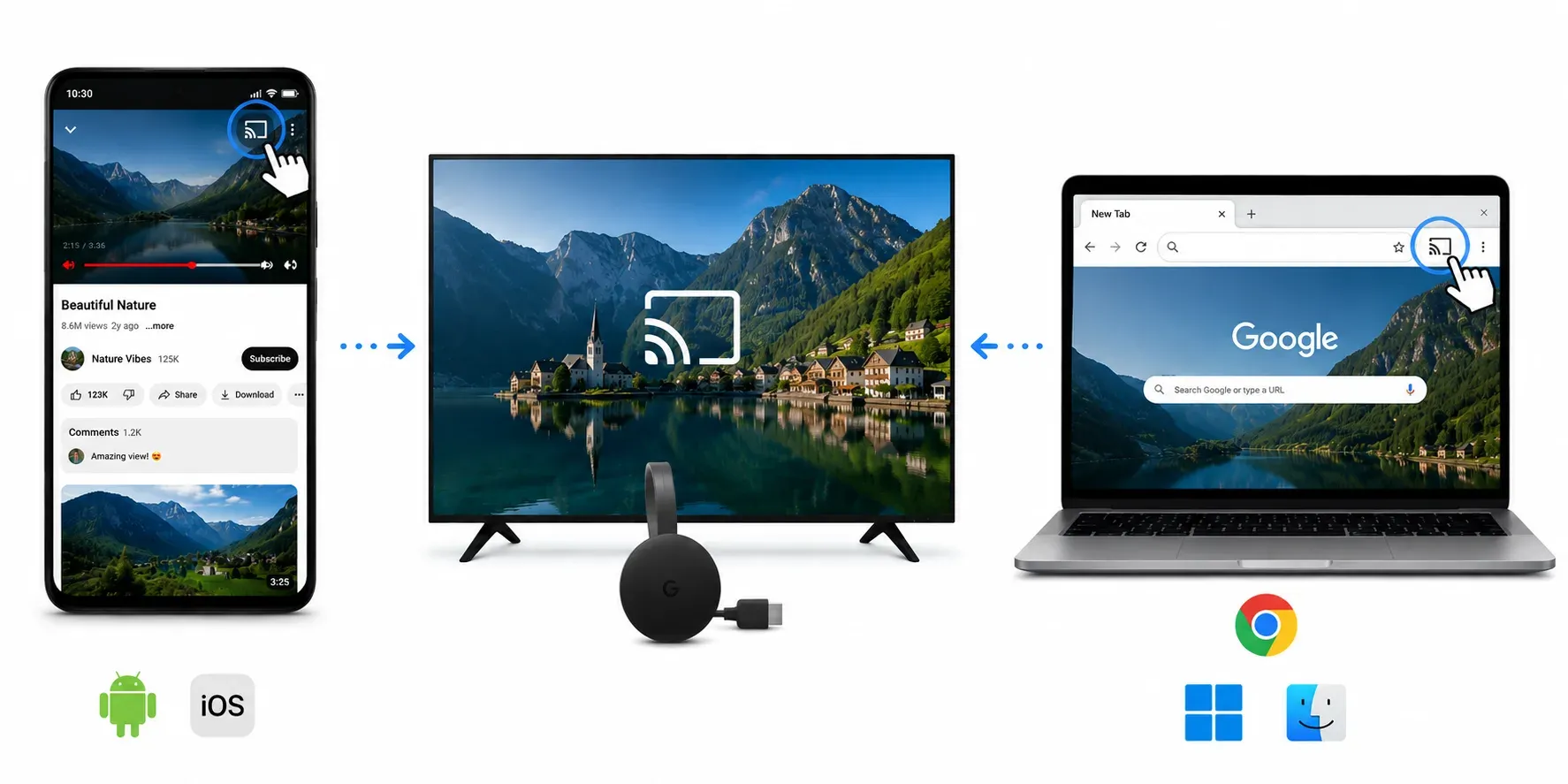
That inconsistency is not accidental. Chromecast depends heavily on app support, local network visibility, and how deeply Google Cast is integrated into the platform itself. Once you understand that, most Chromecast behavior starts making a lot more sense.
Why Chromecast Works So Smoothly on Android
Android still delivers the most natural Chromecast experience. Google Cast support is deeply integrated into many Android apps and services, which is why casting from Android often feels fast, stable, and almost invisible once setup is complete.
Common Android use cases include:
- streaming YouTube or Netflix
- casting games and media apps
- sharing presentations
- mirroring the device screen
- sending browser content to TV
Many Android devices also support multiple wireless display standards at the same time, which is why Chromecast and Miracast comparisons still appear so often.
In practice:
- Chromecast usually works better for app-based streaming
- Miracast is often better for direct full-screen duplication
Why Chromecast Still Feels Limited on iPhone
Chromecast works on iPhone, but the experience is less seamless than many users expect, especially compared with AirPlay.
The biggest reason is app support. Some iPhone apps support Google Cast perfectly. Others barely support it at all. And unlike Android, iOS does not treat Chromecast as a deeply integrated system-level feature.
That creates a strange experience where:
- YouTube may cast flawlessly
- Netflix works normally
- another app may not recognize Chromecast at all
This is also why many iPhone users initially expect Chromecast to behave like AirPlay, which is why they often assume something is broken when unsupported apps fail to cast properly. They expect the TV to duplicate everything on the phone automatically, when Chromecast is actually designed more around app-level streaming.
If your goal is simply to mirror the entire iPhone screen reliably, dedicated screen mirroring apps like PigeonCast for iPhone Mirroring or AirPlay often feel more predictable.
Related guides:
Why Chrome Browser Still Delivers the Best Chromecast Experience
Even after all these years, Chrome browser casting also tends to remain more reliable than many native desktop apps because Google Cast support is built directly into the browser itself rather than added through third-party integrations. This is especially true on Windows and Mac, where browser casting is often more reliable than trying to cast directly from individual desktop apps.
Chrome supports:
- tab casting
- desktop casting
- browser-based video streaming
- local media playback
- presentations and classroom sharing
For many people, Chrome is effectively the bridge between a laptop and the TV.
That is why Chromecast still feels unusually useful in environments like:
- classrooms
- office meetings
- shared workspaces
- browser-heavy workflows
- homes with mixed devices
If you mainly cast from laptops, these guides help:
- Is There a Chromecast App for Windows 10
- How to Cast from Chrome
- How to Use Chromecast on Windows
- How to Chromecast from Mac
Why Users Eventually Switch to Screen Mirroring
Chromecast works best when apps fully support Google Cast. When they do not, the experience quickly becomes frustrating.
This is one reason screen mirroring apps continue to grow in popularity. Instead of depending on app-level Chromecast support, they simply duplicate whatever appears on your screen.
That approach is often easier when:
- an app does not support Google Cast
- the Cast button never appears
- browser casting behaves inconsistently
- full-screen duplication matters more than streaming efficiency
This is particularly common on iPhone, where users often expect Chromecast to behave more like AirPlay than it actually does.
For many people, Chromecast eventually becomes one tool among several rather than the only casting method they use.
Why Streaming Devices Still Don’t Work Seamlessly Together
Many users assume streaming devices are interchangeable. In reality, Chromecast, Fire TV, AirPlay, and Miracast belong to different ecosystems with different priorities.
That is why some combinations work surprisingly well while others feel awkward or unreliable.
For example:
- Chromecast works naturally with Google services and Chrome
- AirPlay fits more cleanly into Apple environments
- Fire TV prioritizes Amazon’s ecosystem
- Miracast focuses more on direct screen duplication
Compatibility workarounds do exist, but cross-platform casting is rarely as universal as marketing makes it sound.
If you are trying to combine Chromecast with Fire TV devices specifically:
Chromecast Depends Heavily on App Support
Chromecast is still an app-driven ecosystem. The experience is strongest when apps are designed around Google Cast directly. That is why services like YouTube, Netflix, Chrome, VLC, Twitch, and Disney Plus usually behave much more smoothly than unsupported apps or browser workarounds.
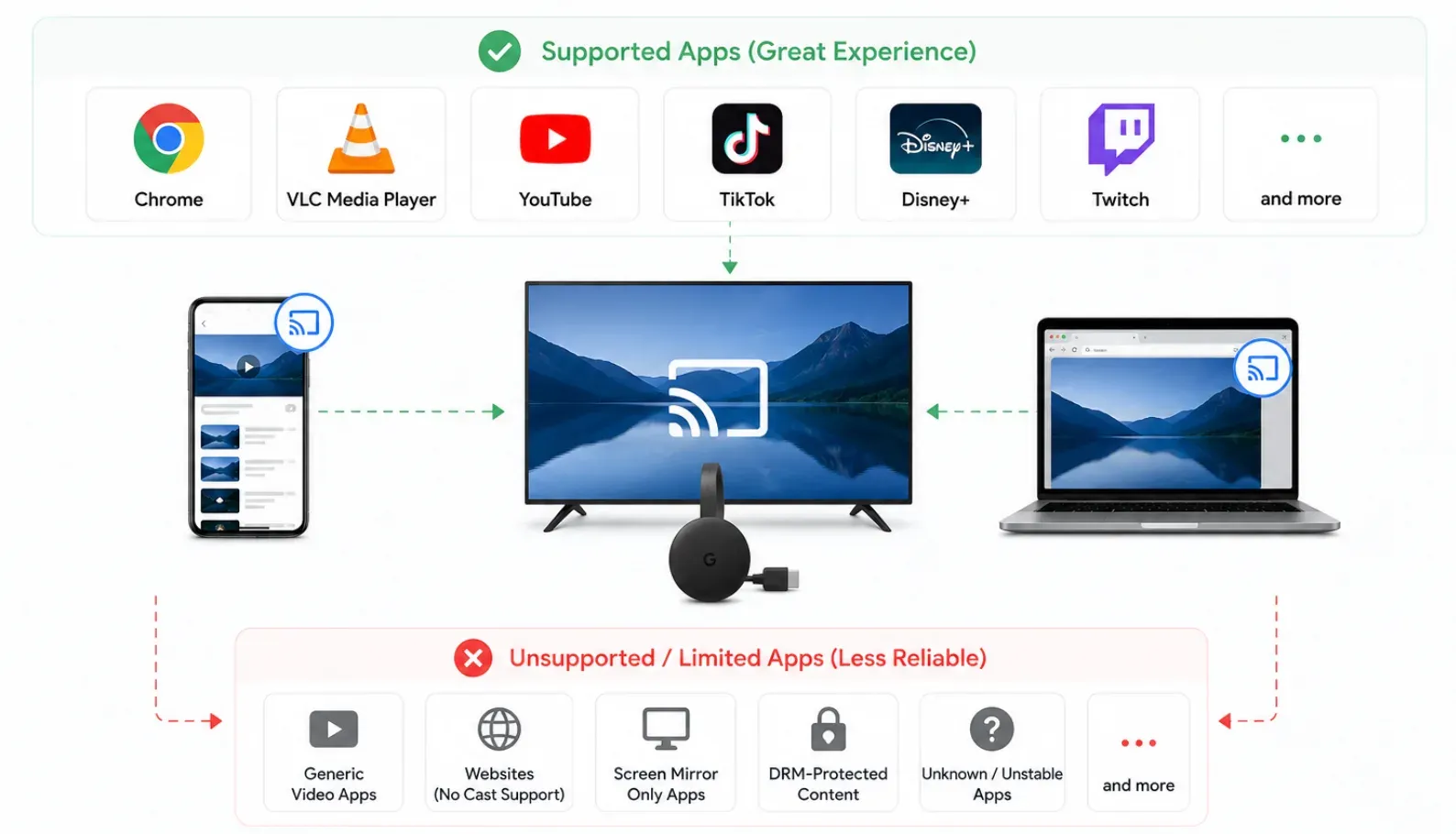
Popular Chromecast-friendly platforms include:
Once apps move outside that ecosystem, Chromecast becomes much less predictable — which is why unsupported content still pushes many users back toward screen mirroring or HDMI.
How to Set Up Chromecast Without the Usual Frustration
Chromecast setup sounds simple: plug the device into the TV, connect it to WiFi, open Google Home, and start casting.
However, Chromecast behaves less like a traditional HDMI accessory and more like a small networked device. That distinction is what makes the experience feel effortless in some homes and unexpectedly frustrating in others.
Most setup problems are not caused by defective hardware. They usually come from network visibility, router behavior, permissions, or the way different TVs handle Google Cast behind the scenes.
The Fastest Way to Set Up Chromecast
The physical setup itself takes only a few minutes. For most users, the process looks like this:
- Plug Chromecast into the TV HDMI port.
- Connect the power cable using the recommended power source.
- Switch the TV to the correct HDMI input.
- Open Google Home on your phone or tablet.
- Let Google Home discover the Chromecast device.
- Confirm the setup code and connect to WiFi.
- Finish the setup and test casting.
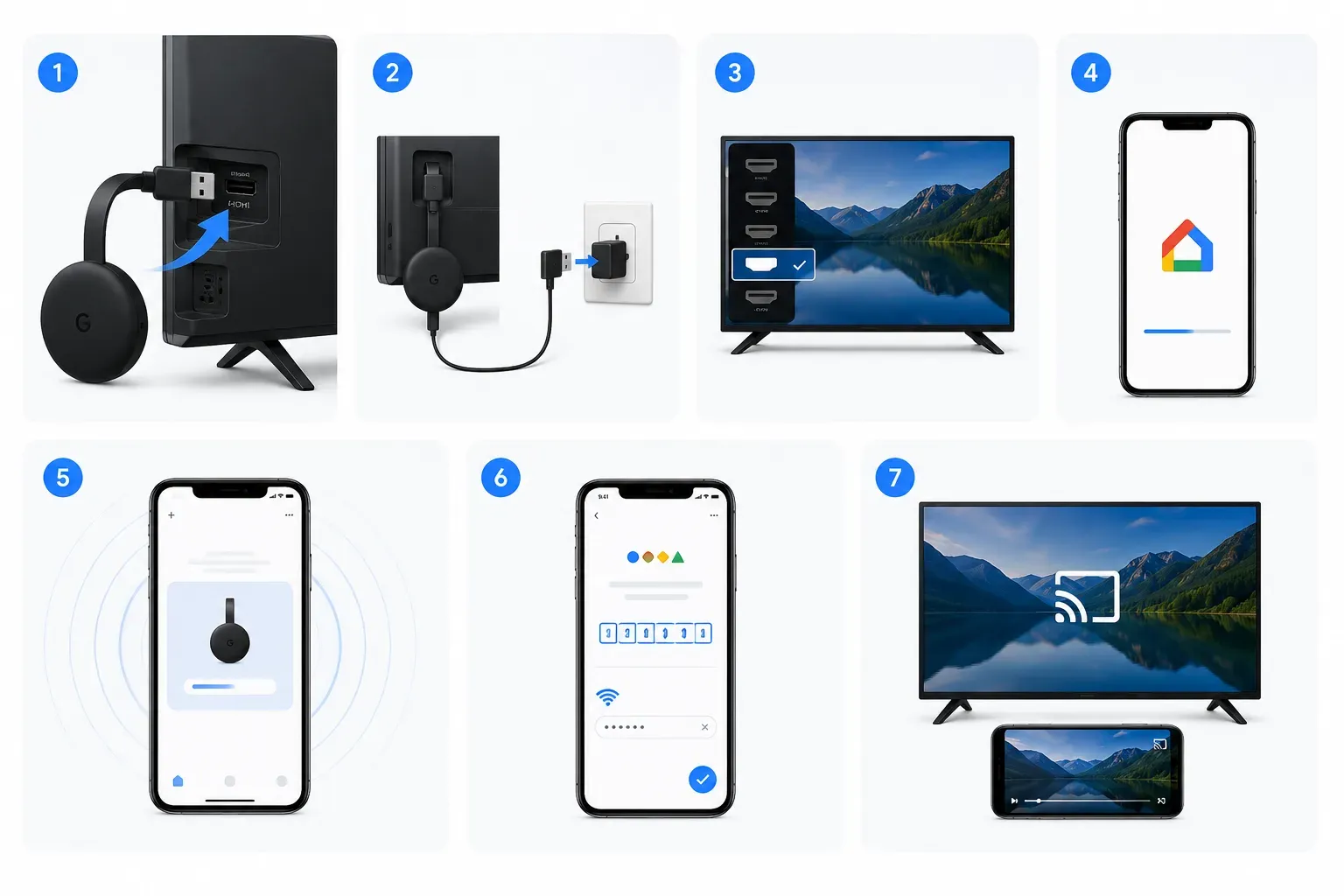
The important part is not the HDMI connection itself; it is making sure the Chromecast and your phone can properly see each other on the same local network.
Google Home plays a central role here. Even though you can later cast from Windows, Mac, Android, or iPhone, the first-time setup process is still built around Google Home and mobile device permissions.
Helpful setup guides:
Why Chromecast Struggles on Hotel and Guest WiFi
Many users first discover Chromecast limitations while traveling. Chromecast tends to feel noticeably less reliable on hotel WiFi than AirPlay because many public networks isolate devices from seeing each other locally. The network may technically work, but the phone and Chromecast cannot properly “see” each other.
That creates situations where:
- Chromecast appears offline
- Google Home cannot complete setup
- casting randomly disconnects
- the TV never appears in the Cast menu
This is also why Chromecast without WiFi is much less straightforward than many people expect.
Technically, some workarounds exist. In practice, they are often inconsistent compared with normal home-network casting.
If you regularly use Chromecast while traveling or on restricted networks, these guides help explain the limitations:
- How to Use Chromecast Without WiFi
- Can You Cast to a TV Without WiFi?
- How to Use Chromecast over Hotel WiFi?
Most Chromecast Setup Issues Start With Network Discovery
A surprising number of Chromecast issues have nothing to do with video playback itself. Usually, the real problem is that devices cannot properly discover each other on the network.
This is why Chromecast can suddenly stop appearing even when:
- the TV is still on
- WiFi seems connected
- the Chromecast has power
- streaming worked yesterday
Common causes include:
- router isolation settings
- blocked local network permissions
- dual-band WiFi conflicts
- unstable mesh WiFi systems
- outdated router firmware
- weak power delivery from the TV USB port
This is especially common on iPhone, where local network permissions can silently block Google Home or casting apps from detecting nearby devices.
If Chromecast disappears repeatedly or Google Home cannot detect it reliably, start here:
When Resetting Chromecast Actually Helps
People often reset Chromecast too early. If the issue is temporary network instability, resetting the device usually changes nothing. But there are situations where a reset genuinely helps.
A factory reset is most useful when:
- Chromecast is stuck during setup
- old WiFi credentials cannot be updated correctly
- Google Home no longer recognizes the device
- repeated disconnects keep returning
- firmware behavior becomes unstable after updates
It is also worth checking whether the Chromecast device firmware is fully updated, especially if Chromecast problems started appearing after router upgrades, app updates, or long periods without use.
Why Some TVs Handle Chromecast Better Than Others
Not every TV delivers the same Chromecast experience. Some TVs support full Google Cast integration natively, while others rely on older firmware, partial casting support, or less stable device discovery systems behind the scenes.
In general, Google TV and Android TV devices tend to deliver the smoothest Chromecast experience because Google Cast is built more deeply into the operating system itself. Older smart TVs, especially some older LG models and lower-cost Android TV systems, can behave less consistently over time, particularly after firmware updates or longer standby periods where device discovery becomes unreliable.
Built-in TV casting can also feel less stable than using a dedicated Chromecast dongle directly, especially when TVs start having recurring Google Cast connection or discovery issues over time. That is one reason many users still prefer external Chromecast devices even when their TVs technically support Google Cast already.
Why Chromecast Problems Keep Happening
Chromecast errors often look completely different on the surface.
- Sometimes the device disappears.
- Sometimes Chrome cannot detect it.
- Sometimes video plays without sound.
- Sometimes Disney Plus breaks while YouTube still works normally.
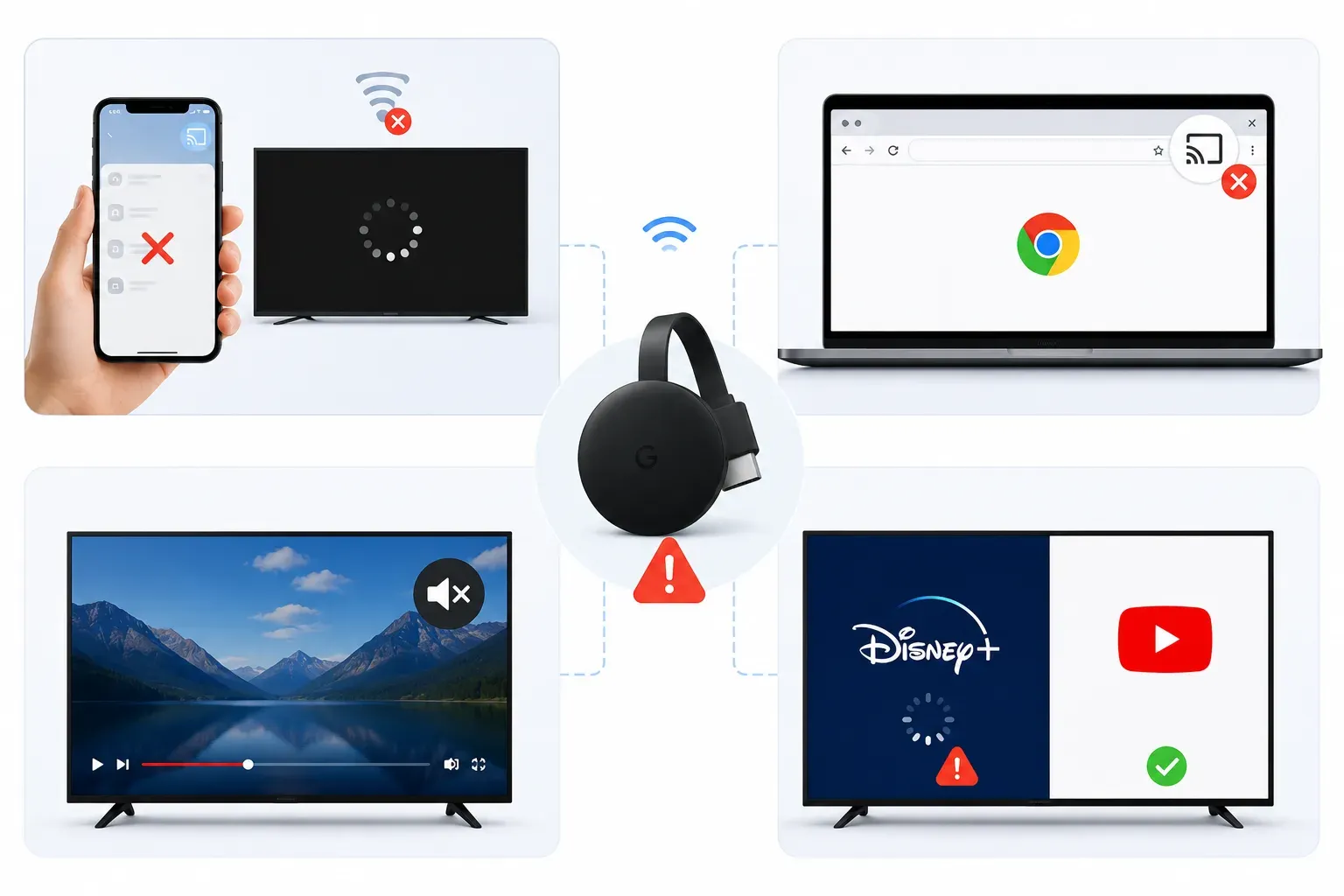
But underneath, most Chromecast failures come from the same few causes repeating in different ways:
- unstable local networks
- device discovery failures
- app compatibility limitations
- HDMI or power instability
- overloaded browser or TV environments
That is why Chromecast troubleshooting can feel strangely inconsistent. The symptom changes, but the underlying problem is often the same.
Why Chromecast Often Fails Before Streaming Starts
One of the most common Chromecast frustrations is simply getting devices to see each other reliably。 If Chromecast is not showing up at all, the issue is usually related to network visibility rather than streaming itself.
Typical causes include:
- the phone or laptop being on a different WiFi network
- guest mode or router isolation blocking discovery
- Google Home permissions being restricted
- unstable mesh WiFi behavior
- weak power delivery from the TV USB port
This is also why Chrome may fail to find Chromecast even when the TV itself appears online.
Many Chromecast Errors Come From App Compatibility
Chromecast works best when apps fully support Google Cast. When they do not, users often assume the Chromecast itself is broken even though the real issue is app-level compatibility.
This is where messages like: “Available for specific video sites” start appearing.
In most cases, that warning simply means the website or app cannot hand off playback to Chromecast properly.
The same pattern appears with streaming services like Disney Plus, where one app fails while the rest of Chromecast still works normally.
Black Screens and Audio Issues Usually Mean Stability Problems
Once playback actually begins, Chromecast issues usually shift away from setup and into playback stability. Problems like black screens, missing audio, random skipping, or sudden disconnects often come from:
- unstable WiFi connections
- HDMI handshake conflicts
- audio format mismatches
- overloaded apps and browsers
For example, weak wireless performance may cause videos to stutter, buffer repeatedly, or even trigger a complete Chromecast black screen while the device still appears connected. Network instability can also lead to skipped frames, desynced audio, or Chromecast playback skipping during longer streaming sessions, especially on crowded home WiFi networks.
In other cases, HDMI communication issues or unsupported media formats may cause video to play normally without sound, which is why Chromecast audio problems often feel inconsistent across different apps and TVs. And when wireless conditions become especially unstable, users may start experiencing repeated disconnects where playback suddenly stops and reconnects on its own — a common pattern behind many Chromecast disconnecting issues.
These symptoms can feel random because the underlying cause changes depending on the streaming app, browser behavior, TV firmware, HDMI compatibility, and local network environment involved.
Restart Loops and Blinking Lights Usually Mean Hardware or Firmware Issues
When Chromecast repeatedly restarts, freezes during boot, or starts blinking white unexpectedly, the issue is often deeper than normal casting instability.
Common causes include:
- insufficient power delivery
- overheating
- failed firmware updates
- corrupted setup states
- hardware instability
This is where factory resets and firmware updates become more important than normal network troubleshooting.
Some Chromecast Warnings Are Actually Permission Issues
Certain Chromecast errors sound more alarming than they actually are.
Warnings like: “Google Chromecast untrusted device” usually point to account permissions, network trust settings, or authentication conflicts rather than serious hardware failures.
These issues often appear after:
- router changes
- account switching
- device resets
- VPN usage
- unusual network environments
Most Chromecast Problems Share the Same Root Cause
One reason Chromecast feels harder to troubleshoot than HDMI or AirPlay is that many completely different symptoms trace back to the same underlying system:
- local network visibility
- app compatibility
- browser behavior
- TV firmware
- wireless stability
Once you understand that, Chromecast problems stop feeling random. Most of the time, the device itself is not “broken.” It is simply struggling to coordinate several systems that all need to work together at once.
Best Chromecast Alternatives in 2026
A few years ago, Chromecast stood out because wireless casting itself still felt unreliable on many TVs. That is no longer true. Today, most people choosing between Chromecast alternatives are not looking for “wireless streaming” in general. They are trying to solve a more specific problem:
- easier iPhone casting
- full-screen duplication
- fewer compatibility issues
- better browser support
- smoother travel setups
- simpler cross-platform sharing
That is why Chromecast, AirPlay, Miracast, and screen mirroring apps now overlap much more than they used to.
The better choice usually depends less on the hardware itself and more on how you actually use your devices every day.
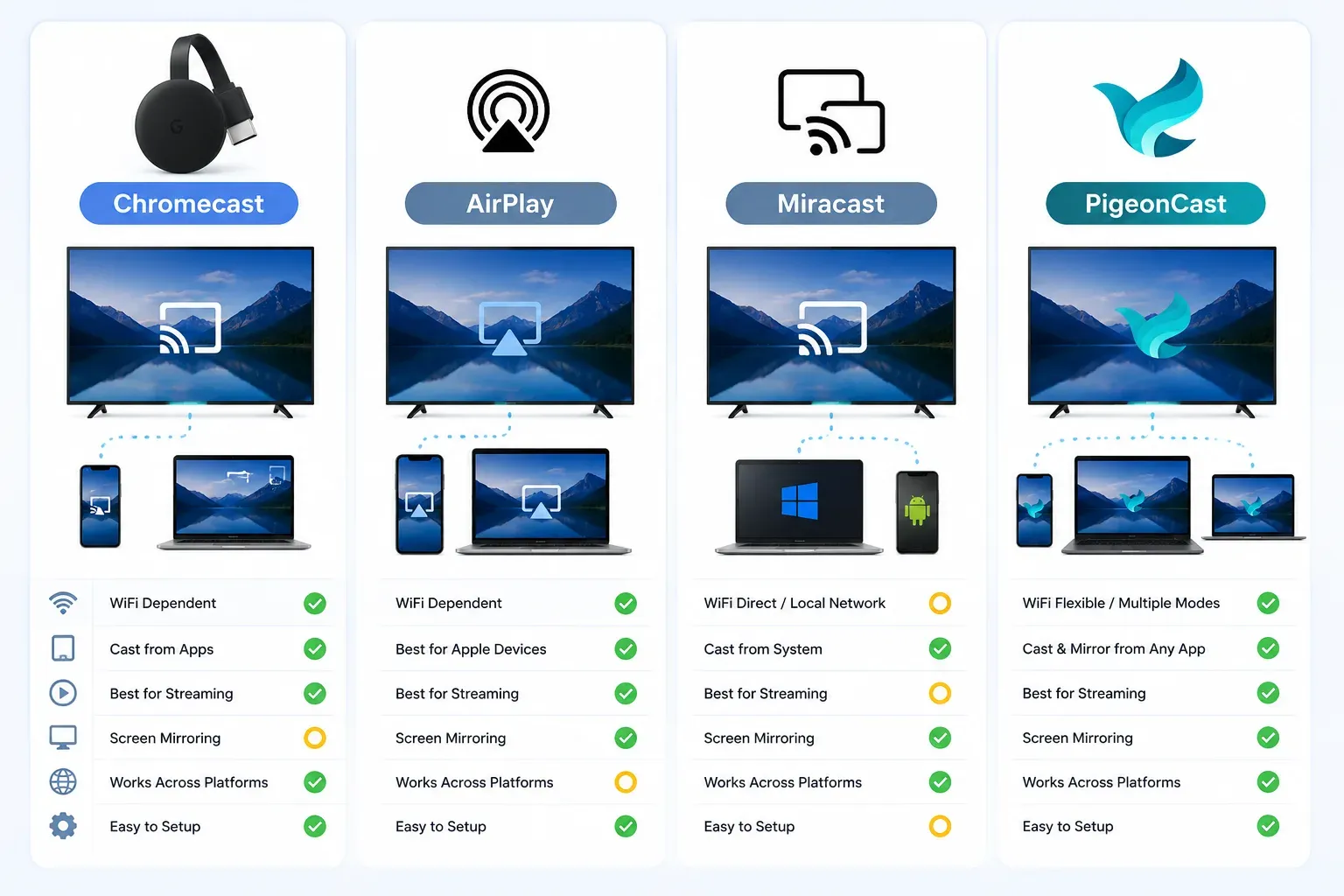
Chromecast vs AirPlay vs Miracast vs Screen Mirroring Apps
| Feature | Chromecast | AirPlay | Miracast | Screen Mirroring Apps |
|---|---|---|---|---|
| Best for | Supported app streaming | Apple ecosystem | Direct display duplication | Flexible cross-platform mirroring |
| Works best on | Android, Chrome, mixed-device homes | iPhone, iPad, Mac | Windows + supported Android devices | iPhone, Android, Windows, Mac, TV |
| Full-screen duplication | Limited | Strong | Excellent | Excellent |
| App support required | Usually yes | Sometimes | No | No |
| Browser casting | Excellent | Limited | Weak | Varies |
| Works well on hotel/public WiFi | Often inconsistent | Sometimes better | Mixed | Usually easier |
| Best experience | YouTube, Chrome, Netflix | Apple-native workflows | Device mirroring | Unsupported apps and mixed devices |
| Biggest weakness | App compatibility | Apple-centric | Device support inconsistency | Can introduce latency |
Chromecast Still Works Best for Supported Streaming
Chromecast remains one of the best options when your apps already support Google Cast properly.
That is why Chromecast still feels particularly strong for:
- YouTube streaming
- Chrome browser casting
- Netflix and supported media apps
- mixed Android and Windows environments
- lightweight wireless playback
In these situations, Chromecast usually feels smoother than traditional screen duplication because the TV handles playback directly instead of continuously mirroring the entire screen.
Why AirPlay Feels More Natural in Apple Households
For iPhone, iPad, and Mac users, AirPlay often feels more natural than Chromecast. That is not necessarily because AirPlay is technically superior. It is because Apple integrates AirPlay deeply into the operating system itself.
As a result:
- iPhone screen duplication feels simpler
- device discovery is often more predictable
- Apple TV integration is tighter
- fewer apps require separate casting support
If your setup is already heavily Apple-focused, AirPlay may involve less troubleshooting overall. Chromecast becomes more attractive once Android, Windows, Chrome, or mixed-device environments enter the picture.
Miracast Is Still Better for Pure Screen Duplication
Miracast approaches wireless display sharing differently from Chromecast. Instead of relying heavily on app-level streaming support, Miracast focuses more on direct screen duplication between compatible devices.
That makes it useful when:
- you need full-screen mirroring
- app support is inconsistent
- low-complexity device duplication matters more than streaming ecosystems
The tradeoff is compatibility. Miracast support varies significantly between TVs, laptops, and phones, which is why the experience can feel inconsistent depending on the hardware involved.
Why Screen Mirroring Apps Continue to Grow
A lot of users eventually reach the same conclusion: they do not actually care whether the technology is called Chromecast, AirPlay, or Miracast. They simply want the screen to appear on the TV consistently. That is where dedicated screen mirroring apps become useful.
Unlike Chromecast, these tools usually do not depend as heavily on app-level Google Cast support. Instead, they focus on broader compatibility across:
- iPhone
- Android
- Windows
- Mac
- smart TVs
- streaming devices
This is especially useful when:
- the Cast button never appears
- an app refuses to support Chromecast
- hotel WiFi breaks discovery
- full-screen duplication matters more than streaming efficiency
Popular options include:
- PigeonCast
- LetsView
- AirDroid Cast
- ApowerMirror
- Replica
For users who regularly switch between iPhone, Android, Windows, and Mac — especially in environments where Chromecast compatibility becomes inconsistent — dedicated screen mirroring apps can feel much simpler than troubleshooting app-level casting support repeatedly.
One example is PigeonCast, which focuses more on direct screen sharing and cross-platform mirroring rather than depending entirely on Google Cast support.


Overall Rating:



Which Casting Method Fits Your Setup Best
At this point, Chromecast is best understood as one part of a much larger wireless streaming ecosystem.
The right choice depends on what frustrates you most. If your priority is:
- supported app streaming → Chromecast usually works best
- Apple-native device sharing → AirPlay feels more natural
- direct screen duplication → Miracast can work well
- broader compatibility across unsupported apps and devices → screen mirroring apps are often the simplest option
For many people, the real solution is not choosing one permanently. It is knowing which tool fits the situation you are in.
Final Thoughts
Chromecast is still one of the simplest ways to move content from a phone or computer to a TV without relying on cables every time.
For supported apps and stable home networks, the experience can feel almost invisible: open a video, tap Cast, and keep watching on a larger screen. That convenience is why Chromecast continues to matter even as smart TVs become more capable on their own.
At the same time, Chromecast is no longer the only good option.
The real experience now depends heavily on your devices, your apps, and the kind of screen sharing you actually need. Android users often get the smoothest results. Apple-first households may prefer AirPlay. And users dealing with unsupported apps, hotel WiFi, or full-screen duplication often end up using dedicated screen mirroring tools instead.
That is also why modern casting setups rarely revolve around a single technology anymore.
Chromecast works extremely well in the right environment. But understanding where it works — and where it becomes limiting — is ultimately more useful than treating it as a universal solution for every screen-sharing situation.
This guide brings together Chromecast setup help, troubleshooting resources, platform comparisons, and alternative casting methods so you can choose the approach that actually fits the way you use your devices today.
Chromecast FAQ
Is Chromecast still worth using in 2026?
Yes, especially if you regularly stream from supported apps like YouTube, Netflix, or Chrome browser across multiple devices. Chromecast still works particularly well in mixed-device households using Android, Windows, Mac, and smart TVs together.
At the same time, Chromecast is no longer the only strong option. Apple-first users often prefer AirPlay, while people who need full-screen duplication across unsupported apps may find screen mirroring tools more reliable.
Can you Chromecast from iPhone?
Yes, but the experience depends heavily on the app. Apps like YouTube and Netflix usually support Chromecast well on iPhone, while other apps may not support Google Cast at all. This is why Chromecast on iPhone often feels less seamless than AirPlay.
If your goal is full iPhone screen duplication rather than app-based streaming, a dedicated screen mirroring method is often easier.
Why does Chromecast work better on Android?
Android integrates more deeply with Google Cast, which is why Chromecast generally feels smoother and more reliable on Android devices.
Many Android phones support:
- native Cast controls
- app-level Google Cast integration
- quick screen casting
- Chrome-based streaming
That deeper integration is one reason Chromecast became so closely associated with Android in the first place.
Why is Chromecast not showing up?
Most “Chromecast not showing up” problems are actually network discovery issues. The most common causes include:
- the phone and Chromecast being on different WiFi networks
- blocked local network permissions
- unstable mesh WiFi systems
- guest network restrictions
- weak power delivery to the Chromecast device
In many cases, the Chromecast itself is still online — the devices simply cannot discover each other properly.
Why does Chromecast keep disconnecting?
Frequent disconnects usually point to wireless instability rather than hardware failure. Common causes include:
- weak WiFi signal strength
- overloaded routers
- unstable mesh networks
- overheating
- insufficient USB power delivery from the TV
If disconnects happen repeatedly during playback, the network environment is often the first thing worth checking.
Does Chromecast require WiFi?
In normal day-to-day use, yes. Chromecast relies on local network communication between your phone, computer, TV, and streaming apps. Without stable WiFi, device discovery and playback coordination become much less reliable.
Some travel or hotspot workarounds exist, but Chromecast works best on stable home networks.
Is Chromecast better than screen mirroring?
They solve slightly different problems. Chromecast is usually better for supported app streaming because playback happens directly on the TV, which often means smoother video and lower battery usage.
Screen mirroring is usually better when:
- the app does not support Google Cast
- you need full-screen duplication
- browser casting becomes inconsistent
- you want to mirror exactly what appears on your device
In practice, many people end up using both depending on the situation.
What is the best Chromecast alternative?
The best alternative depends on your devices and how you stream.
- AirPlay works best inside Apple-focused households
- Miracast is useful for direct screen duplication on compatible hardware
- screen mirroring apps are often the most flexible option across mixed devices and unsupported apps
For many users, the real goal is not replacing Chromecast completely — it is finding the casting method that creates the fewest compatibility problems in everyday use.
Do Chromecast-enabled apps cost extra?
Usually, no. Apps do not normally charge an additional fee just for using the Cast feature. However, the app itself may require a subscription, rental, purchase, or premium plan to access certain content. You may also need to buy a compatible Chromecast device if your TV does not have Google Cast built in. See Chromecast pricing for a full breakdown of hardware, app, and subscription costs.
Mia Clarke is a technology editor specializing in screen mirroring and casting solutions across multiple platforms. Mia provides clear, practical guides and in-depth insights to help users seamlessly connect their devices. Passionate about enhancing digital experiences, Mia is dedicated to keeping readers updated on the latest trends and tools in cross-platform screen sharing. Whether you’re looking to mirror your smartphone, laptop, or smart TV, Mia’s content delivers reliable, user-friendly advice to simplify your tech setup.