
Many people rely on Google Chromecast to stream shows, movies, and photos directly from their phones or laptops to their TVs. But what if your WiFi goes down, or Chromecast can't connect to WiFi? Can you still use Chromecast without WiFi?
This guide breaks down everything you need to know about using Chromecast without WiFi, including what Google recently changed, how to set up alternative methods like a mobile hotspot or Ethernet adapter, and what to do if your Chromecast can't connect to WiFi. Finally, we'll explore an easy cross-platform solution: PigeonCast, a free alternative for mirroring your screen across devices.
Can You Use Chromecast Without WiFi
In short, Chromecast needs a network connection to function properly because both your casting device (like a phone or laptop) and the Chromecast itself must communicate over the same network. Traditionally, Google's Guest Mode allowed users to cast without being connected to the same WiFi network, but that feature has now been removed.
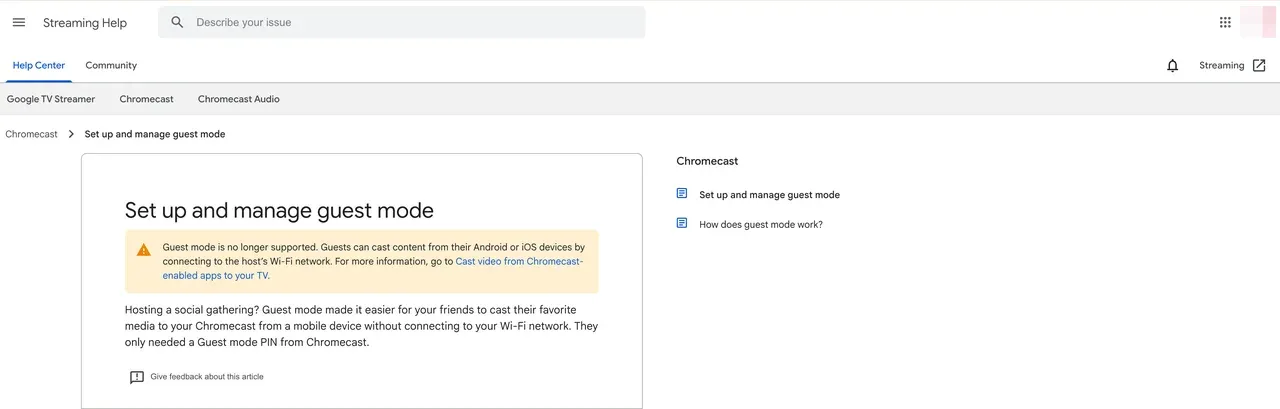
According to Google's official support page, "Guest mode is no longer supported. Guests can cast content from their Android or iOS devices by connecting to the host's Wi-Fi network". In other words, you can no longer simply "cast to Chromecast without WiFi" as you once could.
However, this does not mean you're out of options. You can still use Chromecast without WiFi in 2025.
How to Use Chromecast Without WiFi
Even though Chromecast no longer supports Guest Mode, you can still cast without a traditional Wi-Fi router. The key is to provide a network that lets your devices communicate.
Method 1: Use a Mobile Hotspot
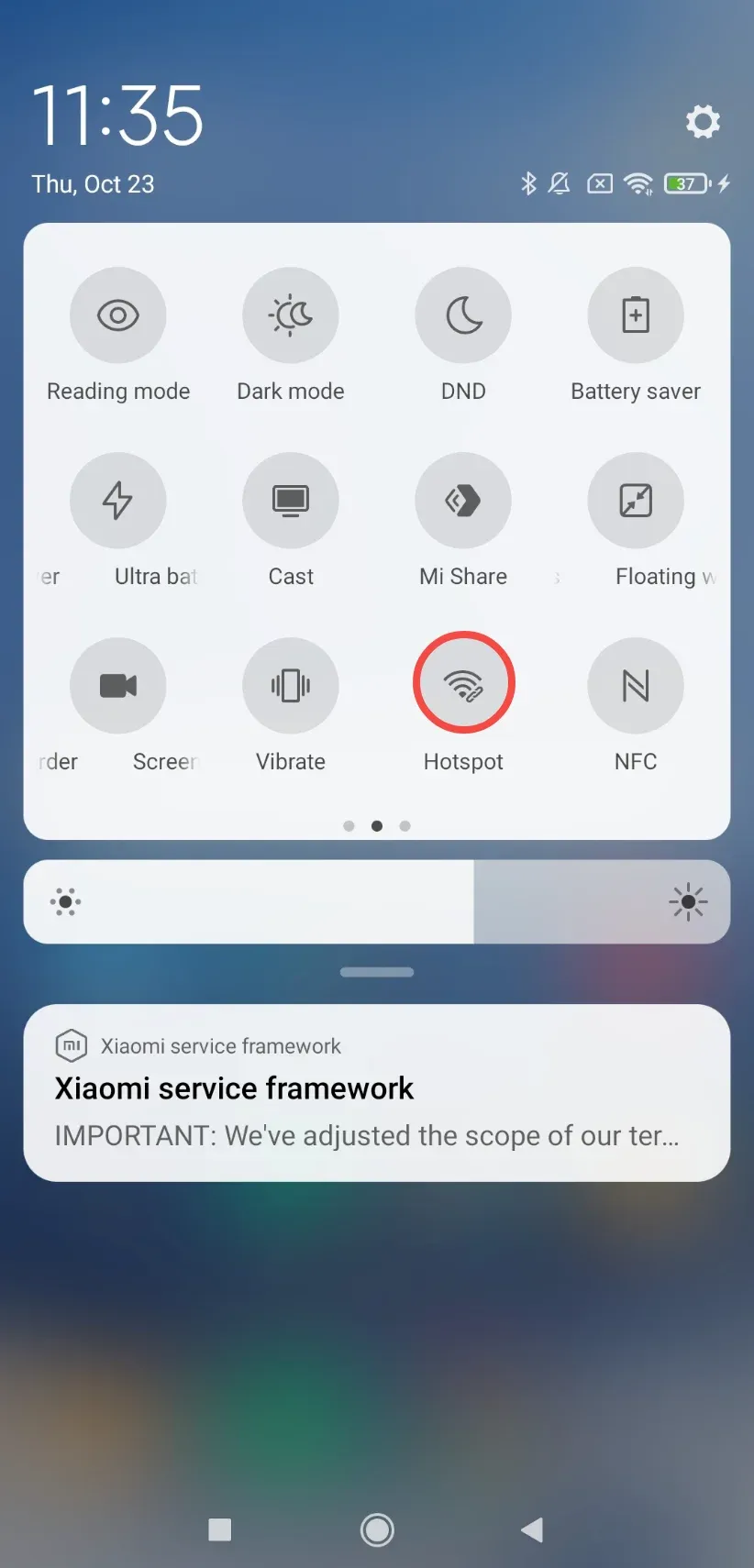
If your home WiFi is unavailable, the simplest way to use Chromecast without WiFi is by turning your smartphone into a WiFi hotspot. This lets you create a temporary local network for your Chromecast and the device you want to cast from.
Here's how to connect to Chromecast without WiFi:
Step 1. Create a mobile hotspot on your first phone.
- On Android: Go to Settings > Network & Internet > Hotspot & Tethering.
- On iPhone: Go to Settings > Personal Hotspot.
Step 2. Connect Chromecast to this hotspot.
- Plug in your Chromecast and open the Google Home app on a second device.
- Follow the setup steps to connect the Chromecast to your hotspot network.
Step 3. Cast from another device connected to the same hotspot.
- Use a second phone or tablet to connect to the same hotspot Wi-Fi.
- Open any Chromecast-enabled app (like YouTube or Netflix) and tap the Cast icon.
- Choose your Chromecast from the available devices.
Step 4. Once connected, the app content will appear on your streaming device.
This setup lets you cast to Chromecast without home WiFi using your mobile data network instead. Keep in mind that streaming video this way will consume mobile data quickly, so ensure you have a sufficient plan.
Method 2: Use an Ethernet Adapter
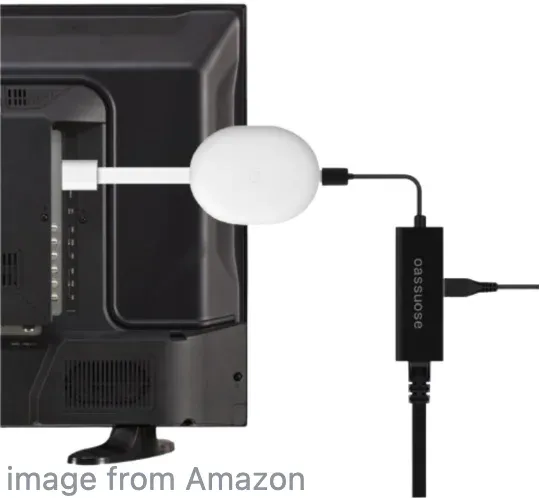
If you're in a location where Wi-Fi isn't stable (for instance, in an office, hotel, or dorm), you can connect Chromecast with Google TV without WiFi by using a Chromecast Ethernet Adapter. This creates a wired connection that's often faster and more reliable than wireless.
So, how to use Google Chromecast without WiFi? Follow these steps:
Step 1. Purchase a Chromecast Ethernet Adapter. Google sells official adapters for its Chromecast and Chromecast with Google TV models.
Step 2. Plug the Ethernet cable into your router or network switch, then connect the power cable.
Step 3. Connect your phone or laptop to the same wired network. Once connected, your Chromecast will receive internet directly through the Ethernet line, perfect for streaming without relying on wireless networks.
Step 4. Open a Chromecast-supported app and tap the Cast icon.
Step 5. Choose your Chromecast device from the list.
Step 6. Enjoy the app content on your desired screen.
Fixed: Chromecast Can't Connect to WiFi
Sometimes, even when you have Wi-Fi, you might get an error saying "Chromecast can't connect to WiFi". This is a common issue and can happen for several reasons. Here's how to fix it:
- Restart your devices. Unplug Chromecast for 30 seconds and reboot your router or mobile hotspot.
- Forget and reconnect the network. Go to your phone's Wi-Fi settings and rejoin the network manually.
- Check network isolation settings. Some routers block devices from communicating locally. Make sure AP isolation or client isolation is turned off.
- Reset Chromecast. Hold the small reset button on the device for about 25 seconds until the LED light flashes. Then set it up again in the Google Home app.
If you continue facing connection issues, it might be time to consider an alternative casting method.
Try Chromecast Alternative: PigeonCast
If you often face network issues or travel frequently, PigeonCast is an excellent Chromecast alternative. It allows you to mirror or cast your screen across platforms with minimal setup, whether you're using Android, iPhone, Windows, or Mac.
While PigeonCast still relies on a Wi-Fi network, it doesn't require complex pairing or device limitations. Once installed on your TV (via Google Play or App Store), it lets you cast photos, videos, apps, and more seamlessly, even when switching between ecosystems (like Android to Apple TV).
To get started with PigeonCast for screen mirroring or casting:

PigeonCast Screen Mirroring

Official Download



Step 1. Install PigeonCast on your TV from Google Play or the App Store and launch it.
Step 2. Install PigeonCast on your phone or laptop.
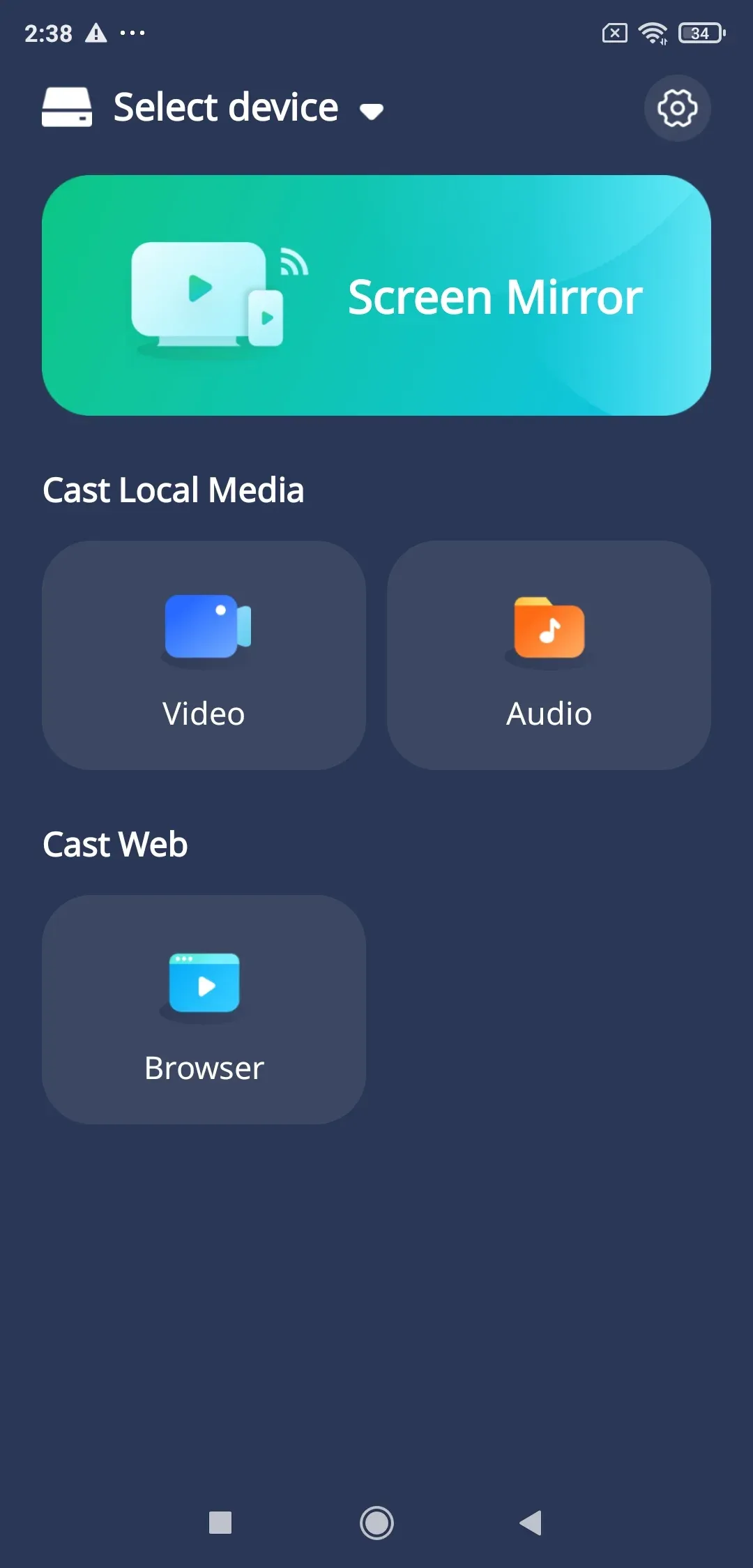
Step 3. Connect both devices to the same Wi-Fi network.
Step 4. Launch the PigeonCast app on your casting device and choose your TV from the list of available devices.
Step 5. Once connected, start watching on the big screen.
It's a simple, cross-platform solution for anyone tired of the limitations of Google Chromecast without WiFi setups.
The End
While Google has officially removed Guest Mode, making it impossible to cast directly to Chromecast without WiFi, you can still find practical workarounds. Using a mobile hotspot or an Ethernet adapter allows you to keep streaming even when your main Wi-Fi is unavailable.
And if you're looking for an easier, cross-platform experience that doesn't lock you into Google's ecosystem, PigeonCast is a smart alternative. It lets you enjoy the same casting freedom when Chromecast can't connect to WiFi.
So, the next time your Wi-Fi drops, remember: you don't have to stop streaming; you just have to get creative.
Chromecast Without WiFi FAQs
Q: Why did Google remove Guest Mode?
Google hasn't specified a reason, but it likely relates to security and connectivity stability improvements.
Q: Can I cast locally stored videos to Chromecast without internet?
Yes, apps like VLC or LocalCast allow offline casting if both devices are connected to the same local network.
Q: How can I cast my phone to my TV without Wi-Fi?
You can cast without Wi-Fi by using a mobile hotspot or a wired Ethernet adapter.
Q: Can Chromecast connect to a hotspot?
Yes. You can connect Chromecast to a mobile hotspot to simulate a Wi-Fi network. Simply enable the hotspot on one phone, then connect both your Chromecast and another device (for casting) to that same hotspot.
Q: Can you use Chromecast with Bluetooth?
No. Chromecast does not support media casting via Bluetooth. Bluetooth is only used for device setup and control (like pairing a remote), not for streaming video or screen mirroring.
Q: Can you hotspot Chromecast from iPhone without Wi-Fi?
You can, but it requires two devices. Turn on the hotspot on one iPhone, connect your Chromecast to it, then use a second device (iPhone or iPad) connected to the same hotspot to cast content.
Mia Clarke is a technology editor specializing in screen mirroring and casting solutions across multiple platforms. Mia provides clear, practical guides and in-depth insights to help users seamlessly connect their devices. Passionate about enhancing digital experiences, Mia is dedicated to keeping readers updated on the latest trends and tools in cross-platform screen sharing. Whether you’re looking to mirror your smartphone, laptop, or smart TV, Mia’s content delivers reliable, user-friendly advice to simplify your tech setup.