
A factory reset is always the last resort for electronic devices. If your Chromecast is experiencing issues such as connection failures, buffering problems, or unresponsive behavior, a reset can often solve the problem. But how to factory reset Chromecast? In this guide, we'll walk you through the process for Chromecast 1st, 2nd, 3rd Gen, and Chromecast with Google TV, including different workarounds depending on your situation.
When to Factory Reset Chromecast
A factory reset can be a powerful solution, but it can destroy all your data and settings. Therefore, before you perform a factory reset, consider trying these troubleshooting steps first:
- Restart your Chromecast by unplugging it from the power source for 10 seconds.
- Check your Wi-Fi connection to ensure your device is properly connected.
- Update your Chromecast firmware via the Google Home app.
If these steps don't resolve the issue, a Chromecast factory reset may be necessary.
How to Factory Reset Chromecast
Resetting your Chromecast is pretty simple, but the exact steps depend on which model you have. Older Chromecast models use a small physical button for resets, while newer ones like Chromecast with Google TV let you reset through the remote or the Google Home app. Knowing the right method for your device makes the process much easier and helps you avoid any frustration.
Way 1: Using the Chromecast Device Button
For all Chromecast models, including 1st, 2nd, 3rd Gen, and Chromecast with Google TV, you can perform a factory reset directly on the device using its physical reset button.
On older Chromecast models, this button is usually on the side of the dongle, whereas on Chromecast with Google TV, it's located on the back. This method is particularly useful if your device is unresponsive or if you don't have access to the Google Home app or remote.
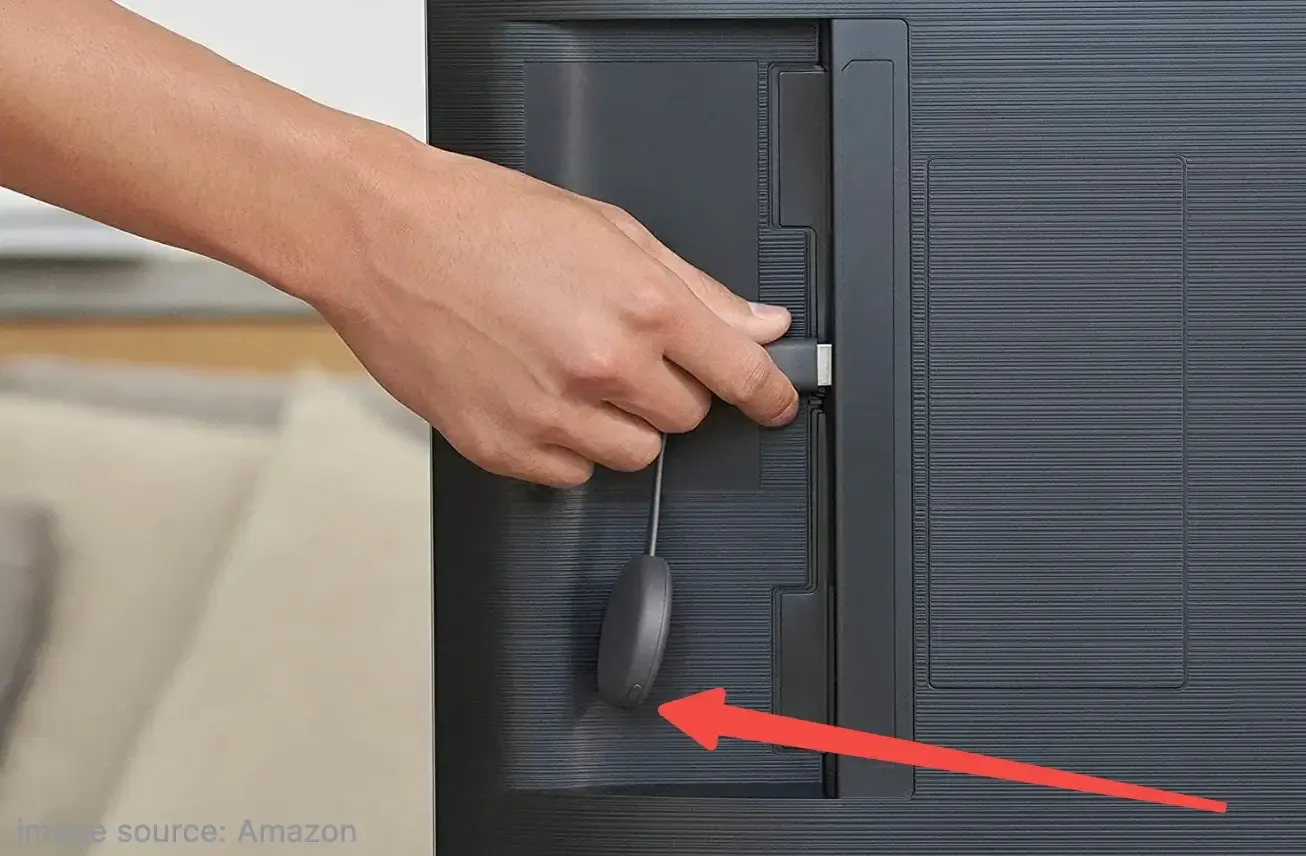 How to factory reset Chromecast without app:
Step 1. Make sure your Chromecast is plugged in and powered on.
Step 2. Press and hold the physical reset button on your Chromecast device.
- For older models: hold until the LED light starts flashing.
- For Chromecast with Google TV, hold until the LED blinks orange and then turns white.
Step 3. Release the button on your Chromecast.
Step 4. Wait for your Chromecast to erase all data and restart automatically.
Way 2: Using the Google Home App
You can factory reset your Chromecast using the Google Home app, which works across almost all Chromecast models, including Chromecast with Google TV. This method is convenient if your Chromecast is connected and you can control it via your smartphone or tablet.
How to factory reset Chromecast Ultra or other models via Google Home:
Step 1. Open the Google Home app on your phone or tablet.
Step 2. Tap and hold the tile of your Chromecast device from the device list.
Step 3. Tap Settings > More > Factory reset.
Step 4. Confirm to factory reset Chromecast by tapping Factory reset again.
Way 3: Using the Chromecast remote
How to reset Chromecast with Google TV? To reset the latest model, you can use the remote control. This method is useful if you want to reset the device through the on-screen interface without physically touching the Chromecast.
Here's how to factory reset Chromecast with Google TV:
Step 1. Turn on your Chromecast with Google TV.
Step 2. Press the Home button on the remote.
Step 3. Go to Settings > System > About > Factory Reset.
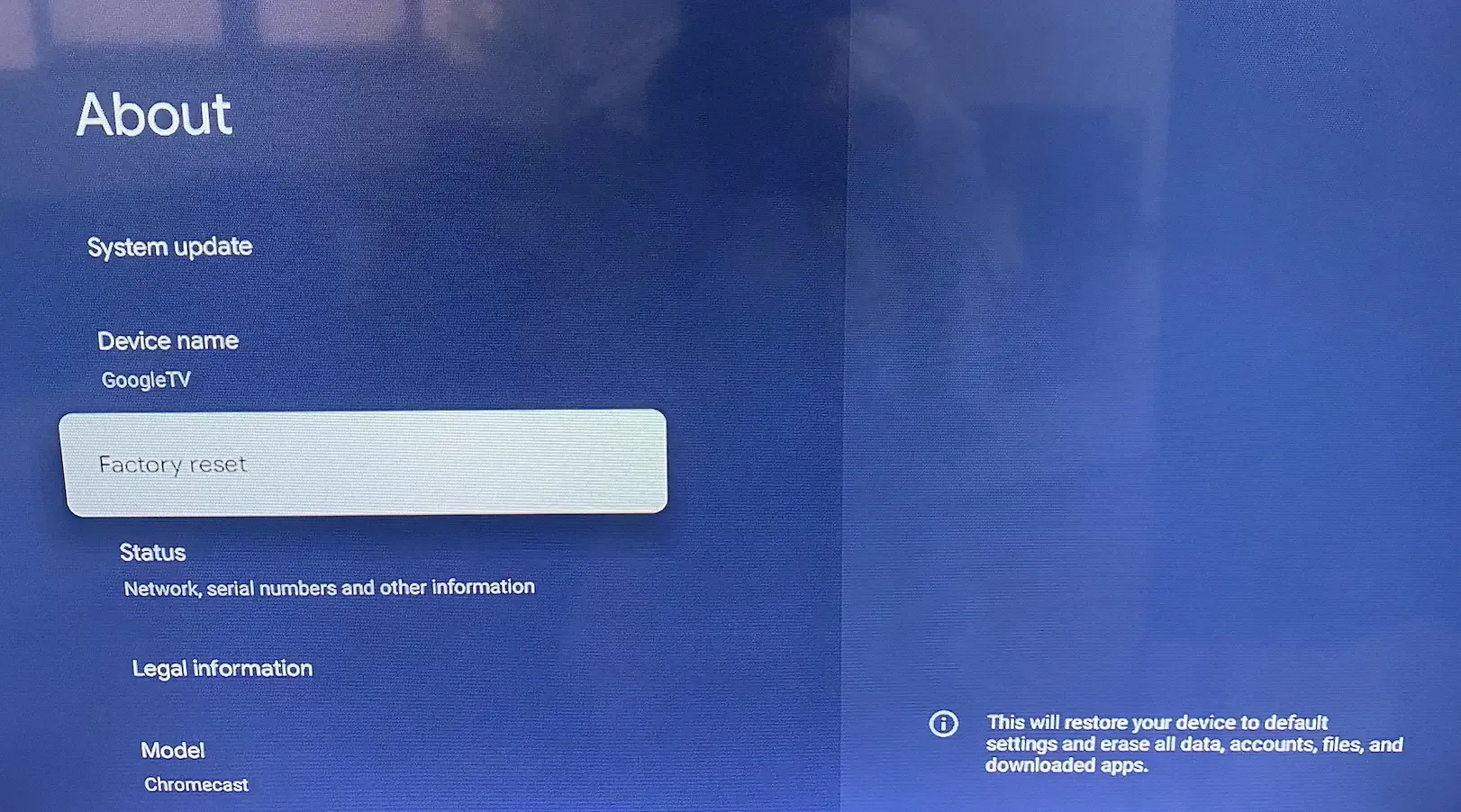
Step 4. Confirm your choice. The device will erase all data and restart.
Chromecast Factory Reset Overview Table
How to factory reset Google Chromecast? Whether you have an older 1st, 2nd, or 3rd Gen Chromecast, a Chromecast Ultra, or the newer Chromecast with Google TV, this table summarizes the most reliable ways to perform a factory reset and helps to see them at a glance.
| Model | Reset Method | Notes |
|---|---|---|
| Chromecast 1st Gen | Physical button | Hold until the LED flashes |
| Chromecast 2nd Gen | Physical button or Google Home app | The LED turns white when ready |
| Chromecast 3rd Gen | Physical button or Google Home app | The LED turns white when ready |
| Chromecast Ultra | Physical button or Google Home app | The LED turns white when ready |
| Chromecast with Google TV | Physical button, Google Home app, or remote control | The LED blinks orange, then white |
How to Use Chromecast After Reset
After performing a Google Chromecast factory reset, your Chromecast is restored to its original settings, essentially giving you a fresh start as if it were brand new. All your previous apps, accounts, and custom settings will be erased, so you'll need to set them up again from scratch. Here's how to set up Chromecast:
Step 1. Plug in your Chromecast and make sure your TV is turned on.
Step 2. Open the Google Home app on your smartphone or tablet. The app will detect your Chromecast and guide you through the setup process.
Step 3. Connect to Wi-Fi by selecting your network and entering your password. Chromecast cannot function without a Wi-Fi connection.
Step 4. Sign in to your Google account (if using Chromecast with Google TV) to access apps and personalized content.
Step 5. Install or reconnect apps such as Netflix, YouTube, or Disney+, if you're using Google TV.
Step 6. Customize settings like screen saver, guest mode, notifications, and device name according to your preference.
Now your Chromecast should be fully functional and ready to cast content again
How to Cast Without Chromecast
Still can't cast via Chromecast? Chromecast factory reset not working may happen. Don't worry; you still have other ways to cast your content. Even without a Chromecast, you can mirror or stream your device's screen to your TV using several alternatives:
Alternative 1: Using a Smart TV's Built-in Casting
Many modern TVs come with Google Cast, AirPlay, or Miracast built in. This means you can stream content directly from your phone, tablet, or laptop without needing an external device.
- Google Cast: Works with Android devices and Chrome browser on PC.
- AirPlay: Works with iPhone, iPad, and Mac devices.
- Miracast: Common on Windows PCs and some Android devices.
So, check your TV settings to enable screen mirroring or casting. Once enabled, your device should detect the TV automatically.
Alternative 2: Using a Screen Mirroring App
Apps like PigeonCast, LetsView, or ApowerMirror allow your PC, laptop, or mobile device to act as a casting receiver. These apps are versatile and work across different platforms:
- Wireless connection: Stream without cables over Wi-Fi or local networks.
- Cross-device support: Mirror Android, iOS, Windows, or Mac screens to TVs or other devices.
- No external device required: Stream without Chromecast or Apple TV
For example, the PigeonCast for Google TV app allows your TV to receive content from iPhone, iPad, Mac, Android, and even Windows:
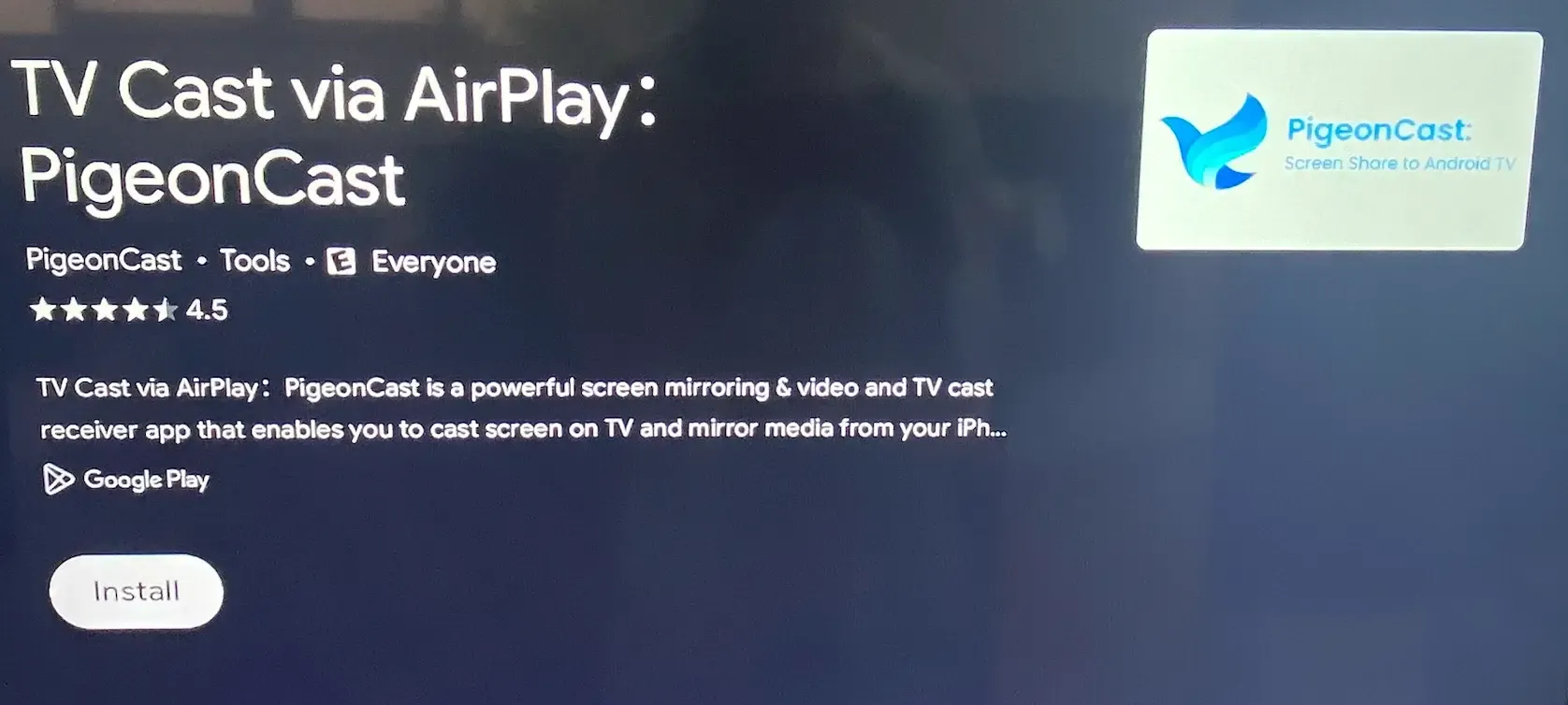 Step 1. Download and install PigeonCast on your Google TV.

PigeonCast Screen Mirroring

Official Download


Step 2. See if your Google TV and the sender are on the same Wi-Fi network.
Step 3. Launch the PigeonCast app on your TV and check your TV's new name.
Step 4. On your sender, like an iPhone, enable Screen Mirroring from the Control Center.
Step 5. Find your TV's name in the list and tap it to set up a connection.
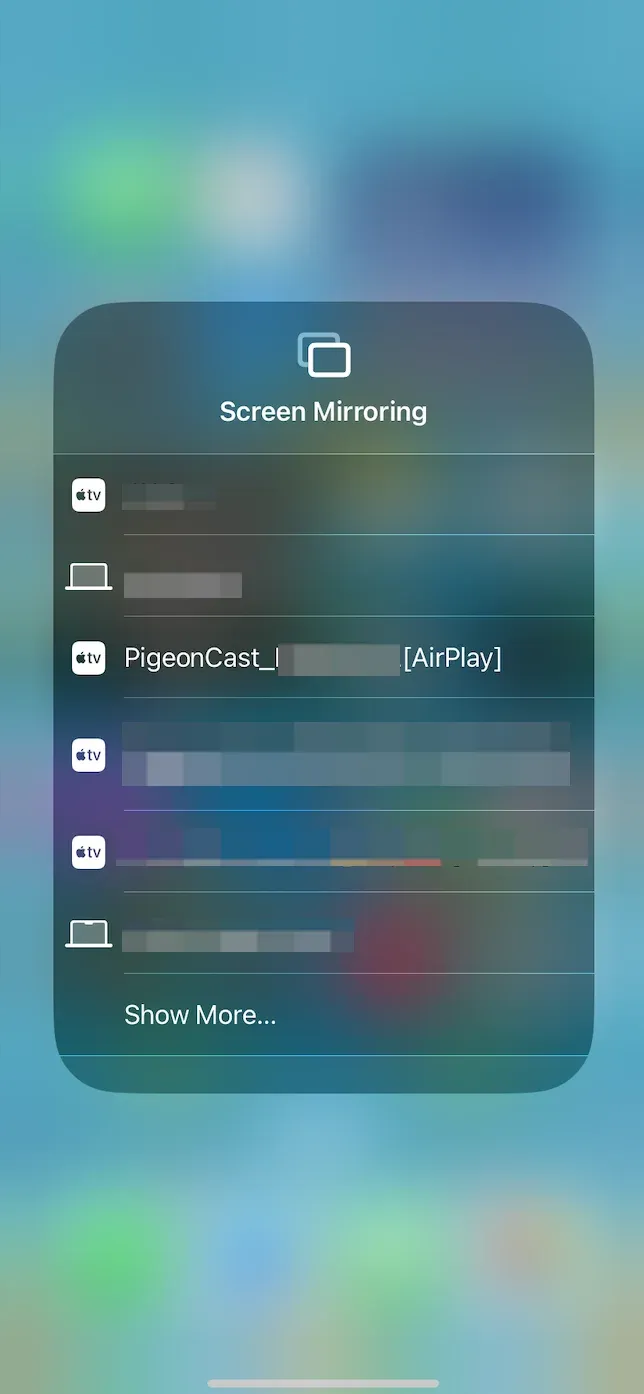 Step 6. Once connected, you can enjoy big-screen entertainment even without Chromecast.
Alternative 3: Using a Wired Connection
As a last resort, you can always connect your laptop or mobile device to your TV via an HDMI cable for a direct, reliable connection. But not all devices have an HDMI port, and therefore, you may need a compatible HDMI adapter to connect your mobile device or laptop to your TV.
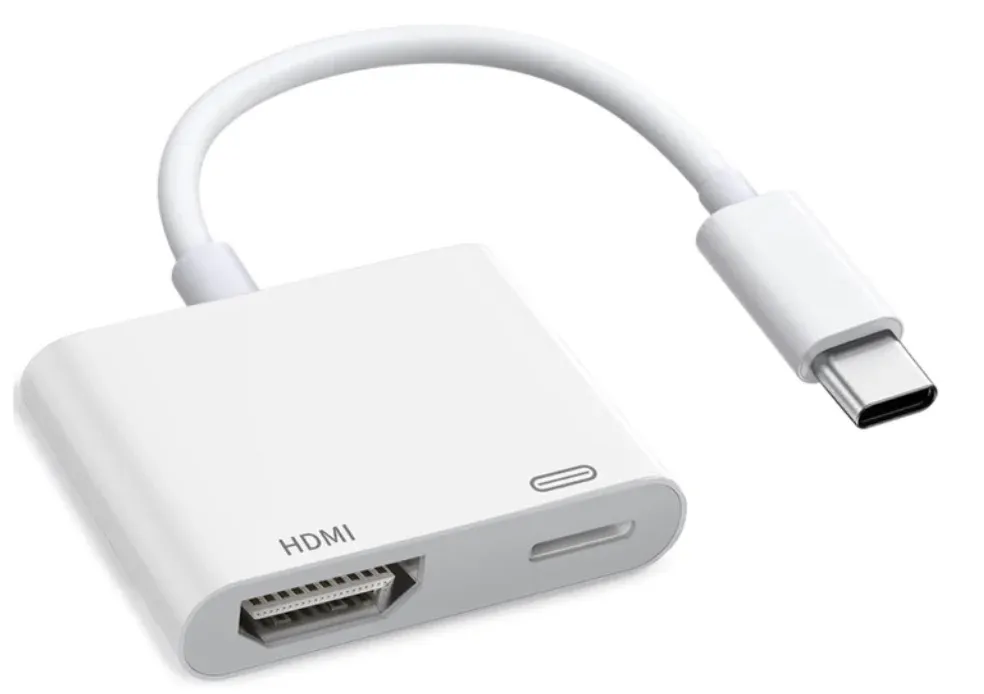
Once connected, you can switch your TV's input source to the right HDMI option and enjoy content with several benefits:
- Plug-and-play: No network issues or apps required.
- High resolution: Support full HD or 4K video, depending on your device and TV.
- Reliable for presentations or streaming: Ideal if Wi-Fi is slow or unstable.
Wrapping Up
Performing a factory reset on Chromecast is a reliable way to fix persistent issues. Whether you have the original Chromecast or the latest Google TV model, following these steps ensures your device is restored to its default state. After the reset, just set up your device and enjoy it again.
How to Factory Reset Chromecast FAQs
Q: Can I reset Chromecast without the Google Home app?
Yes, you can use the physical reset button on the device to reset without the app. If you have a Chromecast with Google TV, you can use the remote control and navigate to the Factory reset option in the Settings menu.
Q: How long does a factory reset take?
A factory reset on Chromecast usually takes about 2 to 5 minutes, depending on the model. During this time, the device will erase all data, disconnect from your Wi-Fi network, and restart as if it were brand new. Older Chromecast models may complete the process a little faster, while Chromecast with Google TV can take slightly longer since it has more system data to clear.
Q: How do I factory reset my Chromecast without being connected?
Press and hold the physical reset button on the Chromecast until the LED changes (flashing on older models, orange then white on Google TV). Release it, and the device will reset and restart without needing Wi-Fi or the Google Home app.
Q: What is a hard reset on Chromebook?
A hard reset on a Chromebook restarts the hardware and refreshes the system, often fixing minor glitches. Unlike a factory reset, it doesn't erase your files or settings.
Q: Does factory reset actually reset everything?
Yes. A factory reset erases all data, accounts, apps, and settings, restoring the device to its original state.
Q: How to do factory reset without losing anything?
You can't do a true factory reset without data loss. To keep your files, back them up to Google Drive or an external device before resetting.
Mia Clarke is a technology editor specializing in screen mirroring and casting solutions across multiple platforms. Mia provides clear, practical guides and in-depth insights to help users seamlessly connect their devices. Passionate about enhancing digital experiences, Mia is dedicated to keeping readers updated on the latest trends and tools in cross-platform screen sharing. Whether you’re looking to mirror your smartphone, laptop, or smart TV, Mia’s content delivers reliable, user-friendly advice to simplify your tech setup.