
When it comes to casting from an Android device to a TV, Chromecast is usually the first tool that comes to mind. But how can you Android cast screen to TV without Chromecast? Fortunately, in this guide, we'll walk you through practical alternatives, so you can still enjoy your favorite movies, photos, and apps on the big screen.
What Is Chromecast
Chromecast is Google's streaming device that plugs into your TV's HDMI port, allowing you to play videos, music, and more from your phone, tablet, or computer. There are different versions, but the concept is the same — connect over Wi-Fi and send content to your TV.
However, if you don't have a Chromecast (or your TV doesn't have it built-in), there are several easy Chromecast alternatives you can use.
How to Cast Android Screen to TV Without Chromecast
If you don't have a Chromecast, you can still cast Android screen to smart TV without Chromecast. Many TVs and devices support screen mirroring or casting through alternative methods, and some options might already be built into your home setup. Let's look at the most common and convenient ways to cast your Android screen to a TV without using Chromecast.
Alternative 1. Use the Built-In Screen Mirroring Feature
One of the easiest ways to cast your Android screen without Chromecast is by using your TV's built-in screen mirroring feature. Many smart TVs already support wireless display technology such as Miracast, Smart View, or Wi-Fi Direct, so you may not need any extra devices at all.
Step 1. Ensure your Android and smart television are connected to the same wireless network.
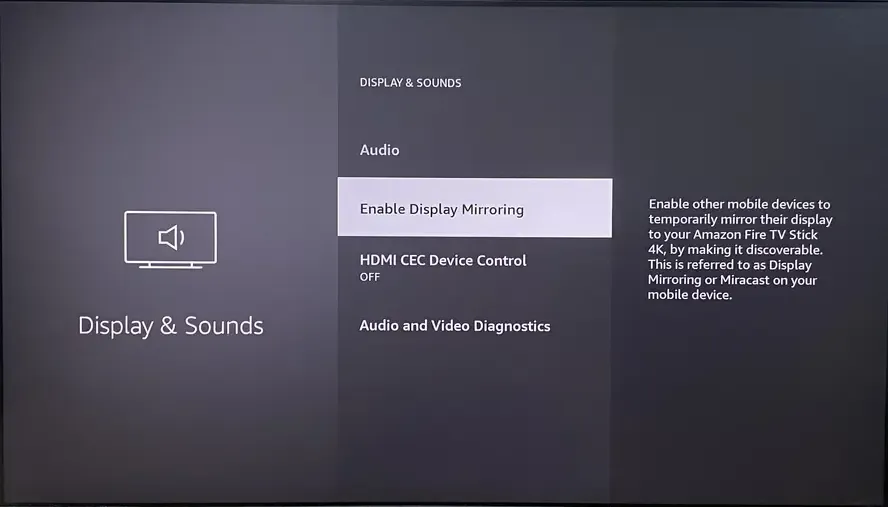
Step 2. On your TV, navigate to the Settings menu and enable the Screen Mirroring option. (The name can vary depending on the brand, like "Screen Mirroring", "Miracast", "Wireless Display”, "Smart View", or similar.)
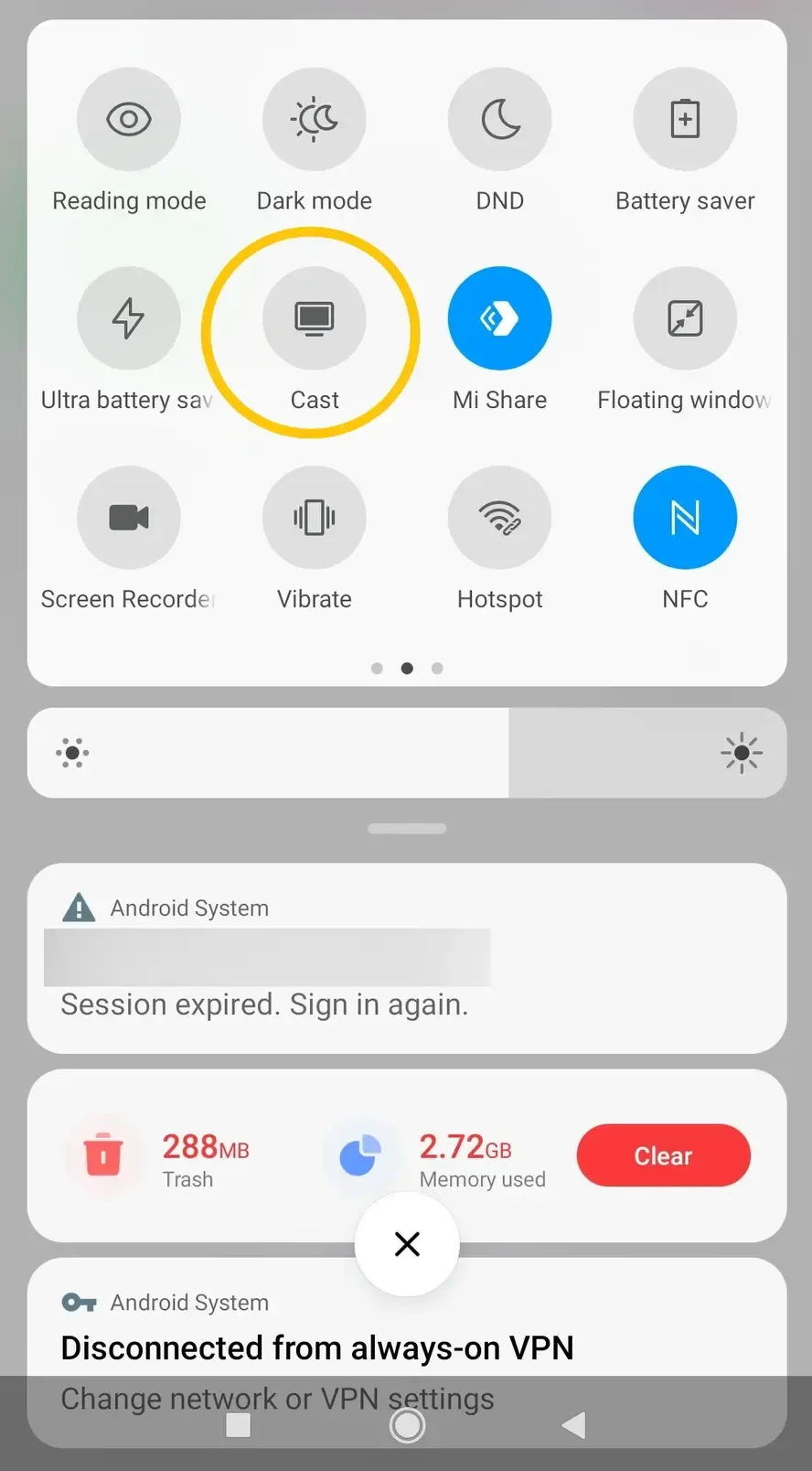
Step 3. On your Android mobile device, choose the Cast or Mirror option from Settings. (The exact path and wording may differ depending on your phone manufacturer.)
Step 4. Wait for your TV's name to appear in the device list, then tap it to connect.
Step 5. If prompted, click the Allow choice or enter the onscreen codes to confirm the connection.
Step 6. Once connected, your Android screen will be mirrored on the TV. You can now open apps, play videos, or show photos, and they'll appear instantly on the big screen.
Note: Some Android 13+ devices may have Miracast removed — in that case, try the next method.
Alternative 2. Use PigeonCast - an Android Screen Mirroring App
How can I cast my Android screen to my TV without Chromecast? The free PigeonCast's Android screen mirroring app allows you to mirror your Android device to a TV or even a Apple TV, as long as both devices are connected to the same WiFi network.
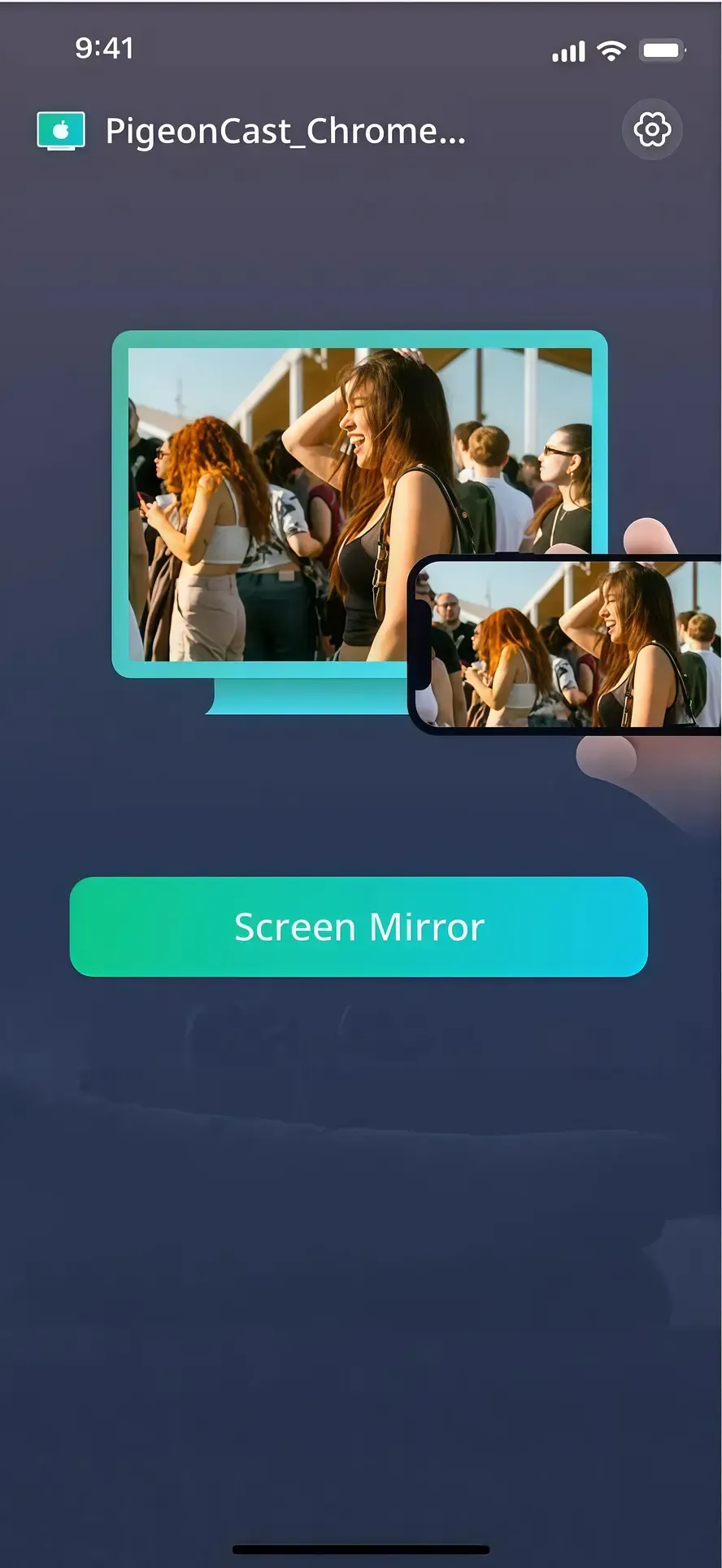
PigeonCast lets you mirror your Android device to your TV or Mac effortlessly. Enjoy smooth, high-quality visuals and stable audio with wireless casting support for AirPlay, Google Cast, and DLNA.

PigeonCast Screen Mirroring

Official Download


Step 1. Install the PigeonCast app on your Android device.
Step 2. Make sure your Android and TV are covered by the same WiFi network.
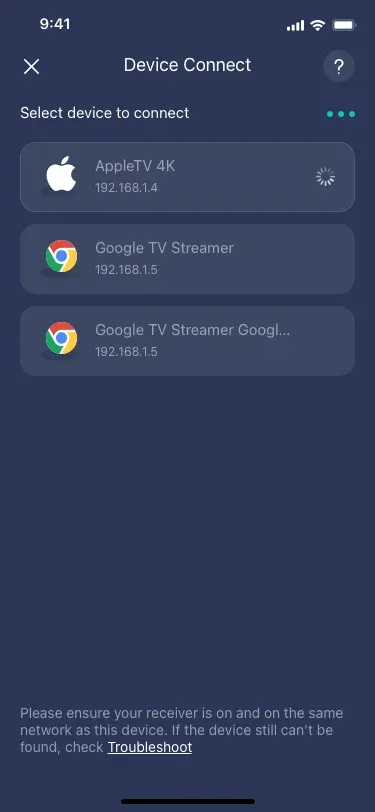
Step 3. Launch the app and tap Select device to choose your smart TV from the device list.
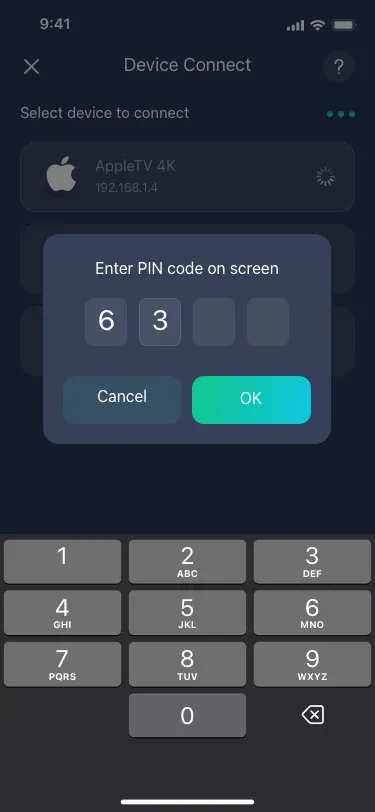
Step 4. Follow any on-screen prompts to complete the connection, such as allowing permissions on your TV.
Step 5. Once connected, tap the Screen Mirror option and your Android screen will be mirrored on the chosen device. Now you can stream videos, browse photos, or use apps on the bigger screen easily.
Alternative 3. Use a Streaming Device
Don't worry if Chromecast isn't an option for you, there are many popular streaming devices on the market offering their methods for casting or mirroring your Android screen. Whether you have an Amazon Fire TV Stick, or Roku, you can easily connect and share your favorite apps, videos, and photos on your TV. Here we show you the process with some examples:
- How to Do Android Cast Screen to Roku TV Without Chromecast
Step 1. Ensure your Roku device is up to date and connected to the same Wi-Fi as your Android phone or tablet.
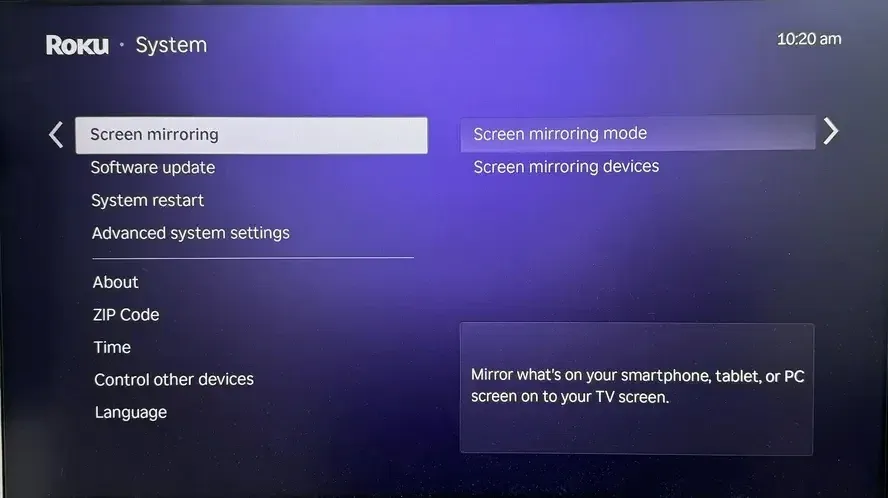
Step 2. On your Roku, go to Settings > System > Screen Mirroring and choose Prompt or Always allow.
Step 3. On your Android device, navigate to Settings > Connected Devices > Cast (or similar name).
Step 4. Select your Roku device from the list to start mirroring your screen.
- How to Do Android Cast Screen to Samsung TV Without Chromecast
Step 1. Make sure your Samsung TV and Android phone are connected to the same Wi-Fi network.
Step 2. On your Samsung TV, enable the screen mirroring feature. This might be labeled as Screen Mirroring, Smart View, or Miracast from the Source menu or Settings under Network or Connection.
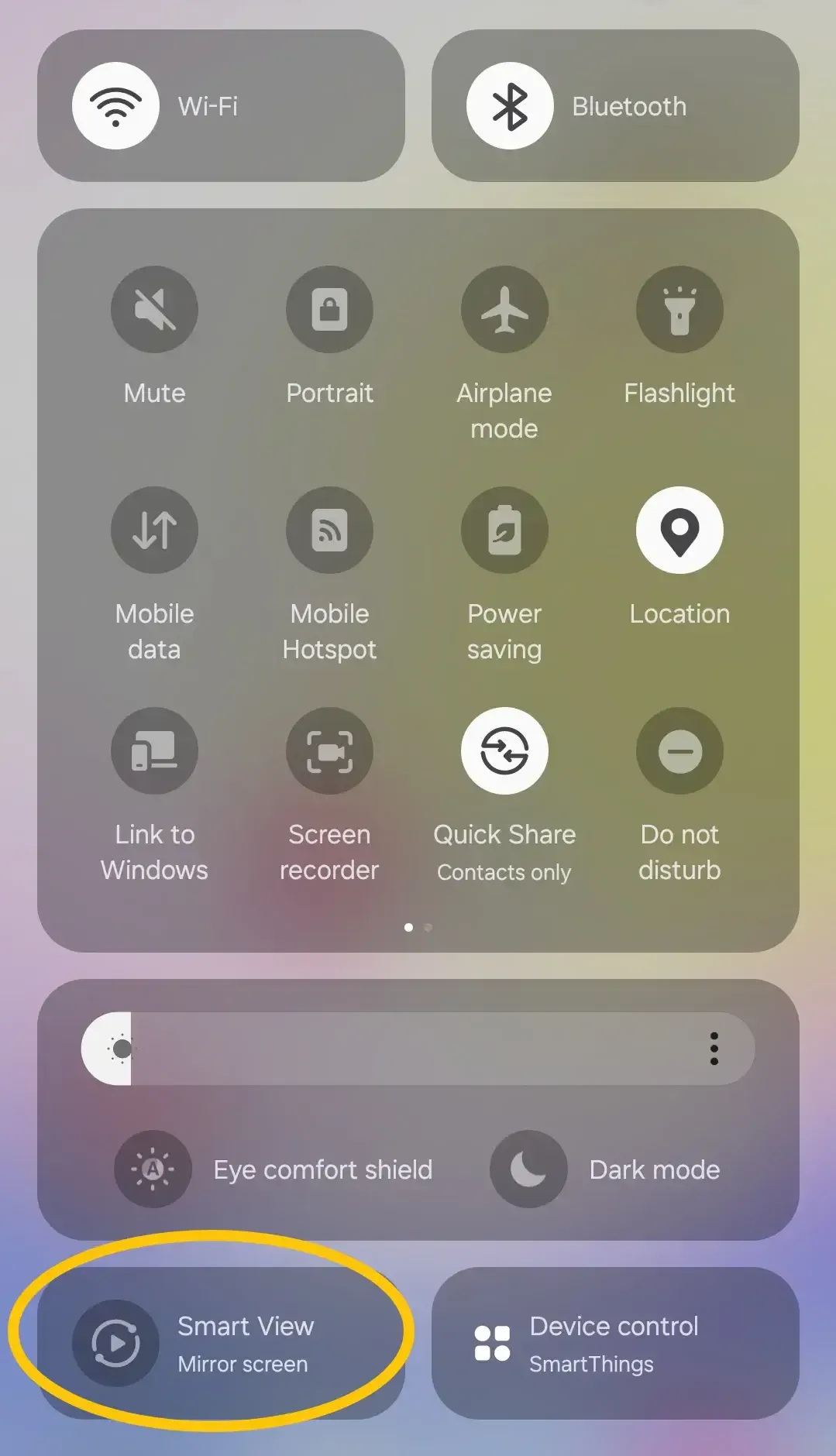
Step 3. On your Android device, swipe down from the top of the screen to open the Quick Settings panel, then look for Smart View, Cast, Screen Mirroring, or Wireless Display.
Alternative 4. Use a Wired HDMI Connection
How to solve Android cast screen to non Smart TV without Chromecast? If wireless casting isn't an option or if your devices don't support screen mirroring, a reliable alternative is to connect your Android phone directly to your TV using a cable. This method ensures a stable connection without any lag, and it's surprisingly simple to set up.
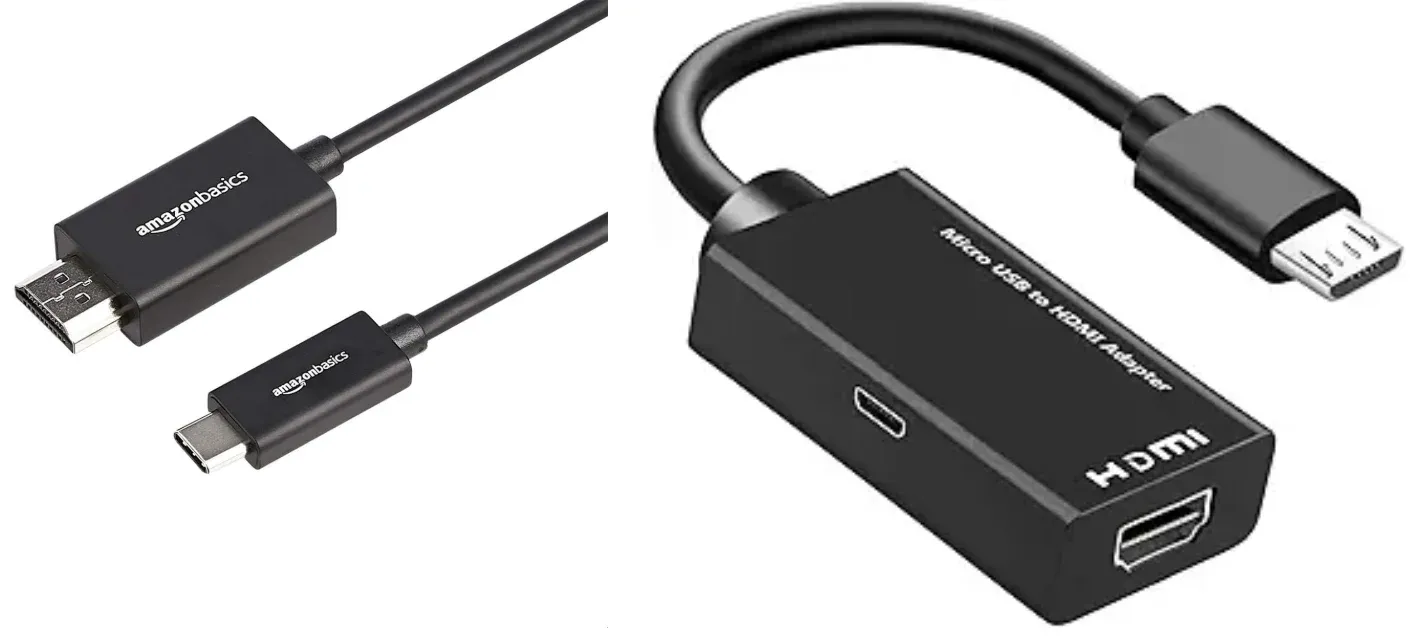
Step 1. Prepare a USB-C to HDMI adapter or an MHL to HDMI adapter, depending on your phone's port.
Step 2. Connect the adapter to your phone's charging port.
Step 3. Use a standard HDMI cable to connect the adapter to an available HDMI port on your TV.
Step 4. Turn on your TV, and press the Input or Source button on the remote to switch the input source to the HDMI port you just connected.
Conclusion
How to cast Android screen to TV without Chromecast? The operating process is entirely simple. Whether you use built-in smart TV features, PigeonCast, streaming devices, or a wired connection. The best method depends on your TV's capabilities and your preferences for wired or wireless setups.
Android Cast Screen to TV Without Chromecast FAQ
Q: How do I cast my Android phone screen to my TV without Chromecast?
You can use built-in smart TV features, PigeonCast's Android screen mirroring app, streaming devices, or a wired connection. For wireless methods, you have to ensure both the Android and the TV are connected to the same WiFi network.
Q: How do I cast to my TV from an Android?
Step 1. To cast from your Android to your TV, make sure both devices are connected to the same Wi-Fi network.
Step 2. On your Android phone, open the Quick Settings panel by swiping down from the top of the screen and choose the Cast, Smart View, or Screen Mirroring option (the name varies by brand).
Step 3. Select your TV from the list of available devices, and approve the connection on your TV if prompted.
Step 4. Your phone's screen should now appear on the TV, letting you stream videos, show photos, or use apps on a bigger display.
Q: Can I cast my Android phone to my TV without Wi-Fi?
Yes, you can cast your Android phone to your TV without using Wi-Fi. Two reliable methods are:
- Miracast (Wi-Fi Direct): This technology lets your phone connect directly to your TV without a router, creating a peer-to-peer connection. Many Android devices and smart TVs (often labeled as "Smart View," "Wireless Display," or "Screen Mirroring") support this feature. Just enable it on both devices and pair them.
- Wired Connection (USB-C or MHL to HDMI): For a more stable display, use a physical cable. Plug a USB-C (or MHL) adapter into your phone, connect it via HDMI to your TV, switch the TV input, and your screen will mirror instantly.
Q: Can I screen mirror through Bluetooth?
No, you can't screen mirror through Bluetooth. Bluetooth doesn't have enough bandwidth to transmit high-quality video and audio in real time, so it can't handle full-screen mirroring. It's mainly designed for low-data tasks like connecting wireless headphones, keyboards, or sharing small files.
Q: Can I cast Android to a TV using USB?
Yes, but only if you use a USB-to-HDMI adapter (like USB-C to HDMI or MHL). A standard USB charging cable won't work for video output. If your phone does not support video output, a direct USB connection will usually only allow you to transfer files, not mirror the screen, unless you use third-party software on a smart TV or PC to interpret the signal.
Clara Rossi is an experienced technology editor and a seasoned expert in screen mirroring and casting technologies. With a keen eye for detail and a deep understanding of how to seamlessly connect devices, Clara excels at optimizing user experiences for effortless sharing and streaming. Whether you're seeking quick fixes or advanced tips, her expertise and responsiveness ensure that every query is met with a well-informed and efficient solution.