
Screen mirroring from your Android device to an LG TV has never been easier, no matter if you have a Samsung Galaxy, Google Pixel, OnePlus, or Xiaomi model. Whether you want to watch movies, share photos, or give presentations, casting your Android phone's screen to a bigger display enhances the experience. In this guide, we'll walk you through how to cast to LG TV from Android, including detailed steps and explanations of the protocols your Android device and LG TV support.
Quick Answer to Cast Android to LG TV
There are several ways to cast an Android phone to an LG TV, depending on your TV model and casting support.
| Scenario | Recommended Method |
|---|---|
| LG TV supports Screen Share (Miracast) | Use Android Screen Cast or Smart View |
| LG TV has Chromecast built-in | Use Google Cast |
| Casting YouTube, Netflix, or Spotify | Use the app's Cast button |
| LG TV doesn't support casting | Use PigeonCast screen mirroring |
| No Wi-Fi available | Use a USB-C to HDMI adapter |
Most Android phones can connect to an LG TV wirelessly when both devices are connected to the same Wi-Fi network. If your LG TV doesn't appear in the Cast menu, check your TV's casting support, restart both devices, and make sure they're on the same network.
Which Casting Method Works Best for Your Android and LG TV?
Not all LG TVs support the same casting technologies. Depending on your TV's model year and webOS version, you may have access to Chromecast built-in, Screen Share (Miracast), AirPlay, or none of these options at all.
For example, many newer LG TVs now support Chromecast built-in, making it easy to cast from Android apps with a single tap. Older LG webOS models typically rely on Screen Share (Miracast), while some entry-level or aging models may require a third-party screen mirroring solution or an HDMI connection.
Before choosing a casting method, it's helpful to identify what your LG TV supports so you can use the fastest and most reliable option available.
| LG TV Type | Recommended Method |
|---|---|
| 2024 and newer LG TVs with Chromecast built-in | Google Cast |
| 2020–2023 LG webOS TVs | Screen Share (Miracast) |
| LG TVs with AirPlay support | AirPlay (for Apple devices) |
| Older LG TVs without casting support | PigeonCast or HDMI |
- Google Cast: Some newer LG TVs include Chromecast built-in, allowing Android users to cast directly from supported apps such as YouTube, Netflix, and Spotify.
- Screen Share (Miracast): Most LG webOS TVs support Screen Share, which uses Miracast technology to mirror your Android phone's screen wirelessly.
- HDMI: For users who want the most reliable connection, a USB-C to HDMI adapter provides stable video and audio without relying on Wi-Fi.
How to Cast to LG TV from Android: Step-by-Step Guide
Now that you understand the supported protocols, let's walk through the step-by-step process for each casting method. Before starting, ensure the following:
- Both your Android phone and LG TV are connected to the same Wi-Fi network (if necessary for the protocol).
- Check that casting is enabled on your LG TV (it usually is by default).
Method 1. Cast Android to LG TV Using Miracast
Many Samsung Galaxy, Xiaomi, and OnePlus models support Miracast, and if your LG TV does too, check how to cast Android to LG TV via Miracast:
Step 1. On your Android phone, go to Settings > Connected & sharing > Cast (or Screen mirroring, depending on your device).
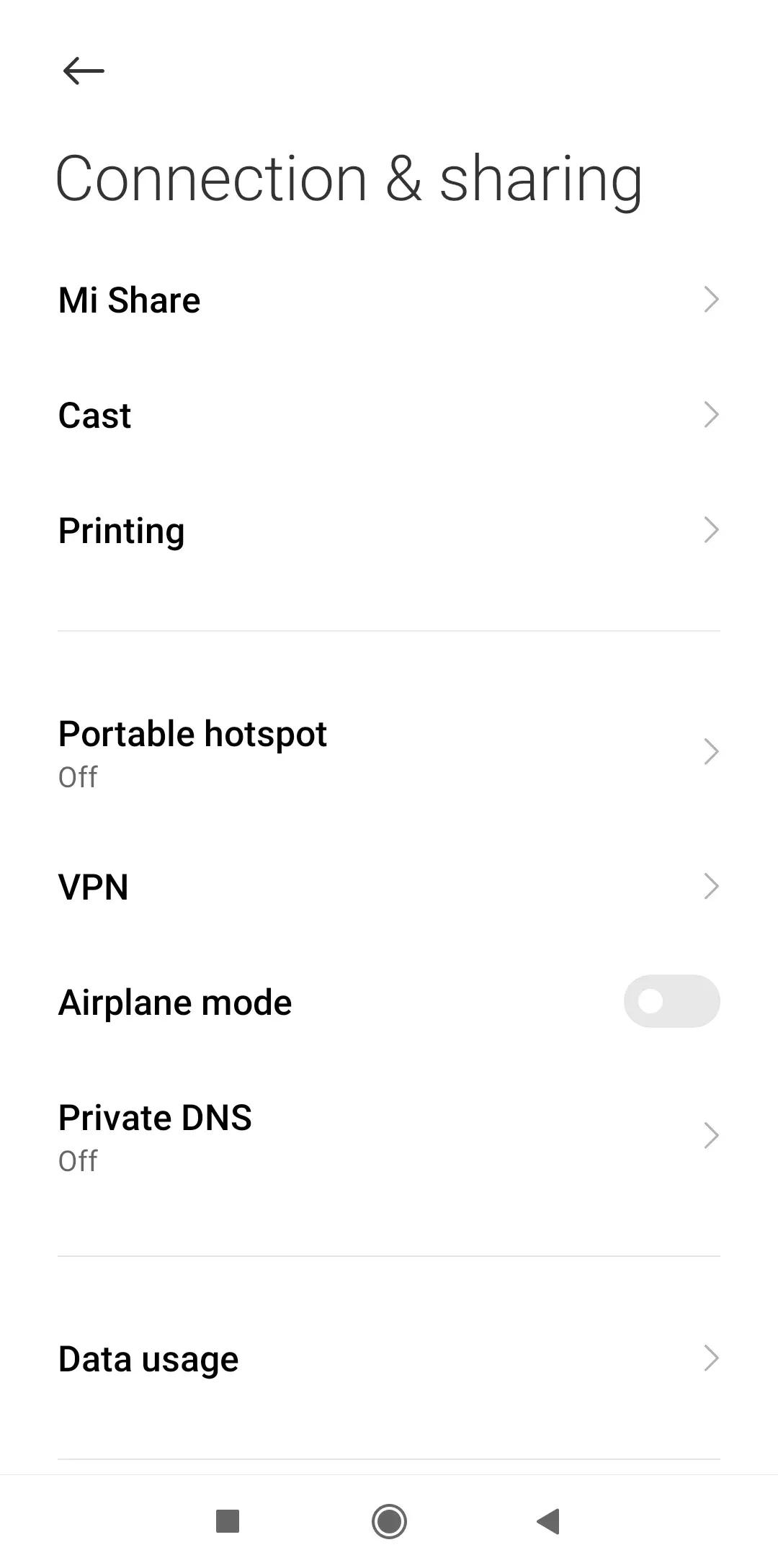
Step 2. Select your LG TV from the list of available devices.
Step 3. Once connected, your phone's screen will be mirrored onto your TV. You may need to adjust the display settings for the best experience.
Troubleshooting Tip: If the connection isn't working, ensure that Wi-Fi Direct is enabled on your TV. You may also need to restart both devices. If this method can't stream Android to LG TV, try Miracast alternatives as follows.
Method 2. Cast Android to LG TV Using Google Cast
How to connect Android to LG TV? Google Pixel phones come with Google Cast built in, letting you stream content to any Chromecast-connected or Chromecast-enabled device. If your LG TV supports Google Cast, the process is quick and straightforward:
Step 1. On your Google Pixel phone, tap the Cast option from the Control Center.
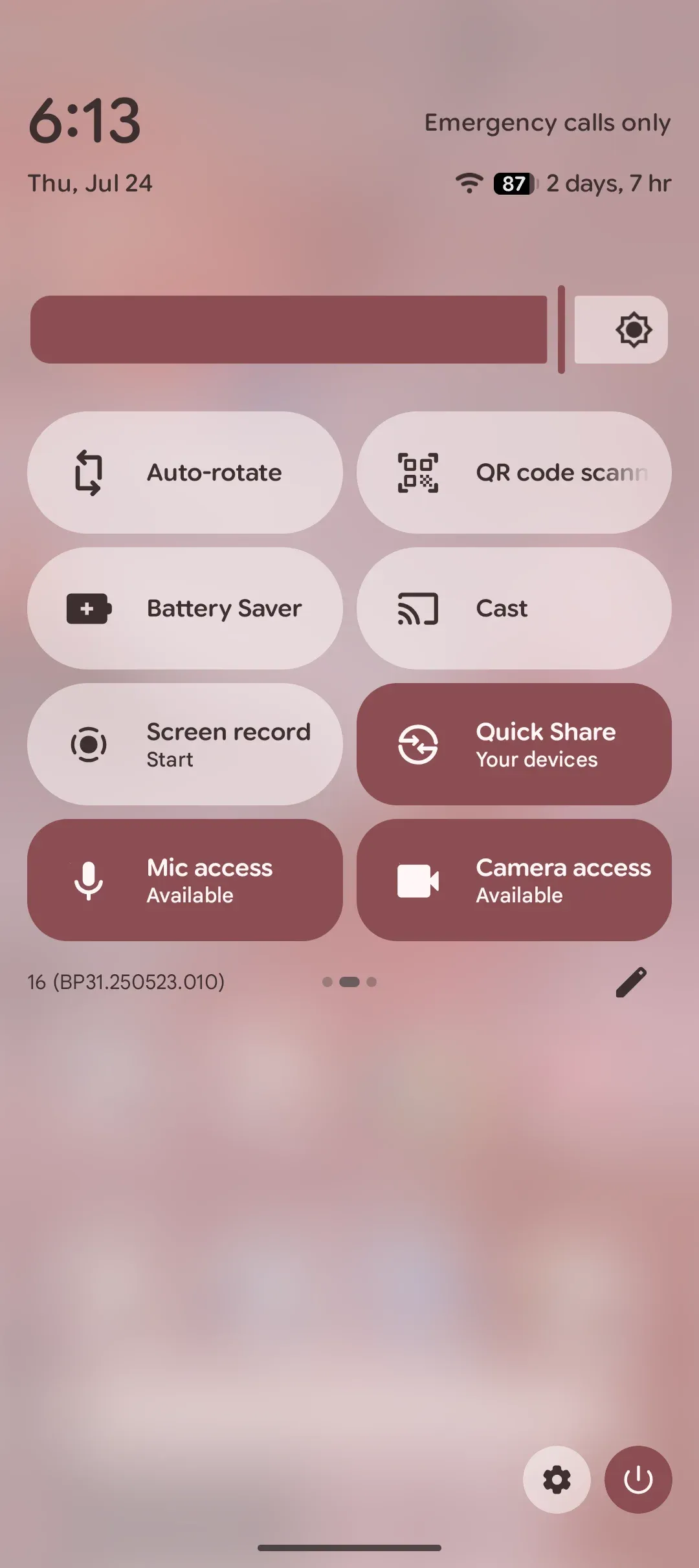
Step 2. Choose your LG TV from the list of available devices.
Step 3. Once connected, your phone's screen will appear on your LG TV.
Alternatively, you can utilize the Google Home app to Chromecast Android to LG TV. Here's how to cast Android phone to LG TV:
Step 1. Make sure the Google Home app is installed on your Android phone.
Step 2. Open it and sign in with your Google account.
Step 3. Tap the Cast icon in the top right corner, and choose your LG TV from the list of available devices.
Step 4. Choose whether you want to cast your screen or just a specific app, like YouTube or Netflix.
Note: Google Cast works best with apps that support it, like YouTube, Netflix, and Google Photos. For other apps, you may need to mirror your entire screen.
Method 3. Cast Android to LG TV Using Wi-Fi Direct
How to cast from Android to LG TV? The third method to connect Android to LG TV is using Wi-Fi Direct or LG Screen Share:
Step 1. On your LG TV, go to Settings > Network > Wi-Fi Direct.
Step 2. On your Android phone, open the Wi-Fi Direct settings and select your LG TV from the available devices.
Step 3. Once connected, your phone's screen will begin mirroring on the TV through LG Screen Share.
Tip: This method doesn't require an internet connection, but both devices must be close to each other.
Method 4. Cast Android to LG TV Using AirPlay (via PigeonCast)
Undoubtfully, Android devices do not come with AirPlay, but many third-party apps add Apple's feature to them. The PigeonCast for Android app is a popular choice, with support for AirPlay, Google Cast, and DLNA, making cross-platform streaming easy.
How to mirror Android to LG TV via the PigeonCast app? The process is quite simple:
Step 1. Download the PigeonCast for Android app from the Google Play Store.

PigeonCast Screen Mirroring

Official Download


Step 2. Ensure that AirPlay is enabled on your LG TV. Go to Settings > AirPlay and HomeKit and turn on AirPlay.
Step 3. Open the app, tap the Select device bar, and choose your LG TV from the available devices.
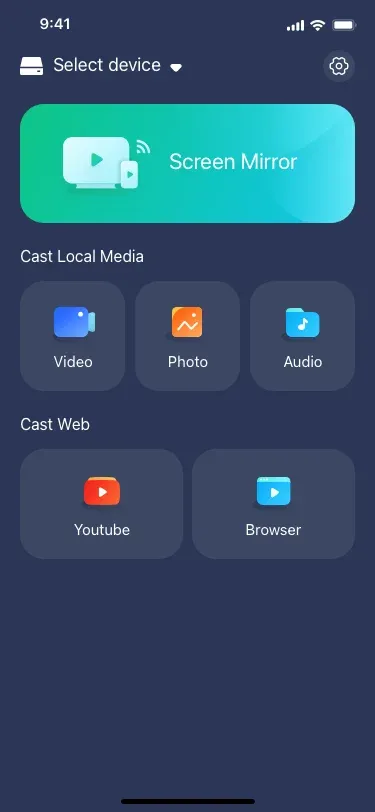
Step 4. Once connected, you can tap the Screen Mirror feature to screen mirror Android to LG TV or other features for video or photo casting.
LG TV Not Showing Up When Casting? Try These Fixes
If your Android phone can't find your LG TV, the issue is usually related to network settings, compatibility, or software updates.
| Problem | Possible Cause | Solution |
|---|---|---|
| LG TV doesn't appear in Cast menu | Devices on different Wi-Fi networks | Connect both devices to the same Wi-Fi |
| Cast button missing | App doesn't support casting | Use Screen Share or screen mirroring |
| Connection keeps failing | Outdated TV firmware or Android software | Update both devices |
| Black screen after connecting | DRM restrictions on certain apps | Use the TV's native app |
| Frequent disconnections | Weak Wi-Fi signal | Move closer to the router or use 5GHz Wi-Fi |
-
Restart Both Devices: A simple restart often resolves temporary discovery issues. Restart your LG TV, Android phone, and router before trying again.
-
Check TV Casting Settings: On LG TVs, make sure Screen Share or Chromecast is enabled. Depending on your webOS version, the setting may be located under Connection, Network, or Screen Share.
-
Update Software: Outdated firmware can cause compatibility problems between Android devices and LG TVs. Installing the latest updates often fixes casting issues and improves stability.
Final Thoughts
How to cast to an LG TV from Android? Casting your Android device to an LG TV is easy and convenient, whether you're using Miracast, Google Cast, or Wi-Fi Direct. By understanding the different casting protocols and knowing how to use them, you can enjoy a seamless screen-sharing experience. Whether you're streaming videos, browsing photos, or giving presentations, you now have the tools to enhance your viewing experience.
How to Cast to LG TV from Android FAQs
Why can't my Android phone connect to my LG TV?
If your Android phone won't connect to your LG TV, the most common causes are network issues, incompatible casting protocols, or disabled casting settings. Make sure both devices are connected to the same Wi-Fi network and that Screen Share, Chromecast, or other casting features are enabled on your TV. Restarting both devices and installing the latest software updates can also resolve many connection problems.
Does my LG TV support Miracast?
Most LG Smart TVs running webOS support Screen Share, which is based on Miracast technology. To check, open your TV's settings and look for options such as Screen Share, Screen Mirroring, or Wi-Fi Direct. If these features are available, your TV can typically receive screen mirroring from compatible Android devices without additional hardware.
Does LG TV have Chromecast built-in?
Some newer LG TVs include Chromecast built-in, while many older models rely on Screen Share (Miracast) instead. Support varies by model year and region. If you don't see Chromecast among your TV's features or settings, you can still cast from Android using Miracast, screen mirroring apps, or an external Chromecast device.
How do I cast apps like YouTube, Netflix, or Spotify to an LG TV?
The easiest method is to use the Cast button built into supported apps. Open the app on your Android phone, tap the Cast icon, and select your LG TV or Chromecast-enabled device. This method typically provides better video quality and battery efficiency than full screen mirroring because the TV streams the content directly.
Why is my LG TV not showing up in the Cast menu?
If your LG TV doesn't appear when you tap Cast, first verify that both devices are connected to the same Wi-Fi network. You should also check whether your TV supports Chromecast or Miracast and ensure that Screen Share or casting features are enabled. Network restrictions, VPNs, and outdated firmware can also prevent device discovery.
Can I cast Android to an LG TV without Chromecast?
Yes. Many LG TVs support Screen Share (Miracast), which allows Android devices to mirror their screens without Chromecast. If your TV doesn't support either technology, you can use a third-party screen mirroring solution, connect through a web browser-based receiver, or use a USB-C to HDMI adapter for a wired connection.
Can I cast Android to an LG TV without Wi-Fi?
In some cases, yes. If your Android phone and LG TV support Miracast or Wi-Fi Direct, you may be able to establish a direct wireless connection without using your home network. Alternatively, a USB-C to HDMI adapter provides a reliable wired solution when Wi-Fi is unavailable or unstable.
What's the difference between Screen Share and Chromecast?
Screen Share uses Miracast to mirror your entire Android screen to the TV, making it useful for presentations, photos, and apps without casting support. Chromecast uses Google Cast technology to stream content directly from supported apps such as YouTube and Netflix. Chromecast generally offers smoother playback and lower battery consumption, while Screen Share works with a wider range of content.
How do I know if my LG TV supports casting?
You can check your TV's settings menu for features such as Chromecast, Screen Share, Screen Mirroring, or Wi-Fi Direct. Another option is to look up your LG TV model on LG's official website. If casting is supported, your Android phone should usually be able to discover the TV when both devices are connected to the same network.
Why does my LG TV keep disconnecting while casting?
Frequent disconnections are often caused by weak Wi-Fi signals, network congestion, outdated firmware, or power-saving settings on your Android device. Moving closer to the router, switching to a 5GHz network, and updating both your TV and phone can significantly improve casting stability.
Mia Clarke is a technology editor specializing in screen mirroring and casting solutions across multiple platforms. Mia provides clear, practical guides and in-depth insights to help users seamlessly connect their devices. Passionate about enhancing digital experiences, Mia is dedicated to keeping readers updated on the latest trends and tools in cross-platform screen sharing. Whether you’re looking to mirror your smartphone, laptop, or smart TV, Mia’s content delivers reliable, user-friendly advice to simplify your tech setup.