
AirPlay is Apple's built-in wireless streaming technology, widely used to mirror iPhone or Mac screens to Apple TV. But what if you're using an Android device? Can you use AirPlay on Android? The short answer is: not directly, but there are reliable ways to make it work.
In this guide, you'll learn: why AirPlay doesn't work on Android by default, how to use AirPlay-like features on Android, and the best ways to mirror Android to TV or Apple devices.
Quick Answer to AirPlay on Android
- Android does not natively support AirPlay.
- You can still use AirPlay with third-party apps.
- In most cases, Google Cast is more stable.
The best method depends on your device and goal.
Can You Use AirPlay on Android Devices?
Natively, you can't use Apple AirPlay on Android phones. AirPlay is a proprietary technology for Apple devices, such as iPhones, iPads, MacBooks, and Apple TVs, while its successor, AirPlay 2, is available for other devices, such as Samsung speakers or TVs. AirPlay and AirPlay 2 make it easy to stream between these devices. Android devices use a different standard called Google Cast (Chromecast).
This creates a compatibility gap:
| Feature | Apple (AirPlay) | Android (Cast) |
|---|---|---|
| Native support | Apple devices only | Android devices |
| Cross-platform | Limited | Limited |
| Compatibility | Closed ecosystem | More flexible |
The compatibility gap means:
- You can't AirPlay from Android to TV out of the box.
- Android apps don't support AirPlay natively.
- Devices may not recognize each other.
But this doesn't mean it's impossible.
How to Use AirPlay on Android (2 Practical Methods)
Since Android doesn't support AirPlay natively, you'll need a workaround. Below are the two most effective and practical methods.
Method 1: Use a Compatible Streaming App
Some apps (like YouTube, Netflix, Hulu, and so on) are designed to bridge Android and AirPlay devices, allowing you to stream content across different ecosystems.
These apps typically:
- Detect AirPlay-enabled devices (like Apple TV)
- Send media or screen content wirelessly
- Support both AirPlay and other protocols
How to connect Android to Apple device:
Step 1. Install a compatible streaming app like YouTube on your Android device.
Step 2. Connect your Android device and the target device (e.g., Apple TV) to the same WiFi network.
Step 3. Open the app, tap the Cast icon, and wait fr it to scan for available devices.
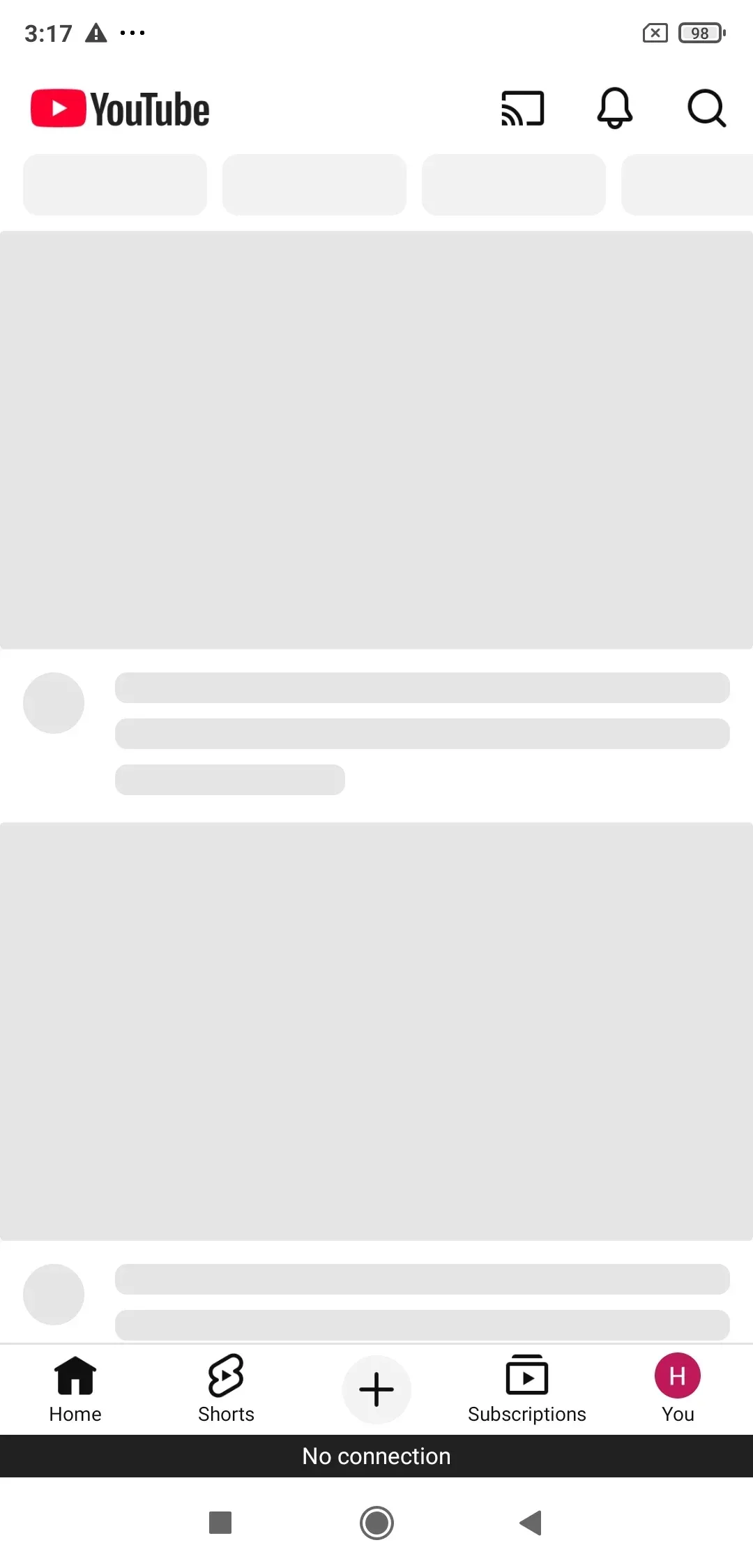
Step 4. Select your target device.
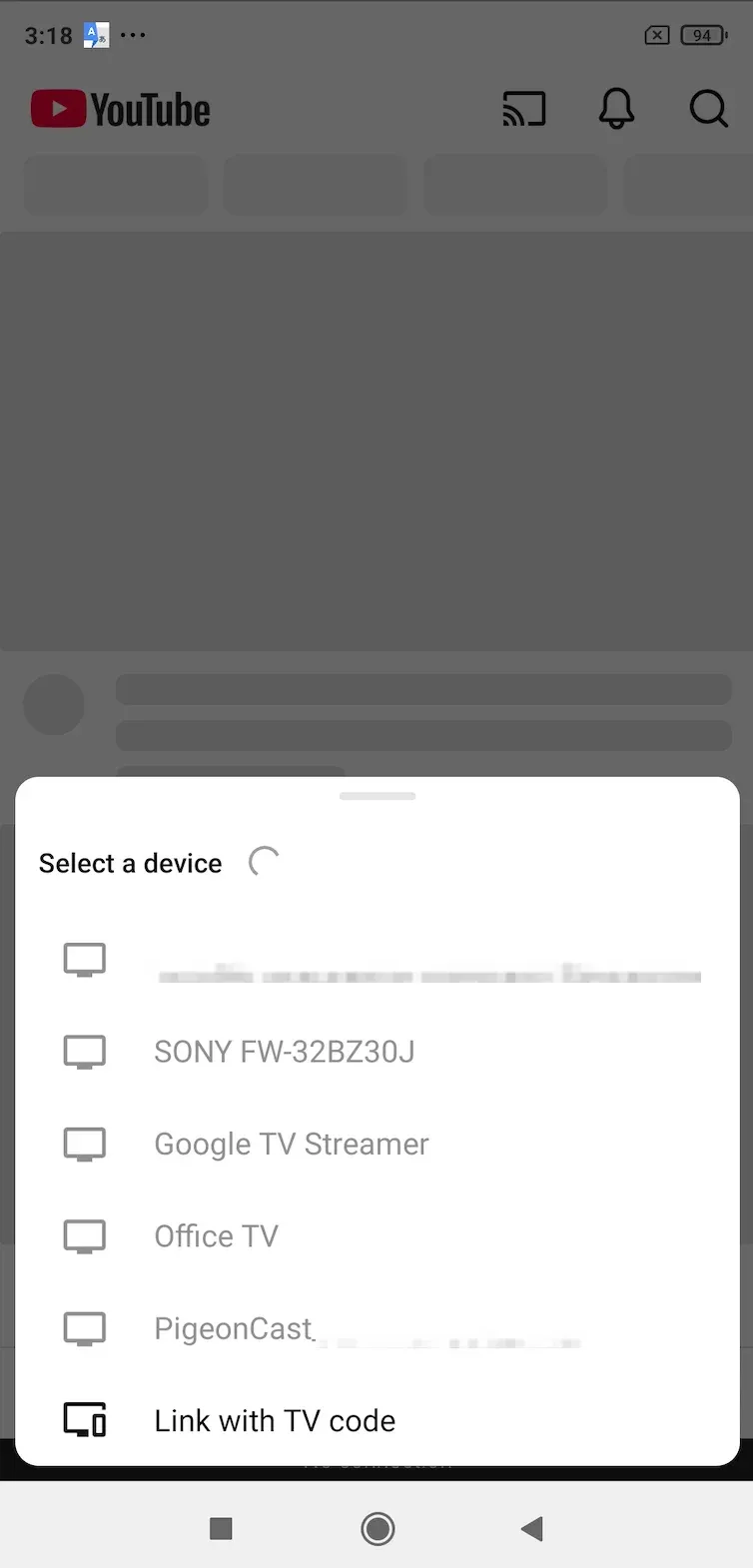
Step 5. Start streaming or casting content.
Method 2: Use a Screen Mirroring Tool (Recommended)
If you want a more reliable and complete solution, screen mirroring is the better choice.
Unlike streaming apps, screen mirroring:
- Mirrors your entire screen
- Works with any app
- Includes subtitles, UI, and interactions
One example is using a tool like PigeonCast. The free third-party screen mirroring is designed for cross-platform streaming with multiple protocol support like AirPlay, Google Cast, and DLNA.
Step 1. Install PigeonCast on your Android device.


Overall Rating:


Step 2. (Optional) Install PigeonCast on your MacBook or Apple TV.
Tip: Dual installtion ensure a much smoother and more stable streaming experience.
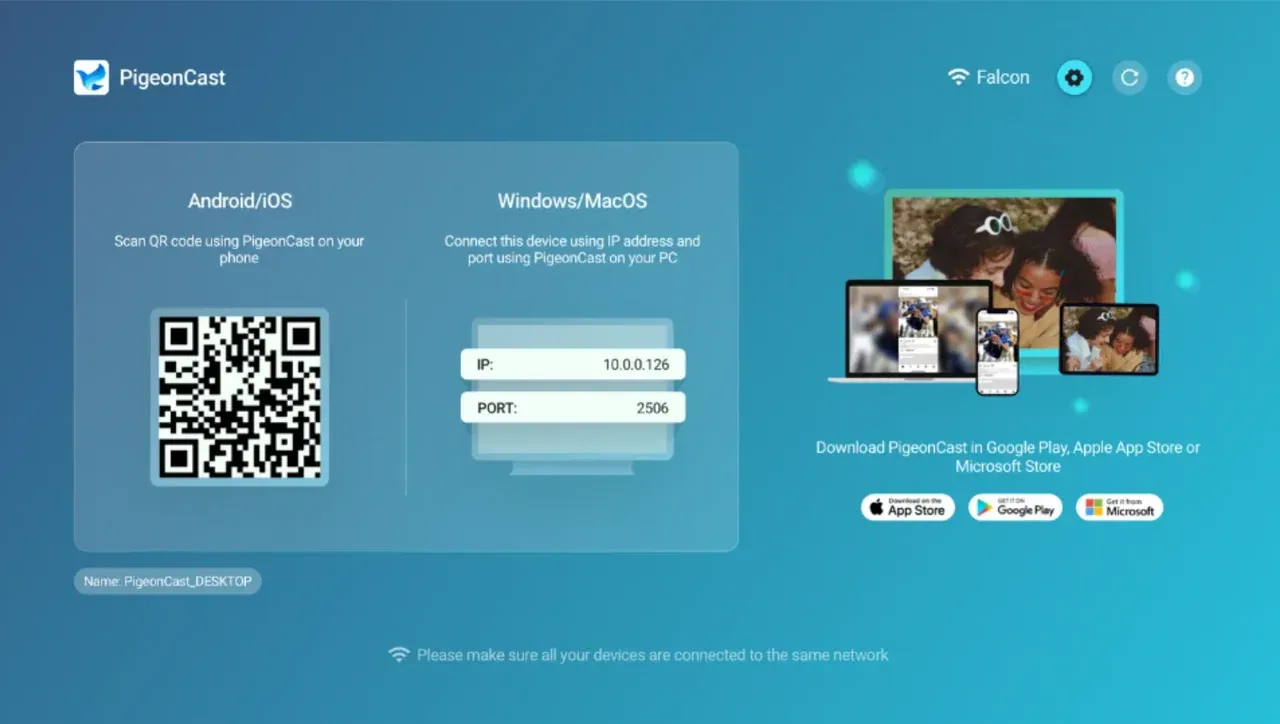
Overall Rating:

Step 4. Make sure both devices are connected to the same WiFi network.
Step 3. Open the app and tap the top bar.
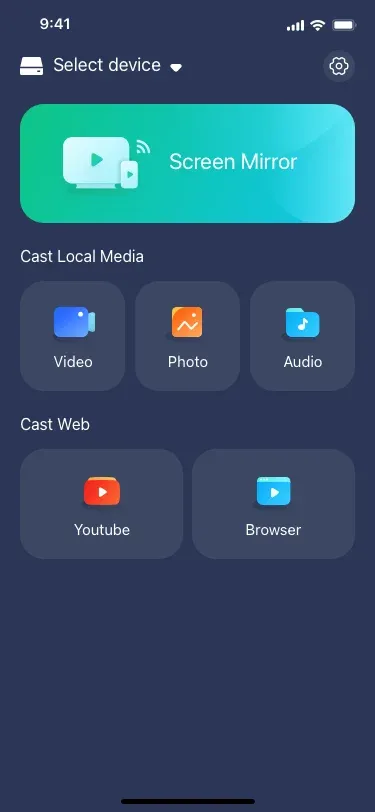
Step 5. Select the target device.
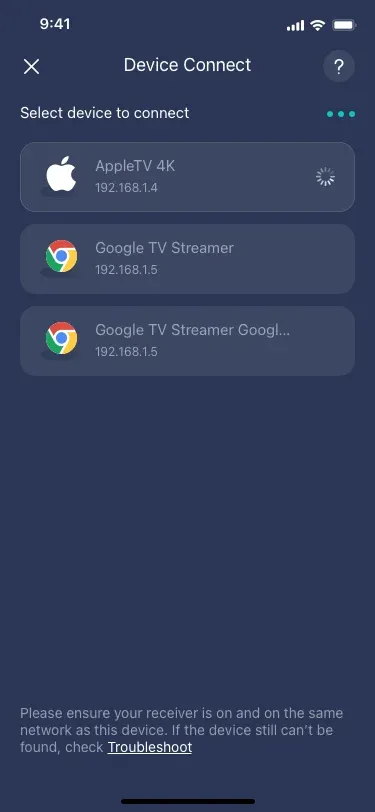
Note: If your target device isn't on the list, ensure AirPlay receiver is enabled on the device.
Step 6. Tap Screen Mirror.
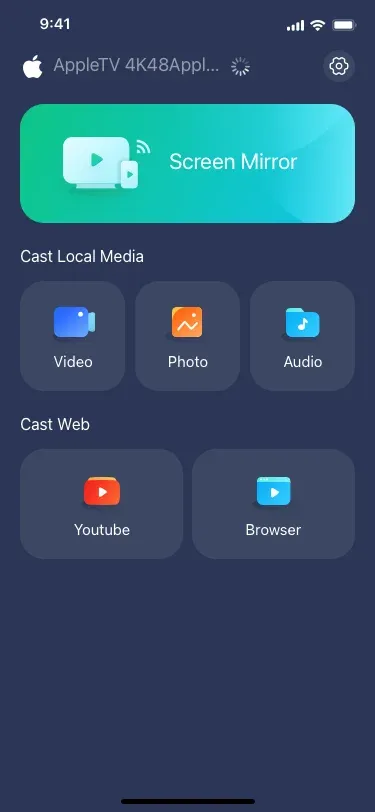
Your screen will instantly appear on the target device.
Which Method Should You Choose?
| Method | Ease of Use | Stability | Best For |
|---|---|---|---|
| Streaming apps | Easy | Medium | Simple media casting |
| Screen mirroring | Medium | High | Full control & reliability |
If you just want to play a video, use Method 1; if you want everything to work reliably, use Method 2.
Conclusion
AirPlay is not built for Android, but that doesn't mean you're stuck. You can still use a streaming app or use screen mirroring tool for the most reliable experience. In practice, screen mirroring or cross-platform tools are usually the best solution.
AirPlay for Android FAQs
Q: How do I mirror my Android phone to Apple TV?
You can mirror your Android phone to Apple TV with the PigeonCast for Android app. The app integrates AirPlay and turns your Android phone AirPlay-compatible. Here are the steps:
- When the two devices are connected to the same Wi-Fi network, launch the app on your Android phone.
- Follow the on-screen instructions to choose your Apple TV and connect to it.
- Once connected, you can tap the Screen Mirroring feature to mirror your phone to Apple TV.
Q: How do I mirror my iPhone to my Android TV?
If your Android TV has built-in AirPlay support, you can mirror your iPhone to the TV directly using AirPlay. Simply open the Control Center on your iPhone, tap Screen Mirroring, select your TV, and you're connected.
If AirPlay isn't built in, install an AirPlay receiver app like PigeonCast for Android TV. It adds AirPlay functionality to your TV, allowing you to mirror your iPhone just as easily.
Q: Is there an AirPlay for Android?
Android devices do not support AirPlay natively, as it is an Apple proprietary protocol. However, you can enable AirPlay for Android using third-party apps like PigeonCast, AirScreen, or ApowerMirror, which simulate AirPlay functionality on Android phones and TVs.
Q: Is Android TV compatible with AirPlay?
Most Android TVs are not compatible with AirPlay by default. However, select models—especially newer Sony TVs—come with AirPlay 2 built-in, allowing direct streaming from iPhones, iPads, or Macs. If your TV doesn't support AirPlay natively, you can use apps like PigeonCast to add it.
Q: How to connect iPhone to Android TV without AirPlay?
If you don't want to use AirPlay, you can still connect your iPhone to Android TV using alternatives:
- Use an HDMI adapter (Lightning to HDMI) for a wired connection
- Cast via third-party apps like PigeonCast for iPhone, ApowerMirror, LetsView, or AirBeamTV
- Use DLNA apps to share media over the network
These methods allow you to mirror or cast content without relying on AirPlay.
Q: Can you AirPlay with a Samsung?
Yes, if you have a Samsung Smart TV with AirPlay 2 support (models from 2018 and later), you can AirPlay to Samsung TV from your iPhone, iPad, or Mac. To do so, make sure both devices are on the same Wi-Fi network, open Control Center, tap Screen Mirroring, and select your Samsung TV. For older models, third-party apps may be required.
Mia Clarke is a technology editor specializing in screen mirroring and casting solutions across multiple platforms. Mia provides clear, practical guides and in-depth insights to help users seamlessly connect their devices. Passionate about enhancing digital experiences, Mia is dedicated to keeping readers updated on the latest trends and tools in cross-platform screen sharing. Whether you’re looking to mirror your smartphone, laptop, or smart TV, Mia’s content delivers reliable, user-friendly advice to simplify your tech setup.