
Tired of huddling around a small phone screen to watch videos? Google Cast is the technology that effortlessly beams your favorite content to the big TV screen. But what is Google Cast exactly? How does it differ from the Chromecast in your hand, and are there better ways to cast? This definitive guide explains everything you need to know, from basic setup to overcoming its limitations with smarter tools.
Google Cast Explained: More Than Just Chromecast
When people hear "Google Cast", they often think of the small Chromecast dongle. However, it's crucial to separate the technology from the hardware to fully grasp its ecosystem. Understanding this distinction is the first step to mastering wireless streaming.
The Technology vs. The Device
- Google Cast is proprietary wireless streaming protocol developed by Google. It's the set of rules that allows devices to communicate and send "play" commands from your mobile device or computer to a TV.
- Chromecast is a line of physical hardware devices (dongles) that act as receivers for the Google Cast protocol.
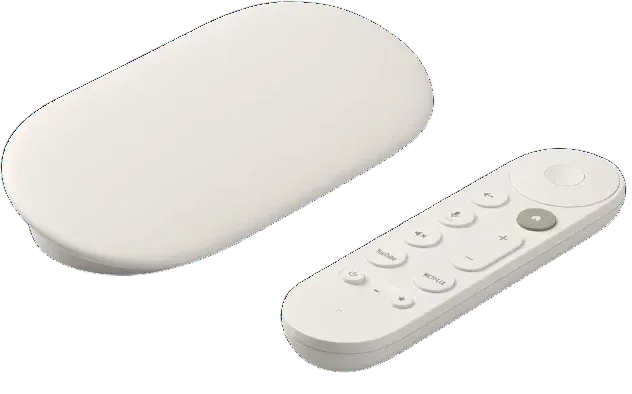
- The Analogy: Think of Google Cast as "Bluetooth" (the technology standard) and Chromecast as a "Bluetooth speaker" (a product that uses that standard). Many modern smart TVs and speakers now have Google Cast technology built-in, meaning you might already own a "Cast" device without a separate dongle.
A Brief History & Its Core Philosophy
Introduced alongside the first Chromecast in 2013, Google Cast was designed with a smart premise: your phone should be a remote, not the video source. Instead of straining your phone to stream and mirror video (which drains battery and causes lag), Google Cast lets your phone send a simple command.
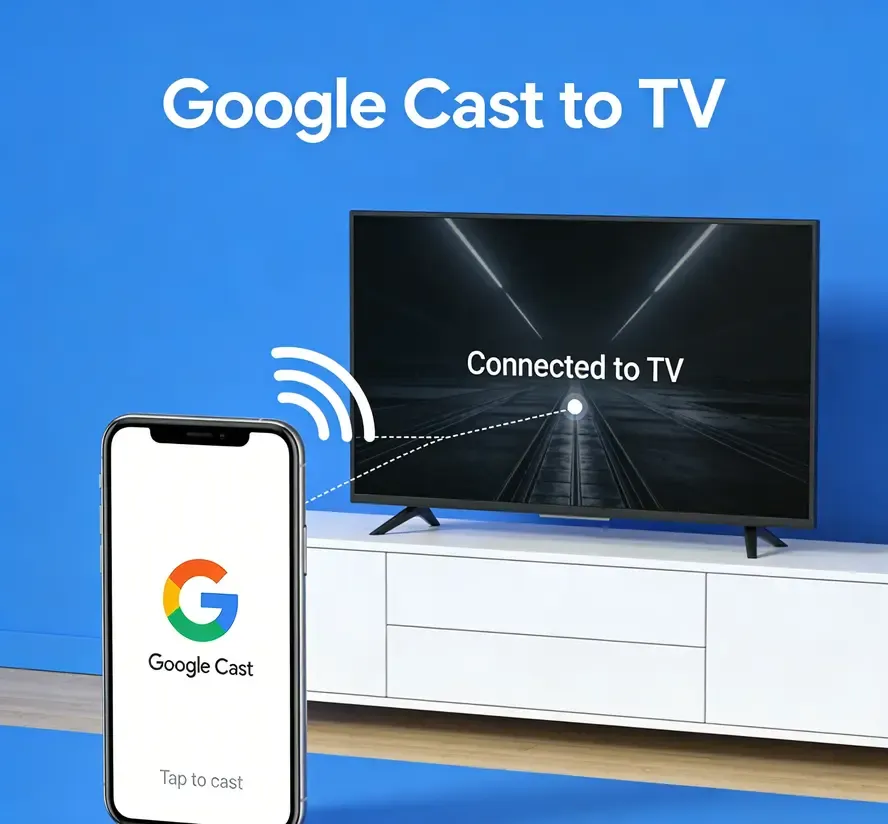
The TV or dongle then fetches the video directly from the internet. This elegant "send-and-play" approach is both its greatest strength and, as we'll see later, a source of some limitations.
How Does Google Cast Work
The "Send and Play" magic of Google Cast lies in its efficiency. Unlike old-school screen mirroring that replicates your entire display, it uses a smarter, more resource-friendly method. Let's demystify the process that happens after you tap that Cast button. Here's the 3-step casting process about how to connect to Chromecast:
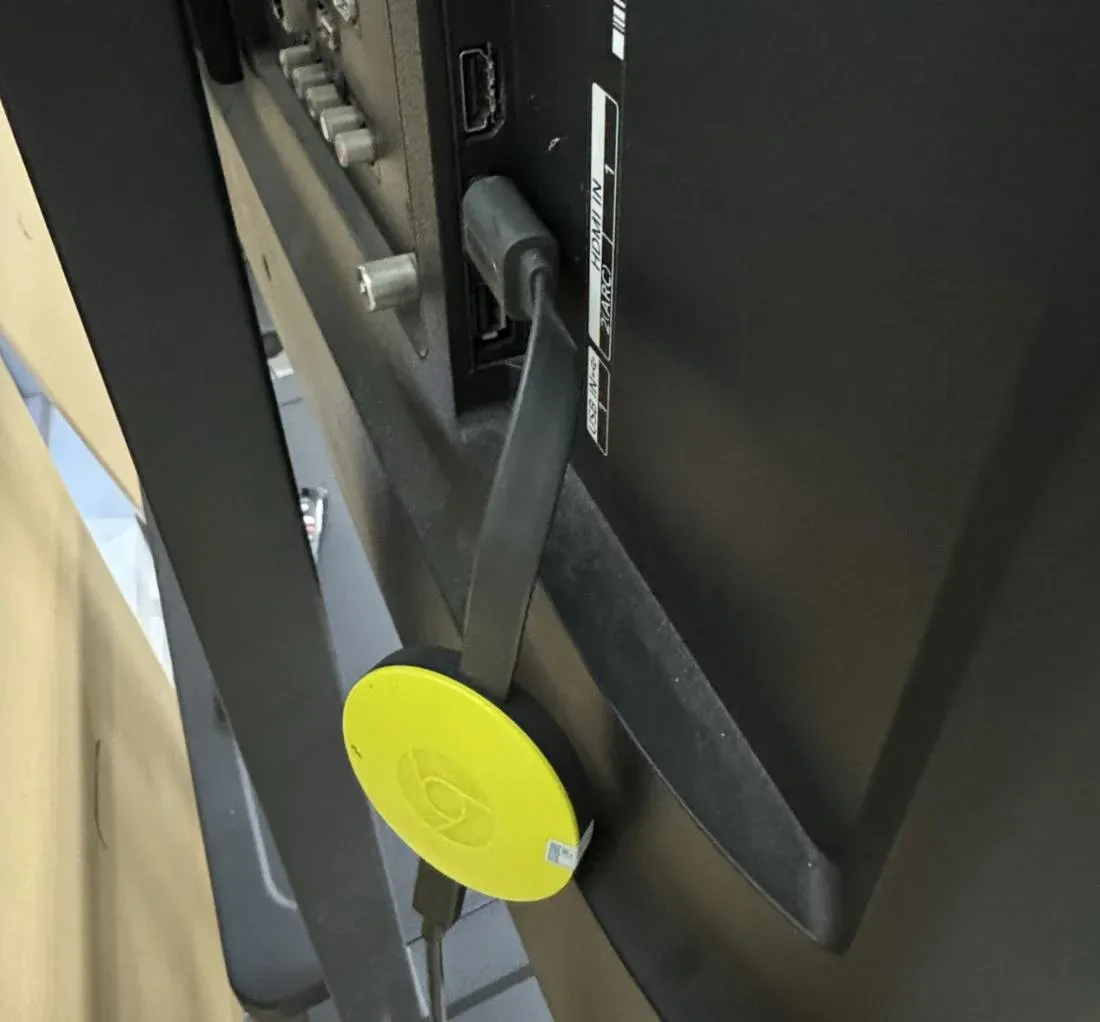
Step 1. Discover & Connect: Your phone (sender) and your Chromecast or Cast-enabled TV (receiver) connect to the same Wi-Fi network. When you open a compatible app (chck what is a Google Cast enabled app) like YouTube, the Cast button appears, showing available devices.
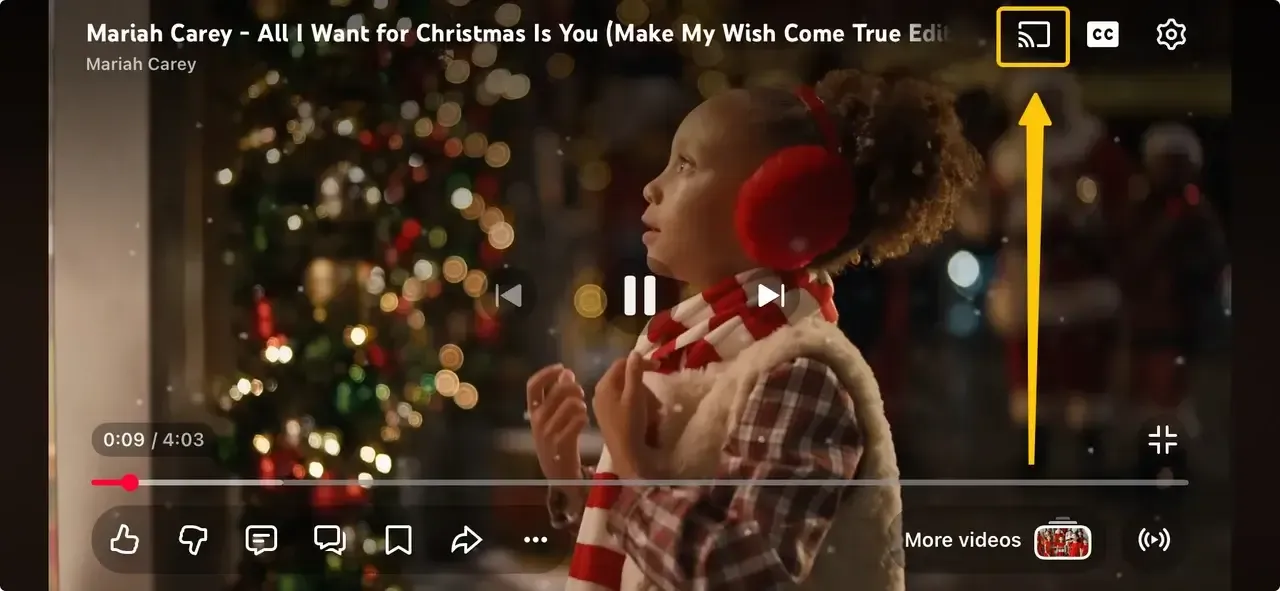
Step 2. Send the Command: You tap Cast and select your TV. Your phone doesn't send the video file. Instead, it sends a tiny digital command, essentially a URL, telling the receiver what to play and where to stream it from online.
Step 3. Direct Streaming: The Chromecast or TV takes over. It uses its own connection to fetch the video or music directly from the source (Netflix, Spotify, etc.) and plays it independently.
The Key Benefits of This Design
- Phone Freedom: You can turn off your phone's screen, take a call, or use other apps without interrupting what's playing on the TV.
- Better Quality & Battery Life: Since your phone isn't processing heavy video, it saves battery. The TV can also stream higher-quality video (like 4K) directly.
- Stability: The connection is less prone to the stutters common in full-screen mirroring because it's only transmitting a simple control signal.
How to Use Google Cast: Setup & Daily Casting
Now that you know how it works, setting it up and using it daily is refreshingly straightforward. Whether you have a Chromecast dongle or a built-in TV, the process is similar.
What You'll Need to Get Started
- A Google Cast receiver (Chromecast dongle, or a smart TV/speaker with Cast built-in).
- A stable Wi-Fi network (both sender and receiver must be on the same network).
- A compatible sender device (Android phone, iPhone, iPad, Windows PC, or Mac).
- The Google Home app (for initial device setup).
- Apps that support Cast (YouTube, Netflix, Disney+, Spotify, etc.).
Step-by-Step Setup Guide
Step 1. Plug your Chromecast into your TV's HDMI port and power it. If using a built-in TV, ensure it's connected to Wi-Fi.
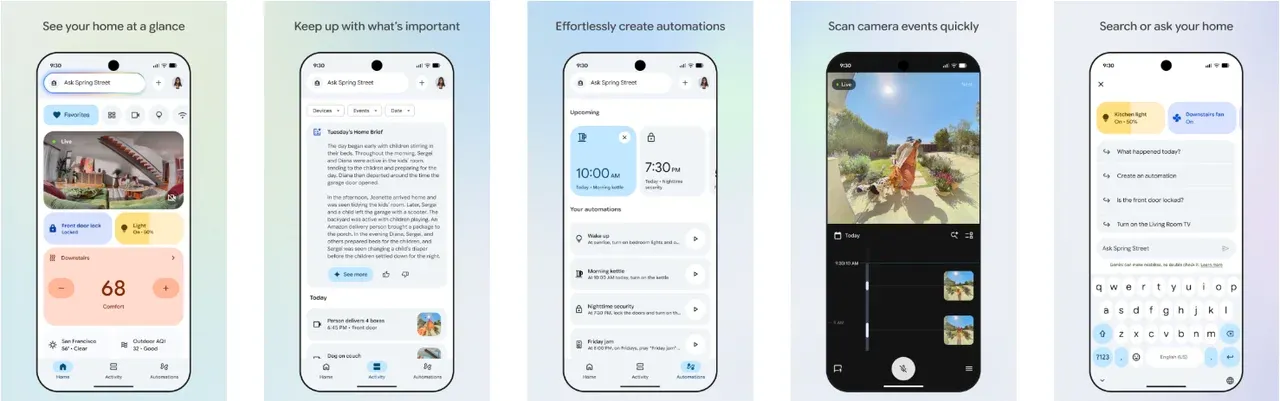
Step 2. On your phone or tablet, download the Google Home app.
Step 3. Follow the in-app prompts to "Set up device". The app will guide you to connect the Chromecast to your Wi-Fi.
Step 4. Once set up, you're ready to cast from any supported app.
Casting in Action: Finding the Cast Button
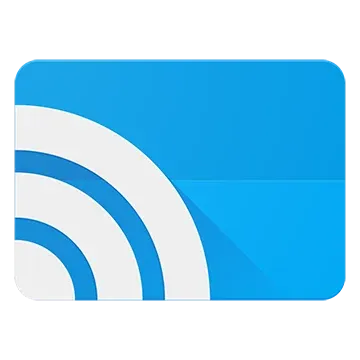
The Cast button is your gateway. Look for this icon (a rectangle with a Wi-Fi signal in the corner) in the top or bottom bar of apps like YouTube, Netflix, or Google Chrome. One tap connects you to your big screen.
The Limits of Google ScreenCast: When It Falls Short
Despite its elegance for streaming apps, Google Cast is not a one-size-fits-all solution. Its deliberate design choices create specific gaps that can be frustrating for users who want more flexibility from their wireless display.
- The Wi-Fi Prison: If your Wi-Fi is slow or congested, your stream will buffer or drop. No Wi-Fi means no casting, period.
- The App Jail: You can only cast content from apps that have programmed in the Cast button. Want to cast a mobile game, a niche app, a local video file from your phone's gallery, or your entire desktop screen with low latency? Google Cast isn't designed for that.
- The Tab Casting Compromise: In Chrome browser (what is Google Chrome cast), casting a tab falls back to inefficient screen mirroring, often resulting in poor quality, audio lag, and high CPU/battery use on your laptop.
- Ecosystem Walls: It doesn't natively communicate with Apple's AirPlay devices or older DLNA media servers, limiting cross-platform sharing.
Beyond Google Cast: PigeonCast – Your Universal Caster
If you're looking for an alternative to Chromecast, free PigeonCast is the best choice. It supports Google Cast, AirPlay, and DLNA with 4K streaming. Plus, it allows you to do full-screen casting over Wi-Fi across different platforms, Android, iOS, Windows, Macs, and TVs, making it a versatile choice for seamless streaming.

Step 1. Ensure your devices are connected to the same wireless network.


Overall Rating:



Step 2. Install PigeonCast on your mobile device, such as iPhone, Android tablet, Windows PC or MacBook.
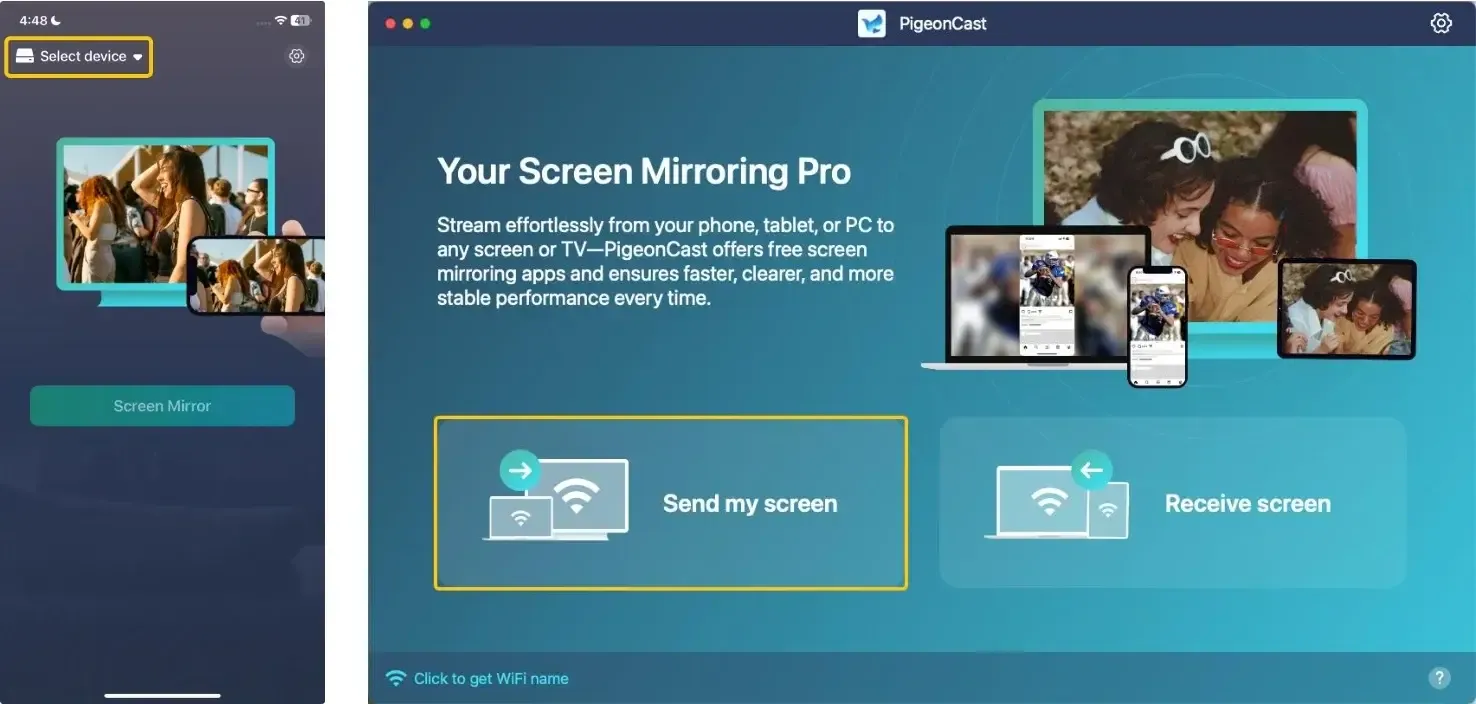
Step 3. Launch the app, tap Select device or click Send my screen to choose your receiver device from the available list.
Step 4. Enter the onscreen Pin code to confirm the pairing process.
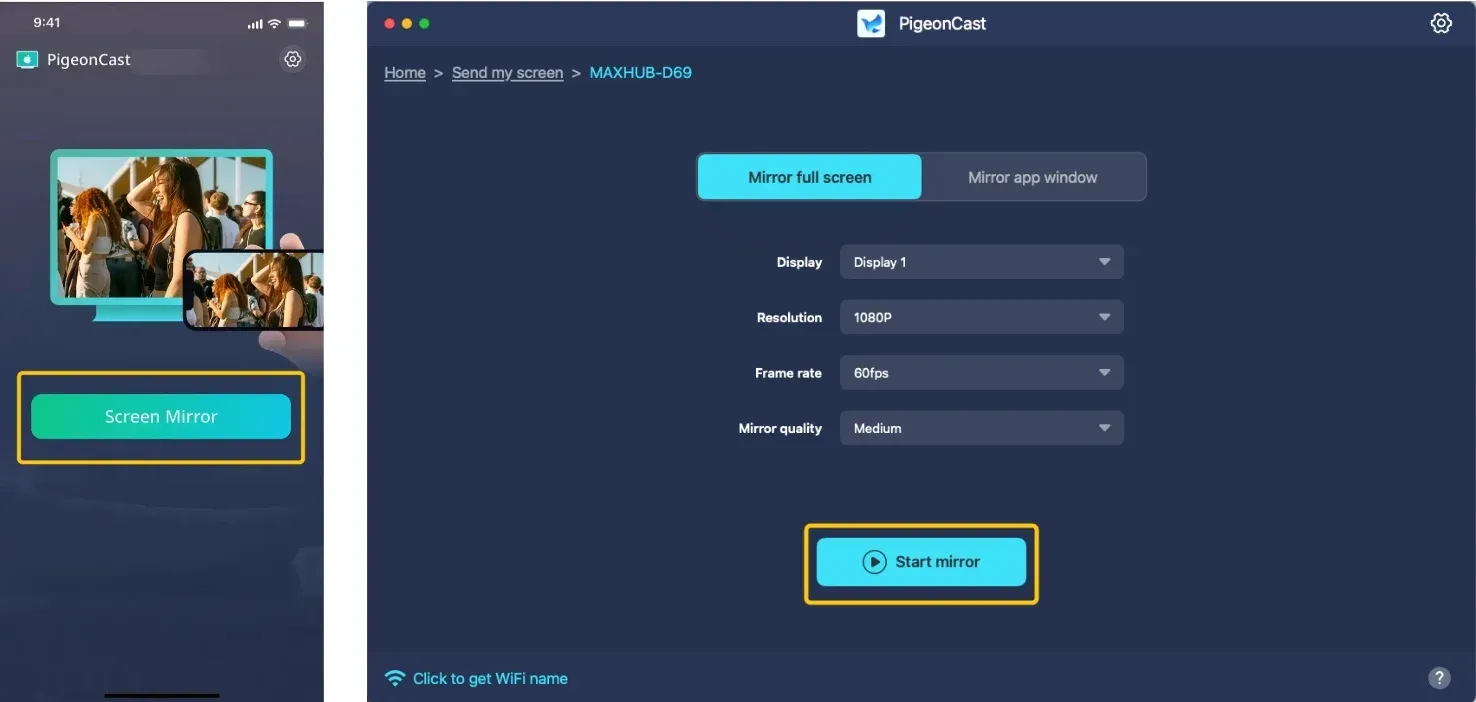
Step 5. When you finish the connection, tap Screen Mirror or Start mirror to begin your casting activities.
Wrapping Up
What is Google Cast on TV? This technology allows you to stream content from your mobile device or computer to a TV with built-in Google Cast support or a Chromecast. It's an easy way to enjoy apps like YouTube, Netflix, and Spotify on a larger screen. While it's convenient, some limitations like device compatibility and network issues may arise. Understanding these helps you get the most out of Google Cast or alternatives like PigeonCast for seamless streaming.
What Is Google Cast FAQ
What is Google Cast on LG TV?
Google Cast on LG TVs refers to the built-in feature that allows you to cast media directly from your mobile devices or computers to the TV. No external Chromecast device is necessary, but the TV must support the feature.
Is Google Cast free?
Yes, Google Cast itself is free. However, certain apps or content services that you use to cast (like Netflix, Hulu, etc.) may require a subscription. But you can try PigeonCast, which is a free Chromecast alternative.
What is Google Cast receiver?
It is the hardware or software built into a device that receives and plays cast content. It's the "target" device. Examples include the Chromecast dongle, the built-in system in a smart TV, or the software in a Nest Hub speaker.
Is Google Cast the same as screen mirroring?
No. Google Cast primarily sends a command from your device to stream content directly from the internet to your TV. Screen Mirroring (like Casting your desktop from Chrome) replicates your device's entire screen in real-time. The former is more efficient for app-based streaming.
What is cast in Google Chrome?
The "Cast" option in Google Chrome's menu (the three-dot menu) allows you to cast a specific browser tab or your entire desktop screen to a Cast-enabled device. This is useful for websites that don't have a dedicated casting app.
What is Google Cast app?
This is a common point of confusion. There is no standalone application called "Google Cast". Instead, the functionality is managed through two key components:
- The Google Home App: This is the essential app you use to set up and manage your Chromecast or other Google Cast-enabled devices (like Nest speakers or smart displays). It's where you configure Wi-Fi, check for updates, and organize your devices.
- The Cast Button Inside Supported Apps: This is the icon (a rectangle with a Wi-Fi signal) you see in apps like YouTube, Netflix, or Spotify. This is not a separate app. It's a feature integrated by developers into their apps using Google's Cast software development kit (SDK).
What is the Google Cast extension?
This refers to the "Google Cast" browser extension (often just called the "Cast" button) for the Google Chrome desktop web browser. It adds a dedicated button to your Chrome toolbar that lets you cast content from your laptop/desktop computer to a Chromecast or other Cast-enabled device.
Clara Rossi is an experienced technology editor and a seasoned expert in screen mirroring and casting technologies. With a keen eye for detail and a deep understanding of how to seamlessly connect devices, Clara excels at optimizing user experiences for effortless sharing and streaming. Whether you're seeking quick fixes or advanced tips, her expertise and responsiveness ensure that every query is met with a well-informed and efficient solution.