
Google Cast is a widely used and reliable technology, but like any system, it can occasionally encounter issues. It's important to be prepared in case Google Cast is not working as expected. This guide will explore the potential reasons behind Google Cast not working problems and provide practical, effective solutions to help you quickly restore functionality.
Why Is Google Cast Not Working
Before attempting any fixes, it's important to understand why Google Cast not working appears. Identifying the underlying cause not only saves time but also helps you apply the most effective solution.
- Wi-Fi Connectivity Problems: Devices must be on the same Wi-Fi network; weak signals or dual-band issues (2.4GHz vs. 5GHz) can block casting.
- Outdated Apps or Firmware: Google Home, Chromecast, or the casting app may need an update.
- Device Compatibility: Not all TVs or apps support Google Cast natively.
- Background Interference: VPNs, firewalls, or network congestion can interrupt casting.
- Hardware Glitches: Sometimes a Chromecast or smart TV just needs a reboot or factory reset.
How to Solve Google Cast Is Not Working
Now that you understand the common causes, let's explore practical solutions to Google Cast not working on TV. The steps below range from simple checks to more advanced troubleshooting. Follow them in order, testing after each step to see if the issue is resolved.
1. Check Wi-Fi Connection
A stable Wi-Fi connection is essential for Google Cast to function properly. Before trying more complex fixes to Google TV cast not working, it's important to ensure that both your TV and casting device are connected to the same network and that the connection is strong. Let's start by checking your Wi-Fi setup.
Step 1. Ensure both your casting device and receiver are on the same Wi-Fi network.
Step 2. If your router has 2.4GHz and 5GHz bands, make sure both devices are on the same band.
Step 3. Restart your router if the connection is unstable.
2. Restart Your Devices
If the Wi-Fi connection is stable but "my Google Cast is not working", the next step is to restart your devices. Power cycling your TV, casting device, and router can resolve temporary glitches and refresh network connections, often fixing common casting issues quickly.
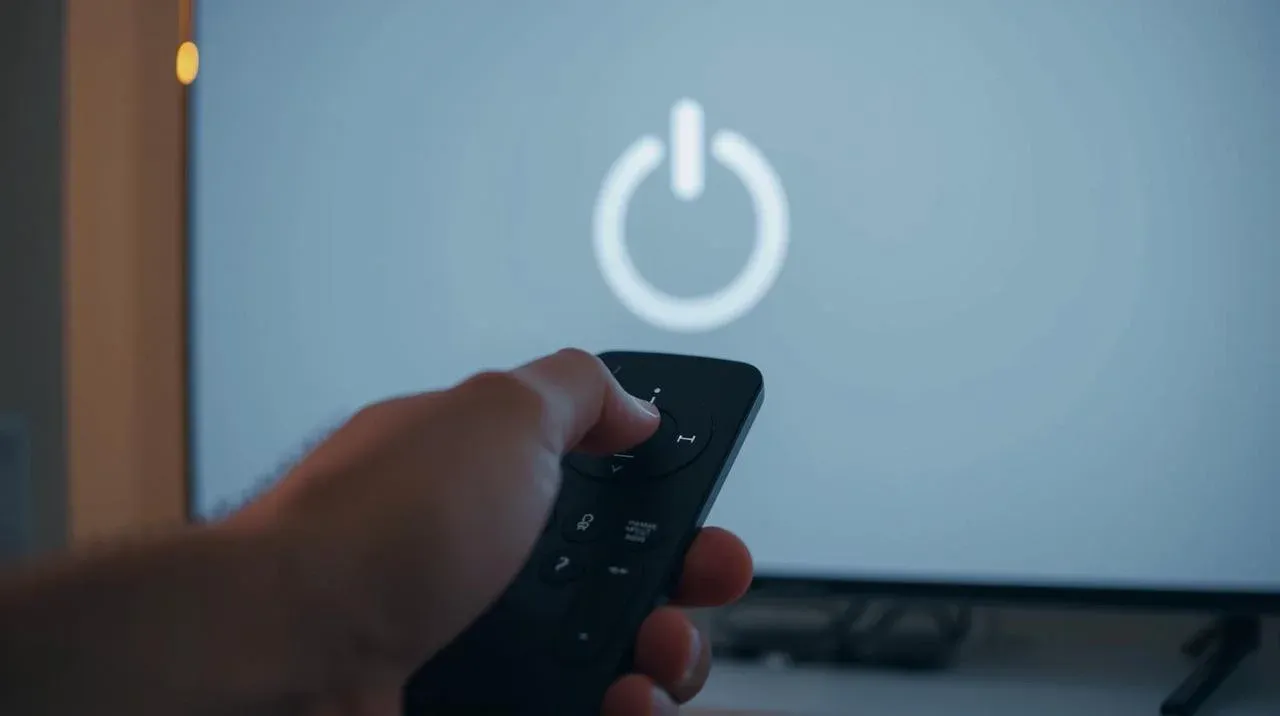
Step 1. Turn off your TV or casting device, and unplug it from the power source.
Step 2. Wait for 30 seconds to 1 minute to allow residual power to drain, and plug it back in and turn it on.
3. Update Apps and Firmware
If restarting your devices doesn't resolve the Google Cast to TV not working issue, the next step is to check for updates. Outdated apps or firmware can cause compatibility problems and prevent Google Cast from working properly. Ensuring that both your casting apps and your devices have the latest updates can often fix glitches and improve performance.
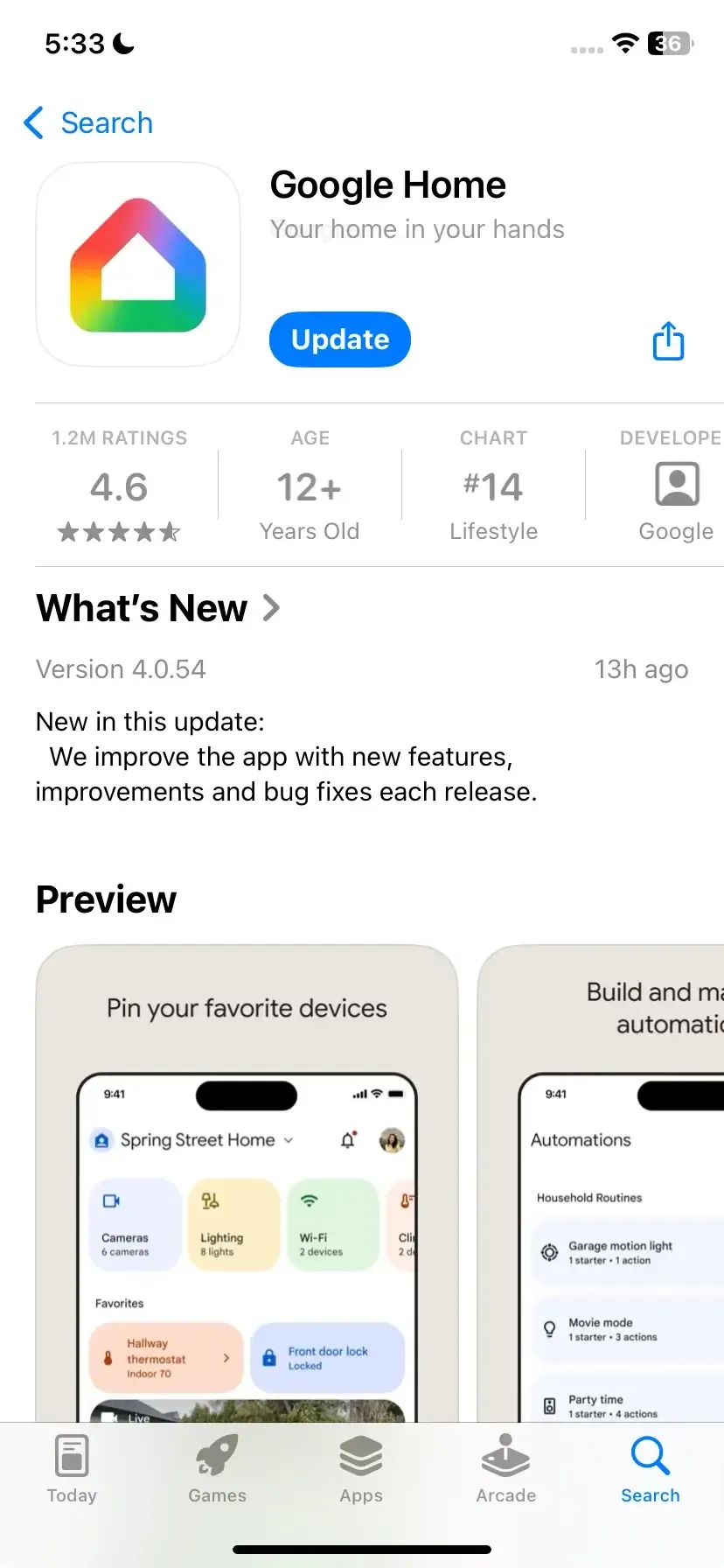
Step 1. Update the Google Home app from the App Store or Google Play Store.
Step 2. Update the app you are casting from the App Store or Google Play Store.
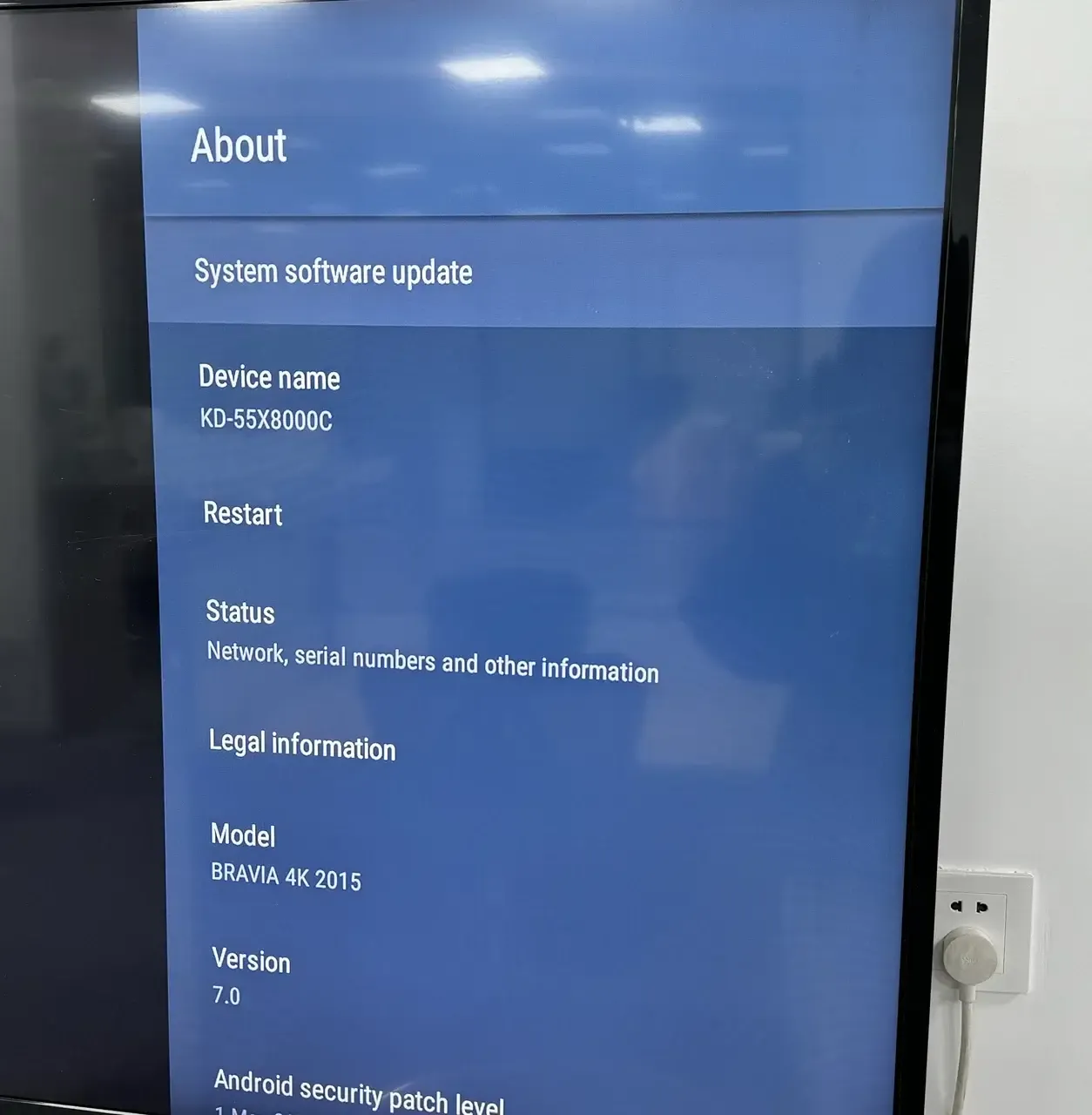
Step 3. Update your Chromecast firmware or other casting device from the Settings > Software Update.
4. Disable VPNs or Firewalls
If updating apps and firmware doesn't resolve the issue, the next step is to check your network settings. VPNs or firewalls can sometimes block the communication between your casting device and TV, preventing Google Cast from working. Temporarily disabling these can help identify whether they are causing the problem.
Step 1. On your smartphone, tablet, or computer, open the VPN app or go to Settings > VPN.
Step 2. Turn off the VPN connection, reconnect your casting app, and try casting again.
Step 3. Access your router's admin panel via a web browser and look for Firewall or Security settings.
Step 4. Temporarily disable the firewall or adjust settings to allow casting. Save changes and restart the router if needed.
5. Reset Chromecast
If you use a Chromecast device and other troubleshooting methods haven't resolved the issue, you can try resetting your Chromecast. A reset restores the device to its factory settings, which can clear software glitches or configuration errors that might prevent casting. It's a reliable step to try before exploring more advanced solutions.
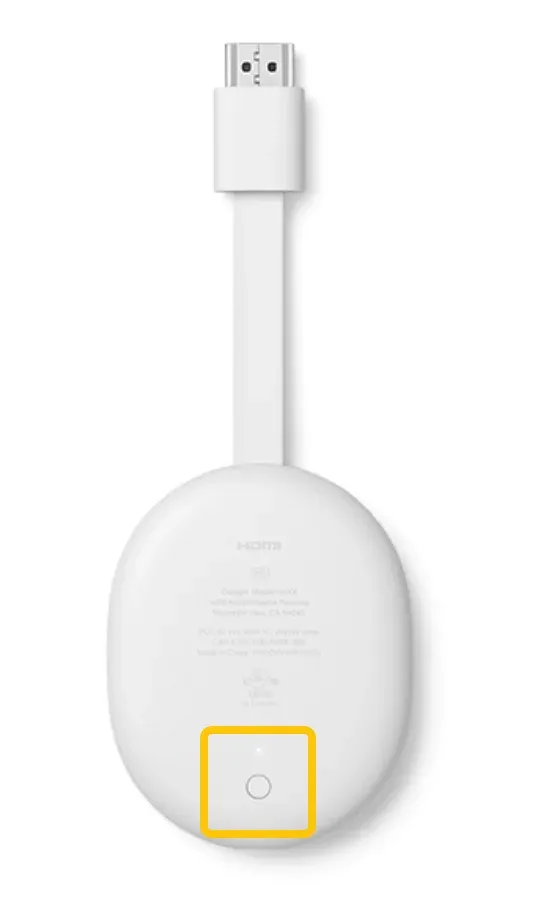
Step 1. Press and hold the physical Reset button on your Chromecast for about 25 seconds until it restarts, or open the Google Home app, select your Chromecast, go to Settings > Factory Reset, and confirm.
Step 2. After the reset, open the Google Home app and follow the instructions to set up your Chromecast on your Wi-Fi network.
6. Reinstall the Casting App
Why is my Google Cast not working? If resetting your Chromecast doesn't resolve the issue, the problem may lie with the casting app itself. Reinstalling the app can fix corrupted files, outdated settings, or glitches that prevent successful casting. This step ensures you're working with a fresh, up-to-date version of the app.
Step 1. Uninstall the casting app from your device (smartphone, tablet, or computer).
Step 2. Go to the App Store (iOS) or Google Play Store (Android) and download the latest version of the app.
Step 3. Open the app, sign in if needed, and try casting it to your device again.
7. Clear Cache
If reinstalling the casting app doesn't fully resolve the issue, leftover data or temporary files may be causing problems. Clearing the app's cache can remove corrupted or outdated files, helping the app run smoothly and improving your chances of successful casting.
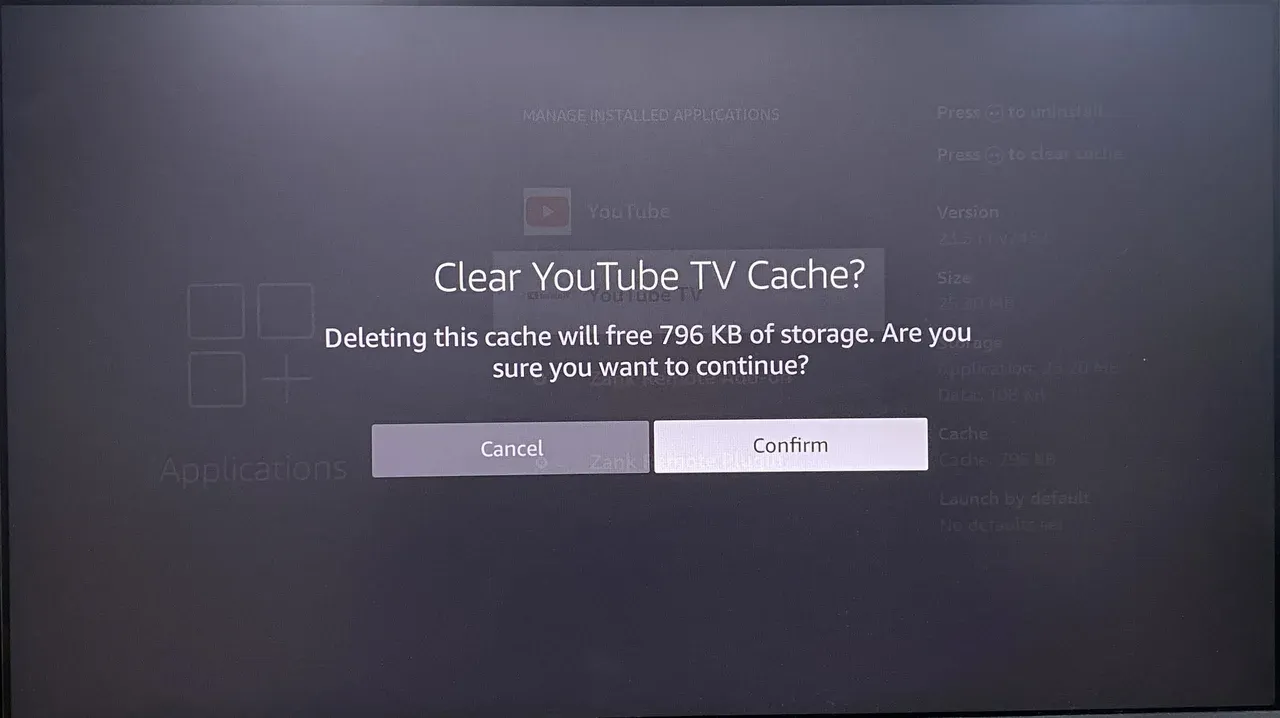
Step 1. Open your device's Settings and go to Apps or Applications.
Step 2. Find and select the casting app. Tap Storage or Storage & cache and then select Clear Cache.
Step 3. Restart the app and try casting it again.
8. Test with Another Device
To pinpoint the source of casting issues, try casting from a different device. This approach helps determine whether the problem is specific to your original device or related to the casting setup, allowing you to take the most effective next steps.
Step 1. Choose a second device that supports casting, such as another smartphone, tablet, or computer.
Step 2. Connect the second device to the same Wi-Fi network as your Chromecast or casting-enabled TV.
Step 3. Open a casting-enabled app (e.g., YouTube, Netflix) on the second device, tap the Cast and select your TV or Chromecast.
Step 4. Observe whether the content successfully casts.
9. Factory Reset TV (Optional)
If other troubleshooting steps haven't resolved the issue, you may consider performing a factory reset on your TV. This optional step restores the TV to its original settings, clearing any software glitches or configuration issues that could be interfering with casting. Use this method carefully, as it will erase all custom settings and install apps.
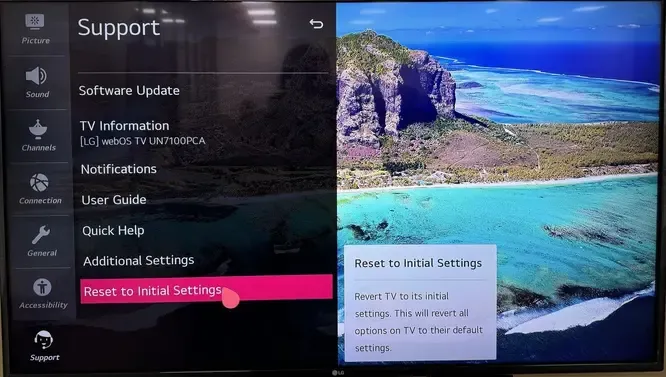
Step 1. Open your TV's Settings > System, Support, or General (depending on your TV brand).
Step 2. Select Factory Reset or Reset to Initial Settings.
Step 3. Confirm your choice and enter any required PIN or password.
Step 4. Wait for the TV to complete the reset. It will restart automatically, and all settings and apps will be restored to their default values.
10. Use PigeonCast App
If standard casting methods continue to cause issues, using a third-party app like PigeonCast can offer a reliable alternative. The free app has Google Cast support across different devices and platforms, providing a practical solution when built-in casting features are not working or are incompatible.


PigeonCast Screen Mirroring

Official Download



Step 1. Download the PigeonCast app and install it on your TV.
Step 2. Open the PigeonCast app and ensure your smartphone or tablet is connected to the same Wi-Fi network as the TV.
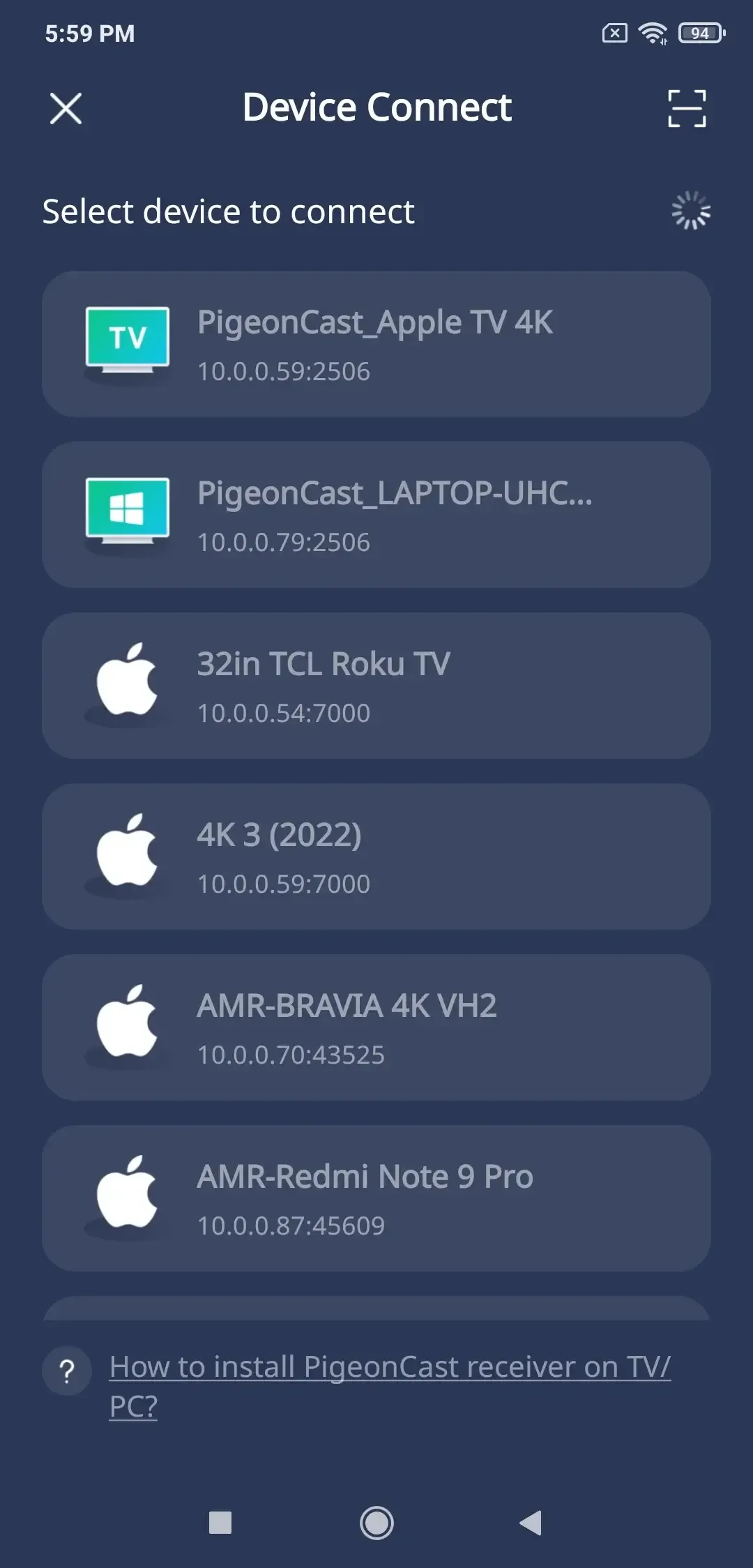
Step 3. On your mobile device or laptop, select your TV with the PigeonCast name from the list of available devices.
Step 4. If prompted, enter the onscreen PIN code to confirm the cast behavior. Once succeeds, you can then see that your two different screens show the same content.
Closing Words
Experiencing issues with Google Chrome Cast not working can be frustrating, but most problems can be resolved with a few simple steps. By checking your Wi-Fi connection, restarting devices, updating apps and firmware, adjusting network settings, or using reliable alternatives like PigeonCast, you can quickly restore seamless casting.
Google Cast Not Working FAQ
Q: How do I reset Google Cast?
To reset Chromecast, press and hold the physical Reset button on the device until the LED light starts blinking. Then set it up again in the Google Home app. For smart TVs with built-in Google Cast, check your TV settings for a reset option.
Q: Why is Chromecast no longer available?
Chromecast is still available, but the branding has shifted. Google now integrates casting into its Google TV platform, and many smart TVs come with Google Cast built in, reducing the need for standalone dongles. Older Chromecast devices may no longer be actively promoted, but casting remains a core feature.
Q: Do VPNs affect Google Cast?
Yes, VPNs can affect Google Cast. Since Chromecast and casting apps rely on devices being on the same local network, a VPN can interfere with this connection, preventing your device from detecting or connecting to the Chromecast. To ensure smooth casting, it's best to disable the VPN while using Google Cast.
Q: Why is Google Cast not working on my phone?
Here are the common reasons Google Cast may not work on your phone:
- Phone and casting device are not on the same Wi-Fi network
- Outdated Google Home or casting app
- Outdated firmware on the casting device
- Weak or unstable Wi-Fi connection
- Temporary glitches requiring a restart of phone or casting device
- Firewall or network restrictions blocking the connection
Q: Why can't I cast from Chrome browser?
Here are the common reasons you might not be able to cast from Chrome:
- Your computer and the casting device are not on the same Wi-Fi network
- Outdated Chrome browser or casting extension
- Firewall or antivirus settings blocking the connection
- Casting device is not compatible or not powered on
- Temporary network glitches or weak Wi-Fi signal
- Browser settings preventing tab or desktop sharing
Q: Why is Google Cast not working on my TV?
Here are the common reasons Google Cast may not work on your TV:
- TV and casting device are not on the same Wi-Fi network
- Outdated firmware on the TV or casting device
- TV casting feature is disabled or not supported
- Weak or unstable Wi-Fi connection
- Temporary glitches requiring a restart of TV or casting device
- Firewall or network restrictions blocking the connection
Q: Why can't I cast YouTube or Netflix?
Here are the common reasons you might not be able to cast YouTube or Netflix:
- Your phone, tablet, or computer is not on the same Wi-Fi network as the casting device
- Outdated app version (YouTube or Netflix)
- Outdated firmware on the TV, Chromecast, or streaming device
- Weak or unstable Wi-Fi connection
- Temporary glitches requiring a restart of the app or device
- Account or subscription restrictions preventing streaming
Clara Rossi is an experienced technology editor and a seasoned expert in screen mirroring and casting technologies. With a keen eye for detail and a deep understanding of how to seamlessly connect devices, Clara excels at optimizing user experiences for effortless sharing and streaming. Whether you're seeking quick fixes or advanced tips, her expertise and responsiveness ensure that every query is met with a well-informed and efficient solution.