
Google Photos has become the go-to place for storing and sharing memories. Whether it's vacation snapshots or birthday videos, most of us already keep everything backed up in the cloud. But when you want to share with friends or family, watching on a small phone screen isn't ideal. That's where casting comes in.
In this guide, we'll show you how to cast Google Photos to TV from different devices, explain what you need before starting, and give you options even if your TV doesn't support Chromecast.
Can You Cast Google Photos to TV
Yes, you can! Google Photos supports Google Cast, the same technology behind Chromecast. That means if you own a Chromecast dongle or a Chromecast-enabled TV, you can send photos and videos wirelessly from your phone or computer.
Many modern smart TVs (like Sony, TCL, Hisense, and Philips) come with Chromecast built in. This makes it easy to cast Google Photos directly without any additional hardware.
Don't worry, even if your TV doesn't have Chromecast. There are ways to get around it. Below are a few tips to ensure a smooth casting experience.
Tip 1. Use a Chromecast-Enabled Device
For TVs without built-in Chromecast, you can use a Chromecast dongle (like Chromecast with Google TV (4K)). Simply plug it into an HDMI port on your TV, connect the USB power cable, and set it up via the Google Home app, which is available on the Google Play and App Store.
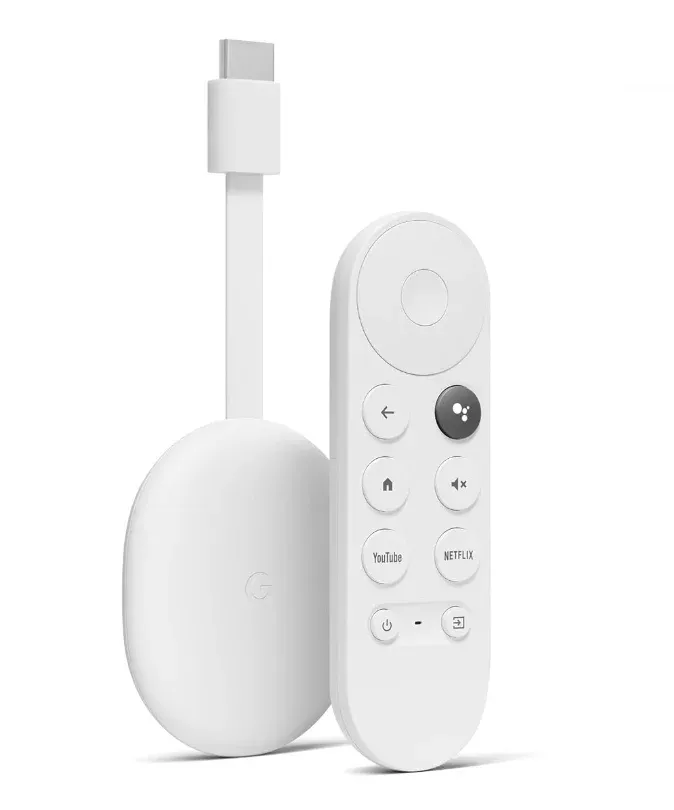 Once connected, your TV will appear as a casting destination in Google Photos, allowing seamless streaming of photos and videos.
Tip 2. Try PigeonCast for Non-Chromecast TVs
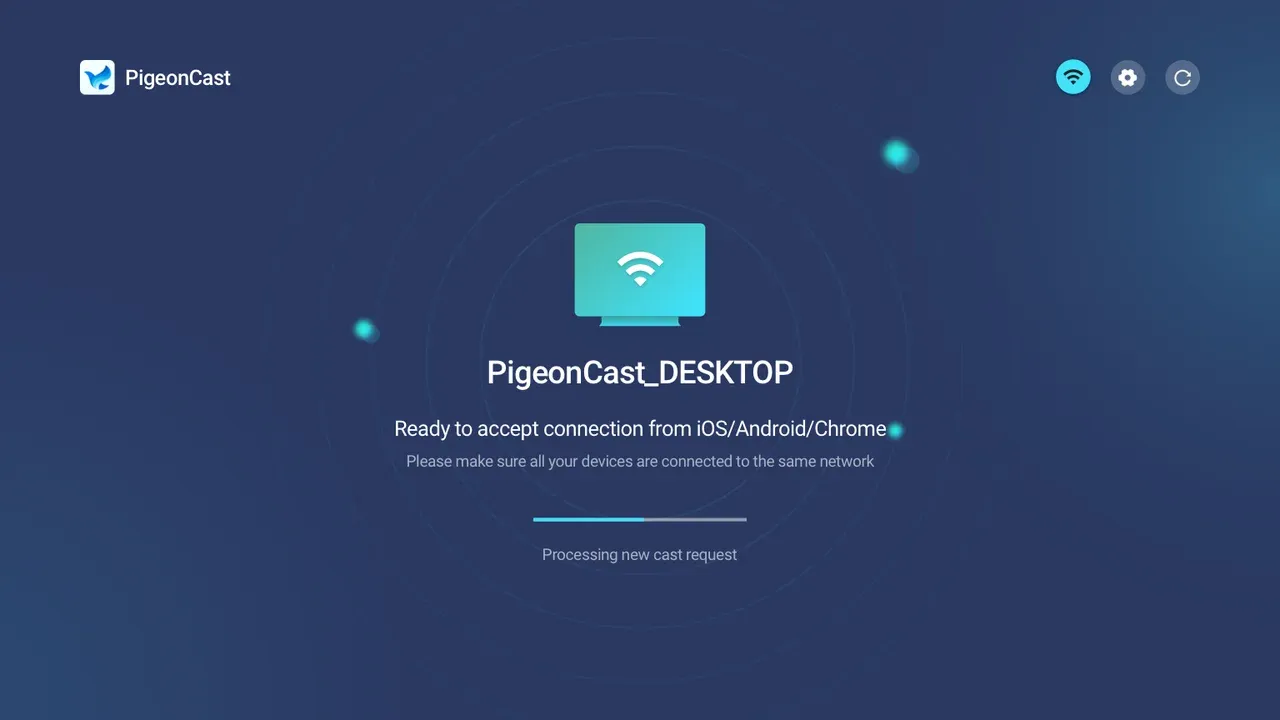
If your TV doesn't support Chromecast, apps like PigeonCast provide a simple solution. By installing PigeonCast on your smart TV or laptop, you can turn almost any screen into a Google Cast receiver. It also supports AirPlay and DLNA, giving you multiple ways to cast Google Photos to TV without Chromecast.

The lightweight, free app is available on Android, iPhone, Windows, Mac, Android TV, and Apple TV. So if your TV doesn't have Chromecast, such as an Apple TV, PigeonCast lets you seamlessly cast your Google Photos media to the big screen.
To set up PigeonCast for Google Photos casting, you need to:
Step 1. Download the PigeonCast app on your TV.

PigeonCast Screen Mirroring

Official Download



Step 2. Connect your phone or laptop and TV to the same Wi-Fi network.
Step 3. Launch the PigeonCast app on your TV, and the device is ready to receive your Google Photos media from your phone or laptop.
Tip 3. Connect Two Devices to the Same Wi-Fi
Casting only works when your phone or computer and your TV (or Chromecast device) are on the same Wi-Fi network. If they're on different networks, your TV won't appear as a casting option in Google Photos. Double-check your Wi-Fi settings on both devices, and reconnect if necessary.
How to Cast Google Photos to TV
Casting methods vary slightly depending on your device. On mobile, the Google Photos app has a built-in cast button, while on a computer, you'll use Chrome. Below, we'll show you how to cast Google Photos to TV from iPhone, Android, Windows, and Mac.
Cast Google Photos to TV from Android or iPhone
How to cast Google Photos to TV from iPhone or Android? On mobile devices, casting is simple because the Google Photos app integrates the Cast function.
Step 1. Ensure your phone and TV or Chromecast are on the same Wi-Fi network.
Step 2. Open the Google Photos app on your iPhone or Android.
Step 3. Choose the photo, video, or album you want to display. You can choose multiple photos and start a slideshow.
Step 4. Tap the Cast icon, which is a rectangle with Wi-Fi waves.
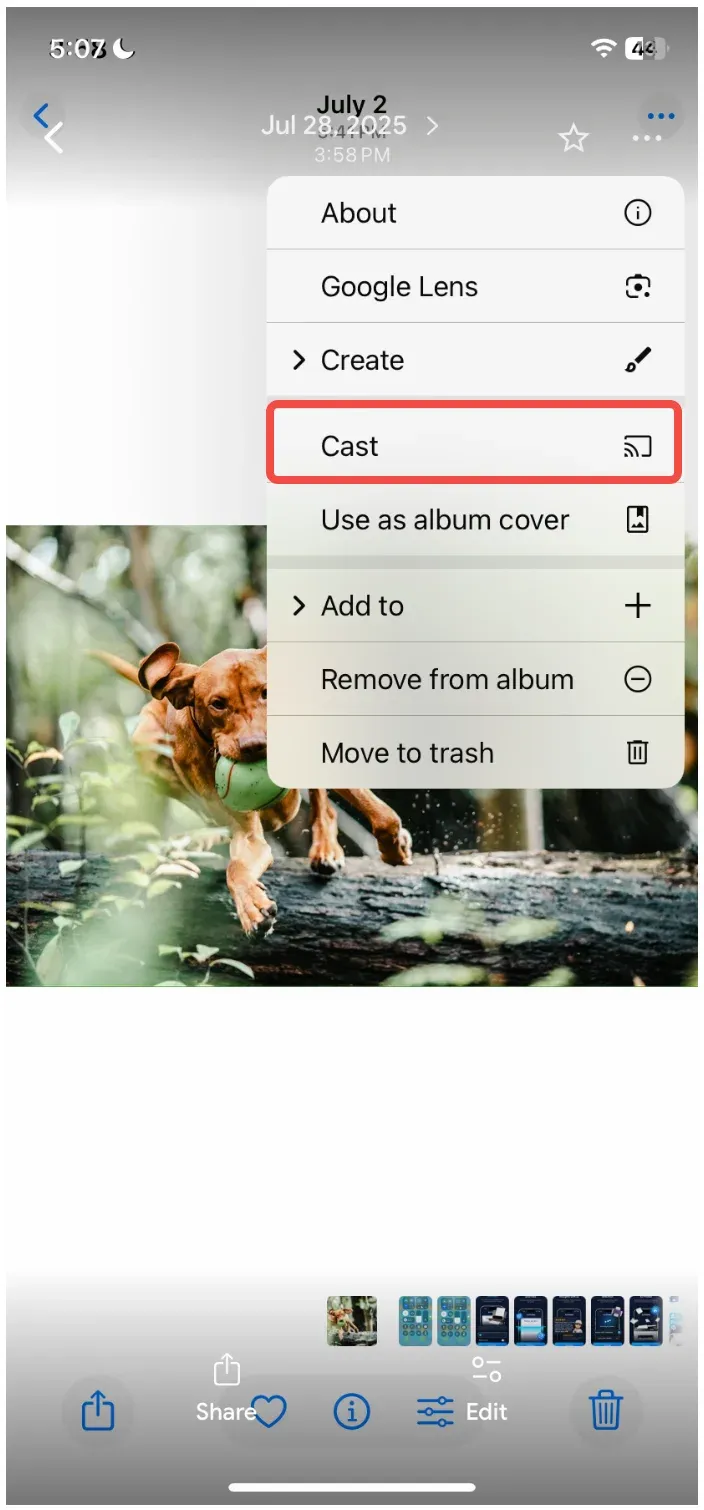
Step 5. Choose your TV or Chromecast from the list. Your selected media will appear on TV instantly.
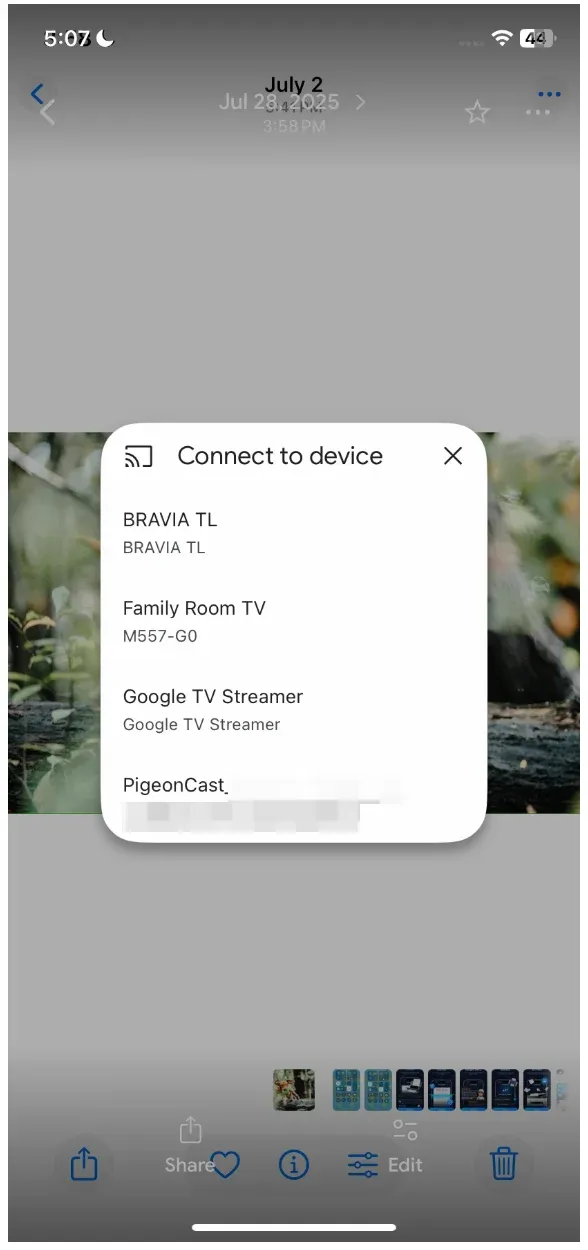
Step 6. To stop casting, tap the Cast icon again and choose Stop casting or Disconnect.
Cast Google Photos to TV from Windows or MAC
The Google Chrome browser on the device makes casting straightforward, as it also has Google Cast support. Here's how to cast Google Photos from Windows PC or MacBook:
Step 1. Open the Google Chrome browser on your computer.
Step 2. Go to photos.google.com and sign in to your account.
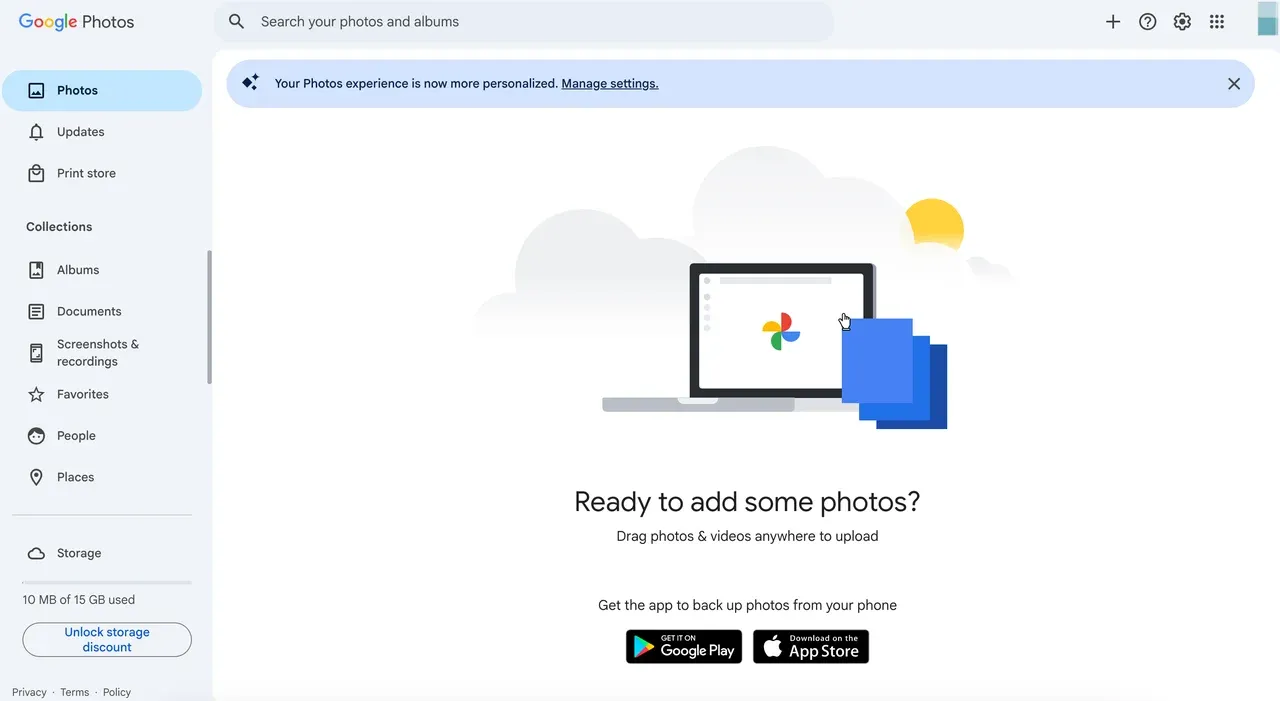
Step 3. Click the three-dot menu in the top-right corner.
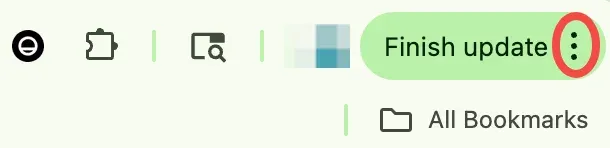
Step 4. Find the Cast, Save, and Share option and click the Cast option from the sub menu.
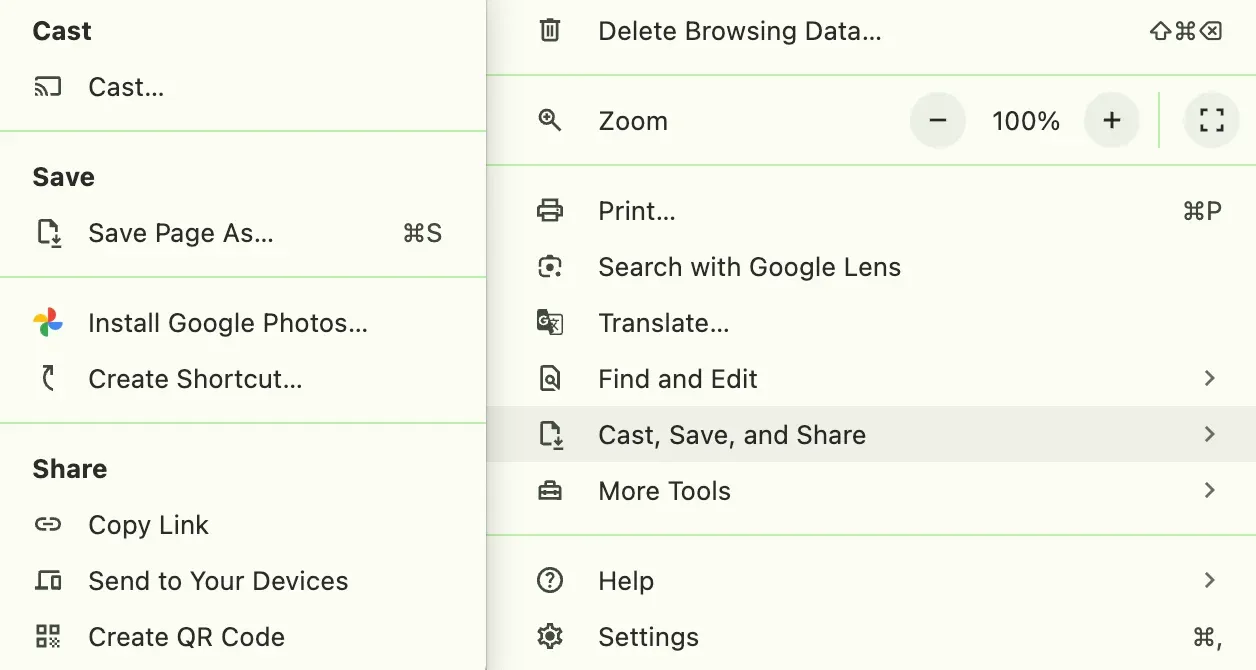
Step 5. On the Cast screen, click Sources and choose whether to cast the entire screen or cast a browser or app tab.
Step 6. Choose your TV or Chromecast from the list.
Step 7. On the Google Photos tab, open the photo, video, or album to display it on your TV.
Step 8. To stop Google Photos casting, click the Cast option again and choose Stop casting.
How to Cast Google Photos to Roku TV or Samsung TV Without Chromecast
While Google Cast is the standard method for casting Google Photos, Roku and most Samsung TVs require different approaches, as they primarily use Miracast instead of Google Cast. Newer Roku and Samsung models support AirPlay, which lets you stream from Apple devices, but they still don't support Google Cast.
How to cast Google Photos to Samsung TV or Roku TV without Chromecast? If your TV is an older model that supports Miracast—also known as Smart View or Screen Mirroring—you can easily view Google Photos from a Miracast-compatible device, such as an Android phone or Windows laptop.
Step 1. Ensure the two Miracast-compatible devices are on the same Wi-Fi network.
Step 2. Launch the Cast or similar feature on your Android or Windows device.
- On Android, tap the Cast / Smart View feature from the Quick Settings menu.
- On Windows, press Windows + K to open the Cast menu.
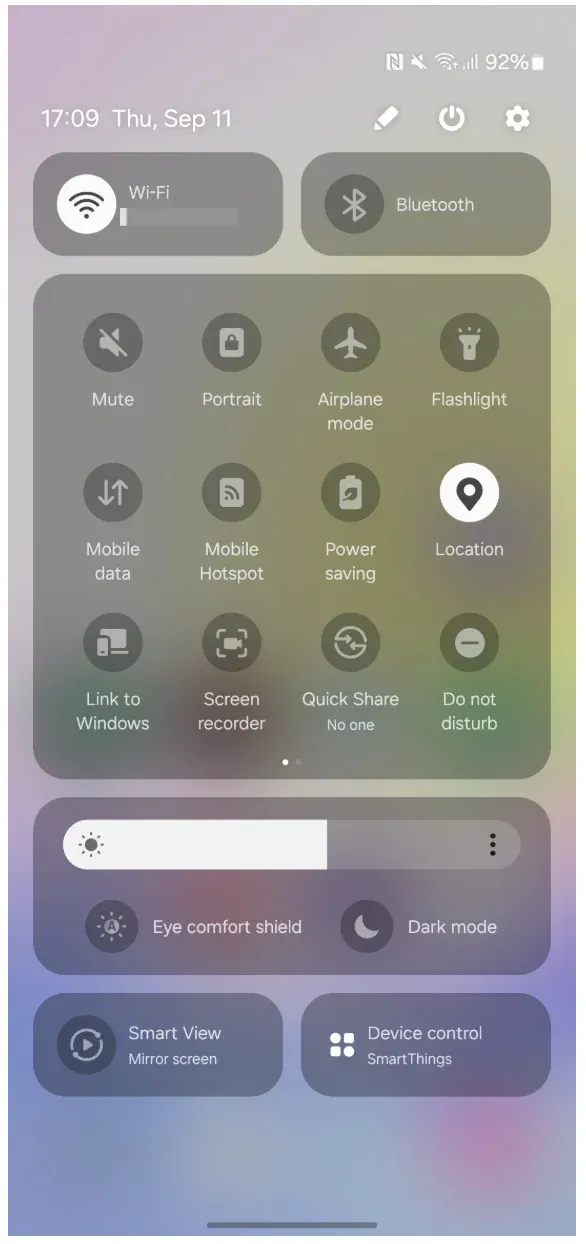
Step 3. Choose your Roku TV or Samsung TV from the list, and choose Duplicate on your Windows computer.
Step 4. When your mobile or laptop screen appears on the TV screen, go to Google Photos and open the photo or video you want to display on the big screen.
Most smart TVs released in recent years support AirPlay 2, allowing you to stream content (like Google Photos) from Apple devices (like iPhone, iPad, or Mac) to them. If you have an Apple device and an AirPlay-enabled TV, open Google Photos on your iPhone, start a slideshow, and mirror it via AirPlay. While it's technically mirroring, it's a practical way to enjoy Google Photos on your TV.
Step 1. Connect your Apple device and TV to the same Wi-Fi network.
Step 2. Go to the Control Center on your Apple device and choose the Screen Mirroring option (two overlapping rectangles).
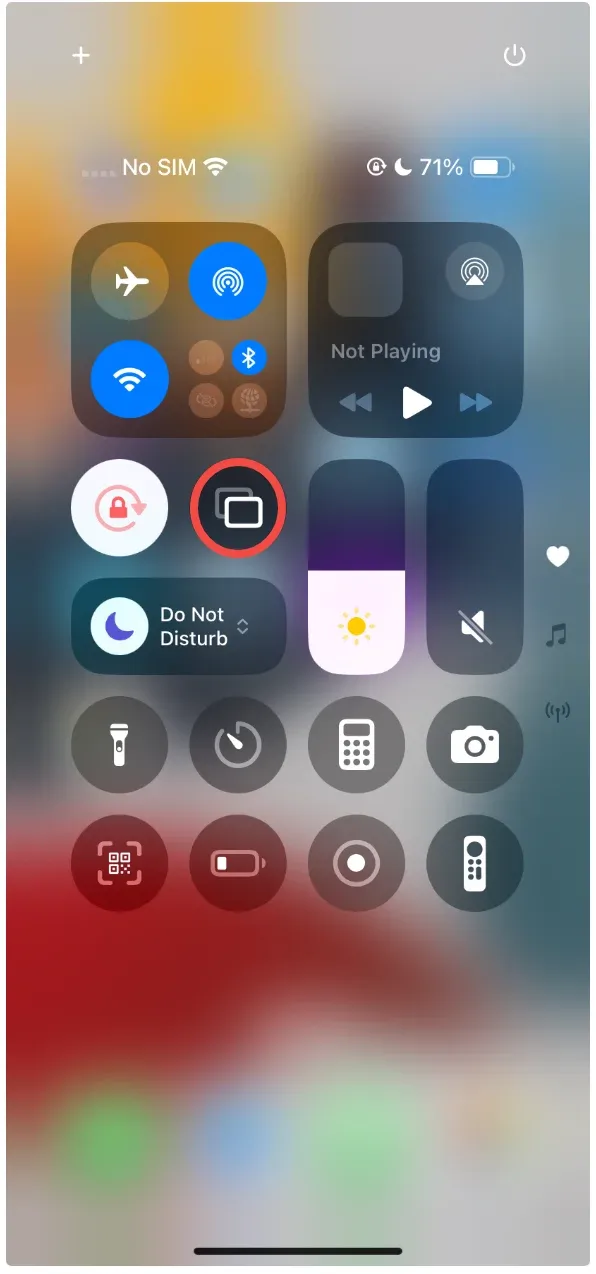
Step 3. Choose your TV from the list.
Step 4. When connected, access Google Photos and open the photo or video you want to display on the big screen.
Summary
Casting Google Photos to your TV is easy once you understand the options. With a Chromecast-enabled TV, simply use the Cast button in the app. If you don't have Chromecast, you can still cast Google Photos to TV without Chromecast using PigeonCast or enabling screen mirroring or AirPlay on your device.
Whether you're using an iPhone, Android phone, Windows PC, or Mac, you can now enjoy your photos and videos on the big screen without limitations.
How to Cast Google Photos to TV FAQs
Q: How do I cast Google Photos to my TV if I don't see the Cast icon?
Make sure both your phone/computer and TV (or Chromecast device) are connected to the same Wi-Fi network. Also, update your Google Photos app to the latest version. If the icon still doesn't appear, restart both devices and check if your TV supports Chromecast or casting apps like PigeonCast.
Q: Is casting the same as mirroring?
Not exactly. Casting sends only the selected photo or video from Google Photos to your TV. Mirroring, on the other hand, duplicates your entire phone or computer screen. Both can display photos, but casting is usually smoother and more efficient.
Q: Can I cast videos from Google Photos, too?
Yes. Google Photos allows you to cast not only photos but also videos, including high-resolution and even 4K clips, depending on your device and TV's capabilities.
Q: Why can't I cast Google Photos to Samsung TV?
Most Samsung TVs don't support Google Cast natively. Older models rely on Miracast (Smart View/Screen Mirroring), while newer models support AirPlay. To cast Google Photos directly, you'll need either a Chromecast device, a Chromecast-enabled TV, or a third-party casting app like PigeonCast.
Q: How to cast Google Photos to TV without Chromecast?
If your TV doesn't have Chromecast, you still have options. On Samsung or Roku TVs, you can use Miracast/Smart View. On Apple TV or newer Samsung models, you can use AirPlay. Alternatively, install PigeonCast, which lets you cast Google Photos across various devices without relying on Chromecast.
Q: Why won't Google Cast to my TV?
There are a few common reasons: your TV may not support Chromecast, your devices may not be on the same Wi-Fi, or your app may be outdated. Try troubleshooting by checking compatibility, restarting devices, and ensuring you're using the correct casting method for your TV model.
Mia Clarke is a technology editor specializing in screen mirroring and casting solutions across multiple platforms. Mia provides clear, practical guides and in-depth insights to help users seamlessly connect their devices. Passionate about enhancing digital experiences, Mia is dedicated to keeping readers updated on the latest trends and tools in cross-platform screen sharing. Whether you’re looking to mirror your smartphone, laptop, or smart TV, Mia’s content delivers reliable, user-friendly advice to simplify your tech setup.