
If you've searched for a "Chromecast app for Windows 10", you might have been hoping to find an official program in the Microsoft Store that lets you cast your laptop screen directly to a Chromecast. The truth is: there is no dedicated Chromecast app for Windows 10.
In this guide, we'll explain what "Chromecast app for PC Windows 10" really means, how to use Chromecast from your PC, its limitations, and the best alternatives, including a more powerful screen mirroring solution that works across platforms.
What Does "Chromecast App for Windows 10" Mean
When people use this phrase, they typically mean one of three things:
- The Google Chrome browser: Chrome has a built-in Cast option that can send a browser tab, your desktop, or supported media to a Chromecast-connected device. This is the official way to Chromecast from a laptop.
- Third-party apps or players: Some Windows apps, like VLC or Plex, support Chromecast streaming and may be described as "Google Chromecast app"
- Casting utilities or mirroring tools: Other software solutions let you mirror your Windows screen more seamlessly, sometimes advertising themselves as "Chromecast apps for PC".
So while there's no single official app to install, there are multiple ways to achieve the same result.
How to Use Chromecast from Windows 10 (Official Method)
Google relies on the Google Cast protocol built into its Chrome browser. That means your browser is technically the "Chromecast app" on Windows. Here's how to Chromecast from Windows PC via the Chrome browser:
Step 1. Download Chromecast app for Windows 10 (actually Google Chrome) on your Windows PC.
Step 2. Connect your Windows PC to the same Wi-Fi network as your Chromecast device.
Step 3. Open Chrome, and click the three-dots menu in the top-right corner and choose Cast.
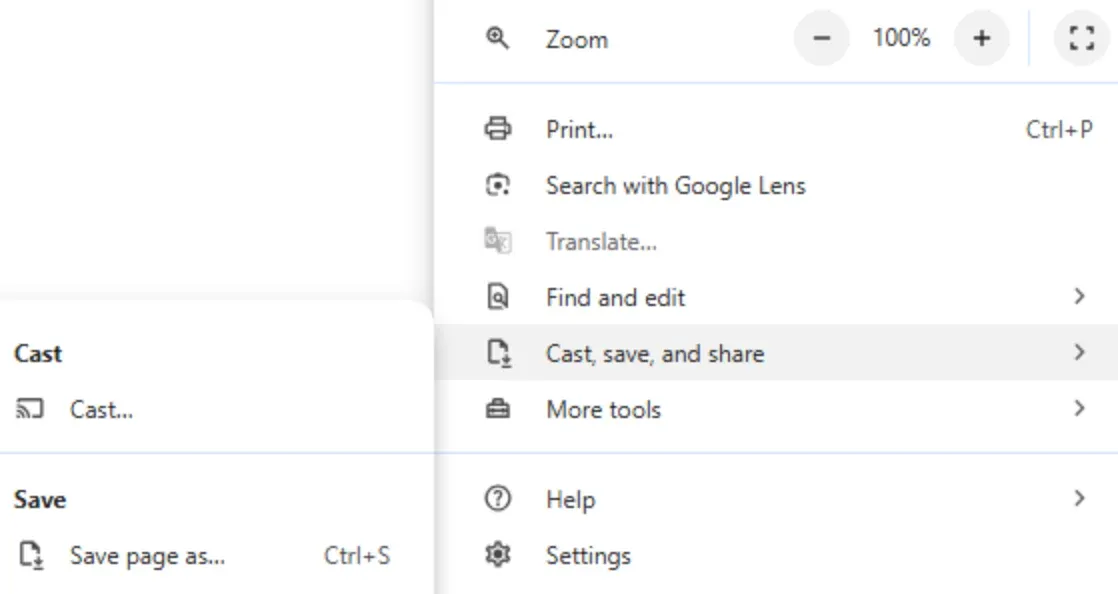
Step 4. Choose whether to cast a tab, your entire desktop, or a specific application window.
Once connected, your content will appear on the TV through Chromecast. This works well for casual use, like casting a YouTube video or sharing a webpage. But this setup comes with limitations, especially if you want a smoother or more flexible mirroring experience:
- No standalone app: You're limited to Chrome or apps that support Google Cast.
- Performance issues: Full desktop mirroring often runs at low frame rates, making it less smooth for video playback or gaming.
- Protocol lock-in: Chromecast only supports Google Cast. Unlike Miracast, AirPlay, or DLNA, it won't connect natively with other standards.
If you just want to cast the occasional video, this is fine. But for those who want a reliable, cross-platform mirroring solution, the limitations quickly become clear.
Best Alternative to Chromecast App for Windows 10 and 11
This is where third-party altenatives to Chromecast shine. For example, the PigeonCast for Windows app goes beyond Chromecast's restrictions and gives you more control:
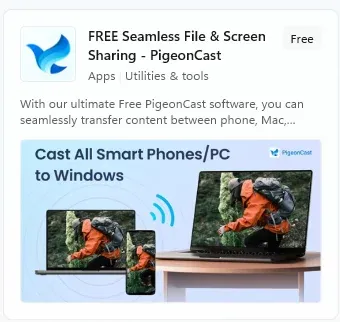
- Multi-protocol support: Works not only with Google Cast but also with AirPlay and DLNA.
- Smooth full-screen mirroring: Streams high-quality video and audio without lag.
- Cross-platform compatibility: Mirrors betwwen Windows, macOS, Android, iOS, and even smart TVs and Apple TV.
- More flexibility: Casts presentations, movies, games, or apps without relying solely on Chrome.
If you've been frustrated by the limits of Chromecast, this kind of universal mirroring solution is worth considering.
How to Cast from or to Windows PC
Here's how to use the third-party "Chromecast for Windows 11 or 10 app" to cast PC to the other device:
Step 1. Get the free Chromecast app for Windows 10 and 11 on your Windows computer.

PigeonCast Screen Mirroring

Official Download


Step 2. Ensure that your Windows laptop and the other device are on the same Wi-Fi network.
Step 3. Launch the PigeonCast for PC app on your computer and choose the option you need:
- Send my screen: cast your Windows PC to another Windows PC, MacBook, or TV.
- Receive screen: cast an Android phone, iPhone, Windows PC, or MacBook to your Windows PC.
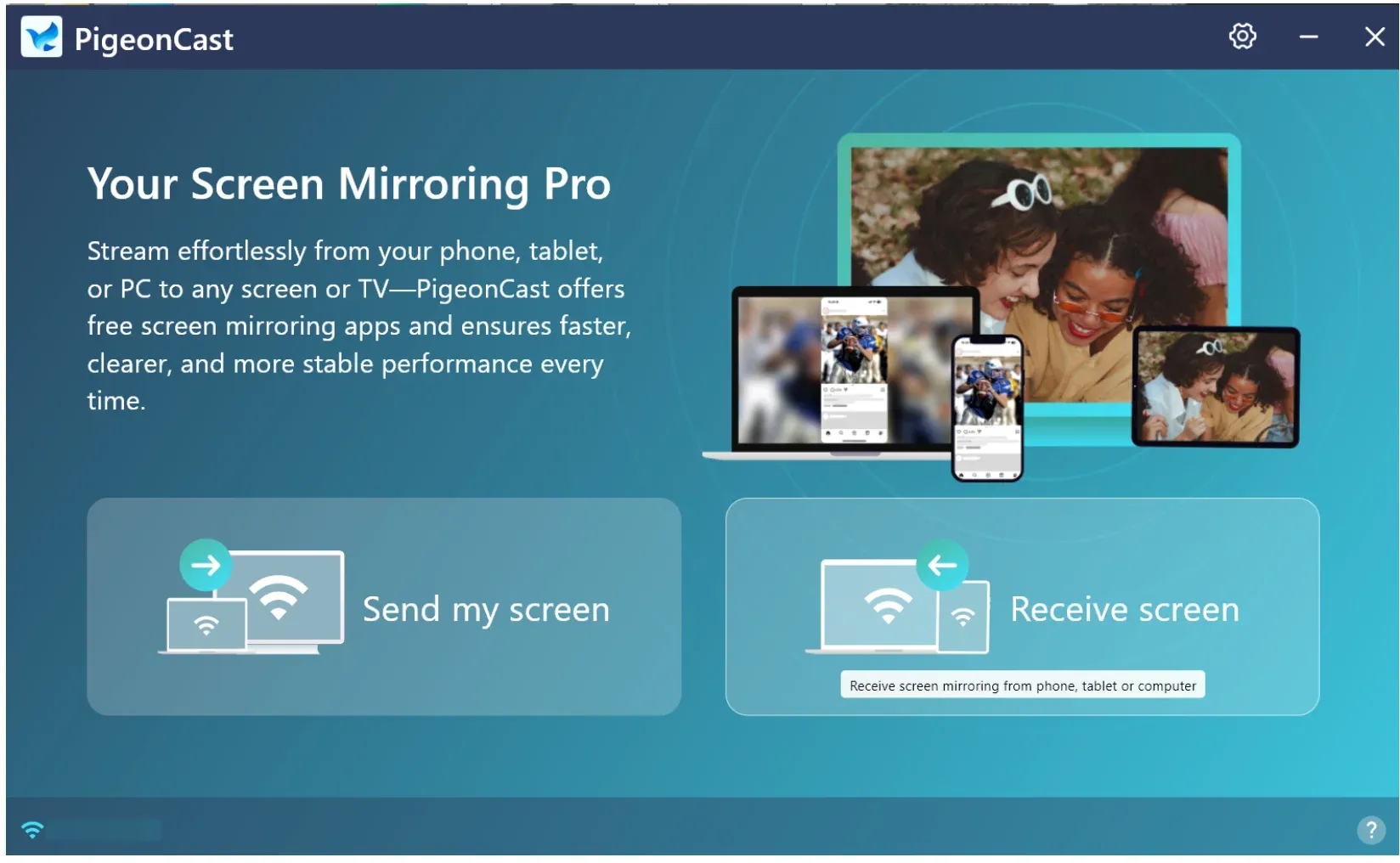
Step 4. Follow the onscreen instructions to connect your Windows PC to the target device.
Step 5. Once connected, you can stream YouTube videos, PowerPoint, or something else.
Chromecast vs. PigeonCast for Windows App: A Quick Comparison
When people search for a Chromecast app PC or a Google Cast app for Windows, they often expect a standalone program they can install. In reality, Chromecast depends on the Google Cast protocol built into Chrome and supported apps, not a separate Windows application.
That's where PigeonCast comes in, which functions as a true desktop solution with wider protocol support, making it a strong alternative for those who want more than what Chromecast alone can provide.
| Feature | Chromecast via Chrome | PigeonCast for Windows |
|---|---|---|
| Protocols Supported | Google Cast only | Google Cast, AirPlay, DLNA |
| Full Desktop Mirroring | Basic, lower fps | Smooth, high fps |
| Platform Compatibility | Windows → Chromecast | Windows ↔ TV / Android / iOS / macOS |
| Ease of Use | Simple but limited | One-stop universal casting |
Conclusion
There's no official Chromecast app for Windows 10, but you can use Chrome's built-in Cast feature to share your screen or stream content. For light use, that may be enough.
However, if you want a more powerful, versatile, and smooth mirroring experience, a universal casting app like PigeonCast for Windows is the better choice. It brings together multiple protocols, higher performance, and cross-platform support, giving your Windows 10 PC a true all-in-one casting solution.
Chromecast App for Windows 10 FAQs
Can I download a Chromecast app for PC?
No. Google does not provide a standalone Chromecast app for PC. Instead, you can use the Google Chrome browser, which has a built-in Cast feature that acts as the "Chromecast app" on Windows.
Is there a Google Cast app for Windows 10?
Not as a separate program. The Google Cast protocol is integrated into Chrome and certain apps like YouTube or Netflix. If you need a dedicated desktop tool with wider support, third-party mirroring apps such as PigeonCast for Windows are the best option.
How do I mirror Windows 10 to TV without Chromecast?
You can use Miracast if your TV supports it, or rely on a universal mirroring solution like PigeonCast for Windows, which works with multiple protocols (AirPlay, DLNA, Google Cast) and supports cross-platform streaming.
Can I use Chromecast with Windows 10?
Yes, you can. Windows 10 doesn't have a dedicated Chromecast app, but you can cast directly through the Google Chrome browser or apps that support the Google Cast protocol. As long as your PC and Chromecast device are on the same Wi-Fi network, you'll be able to cast a tab, your desktop, or supported media to your TV.
Why can't I Chromecast from my PC?
If you're having trouble, it's usually due to one of a few common issues: your PC and Chromecast may not be connected to the same Wi-Fi network, your Chrome browser may be out of date, or a firewall/antivirus setting might be blocking the connection. In some cases, the Chromecast device itself may need a restart. Making sure your software is updated and both devices share the same network usually resolves the problem.
What operating system does Chromecast run on?
Chromecast runs on a lightweight version of Google's ChromeOS. It's not a full desktop system but rather a custom operating system designed for streaming, updates, and running apps delivered through Google Cast. This OS allows Chromecast to stay updated automatically and work smoothly with supported apps and protocols.
What app is used to set up Chromecast?
The Google Home app is used to set up Chromecast on your mobile devices instead of desktop devices. This app is available on both the App Store for iOS devices and Google Play Store for Android devices. To Chromecast from a laptop, you can activate the Cast option from the Google Chrome browser or use a third-party solution that supports Google Cast, such as PigeonCast for Windows or PigeonCast for MacBook.
Mia Clarke is a technology editor specializing in screen mirroring and casting solutions across multiple platforms. Mia provides clear, practical guides and in-depth insights to help users seamlessly connect their devices. Passionate about enhancing digital experiences, Mia is dedicated to keeping readers updated on the latest trends and tools in cross-platform screen sharing. Whether you’re looking to mirror your smartphone, laptop, or smart TV, Mia’s content delivers reliable, user-friendly advice to simplify your tech setup.