
Whether you're working from home or streaming your favorite shows, casting your laptop screen to a TV can be a game changer. It lets you enjoy a bigger display without needing to transfer files or use cables. If you've ever wondered how to Chromecast from a laptop, you're not alone. In this guide, we'll walk you through all the available methods, whether you're using a MacBook, Windows laptop, or PC, and offer an easy solution for casting to TVs that don't support Chromecast, like Apple TV.
Can You Chromecast from a Laptop
Yes, you can. Chromecast from laptop is one of the most popular ways to project media to your TV screen. Google's Chromecast technology is designed to work seamlessly with the Google Chrome browser, available on both Windows and macOS.
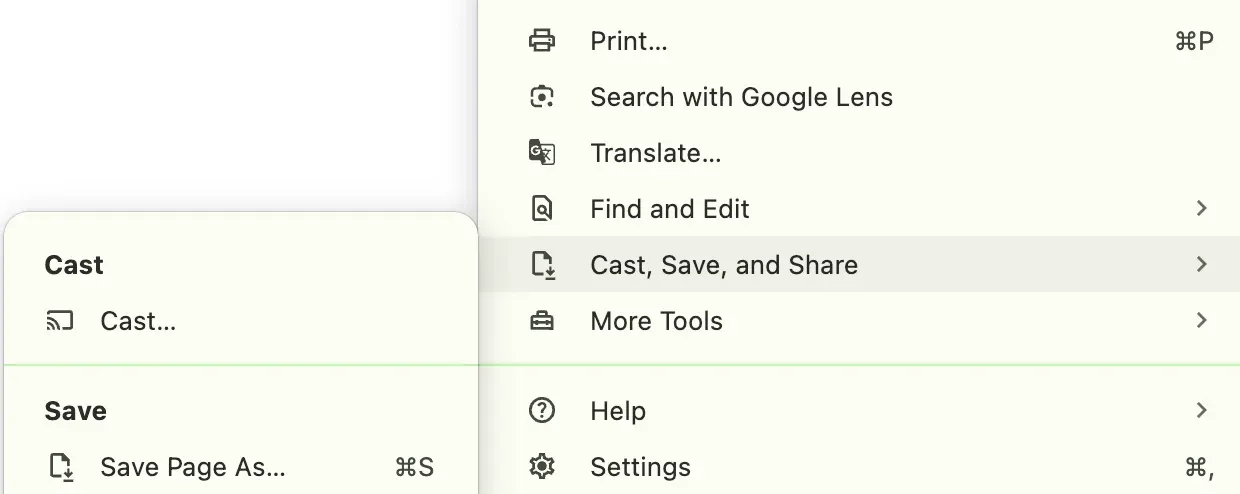
This means you can Chromecast from a laptop Mac or Windows, as long as your browser is up to date and your devices are connected to the same Wi-Fi network.
However, not all TVs support Chromecast by default. While many newer models from brands like Sony, Vizio, and TCL come with built-in Chromecast, allowing you chrome cast from your laptop to the TV directly. Others, especially Apple TVs, do not. In those cases, a different approach is required.
No matter which case you are in, follow the guide on how to Chromecast from laptop Mac and Windows, and start casting easily.
How to Chromecast from Laptop to TV
You can Chromecast from your laptop to your TV using the Google Chrome browser installed on your computer. This method is simple, wireless, and works on both Windows PCs and MacBooks. However, the exact steps and whether it will work at all depend on two key factors: the type of TV you own and the hardware of your laptop.
Case 1: Cast Laptop to Chromecast-enabled TVs
If you're using a TV that has built-in Chromecast support, such as many models from Sony, Vizio, or TCL, you won't need any additional devices. You can stream directly from Chrome. Alternatively, if your TV doesn't have built-in Chromecast, but you've plugged in a Chromecast dongle, the process is very similar—your laptop communicates with the dongle over your Wi-Fi network.
Now enable Chromecast on laptop and start casting:
Step 1. Turn on your TV and ensure it is connected to the same Wi-Fi network as your Windows or macOS laptop
Step 2. On your laptop, open Google Chrome.
Step 3. In the browser window, click the three-dot menu in the top-right corner.
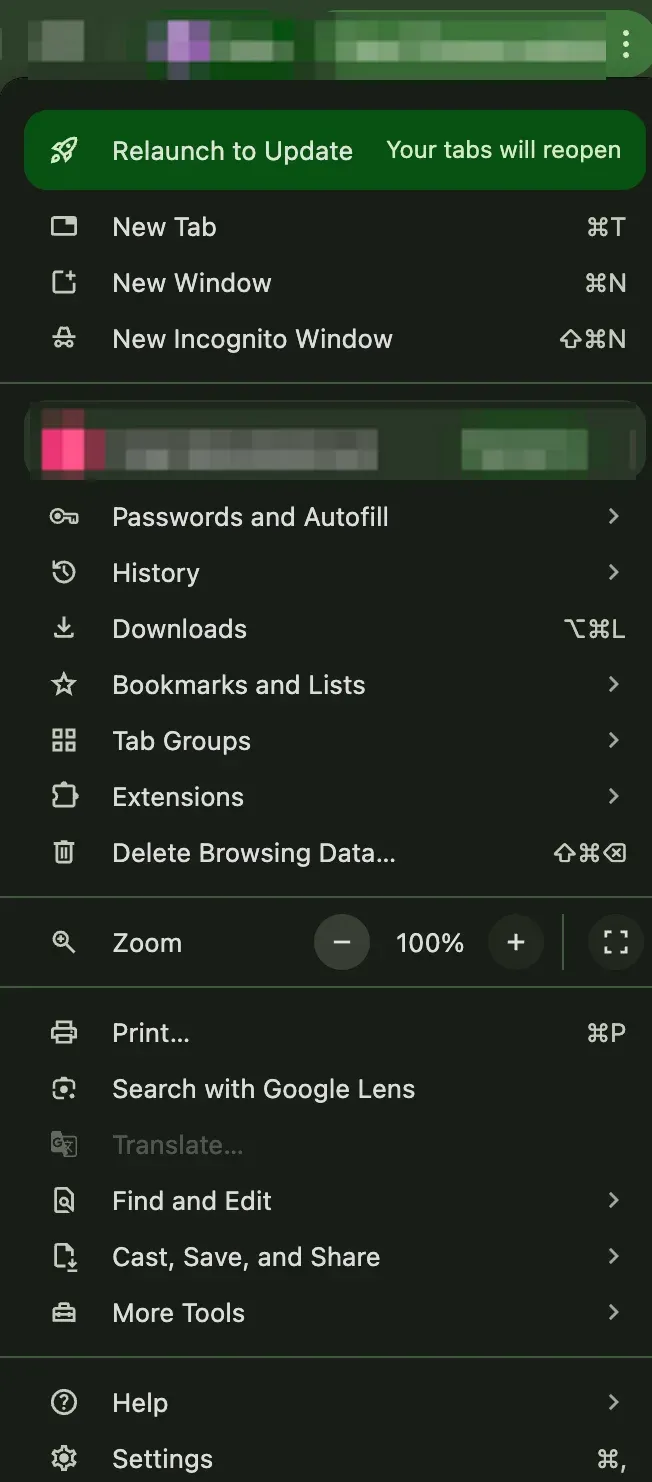
Step 4. Move your cursor over the Cast, Save, and Share option, then click the Cast option.
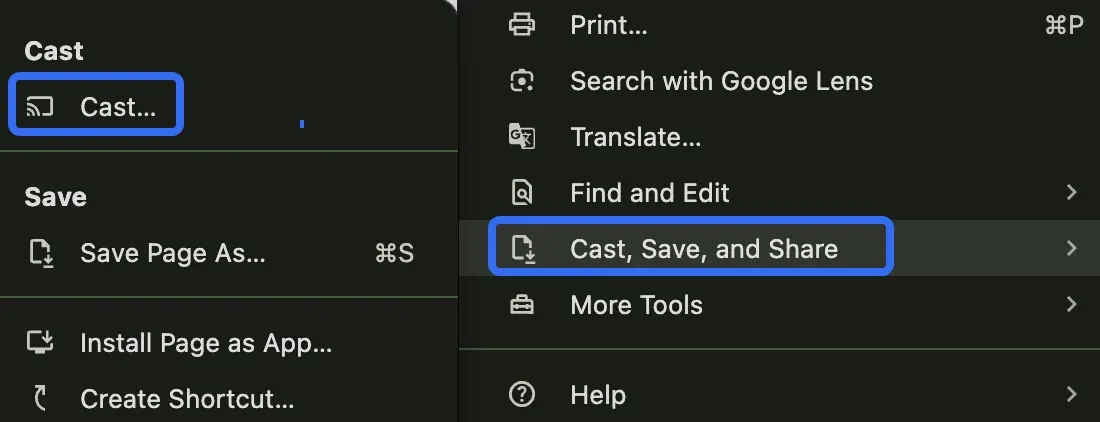
Step 5. Your browser will search for nearby devices that are on the same Wi-Fi network.
Step 6. Choose your TV from the list. On the same window, click the Sources option and choose whether to cast a tab or your entire browser
This is the easiest method to Chromecast laptop to TV, especially for watching YouTube, Netflix, or presenting slides directly from your browser.
Case 2: Cast Laptop to Apple TV
If you're trying to figure out how to Chromecast to TV from laptop, and you're using an Apple TV, you're likely frustrated because Apple devices don't support Chromecast.
That's where PigeonCast for Apple TV comes in. It is a free and powerful screen mirroring app that emulates your Apple TV as a Google Cast receiver. Instead of struggling with cables or third-party dongles, you can use the third-party app to wirelessly cast your entire screen or a specific window directly to an Apple TV.
By the way, if you are using a MacBook, AirPlay from MacBook to Apple TV is an optimal way (there are many ways to stream between devices, and using Chromecast is just one of them).
How to cast from laptop to Apple TV using PigeonCast? Check the step-by-step tutorial:
Step 1. Download and install the PigeonCast for Apple TV app on your Apple TV.

PigeonCast Screen Mirroring

Official Download


Step 2. Check if your laptop or desktop and Apple TV are on the same Wi-Fi network.
Step 3. Launch the PigeonCast for Apple TV app on your Apple TV.
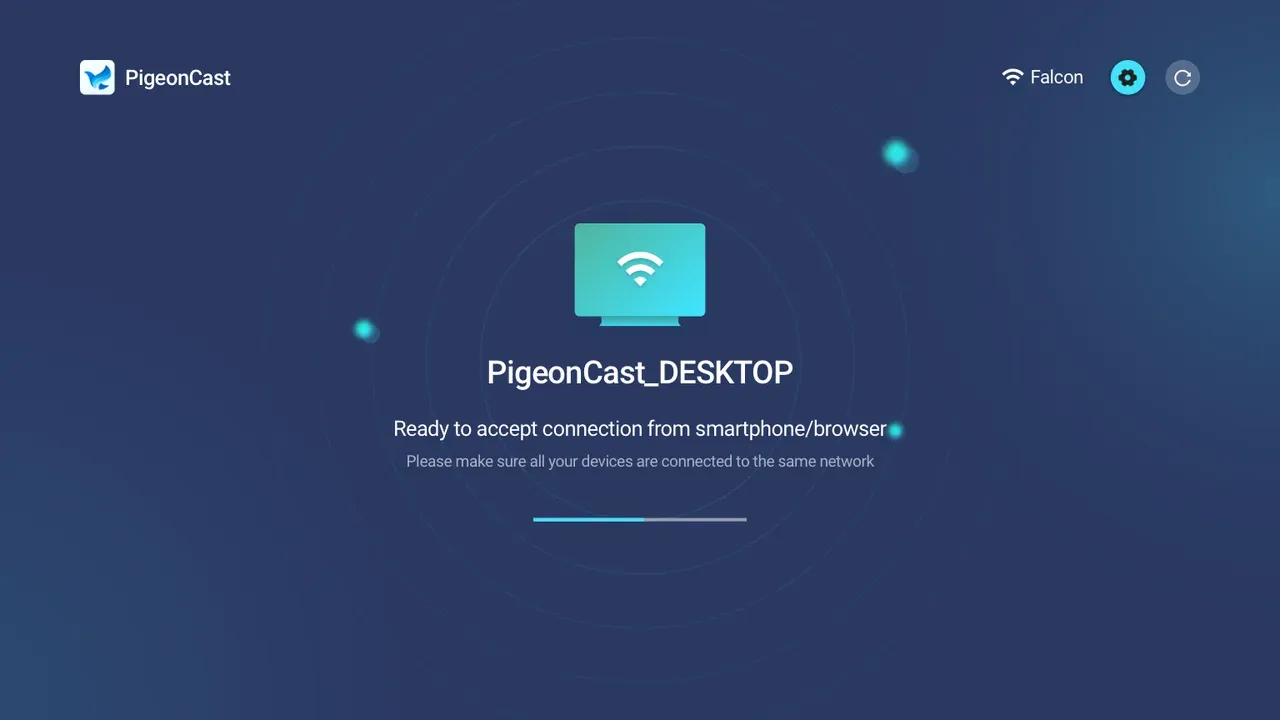
Step 4. On your laptop, open Google Chrome, go to the menu, and choose Cast, Save, and Share > Cast.
Step 5. Choose your Apple TV from the list and choose to cast a tab or the entire screen.
This method lets you Chromecast from your PC to Apple TV without any extra hardware, saving you both time and money.
Conclusion
So, can you Chromecast from a laptop? Absolutely—and depending on your setup, you have more than one option. If you're using a Chromecast-enabled TV, the Google Chrome browser has you covered. If you want to Chromecast to an Apple TV, traditional methods won't work, but PigeonCast steps in to fill that gap beautifully.
With these tools in hand, it's easy to enjoy movies, presentations, games, or web browsing on the big screen. Whether you're using Chromecast from laptop Mac, Chromecast desktop on Windows, or a custom solution like PigeonCast for Apple TV app, screen casting is easier than ever.
How to Chromecast from Laptop FAQs
Q: Why can't I Chromecast from my laptop?
There could be several reasons why you can't Chromecast from your laptop. First, make sure you're using the Google Chrome browser, as casting is built into Chrome. Also, ensure your TV or Chromecast device is on the same Wi-Fi network as your laptop. If your TV doesn't support Chromecast or isn't detected, consider using alternatives like PigeonCast for Apple TV or verifying that your firewall or network settings aren't blocking connections.
Q: How to cast laptop to TV without Chromecast?
If your TV doesn't support Chromecast and you don't have a Chromecast dongle, you still have options. Many Smart TVs support Miracast, AirPlay, or other built-in protocols. For Apple TV, you can use AirPlay that lets you cast from both Windows and Mac laptops wirelessly without any Chromecast hardware. Just ensure both devices are on the same Wi-Fi network.
Q: How to screen mirror Chrome laptop to TV?
To screen mirror your Chrome laptop to a TV, open Google Chrome, click the three-dot menu (top-right), and choose "Cast…". Then select your TV or Chromecast device from the list. You can choose to cast a browser tab or your entire desktop. If your TV (like Apple TV) doesn't support Chromecast, you'll need a third-party app like PigeonCast or use HDMI as a wired alternative.
Q: How do I enable cast screen on my laptop?
Enabling screen casting from your laptop depends on your operating system, your target device (TV, streaming box, etc.), and the wireless protocol in use (like Chromecast, Miracast, or AirPlay).
Q: Can I cast without a Chromecast?
Yes, you can cast your laptop screen to a TV without using a Chromecast device. There are several built-in technologies (e.g., AirPlay, Miracast, DLNA) and third-party apps (like PigeonCast) that make this possible, depending on what kind of laptop and TV you're using.
Mia Clarke is a technology editor specializing in screen mirroring and casting solutions across multiple platforms. Mia provides clear, practical guides and in-depth insights to help users seamlessly connect their devices. Passionate about enhancing digital experiences, Mia is dedicated to keeping readers updated on the latest trends and tools in cross-platform screen sharing. Whether you’re looking to mirror your smartphone, laptop, or smart TV, Mia’s content delivers reliable, user-friendly advice to simplify your tech setup.