
Want to extend your Mac's screen? The built-in feature AirPlay makes it easy to mirror Mac to TV, but there is a premise that the TV is compatible with AirPlay. Don't worry about the compatibility issue; this post guides you through AirPlay from Mac to TV without the issue. Let's get started.
What's AirPlay on Mac?
AirPlay is a wireless streaming feature developed by Apple that streams or mirrors content from a Mac to other devices, such as TVs, speakers, and Apple TVs. It's especially useful when people want to display photos, videos, or presentations on a larger screen.
With AirPlay, people can connect a laptop to TV easily, either for mirroring a Mac's display or using a TV as a second monitor, which is particularly helpful for AirPlay MacBook to TV for work or leisure.
Can You AirPlay from Mac to TV?
When you are new to the Apple device, you may ask the question, "Can I AirPlay from Mac to TV?". In the old days, it was hard to give a direct answer due to ecosystem limits, but nowadays, the answer is yes! Whether you're using an Apple TV or an Apple TV or AirPlay 2-compatible smart TV, you can enjoy a seamless connection.
AirPlay, nowadays, is not constrained to the Apple ecosystem. Apple released an updated version of the AirPlay feature, AirPlay 2. It is integrated into many smart TVs from Samsung, LG, Roku, Sony, etc. So, with AirPlay 2, you can stream content not only to an Apple TV but also to any TV that supports AirPlay 2.
The key to AirPlay Mac to TV is ensuring that your MacBook Pro, MacBook Air, or other Apple device is on the same Wi-Fi network as your TV. Well, let's break down the second important question: how to use AirPlay from Mac to TV in the following part.
How to AirPlay from Mac to Apple TV?
AirPlay from Mac to Apple TV is one of the easiest ways to stream content from your MacBook to TV. Here is how to AirPlay to TV from Mac step-by-step:
Step 1. Make sure both your Mac and Apple TV are on the same Wi-Fi network.
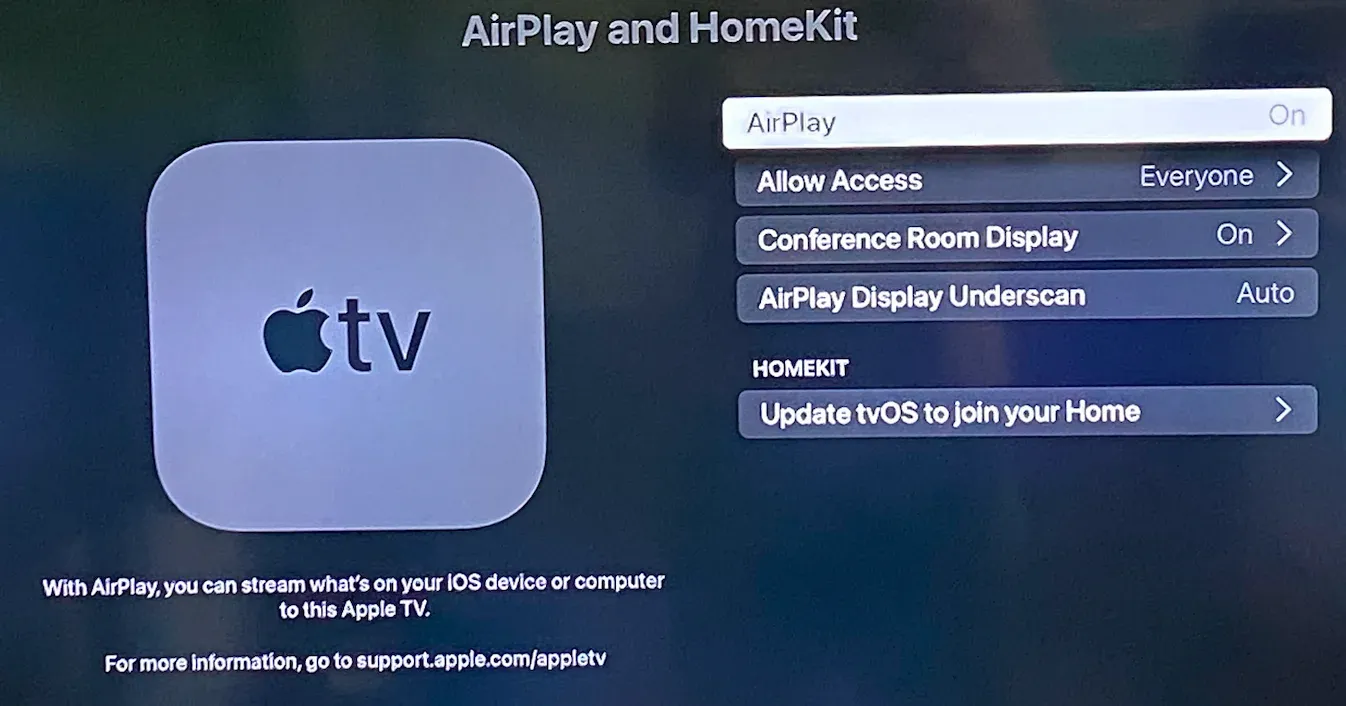
Step 2. Enable AirPlay on your Apple TV.
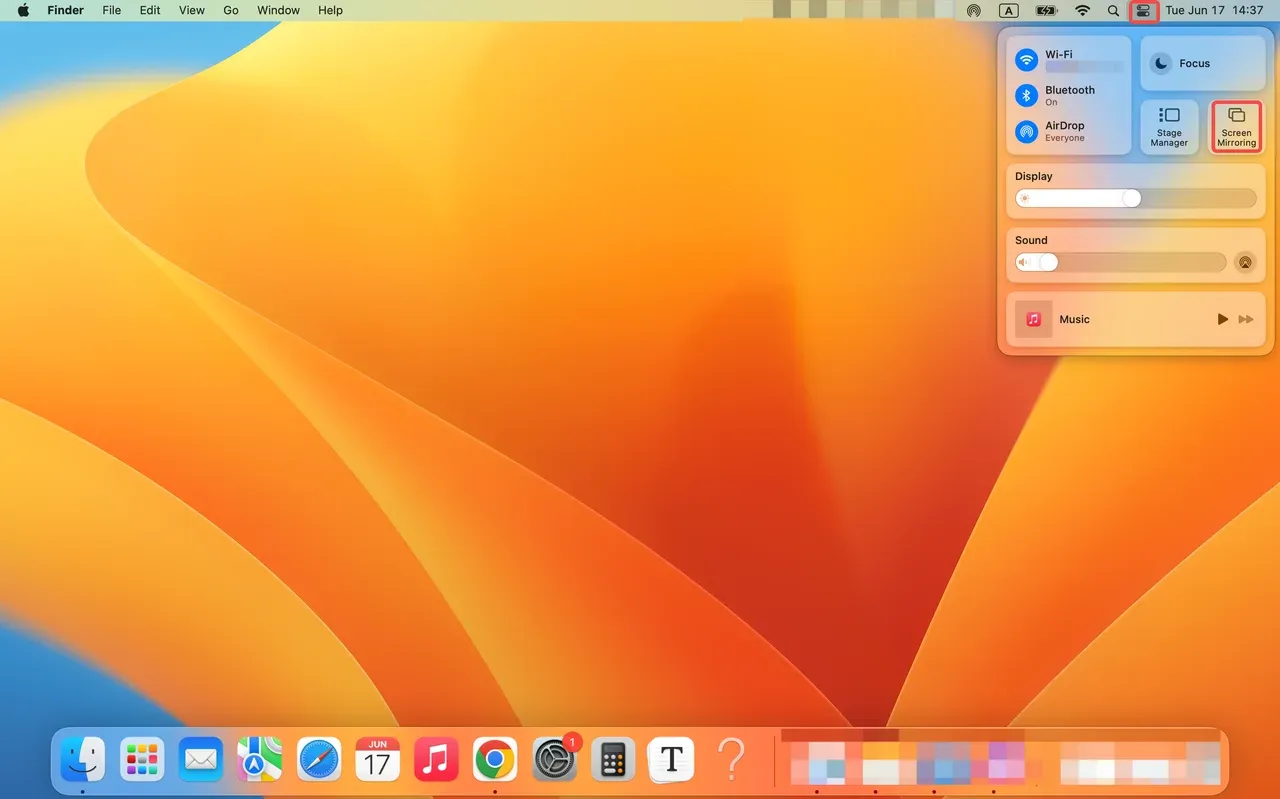
Step 3. On your MacBook, click on the Control Center icon at the top right corner to access the Control Center, then click on the Screen Mirroring option.
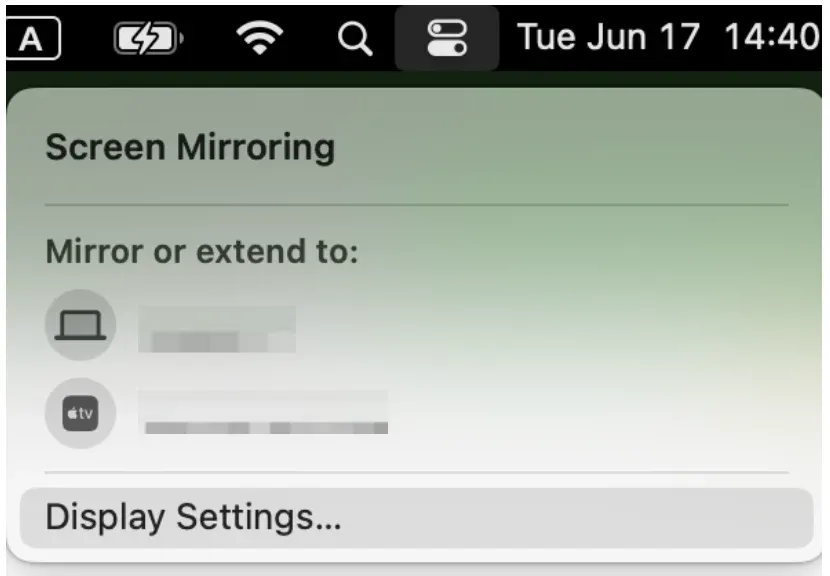
Step 4. Choose your TV from the list of available devices. Then, enter the code that appears on your TV if prompted.
Step 5. Once connected, your MacBook screen will be displayed on your TV.
How to AirPlay from Mac to Android TV?
Newer Android TVs from major brands, such as Sony, Samsung, and LG, have started to offer native support for AirPlay 2. If you have a newer Android TV (typically from 2019 onwards), you can AirPlay Mac to TV without the need for additional apps or devices, just like you would with an Apple TV.
For older Android TVs, AirPlay is generally not supported unless you set up an Apple TV or use a third-party application. Some popular apps like PigeonCast for Android TV and AirMirror can enable AirPlay functionality on older Android TVs.
The PigeonCast app simulates AirPlay functionality by allowing you to stream content from your Mac to the Android TV as if it were an AirPlay 2-compatible device. Here's how to do AirPlay from Mac to TV over the app:
Step 1. Free download and install the PigeonCast app from the Google Play Store on your Android TV.

PigeonCast Screen Mirroring

Official Download


Step 2. The third-party app also helps you sync your MacBook and TV wirelessly. Therefore, check if the two devices are connected to the same network.
Step 3. Launch the PigeonCast for Android TV app on your TV, which turns your Android TV into an AirPlay receiver.
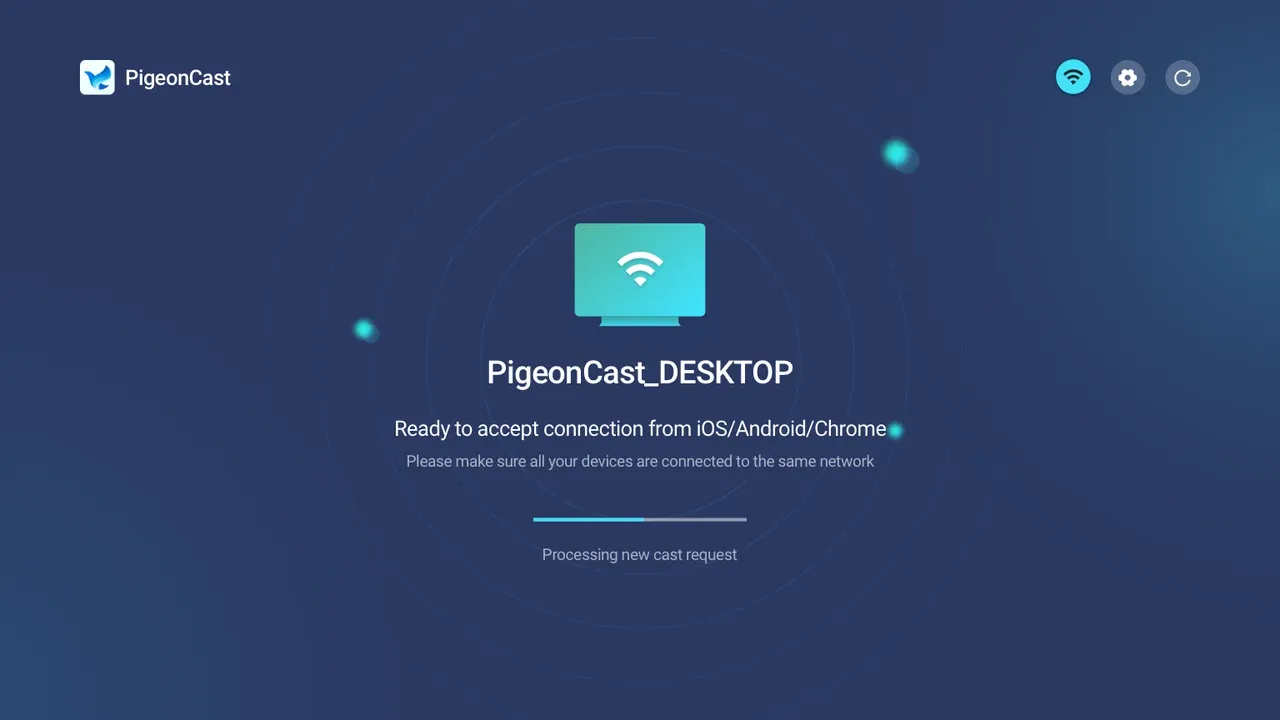
Step 4. Go to the Control Center on your MacBook and click on the Screen Mirroring option.
Step 5. Click on the device name related to PigeonCast, that is your Android TV.
Step 6. Once your Mac is connected to your Android TV, you can watch Mac on your TV.

That's how to AirPlay from Mac to TV. If you are not sure whether your Android TV supports AirPlay or not, or you can't find AirPlay on the TV, you can try this third-party app to AirPlay from MacBook Air.
AirPlay from Mac to Smart TV Not Working [Fixed]
If you're having trouble with AirPlay from Mac to smart TV, this may be attributed to many factors, including mismatched network connections, software glitches, and firewall interruptions. Here are the common steps to fix the issue:
Step 1. Double-check your Wi-Fi settings on both your Mac and TV. If the network connection is the same on the two devices, the current connection might be poor, and you can try the other Wi-Fi network if possible.
Step 2. Try restarting both your Mac and TV. Sometimes, a fresh restart resolves minor glitches.
Step 3. Update your Mac and TV OS to the latest version. Outdated software can cause issues with AirPlay from MacBook to TV. To do this, go to System Settings > Software Update Available > Upgrade Now on your Mac; on your TV, the general path is Settings > System > System Update.
Step 4. Ensure that you have enabled AirPlay on your TV. This is especially important if you're using an AirPlay 2-compatible TV.
Step 5. A firewall can block AirPlay connections. So, disable the firewall on your MacBook by going to System Settings > Privacy & Security > Firewall.
Conclusion
AirPlay from Mac to TV is a powerful tool that lets you wirelessly stream content to your TV. Whether you're using an Apple TV, an AirPlay 2-compatible smart TV, or even an Android TV, the steps are easy to follow. However, if AirPlay from Mac to smart TV is not working, we've provided troubleshooting tips to help you resolve the issue. By following the guide, you can effortlessly AirPlay MacBook to TV and enjoy seamless streaming for both work and entertainment.
AirPlay from Mac to TV FAQ
Q: How do I mirror my Mac to my TV without Apple TV?
If you want to mirror your Mac to your TV without an Apple TV, there are several alternatives available:
- Use AirPlay 2-Enabled Smart TVs: Many modern smart TVs from brands like Samsung, LG, Sony, and Vizio support AirPlay 2. If your TV is compatible, simply ensure both your Mac and TV are on the same Wi-Fi network, then select your TV from the AirPlay icon on your Mac to mirror the display.
- Use a Third-Party App: If your TV doesn't support AirPlay 2, apps like PigeonCast for Android TV or Mirror for Smart TV can enable AirPlay functionality. You can download these apps to your smart TV and use them to stream or mirror content from your Mac.
- Wired Connection (HDMI): If you prefer a more reliable connection, you can connect your Mac to your TV using an HDMI cable. For MacBooks with no HDMI port, you can use a USB-C to HDMI adapter to make the connection.
Q: Why is my Mac not connecting to TV?
If your Mac isn't connecting to your TV, it could be due to a few factors. First, ensure both devices are on the same Wi-Fi network, as AirPlay requires them to be connected to the same network. Another reason could be that AirPlay is not enabled on your TV, especially if you're using an AirPlay 2-compatible smart TV. Outdated software on either your Mac or TV could also cause connectivity issues. Additionally, a firewall on your Mac might be blocking the connection, so it's worth checking the firewall settings. Lastly, if you're using an HDMI cable or adapter, ensure that it's functioning properly, as a faulty connection can prevent your Mac from linking to your TV.
Mia Clarke is a technology editor specializing in screen mirroring and casting solutions across multiple platforms. Mia provides clear, practical guides and in-depth insights to help users seamlessly connect their devices. Passionate about enhancing digital experiences, Mia is dedicated to keeping readers updated on the latest trends and tools in cross-platform screen sharing. Whether you’re looking to mirror your smartphone, laptop, or smart TV, Mia’s content delivers reliable, user-friendly advice to simplify your tech setup.