
In today's digital age, connecting your laptop to a TV can unlock a larger screen for movies, presentations, gaming, or even just casual browsing. Whether you want to ditch the small screen for Netflix bingeing or mirror your display during a business meeting, this guide will walk you through every common method, both wired and wireless.
Let's explore the various ways you can connect your laptop to your TV, no matter your tech background. Just follow the ultimate guide on how to connect laptop to TV.
How to Connect My Laptop to My TV?
There are many easy ways to connect a laptop to a TV, no matter if you have a Dell, HP, Lenovo, or Apple laptop. These ways can be summarized into wired (like using an HDMI cable or an extra HDMI adapter) and wireless (like using PigeonCast, Miracast, AirPlay, Chromecast, etc.).

Some people prefer using an HDMI cable, while others tend to have wireless connections. Wired and wireless methods have their own advantages: wired connections guarantee good quality and stability; wireless connections cut the cord and provide convenience, which caters to our modern lifestyle.
How to connect your laptop to your TV, wired or wireless? The right method for you is the best way.
| Method | Best For | Type |
|---|---|---|
| PigeonCast App | Simple and quick connection; no compatibility issues | Wireless |
| HDMI Cable | Simple and reliable connection | Wired |
| HDMI Adapter | Modern laptops without HDMI | Wired |
| Miracast | Windows users wanting wireless mirroring | Wireless |
| AirPlay | Apple ecosystem users | Wireless |
| Chromecast | Chrome users and casual streaming | Wireless |
| DLNA Streaming | Media library sharing | Wireless |
The 7 methods listed are the common ways to stream PC to TV, and each is used for different cases. Let's break them down individually, and you may find the best one for your case.
How to Connect Laptop to TV with PigeonCast App
If you're looking for a fast, wireless, and cross-platform way to mirror your laptop to your TV, a third-party app like PigeonCast is the perfect starting point. It supports Windows and macOS, offering an all-in-one solution for screen mirroring laptop to TV without extra hardware.
Connect Windows Laptop to TV with PigeonCast for Windows
How to connect Dell laptop to TV wirelessly? How to connect HP laptop to TV wirelessly? How to connect Lenovo laptop to TV wirelessly? The app PigeonCast for Windows helps you connect a Windows 10 or 11 laptop to your TV regardless of the brand.
The app integrates AirPlay, DLNA, and Google Cast and enables you to connect your laptop to Android TV or Apple TV wirelessly without compatibility issues.
If you have never tried the 3rd-party app, you may give it a try for easy connection:
Step 1. On your Windows laptop, select Start, then enter Microsoft Store, and select it to open the app. Type PigeonCast into the search bar and access the app. Alternatively, you can click the button below for quick access.

PigeonCast Screen Mirroring

Official Download


Step 2. Turn on your TV and ensure that it and your Windows computer are connected to the same Wi-Fi network. Now that the preparation work is complete, you can begin the connection.
Step 3. Launch the PigeonCast for Windows app on your laptop and click Send my screen.
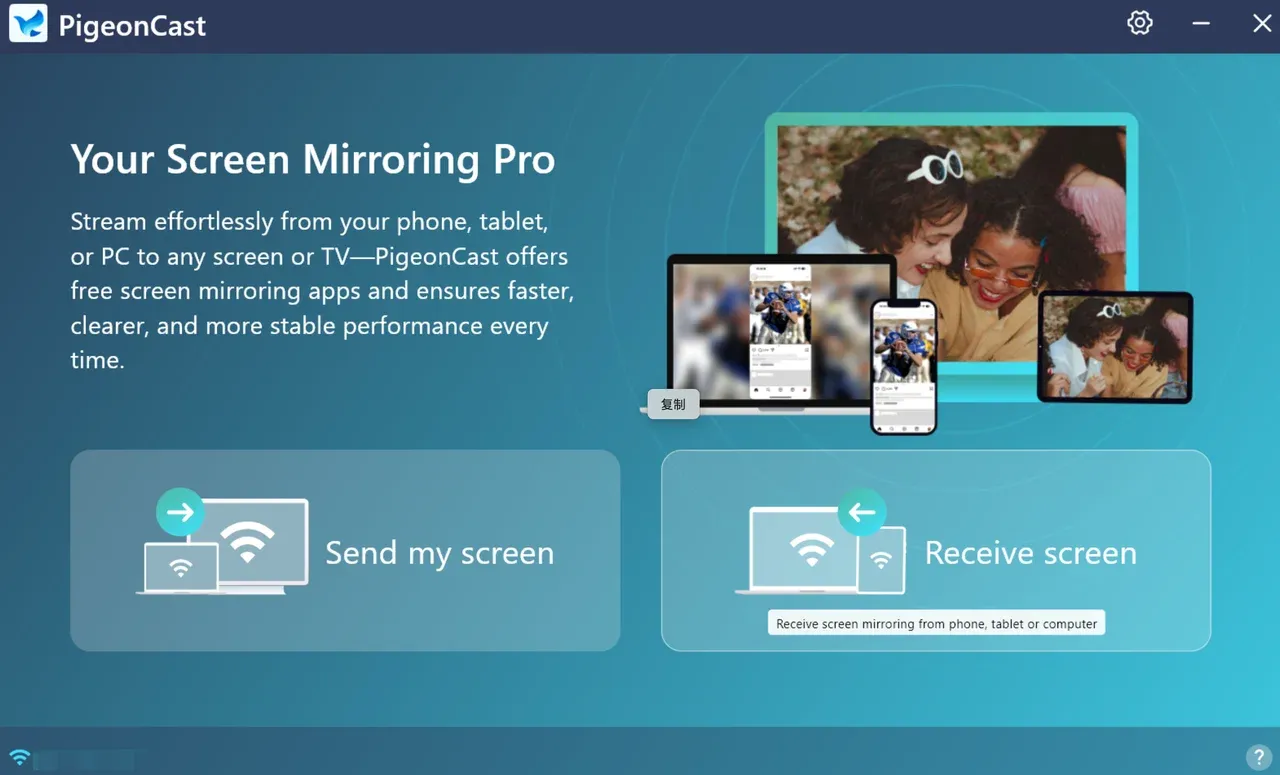
Step 4. Choose your smart TV from the available list. Follow the on-screen instructions to connect your two devices.
Step 5. Once connected, you can watch laptop on TV.
Connect MacBook to TV with PigeonCast for Mac
How to connect MacBook to TV wirelessly? Use the app PigeonCast for Mac, which also supports AirPlay, Google Cast, and DLNA, an all-in-one solution for easy connection between Mac and Apple TV or Android TV and HD streaming.
Here is how to connect your computer to your TV with PigeonCast:
Step 1. On your MacBook, go to the App Store, search for PigeonCast, and download the app. Alternatively, click the button below for a quick download.
PigeonCast Screen Mirroring
Official Download

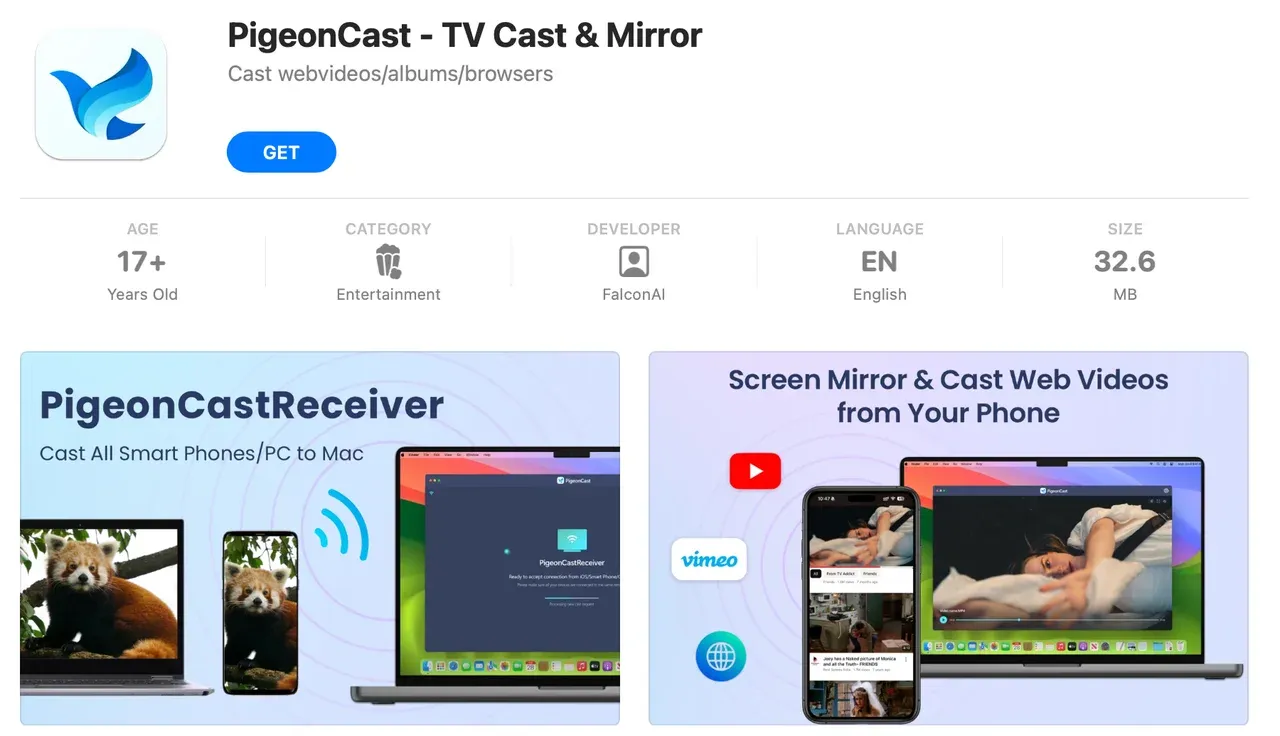
Step 2. Turn on your TV and ensure it connects to the Wi-Fi network your MacBook uses.
Step 3. Launch the PigeonCast app and follow the onscreen instructions to set up a connection between your MacBook and TV.
Step 4. Choose your smart TV from the available list. Follow the on-screen instructions to connect your two devices.
Step 5. Once connected, you can watch laptop on TV.
How to Connect Laptop to TV via MiraCast (Windows)
How to connect laptop to TV wirelessly Windows 11? Use Miracast to connect a Windows computer to a TV.
Miracast is a wireless display standard developed by the Wi-Fi Alliance that allows devices to mirror their screens to compatible TVs and displays without needing cables or internet. You can think of it as a wireless HDMI connection.
With Miracast, you can duplicate or extend your laptop screen onto a larger display like a smart TV. Many smart TVs from brands like LG, Samsung, Sony, and Panasonic support Miracast out of the box. Hence, Miracast is perfect for streaming videos, showing presentations, or playing games.
Can you connect a laptop to a TV? Not all laptops or TVs support Miracast. You can check if your Windows laptop supports Miracast by pressing Windows + R, typing dxdiag, and then checking the Miracast status under "Display" in the report.
To confirm whether your TV supports Miracast or not, pick the way you prefer:
- Check your TV's user manual or specifications and look for terms like Miracast, Screen Mirroring, Wireless Display, or Wi-Fi Direct. If you see these, your TV does support Miracast.
- Explore the TV's settings or input menu. On your TV remote, press Input, Source, or go to Settings. Then, look for options such as Screen Mirroring, Wireless Display, WiDi, Miracast. If you see these, your TV does support Miracast.
- Search your TV's model number online (usually on the back label): search [TV model number] Miracast support on Google and check the search result.
Once you confirm the Miracast support on your two devices, try connecting them via Miracast:
Step 1. Click the Action Center icon on Windows 10 or the Network icon on Windows 11.
Step 2. Choose Connect on Windows 10 or Cast on Windows 11. If you don't see the option on Windows, click the pencil icon at the bottom-right corner of the menu, click +Add, and choose Cast.
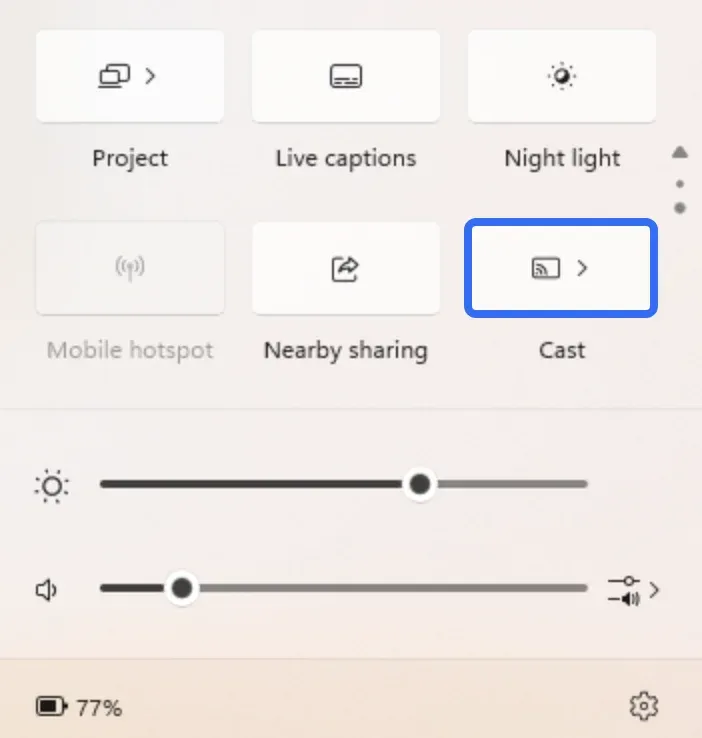
Step 3. Choose your TV from the list to connect. You may need to enter a code from the TV once connected.
Step 4. Play a movie or launch an app, which will appear on the big screen.
Step 5. When you want to stop mirroring your Windows screen, return to the Connection or Cast option and choose Disconnect.
How to Connect Laptop to TV via AirPlay (Mac)
AirPlay is Apple's wireless streaming technology that allows you to mirror your MacBook's screen or stream audio and video from your laptop to compatible devices like Apple TV or AirPlay-enabled smart TVs like LG, Samsung, Sony, and Vizio, all without cables.
AirPlay makes it incredibly easy for Mac users to enjoy photos, presentations, websites, or videos on a bigger screen. It works over Wi-Fi and maintains excellent video and audio quality.
Can you connect laptop to TV via AirPlay? If your devices support AirPlay, the connection is easily accomplished. If you have an Android TV, you can mark your TV AirPlay-compatible by installing an AirPlay receiver app on the device.
Here is how to connect laptop to smart TV over AirPlay:
Step 1. Turn on AirPlay on your TV by going to the Settings menu or launching the AirPlay receiver app.
Step 2. Ensure that your MacBook and TV are connected to the same Wi-Fi network.
Step 3. Click the Control Center icon in the top-right corner of the MacBook screen and tap Screen Mirroring.
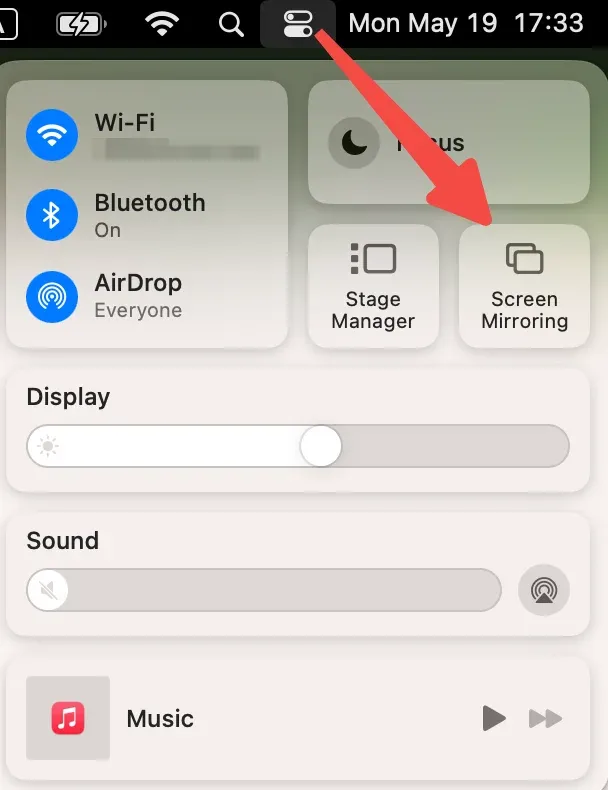
Step 4. Choose your TV from the menu and connect your MacBook to the TV. If you are using an AirPlay receiver app, find the device name the app gives and choose it.
Step 5. Once your MacBook appears on your TV, you can play what you want to show on your TV.
Step 6. To disconnect from your TV, click the Control Center icon again, click Screen Mirroring, and then click the name of your TV.
How to Connect Laptop to TV via Chromecast (Windows)
How to connect TV to laptop? The 5th method is using Chromecast to set up the connection.
Chromecast is a popular streaming technology developed by Google that lets you wirelessly stream videos, music, and even your browser screen from your laptop to your TV. It's supported by many smart TVs, especially Android or Google-based TVs, and can also be added to older TVs with an affordable Chromecast dongle, like Chromecast with Google TV.
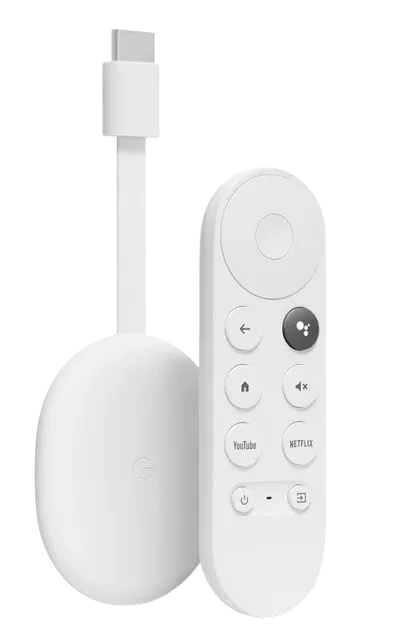
Unlike screen mirroring (which duplicates your entire display), Chromecast is more about casting specific content — for example, streaming a YouTube video or casting a Chrome browser tab — with your laptop acting as a remote.
Follow the guide on how to project laptop to TV wirelessly to build the connection via Chromecast:
Step 1. Plug a Chromecast device into the TV if necessary and power on the TV.
Step 2. Open Google Chrome or Microsoft Edge on your Windows.
Step 3. Find the content you want to stream, like Netflix, Hulu, or Amazon Prime, and play it. You are also allowed to cast your entire screen to the TV via Chromecast.
Step 4. Click the three-dot menu in the top-right corner.
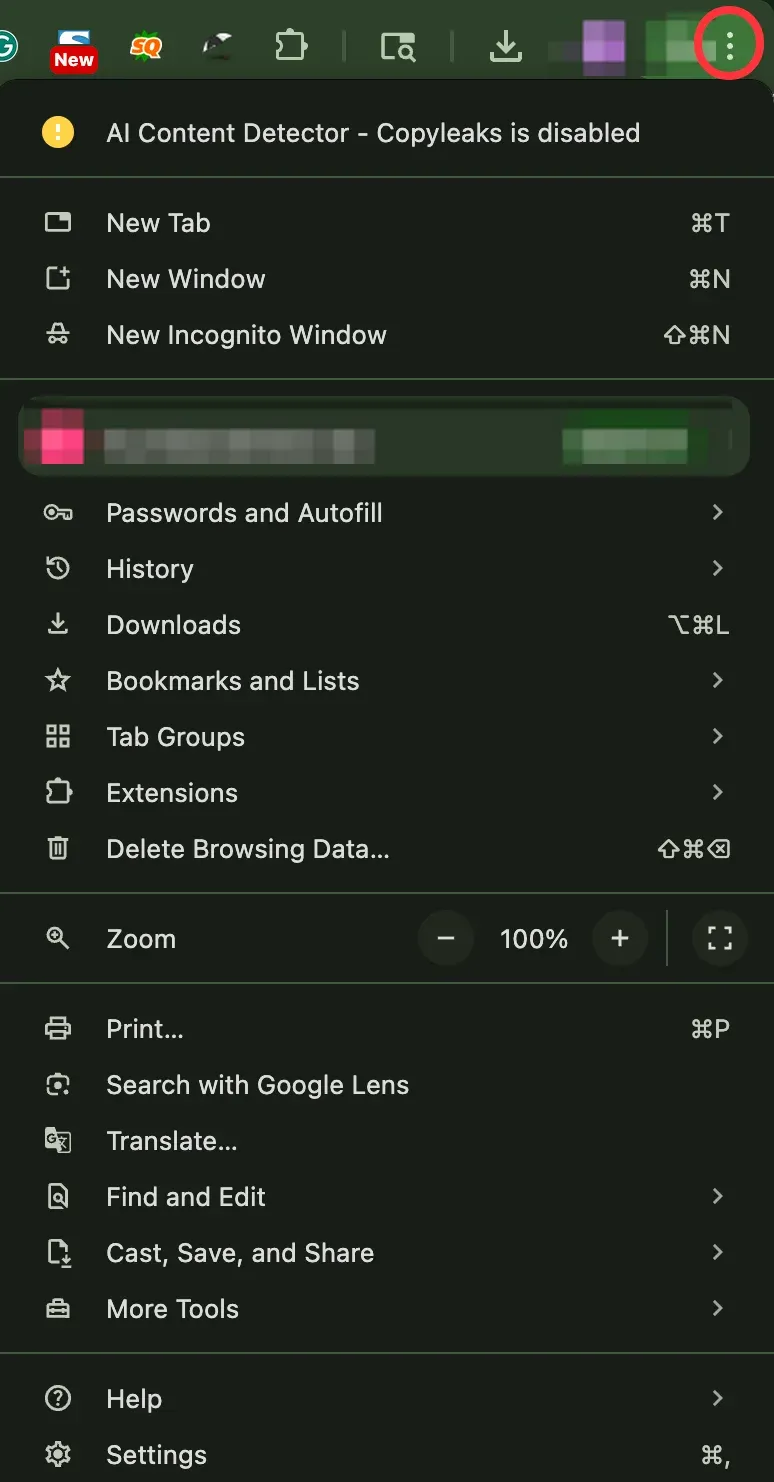
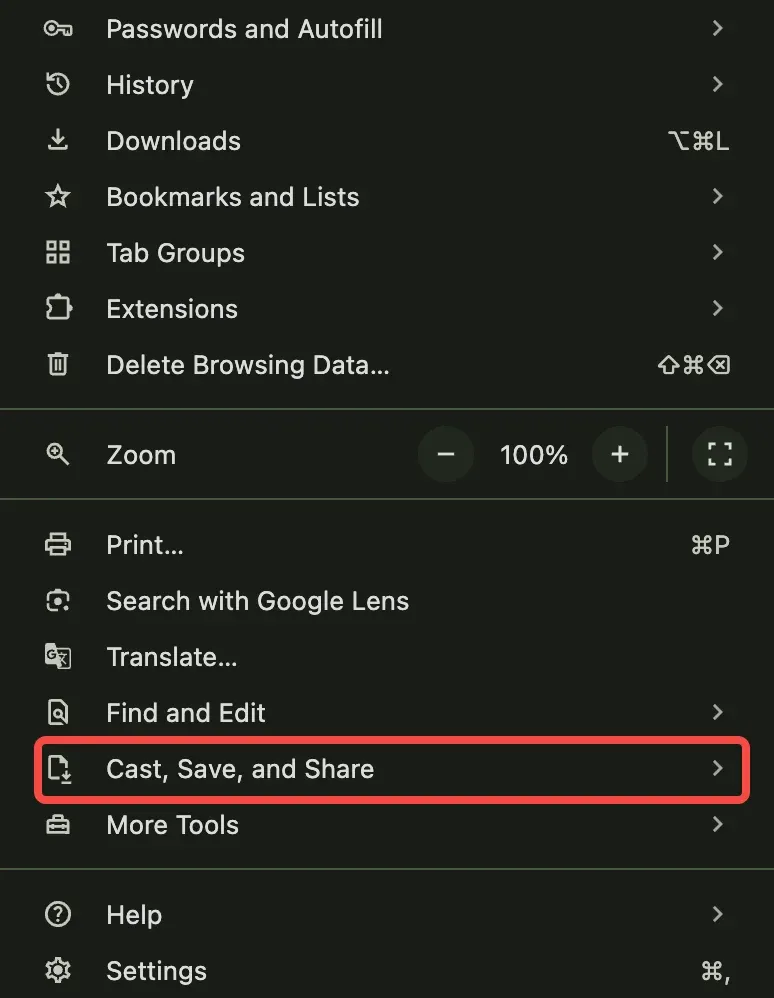
Step 5. Tap the Cast, Save, and Share feature on the pop-up menu.
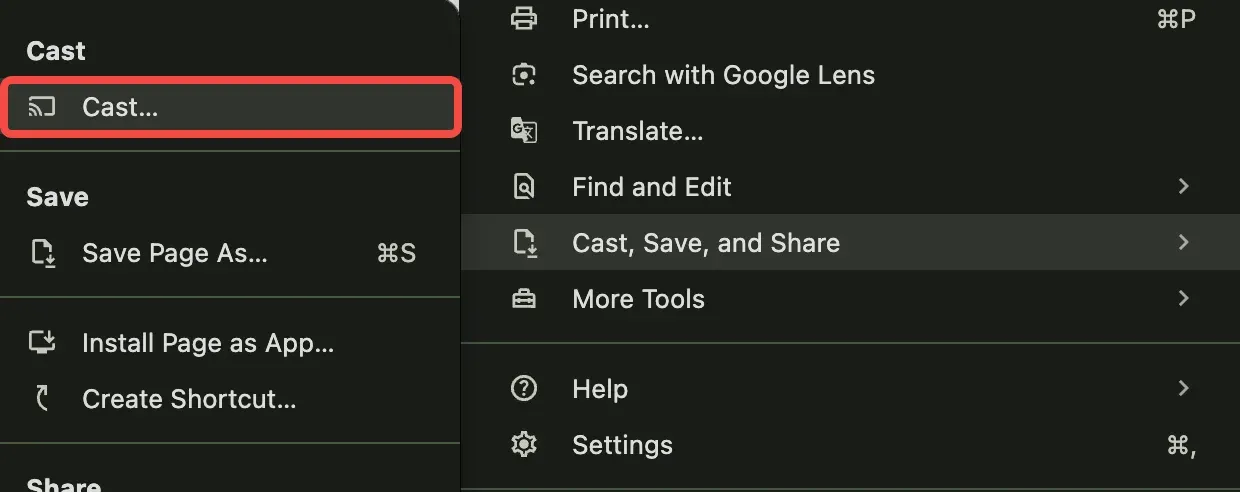
Step 6. Tap the Cast option.
Step 7. You can skip this step if you want to cast from a tab in your web browser. When the Cast tab pops up in the top-right corner, click Sources to choose a source. To cast your entire desktop, switch to the Cast screen option in the Sources menu.
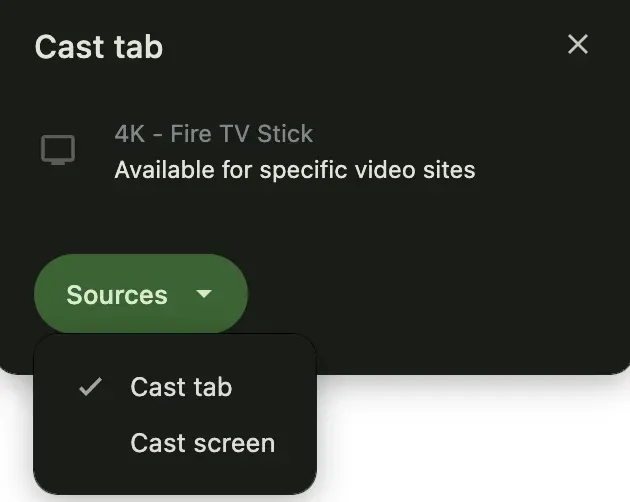
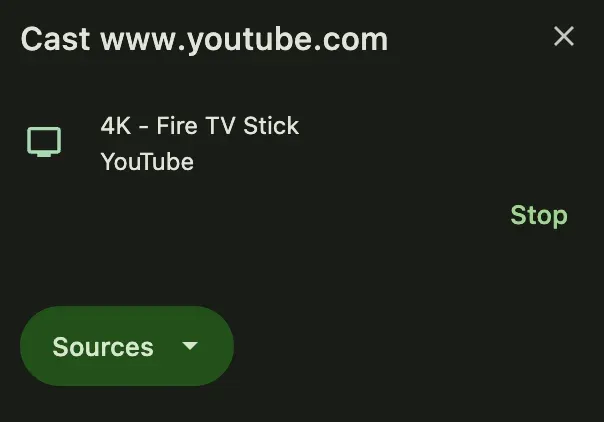
Step 8. Choose your TV on the Cast tab. Once connected, the content you selected will appear on the TV.
Step 9. To disconnect your laptop from the TV, return to the Cast menu by clicking the three-dots menu, choosing Cast, Save, and Share, then Cast, and select Stop.
How to Connect Laptop to TV via HDMI Cable
HDMI stands for High-Definition Multimedia Interface. It's a standard type of cable and port that allows you to transmit both high-definition video and audio between devices, like from your laptop to your TV, using just one wire.
Using an HDMI cable is one of the simplest, most reliable, and highest-quality ways to connect your laptop to a TV. It doesn't rely on Wi-Fi, doesn't require any apps, and delivers zero-latency video and audio.
How to connect laptop to TV using HDMI? Just plug an HDMI cable into the HDMI port on your laptop and TV, then choose the right HDMI input source on your TV.
However, nowadays, more and more laptops are slimmer and slimmer, removing many ports, including HDMI ports. If this is the case for your device, you'll need an HDMI adapter to connect your laptop to a TV. Here are some common types of HDMI adapters:
- USB-C to HDMI adapter: Your laptop only has USB-C or Thunderbolt 3/4 ports, common in newer MacBooks, ultrabooks. Or Chromebooks.
- Mini DisplayPort (Thunderbolt 2) to HDMI adapter: You have an older MacBook Air/Pro with a Mini DisplayPort or Thunderbolt 2 port.
- DisplayPort to HDMI adapter: Your laptop has a DisplayPort output, common on business laptops and docking stations.
- Micro HDMI to HDMI adapter: Your device has a Micro HDMI port, not to be confused with micro-USB.
- HDMI to VGA adapter: You want to connect to an older TV or projector that only has a VGA input.
If you need an HDMI adapter, choose the compatible one for your laptop and TV. Then, connect the two devices through the HDMI adapter and an HDMI cable.
Tips for Optimizing Your Connection
Now you know how to connect laptop to TV without HDMI or with it. Once you display laptop on TV, taking a few extra steps can significantly enhance your viewing experience. Here's how to get the most out of your step:
Adjust Your Display Settings
Make sure your laptop's display resolution matches your TV's capabilities to avoid blurry or stretched visuals.
- On your Windows: right-click on the desktop, choose Display settings, and set the resolution to match your TV, typically 1920x1080 for Full HD or 3840x2160 for 4K TVs.
- On your MacBook: go to System > Displays, and adjust the resolution.
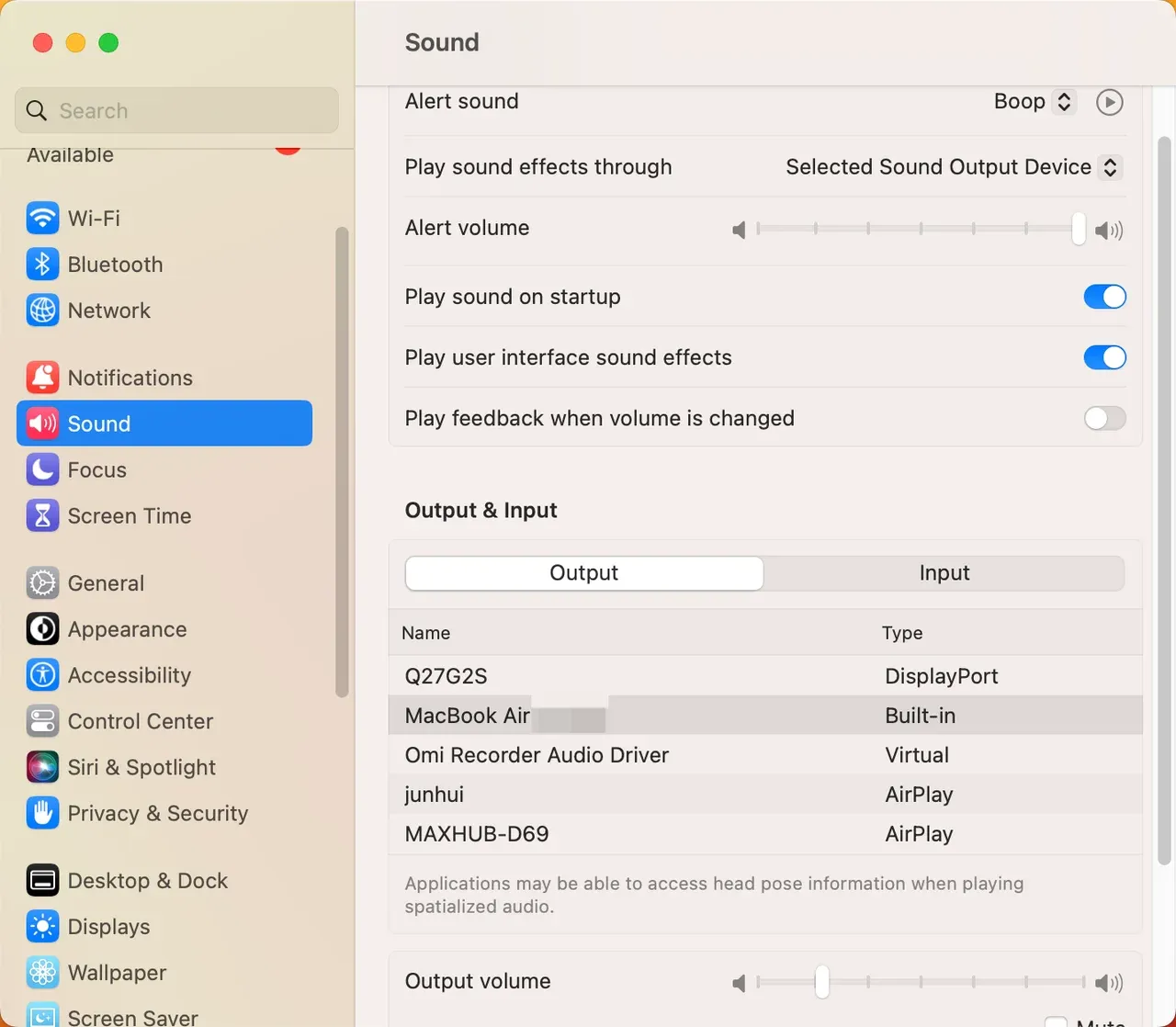
Ensure Proper Audio Output
When using an HDMI cable, your laptop should automatically route audio to the TV. For wireless methods, like Miracast or AirPlay, you may need to change the output manually.
- On your Windows: right-click the sound icon in the taskbar > Sound settings > Choose your TV under Output device.
- On your MacBook: go to Settings > Sound > Output, then choose your TV.
Match Refresh Rates
For smoother video or gaming, ensure your laptop and TV are using compatible refresh rates. Most TVs operate at 60Hzm, though some support 120Hz or higher. To adjust refresh rates on your laptop, you should:
- On your Windows: go to Display settings > Advanced display settings > Refresh rate.
- On your MacBook: go to Settings > Displays.
Calibrate Color
To get the most accurate color reproduction or better image quality, you can try:
- Use your TV's built-in Picture or Color settings menu to choose the correct mode, like Cinema or Game mode.
- For manual calibration, search TV calibration videos on YouTube and follow along.
- Adjust brightness, contrast, sharpness, and color temperature for a more vibrant and natural image.
These small tweaks can go a long way in improving your viewing comfort, especially if you're streaming a movie, playing a game, or giving a presentation.
Solutions for Common Connection Issues
How to display laptop on TV? Connect them together! However, many people run into trouble in this step, and here we take a look at them and how to solve them.
Issue one: can't find the TV
First, ensure that your TV supports the protocol, like Miracast or AirPlay. Then, ensure your laptop and TV are connected to the same network. If the issue is not solved, update both devices to the latest versions. Plus, disable the firewall or antivirus if necessary.
Issue two: no signal
This issue appears when people connect their laptop to TV via HDMI cable. In this case, you need to ensure both devices are powered on, then check if the input source is correct, and try a different HDMI port or cable.
Issue three: screen mirroring lags
The issue typically comes with a wireless connection. To reduce lag, move your devices closer to your router or use an Ethernet cable for high-quality network connections. If you connect your laptop to TV for gameplay, enabling the game mode on your TV is a quick solution.
Wrapping Up
How to connect laptop to TV wirelessly? This post provides different wireless connection methods, like using PigeonCast apps, Miracast, AirPlay, and Chromecast, each of which is easy to perform. The alternative method, like using an HDMI cable, is also straightforward. No matter which method you prefer, quick connection, happy streaming.
How to Connect Laptop to TV FAQ
Q: How do I get my laptop to display on my TV?
You can display your laptop on your TV by connecting via an HDMI cable or wirelessly using technologies like Miracast (Windows), AirPlay (Mac), Chromecast, or third-party screen mirroring apps like PigeonCast. Once connected, adjust your display settings to mirror or extend your screen.
Q: How to connect laptop to TV without HDMI?
If your laptop lacks an HDMI port, you can use a USB-C to HDMI adapter (for newer laptops), or wirelessly connect via screen mirroring apps, Chromecast, Miracast, or AirPlay, depending on your TV and operating system compatibility.
Q: Why is my laptop not connecting to my TV screen?
This may be due to mismatched Wi-Fi networks, unsupported technology, disabled mirroring mode on the TV, outdated drivers, or a faulty cable. Make sure both devices are on the same network (for wireless), select the right input on your TV, and restart both devices if needed.
Q: Can I use my TV as a laptop monitor?
Yes, you can use your TV as a second monitor by connecting it via HDMI or wirelessly. In your display settings, you can choose to mirror your laptop screen or extend your desktop across both screens.
Q: How to use laptop as HDMI input?
Most laptops only have HDMI output ports and cannot be used as an HDMI input device. To display another device's screen on your laptop, you'd need a capture card or use software-based wireless methods, such as PigeonCast for Android app or PigeonCast for iPhone app.
Mia Clarke is a technology editor specializing in screen mirroring and casting solutions across multiple platforms. Mia provides clear, practical guides and in-depth insights to help users seamlessly connect their devices. Passionate about enhancing digital experiences, Mia is dedicated to keeping readers updated on the latest trends and tools in cross-platform screen sharing. Whether you’re looking to mirror your smartphone, laptop, or smart TV, Mia’s content delivers reliable, user-friendly advice to simplify your tech setup.