
Let's be honest: hunting for an HDMI cable behind a dusty TV stand is a mood killer. Whether you are prepping for a high-stakes presentation on your ThinkPad or just want to binge-show your vacation photos on a 65-inch screen, wires are officially relics. You bought a sleek Lenovo for its portability, so why tether it to a wall?
How to connect Lenovo laptop to TV wirelessly? Connecting your laptop to a TV wirelessly is surprisingly straightforward, provided you know which "language" your devices speak. Most modern Lenovo setups rely on Miracast, but depending on your TV's OS, you might need a different play. Here is exactly how to cut the cord without losing your mind.
Method 1: Connect Lenovo Laptop to TV Wireless via Miracast
If you own a Lenovo running Windows 10 or 11, you have a built-in tool called Miracast. It's the quickest way to achieve Lenovo screen mirroring to TV without downloading a single file.
How to mirror Lenovo laptop to TV wirelessly:
Step 1. Ensure your Smart TV is on the same Wi-Fi network as your laptop.
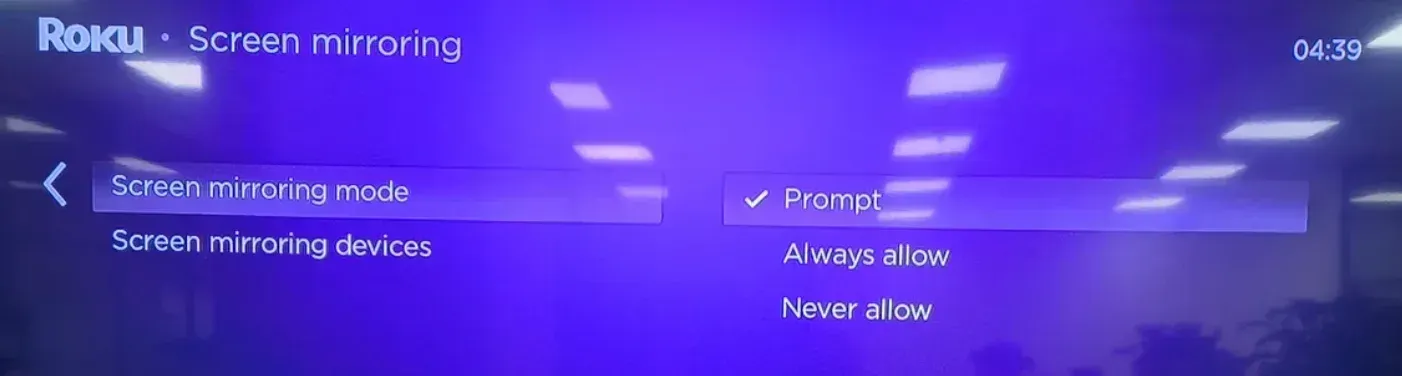
Step 2. Ensure Screen Mirroring or Anyview Cast is enabled in the TV settings.
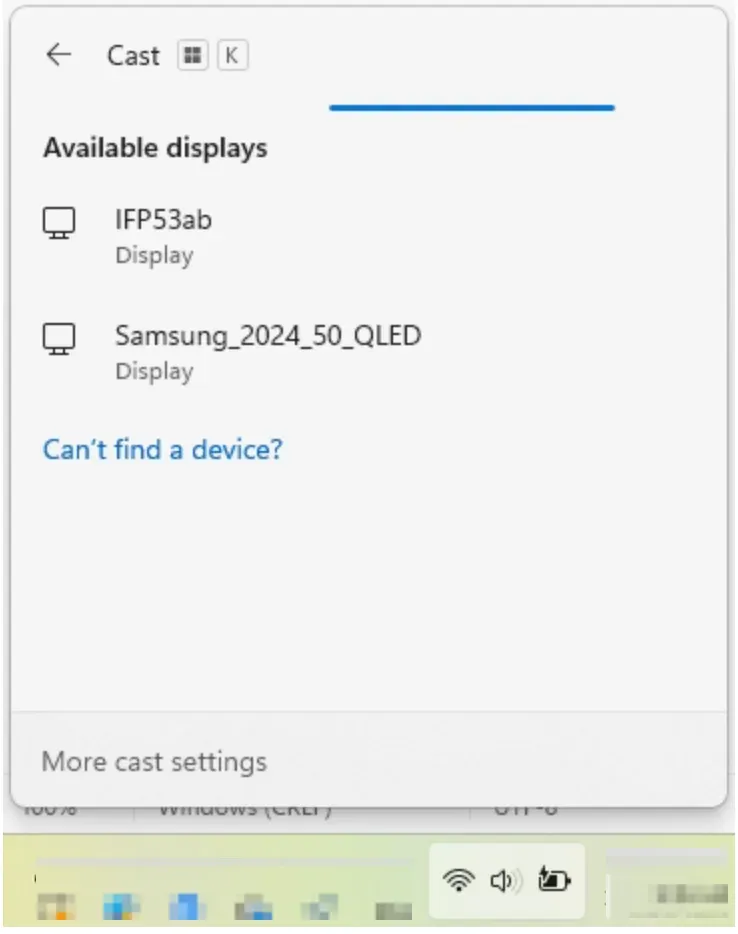
Step 3. On your Lenovo keyboard, hit Windows + K.
Step 4. Click on your TV's name on the list.
Step 5. Look at your TV screen; you might need to allow the connection using your remote.
This creates a direct Wi-Fi Alliance connection. It's perfect for static content, but if your Wi-Fi is shaky, you might see screen mirroring lagging.
Method 2: Connect Lenovo Laptop to TV Wireless via PigeonCast
Sometimes standard Windows mirroring feels a bit... sluggish? If you're tired of the cursor trailing five inches behind your hand movement, it's time to level up. This is where PigeonCast shines in ThinkPad screen mirroring.
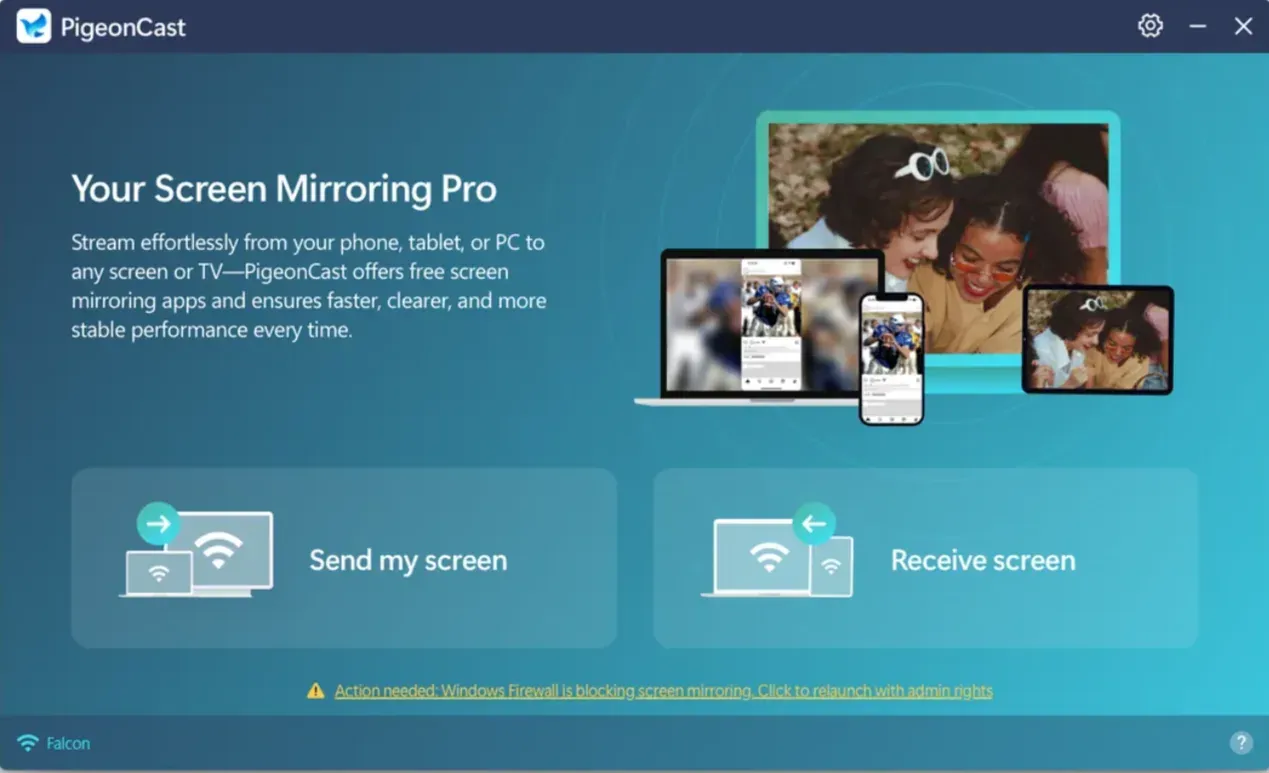
PigeonCast on Windows helps you connect your laptop to TV wirelessly, including Android TV, Apple TV, Fire TV, and more. Moreover, the app setup on the TV side contributes to a more stable connection.
Here's how to screen mirror Lenovo laptop to TV:
Step 1. Download and install PigeonCast on your Windows PC and TV from the app store.


Overall Rating:


Step 2. Ensure your Lenovo laptop and TV are on the same Wi-Fi network.
Step 3. Open PigeonCast on the two devices, and your TV is ready for screen mirroring.
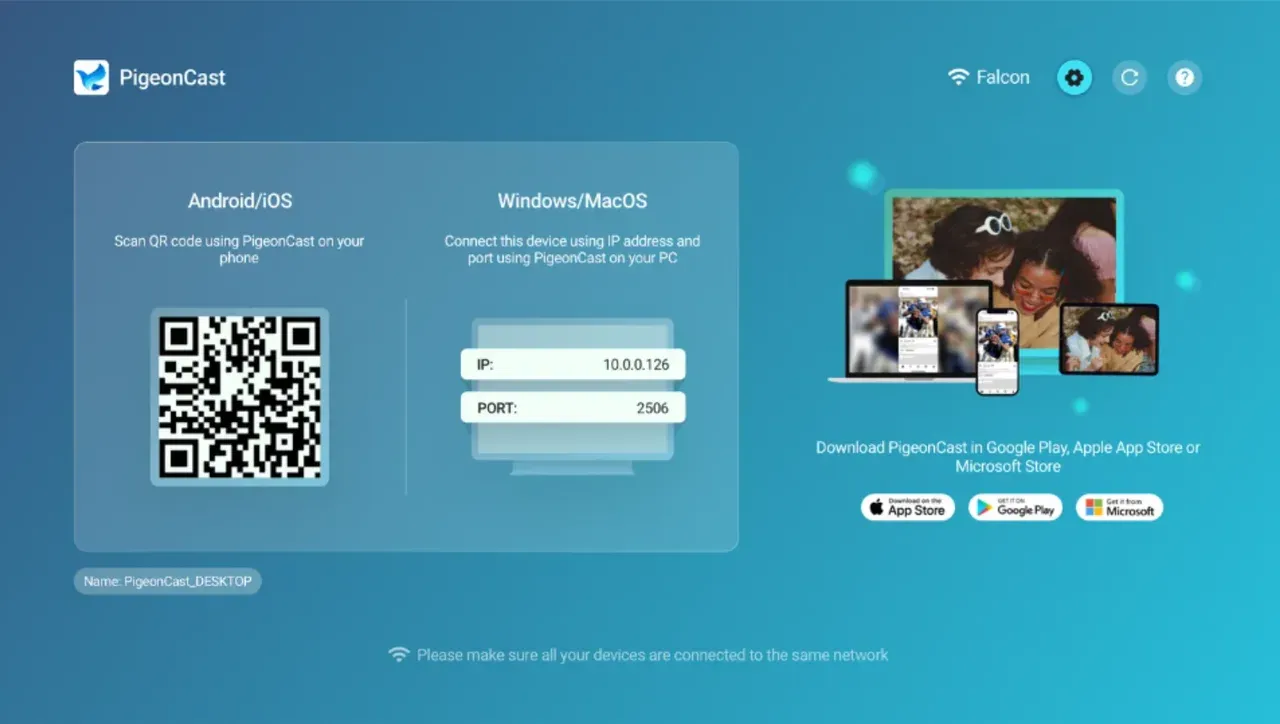
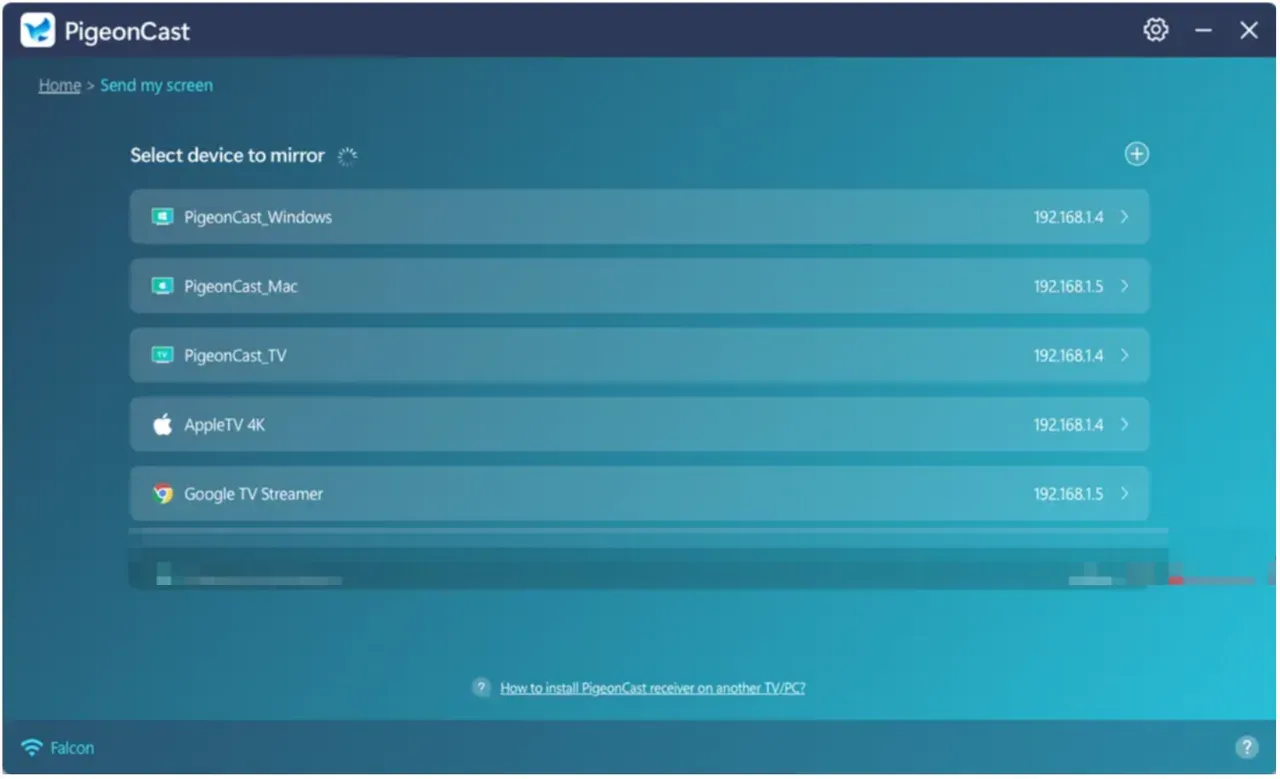
Step 4. On your Windows PC, click the Send my screen option and choose your TV from the device list.
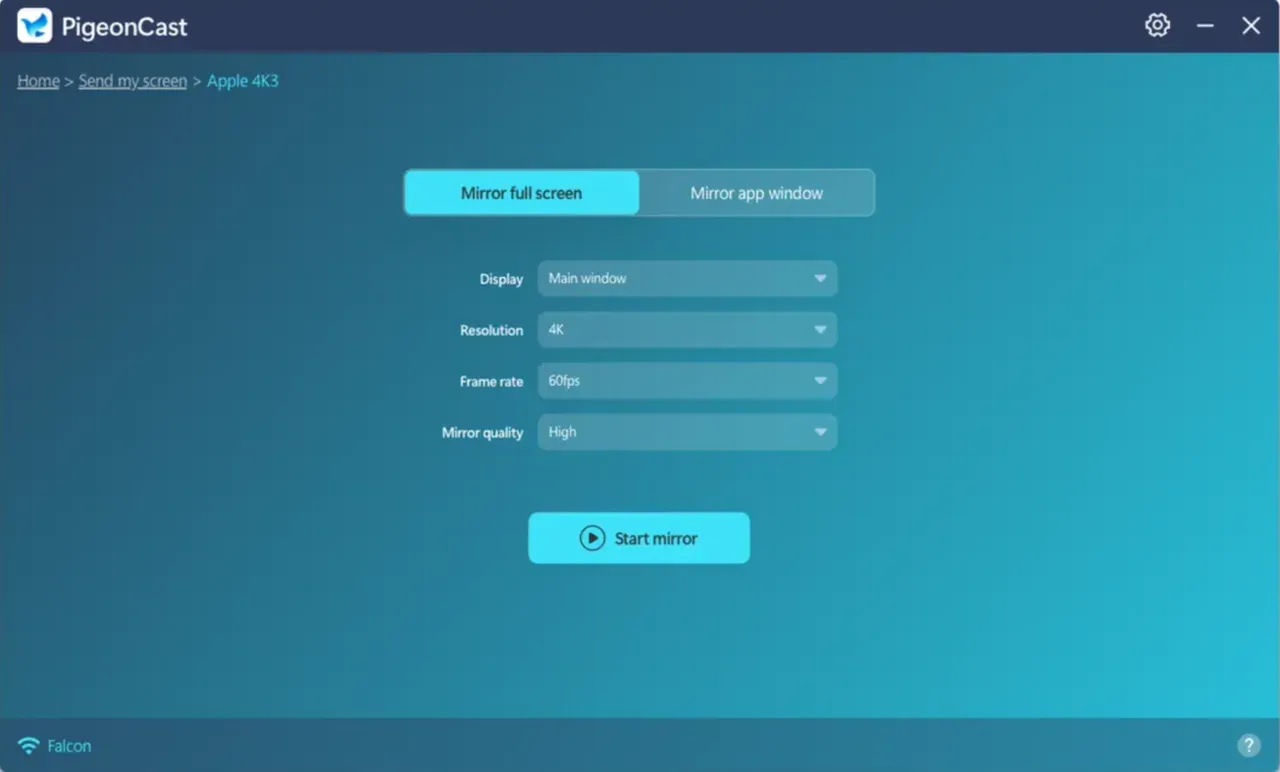
Step 5. Choose Mirror full screen or Mirror app window, adjust the settings, and click Start mirror.
Method 2: Connect Lenovo Laptop to TV Wireless via Chromecast
Maybe your TV isn't "smart" but has a Chromecast dongle, or perhaps you're using a Sony or Hisense with Google TV built-in. This is the most reliable way regarding how to cast Lenovo laptop to TV if you primarily use the Chrome browser.
Here's how to connect Lenovo laptop to TV without HDMI:
Step 1. Open Google Chrome on your Lenovo.
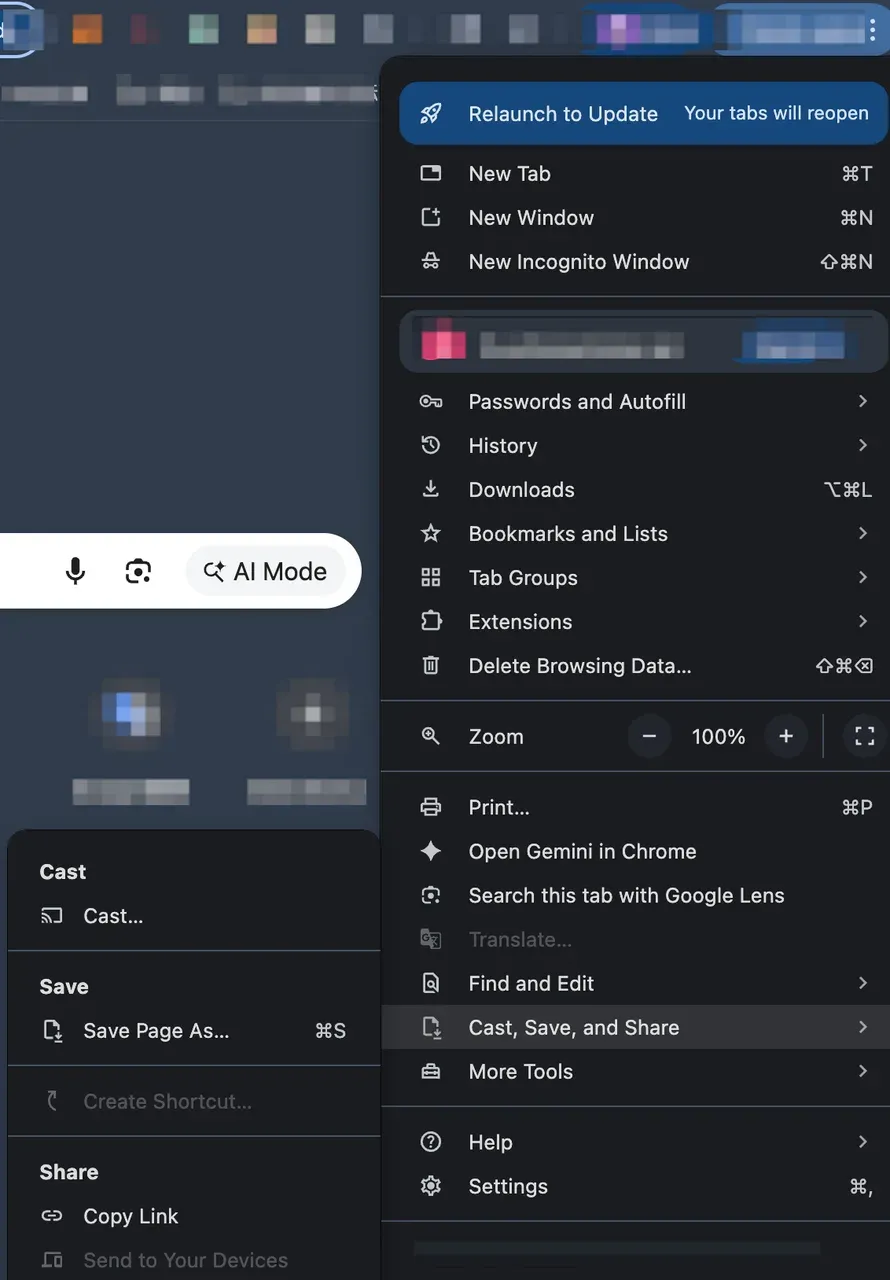
Step 2. Click the three vertical dots (top right) and choose Cast, Save, and Share > Cast.
Step 3. In the Sources dropdown, choose Cast screen if you want to show your whole screen, or Cast Tab for just one website.
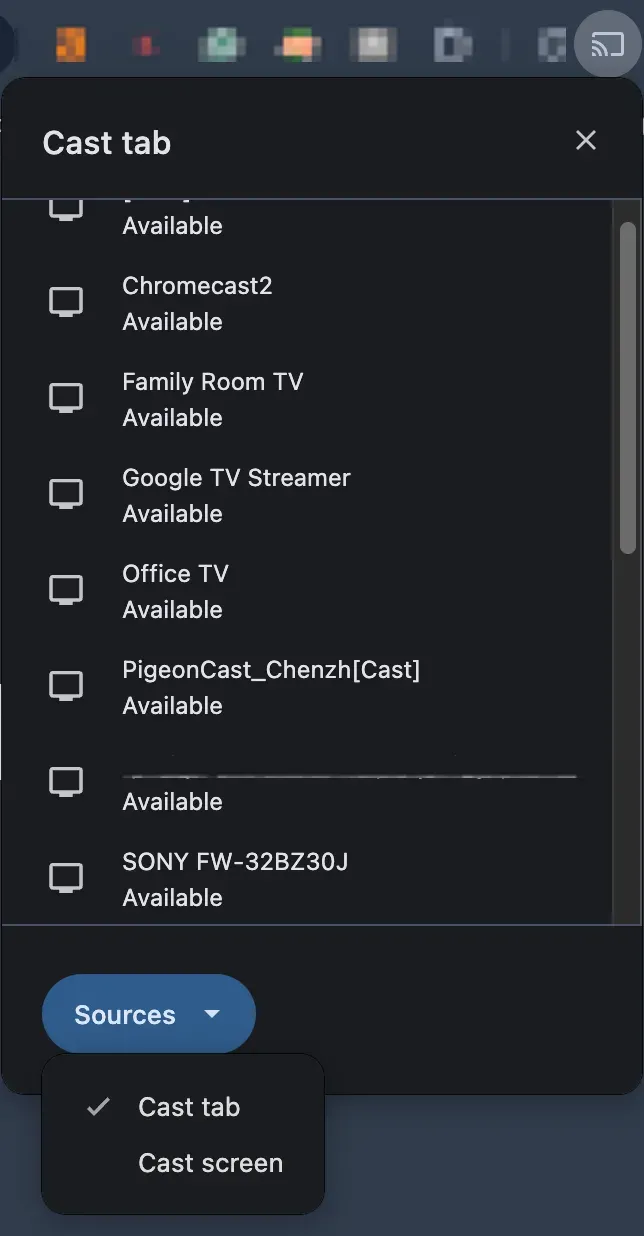
Step 4. Select your Chromecast device from the list.
Quick Comparison: How to Connect Lenovo Laptop to TV wirelessly?
td {white-space:nowrap;border:0.5pt solid #dee0e3;font-size:10pt;font-style:normal;font-weight:normal;vertical-align:middle;word-break:normal;word-wrap:normal;}| Feature | Miracast (Win+K) | PigeonCast | Google Cast |
|---|---|---|---|
| Best For | Quick photo sharing | Professional/High-Res | Browser-based video |
| Ease of Use | High (Built-in) | Very High | Medium |
| Latency | Moderate | Low | Low (Tab only) |
| Hardware | Any Modern Lenovo | Any Windows 10/11 laptop | Requires Dongle/Google TV |
Troubleshooting: Why Won't My Lenovo Laptop Connect?
Still staring at a blank TV? Don't toss the remote just yet. Usually, the culprit is one of these three things:
-
Network Mismatch: Are both devices on the 5GHz band? If the laptop is on 2.4GHz and the TV is on 5GHz, they might play hide-and-seek.
-
Disabled Drivers: Open your Device Manager and ensure your Display Adapters are updated. A dusty driver is the enemy of Lenovo screen mirroring.
-
Firewall Interference: Sometimes aggressive antivirus software blocks the wireless handshake. Try a quick "Disable for 10 minutes" to see if the TV pops up.
Final Words
Cutting the cord isn't just about clearing the clutter off your desk; it's about making your technology work for you, rather than the other way around. Once you master how to screen mirror on Lenovo laptop, the boundary between your workstation and your living room disappears. Whether you choose the built-in simplicity of Windows, the browser-heavy approach of Chromecast, or the high-performance stability of PigeonCast, you're no longer tethered to a three-foot radius.
Next time you need to share a presentation or kick back with a movie, remember that the power is already in your hand, or rather, in your keyboard. Ditch the hardware hunt, use the shortcuts we've discussed, and enjoy the seamless experience of a truly wireless setup. After all, why stay small-screen when your Lenovo was born to go big?
How to Connect Lenovo Laptop to TV Wireless FAQ
How to connect Lenovo laptop to TV without an HDMI cable?
The most efficient way is using the native Miracast feature. By pressing Windows + K on your keyboard, your Lenovo will scan for nearby wireless displays. As long as your TV is "Smart" or has a streaming stick plugged in, you can beam your desktop over Wi-Fi instantly. One more choice is using a screen mirroring app like PigeonCast to bypass compatibility issues.
Why won't my Lenovo cast to my TV?
The common reasons incude:
-
Both devices aren't on the exact same Wi-Fi SSID.
-
Your TV's screen mirroring mode is actually turned on.
-
Wireless card drivers are outdated on your Lenovo laptop.
How to connect Lenovo laptop to monitor without HDMI?
If you are looking for how to connect Lenovo laptop to a monitor without that bulky cable, look for a DisplayPort (DP) or USB-C connection. Most newer Lenovo ThinkPads support "Alt Mode" via USB-C, which carries video signals. If the monitor supports Wi-Fi, you can use the same Windows + K method used for TVs.
Is ThinkPad screen mirroring different from other Lenovo models?
The software is the same! Whether it's an IdeaPad, Legion, or ThinkPad, the how to screen mirror on lenovo laptop process remains the Windows + K shortcut. ThinkPads just tend to have better Wi-Fi cards, which helps with stability.
Why is my lenovo screen mirroring blurry?
This usually happens because the resolution on your laptop doesn't match the TV. Go to Settings > System > Display and ensure the resolution matches your TV's native spec (usually 1920x1080 or 3840x2160).
How to connect Lenovo laptop to TV without HDMI if my TV is old?
If your TV isn't "Smart," you'll need a bridge. Plug a Roku, Fire Stick, or Chromecast into the TV's HDMI port. This acts as the receiver for your Lenovo's wireless signal.
Can I mirror my Lenovo laptop to TV and still use the laptop for other tasks?
Yes! When you connect, press Windows + P and select Extend. This turns your TV into a second monitor rather than just a mirror. You can watch a movie on the TV while typing an email on the laptop screen.
Mia Clarke is a technology editor specializing in screen mirroring and casting solutions across multiple platforms. Mia provides clear, practical guides and in-depth insights to help users seamlessly connect their devices. Passionate about enhancing digital experiences, Mia is dedicated to keeping readers updated on the latest trends and tools in cross-platform screen sharing. Whether you’re looking to mirror your smartphone, laptop, or smart TV, Mia’s content delivers reliable, user-friendly advice to simplify your tech setup.