

Screen mirroring should feel smooth and nearly instant. But if your TV freezes, stutters, buffers, or falls behind your phone by a few seconds, the experience quickly becomes frustrating. The good news is that most screen mirroring lag issues are caused by a few common problems that are easy to fix.
In this guide, you'll learn why screen mirroring lags on TVs, how to reduce mirroring delay quickly, the best fixes for Samsung Smart View, AirPlay, Roku, and Chromecast, and how to improve screen mirroring for streaming and gaming.
If your screen mirroring is lagging on TV, start with these quick fixes first.
Quick Fix Checklist for Screen Mirroring Lag
Before changing advanced settings, try these proven fixes that solve most screen mirroring lag problems.
| Problem | Quick Fix |
|---|---|
| Screen mirroring lagging on TV | Switch to 5GHz Wi-Fi |
| Smart View lagging | Close background apps |
| AirPlay lagging on TV | Restart iPhone and TV |
| Casting stutter | Move router closer to TV |
| Audio out of sync | Lower resolution to 1080p |
| Gameplay delay while mirroring | Turn on Game Mode |
| Mirroring buffering | Disconnect unused Wi-Fi devices |
| Choppy screen mirroring | Update TV firmware |
| Wireless display delay | Use Ethernet for TV |
| Mirroring freezes randomly | Reconnect the devices |
For most users, switching from 2.4GHz to 5GHz Wi-Fi immediately improves screen mirroring performance.
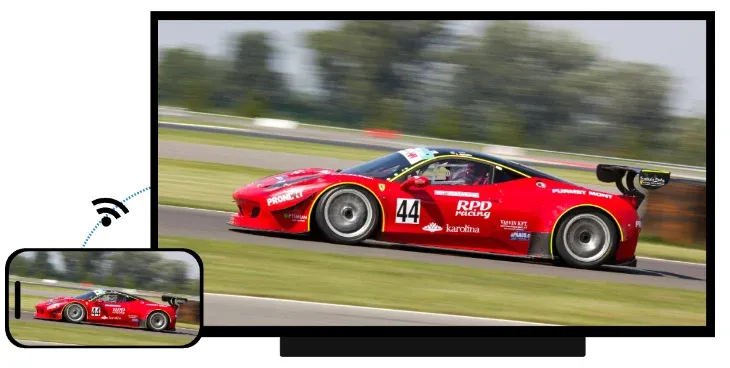
Why Is Screen Mirroring Lagging
Screen mirroring lagging on TV usually happens when your wireless connection cannot transmit video fast enough in real time.
When you mirror your phone, tablet, or computer to a TV, your device continuously sends a live video stream through Wi‑Fi.
Unlike watching YouTube or Netflix, screen mirroring happens in real time. Even tiny network delays can create input lag, stuttering, audio sync issues, buffering, frame drops, and frozen screens.
Below are the most common reasons screen mirroring becomes laggy.
| Why Is Screen Mirroring Lagging | How It Affects Mirroring |
|---|---|
| Weak Wi-Fi Signal | Slower transmission creates delay and buffering |
| Network Congestion | Too many devices compete for bandwidth |
| 2.4GHz Wi‑Fi | More interference and lower speed |
| High-resolution streaming | 4K mirroring overloads weaker networks |
| Older TV hardware | Slower decoding causes stutter |
| Background apps | Consume CPU power and bandwidth |
| Wireless interference | Bluetooth devices and walls weaken signals |
| Outdated firmware | Compatibility issues create instability |
In most cases, the issue is not your TV alone. It's the combination of Wi‑Fi speed, device performance, and real-time video encoding.
How to Fix Screen Mirroring Lag
Wireless mirroring will always have minimal latency, but it shouldn't be noticeable. If your TV feels much less responsive, you should fix that with some solutions.
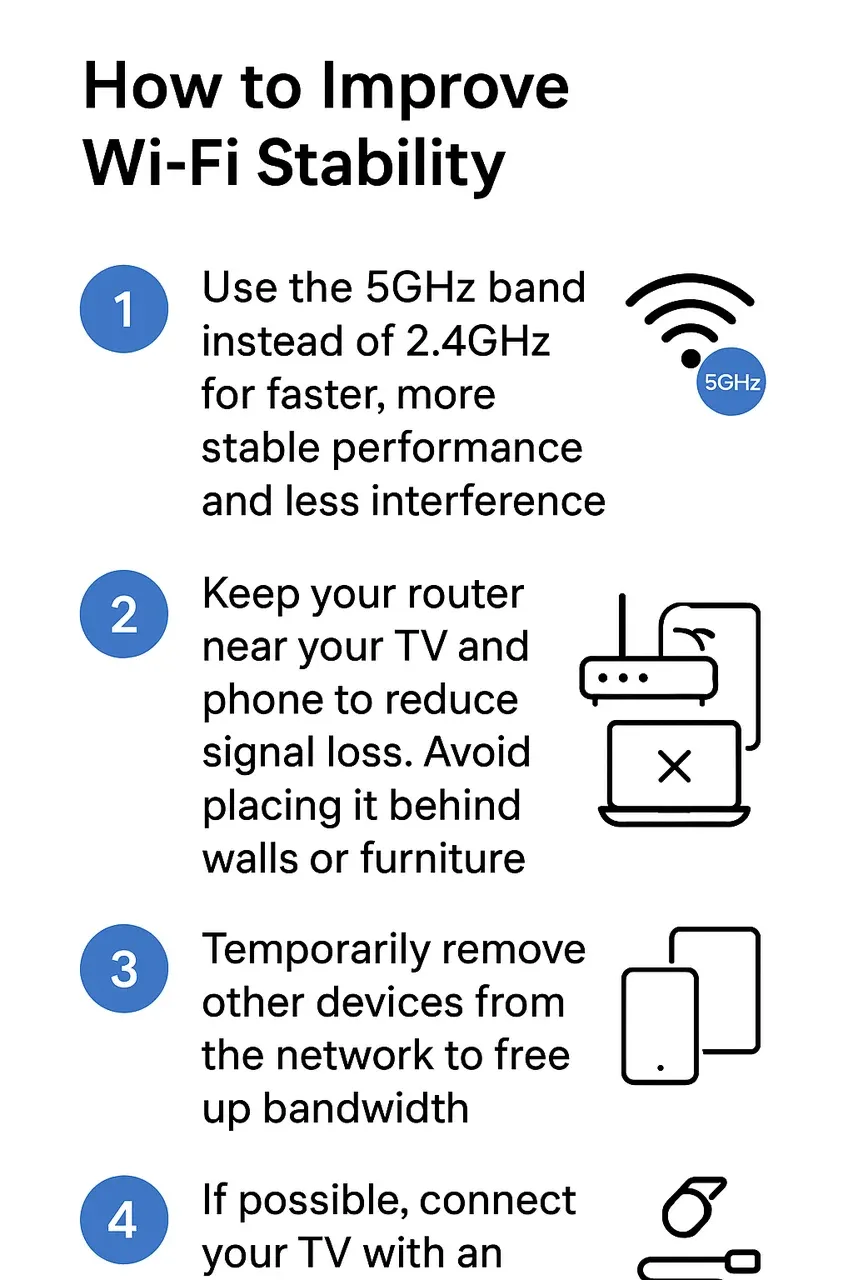
Method 1: Switch to 5GHz Wi‑Fi
Most Smart View lagging, AirPlay lagging, and Chromecast buffering issues happen because devices are connected to crowded 2.4GHz Wi-Fi.
Compared with 2.4GHz Wi-Fi, 5GHz Wi-Fi offers faster speeds, lower latency, less interference, and better streaming stability.
So, switch to 5GHz Wi-Fi to improve your network stability:
Step 1. Connect both your TV and phone to the same 5GHz Wi‑Fi network.
Step 2. Move the router closer to your TV.
Step 3. Avoid placing the router behind walls or cabinets.
Step 4. Disconnect unused devices from Wi‑Fi.
Step 5. If possible, connect your TV through Ethernet.
You might see immediate improvements after switching to 5GHz.
 If the lag continues after stabilizing Wi-Fi, the next step is to check your software.
Method 2: Restart Your Devices
A simple reboot can remove temporary network glitches that often cause mirroring delay. Moreover, restarting your devices can refresh Wi-Fi connection, cached network data, mirroring sessions, and background processes.
Step 1. Turn off your television, phone, and router.
Step 2. Wait 15 seconds.
Step 3. Turn everything back on.
Step 4. Reconnect screen mirroring.
This simple fix solve surprising amounts of lag and buffering.
Method 3: Keep Software Up to Date
Screen mirroring lag issues, including AirPlay lagging on TV, can happen after firmware mismatches. Follow these steps to stay current:
Step 1. Make sure your TV firmware and your phone's operating system are both up to date.
Step 2. Install the screen mirroring app you use if needed.
Step 3. Restart devices and start mirroring again.
Once everything is updated, test screen mirroring again. If it still feels choppy, move on to checking the resolution settings.
Method 4: Lower the Mirroring Resolution
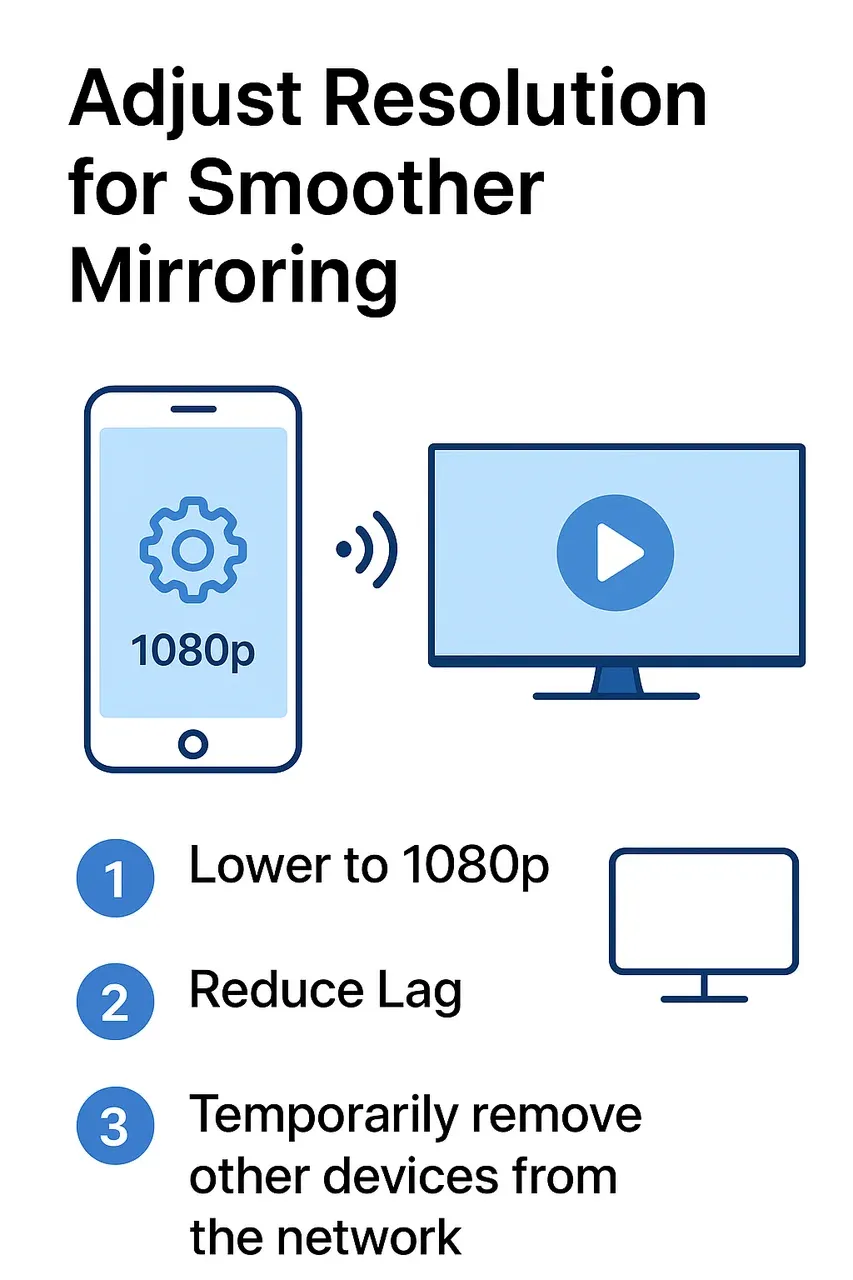
We naturally prefer 4K for its sharper and more detailed picture quality. However, streaming or screen mirroring in 4K also demands much more network bandwidth. If your Wi-Fi connection cannot keep up, you may experience choppy playback, input lag, frame drops, or audio sync issues.
If your 4K screen mirroring session feels laggy, reducing the resolution to 1080p can significantly improve overall smoothness and stability. This is particularly useful for gaming, live sports, live streaming, and full-screen video playback where responsiveness matters more than maximum sharpness.
While you sacrifice a small amount of visual detail, you gain a much smoother and more reliable mirroring experience.
Method 5: Close Background Apps
Background apps silently consume CPU power, RAM, and network bandwidth. That extra load can interfere with real-time screen mirroring, especially on older Android phones and entry-level smart TVs.
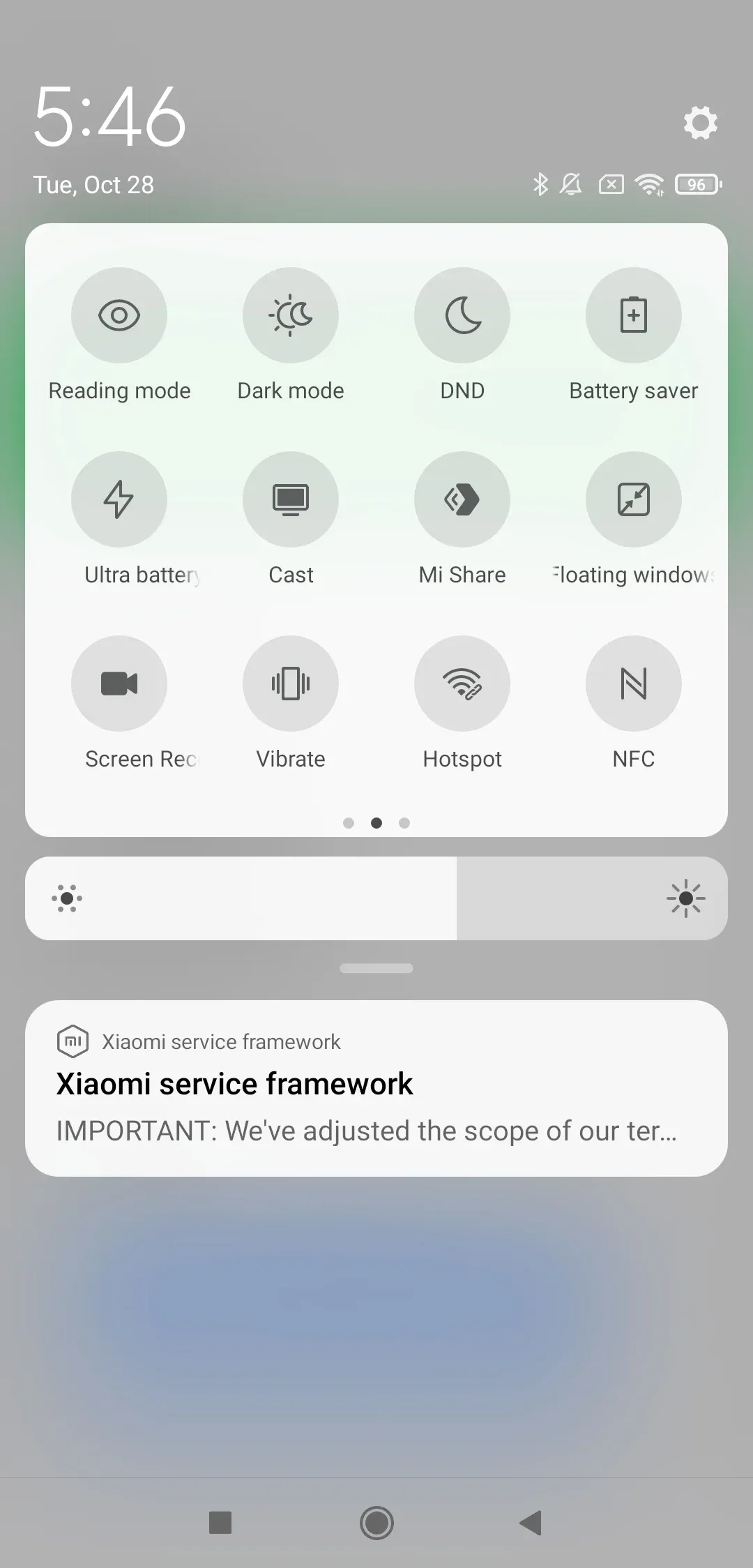
To reduce lags, reduce background activity:
Step 1. Close apps running in the background.
Step 2. Disable Battery Saver or Lower Power Mode.
Step 3. Pause downloads and cloud sync apps.
Step 4. Restart the mirroring sessions.
 Step 3. Pause app updates or large downloads that take up bandwidth.
Step 4. Restart screen mirroring and see if playback feels smoother.
If lag continues, move on to checking for wireless interference.
Method 6: Reduce Wireless Interference
Even strong Wi‑Fi, such as 5GHz Wi-Fi, can become unstable because of interference. Common interference sources include Bluetooth speakers, wireless headphones, microwaves, thick walls, nearby routers, and smart home devices.
How to reduce interference:
Step 1. Move Bluetooth devices awsy from your TV.
Step 2. Keep your router in an open area.
Step 3. Change your router channel if the area is crowded.
Step 4. Reconnect screen mirroring and test again.
Small interference issues often create micro-stutters that feel like random lag.
Method 7: Use a Low-Latency Mirroring App
Built-in tools like Smart View or AirPlay are convenient but not always optimized for low latency. If you're noticing Smart View lagging or AirPlay lagging on TV, try a purpose-built solution such as PigeonCast.
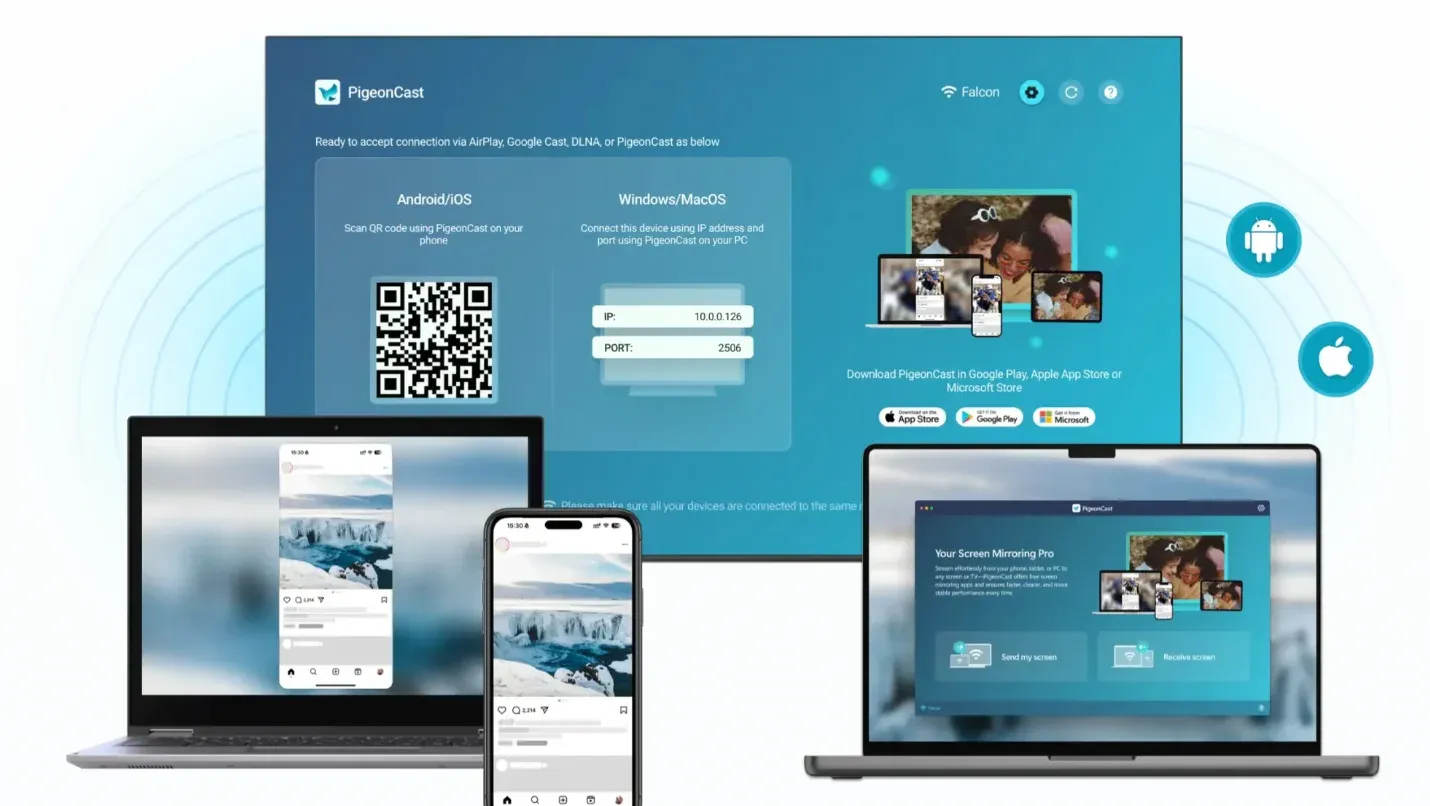
PigeonCast focuses on real-time 4K full-screen mirroring with ultra-low delay, even across different platforms (Android, iPhone, Windows, and TV). It's a strong Smart View or AirPlay alternative when they feel sluggish.
The simple app setup on your device:
Step 1. Download PigeonCast on your sender device and receiving device.

PigeonCast Screen Mirroring

Official Download



Step 2. Ensure the two devices are on the same Wi-Fi network.
Step 3. Launch the app on both devices and connect your phone or computer to your TV.
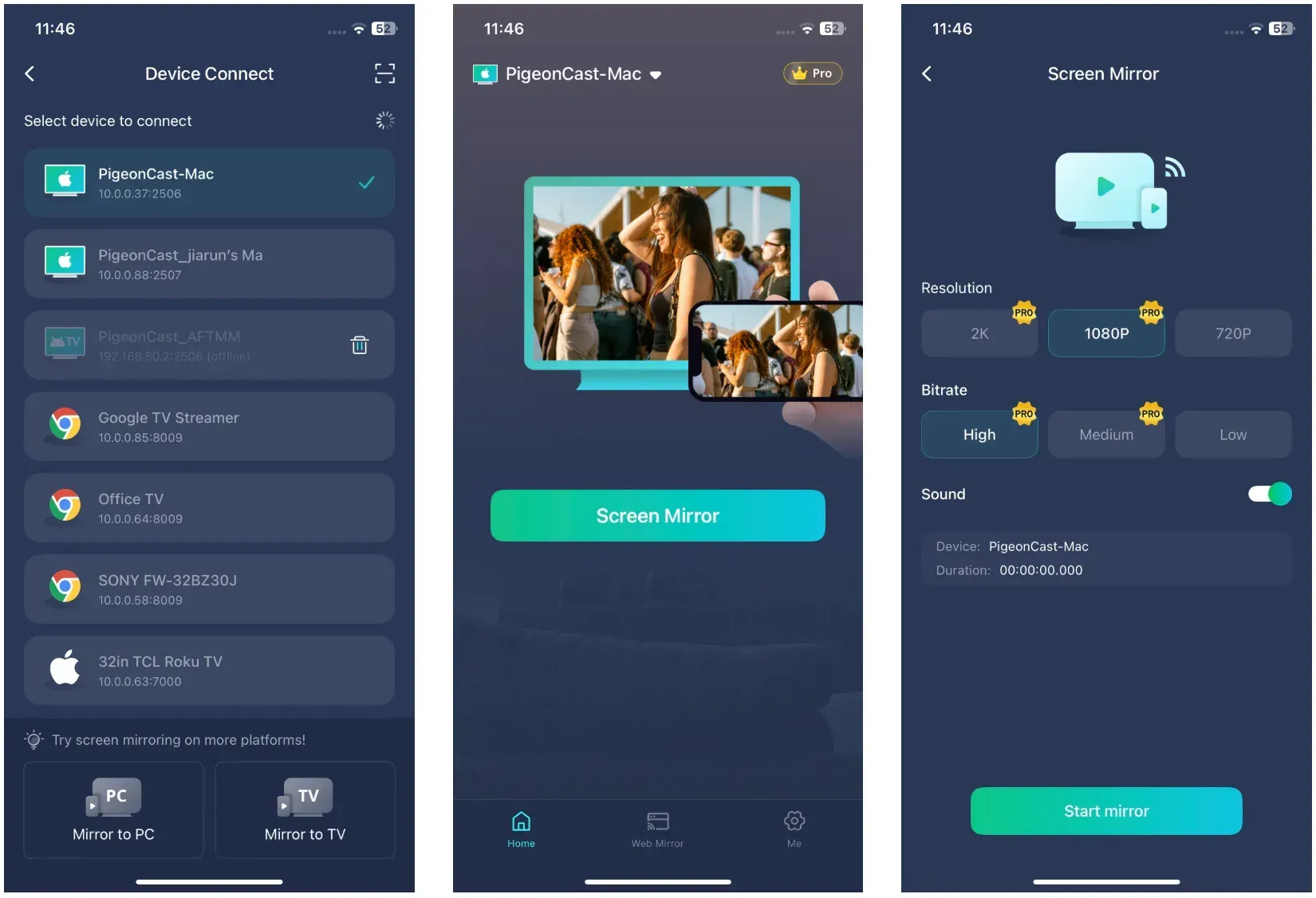
Step 4. Start screen mirroring.
Conclusion
Screen mirroring lag can happen for many small reasons, including unstable Wi-Fi, outdated firmware, overloaded background apps, or even simple interference from nearby devices. The good news is that most cases are easy to fix. By improving your Wi-Fi stability, updating your software, and restarting your devices, you can usually restore smooth, delay-free mirroring in minutes.
If you've tried all the fixes and the lag persists, consider using a more optimized mirroring tool like PigeonCast, which provides stable, low-latency connections.
Why Is My Screen Mirroring Lagging FAQs
Why is iPhone mirroring so laggy?
iPhone screen mirroring can lag when AirPlay connects over a weak or congested Wi-Fi network. Try switching to 5GHz Wi-Fi, updating your iOS and TV firmware, and restarting both devices to clear temporary data.
Why does my screen mirroring keep buffering?
Buffering usually means your network bandwidth is maxed out. Too many connected devices or background downloads can slow down your connection. Disconnect unused devices or move your router closer to the TV.
How to mirror without lag?
For smoother mirroring, ensure both devices are on the same stable 5GHz Wi-Fi, close background apps, and lower resolution if streaming 4K content. Wired options or apps like PigeonCast can further minimize delay.
Why is AirPlay lagging on TV?
AirPlay lag can occur if your TV's firmware is outdated or your router is too far away. Update both devices, ensure they share the same Wi-Fi band, and restart them to refresh the connection.
Does Smart View lag more than AirPlay?
Not necessarily. Smart View lagging usually happens on overloaded 2.4GHz Wi-Fi or when running multiple apps at once. Using 5GHz Wi-Fi and closing background apps can make it just as smooth as AirPlay.
Can I reduce mirroring lag for gaming?
Yes. Switch your TV to Game Mode, use Ethernet for your TV connection, and avoid 4K streaming. For real-time gaming, apps designed for low-latency casting work best.
Mia Clarke is a technology editor specializing in screen mirroring and casting solutions across multiple platforms. Mia provides clear, practical guides and in-depth insights to help users seamlessly connect their devices. Passionate about enhancing digital experiences, Mia is dedicated to keeping readers updated on the latest trends and tools in cross-platform screen sharing. Whether you’re looking to mirror your smartphone, laptop, or smart TV, Mia’s content delivers reliable, user-friendly advice to simplify your tech setup.