
Few things are more frustrating than settling in to watch a video or give a presentation, only to face a lagging AirPlay connection. If you're asking, "Why is my AirPlay lagging?" the issue can manifest as audio syncing problems, delayed screen mirroring, or constant buffering. Understanding the cause is the first step toward fixing the problem and getting smooth performance again.
Why Is AirPlay Lagging
AirPlay is an advanced technology that wirelessly compresses, transmits, and decompresses video and audio data in near real-time. When this process faces obstacles, lag becomes immediately noticeable. The causes of AirPlay lag typically fall into a few distinct categories, some of which are more common than others. Read on to find out why is AirPlay lagging on TV:
- Network congestion and bandwidth limitations
- Wireless interference and signal strength issues
- Distance and physical obstructions between devices
- Outdated software on your Apple TV or iOS device
- Hardware limitations of older devices
- High video resolution is overwhelming your network
How to Fix Lagging AirPlay
Now that we've covered some common causes of Apple AirPlay lagging, let's review practical solutions to fix the issue. Before diving into more complex configurations, start with the basics. Simple solutions often resolve persistent problems more than you'd expect. Plus, you can try PigeonCast to build a more stable connection.
#1. Check WiFi Connection
AirPlay relies on your WiFi network for smooth streaming. A weak or unstable WiFi connection is one of the most common causes of AirPlay lag. Here's how to check and improve your wireless network.
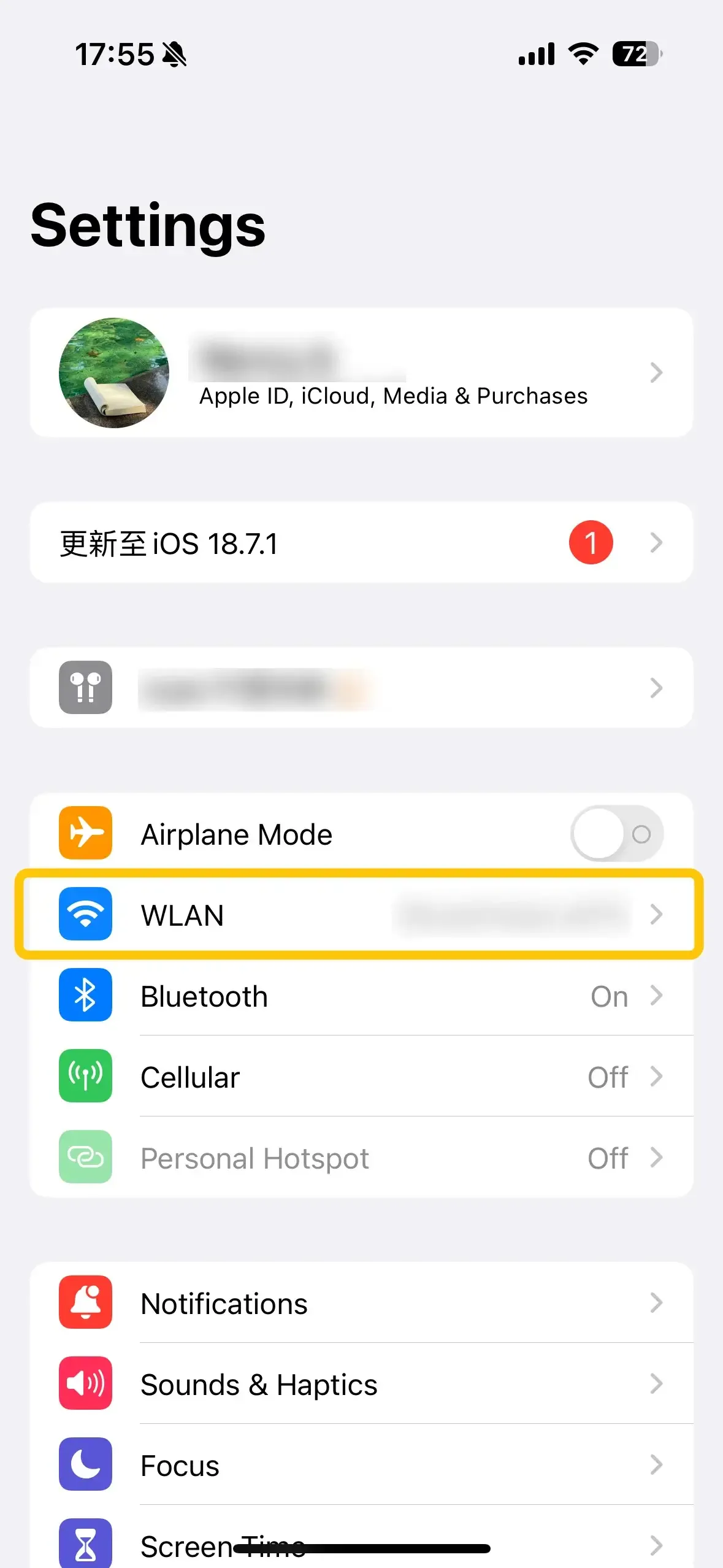
- Ensure both devices are on the same Wi-Fi network.
- Test your Wi-Fi speed. Use an app like Speedtest to ensure you have a stable and fast connection.
- Move your devices closer to the router. If your router is too far from your Apple device or AirPlay receiver, the signal might be too weak for smooth streaming.
- Upgrade your router if necessary. Older routers may not provide the speed or range required for high-quality AirPlay streaming.
- Use an Ethernet cable to boost the wireless network.
#2. Move Closer and Remove Interference
How to stop AirPlay from lagging? AirPlay works best when your devices are within close range of each other and the router. Physical obstacles, such as walls or other devices emitting wireless signals, can interfere with your connection. To improve AirPlay performance:
- Move your Apple device and AirPlay receiver closer together. Reducing the distance between your devices can help improve signal strength.
- Eliminate wireless interference. Devices like microwaves, cordless phones, or other Wi-Fi networks can cause interference. Try turning off or moving these devices away from your Wi-Fi router.
#3. Adjust AirPlay Resolution Settings
High-resolution content can put extra pressure on your network and devices. When AirPlay struggles to handle 1080p or 4K streaming, it may automatically reduce video quality, causing blurry images, inconsistent sharpness, or lower-than-expected display quality.
If your AirPlay screen looks unclear even when the connection is stable, checking your screen mirroring resolution settings** can help improve image quality and ensure your display is using the correct output resolution.
Here are some ways to improve AirPlay resolution and streaming quality:
- Use a stable 5GHz Wi-Fi connection: High-resolution AirPlay streaming requires more bandwidth. A stronger wireless connection can reduce compression and quality drops.
- Avoid streaming demanding 4K content on weak networks: Ultra-high-definition videos require more processing power and bandwidth, which can increase lag and cause resolution changes.
- Check your display resolution settings: Make sure your TV, Apple TV, or AirPlay receiver is configured for the highest supported resolution.
- Reduce background network usage: Downloads, cloud backups, and other connected devices can affect AirPlay performance.
- Match your content and screen aspect ratio: Some videos may appear with black bars or reduced quality because of their original format rather than an AirPlay issue.
For the best results, use a compatible receiver, a reliable network connection, and the correct resolution settings for your TV or display.
#4. Update Software and Firmware
Outdated software or firmware can cause AirPlay to lag, especially if the operating systems on your devices aren't compatible. Here's what you can do to keep everything up to date:
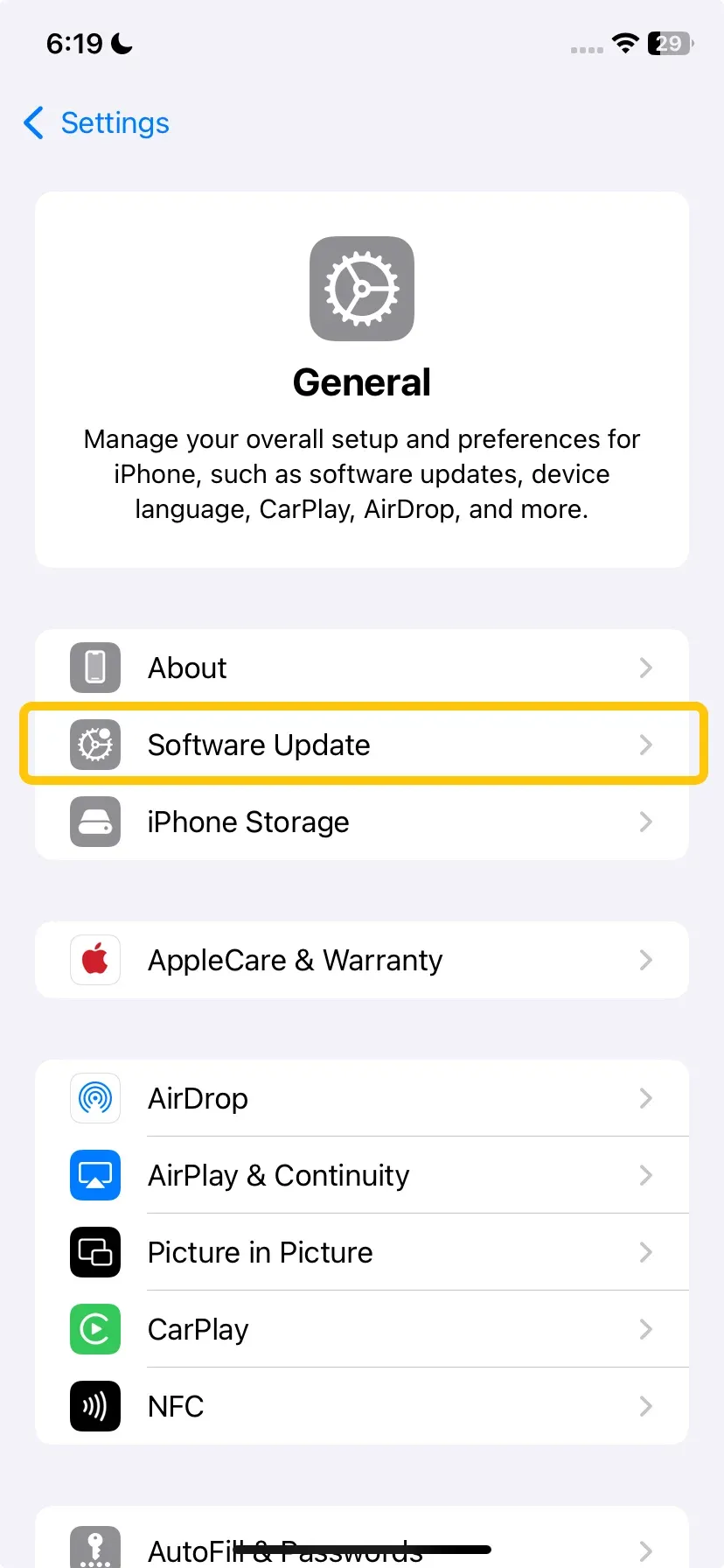
- Update your iPhone or iPad: Go to Settings > General > Software Update to check for any available iOS updates.
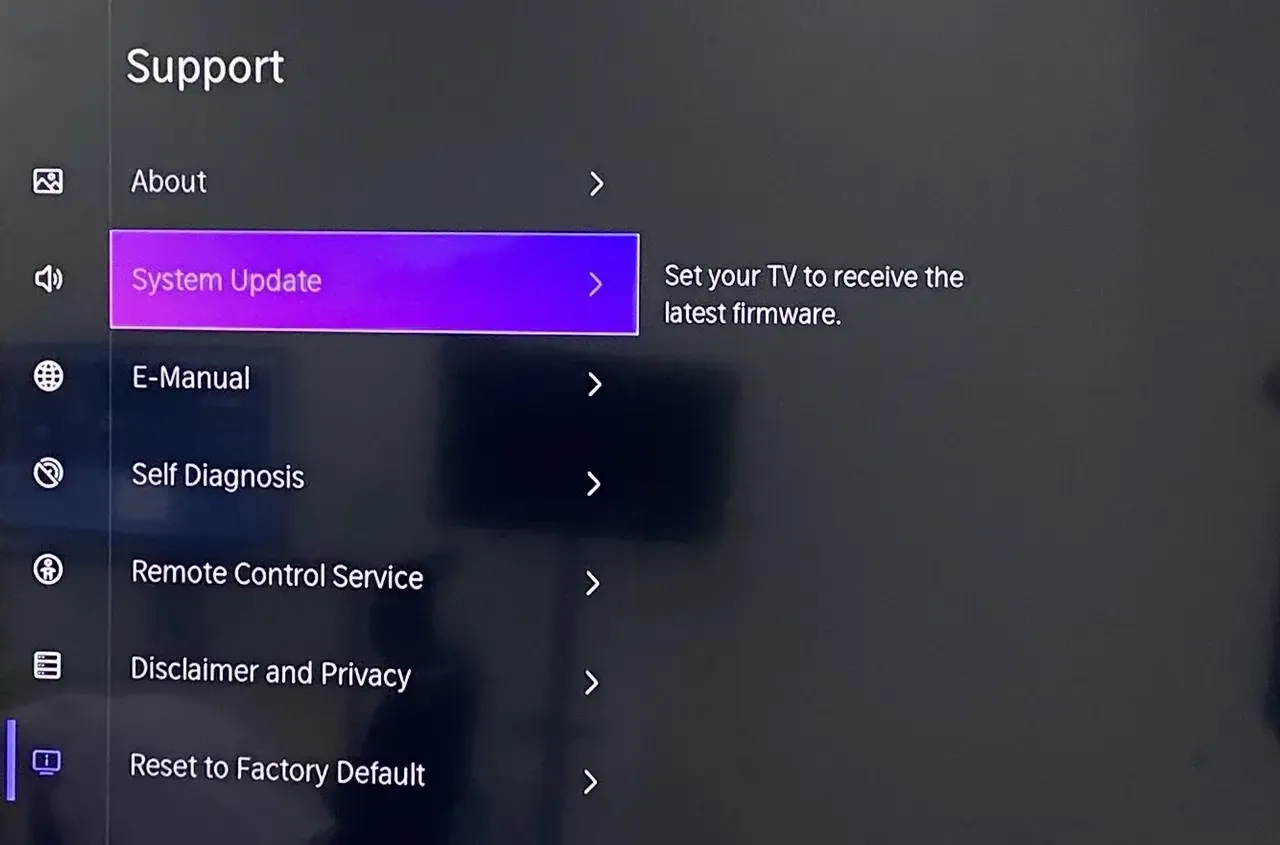
- Update your AirPlay receiver (e.g., Apple TV): Go to Settings > System > Software Updates on your Apple TV to ensure you have the latest version.
#5. Restart Your Devices
The classic "turn it off and on again" solution is still effective. It helps clear temporary glitches, reset network connections, and refresh the device's memory. Here's the step:
- Restart your iPhone or iPad:
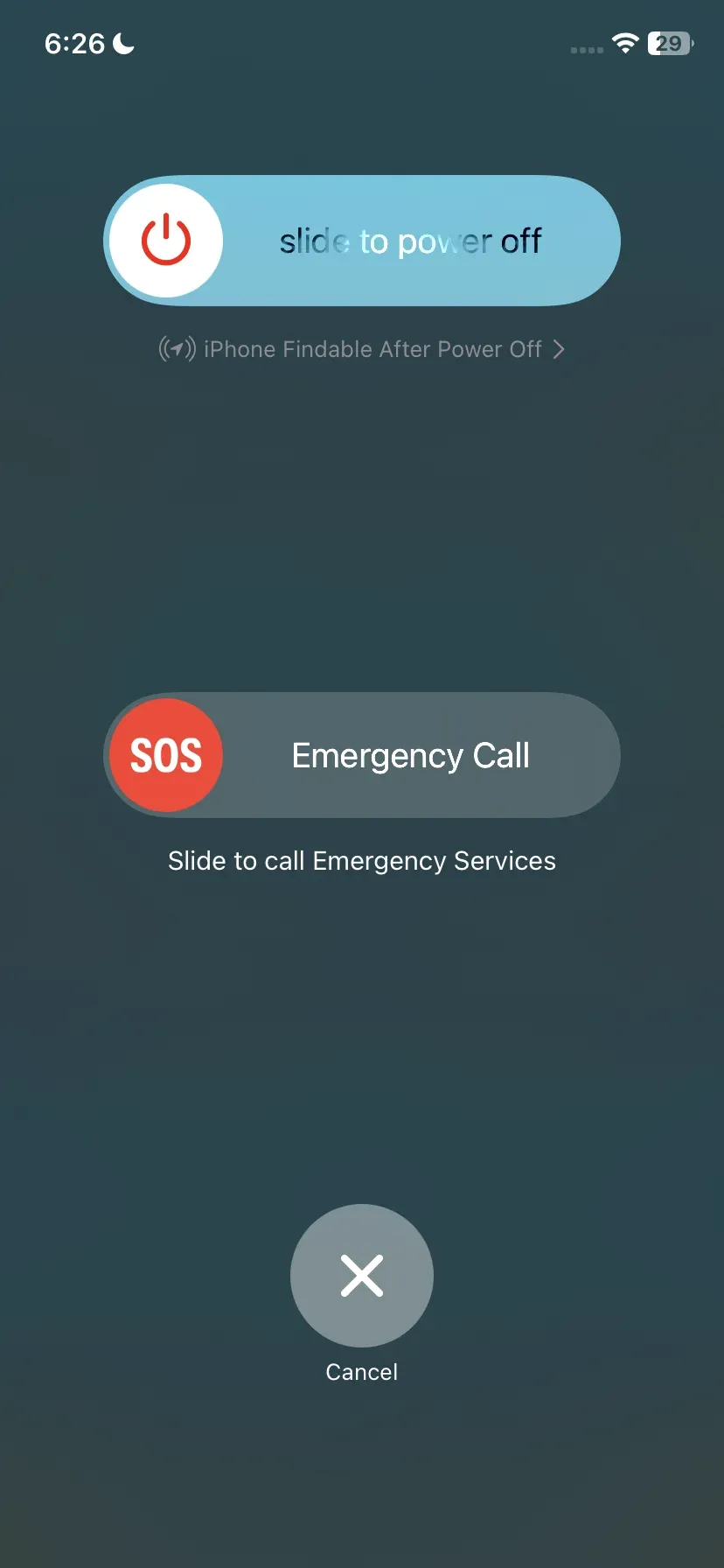
Step 1. Press and hold the Power button (and Volume button for newer models) until the slide to power off slider appears.
Step 2. Slide to power off your device and wait a few seconds.
Step 3. Once it's off, press and hold the Power button again until the Apple logo appears to turn it back on.
- Restart your TV:
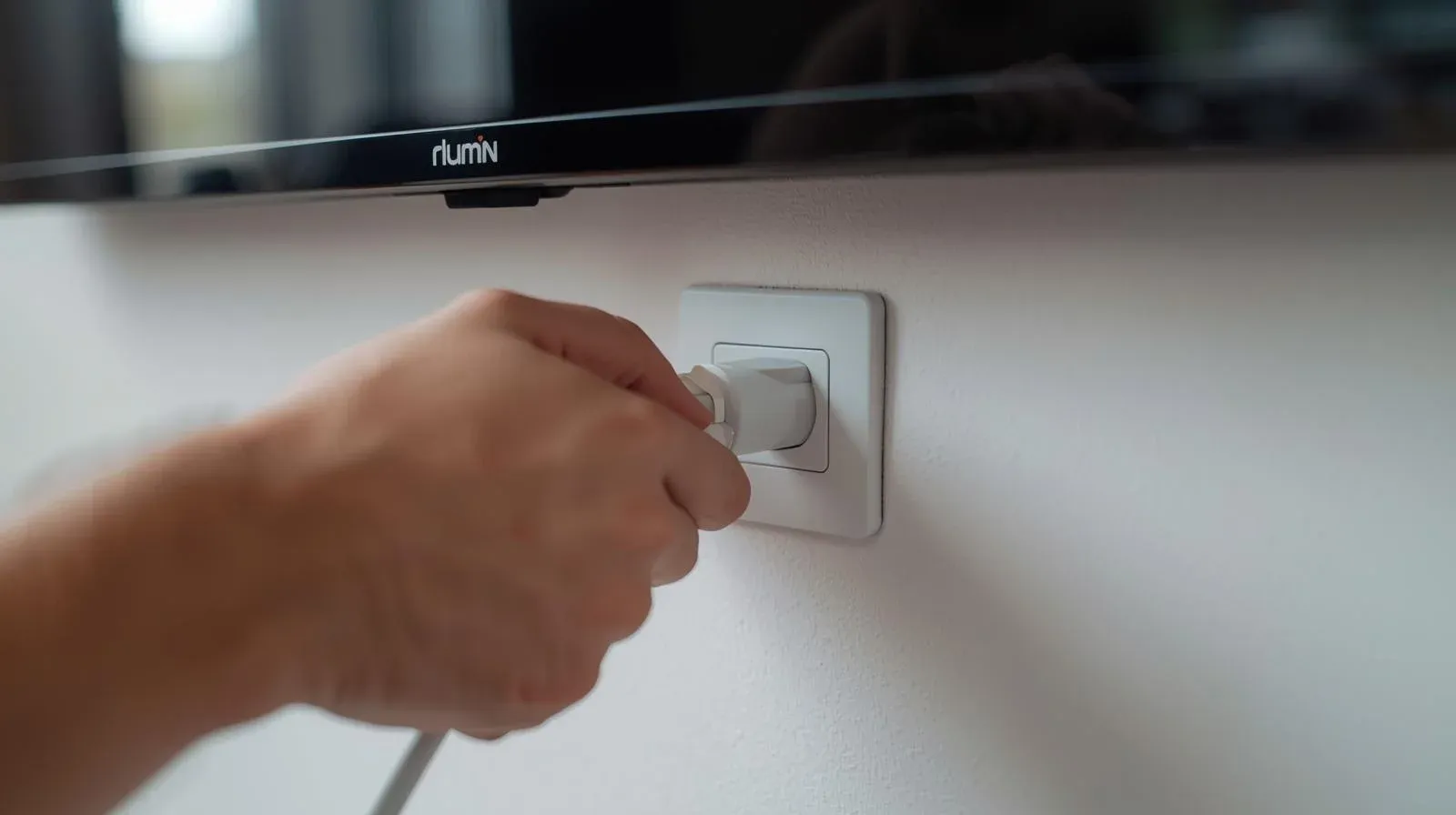
Step 1. Turn off your device.
Step 2. Unplug the TV from the power outlet.
Step 3. Wait for 10 seconds, then plug it back in. Wait for the TV to fully restart.
#6. Disconnect VPN
Why is my AirPlay lagging on my TV? If you're using a Virtual Private Network (VPN) on your iPhone or iPad, it could be causing your AirPlay connection to lag. VPNs route your internet traffic through distant servers, which can slow down streaming speeds.
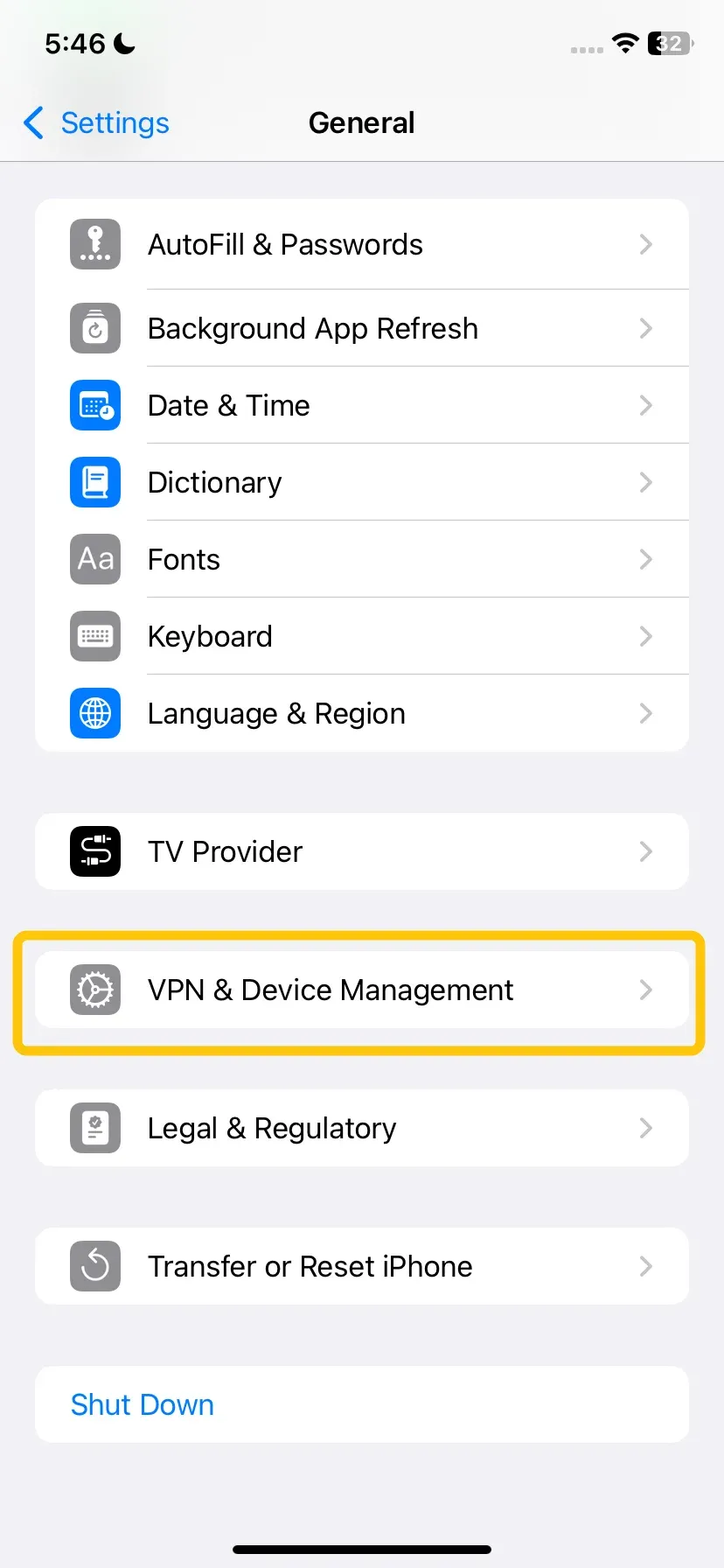
Step 1. Tap the Settings app on your iPhone or iPad and scroll down to click the VPN.
Step 2. Toggle the VPN switch to Off. This will disconnect the VPN.
#7. Turn on Bluetooth on Both Devices
Why is my Apple TV lagging on AirPlay? AirPlay uses Bluetooth for device discovery and connection, even though the actual streaming is done over Wi-Fi. If Bluetooth is turned off on either device, it could cause delays or connection issues. Make sure Bluetooth is enabled on both your iPhone or iPad and the AirPlay receiver.
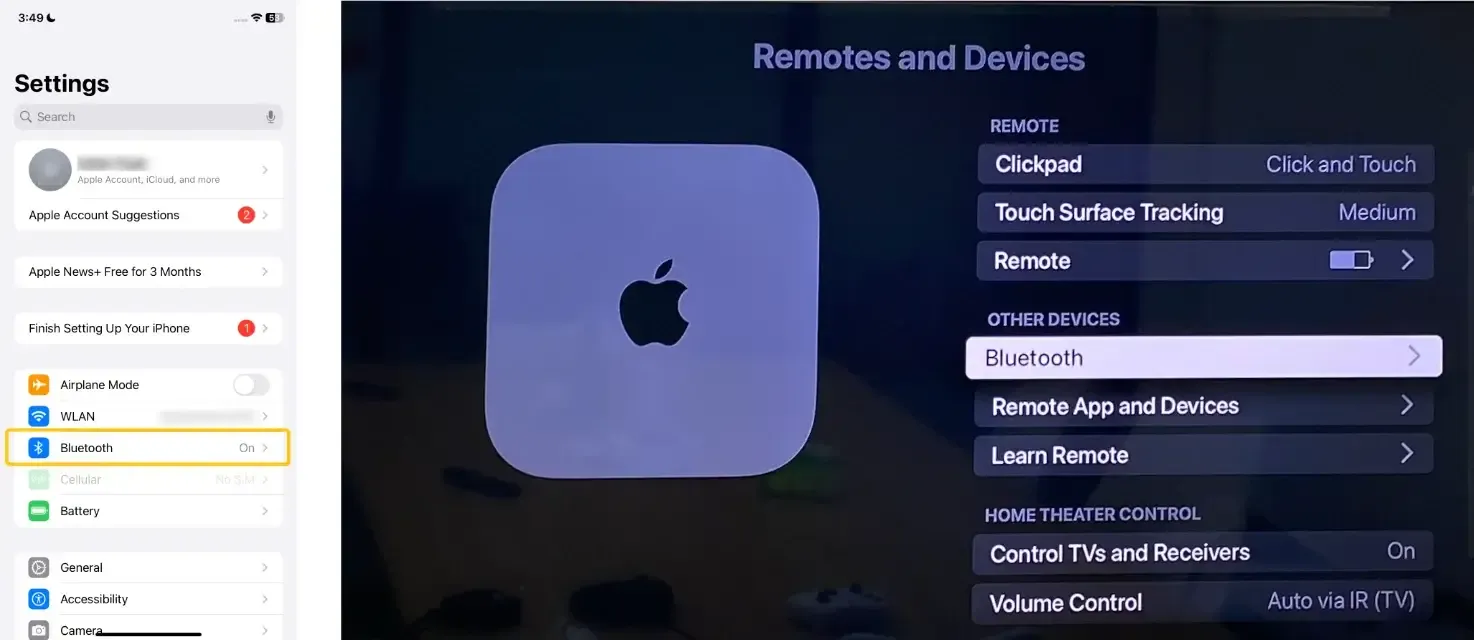
On both your devices, navigate to Settings, scroll down to Bluetooth, and turn it on.
#8. Turn Off the Firewall on Mac
Why is my AirPlay slow? If you're using a Mac to stream via AirPlay, a firewall may be blocking the connection. To resolve this, try temporarily disabling the firewall:
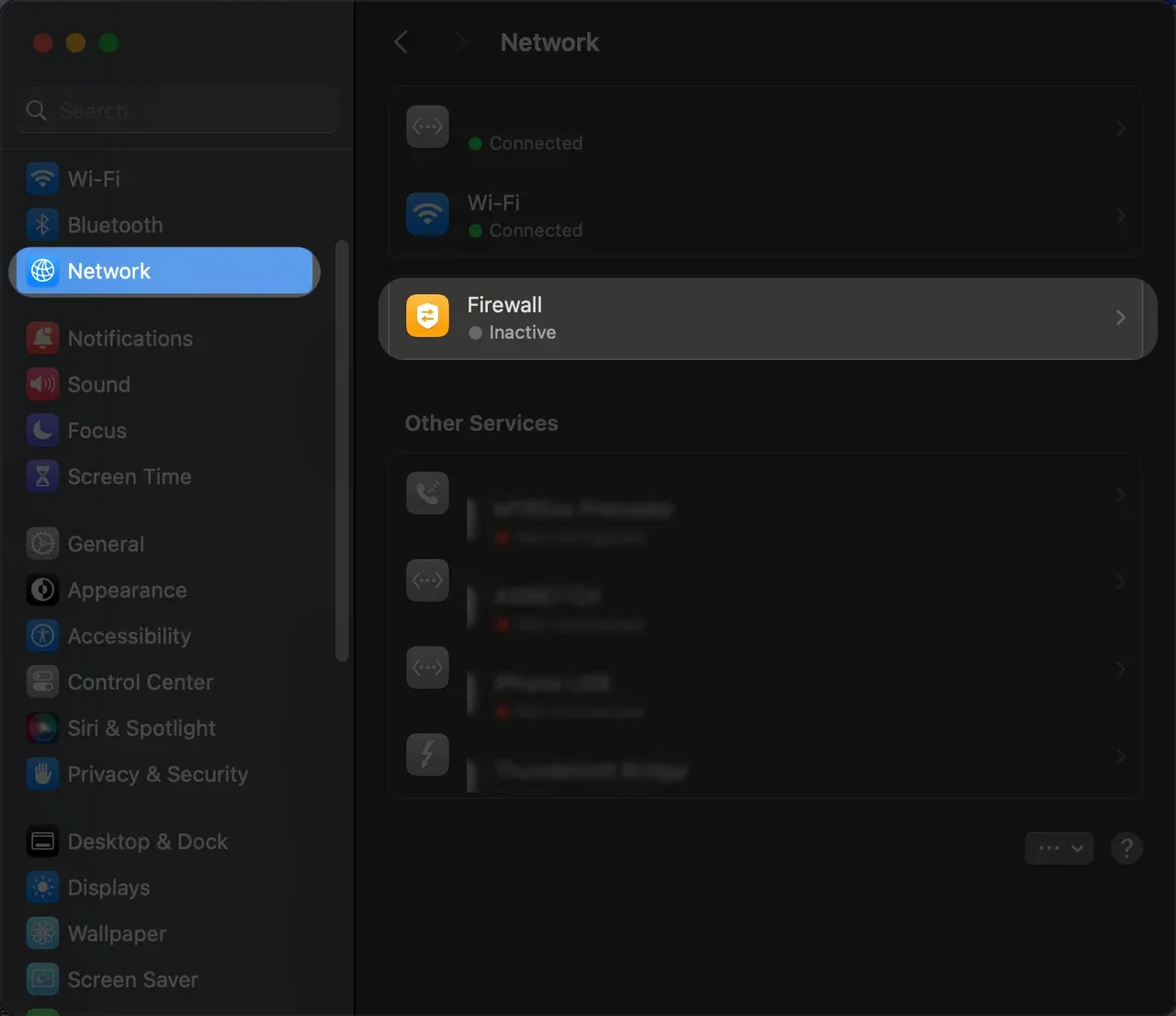
Step 1. Go to System Settings > Network > Firewall on your Mac.
Step 2. Turn off the firewall or adjust the settings to allow AirPlay connections.
#8. Close Background Apps
Apps running in the background consume valuable CPU, memory, and network bandwidth. Closing them frees up resources, allowing AirPlay to encode and transmit video more smoothly.
- How to close background apps on iPhone or iPad:
Step 1. For iPhones with a Home button (iPhone 8 and earlier), double-click the Home button. For iPhones without a Home button (iPhone X and later), swipe up from the bottom of the screen and pause in the middle.
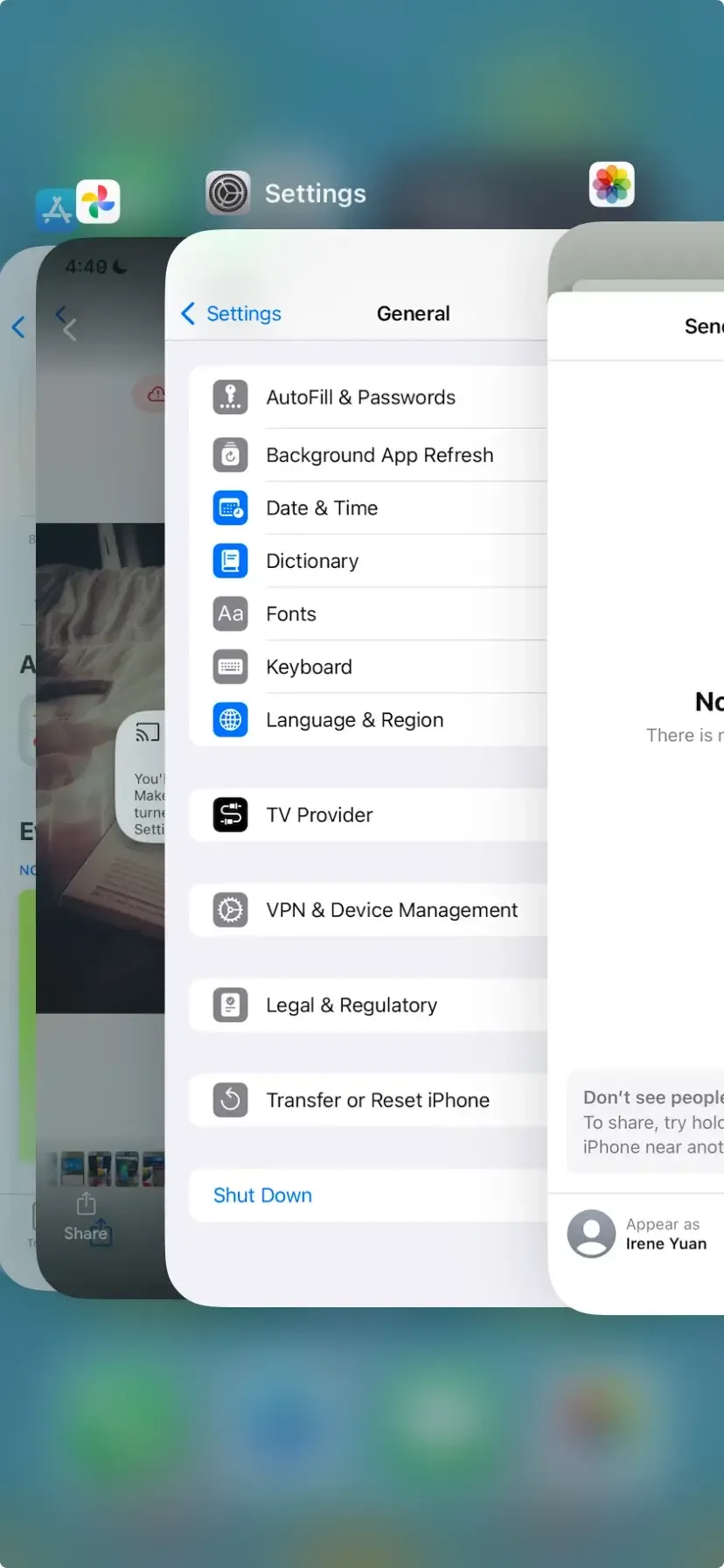
Step 2. You'll see a carousel of apps that are running in the background.
Step 3. Swipe up on the app preview that you want to close. This will remove the app from the background.
Step 4. Once you've closed the apps, tap anywhere outside the app previews to return to the home screen.
- How to Close Background Apps on Mac:
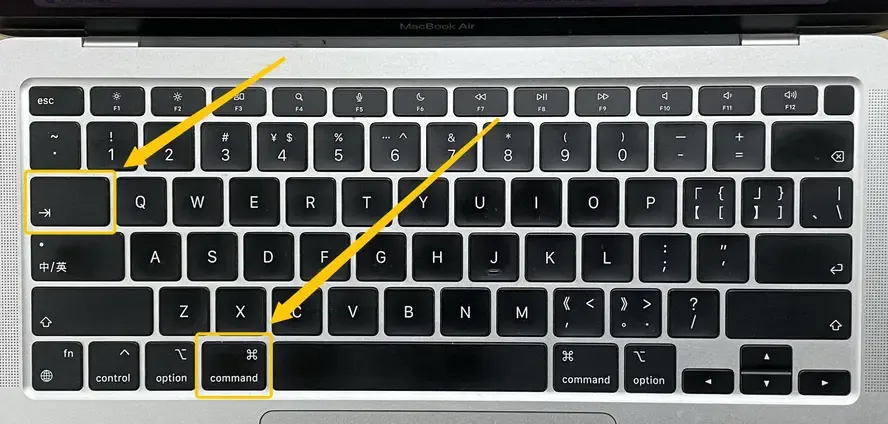
Step 1. Press Command (⌘) + Tab to switch between open apps.
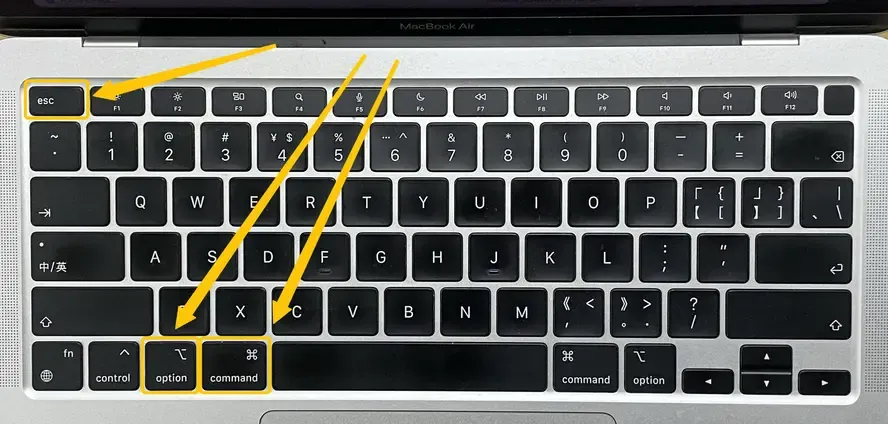
Step 2. If you need to close an unresponsive app, press Command (⌘) + Option + Esc to open the Force Quit Applications window.
Step 3. Select the app you want to close and click Force Quit. For apps you can exit normally, click the Apple menu in the top-left corner, select Quit [App Name], or use Command (⌘) + Q to close the app.
#10. Clear App Cache
If you're using an app to stream content (e.g., YouTube, Netflix, etc.) and experiencing lag, try clearing the app's cache. Over time, app caches can accumulate and cause performance issues. Here's how to clear the cache on apps like YouTube:
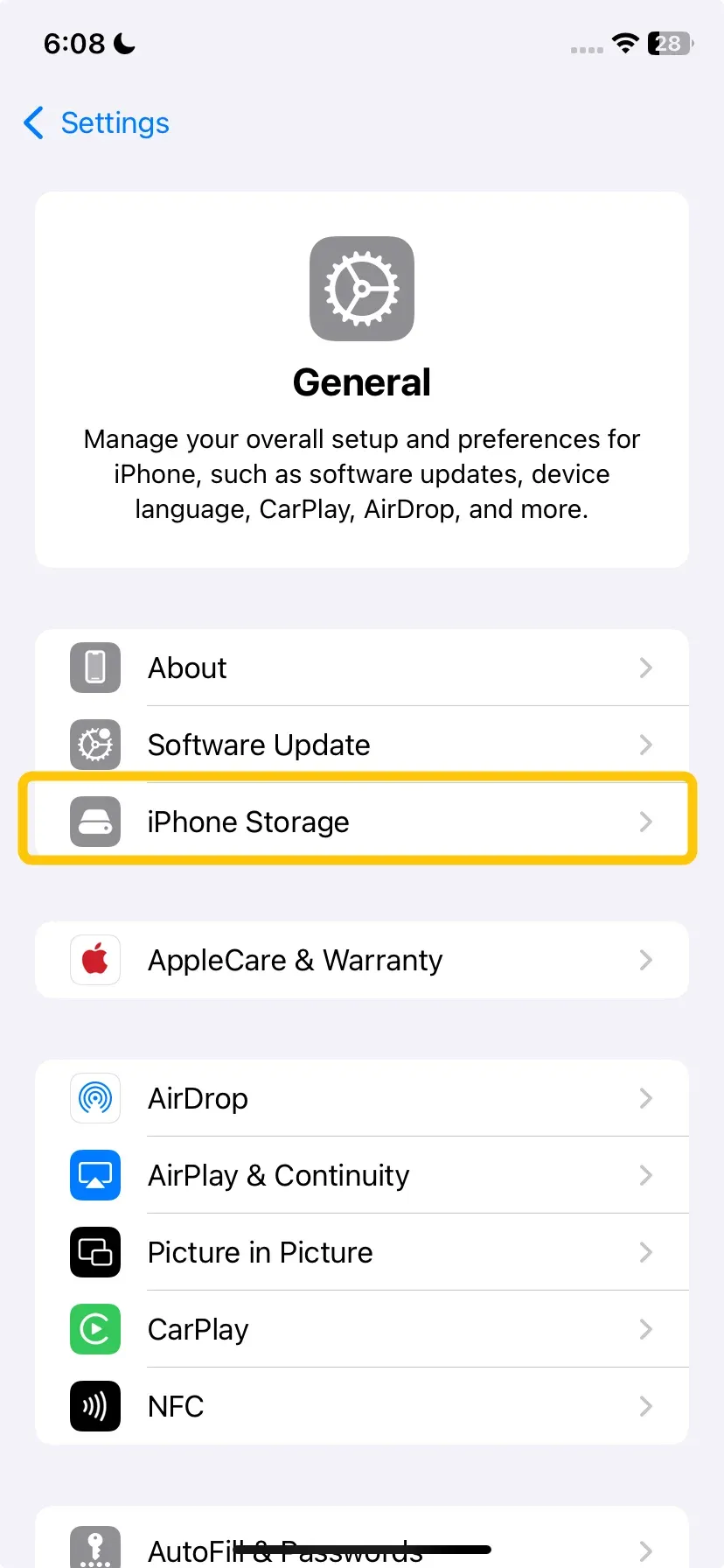
Step 1. Open Settings > General > iPhone Storage.
Step 2. Find the app you're using and tap on it.
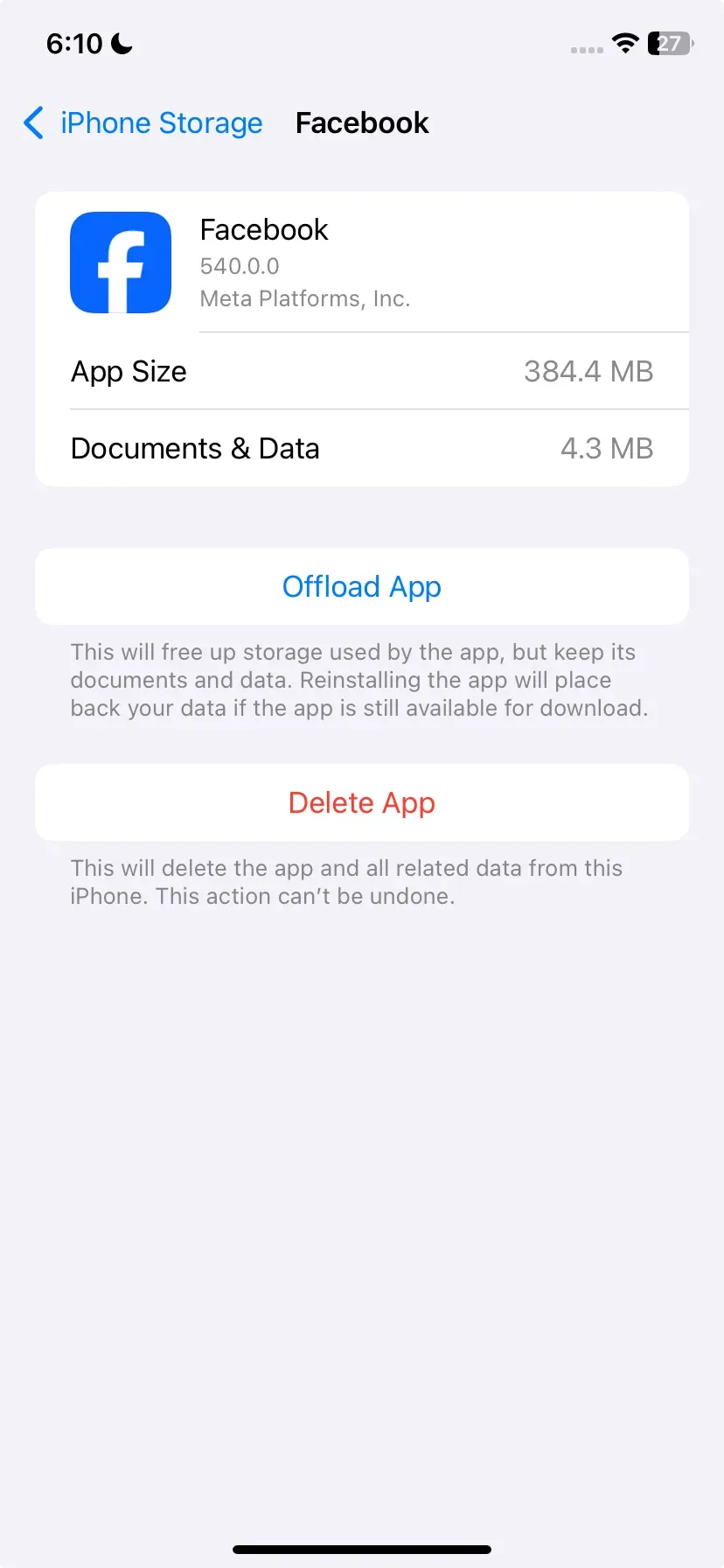
Step 3. Select Offload App or Delete App to clear the cache. Reinstall the app if necessary
#11. Reset AirPlay Settings
Sometimes, resetting your AirPlay settings can resolve persistent lag issues. Here's how to do it:
Step 1. Open the Settings menu on your TV.
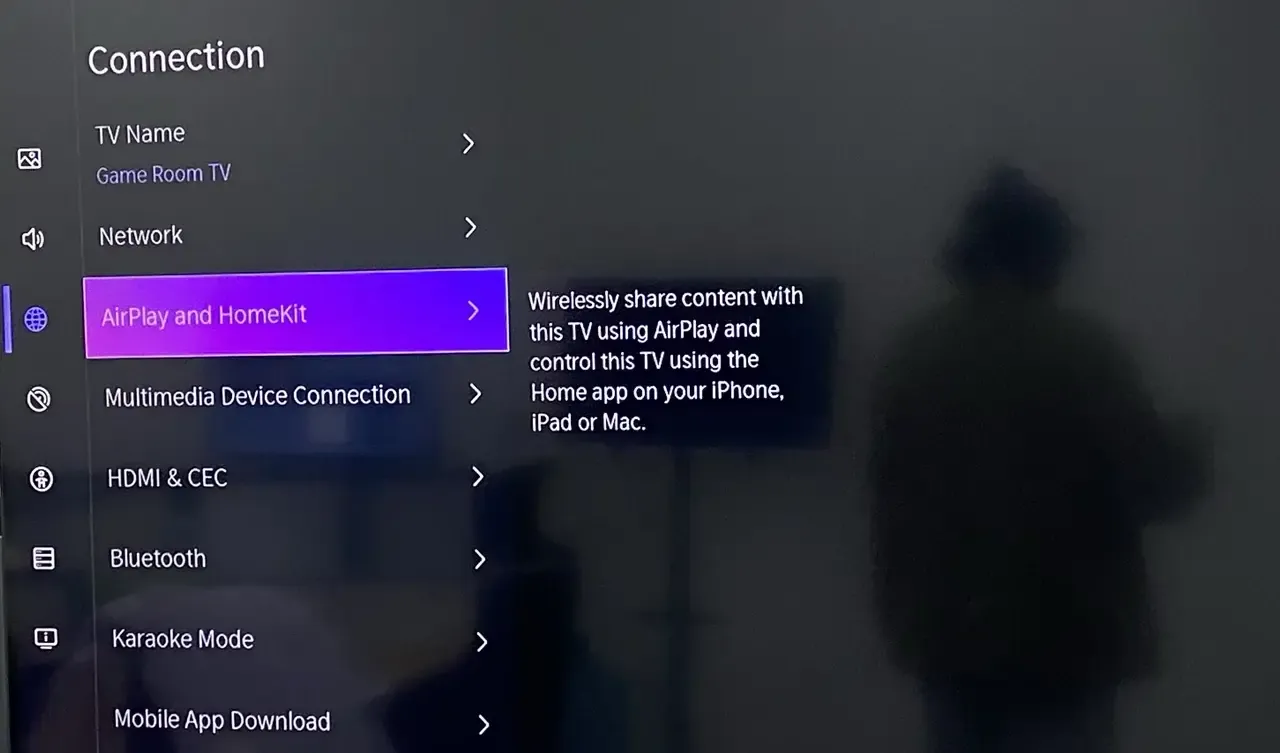
Step 2. Find AirPlay Settings under Connections, General, Network, or Apple AirPlay Settings (varies by brand).
Step 3. If AirPlay is already enabled, turn it off. Some TVs have a specific option to Reset AirPlay or Reset Network Settings to remove any stored AirPlay connections.
Step 4. After adjusting the settings, restart the TV to complete the reset.
#12. Use PigeonCast
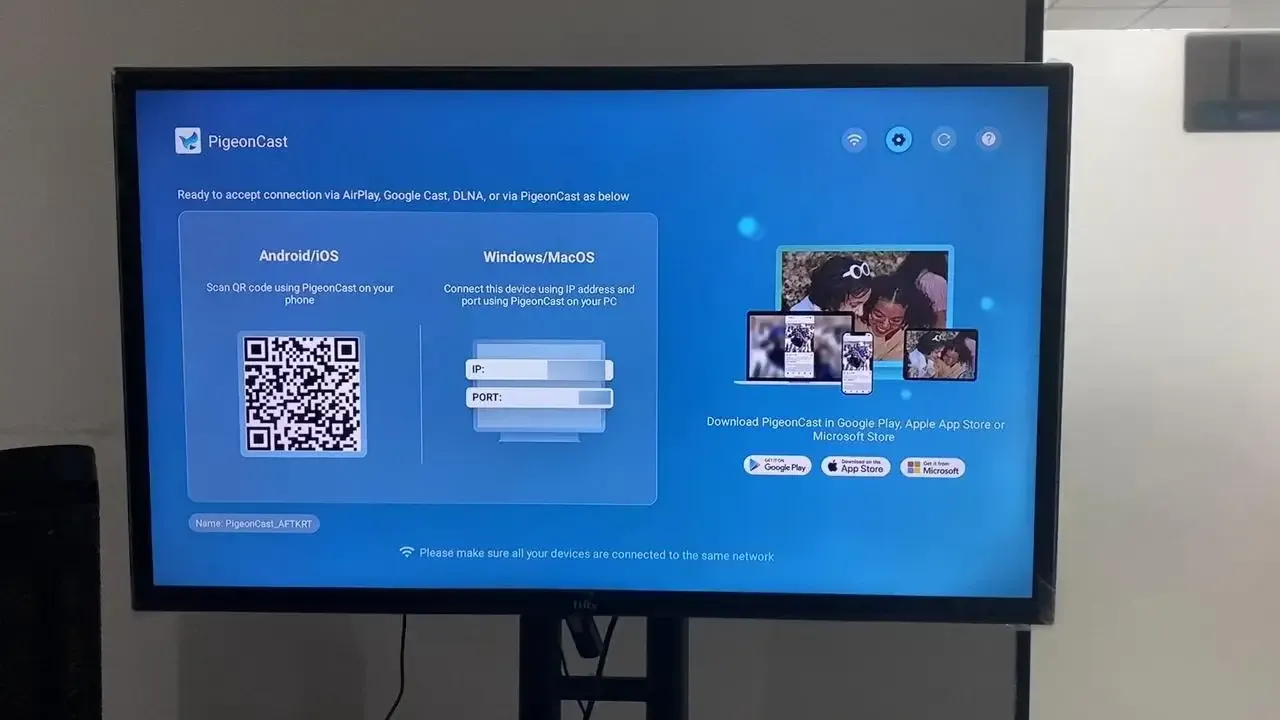
If none of the above solutions work and AirPlay lag is still a problem, consider using a third-party app like PigeonCast. This free app allows you to mirror your iPhone screen to your TV with less lag and better performance. It's especially helpful for you when facing ongoing AirPlay issues. PigeonCast supports AirPlay, DLNA, and Google Cast, giving you more options for smooth streaming.

PigeonCast Screen Mirroring

Official Download



Step 1. Download the PigeonCast app on your Apple device and smart television. Then launch the app.
Step 2. Connect both devices to the same Wi-Fi network.
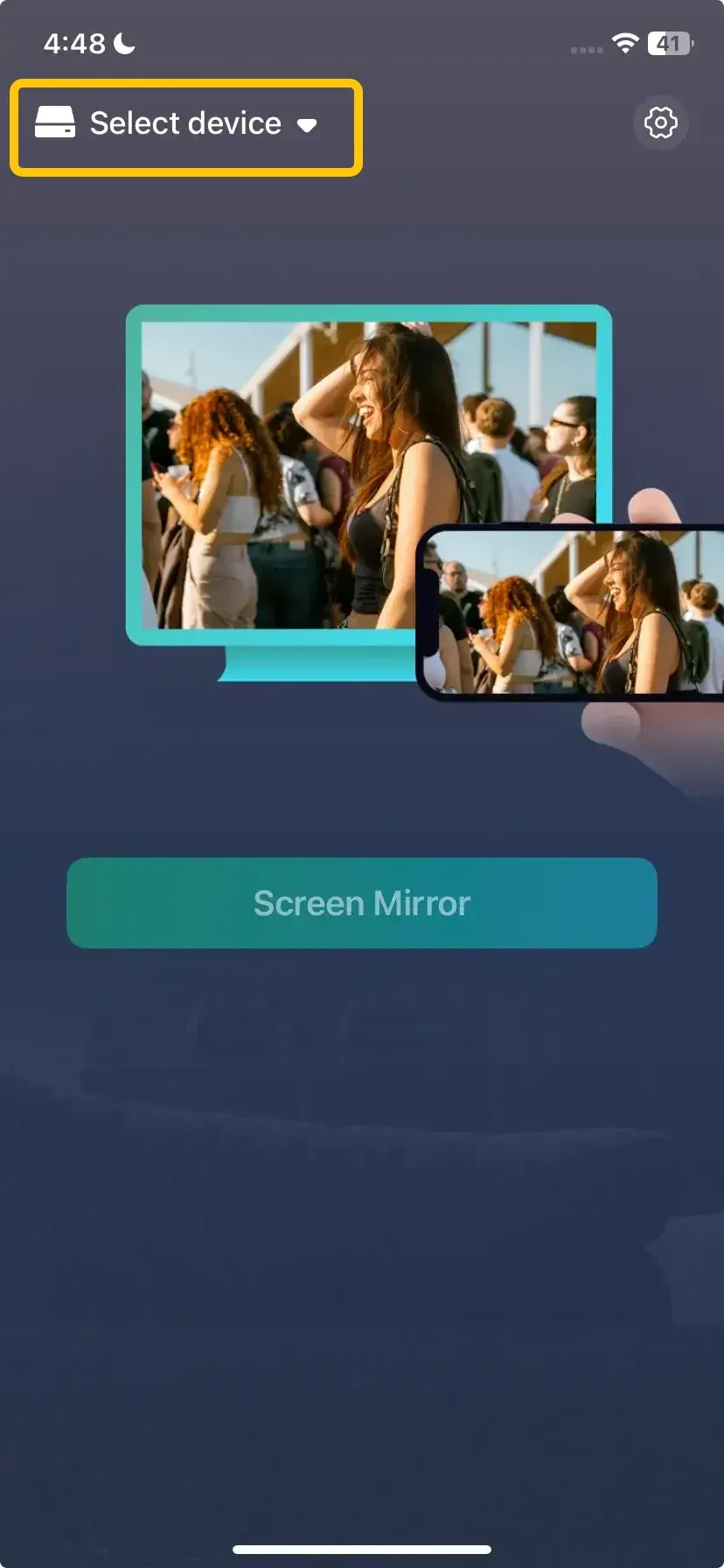
Step 3. On the Apple device, tap Select device to choose your TV from the available list. Or you can scan the onscreen code to build the connection.
Step 4. Enter the onscreen code to finish the pairing process.

Step 5. Once connected successfully, you can then tap Screen Mirror to begin your AirPlay mirroring activities.
Bottom Line
If AirPlay is lagging, the issue is often related to factors like a weak Wi-Fi connection, outdated software, or device interference. By addressing basic issues such as ensuring both devices are on the same network, updating software, and restarting your devices, you can often fix the lag. If these steps don't resolve the problem, using third-party apps like PigeonCast can provide a more reliable solution.
Why Is My AirPlay Lagging FAQ
Why is my AirPlay lagging so much?
If your AirPlay is lagging, the most common reasons include:
- Weak or unstable Wi-Fi connection
- Network congestion or bandwidth limitations
- Distance or physical obstructions between devices
- Interference from other wireless devices (e.g., microwaves, other Wi-Fi networks)
- Outdated software on your iPhone, iPad, or AirPlay receiver
- Hardware limitations of older devices
- High video resolution overwhelms your network
How to make AirPlay run better?
To make AirPlay run better, consider these steps:
- Improve Wi-Fi Connection
- Reduce Interference
- Update Software
- Restart Devices
- Close Background Apps
- Use Ethernet
- Lower Video Quality
Why is screen mirroring so inconsistent?
Screen mirroring can be inconsistent for several reasons:
- Weak or unstable Wi-Fi connection
- Network congestion
- Device compatibility issues
- Distance
- Interference
- Outdated software
- Hardware limitations
- Background apps
How to solve AirPlay lagging on LG TV?
To solve AirPlay lagging on your LG TV, consider these steps:
- Check Wi-Fi Connection
- Reduce Interference
- Update Software
- Restart Devices
- Use Ethernet
- Lower Video Resolution
- Close Background Apps
Why is AirPlay lagging on Roku TV?
If AirPlay is lagging on your Roku TV, the issue could be due to several factors:
- Weak WiFi Connection
- Network Congestion
- Distance Between Devices
- Interference from Other Devices
- Outdated Software
- Hardware Limitations
- Background Apps
Clara Rossi is an experienced technology editor and a seasoned expert in screen mirroring and casting technologies. With a keen eye for detail and a deep understanding of how to seamlessly connect devices, Clara excels at optimizing user experiences for effortless sharing and streaming. Whether you're seeking quick fixes or advanced tips, her expertise and responsiveness ensure that every query is met with a well-informed and efficient solution.