
AirPlay says connected, but your TV or speaker remains silent. You've done everything right, yet no sound or video appears. Whether you're streaming from an iPhone, iPad, or Mac, this guide helps you quickly identify the issue with AirPlay connected but not playing and shows you exactly how to fix it with step-by-step solutions.
Why AirPlay Says Connected But Not Playing
AirPlay works by sending data through your Wi-Fi network, so even if your device shows "connected", playback can fail if the stream isn't transmitted properly.
When your iPhone, iPad, or Mac reports a successful AirPlay connection but you get no audio or video, this mismatch often comes from:
- Network instability: weak Wi-Fi or router interference
- App restrictions: some apps block AirPlay for DRM reasons
- Output selection errors: wrong speakers or display chosen
How to troubleshoot "AirPlay connected to device but not playing"? The following methods cover both network and app-level issues.
Fix 1: Check Wi-Fi Connection and Network Settings
A weak or mismatched Wi-Fi connection is the most common reason AirPlay is connected but not playing. So, you can:
Step 1. Make sure both devices are on the same Wi-Fi network and frequency band (2.4GHz or 5GHz).
Step 2. Restart your router and turn Wi-Fi off and on again on both devices.
Step 3. Turn off mobile hotspots or VPNs if used, which may interrupt AirPlay transmission.
If your network is stable but AirPlay is still not working, proceed to the next fix.
Fix 2: Restart Devices and Reconnect AirPlay
A quick reboot often resolves temporary communication errors:
Step 1. Turn off both your iPhone (or Mac) and TV, then wait 10 seconds before turning them back on.
Step 2. Re-enable AirPlay on your iPhone or MacBook.
- On iPhone or iPad, swipe down to open Control Center, tap Screen Mirroring, and reselect your AirPlay device.
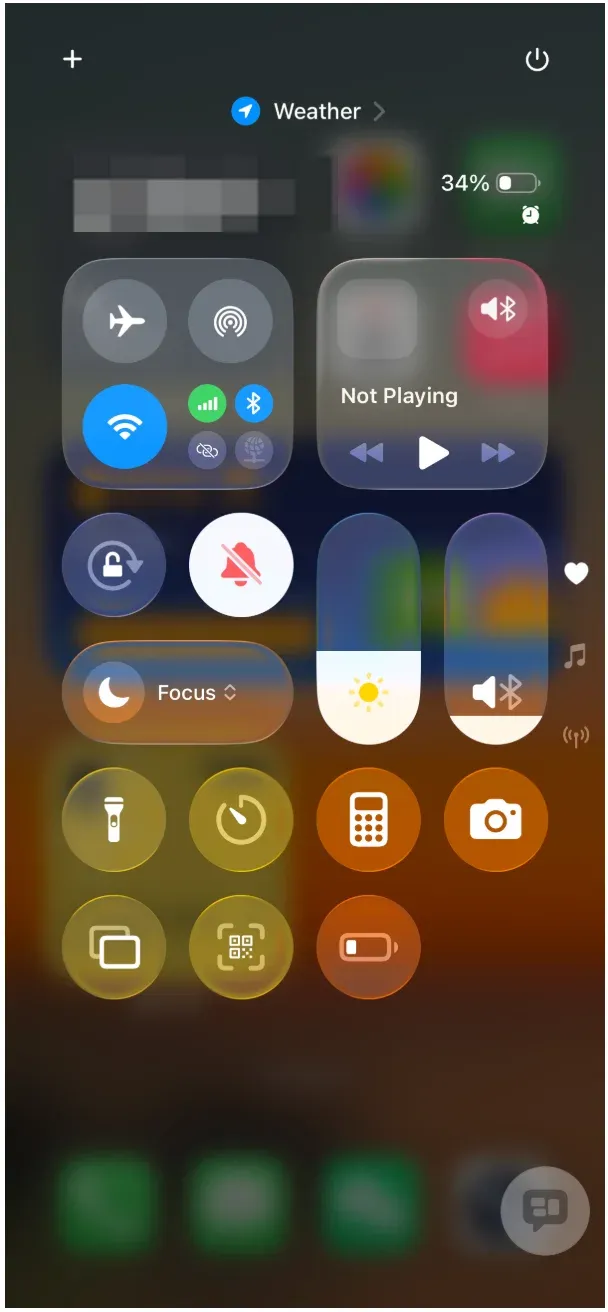
- On MacBook, go to Control Center, click Screen Mirroring, choose your device, and reconnect.

This helps clear any cached AirPlay session that may result in AirPlay connected but not playing.
Fix 3: Check App Permissions and Playback Rights
Some apps (like Netflix or Disney+) limit AirPlay playback for DRM-protected videos. If AirPlay is connected but not playing in these apps, it may be due to content restrictions.
How to troubleshoot AirPlay connected to device but not playing? You can try the steps below:
Step 1. Try casting from YouTube or Apple TV+ to test if AirPlay works elsewhere.
Step 2. Force close the problem app, reopen it, and try casting again.
Fix 4: Verify Audio and Video Output Settings
When your iPhone or Mac is outputting to the wrong device, you'll possibly run into the AirPlay problem. So, confirm your audio and video output settings:
- On iPhone: open Control Center, tap the AirPlay icon, and check the selected speaker or TV.
- On Mac, go to System Settings, select Sound > Output, and choose the correct AirPlay destination.
If audio plays but video doesn't, ensure both devices support AirPlay 2.
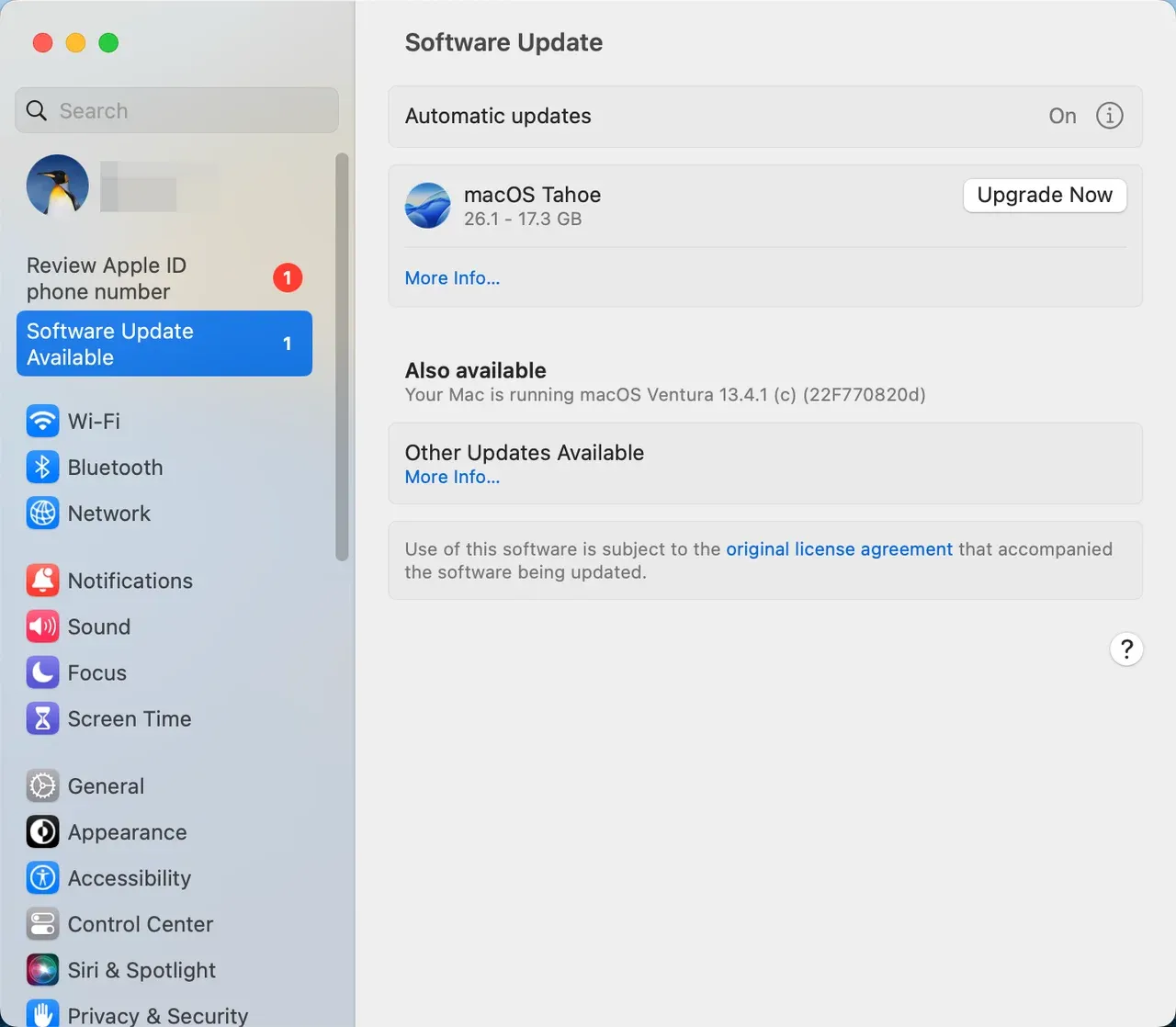
Fix 5: Update Software on All Devices
Outdated firmware can stop AirPlay from working properly. Therefore, do updates:
Step 1. Update your iPhone, iPad, or Mac to the latest iOS/macOS version.
Step 2. Check your TV or receiver for firmware updates.
Step 3. Restart both devices after updating to refresh compatibility.
Fix 7: Reset AirPlay and Network Settings
If all else fails, reset your network and AirPlay connections:
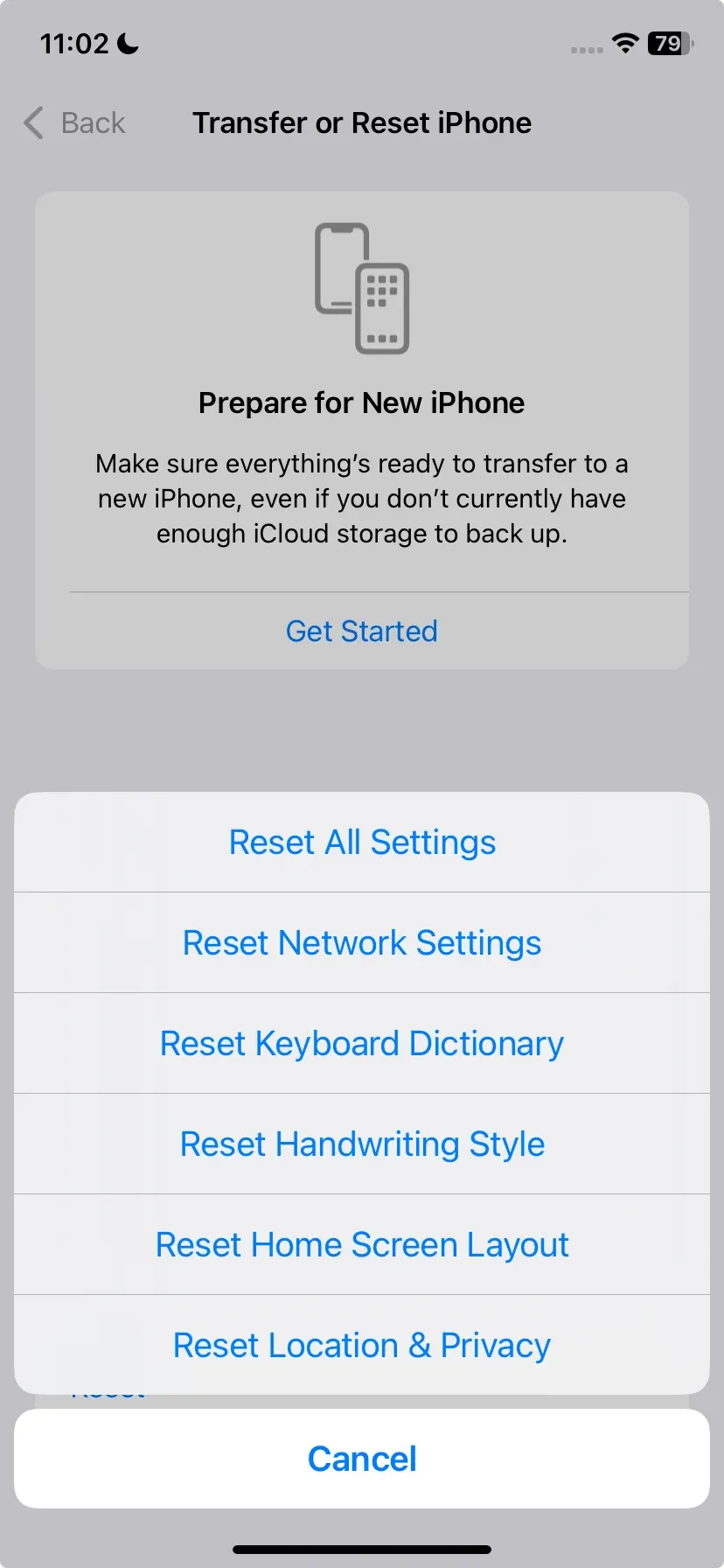
- On iPhone, go to Settings > General > Transfer or Reset iPhone > Reset > Reset Network Settings.
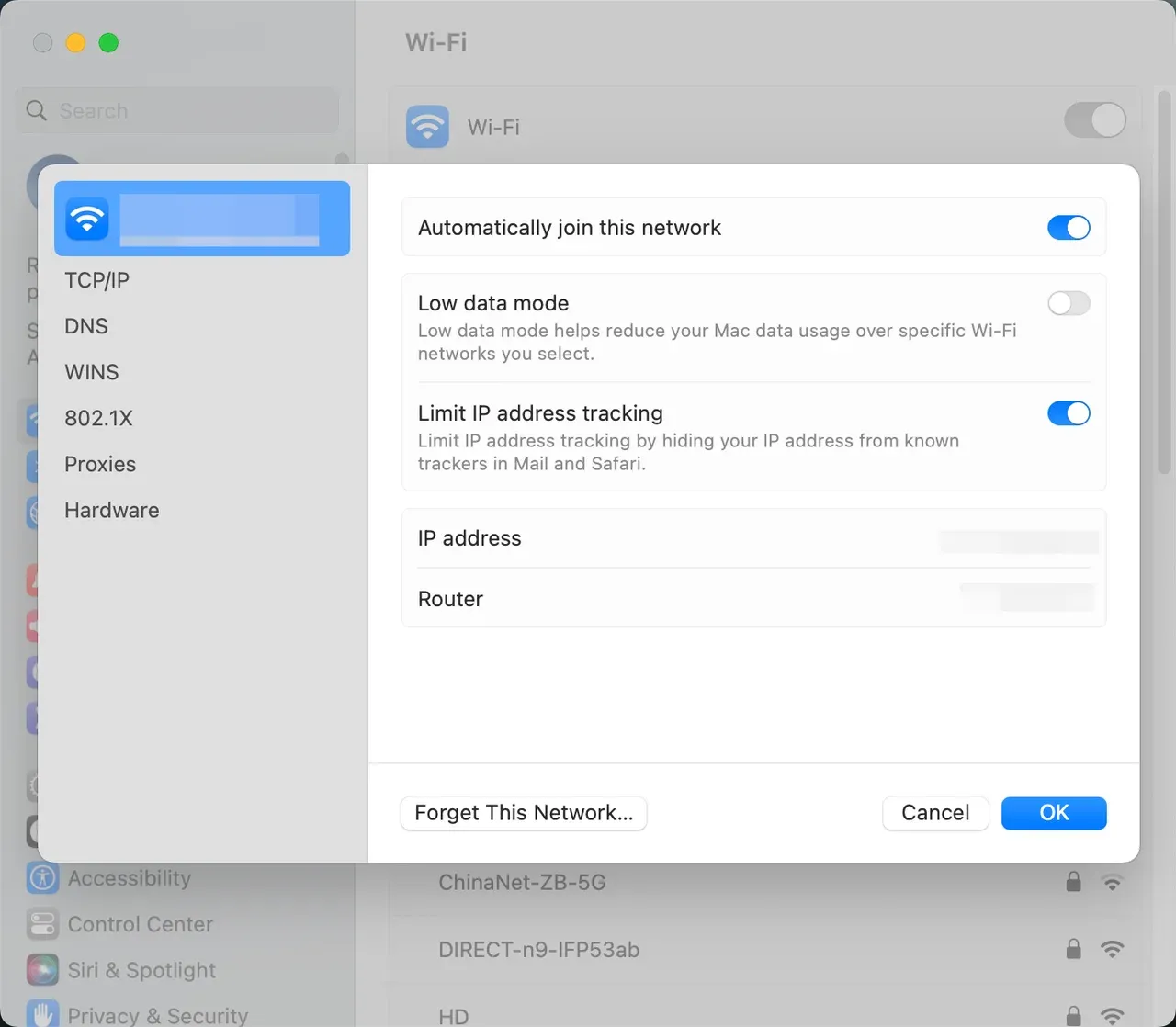
- On MacBook, click the Wi-Fi icon in the menu bar, choose Wi-Fi Settings > Details > Forget This Network > Remove.
- On smart TVs, look for an AirPlay Reset option in the settings menu.
Then, reconnect to Wi-Fi and retry AirPlay.
This clears cached pairing data that might block AirPlay from streaming audio or video.
Try Free AirPlay Alternative: PigeonCast
When AirPlay keeps failing, third-party tools can be a simpler choice. PigeonCast allows wireless mirroring between mobile phones, laptops, and smart TVs with just one tap. It doesn't rely on Apple's AirPlay protocol, so it avoids most connection and playback issues, perfect for cross-platform streaming.

Try the free AirPlay alternative for smooth audio or video streaming:
Step 1. Download and install PigeonCast on your two devices (like iPhone and MacBook).

PigeonCast Screen Mirroring

Official Download


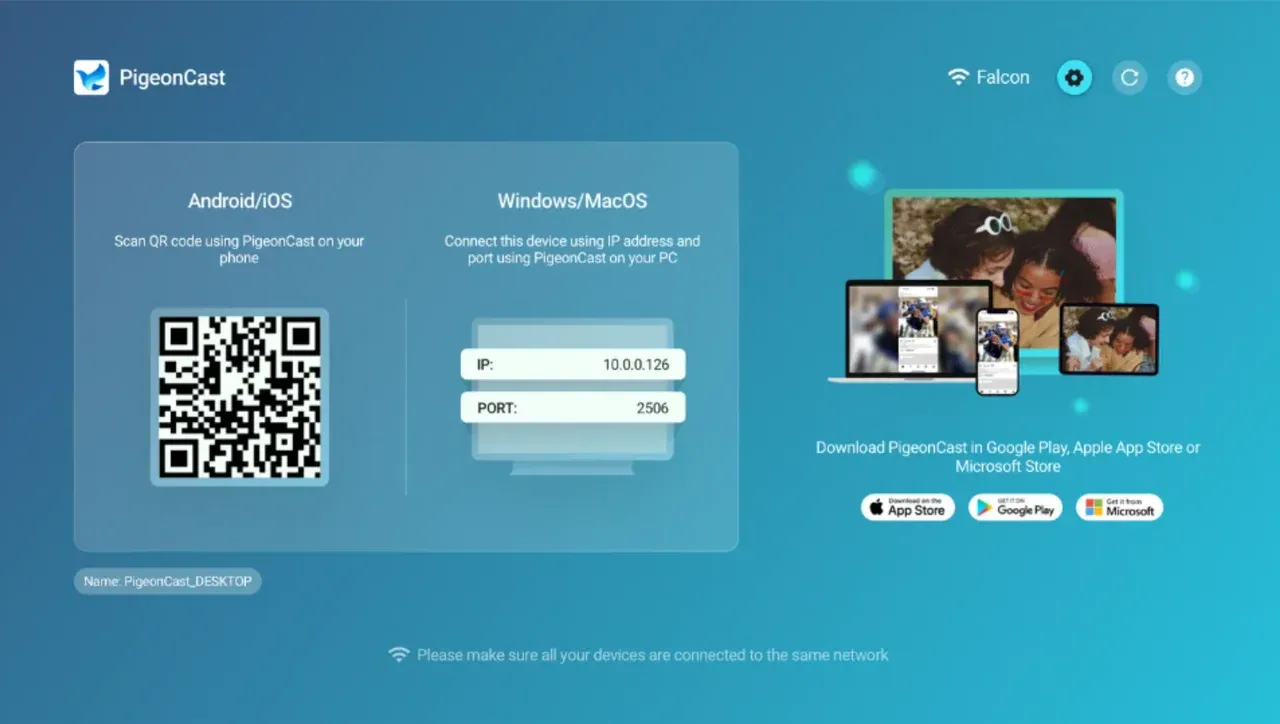
Step 2. Ensure the two devices are on the same Wi-Fi network.
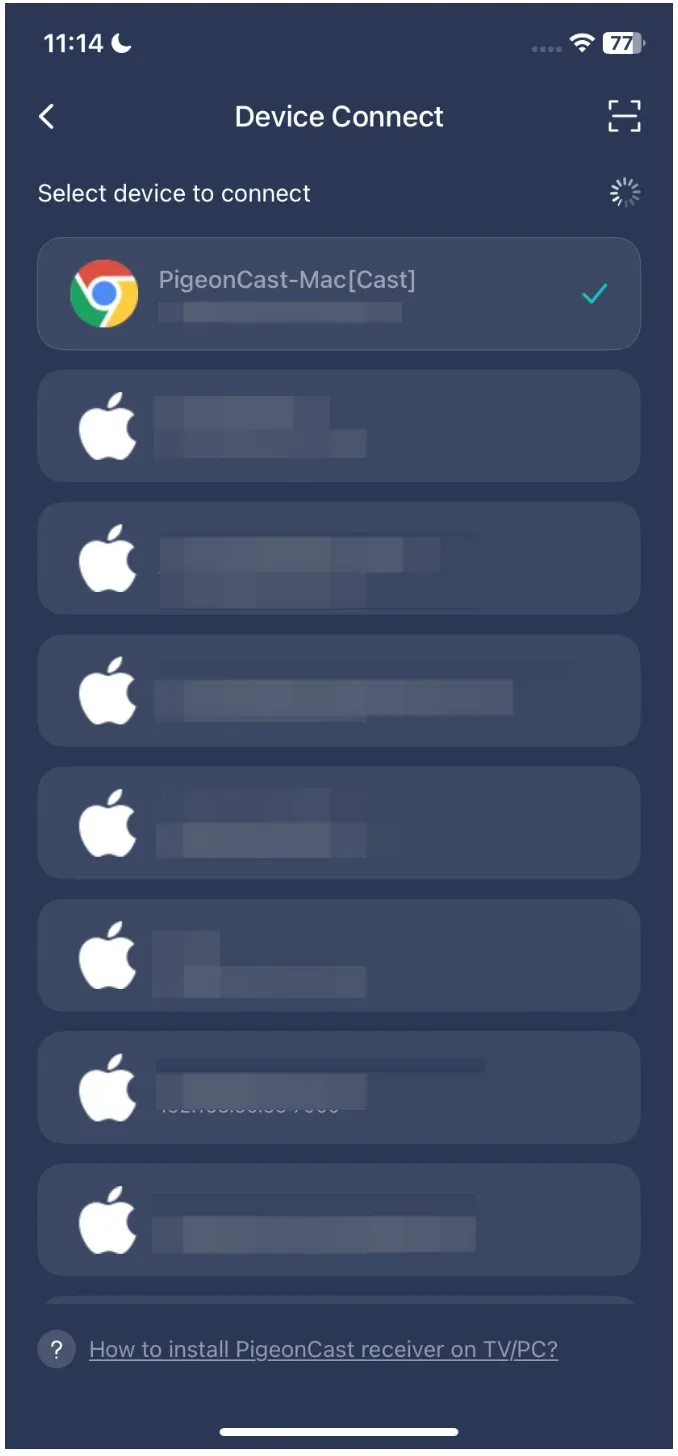
Step 3. Launch the free app on your devices, then choose your PigeonCast-enabled device on your iPhone, and start mirroring.
The End
When AirPlay is connected but not playing, the issue is rarely with the device itself; it's usually a network or software sync problem. Start by checking your Wi-Fi, restarting both devices, and verifying the app's playback rights.
If you need a more stable, one-tap solution, PigeonCast offers a smooth and reliable alternative for all your mirroring needs.
AirPlay Connected But Not Playing FAQs
Why is my screen mirroring connected but not working?
This usually happens when the Wi-Fi connection between your devices is unstable or they are connected to different networks. Restart both your iPhone (or Mac) and TV, make sure they're on the same Wi-Fi, and try mirroring again. If the issue persists, reset your network settings or test with another app to confirm it's not app-specific.
How do I reset AirPlay?
On iPhone or iPad, go to Settings > General > Transfer or Reset iPhone → Reset → Reset Network Settings, then reconnect to Wi-Fi. On your TV, open the AirPlay settings menu and select "Reset AirPlay" if available. This clears pairing data and connection history that may cause playback issues.
Why is AirPlay not mirroring to TV?
If AirPlay connects but doesn't mirror to the TV, check whether your TV supports AirPlay 2. Some older smart TVs only support audio streaming. Also, ensure the AirPlay input is selected on your TV, and disable any VPN or firewall that could block discovery.
Is there an alternative if AirPlay keeps disconnecting?
Yes. If AirPlay keeps failing, you can try PigeonCast, a cross-platform mirroring app that doesn't rely on Apple's AirPlay protocol. It allows wireless screen mirroring between iPhone, Android, Windows, and smart TVs with one tap, ideal for users seeking a stable, lag-free experience.
Mia Clarke is a technology editor specializing in screen mirroring and casting solutions across multiple platforms. Mia provides clear, practical guides and in-depth insights to help users seamlessly connect their devices. Passionate about enhancing digital experiences, Mia is dedicated to keeping readers updated on the latest trends and tools in cross-platform screen sharing. Whether you’re looking to mirror your smartphone, laptop, or smart TV, Mia’s content delivers reliable, user-friendly advice to simplify your tech setup.