
AirPlay is well-known for its convenience and smooth performance, but what if your device is not AirPlay-compatible? This is where AirPlay 2 receivers come in. In today's guide, you'll learn the basics about these devices and how to set up the Receiver AirPlay 2 to enjoy an immersive streaming experience.
What Is an Apple AirPlay 2 Receiver
A receiver with AirPlay 2 is any device that can receive audio, video, or mirrored content from Apple devices using AirPlay 2 technology. Compared to the original AirPlay, AirPlay 2 offers more reliable streaming, improved buffering, and multi-room audio, making it ideal for a seamless, high-quality experience.
Common AirPlay 2 receivers include Apple TV, AirPlay 2-enabled smart TVs, and compatible speakers. However, not all devices support AirPlay 2, so checking compatibility is essential. Supported devices include:
- Smart TVs: Samsung, LG, Sony, Vizio, and some newer Roku TVs.
- Speakers & Audio Systems: Sonos One, Bose Home Speaker series, Denon and Marantz AV receivers, Yamaha MusicCast speakers, Bluesound Node.
- Adapters: WiiM Mini/Pro Plus, Belkin SoundForm Connect, Sonos Amp—great for adding AirPlay 2 to older speakers.
Top AirPlay 2 Receivers for Easy Cross-Platform Streaming
If your TV or speakers don't natively support AirPlay, adding an AirPlay 2 receiver is a simple way to bring Apple's streaming technology to your setup. With the right configuration, these receivers allow you to enjoy the same seamless mirroring, video playback, and multi-room audio experience as on AirPlay-enabled devices. Let's walk through how to set up an AirPlay 2 receiver correctly.
PigeonCast App
Here's a free and universal AirPlay receiver I have to recommand first. PigeonCast app can transform your Windows PC and TV (running Android TV/Google TV, or Fire OS) into a full-featured entertainment hub that receives content from iOS, Mac, or Android devices. It supports AirPlay, Google Cast, and DLNA, ensuring versatile and high-quality streaming.
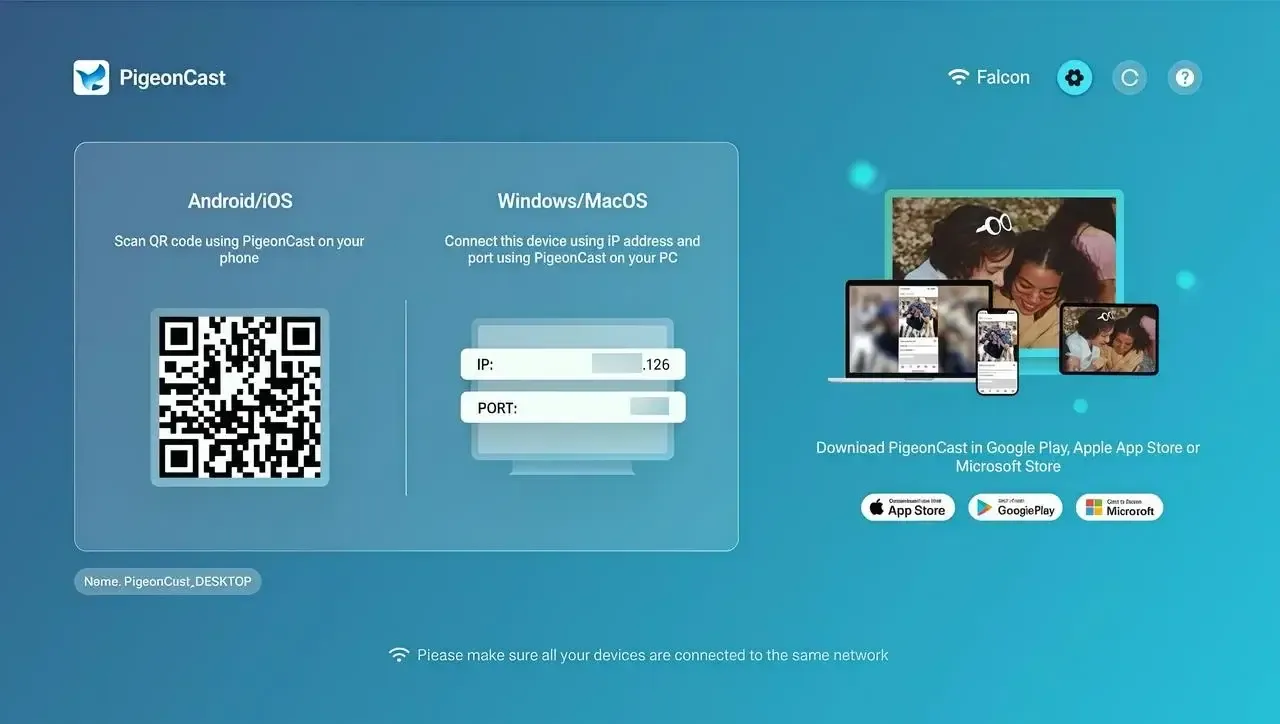

PigeonCast Screen Mirroring

Official Download



Step 1. Install the free PigonCast app on your Android TV from the Google Play Store.
Step 2. Ensure your Apple device and Android TV are connected to the same wireless network.
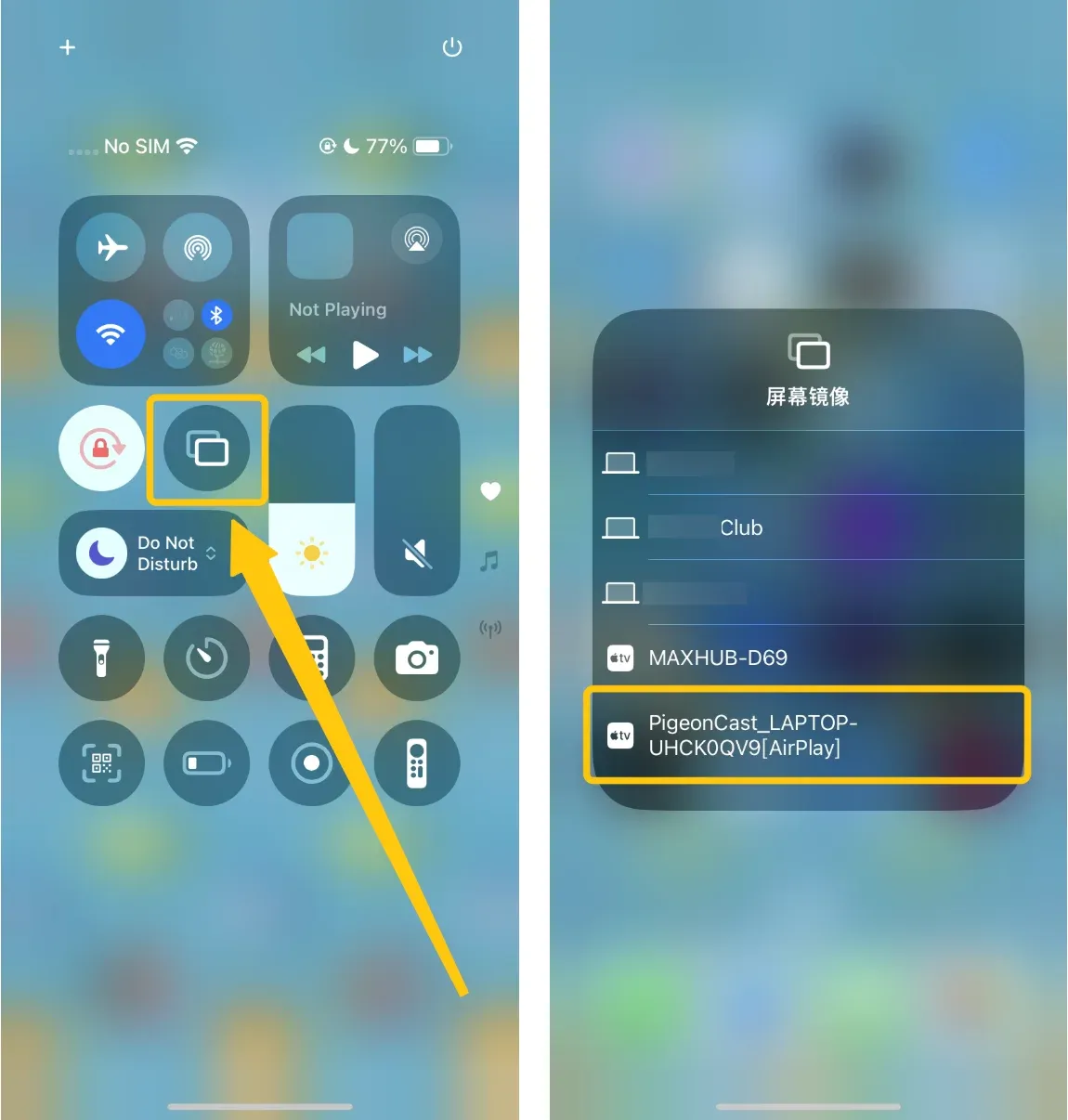
Step 3. Launch the app on your Android TV, and open your Control Center > Screen Mirroring on the Apple device to find the PigeonCast icon to connect.
Step 4. If prompted, enter the onscreen PIN code to confirm your mirroring action.
Step 5. Once paired successfully, you can use this cheapest AirPlay 2 receiver to mirror and enjoy the content from your Apple device on your TV.
WiiM Mini/Pro Plus
The WiiM Mini and WiiM Pro Plus are compact streaming adapters that add AirPlay 2 to almost any speaker or stereo system. They're budget-friendly yet powerful, supporting high-resolution audio up to 24-bit/192kHz, along with Spotify Connect, Chromecast, and Alexa compatibility.
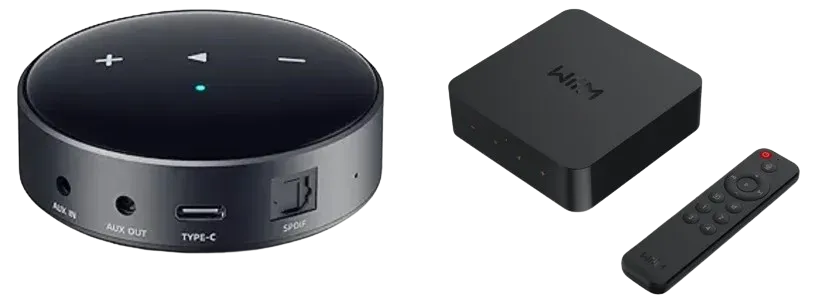
Step 1. Connect the WiiM device to your speakers or stereo via RCA, optical, or coaxial input.
Step 2. Plug it into power using the included adapter.
Step 3. Download the WiiM Home app (iOS/Android).
Step 4. Open the app and follow the guided setup to connect the WiiM to your Wi-Fi network.
Step 5. Once connected, the WiiM will appear as a small AirPlay 2 receiver on your iPhone, iPad, or Mac.
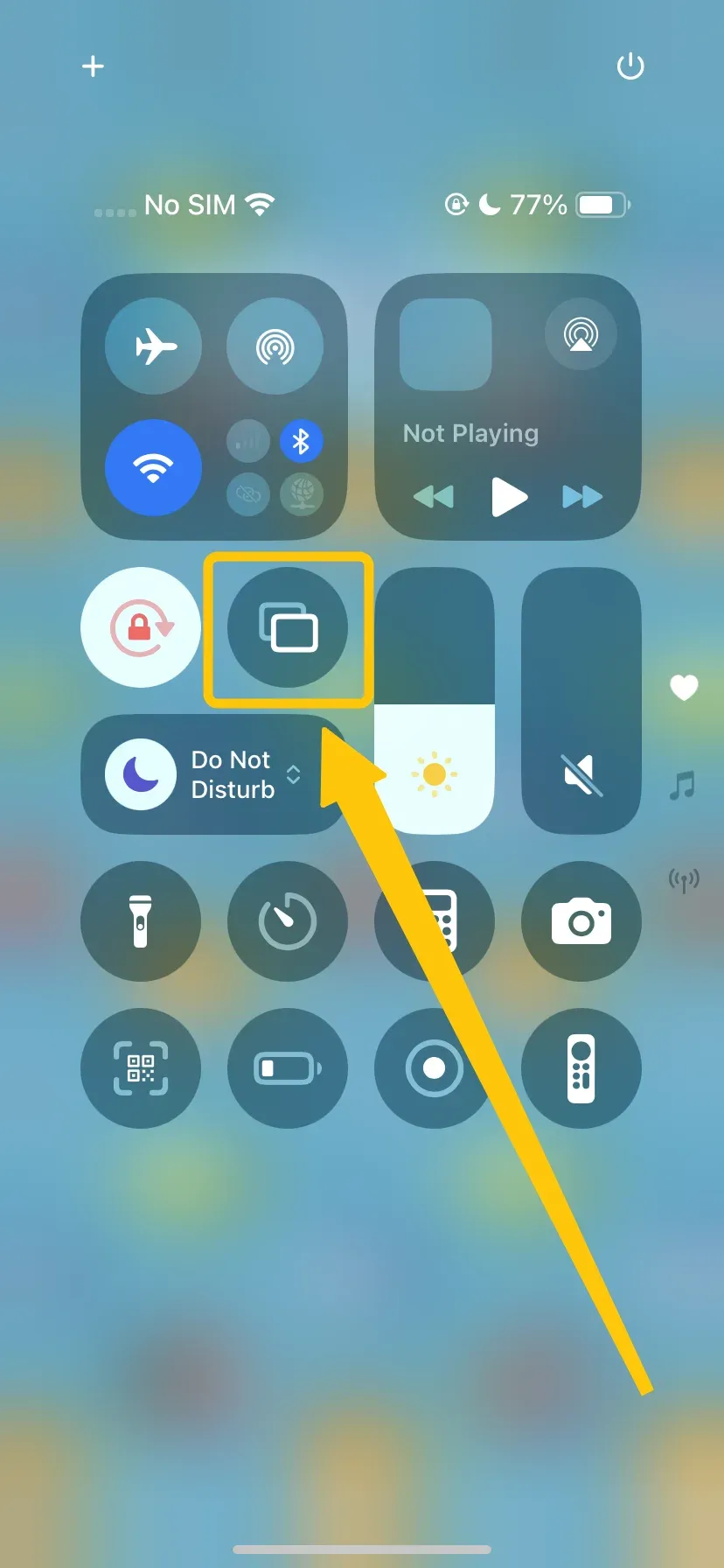
Step 6. From the Control Center on iPhone/iPad, tap the Screen Mirroring icon and select your WiiM device to start streaming.
Belkin SoundForm Connect
The Belkin SoundForm Connect is a plug-and-play adapter that instantly adds AirPlay 2 to older or non-smart speakers. Its compact design fits almost anywhere, and it integrates with Apple HomeKit for easy control via the Home app or Siri. The AirPlay 2 adapter for receiver is a simple and elegant solution for bringing legacy audio systems into the AirPlay 2 ecosystem.
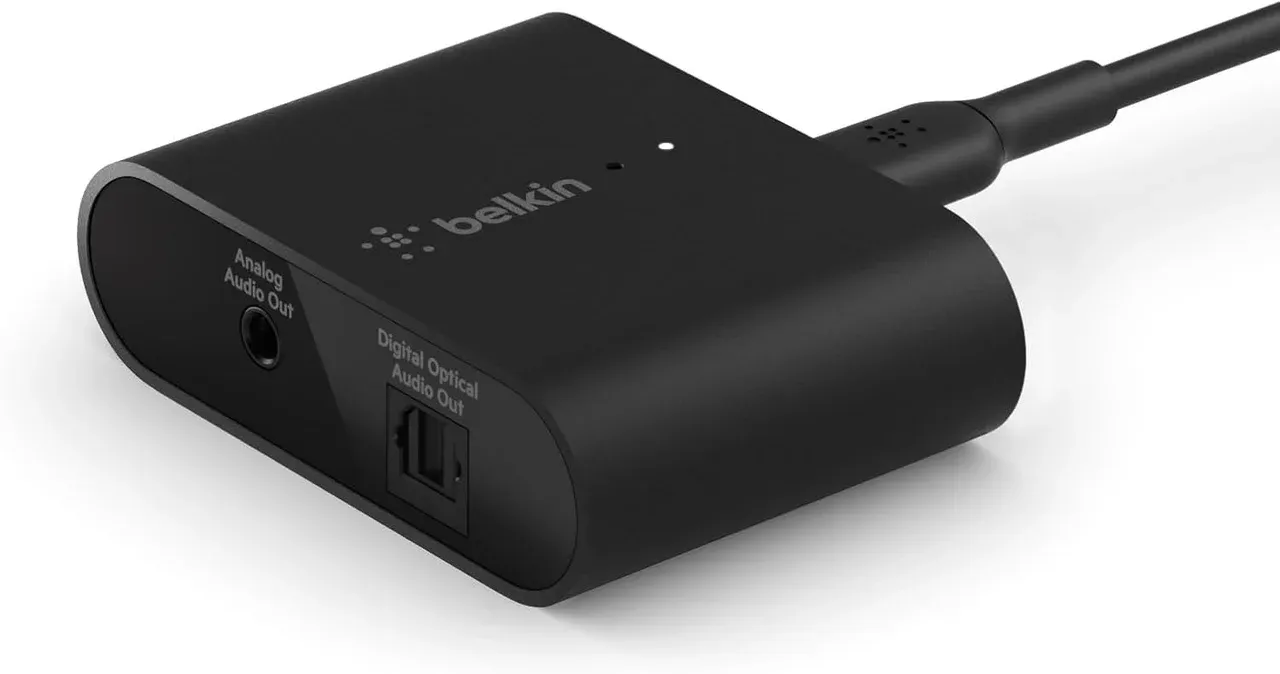
Step 1. Connect the SoundForm Connect to your speaker's 3.5mm or optical input.
Step 2. Plug it into a power source using the included USB-C cable and adapter.
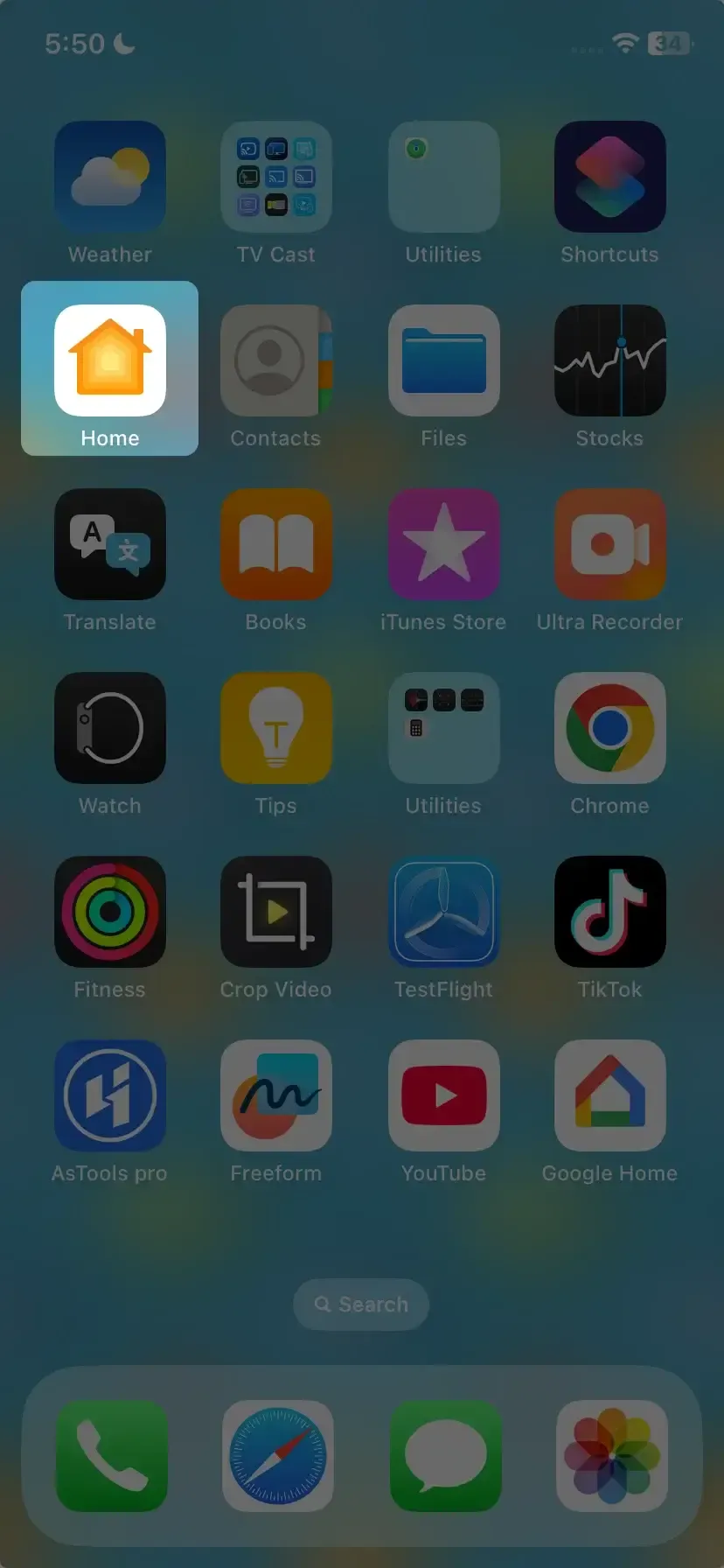
Step 3. Open the Home app on your iPhone or iPad.
Step 4. Follow the Home app instructions to add SoundForm Connect to your Wi-Fi network.
Step 5. Once setup is complete, it will appear in the AirPlay menu on your Apple devices. Select it to start streaming.
Sonos Amp
The Sonos Amp powers traditional wired speakers while integrating seamlessly with AirPlay 2. It delivers 125 watts per channel and supports multi-room streaming, HDMI ARC, and optional voice assistants. It's ideal for users who want both high-quality amplification and modern wireless streaming in one device.
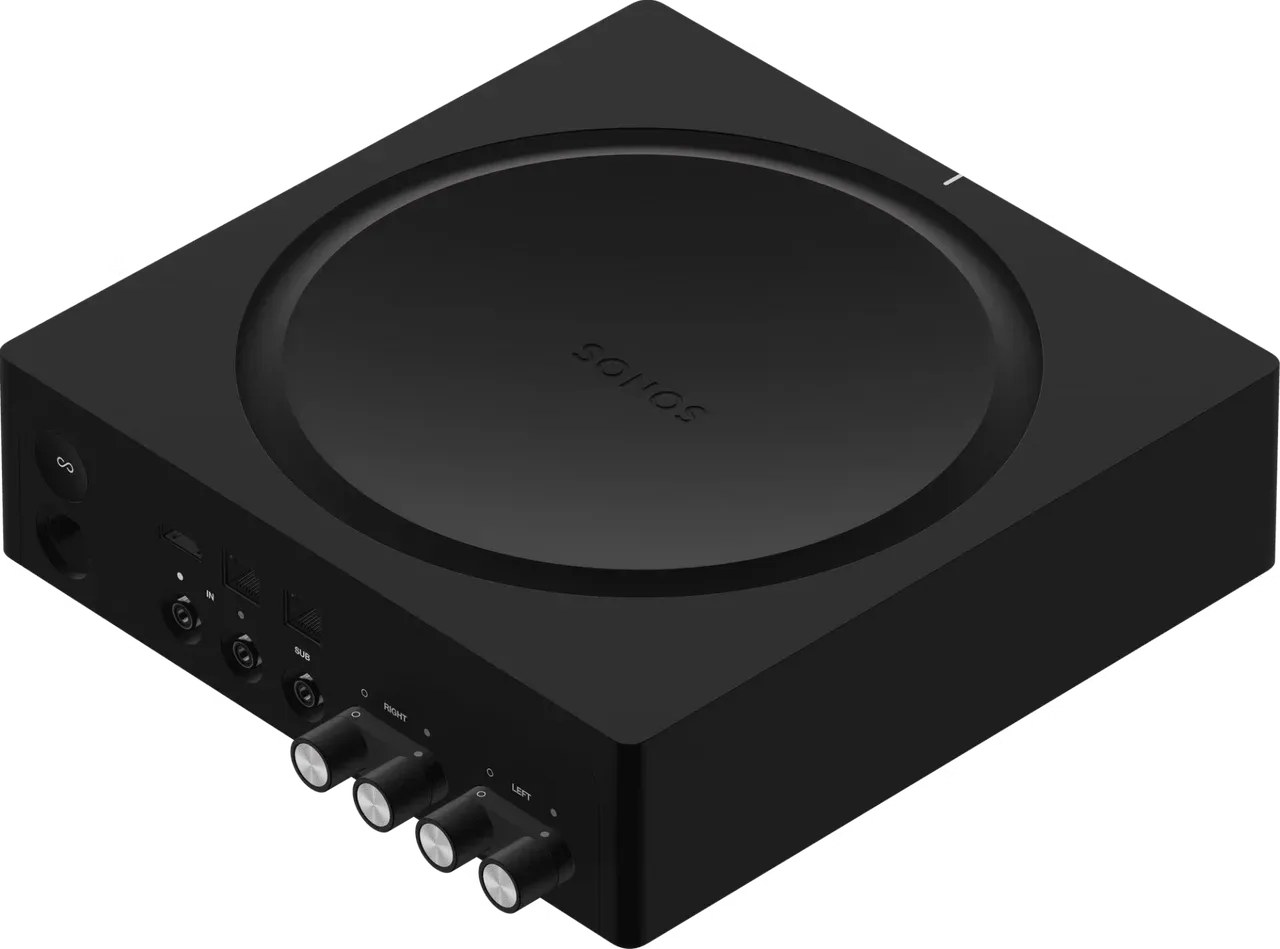
Step 1. Connect your speakers to the speaker terminals on the Sonos Amp.
Step 2. Plug the Amp into a power outlet and connect it to your network via Wi-Fi or Ethernet.
Step 3. Download the Sonos app (iOS/Android) and follow the on-screen instructions to complete setup.
Step 4. Ensure firmware is up to date to enable full AirPlay 2 functionality.
Step 5. Once configured, the Amp will automatically appear as an AirPlay 2 receiver. Open Control Center on your Apple device, tap the AirPlay icon, and select Sonos Amp to stream music.
BoostVision's AirMirror
If you think these AirPlay 2 receiver adapters are not convenient enough, here are others third-party screen mirroring apps that can also be your best AirPlay 2 receiver. BoostVision's AirMirror, an app designed to turn your Android TV, Google TV, or Fire TV into an AirPlay 2 receiver. It supports high-definition playback, low latency, and easy setup, so you don't need extra hardware to enjoy AirPlay 2 features on non-Apple devices.
Step 1. Install this AirMirror app on your TV from the app store.
Step 2. Ensure your Apple device and TV are covered by the same wireless network.
Step 3. Launch the mirroring receiver app and the name of Android TV will be shown.
Step 4. Tap Screen Mirroring on the Apple device and choose the Android TV name to start streaming content.
LetsView
Without requiring an HDMI AirPlay 2 receiver, LetsView is a free and versatile screen mirroring app that supports AirPlay, Miracast, and other streaming protocols. It allows you to mirror your iPhone, iPad, Mac, or Android device to TVs, PCs, or laptops, providing cross-platform compatibility that many standard AirPlay 2 receivers don't offer.
Step 1. Install LetsView on both your receiving device (TV or PC) and your mobile device.
Step 2. Connect two devices under the same or different WiFi (remote screen mirroring).
Step 3. Open LetsView on both devices. On the mobile device, scan for available devices or select from the list.
Step 4. Your screen will display on the device you want.
No matter which receiver you choose, this guide is here to help. For your convenience, we've created a comparison table so you can quickly see the options at a glance. By reviewing the specific features, you can easily find the receiver that best fits your needs.
| AirPlay****Receiver | Type | Key Features | Devices Supported | Notes |
|---|---|---|---|---|
| PigeonCast | App | Free, universal AirPlay receiver; supports AirPlay, Google Cast, DLNA; high-quality, versatile streaming | Android TV, Google TV, Fire TV; iOS, Mac, Android | Ideal for TVs without native AirPlay; cross-platform streaming |
| WiiM Mini / Pro Plus | Hardware | Compact adapter; supports AirPlay 2, Spotify Connect, Chromecast, Alexa; high-resolution audio up to 24-bit/192kHz | Speakers, stereo systems; iOS, Mac | Budget-friendly, powerful audio performance |
| Belkin SoundForm Connect | Hardware | Plug-and-play AirPlay 2 adapter; HomeKit and Siri integration | Speakers; iOS | Simple solution for legacy audio systems |
| Sonos Amp | Hardware | Powers wired speakers; supports AirPlay 2, multi-room streaming, HDMI ARC, optional voice assistants | Wired speakers; iOS, Mac | High-quality amplification with modern wireless streaming |
| BoostVision AirMirror | App | Turns Android TV, Google TV, or Fire TV into AirPlay 2 receiver; HD playback, low latency; no extra hardware required | Android TV, Google TV, Fire TV; iOS, Mac | Simple and convenient AirPlay 2 setup on non-Apple devices |
| LetsView | App | Free, versatile screen mirroring; supports AirPlay, Miracast, DLNA; cross-platform; wireless HD streaming | TV, PC, laptop; iOS, Mac, Android | Flexible streaming across multiple device types; supports PCs and laptops unlike typical AirPlay 2 receivers |
Conclusion
AirPlay 2 receiver for TV lets you stream music and multi-room audio from Apple devices to non-Apple hardware like the WiiM Mini/Pro Plus, Belkin SoundForm Connect, or Sonos Amp. For added flexibility, apps like PigeonCast, BoostVision's AirMirror, and Let's View enable screen mirroring and streaming to these receivers, making it easy to enjoy both audio and video wirelessly throughout your home.
AirPlay 2 Receiver FAQ
Q: Which non-Apple devices support AirPlay 2?
Many non-Apple devices support AirPlay 2, including smart TVs from Samsung, LG, Sony, and Vizio, wireless speakers from Sonos, Bose, and Yamaha, as well as streaming adapters like the WiiM Mini/Pro Plus and Belkin SoundForm Connect.
Q: Can I stream to multiple AirPlay 2 receivers at once?
Yes. AirPlay 2 supports multi-room streaming, which lets you play audio on multiple compatible receivers or speakers simultaneously. This feature allows you to enjoy synchronized music throughout your home from a single Apple device.
Q: Do I need Apple devices to use AirPlay 2 receivers?
Yes. You need an Apple device, such as an iPhone, iPad, or Mac, to stream content to an AirPlay 2-compatible receiver. Non-Apple devices can receive AirPlay streams but cannot send them.
Q: How do I find out if my TV is AirPlay 2 compatible?
You can check if your TV is AirPlay 2 compatible by:
- Check the manufacturer's specifications to look for AirPlay 2 in the TV's feature list.
- Some models require the latest firmware to support AirPlay 2.
- On supported TVs, you'll usually find an AirPlay or Screen Mirroring option in the network or connection settings.
Q: Is there a difference between AirPlay and AirPlay 2?
Yes, there are some key differences between AirPlay and AirPlay 2:
- Multi-room audio: AirPlay 2 allows you to stream audio to multiple speakers or devices simultaneously, whereas the original AirPlay only supports one device at a time.
- Improved buffering and stability: AirPlay 2 reduces lag and keeps audio/video in sync better than the original.
- Control from multiple devices: With AirPlay 2, you can control playback from any Apple device on the same network, not just the one streaming.
- HomeKit integration: AirPlay 2 devices can be controlled via Apple's Home app and Siri, which the original AirPlay doesn't support.
Q: How do I turn my PC into an AirPlay 2 receiver?
Windows PCs don't natively support AirPlay 2, but you can turn your PC into a receiver using third-party software. Here's how:
- Choose an AirPlay 2 receiver app, such as PigeonCast.
- Install the software on your PC and follow the setup instructions.
- Connect your PC and Apple device to the same Wi-Fi network.
- On your Apple device, open Control Center > Screen Mirroring, then select your PC (it should appear with the name you set in the software).
- Your PC will now display or play content streamed via AirPlay 2.
Q: Can Android devices work as AirPlay 2 receivers?
No, Android devices don't natively support AirPlay 2. However, you can use third-party apps like PigeonCast, BoostVision's AirMirror, or LetsView to make an Android device function as an AirPlay 2 receiver. Once installed and connected to the same Wi-Fi network as your Apple device, you can stream audio, video, or mirror your screen from iPhone, iPad, or Mac to the Android device.
Q: Why won't my AirPlay 2 receiver show up?
If your AirPlay 2 receiver isn't showing up, it's usually due to network or device settings. Common reasons include:
- Devices are not on the same Wi-Fi network
- AirPlay or screen mirroring is disabled on the receiver
- Receiver is not AirPlay 2 compatible
- Software or firmware is outdated on either device
- Firewall or network security settings are blocking communication
- The router does not support Bonjour/multicast or has it disabled
- Temporary network glitches or weak Wi-Fi signal
- Receiver is in sleep mode or powered off
- AirPlay device name conflicts with another device on the network
- VPN or proxy is interfering with local network discovery
- Too many devices are connected to the network, causing congestion
- Interference from other wireless devices (e.g., microwaves, cordless phones)
- AirPlay service is temporarily unavailable due to software bugs
Clara Rossi is an experienced technology editor and a seasoned expert in screen mirroring and casting technologies. With a keen eye for detail and a deep understanding of how to seamlessly connect devices, Clara excels at optimizing user experiences for effortless sharing and streaming. Whether you're seeking quick fixes or advanced tips, her expertise and responsiveness ensure that every query is met with a well-informed and efficient solution.