
AirPlay is one of the easiest ways to stream content wirelessly from your iPhone, iPad, or Mac to your TV. Whether you're trying to watch a movie, share photos, or mirror your device's screen, AirPlay usually works seamlessly. However, sometimes you may encounter a frustrating issue: AirPlay not connecting to TV.
Why Is My AirPlay Not Connecting to My TV
If your AirPlay isn't connecting Mac to your TV, it can be frustrating, especially when you're trying to stream content seamlessly. There are several reasons why this might happen, ranging from simple connectivity issues to settings that need to be adjusted on either your iPhone or TV.

- Devices are not on the same Wi-Fi network
Both your iPhone and the TV (or AirPlay-compatible device) need to be connected to the same Wi-Fi network. If they are on different networks, AirPlay won't work.
- AirPlay is Disabled on the TV
If you're using an Apple TV or a compatible smart TV, make sure AirPlay is enabled on the device. You can usually find this in the Settings under AirPlay.
- Wi-Fi Connection Issues
A weak or unstable Wi-Fi connection can cause AirPlay to fail. Make sure both devices are within range of the Wi-Fi router and that your network is not overloaded with too many devices.
- Software or Firmware Outdated
If your iPhone or TV has outdated software or firmware, AirPlay may not function properly. Make sure both devices have the latest software updates installed.
- Bluetooth Disabled
AirPlay uses Bluetooth for device discovery and initial pairing. Make sure Bluetooth is turned on for both your iPhone and the TV, even though the actual streaming uses Wi-Fi.
- AirPlay Device is Not Discoverable
If you don't see your TV in the AirPlay menu, it could be because the TV is not in discovery mode. Try restarting the TV or checking the device's AirPlay settings.
- Interference or Network Congestion
Too many devices connected to the same network can cause interference. Try reducing the number of devices on the network, or consider restarting the router.
- TV or Receiver is Not AirPlay-Compatible
Not all TVs support AirPlay. Ensure that your TV or streaming device (e.g., Apple TV, smart TV with AirPlay 2 support) is compatible with AirPlay.
How to Fix TV Not Connecting to AirPlay
Once your phone not connecting to TV AirPlay, it can be caused by a range of issues, and there are several steps you can follow to get things working again. Here's a more detailed breakdown of what you can do:
Move 1. Ensure Devices are Compatible
Ensure the device you're trying to connect to, such as an Apple TV, smart TV, or AirPlay-enabled speaker, supports AirPlay or screen mirroring. Here's how to verify AirPlay compatibility:
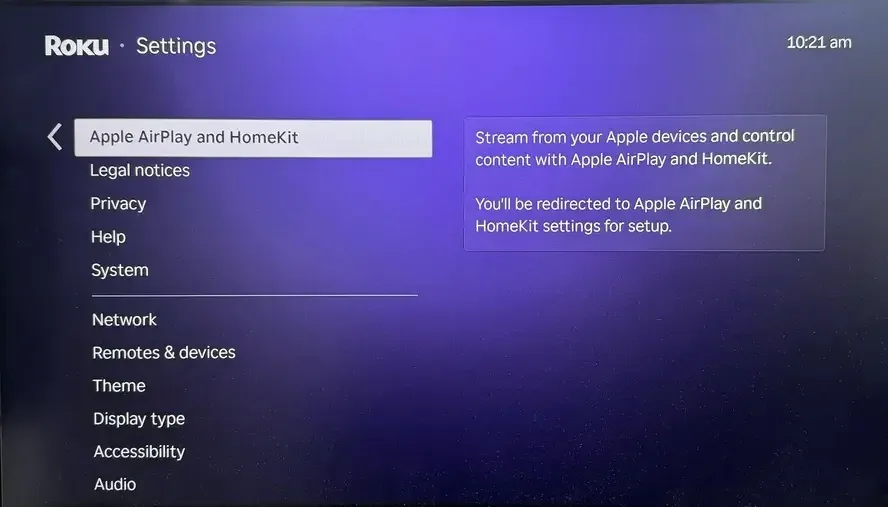
- For Apple TV: All Apple TV models from the 2nd generation onward support AirPlay. Check in the Settings app under AirPlay and HomeKit to confirm it's enabled.
- For Smart TVs: Many modern smart TVs (like those from Samsung, LG, and Vizio) support AirPlay 2. Go to the TV's settings and look for the AirPlay option, usually under Network or General Settings. If it's not listed, your TV may not support AirPlay, or you may need a firmware update.
- For AirPlay Speakers: Ensure the speaker supports AirPlay 2. You can check this in the user manual or the manufacturer's website.
Move 2. Connect to the Same Wi-Fi Network
Make sure both your iPhone (iPad or MacBook) and the AirPlay device (like an Apple TV or smart TV) are connected to the same Wi-Fi network. Here's how to check:
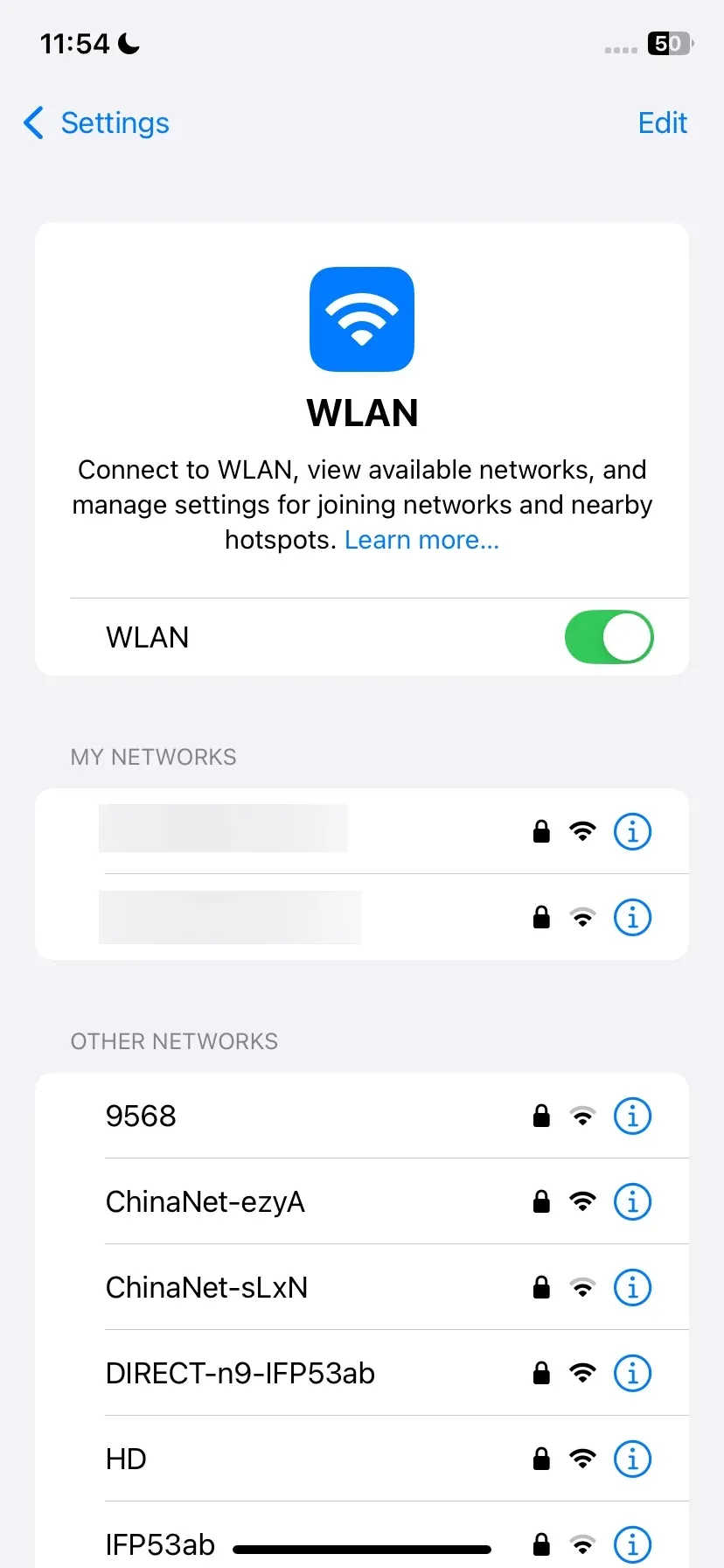
- On your iPhone: Go to Settings > Wi-Fi and ensure you're connected to the correct network.
- On the AirPlay Device: Check the device's network settings (usually under Network or Wi-Fi settings) to confirm it's on the same Wi-Fi network as your iPhone.
Move 3. Restart Your Devices
How to restore my AirPlay is not connecting to my TV? If restarting your devices isn't a solution you're already familiar with, it's one of the easiest and most effective ways to fix AirPlay connection issues. Sometimes, minor software glitches or network hiccups can prevent your devices from communicating properly.
- Restart your iPhone:
Step 1. Press and hold the Side button along with either Volume button until the power off slider appears. Then slide the slider to turn off your iPhone.
Step 2. After it powers down completely, press and hold the Side button again until you see the Apple logo to turn it back on.
- Restart your AirPlay Device:
- For Apple TV: Unplug it from the power source for a few seconds, then plug it back in.
- For smart TVs: Turn the TV off, wait a moment, then turn it back on.
Move 4. Update Software and Firmware
Why is AirPlay not connecting to my TV? Outdated software on either your iPhone or the AirPlay device can cause connection problems. Keeping both devices up to date ensures you're running the latest features and bug fixes. Here's how to check and update:
- Update your iPhone 13 and later:
Step 1. Go to Settings > General > Software Update.
Step 2. If an update is available, tap Download and Install to update your iPhone to the latest version of iOS. This ensures your device has the latest bug fixes and performance improvements for AirPlay.
- Update your AirPlay Device:
- For Apple TV: Go to Settings > System > Software Updates, and select Update Software. If an update is available, follow the prompts to install it.
- For Smart TVs: Check the manufacturer's settings or support page for instructions on how to update the firmware. Most smart TVs will automatically notify you of available updates.
Move 5. Disable Bluetooth
Why is AirPlay not connecting to TV? Bluetooth can sometimes interfere with Wi-Fi connections, causing issues with AirPlay. If you're experiencing problems, try turning off Bluetooth to see if that resolves the issue.
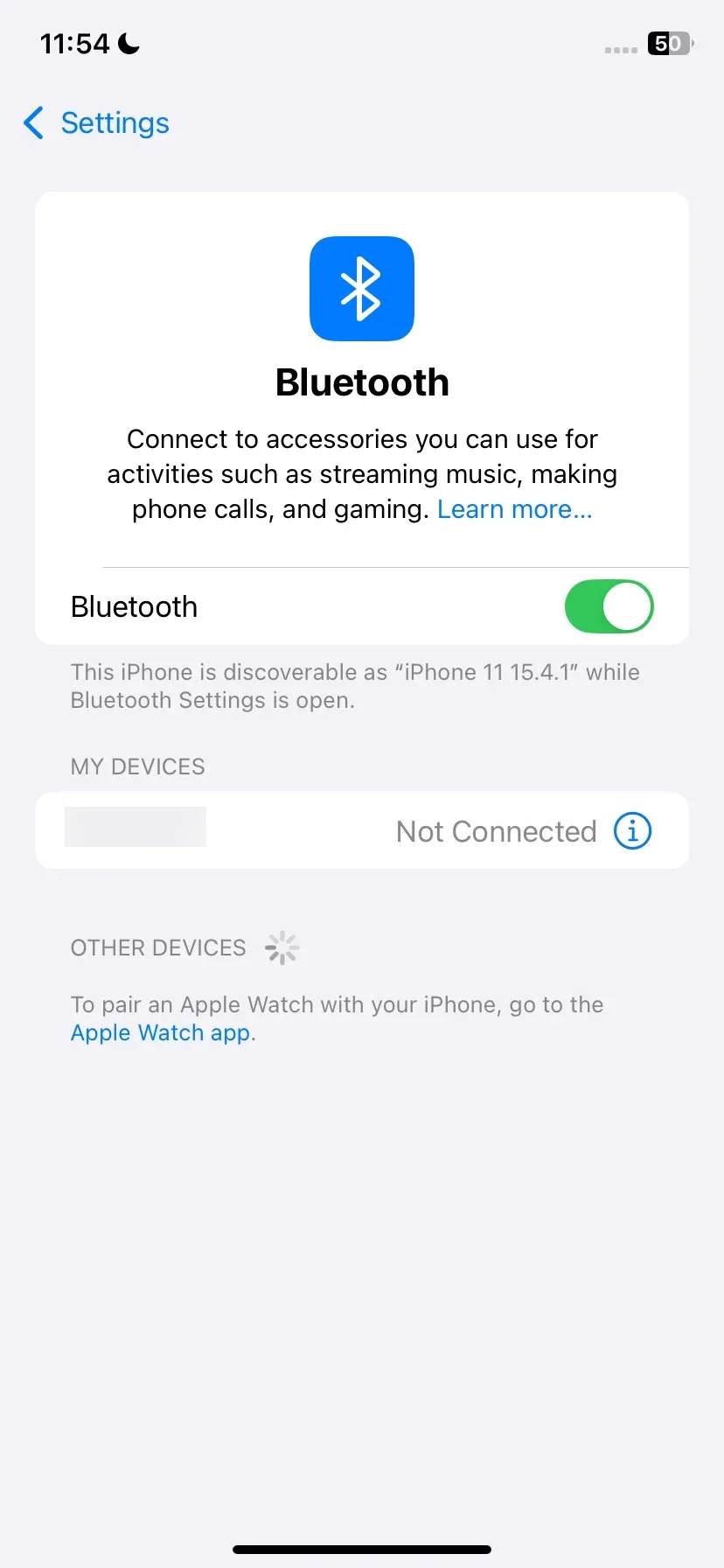
Go to Settings > Bluetooth, and toggle the Bluetooth switch to Off. By disabling Bluetooth, you free up your iPhone's connection for AirPlay, ensuring it doesn't compete with other wireless signals. After turning it off, try reconnecting to your AirPlay device again.
Move 6. Check AirPlay Settings
To get AirPlay working, you'll need to enable it from the right settings on each device. Depending on the device you're using, the steps can vary slightly. Here's how to make sure AirPlay is turned on:
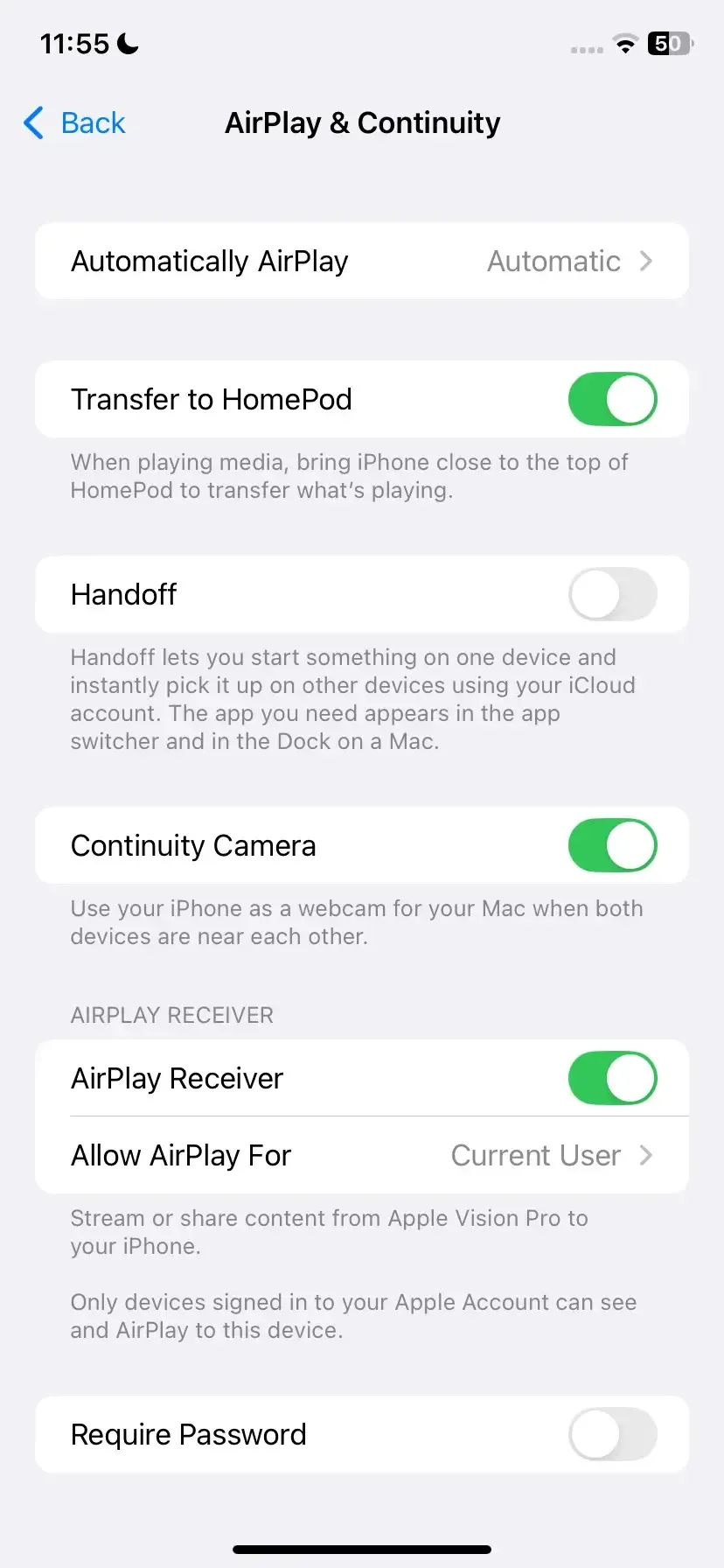
Step 1. Go to Settings > General > AirPlay & Continuity on your iPhone.
Step 2. Look for the option labeled Automatically AirPlay, and make sure it's set to Ask or Automatic for seamless mirroring to compatible devices.
Step 3. Tap AirPlay Receiver and ensure the setting is set to the Everyone option.
Move 7. Check for Interference
Sometimes, physical or electronic interference can disrupt the AirPlay connection, making it hard for your iPhone to communicate with the target device.
- Clear Physical Obstructions: Ensure there are no large objects (like walls, furniture, or metal appliances) between your iPhone and the AirPlay device, as these can block the signal.
- Reduce Electronic Interference: Other electronic devices, such as microwaves, cordless phones, or baby monitors, can interfere with wireless signals. Try to move your devices away from these sources of interference or switch off devices that might be causing the disruption.
- Wi-Fi Interference: If you have many devices connected to the same Wi-Fi network, this can cause congestion and slow down the connection. Try disconnecting some devices or using a less crowded Wi-Fi band (preferably 5GHz).
Move 8. Reset Network Settings
How to solve iPhone not connecting to TV AirPlay? If none of the previous steps work, resetting your network settings can help resolve any lingering connectivity issues. This will clear out old Wi-Fi passwords, VPN configurations, and other network settings that may be causing problems.
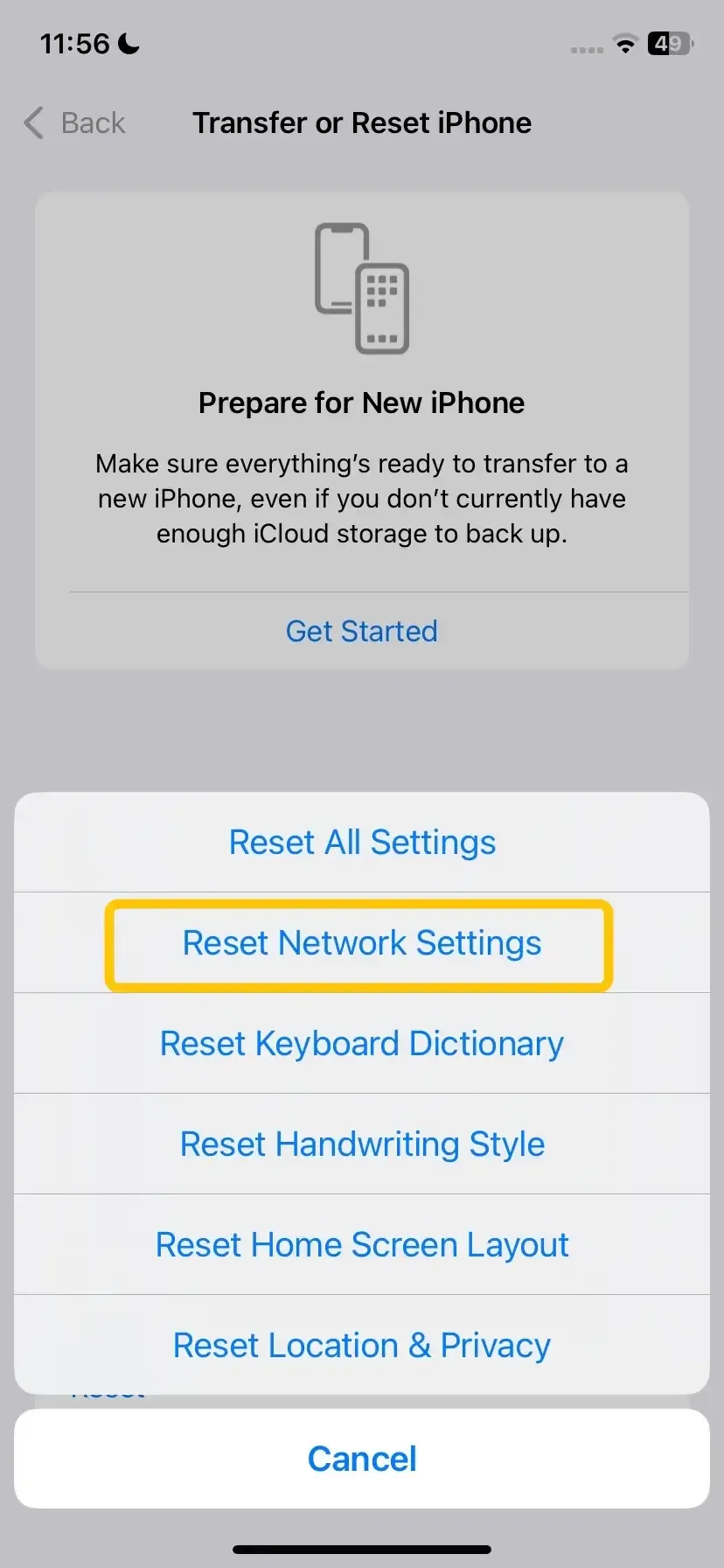
Step 1. Go to Settings > General > Reset on iPhone.
Step 2. Select Reset Network Settings.
Step 3. You'll be prompted to enter your passcode if applicable, and then the device will restart.
Does AirPlay still not work on your device? You need another screen mirroring method, and a screen mirroring app is highly recommended.
Try PigeonCast Screen Mirroring App as AirPlay Alternative
PigeonCast is a screen mirroring app that screen mirrors your iPhone, iPad, or Mac to Google TV, Fire TV, LG TV, and Roku TV over Wi-Fi. Compared to AirPlay, it makes cross-platform screen mirroring more easy.
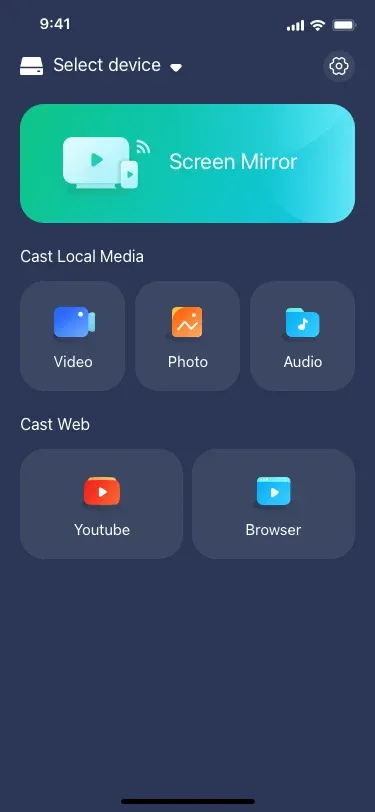
Step 1. Install the screen mirroring app on your iPhone, iPad, or Mac.

PigeonCast Screen Mirroring

Official Download


Step 2. Ensure both your devices are covered by the same wireless network.
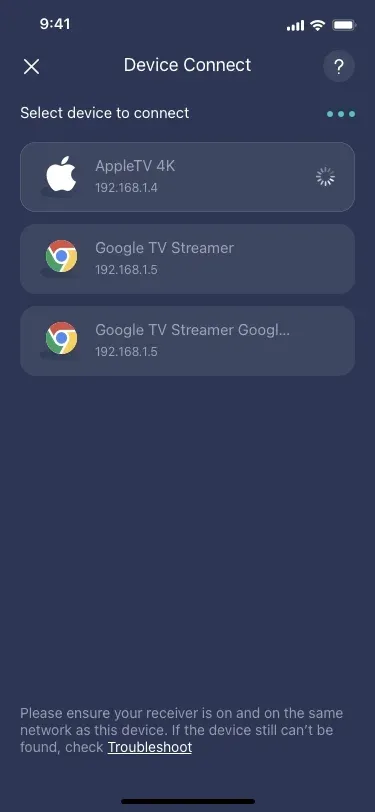
Step 3. Launch the app and tap Select device from the device list to choose your TV to connect to.
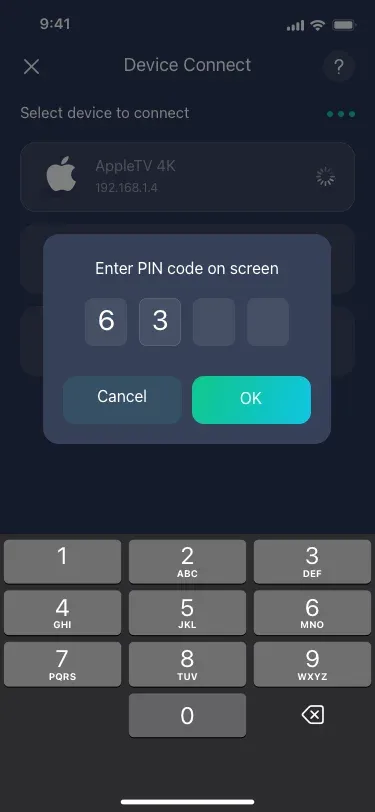
Step 4. When prompted, enter the onscreen password to finish the pairing process.
Step 5. Once successful, you can see the iPhone or iPad's screen displayed on your television screen.
To Sum Up
Why is my AirPlay not connecting to my TV? How to address iPhone not connecting to TV via AirPlay? AirPlay connection issues are usually related to network problems, software incompatibilities, or device settings. If AirPlay still doesn't work, apps like PigeonCast offer excellent alternatives for seamless screen mirroring across different devices and TV brands.
AirPlay Not Connecting to TV FAQ
Q: Why is my AirPlay not connecting to my TV?
There are some potential reasons why my AirPlay not connecting to my TV:
- Devices are not on the same Wi-Fi network.
- AirPlay is disabled on your TV or AirPlay device.
- Outdated software on either your iPhone or TV.
- Interference from other electronic devices.
- Weak or unstable Wi-Fi connection.
- Bluetooth issues are affecting device discovery.
- The TV doesn't support AirPlay or require an update.
- Too many devices are connected to the same network, causing congestion.
Q: Why is my iPhone not connecting to my TV?
Here are some reasons why your iPhone might not be connecting to your TV:
- The iPhone and TV are not on the same Wi-Fi network.
- AirPlay or screen mirroring is disabled on the TV.
- Outdated software or firmware on either the iPhone or the TV.
- Interference from other electronic devices.
- Weak Wi-Fi signals or poor internet connection.
- Bluetooth issues are preventing device discovery.
- The TV doesn't support AirPlay or screen mirroring.
- Network congestion due to too many connected devices.
Q: How do I get AirPlay to pick up my TV?
- To get AirPlay to pick up your TV, make sure both your iPhone and TV are connected to the same Wi-Fi network.
- Ensure AirPlay is enabled on your TV. If you're using an Apple TV, check the Settings under AirPlay & HomeKit to ensure AirPlay is turned on. For other smart TVs, make sure AirPlay is supported and activated in the TV's settings
- Restart both your iPhone and TV to refresh the connection and resolve any temporary issues.
Q: Is there an alternative to AirPlay?
Yes! If AirPlay isn't working, try PigeonCast — a screen mirroring app that supports many TVs without needing Apple TV or AirPlay. It's a reliable alternative for iPhone users.
Q: Can I use AirPlay without Wi-Fi?
Generally, no, AirPlay requires Wi-Fi. However, some TVs and Apple TV support Peer-to-Peer AirPlay, which uses Bluetooth and a point-to-point Wi-Fi connection when no internet is available.
Clara Rossi is an experienced technology editor and a seasoned expert in screen mirroring and casting technologies. With a keen eye for detail and a deep understanding of how to seamlessly connect devices, Clara excels at optimizing user experiences for effortless sharing and streaming. Whether you're seeking quick fixes or advanced tips, her expertise and responsiveness ensure that every query is met with a well-informed and efficient solution.