
AirPlay makes it easy to send videos, photos, music, or your entire screen from an iPhone, iPad, or Mac to a TV. But when the TV does not appear, the connection fails, or the video plays without sound, it is not always clear where the problem begins.
In most cases, AirPlay not working is caused by a Wi-Fi issue, a disabled TV setting, a temporary device error, or a problem limited to one app or video. Start with the basic checks below. Then use the symptom and TV sections to find the fix that matches what you see.
Why Is My AirPlay Not Working?
AirPlay depends on the sending device and receiving device being able to find and communicate with each other. A small change to either device can interrupt the connection.
Common reasons for AirPlay not working include:
- The phone, computer, and TV are not connected to the same Wi-Fi network.
- AirPlay is turned off on the TV.
- One of the devices needs to be restarted.
- The Wi-Fi connection is weak or unstable.
- The TV or Apple device is running older software.
- The app or video does not allow AirPlay.
- AirPlay connects, but the picture, sound, or playback does not start correctly.
The way AirPlay fails can help you identify the cause. For example, a TV that never appears in the device list usually points to a discovery or Wi-Fi problem. A TV that connects but shows a black screen is more likely to have a playback or app-related issue.
Before checking a specific symptom, complete the quick fixes below.
Start With These Quick AirPlay Checks
These steps solve many AirPlay problems without requiring you to change advanced settings.
1. Make Sure Both Devices Are on the Same Wi-Fi
Your iPhone, iPad, or Mac usually needs to be connected to the same Wi-Fi network as the TV or streaming device.
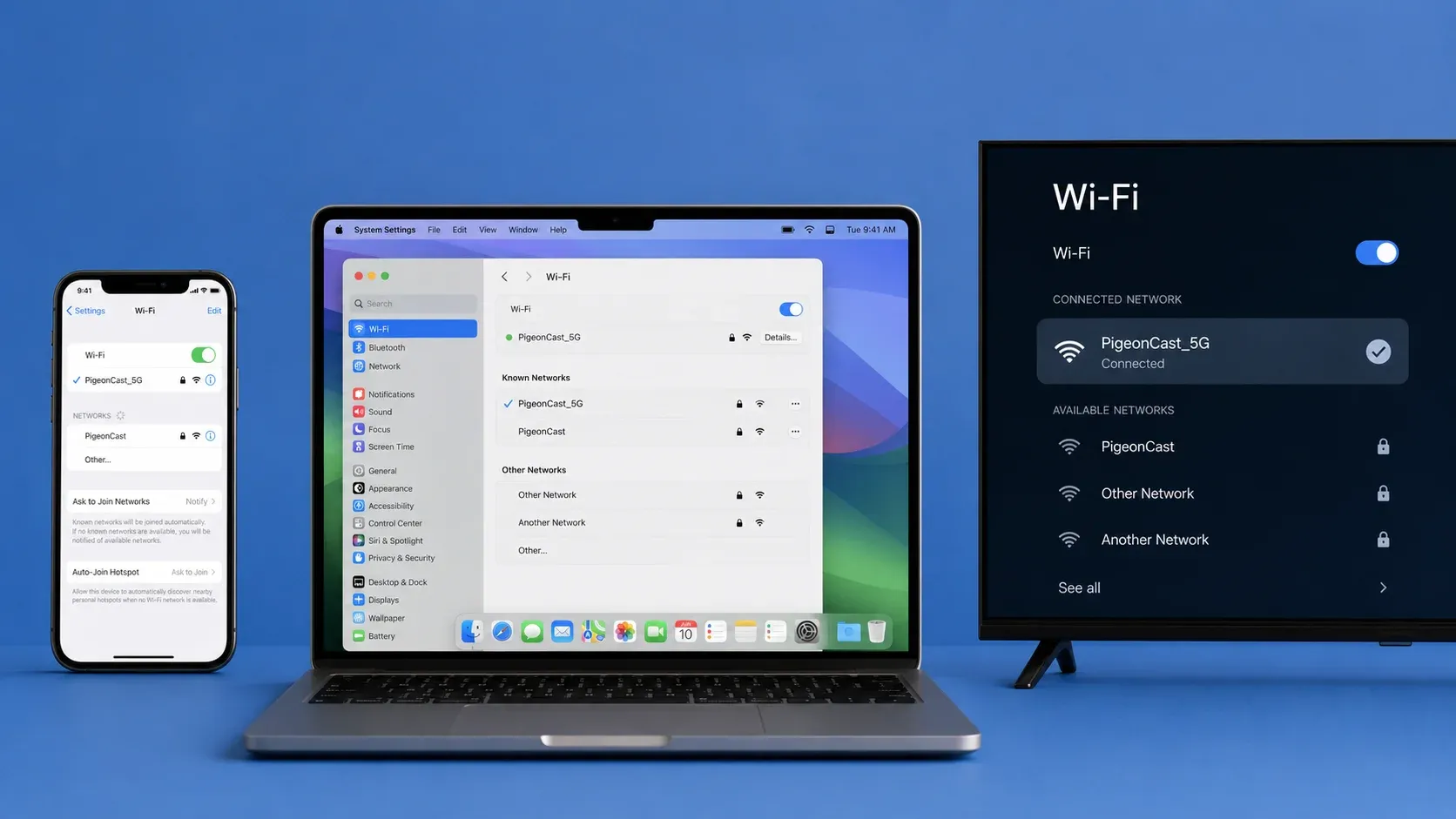
Open the Wi-Fi settings on both devices and compare the network names. Watch for similar-looking networks, such as:
- HomeWiFi and HomeWiFi-Guest
- HomeWiFi and HomeWiFi-5G
- Two networks created by separate routers or Wi-Fi extenders
Also make sure the phone is not using mobile data while the TV remains connected to Wi-Fi.
If the network names do not match, connect both devices to the same one and try AirPlay again.
2. Check That AirPlay Is Turned On
Many compatible TVs allow AirPlay to be turned on or off from the settings menu. If AirPlay is disabled, the TV will not appear on your iPhone, iPad, or Mac.
The exact menu name varies by TV brand, but it may appear under:
- Apple AirPlay and HomeKit
- Connections
- Network
- General Settings
- System Settings
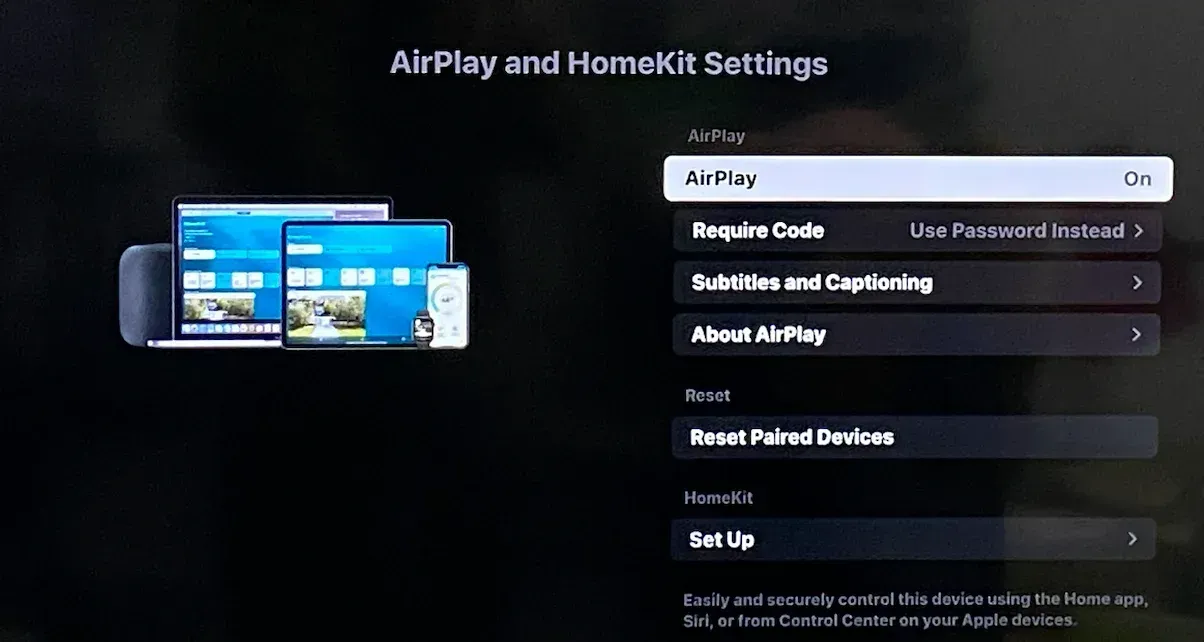
Open the AirPlay menu and confirm that the feature is enabled.
Some TVs also show a code the first time a new device connects. If your TV asks for a code but does not display one, follow our guide to fixing an AirPlay code not showing on TV.
3. Turn Wi-Fi and AirPlay Off and Back On
A connection can become stuck even when all settings appear correct.
On your iPhone or iPad:
- Stop the current AirPlay session.
- Turn Wi-Fi off.
- Wait a few seconds.
- Turn Wi-Fi back on.
- Open the AirPlay menu and choose the TV again.
On a Mac, disconnect from the TV, reconnect to Wi-Fi, and then start Screen Mirroring or AirPlay again.
This creates a new connection instead of trying to continue one that may already have failed.
4. Restart the Apple Device and the TV
Restarting clears temporary errors that can stop devices from finding or playing content correctly.
Restart the iPhone, iPad, or Mac first. Then turn the TV off completely. If possible, unplug the TV from power for about 30 seconds before turning it back on.
Do not restart only the sending device. The TV or streaming device may be the part holding onto the failed connection.
5. Check for Software Updates
Older software can cause connection or playback problems, especially after another device or app has recently been updated.
Check for updates on your iPhone or iPad, Mac, smart TV, streaming device, and the app from which you are trying to play a video. After installing updates, restart the devices before testing AirPlay again.
6. Move the Devices Closer to the Router
AirPlay can connect successfully but still freeze, lag, or disconnect when the Wi-Fi signal is weak.
Move the phone, computer, or TV closer to the router where possible. You can also pause large downloads, cloud backups, or other high-traffic activities while testing.
If AirPlay becomes stable after moving closer, the issue is more likely related to Wi-Fi coverage than the AirPlay setting itself.
7. Try Another App, Photo, or Video
Test AirPlay with a different type of content.
For example:
- Send a photo from the Photos app.
- Mirror the entire iPhone screen.
- Play a video from another app.
- Try AirPlay from a second Apple device.
This helps separate a general AirPlay problem from an issue limited to one app or video.
If photos and screen mirroring work but one streaming app does not, your network and TV connection are probably working. The problem is more likely related to that app, account, or content.
Find the AirPlay Problem That Matches What You See
Once the basic checks are complete, choose the section that best describes the problem.
AirPlay Does Not Find or Connect to the TV
You may open Screen Mirroring or the AirPlay menu and find that:
- The TV does not appear.
- The TV appears but cannot be selected.
- The connection keeps loading.
- The TV asks for a code, but the connection never finishes.
- AirPlay disconnects immediately after you select the TV.
First, confirm that the TV is turned on, connected to Wi-Fi, and has AirPlay enabled. Then restart both devices and open the AirPlay menu again.
If the TV is connected through a streaming device, such as an Apple TV or Roku, make sure you are selecting the correct receiver rather than another TV with a similar name.
It may also help to remove an old saved AirPlay connection or reset the TV’s AirPlay pairing settings. The exact steps depend on the TV brand.
For a complete set of connection fixes, see AirPlay not connecting to TV.
AirPlay Connects but Nothing Plays
Sometimes the TV appears, the AirPlay icon shows an active connection, and yet the video never starts. The TV may show a black screen, remain on its home page, or display a loading symbol.
Start by stopping playback and reopening the video. If that does not work, disconnect AirPlay completely and reconnect before pressing Play again.
Next, test a photo or a different video. This will tell you whether the problem affects all AirPlay content or only the current item.
A video may fail to play because:
- The app has become temporarily unresponsive.
- The current video does not support AirPlay.
- The connection started but did not finish correctly.
- The TV cannot play that particular video format.
- The account or app has a playback restriction.
If the connection looks successful but the television still shows nothing, follow the fixes in AirPlay connected but not playing.
AirPlay Plays Sound but No Video
When the TV plays audio but shows no picture, the AirPlay connection is working only partly.
First, check whether you are sending a video from an app or mirroring the entire screen. Some apps handle these two methods differently. A video that fails through the AirPlay button may still appear when you mirror the full screen, although protected streaming content may block screen mirroring as well.
You should also:
- Stop the video.
- Disconnect AirPlay.
- Reopen the app.
- Reconnect to the TV.
- Start the video again.
Try another video from the same app and then a video from a different app. If only one title fails, the issue is probably limited to that content.
See AirPlay only playing audio for more ways to restore the missing picture.
AirPlay Has Video but No Sound
If the picture appears on the television but there is no sound, check the output device before changing any network settings.
Start with the obvious controls:
- Turn up the TV volume.
- Make sure the television is not muted.
- Check the volume on the iPhone, iPad, or Mac.
- Confirm that the audio is not being sent to Bluetooth headphones or another speaker.
On a Mac, open the sound output settings and make sure the TV or AirPlay receiver is selected. On an iPhone or iPad, open Control Center and check the current audio destination.
If the sound still does not play, stop AirPlay, close the app, reconnect, and test a different video.
For more detailed fixes, read AirPlay sound not working.
AirPlay Stops When the Phone Locks
A video may play normally until the iPhone screen turns off. In other cases, playback stops when you leave the app or switch to another screen.
Whether playback continues after the phone locks depends partly on how the app handles AirPlay.
When an app sends the video directly to the TV, playback may continue while the phone is locked. When you mirror the entire screen, locking the iPhone can interrupt the mirrored image because the phone is no longer displaying the content.
Try these steps:
- Keep the video app open while testing.
- Use the app’s built-in AirPlay button instead of full-screen mirroring.
- Temporarily increase the iPhone’s Auto-Lock time.
- Check whether the app allows background playback.
- Test another video app.
For a fuller explanation, see AirPlay stops when phone locks.
AirPlay Is Lagging, Freezing, or Disconnecting
A delay of a moment may be normal, especially during screen mirroring. However, repeated freezing, long delays, poor picture quality, or constant disconnections usually point to an unstable connection.
To improve playback:
- Move the Apple device and TV closer to the router.
- Pause large downloads and uploads.
- Restart the router.
- Disconnect devices that are not being used.
- Close unnecessary apps on the phone or computer.
- Lower the video quality temporarily.
- Use the app’s AirPlay button instead of mirroring the whole screen when possible.
You should also compare different content. If locally stored photos and videos work well but one streaming service keeps buffering, the internet connection or app may be the main cause.
Read why AirPlay is lagging for general fixes.
AirPlay Subtitles Are Missing
The video may appear correctly on the TV while subtitles stay on the phone, disappear completely, or use the wrong language.
First, turn subtitles on from inside the video app rather than relying only on the iPhone or iPad accessibility settings. Then stop and restart the video after enabling them.
If the subtitles are stored as a separate file, the TV or app may not send them through AirPlay in the same way as the video. Testing another title can show whether the problem is limited to one subtitle track.
You can also try full-screen mirroring, although this may not work with protected video content.
See AirPlay subtitles not working for additional subtitle fixes.
AirPlay Does Not Work With a Specific Video or App
When AirPlay works in Photos or another app but fails with one streaming service, you usually do not need to reset the entire TV.
The issue may be related to:
- The app’s current AirPlay support
- A temporary app error
- The selected video
- Account or region restrictions
- Copy-protected content
- An outdated app version
Start by updating the app, signing out and back in, and testing another title from the same service.
Prime Video Says AirPlay Is Unavailable
Prime Video may display a message saying that AirPlay is unavailable for the selected video. When this happens, test another title and check whether the Prime Video app is up to date.
You may also be able to use the Prime Video app installed directly on the TV or streaming device instead of sending the video from your phone.
See AirPlay is unavailable for this video on Prime Video for specific solutions.
YouTube Does Not Play Through AirPlay
YouTube may fail to find the TV, disconnect during playback, or show the AirPlay option without successfully starting the video.
Restart the YouTube app and test another video first. You can also compare the YouTube AirPlay button with full-screen mirroring or the TV’s own YouTube app.
For YouTube-specific checks, see YouTube AirPlay not working.
AirPlay Not Working on Your TV Brand
AirPlay menus and reset options vary by manufacturer. If the general fixes do not solve the problem, use the guide for your television brand.
AirPlay Not Working on Samsung TV
On a Samsung TV, confirm that AirPlay is enabled under the Apple AirPlay settings. Restart the TV, check for software updates, and reset paired devices if the iPhone or Mac no longer connects.
Follow the Samsung-specific steps in AirPlay not working on Samsung TV.
AirPlay Not Working on Roku
Roku TVs and Roku streaming devices may include AirPlay and HomeKit settings in the system menu. Make sure AirPlay is turned on and the Roku device is connected to the same Wi-Fi network as the Apple device.
If the Roku appears but will not connect, restart it through the system settings rather than simply turning the TV screen off.
See AirPlay not working on Roku.
AirPlay Not Working on LG TV
LG TV users should check the AirPlay and HomeKit menu, remove old paired devices, and make sure the TV software is current.
If the connection works but the picture is delayed or frequently freezes, the problem may need a different set of fixes from a complete connection failure.
Use LG TV AirPlay not working for connection problems or AirPlay lagging on LG TV for slow playback.
AirPlay Not Working on Sony TV
AirPlay support varies across Sony TV models. Confirm that your model supports AirPlay and that the feature is enabled in the TV settings.
Restart the TV, reconnect it to Wi-Fi, and update the TV software before pairing the Apple device again.
See Sony TV AirPlay not working.
AirPlay Not Working on Hisense TV
Hisense televisions use different operating systems depending on the model. The location of the AirPlay setting may therefore differ.
Check whether your specific TV supports AirPlay, confirm that it is enabled, and restart both the TV and Apple device.
For model-specific guidance, read Hisense TV AirPlay not working.
AirPlay Not Working on TCL TV
Some TCL TVs use Roku TV, while others use Google TV, Android TV, or Fire TV. AirPlay availability and menu locations depend on the system installed on the television.
Check the TV’s operating system first. Then follow the correct settings path and confirm that AirPlay is supported on that model.
AirPlay Not Working on Vizio TV
On a compatible Vizio TV, look for the AirPlay option in the home screen or system menu. Make sure the TV is online and connected to the same network as the iPhone, iPad, or Mac.
A power cycle and software update can often restore a Vizio TV that has stopped appearing in the AirPlay list.
Follow Vizio AirPlay not working for the full troubleshooting process.
AirPlay Not Working on Fire TV
AirPlay support is not available on every Fire TV model. First check whether your television or Fire TV device includes built-in AirPlay support.
If it does, confirm that AirPlay is enabled and update the Fire TV software. If it does not, you will need a compatible receiving app or another screen-sharing method.
See Fire TV AirPlay not working for the available options.
What to Do If AirPlay Still Does Not Work
If you have completed the relevant steps and AirPlay continues to fail, use a simple test to narrow down the remaining possibilities.
Test Another Apple Device
Try connecting a second iPhone, iPad, or Mac to the same TV.
If the second device works, the problem is probably on the original Apple device. If neither device works, the TV, receiver, or Wi-Fi network is more likely to be the cause.
Test Another Receiving Device
When possible, try AirPlay with another compatible TV, Apple TV, or receiver.
This can show whether AirPlay is failing everywhere or only on one television.
Remove the Connection and Start Again
Instead of repeatedly reconnecting to the same saved receiver:
- Stop AirPlay.
- Remove or reset paired devices in the TV’s AirPlay settings.
- Restart the TV.
- Restart the Apple device.
- Reconnect both devices to Wi-Fi.
- Start a new AirPlay session.
This is especially useful when a TV previously worked but suddenly stopped accepting the same iPhone or Mac.
Use Another Way to Share the Screen
AirPlay is not the only way to show content on a larger display.
Depending on the devices you own, you can use:
- An HDMI cable and compatible adapter
- A streaming app installed directly on the TV
- The TV’s built-in casting feature
- A screen mirroring app
PigeonCast is a cross-platform screen mirroing app. It provides another way to mirror or cast between supported phones, computers, TVs, and browser-based receivers. It can be useful when the television does not support AirPlay, when you are using devices from different platforms, or when AirPlay remains unreliable after troubleshooting.



Overall Rating:



This does not repair the TV’s AirPlay feature, but it gives you another way to display the content without continuing to troubleshoot the same connection.
Final Thoughts
When AirPlay is not working, begin with the connection rather than changing multiple settings at once. Confirm that both devices use the same Wi-Fi, make sure AirPlay is enabled, and restart the Apple device and TV.
After that, follow the symptom you actually see. A missing TV, a blank screen, lost sound, lagging playback, and an app-specific error are different problems and often need different fixes. If the issue only happens on one TV brand or streaming service, use the matching guide instead of repeating the general steps.
When the TV does not support AirPlay or the connection remains unreliable, another mirroring method can help you get the screen onto the display without depending on AirPlay.
AirPlay Not Working FAQ
Does every TV support AirPlay?
No. Not every smart TV can receive AirPlay. Your TV model needs to support AirPlay, or you need a compatible receiver such as Apple TV. If your TV does not support AirPlay, you may need another screen mirroring method.
Do I need an Apple TV to use AirPlay?
No. Many newer smart TVs support AirPlay directly. An Apple TV is only needed when your TV does not include built-in AirPlay support or when you want to use it as a separate receiver.
Why did AirPlay stop working after I changed my Wi-Fi router?
AirPlay depends on local network communication between devices. After changing routers, your TV and Apple device may be connected to different networks or settings may have changed. Make sure both devices are connected to the same Wi-Fi network and try again.
Does AirPlay work without internet?
AirPlay can often work for local content without internet access, as long as the devices can communicate on the same network. However, streaming apps may still require internet access to load or verify content.
Why does AirPlay work with photos but not videos?
Photos and videos may use different playback methods. If photos or screen mirroring work but videos fail, the issue may be caused by app support, content restrictions, or copyright protection.
Why does AirPlay work on one app but not another?
AirPlay support depends on the app and the content provider. Some apps allow AirPlay while others restrict external playback. Try updating the app, testing another video, or using the TV’s own streaming app if available.
Can I use AirPlay from a Windows PC or Android phone?
AirPlay is mainly designed for Apple devices. Windows PCs and Android phones usually need a compatible receiver or third-party screen mirroring solution like PigeonCast to send content through AirPlay.
Is there another way to mirror my screen if AirPlay still fails?
Yes. You can use an HDMI adapter, your TV’s built-in casting feature, a compatible streaming device, or another screen mirroring app when AirPlay is unavailable or unreliable.
Mia Clarke is a technology editor specializing in screen mirroring and casting solutions across multiple platforms. Mia provides clear, practical guides and in-depth insights to help users seamlessly connect their devices. Passionate about enhancing digital experiences, Mia is dedicated to keeping readers updated on the latest trends and tools in cross-platform screen sharing. Whether you’re looking to mirror your smartphone, laptop, or smart TV, Mia’s content delivers reliable, user-friendly advice to simplify your tech setup.