
AirPlay is one of the most convenient features of a TCL TV, letting you beam content from your iPhone, iPad, or Mac to the big screen. However, if you encounter issues with TCL AirPlay not working, it can be incredibly frustrating. Fortunately, today's guide will walk you through the common causes of AirPlay issues and provide detailed, step-by-step solutions to get you back to streaming in no time.
Why Is My AirPlay Not Working on My TCL TV
If AirPlay isn't working on your TCL TV, there could be several reasons behind the issue. Understanding the root cause of the problem will help you resolve it more efficiently. Here are the most common reasons why AirPlay not working on TCL:
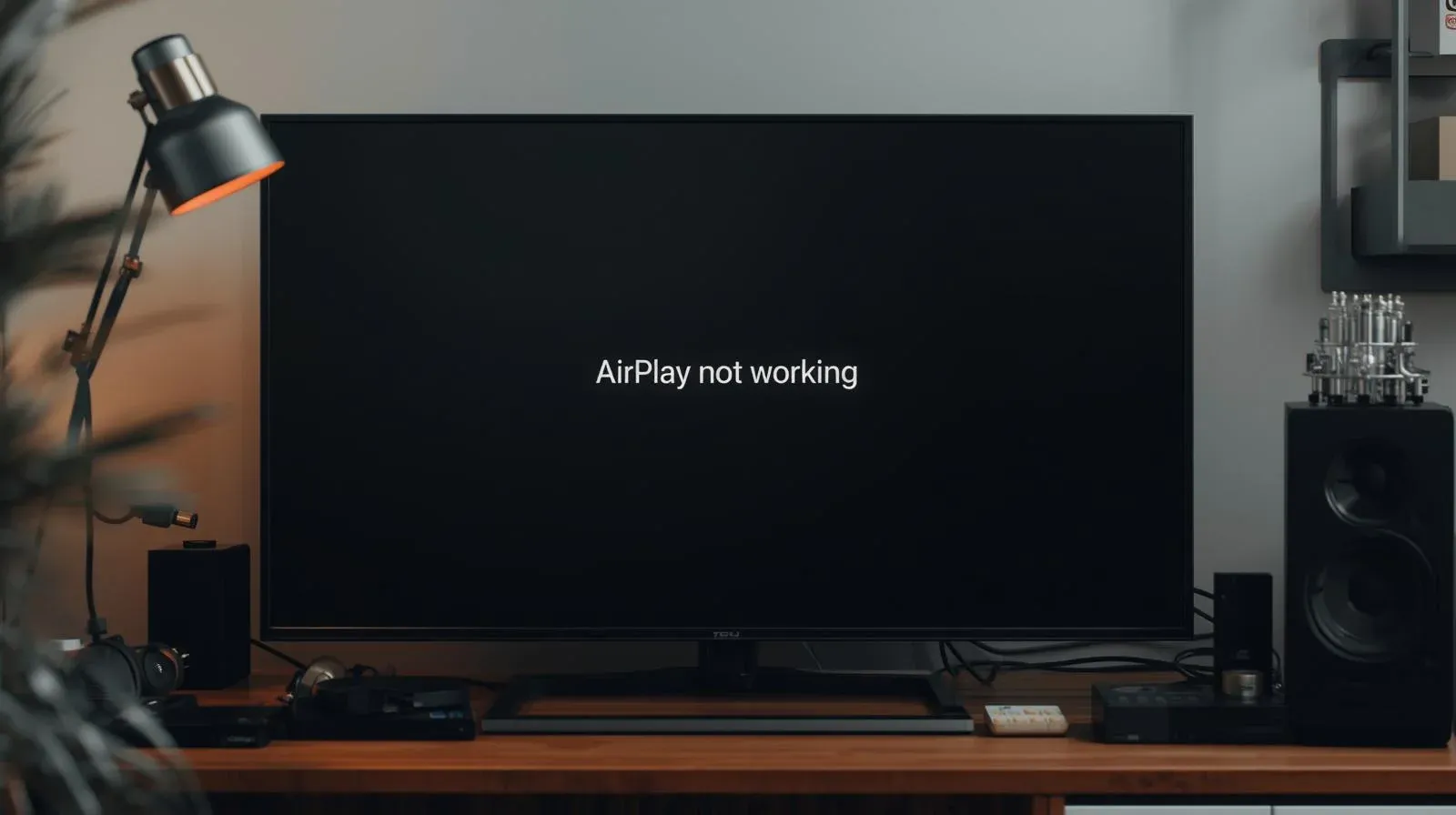
- Device Compatibility: Ensure that your TCL TV supports AirPlay 2, as older models may not have the required features for AirPlay compatibility.
- WiFi Connection Issues: AirPlay requires both your TCL TV and your Apple device to be connected to the same Wi-Fi network. A weak or unstable Wi-Fi connection can prevent AirPlay from functioning correctly.
- Outdated Firmware: If your TCL TV or your Apple device has outdated software or firmware, it may cause compatibility issues.
- AirPlay Settings Disabled: Sometimes, AirPlay may be disabled on your TCL TV or device by default, which can cause the feature to be unavailable.
What to Do When TCL TV AirPlay Not Working
Now that we've covered the common reasons why AirPlay TCL not working, let's dive into the most effective solutions. Be sure to stay patient and remember to reconnect AirPlay on your TCL TV after trying each step.
2025 Best Free Mirroring - PigeonCast: If the TCL Google TV AirPlay not working happens, you can try PigeonCast to rebuild the connection between your devices. This free app works seamlessly on Android, iOS, Windows, Mac, and TVs (Google TVs) with no limitations. What you need is to ensure a stable and strong WiFi network connection.
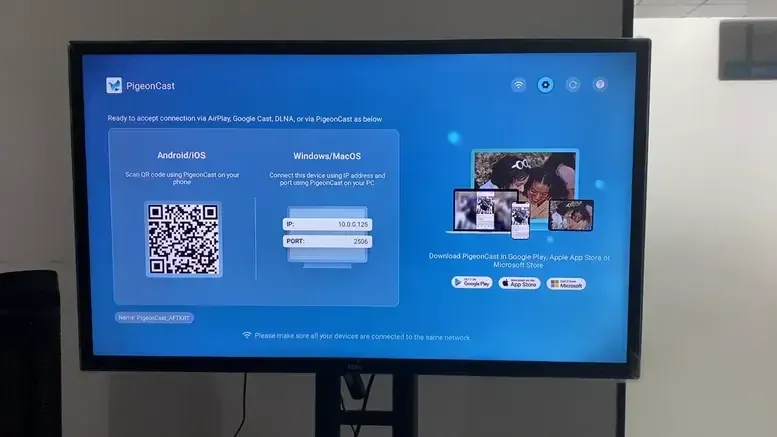

PigeonCast Screen Mirroring

Official Download



Fix 1. Check the Device Compatibility
If you're having trouble with AirPlay on your TCL TV, it's important to make sure that both your TCL TV and your Apple device are compatible with AirPlay. While most TCL TVs manufactured from 2018 onward support AirPlay 2, some older models may not have the required functionality to stream content wirelessly from your Apple device.
- Verify Your TCL TV Model: AirPlay 2 is available on TCL TVs released from 2018 and beyond. If your TV is older, it may not support AirPlay. To confirm your TV's model, check the user manual or go to Settings > System > About on your TV to find the model number.
- Ensure Your Apple Device Supports AirPlay: AirPlay is compatible with most Apple devices released in recent years. Make sure your iPhone, iPad, or Mac is running the latest iOS, iPadOS, or macOS version, as older versions may have trouble connecting.
- Confirm AirPlay 2 Support: For the best experience, ensure that your TCL TV supports AirPlay 2, which is the updated version of AirPlay that enables better performance, such as multi-room audio and enhanced connectivity.
Fix 2. Check the Wi-Fi Connection
Once you've confirmed your devices are compatible, the next and most critical step is to examine your network. AirPlay doesn't use Bluetooth or a direct connection; it relies entirely on your Wi-Fi network to act as a communication bridge. If this bridge is weak, unstable, or partitioned, your devices won't be able to find each other, no matter how compatible they are.
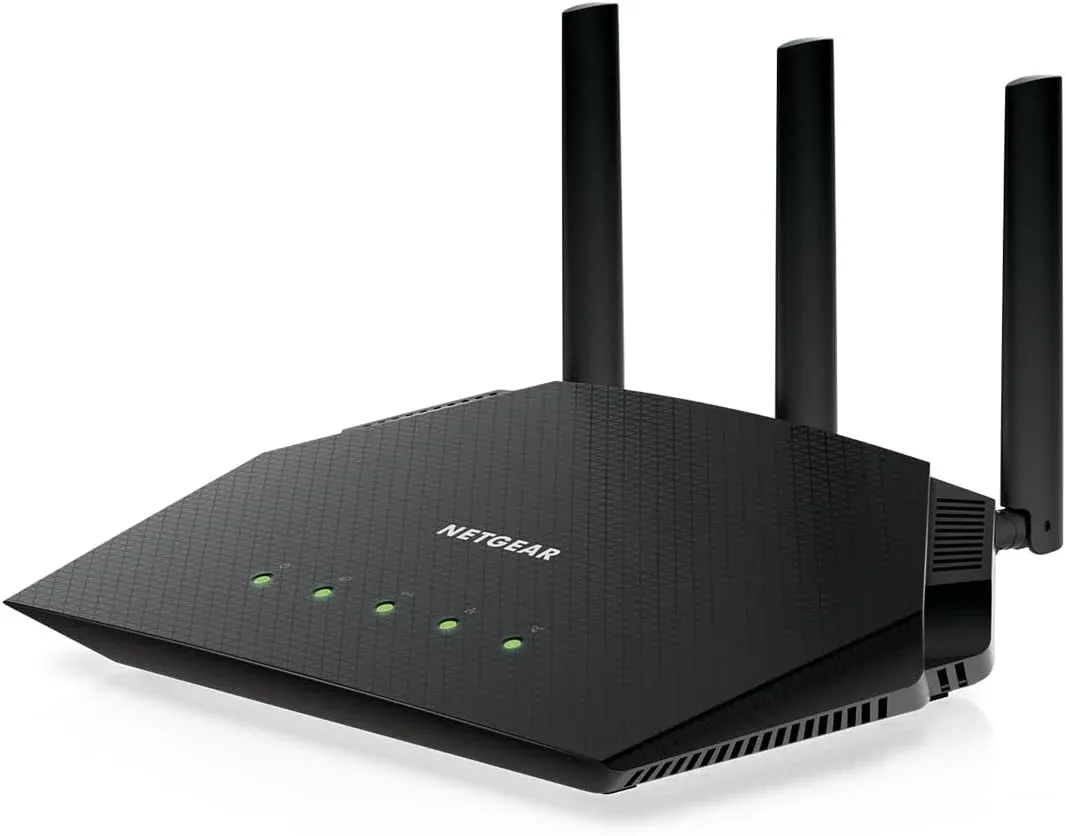
Step 1. Verify that both your devices are on the same network.
Step 2. Move your router closer to your TV, or consider using a Wi-Fi extender to boost the signal in that area.
Step 3. Ensure both your TV and your Apple device are connected to your primary, trusted Wi-Fi network, not a guest network.
Step 4. Unplug your router from the power outlet. Wait for 30 seconds to ensure it fully powers down and clears its cache. Then, plug it back in and wait for all the lights to become stable before testing AirPlay again.
Fix 3. Restart Your Devices
If the AirPlay to TCL TV not working persists, restart both your TCL TV and Apple device. This can help refresh the system and clear any temporary glitches or conflicts that might be preventing AirPlay from working. Restarting both devices is often a quick way to fix minor connection problems.
- Restart Your TCL TV:
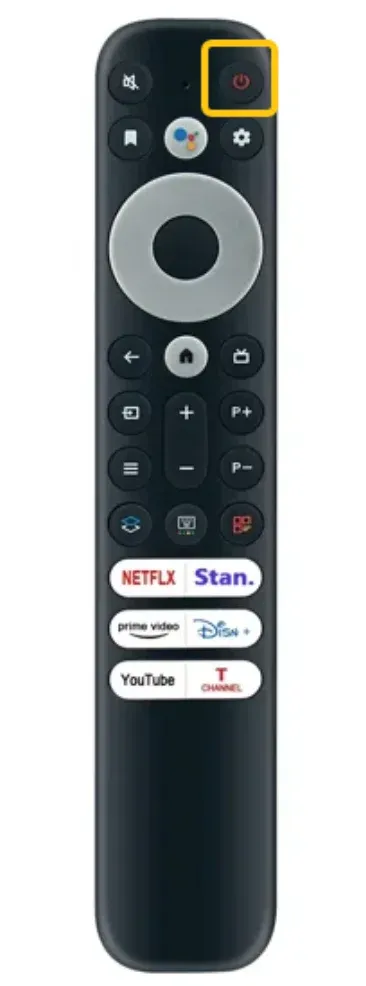
Step 1. Press the Power button on your TCL remote or use the on-screen menu to turn off the TV.
Step 2. Once the TV is off, unplug it from the power outlet. Leave it unplugged for about 30 seconds to fully power down.
Step 3. After waiting, plug the TV back into the power source and turn it on using the remote or the TV's power button.
- Restart Your iPhone or iPad:
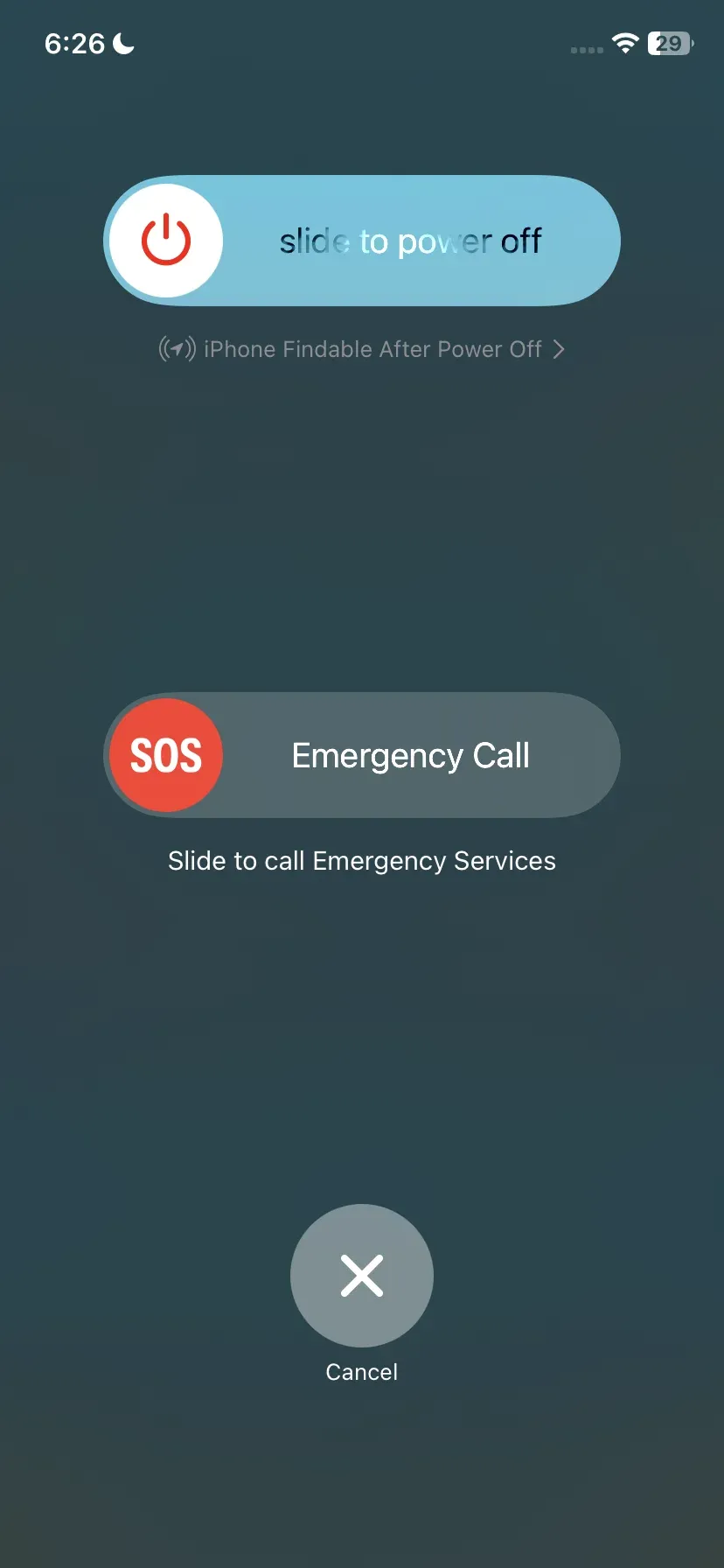
Step 1. Press and hold the Side button and either the Volume Up or Volume Down button (depending on your model) until the slider appears on the screen.
Step 2. Slide to power off the device, then wait a few seconds before turning it back on by holding the Side button again.
- Restart Your MacBook:
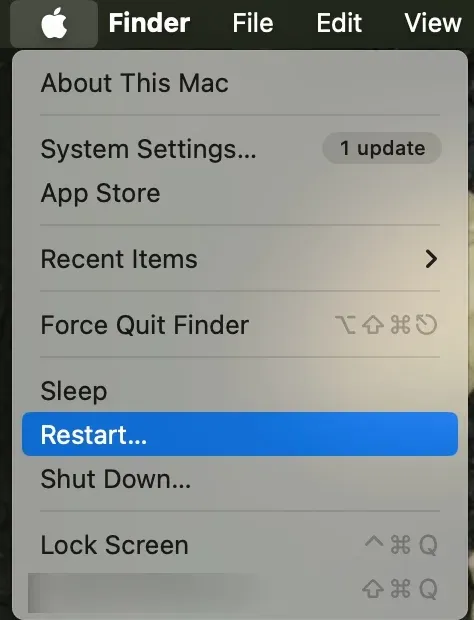
Step 1. Click on the Apple logo in the top-left corner of the screen.
Step 2. Select Restart from the dropdown menu and confirm.
Step 3. After your Mac restarts, try connecting to AirPlay again.
Fix 4. Update Your Devices and Apps
How to fix TCL Apple AirPlay not working? Outdated software or firmware is one of the most common reasons AirPlay might not work properly. If either the device or the mirroring app is running outdated software, it may cause compatibility issues or prevent AirPlay from working altogether. Here is the update process:
- Update Your TCL TV:
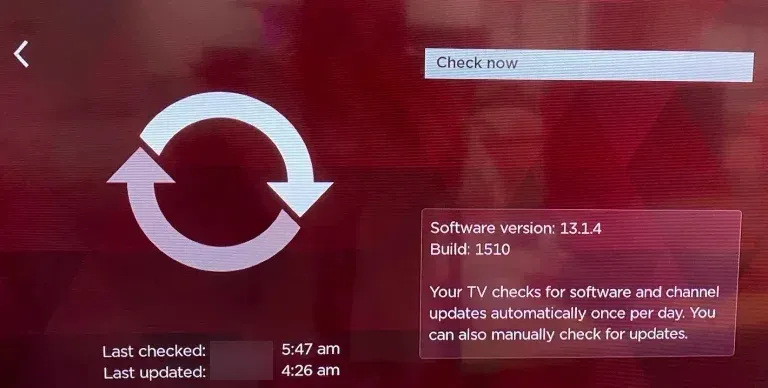
Step 1. Press the Home button on your TCL remote to go to the main menu.
Step 2. Navigate to Settings > System > Software Update.
Step 3. Your TV will automatically check for updates. If an update is available, follow the on-screen instructions to install it.
- Update iPhone or iPad:
Step 1. Open the Settings app on your device. Scroll down and tap General > Software Update.
Step 2. If an update is available, tap Download and Install and follow the on-screen instructions.
- Update MacBook:
Step 1. Click the Apple logo in the top-left corner of the screen. Select System settings, then click Software Update.
Step 2. If an update is available, click Update Now and allow your Mac to download and install the latest version of macOS.
- Update App on your Apple device:
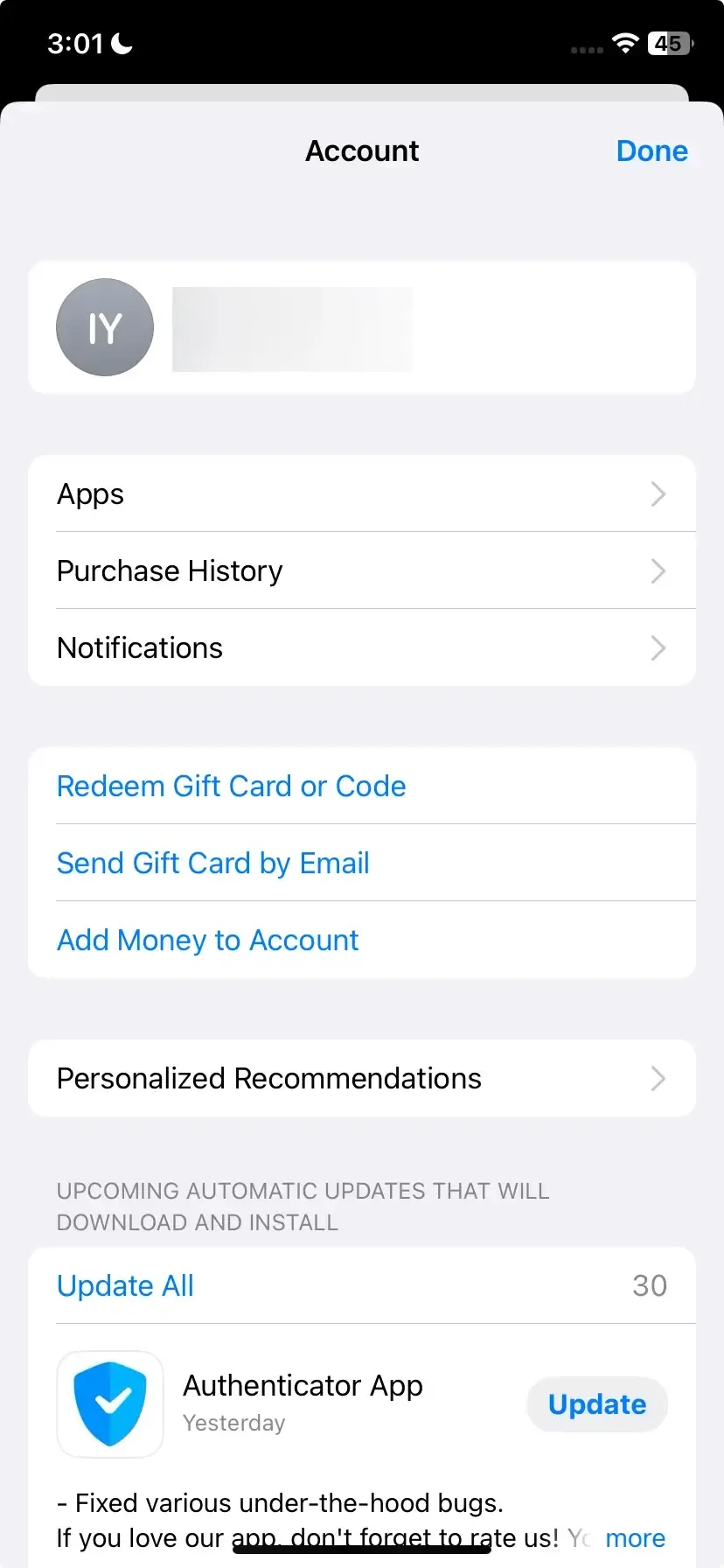
Step 1. Open the App Store on your iPhone or iPad, and tap your profile icon in the top-right corner.
Step 2. Scroll down to see the list of apps with pending updates. You can tap Update All or manually update specific streaming apps.
Fix 5. Configure the TCL TV AirPlay Settings
Once you've tried the previous solutions and AirPlay is still not working, the issue might be related to your TCL TV's AirPlay settings. Configuring these settings correctly is essential for a seamless connection. In this section, we'll walk you through the steps to adjust the AirPlay settings on your TCL TV and ensure everything is set up properly for optimal performance.
Step 1. Go to Roku Settings > System > Advanced System Settings > Device Connect. Ensure it is enabled.
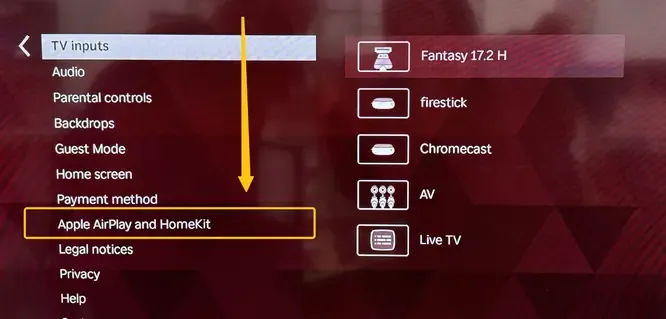
Step 2. Back to scroll down to Apple AirPlay and HomeKit in the Settings menu, open Require Code, and select Reset Paired Devices.
Step 3. Repair your Apple device to the TCL TV.
Fix 6. Disconnect VPN
How to solve TCL Roku TV AirPlay not working? Virtual Private Networks (VPNs) and certain router security features are designed to obscure or protect your device's identity and traffic, which can directly interfere with AirPlay's need for local network discovery. Here's the step to disable VPN:
- On iPhone or iPad:
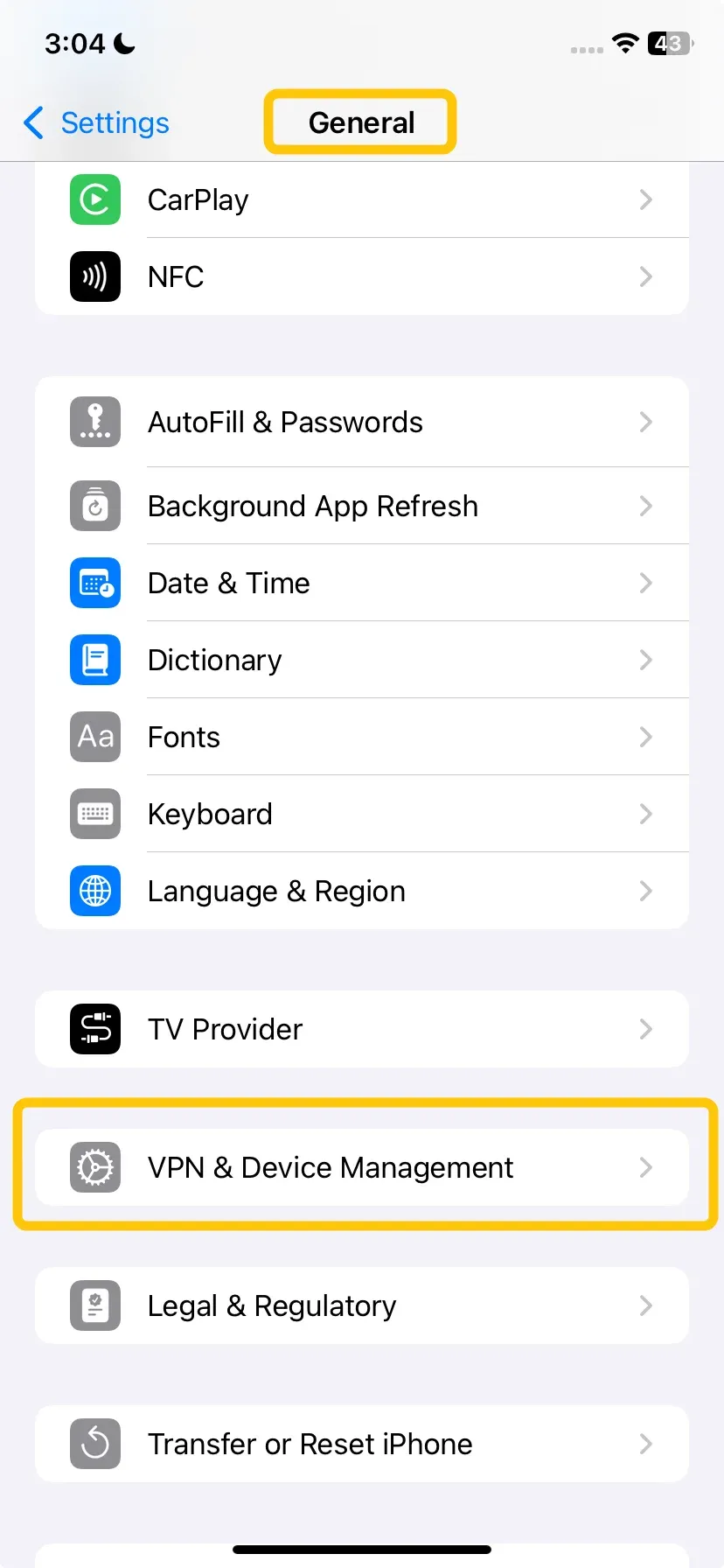
Step 1. Open the Settings app. Scroll down and tap VPN (or tap General > VPN, depending on how it's set up).
Step 2. Toggle the VPN to switch off to disconnect from the VPN.
Step 3. If you're using a third-party VPN app, open the app and disconnect it manually by tapping Disconnect or Turn Off.
- On Mac:
Step 1. Click the Apple logo in the top-left corner of your screen.
Step 2. Select System settings, then click Network.
Step 3. In the left-hand panel, select VPN and click Disconnect.
Fix 7. Factory Reset the TCL TV
If none of the previous steps have resolved your AirPlay not working on TCL Roku TV issues, performing a factory reset on your TCL TV can help restore its settings to their default state. This will clear any software glitches, corrupt settings, or configuration issues that may be preventing your Apple device and TCL TV from connecting via AirPlay.
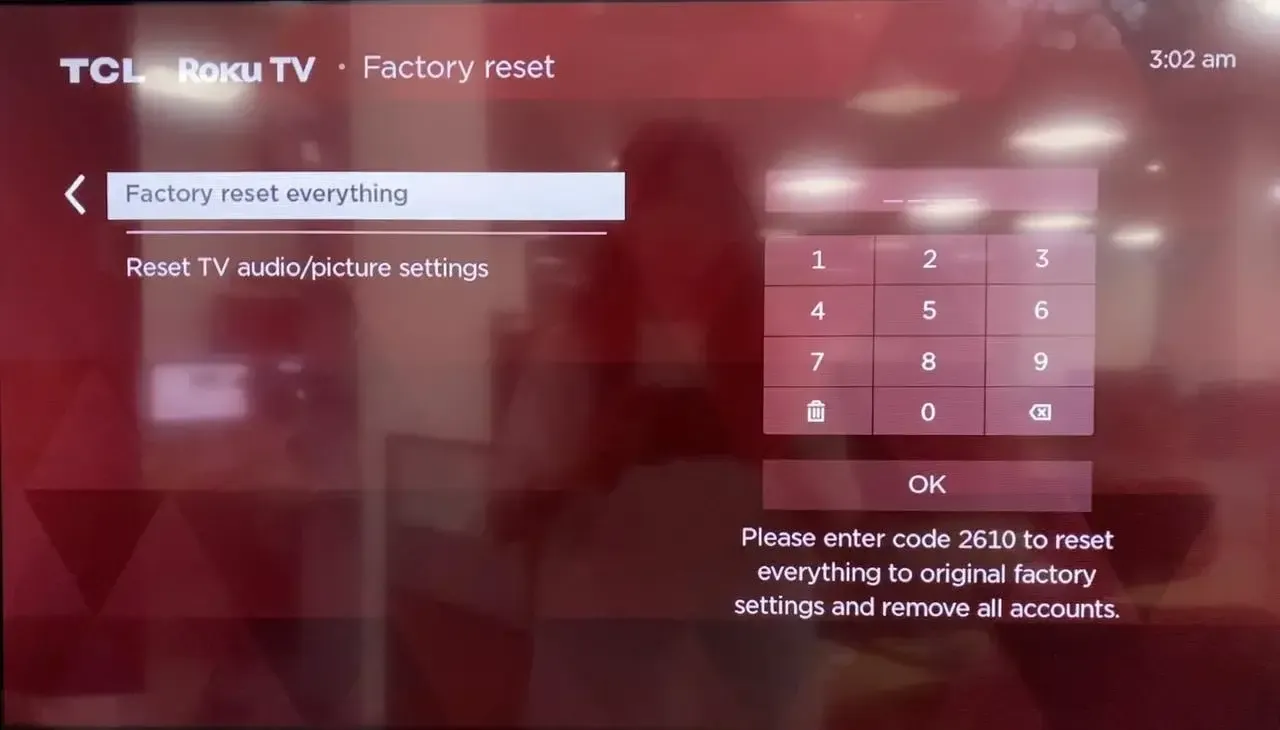
Keep in mind that a factory reset will erase all your custom settings, including Wi-Fi passwords, app preferences, and account logins. Make sure to have this information on hand before proceeding with the reset.
Step 1. Access Settings > System > Advanced system settings > Factory reset.
Step 2. Enter the PIN code and confirm your choice by selecting OK or Reset.
Fix 8. Contact Customer Support of Both Devices
If you're at this point, it means you've already tried all the basic troubleshooting steps that you can do on your own. If TCL Roku AirPlay not working persistently after a factory reset, the issue is likely more complex, possibly related to a hardware problem in the TV or a rare software glitch tied to your account. In this case, the best next step is to reach out for professional help.
- Go to the official TCL Support website: https://support.tcl.com.
- Go to Apple's Support website: https://support.apple.com.
Conclusion
AirPlay is a convenient feature on your TCL TV that lets you easily stream content from your Apple devices, but when TCL Smart TV AirPlay not working appears, it can be frustrating. If you've tried all the solutions and are still facing issues, reaching out to customer support for further assistance is the next best step. With the right guidance, you'll be able to get back to streaming without any hassle.
TCL AirPlay Not Working FAQ
How to AirPlay on a TCL TV?
To AirPlay on a TCL TV, follow these steps:
- Make sure your TCL TV supports AirPlay 2 (available on most models from 2018 onward). Check your TV's settings to confirm.
- Ensure your TCL TV and Apple device (iPhone, iPad, or Mac) are connected to the same Wi-Fi network.
- On your TCL TV, go to Settings > Apple AirPlay and HomeKit and ensure AirPlay is turned on.
- On your Apple device, swipe down to access the Control Center, tap Screen Mirroring, and select your TCL TV.
- Once connected, your Apple device's screen or content will appear on your TCL TV.
Why is my TCL TV not connecting to my phone?
If your TCL TV isn't connecting to your phone, there could be several reasons for the issue. Here are some common causes:
- Network Issues
- Outdated Software
- AirPlay or Casting Settings
- Bluetooth or Wi-Fi Disabled
- Device Compatibility
- Interference from Other Devices
- App Conflicts
What is the most common problem with TCL TV?
The most common problems with TCL TVs typically include:
- Picture or Display Issues
- Sound Problems
- Wi-Fi or Connectivity Issues
- Remote Control Malfunctions
- Software or App Crashes
- AirPlay or Casting Issues
- Input or HDMI Problems
Is TCL supporting AirPlay?
Yes, TCL does support AirPlay. However, it is important to note that AirPlay 2 is available only on certain TCL TV models, specifically those that run Roku TV or Android TV (models released from 2018 onward).
Clara Rossi is an experienced technology editor and a seasoned expert in screen mirroring and casting technologies. With a keen eye for detail and a deep understanding of how to seamlessly connect devices, Clara excels at optimizing user experiences for effortless sharing and streaming. Whether you're seeking quick fixes or advanced tips, her expertise and responsiveness ensure that every query is met with a well-informed and efficient solution.