
Screen mirroring is one of the easiest ways to share your phone, tablet, or computer screen directly to your TV. How to enable screen mirroring on TCL smart TV? The exact steps depend on whether you own a TCL Roku TV, TCL Android TV, TCL Google TV, or a model with AirPlay support. Below, we'll go through these steps on different TV models.
Method 1. Turn On Screen Mirroring on TCL Roku TV
Most TCL Roku TVs come with a built-in screen mirroring option based on Miracast. This lets Android phones, Windows PCs, and other compatible devices cast their screen directly.
Here's how to turn on screen mirroring on a TCL smart TV:
Step 1. Press the Home button on your TCL Roku TV remote.
Step 2. Go to Settings > System > Screen mirroring.
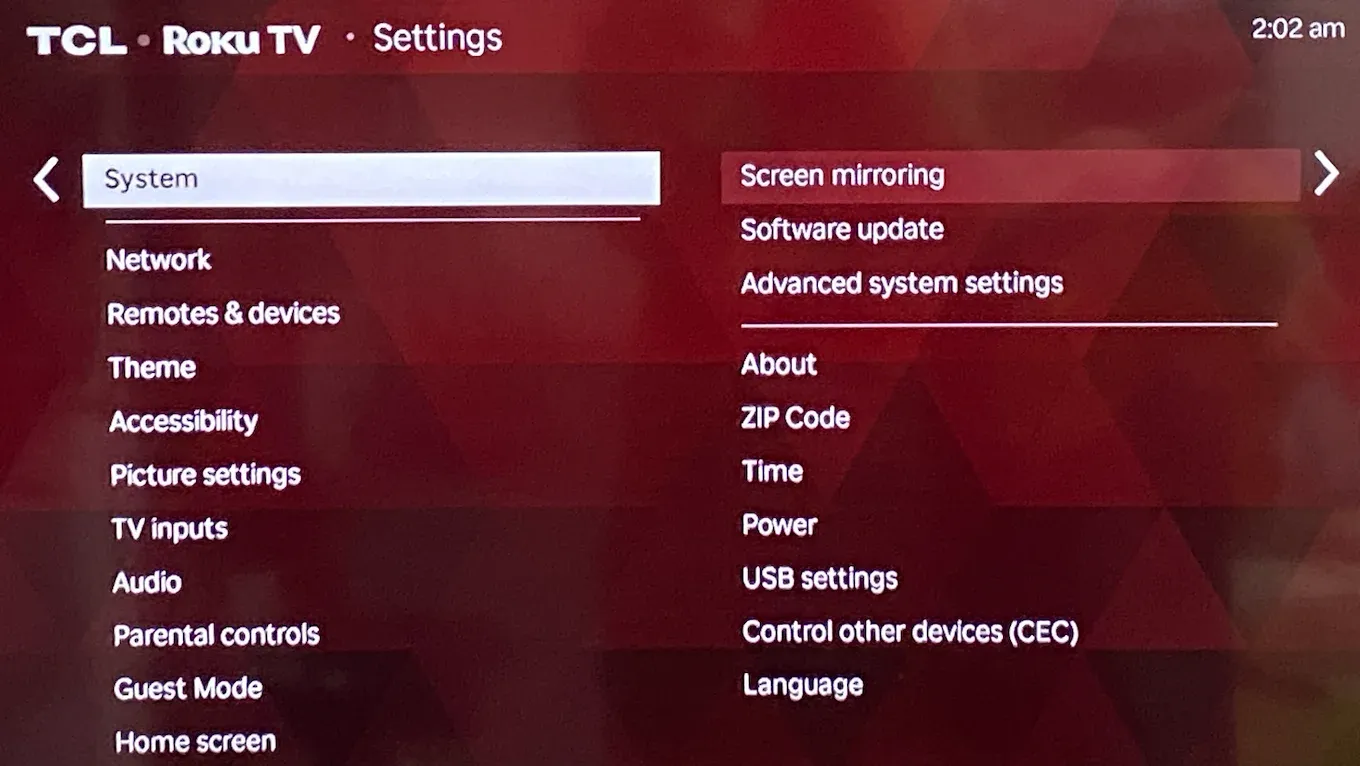
Step 3. Choose Screen mirroring mode.
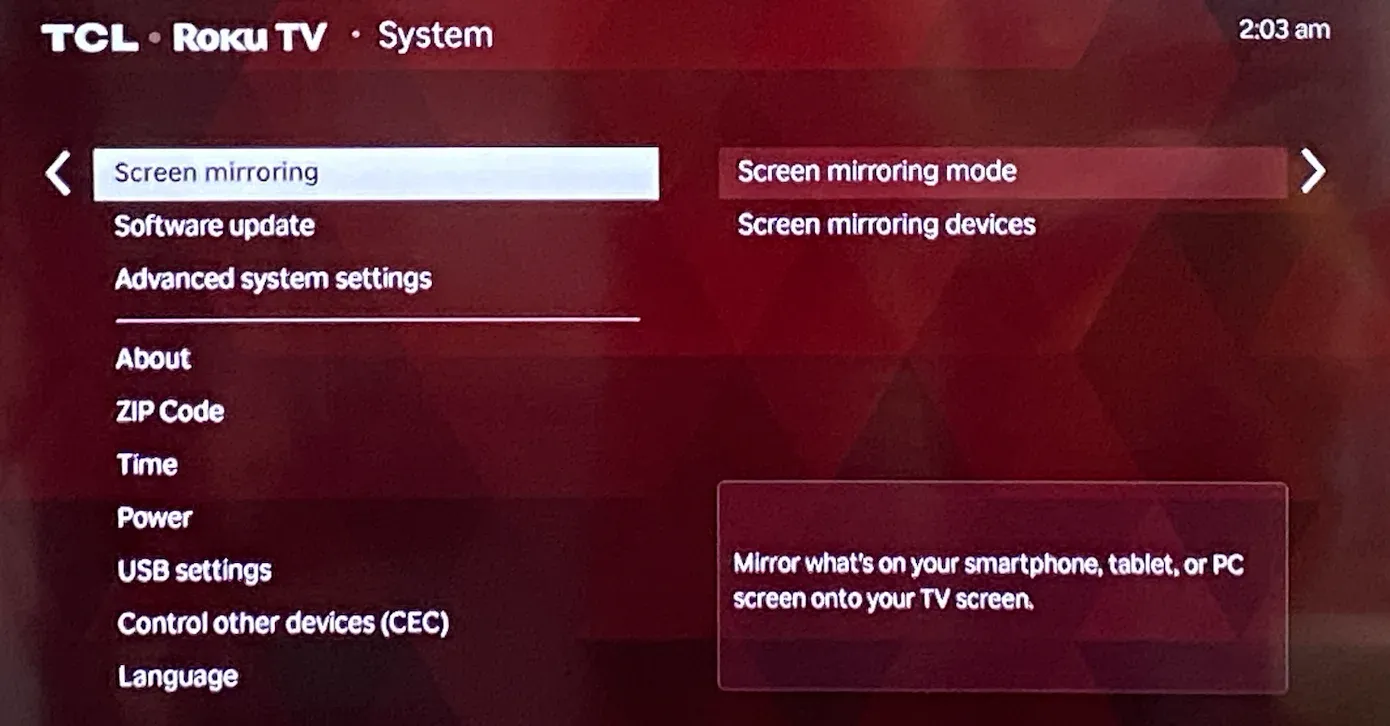
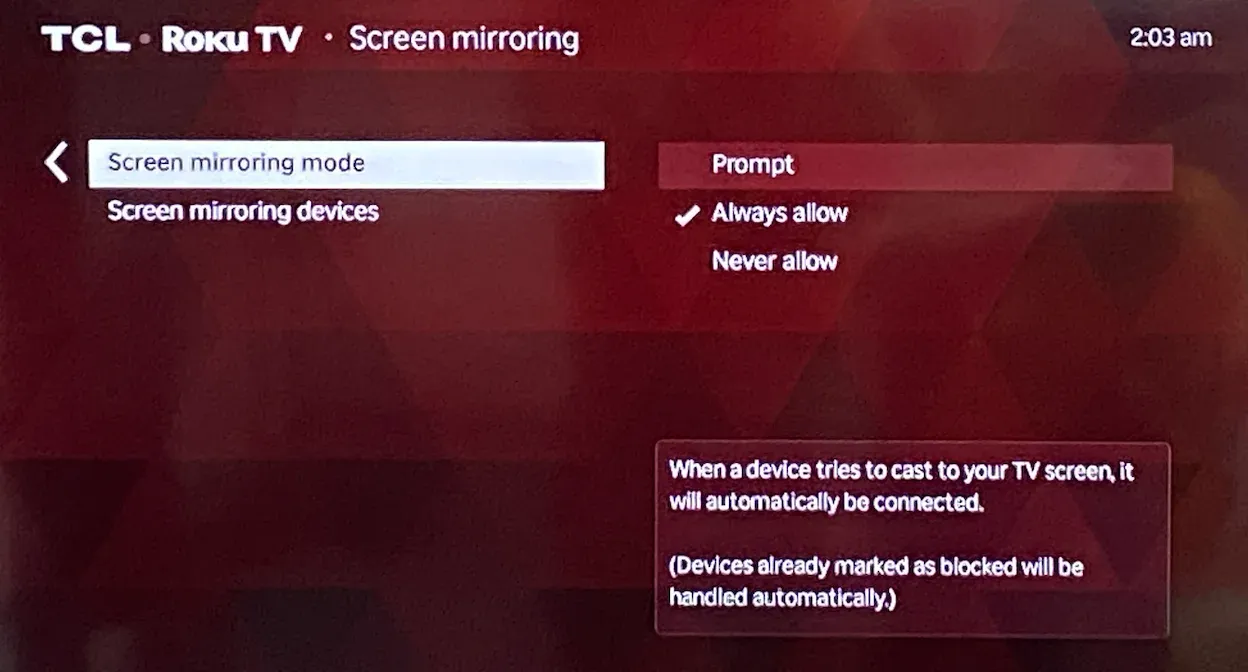
Step 4. Choose a mode:
- Prompt: The TV asks for permission when you're trying to connect your device to it.
- Always Allow: The TV will connect to your device automatically.
Then, you can mirror Android to the TCL TV. How to mirror Android to TCL TV? Connect the two devices to the same Wi-Fi network, and open the Cast/Smart View/Wireless Display option on your Android and select your TCL Roku TV from the list.
However, you can't mirror an iPhone or MacBook to a TCL TV as Apple devices use AirPlay rather than Miracast. To connect an Apple device to a TCL TV, you need to try other methods.
Method 2. Turn On Google Cast on TCL Android TV
If you have a TCL model that runs Android TV or Google TV, you'll use Chromecast built-in (Google Cast). With this, Android devices, Chrome browsers, and even some apps like YouTube and Netflix can cast content with a single tap.
How to screen mirror on TCL TV:
Step 1. Make sure your TCL TV and phone/laptop are on the same Wi-Fi network.
Step 2. On your TCL TV, check that Chromecast built-in is turned on (usually enabled by default).
- Go to Settings > Apps > See All Apps > Show System Apps > Chromecast built-in.
- Enable Chromecast built-in if it's disabled.
Step 3. Chromecast from your Android phone or the Chrome browser on your computer.
- On your Android phone, tap the Cast icon from the Quick Settings menu.
- On your Windows PC or MacBook, open Google Chrome, access the Settings menu, and click Cast, Save, and Share > Cast.
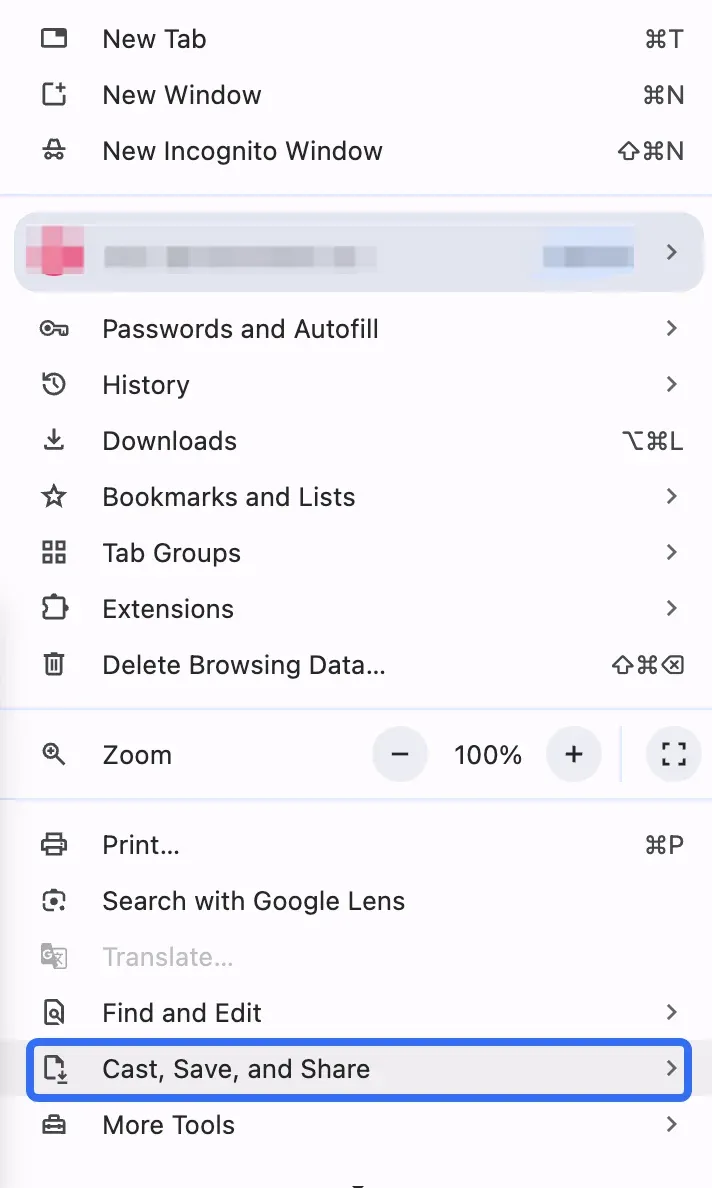
Step 4. Choose TCL TV from the list of available devices.
That's it. Your device screen should now display on your TCL TV.
Method 3. Turn On AirPlay on TCL Smart TV
Some newer TCL TVs also support Apple AirPlay, especially Roku and Google TV models. This is perfect if you're using an iPhone, iPad, or MacBook. If you have an AirPlay-enabled TCL TV, turn on TCL TV screen mirroring as follows:
Step 1. On your TCL TV, go to Settings > Apple AirPlay and HomeKit.
Step 2. Toggle AirPlay to On.
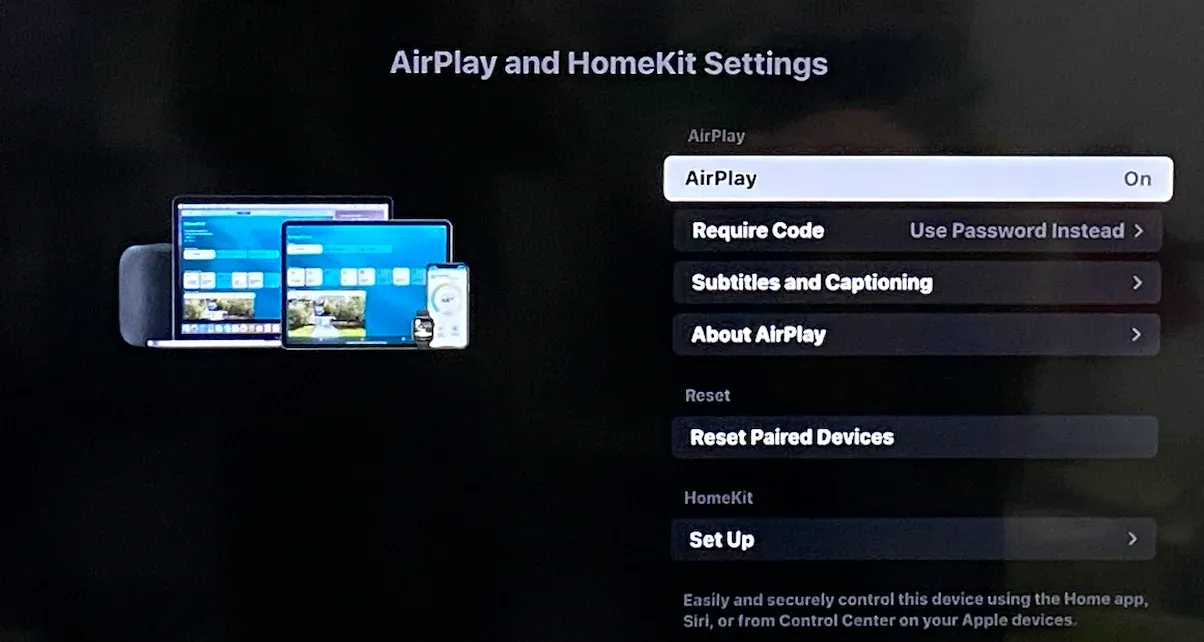
Once AirPlay is enabled on the TV, you can connect an Apple device to it straightforwardly. For example, here's how to mirror iPhone to TCL TV:
Step 1. Ensure that your iPhone and TCL TV are on the same Wi-Fi network.
Step 2. On your iPhone, access the Control Center, and tap the Screen Mirroring icon (two overlapping rectangles).
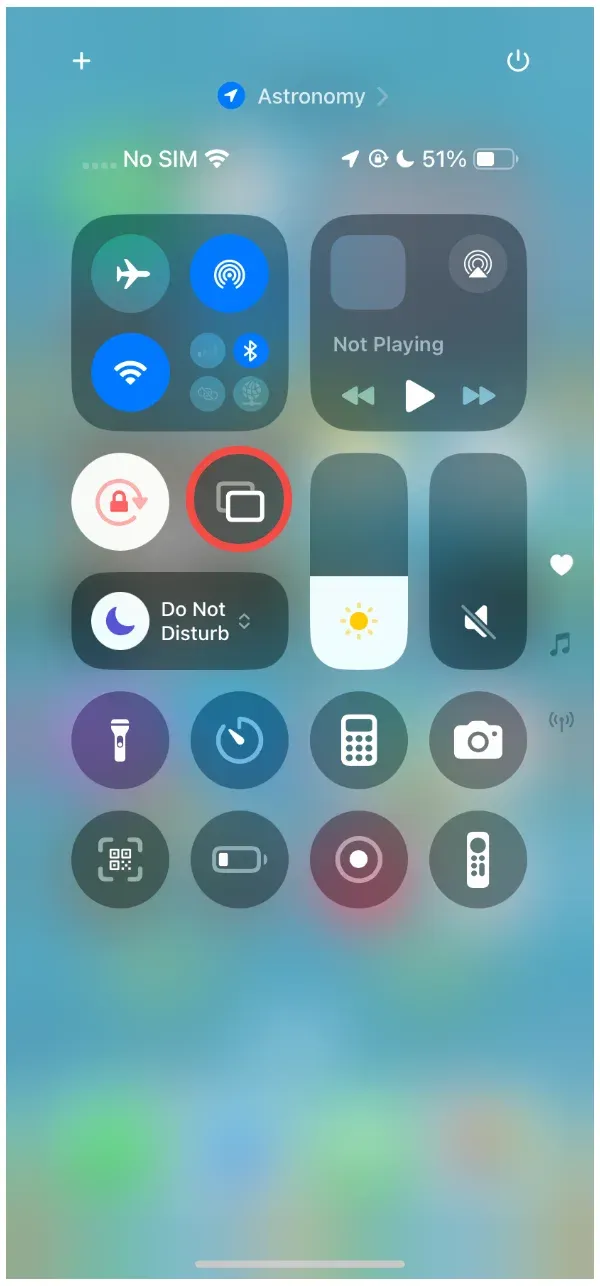
Step 3. Tap your TCL TV on the Screen Mirroring window and enter the passcode displayed on the TV if asked.
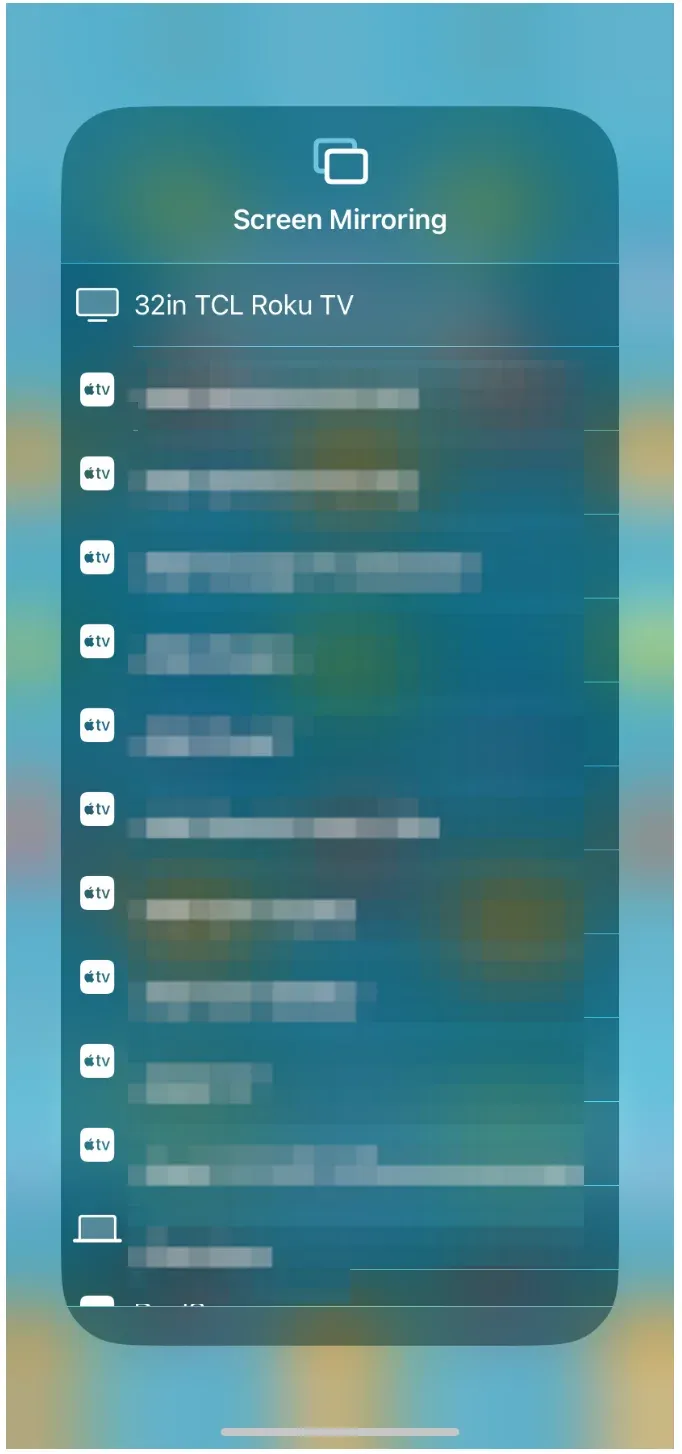
Step 4. Once connected, your iPhone screen shows up on the TV.
Method 4. Install PigeonCast on TCL TV
The first three methods are useful for turning on TCL smart TV screen mirroring, but they are not applicable for cross-platform streaming. So, PigeonCast comes in.
PigeonCast is a free screen mirroring app that works on different platforms, including Android, iPhone, Windows PC, MacBook, Android TV (Google TV), and Apple TV. With the app on your TCL Android TV, you can turn the TV into a universal receiver.

How to enable screen mirroring on TCL smart TV via PigeonCast? The process is straightforward:
Step 1. Download and install the PigeonCast for Android TV app on your TCL TV.

PigeonCast Screen Mirroring

Official Download


Step 2. Launch the PigeonCast on TV, and the TV is ready to receive content from Android and iPhone.
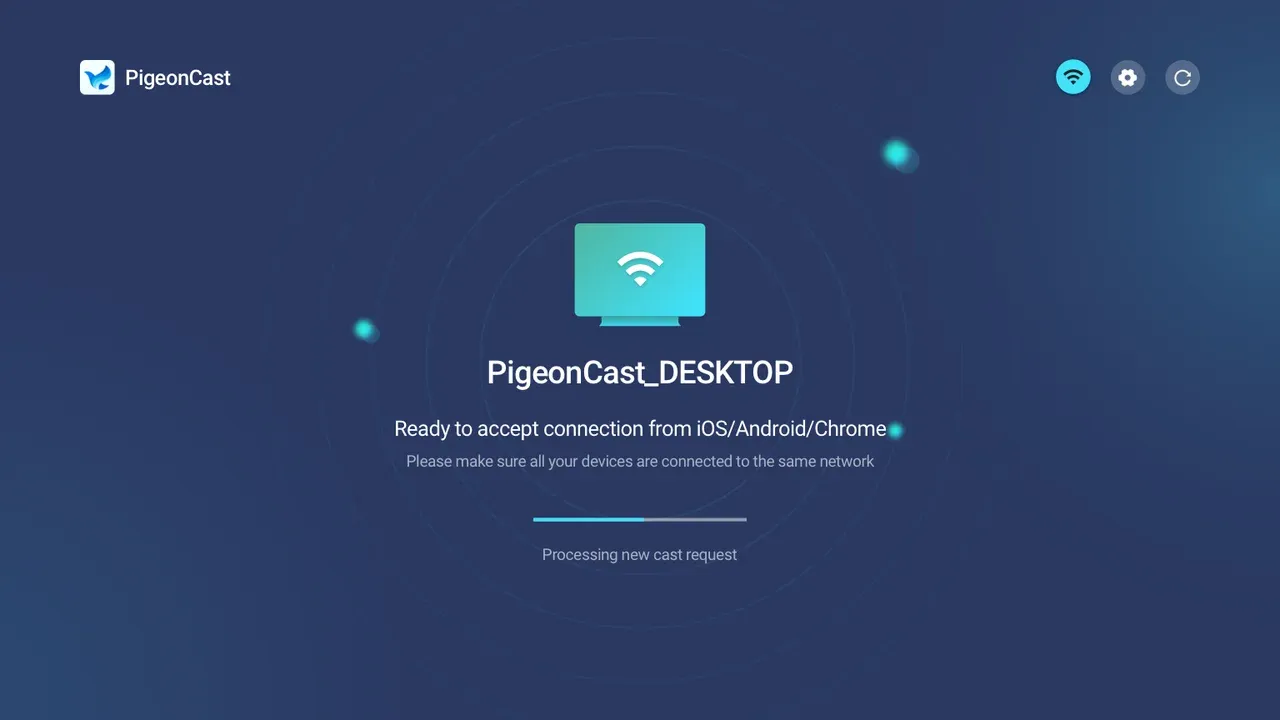
Step 3. When on the same Wi-Fi network, go to your mobile device, tap Cast or Screen Mirroring, and look for your TCL TV.
Step 4. Choose your TCL TV from the list of available devices.
Step 5. Once PigeonCast connects the two devices, enjoy a smooth TCL Google TV screen mirroring.
Tip: Install the PigeonCast on your mobile device (iOS or Android) and cast the device to your TV easily.
Bottom Line
TCL Smart TVs give you multiple ways to enable screen mirroring: Roku's native mirroring, Google Cast, Apple AirPlay, or third-party apps like PigeonCast. Which method works best for you depends on your TV model and the device you're trying to connect.
No matter which route you take, screen mirroring makes it easy to enjoy your phone or computer content on a much larger display — whether for entertainment, productivity, or just convenience.
How to Enable Screen Mirroring on TCL Smart TV FAQs
Q: Does TCL TV allow screen mirroring?
Yes! Most TCL Smart TVs support screen mirroring, either through Roku's built-in Miracast, Google Cast/Chromecast, or Apple AirPlay on supported models. If your TV doesn't support these natively, you can use third-party apps like PigeonCast.
Q: Why is my TCL TV not showing up on screen mirroring?
There are a few possible reasons for TCL TV not showing up on screen mirroring:
- Your TV and device are not on the same Wi-Fi network.
- Screen mirroring is disabled on the TV.
- Your device uses a protocol not supported by your TCL TV.
- A software update might be needed on either the TV or your device.
Q: Which devices can I mirror to a TCL Smart TV?
TCL TVs support a wide range of devices:
- Android phones and tablets (via Miracast or Google Cast)
- iPhone, iPad, and Mac (via AirPlay)
- Windows laptops (via Miracast)
- Third-party apps like PigeonCast can extend support to older devices or systems without native compatibility.
Q: How do I improve screen mirroring performance on TCL TV?
To get smooth mirroring on your TCL TV:
- Ensure both devices are on a stable Wi-Fi network.
- Keep your TV and device close to the router.
- Close other apps on your phone or computer that may use network bandwidth.
- Use wired connections (Ethernet) for TV if possible.
Q: Can I mirror my TCL TV to another TV or monitor?
Generally, TCL TVs are designed to receive mirrored content, not to mirror their own screen to another display. However, you can use HDMI output or casting devices if you need to share the TV screen with a second display.
Q: Is TCL supporting AirPlay?
Yes, many TCL Smart TVs support AirPlay, but compatibility varies based on the TV model and operating system. TCL TVs that support AirPlay include:
- TCL Roku TVs: These models support Apple AirPlay and HomeKit, allowing you to stream content from your Apple devices directly to your TV.
- TCL Google TVs: Many TCL TVs running on Google TV also support AirPlay. To enable it, go to Settings > Apple AirPlay and HomeKit and turn on AirPlay.
Mia Clarke is a technology editor specializing in screen mirroring and casting solutions across multiple platforms. Mia provides clear, practical guides and in-depth insights to help users seamlessly connect their devices. Passionate about enhancing digital experiences, Mia is dedicated to keeping readers updated on the latest trends and tools in cross-platform screen sharing. Whether you’re looking to mirror your smartphone, laptop, or smart TV, Mia’s content delivers reliable, user-friendly advice to simplify your tech setup.