

How to mirror Android to TV? Mirroring Android to a TV is usually simple, but the right method depends on the TV brand and TV system. Samsung, Roku, LG, Fire TV, Google TV, Apple TV, and other platforms do not all use the same screen mirroring method. In this guide, you will find three main ways to connect: the TV's built-in screen mirroring, a screen mirroring app, and HDMI. If you want the fastest answer first, start with the Quick Answer section below and then jump to the method that matches your TV.
Quick Answer: How to Mirror Android to Your TV
| TV or device | Best method to try first | Alternative |
|---|---|---|
| Samsung TV | Smart View | Screen mirroring app |
| Google TV / Chromecast | Google Cast or Google Home | Screen mirroring app |
| LG TV | Screen Share | Screen mirroring app |
| Roku TV | Screen Mirroring | Screen mirroring app |
| Fire TV | Display Mirroring | Screen mirroring app |
| Apple TV | Screen mirroring app | HDMI |
| Hisense TV | Depends on TV system | Screen mirroring app |
| TCL TV | Depends on TV system | Screen mirroring app |
| Sony TV | Google Cast | Screen mirroring app |
| Any TV | Screen mirroring app | HDMI |
If you only want to play a video from an app with a Cast button, use that button first. If you want to show your entire phone screen, follow the screen mirroring methods below.
Method 1: Use Your TV's Built-in Screen Mirroring
Most smart TVs include some kind of built-in screen mirroring. The feature name and compatibility depend on the TV system, so start by finding your TV brand and then follow the matching steps below.
Mirror Android to Samsung TV
The best built-in method for Samsung TV is usually Smart View.
Here is how to mirror Android to Samsung TV:
Step 1. Connect the Android phone and Samsung TV to the same Wi-Fi network.
Step 2. Swipe down from the top of the phone to open Quick Settings.
Step 3. Tap Smart View.
Step 4. Select your Samsung TV from the list.
Step 5. Accept the connection on the TV if prompted.
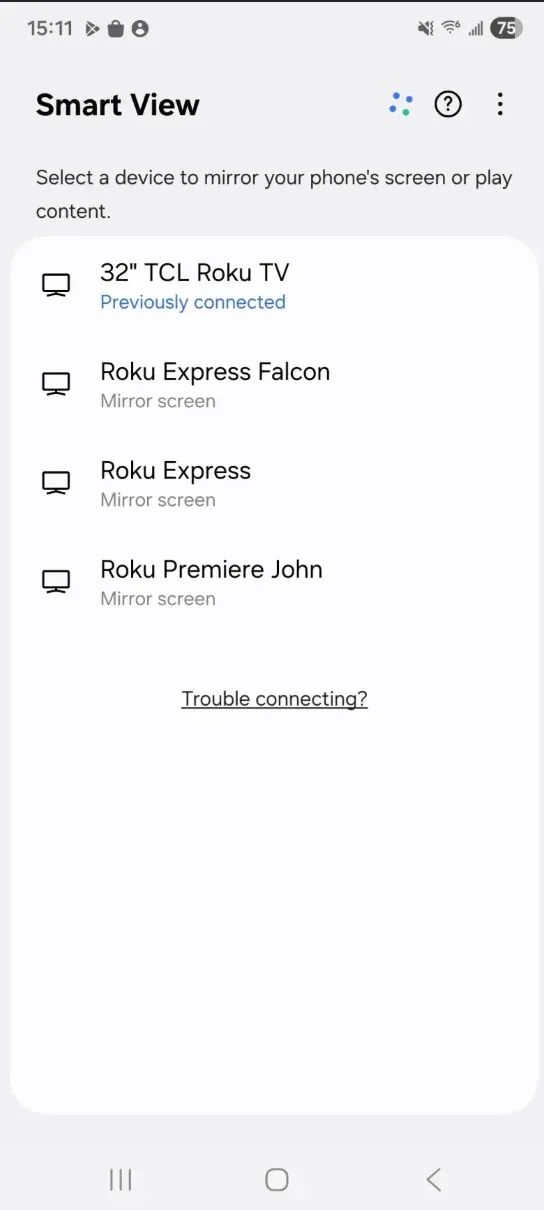
These Smart View steps mainly apply to Samsung Galaxy phones. Google Pixel phones use Google Cast instead of Smart View, so a Samsung TV may not appear automatically in the Pixel’s device list. In that setup, follow the dedicated steps to mirror Pixel to Samsung TV using Chromecast, PigeonCast, or another receiver supported by the TV.
Mirror Android to Google TV or Chromecast
For Google TV or Chromecast, use the Cast button inside a supported app when you only want to play a video. If you want to mirror the full Android screen, use Google Home. This is also the recommended method for Google Pixel phones, which use Google Cast for screen mirroring instead of Samsung's Smart View.
Step 1. Connect the phone and Google TV or Chromecast to the same Wi-Fi network.
Step 2. To play a supported app, open the app and tap the Cast button.
Step 3. To mirror the full screen, open Google Home on the phone or tap the Cast button from the Quick Settings menu.
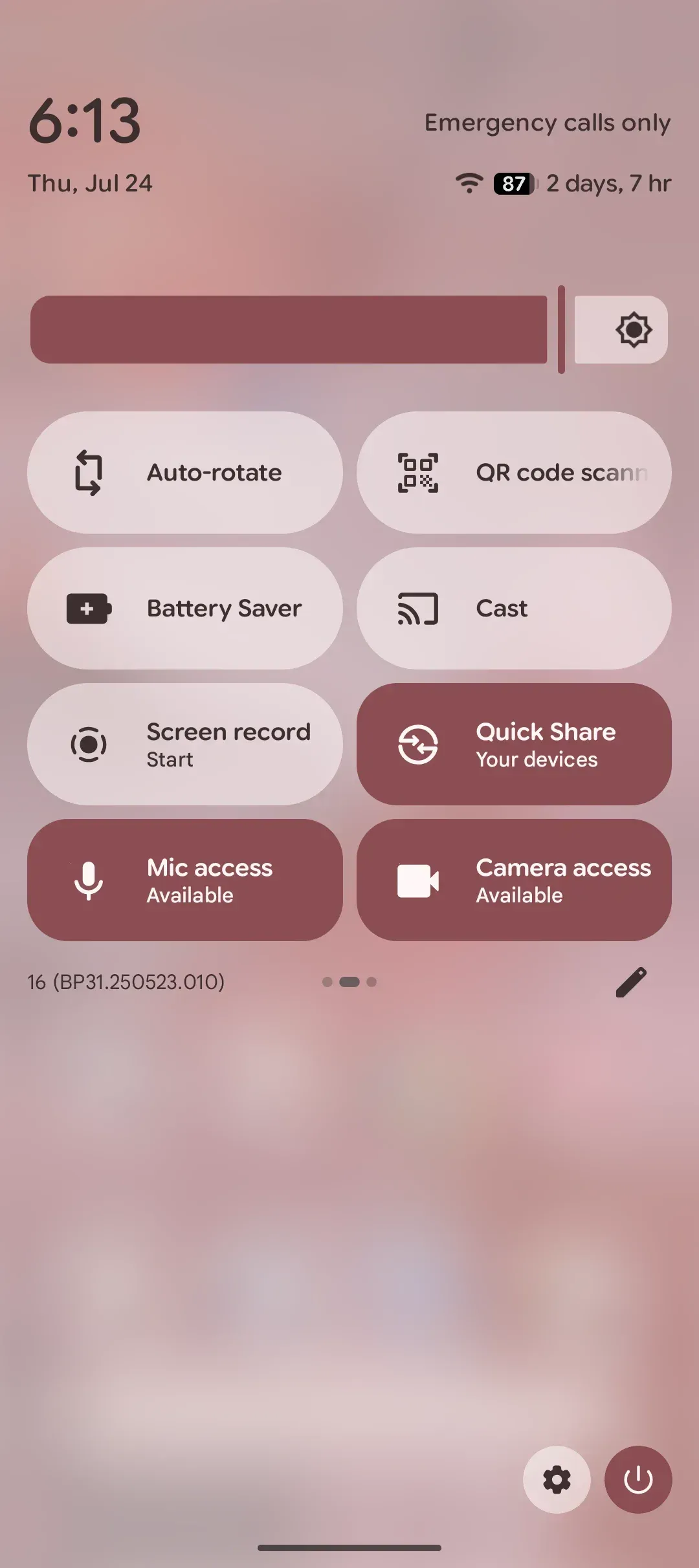
Step 4. Select the Google TV or Chromecast device.
Step 5. Tap Cast my screen and confirm.
Mirror Android to LG TV
On LG TV, the built-in feature is usually Screen Share, allowing wireless connection bewteen Android and LG TV.
Step 1. Connect the Android phone and LG TV to the same Wi-Fi network.
Step 2. Open Screen Share on the LG TV if your model offers it.
Step 3. Open Cast, Screen Cast, or Wireless Display on the Android phone.
Step 4. Select the LG TV from the list.
Step 5. Accept the connection on the TV if needed.
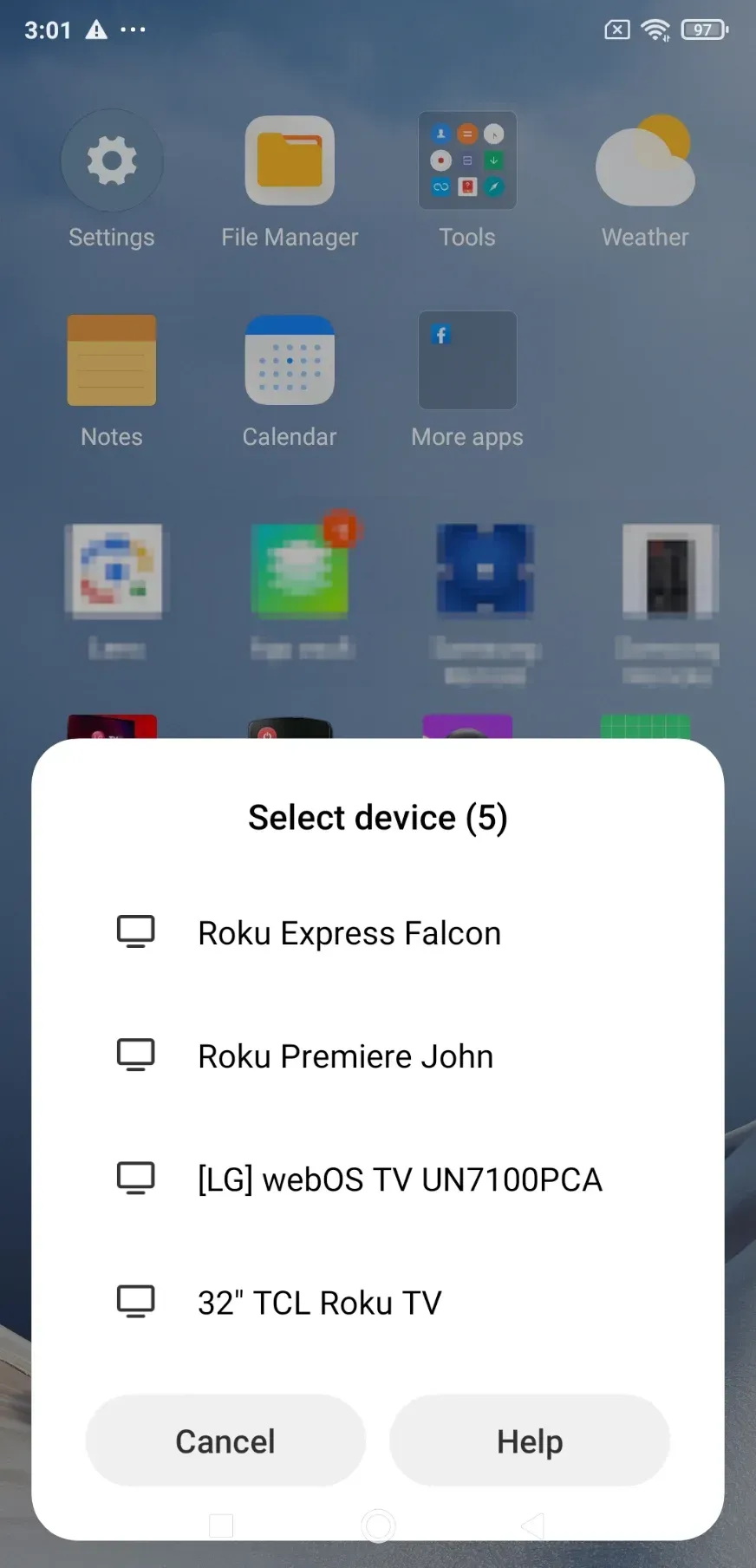
Some Android phones support Google Cast but not Miracast-style mirroring, so the LG TV may not appear in the phone's device list.
Mirror Android to Roku TV
Roku TV also supports screen mirroring from Android.
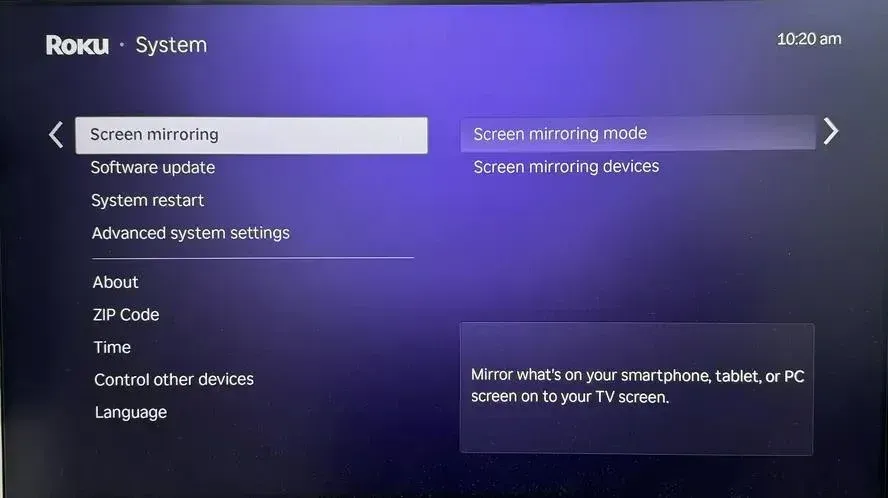
Step 1. On the Roku TV, open Settings > System > Screen mirroring.
Step 2. Set Screen mirroring mode to Prompt or Always allow.
Step 3. On the Android phone, open Cast, Screen Mirroring, Smart View, or Wireless Display.
Step 4. Select the Roku device.
Step 5. Approve the connection on the TV if prompted.
Not every Android phone supports the Miracast-style method used by Roku, so some phones may never show the Roku device. For a full Roku walkthrough, see how to mirror Android to Roku TV.
Mirror Android to Fire TV or Firestick
On Fire TV or Firestick, look for Display Mirroring first.
Step 1. On the Fire TV remote, press and hold Home.
Step 2. Select Mirroring if that option appears.
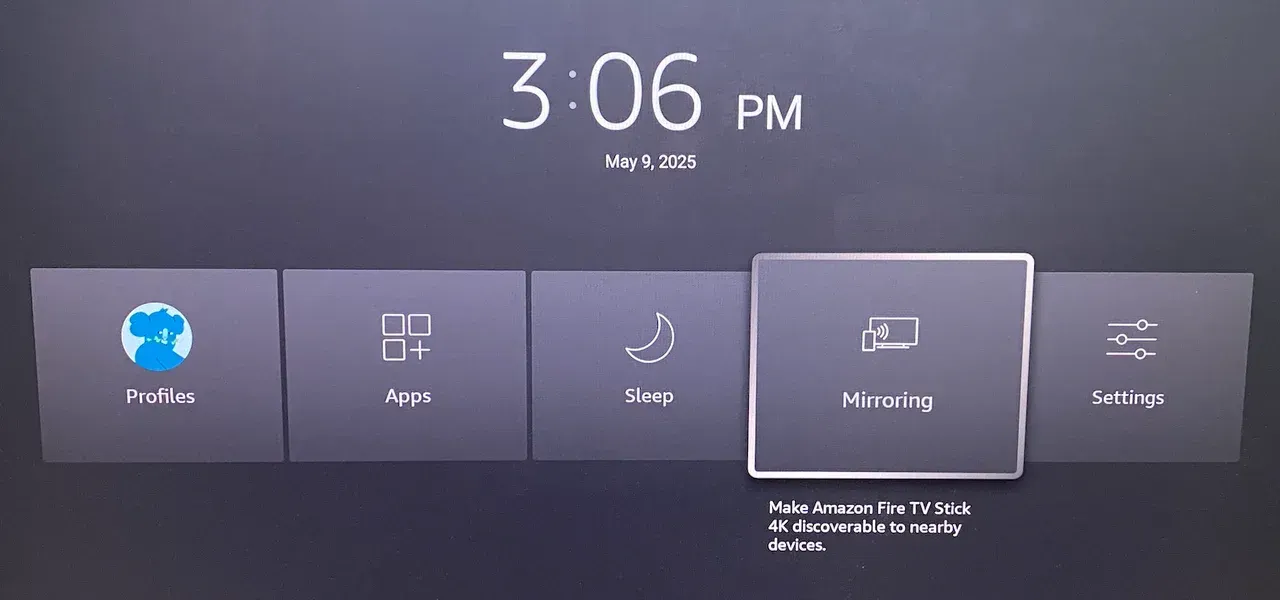
Step 3. On the Android phone, open the screen mirroring menu.
Step 4. Select the Fire TV or Firestick.
Step 5. Wait for the TV to accept the connection.
Some Fire TV devices also show the mirroring option under Settings > Display & Sounds. Pixel phones usually do not support Miracast, so Fire TV may not appear on those devices. For more Fire TV help, see how to mirror Android to Fire TV.
Mirror Android to Apple TV
Unlike Google TV or Samsung TV, Apple TV does not support native Android screen mirroring. To mirror your Android screen, install a compatible screen mirroring app on your Android phone or a receiver app on your Apple TV.
Step 1. Install a screen mirroring app on your Android phone.
Step 2. (Optional) Install and open the receiver app on your Apple TV.
Step 3. Connect your Android phone and Apple TV to the same Wi-Fi network.
Step 4. Open the app on your Android phone and select your Apple TV from the available devices.
Step 5. Follow the on-screen instructions to start screen mirroring.
For a more detailed walkthrough, see how to mirror Android to Apple TV.
Mirror Android to Hisense TV
Hisense TVs use different systems, so the right method depends on the model:
- Hisense Google TV or Android TV: use Google Cast or Google Home.
- Hisense Roku TV: use Roku Screen Mirroring.
- Hisense Fire TV: use Display Mirroring.
- Hisense VIDAA TV: look for Anyview Cast or Screen Sharing on the TV.
If you are not sure which Hisense TV system you have, check the home screen or TV settings first. Then follow the matching built-in method above.
For model-specific steps and troubleshooting, see how to cast to Hisense TV from an Android phone.
Mirror Android to TCL TV
TCL TVs also use different operating systems, so check the TV platform before choosing a mirroring method:
- TCL Google TV or Android TV: Use the Cast button in a supported app or mirror the full Android screen through Google Home.
- TCL Roku TV: Turn on Screen Mirroring in the Roku settings, then select the TV from your phone's mirroring menu.
- TCL Fire TV: Open Display Mirroring on the TV and connect from an Android phone that supports wireless display or Miracast.
The TCL brand name alone does not tell you which method to use. Check the home screen or system settings to confirm whether your TV runs Google TV, Roku TV, or Fire TV, then follow the matching steps above.
For more detailed instructions and troubleshooting, see how to screen mirror Android to TCL TV.
Mirror Android to Sony TV
On most newer Sony TVs, Google Cast is the best built-in option, allowing screen mirroring from Android directly.
Step 1. Connect the Android phone and Sony TV to the same Wi-Fi network.
Step 2. Open an app with a Cast button, or open Google Home for full-screen mirroring.
Step 3. Select the Sony TV.
Step 4. Start playback or confirm Cast my screen.
If your Sony TV uses Google TV, follow the same Google Home steps described above. Older Sony TVs may use Screen Mirroring instead.
Method 2: Use a Screen Mirroring App
A screen mirroring app makes sense when the phone and TV do not support the same mirroring method, when the TV does not appear in the phone's device list, or when the Android phone does not offer Smart View or another compatible mirroring option.
It is also a practical choice if you connect to different TV brands and want to use the same method every time. If your goal is to show the full Android screen instead of just playing a supported video app, an app-based method can be simpler than trying to match different built-in systems.
PigeonCast is a screen mirroring app that gives your Android phone and TV a shared way to connect, even when their built-in casting options do not match. It supports Fire TV, LG TV, Roku TV, Apple TV, Android TV, Google TV, and other compatible receiving devices.
How to mirror Android to TV with PigeonCast:
Step 1. Install PigeonCast on the Android phone.


Overall Rating:



Step 2. Install PigeonCast on the TV or visit PigeonCast Web Mirror webpage pn the receiving device.
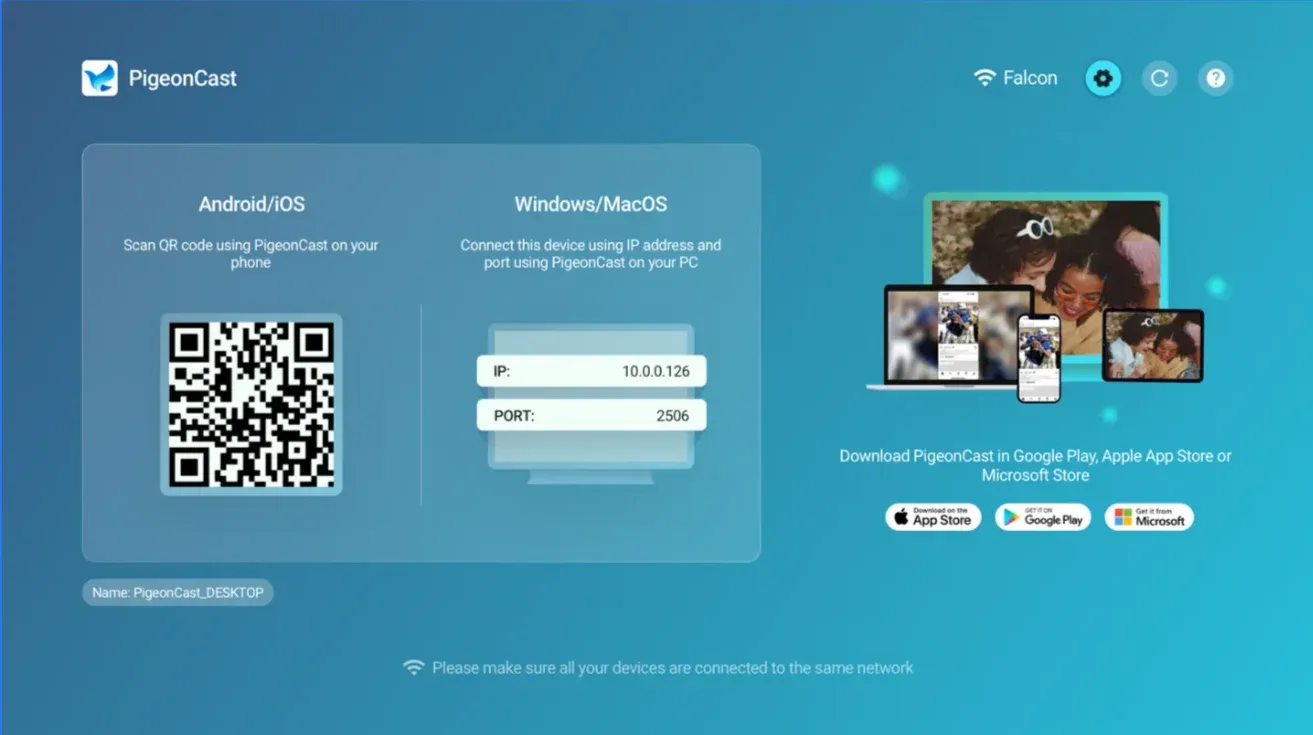
Step 3. Connect both devices to the same Wi-Fi network.
Step 4. Select the TV, scan the QR code, or enter the connection code.
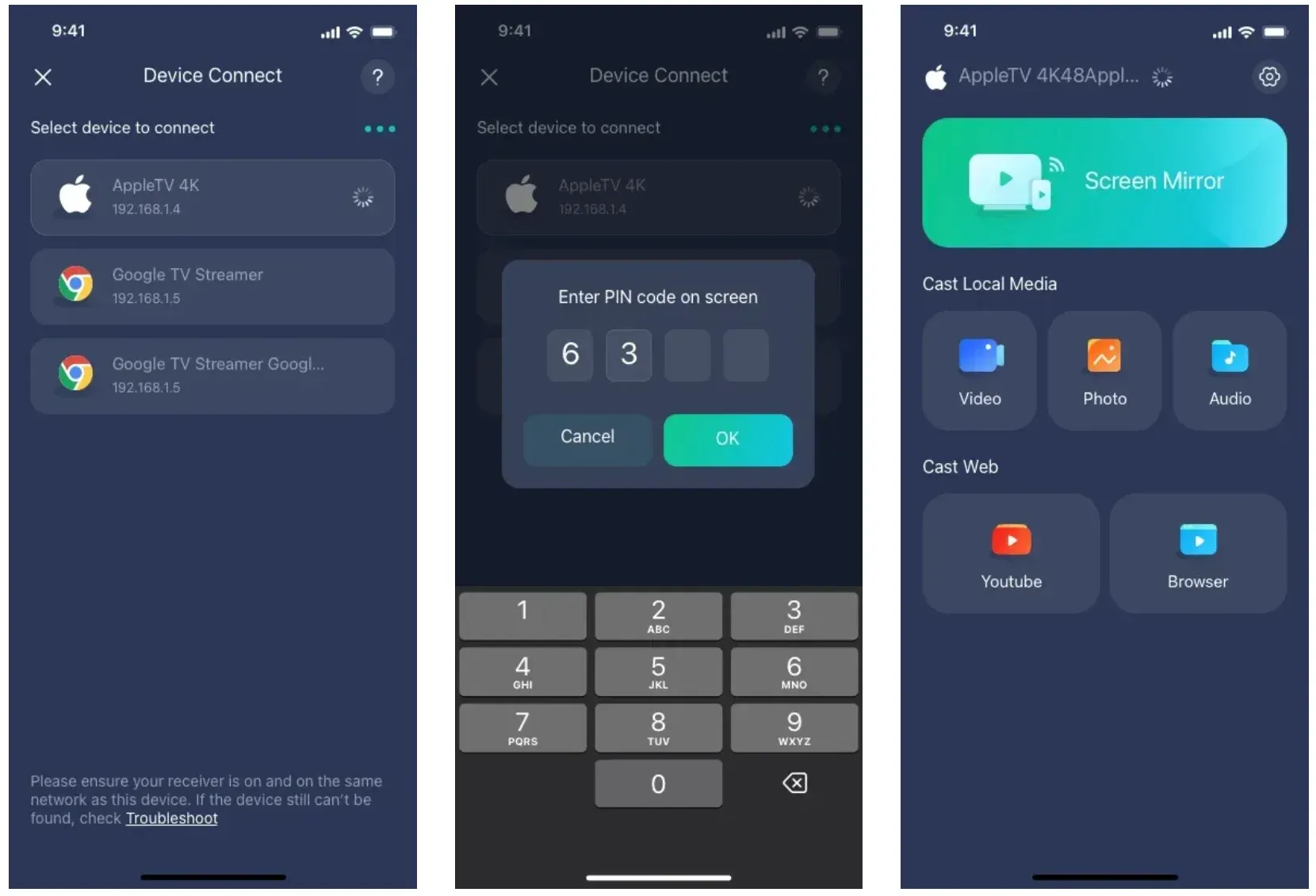
Step 5. Start screen mirroring from Android to TV.
Method 3: Use an HDMI Cable
If you want a wired method, use a USB-C to HDMI adapter and an HDMI cable.
Step 1. Connect the USB-C to HDMI adapter to the Android phone.
Step 2. Connect the HDMI cable to the adapter and the TV.
Step 3. Change the TV input to the correct HDMI port.
Step 4. Wait for the phone screen to appear on the TV.
This method works well when there is no Wi-Fi to mirror Android to TV, when you want lower delay, or when wireless mirroring keeps failing. The main limit is that not every Android phone supports video output through USB-C, so check the phone specifications before buying an adapter.
Which Android-to-TV Method Should You Choose?
| Your situation | Recommended method |
|---|---|
| Samsung phone and Samsung TV | Smart View |
| Android phone and Google TV | Google Cast or Google Home |
| Android phone and LG TV | Screen Share |
| Android phone and Roku | Roku Screen Mirroring |
| Android phone and Fire TV | Display Mirroring |
| Android phone and Apple TV | PigeonCast |
| Phone and TV use different casting systems | PigeonCast |
| No Wi-Fi available | HDMI |
| Need lower delay | HDMI |
| Only watching a supported video app | Use the app's Cast button |
Android Screen Mirroring to TV Not Working
If Android screen mirroring is not working, the problem is usually not random. In most cases, it comes down to network mismatch, the TV not being in receiving mode, or the phone and TV using different mirroring methods. Before switching apps or buying an adapter, go through the checks below one by one. That is usually the fastest way to find the cause.
- Check the Wi-Fi Network
Make sure the phone and TV are connected to the same Wi-Fi network. Guest Wi-Fi and the main home Wi-Fi are often separated, so the devices may not be able to see each other even if both are online.
- Open the Mirroring Screen on the TV
Some TVs do not appear until the receiving screen is already open. Look for options such as Screen Mirroring, Screen Share, Display Mirroring, Anyview Cast, or another receiving page on the TV.
- Turn Off VPN or Mobile Data
VPN can interfere with local device discovery, and mobile data can sometimes keep the phone from using the same local path as the TV. Turn off VPN first, and if the connection still fails, temporarily turn off mobile data while testing.
- Restart and Update Both Devices
Restart the Android phone, the TV, and the router if needed. Then check for system updates on both devices. This fixes many device discovery and connection problems.
- Check Whether the Phone Supports the TV's Method
Some Android phones do not support the mirroring method used by the TV. In that case, switch to a receiver app or HDMI.
- Use the App's Cast Button for a Black Screen
If the mirrored screen turns black while playing a streaming app, the app may be blocking full-screen mirroring. Try the app's own Cast button instead, or open the service directly on the TV.
Final Thoughts
The best way to mirror Android to TV depends on which TV system you have and whether you want app casting, full-screen mirroring, or a wired connection. Start with the TV's built-in method if it matches your setup. If the phone and TV do not support the same method, use PigeonCast. If you want a stable wired option, use HDMI.
Once the connection is working, mirroring Android to TV becomes much easier to repeat. You can use it to watch videos, show photos, open browser pages, share presentations, or put apps and games on a bigger screen. In daily use, the best method is usually the one that reconnects quickly and does not force you to troubleshoot every time.
How to Mirror Android to TV FAQ
What is the easiest way to mirror Android to TV?
The easiest way is usually the TV's built-in method. For Samsung TV, that is often Smart View. For Google TV, that is usually Google Cast or Google Home. If the built-in method does not work, a screen mirroring app is the next easiest option.
Can I mirror Android to TV without Chromecast?
Yes. Chromecast is only one method. You can also use Smart View, Screen Share, Roku Screen Mirroring, Fire TV Display Mirroring, a screen mirroring app, or HDMI.
Why can't my Android phone find my TV?
The phone and TV may be on different Wi-Fi networks, the TV may not be on its receiving screen, or the phone may not support the TV's built-in mirroring method.
Can I mirror Android to Apple TV?
Yes, but not through a built-in Android method. Use a compatible receiver app such as PigeonCast, or use HDMI if that setup fits your devices better.
Can I mirror Android to TV without Wi-Fi?
Yes. Use HDMI if your Android phone supports USB-C video output.
Why does my TV show a black screen when mirroring?
Some streaming apps block full-screen mirroring for protected video. In that case, use the app's Cast button or open the official TV app instead.
Does Android screen mirroring include sound?
Usually yes, but audio support depends on the phone, TV, and mirroring method. If there is no sound, check the TV volume and confirm that the TV is the current audio output device.
Do all Android phones support HDMI output?
No. Some Android phones support video output through USB-C, but many do not. Check the phone specifications before buying an adapter.
Mia Clarke is a technology editor specializing in screen mirroring and casting solutions across multiple platforms. Mia provides clear, practical guides and in-depth insights to help users seamlessly connect their devices. Passionate about enhancing digital experiences, Mia is dedicated to keeping readers updated on the latest trends and tools in cross-platform screen sharing. Whether you’re looking to mirror your smartphone, laptop, or smart TV, Mia’s content delivers reliable, user-friendly advice to simplify your tech setup.