
Casting your Android phone to a Hisense TV lets you enjoy a bigger screen for movies, gaming, video calls, or even browsing. But Hisense TVs run different operating systems, and each one supports its own casting method.
How to cast to Hisense TV from Android phone? This guide walks you through every scenario so you can confidently start Hisense TV screen mirroring Android devices without trial and error. No matter which model you own, you'll find a working method here.
Cast to Hisense Android TV and Google TV Using Chromecast or PigeonCast
How to cast Android phone to Hisense TV that runs Google TV or Android TV? If you want the fastest and most convenient way to cast to Hisense TV from Android, Google Cast is built directly into Hisense Android TV and Hisense Google TV.
Option 1: Use a Cast-Enabled App
Chromecast-enabled apps can stream instantly with a single tap:
Step 1. Connect your Android phone and Hisense TV to the same Wi-Fi network.
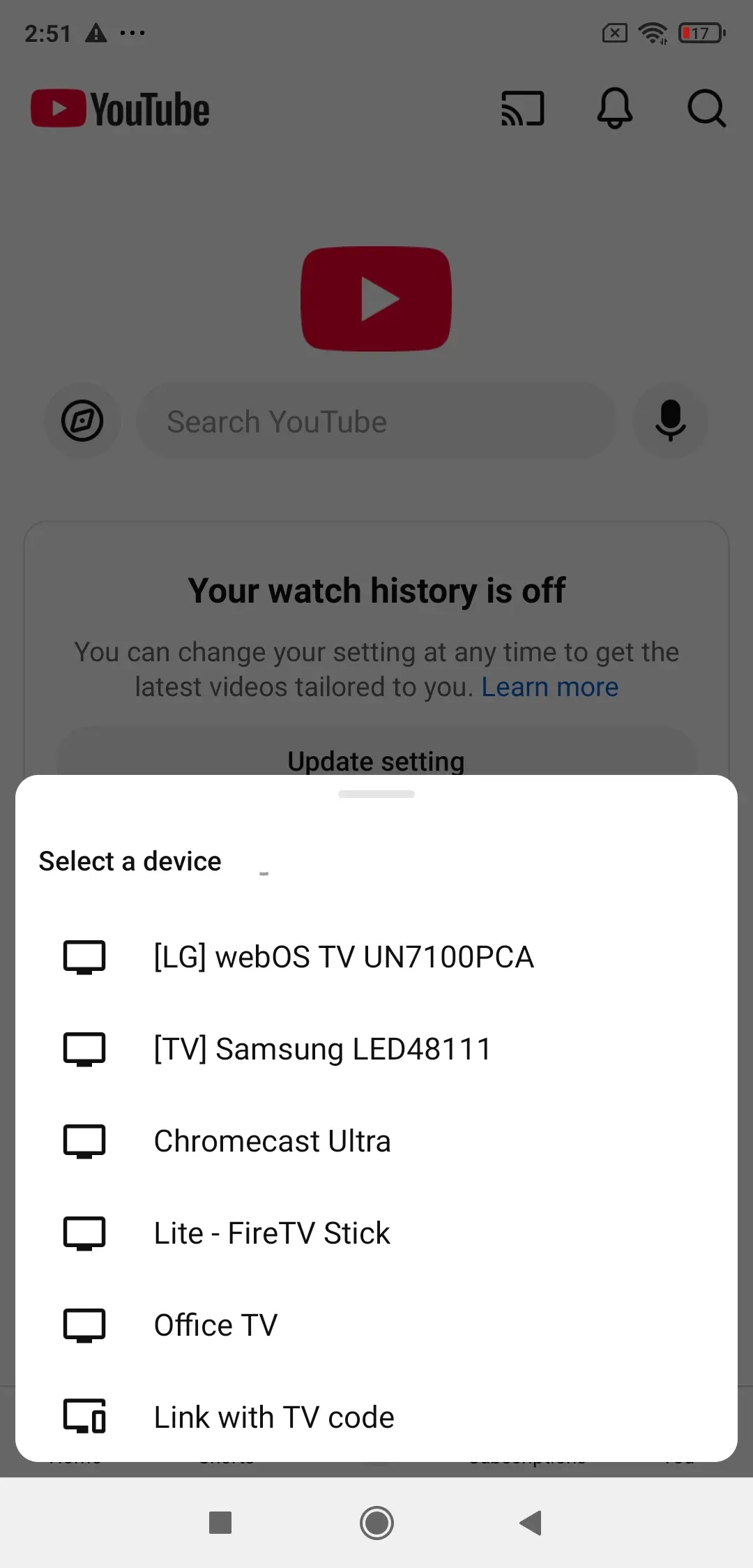
Step 2. Open a Cast-ready app, such as YouTube, TikTok, or Netflix.
Step 3. Tap the Cast icon on the app interface.
Step 4. Choose your Hisense TV to start mirroring.
Option 2: Use Built-in Cast Feature
Built-in casting feature on Android phones lets you cast to Hisense TV from Android directly:
Step 1. Swipe down to open your phone's quick settings.
Step 2. Tap Cast or Screen Cast.
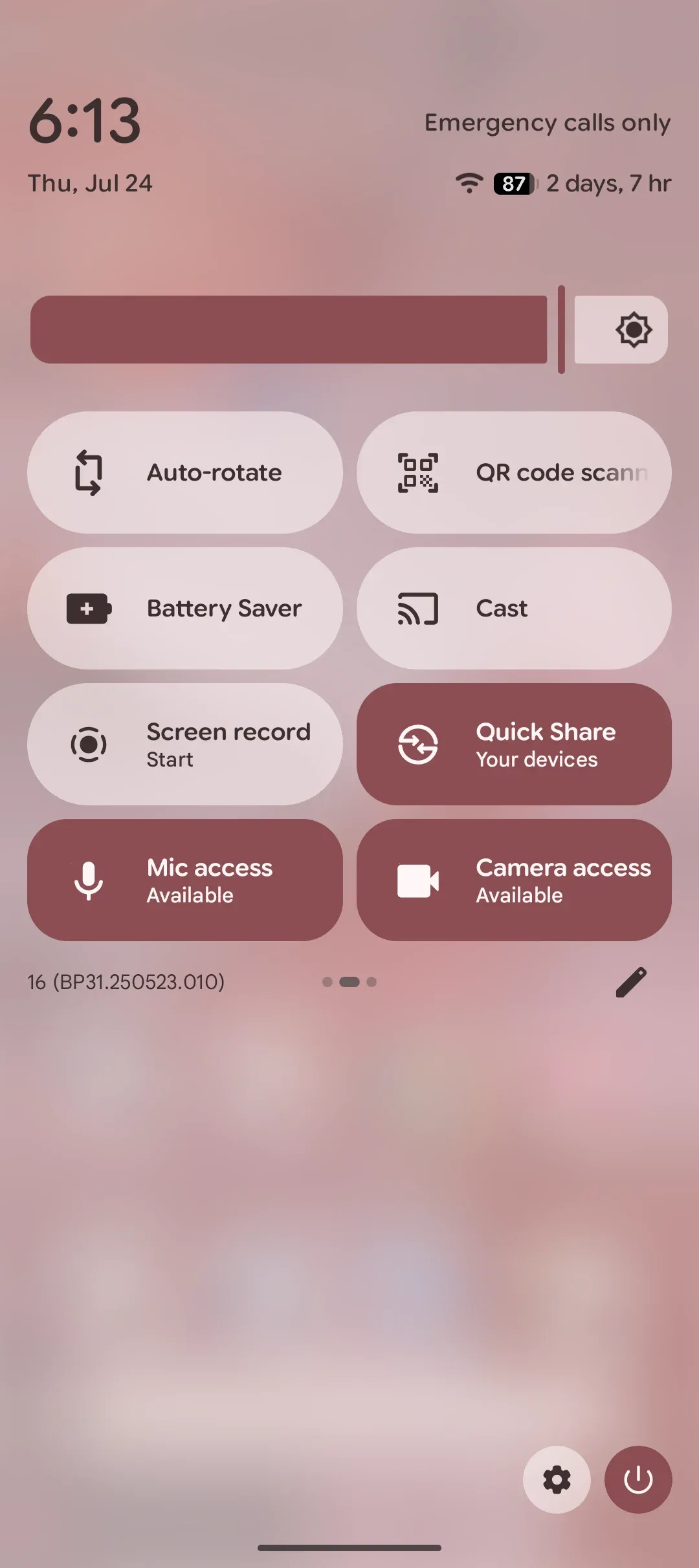
Step 3. Select your Hisense Android TV or Google TV.
Option 3: Use Free PigeonCast App
PigeonCast, a free screen mirroring app, mirrors Android to Hisense TV without trouble:
Step 1. Connect your Android phone and Hisense TV to the same Wi-Fi network.
Step 2. Install PigeonCast on your Android phone from the Google Play Store.


Overall Rating:


Step 3. Go to the app store on your Hisense TV, search for PigeonCast, and download the free app.
Overall Rating:
Step 4. Open the app and keep it visible on the TV screen.
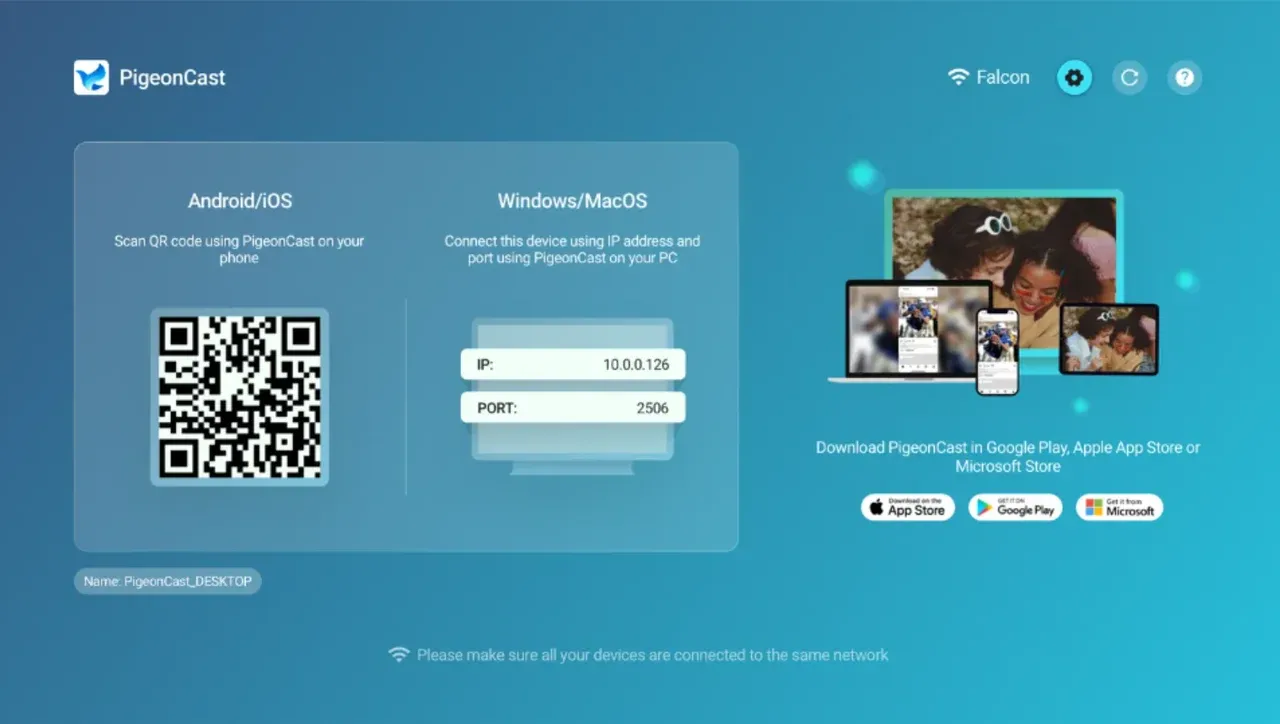 Step 5. On your Android TV, launch PigeonCast, choose your Hisense TV from the device list.
Step 6. Once connected, you can choose to mirror your Android screen or cast your videos or online content from your Android phone.
Cast Android to Hisense VIDAA TV Using Miracast (Anyview Cast)
Hisense VIDAA TVs do not support Google Cast, but they include Anyview Cast, which is a Miracast-based protocol. This makes it easy to mirror your entire Android phone without any external device.
How to cast from Android to Hisense TV that runs VIDAA OS:
Step 1. Turn on your Hisense TV and open Settings.
Step 2. Go to Network and enable Anyview Cast or Screen Mirroring.
Step 3. On your Android device, open the quick settings menu.
Step 4. Tap Smart View, Cast, or Wireless Display.
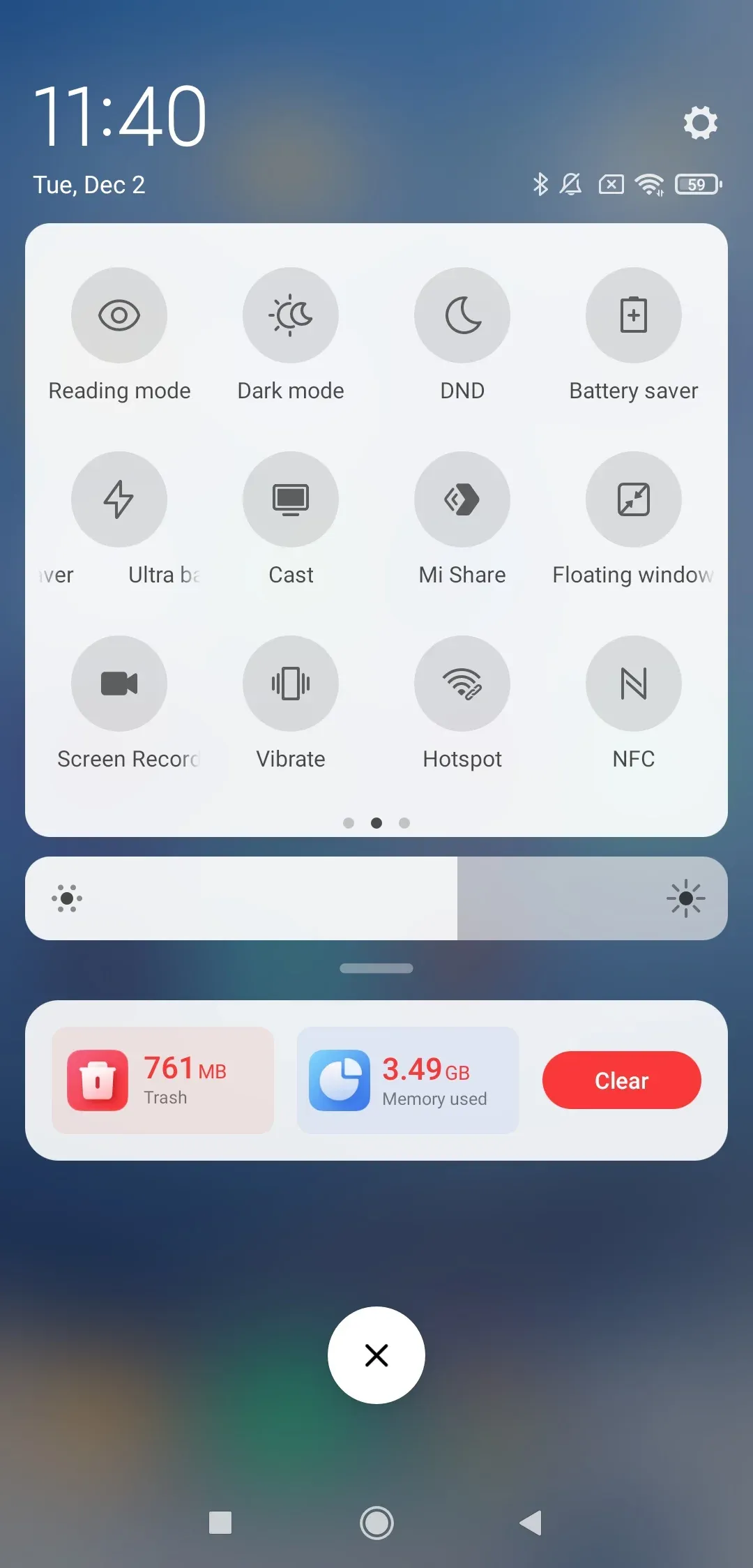
Step 5. Choose your Hisense TV from the list.
Miracast mirrors everything on your screen, making it ideal for apps that do not support native casting. Enjoy your Android screen on the large TV screen.
Cast to Hisense Roku TV From Android Using Screen Mirroring
Hisense Roku TVs don't include Chromecast, but they support Miracast-based screen mirroring. As long as your Android supports wireless display, you can mirror the full screen quickly:
How to cast to Hisense Roku TV from Android phone:
Step 1. On the TV, go to Settings → System → Screen Mirroring.
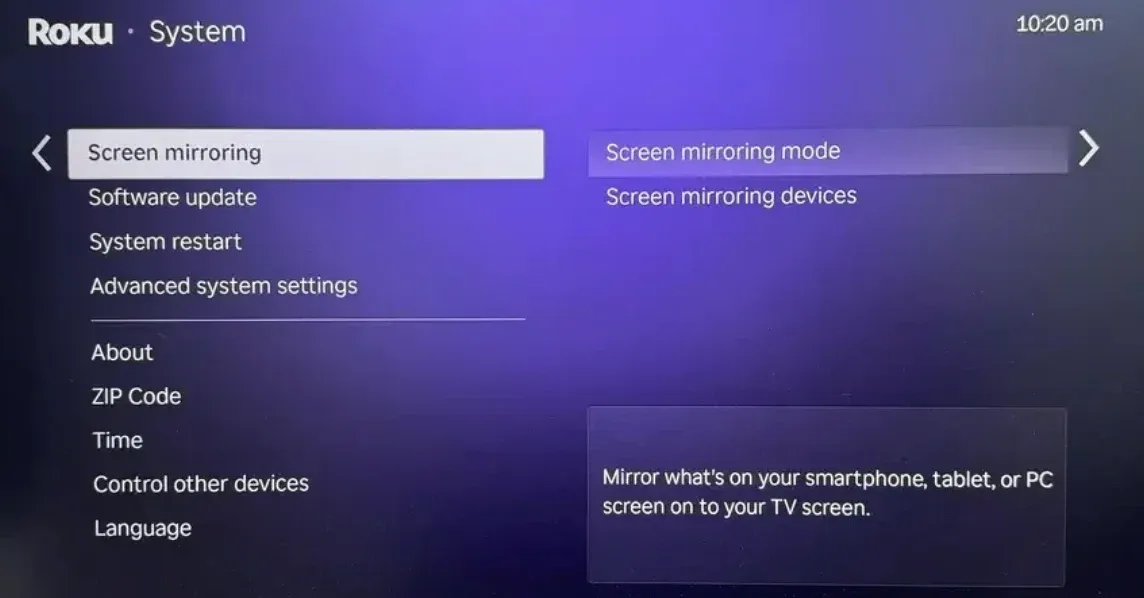
Step 2. Set the mode to Always Allow or Prompt.
Step 3. On your Android device, open the quick settings menu.
Step 4. Tap Cast or Smart View.
Step 5. Select your Hisense Roku TV. Your phone will appear on the TV once the connection is confirmed.
Tip: PigeonCast for Android allows you to cast to a Hisense Roku TV via AirPlay. To cast a video or webpage, simply install the app on your phone, select your TV, and start casting with ease.
Cast to a Non-Smart Hisense TV Using HDMI or Streaming Device
How to cast to Hisense TV from Android phone if you have an old TV? Older Hisense TVs without smart OS features can still mirror your Android device with the help of HDMI or a small add-on device, like Chromecast or Firestick.
Option 1: Use an HDMI cable
You can connect your Android phone to Hisense TV using an HDMI cable and a compatible adapter.
Step 1. Connect a USB-C to HDMI or MHL adapter to your phone.
Step 2. Attach an HDMI cable from the adapter to your TV.
Step 3. Select the correct HDMI input.
Your phone's screen will instantly mirror on the TV.
Option 2: Use a Streaming Device
If your Hisense TV is not smart-enabled, you can still add wireless casting functionality by using a streaming device like Chromecast, Roku, or a Fire TV Stick.
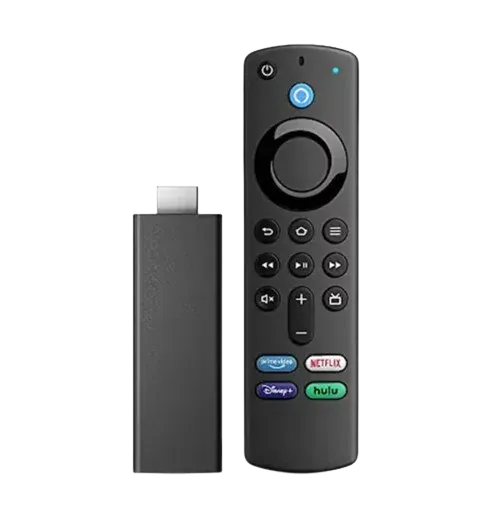
Simply plug the device into an available HDMI port on your TV and connect it to your Wi-Fi network. Once set up, you can cast content directly from your Android phone as if you were using a smart TV, whether it's streaming videos, photos, or your entire phone screen. Just open a compatible app, tap the Cast icon, and select your device to begin streaming.
Quick Comparison: Which Method Should You Choose?
When deciding how to cast to your Hisense TV from Android, it's essential to know which method works best for your TV's operating system:
- If you have a Hisense TV with Google TV or Android TV, you can easily use Google Cast for seamless streaming.
- For Hisense VIDAA or Roku TV models, you'll rely on Miracast or screen mirroring.
- If you own a non-smart TV, adding a streaming device is the simplest way to enable wireless casting.
Each method provides a reliable way to Hisense TV cast from Android, so you can choose based on your setup and preferences.
| Hisense TV OS | Chromecast Support | Miracast Support | Recommended Method |
|---|---|---|---|
| Android TV | Yes | Yes | Google Cast or PigeonCast |
| Google TV | Yes | Yes | Google Cast or PigeonCast |
| VIDAA | No | Yes | Anyview Cast (Miracast) |
| Roku TV | No | Yes | Roku Screen Mirroring or PigeonCast |
| Non-smart | No | No | HDMI or streaming device |
Final Thoughts
Casting to a Hisense TV from an Android phone is simple once you identify the operating system on your TV. Android TV and Google TV users can cast effortlessly with Google Cast or enjoy full-screen mirroring through PigeonCast. VIDAA and Roku models rely on Miracast, while older TVs can mirror via HDMI or streaming devices.
With the step-by-step instructions in this guide, you can start casting in minutes and enjoy your content on a bigger display without any confusion.
How to Cast to Hisense TV from Android Phone FAQs
Why can't my Android phone detect my Hisense TV?
Both devices need to be on the same Wi-Fi network. Try rebooting your router or disabling any mobile hotspots to ensure a stable connection.
How do I reduce lag when screen mirroring?
Switch both your phone and TV to a 5 GHz Wi-Fi network. This will provide better stability and lower latency, resulting in smoother casting.
Does every Hisense TV support casting?
Only smart Hisense TVs support wireless casting. For non-smart models, you will need to use HDMI or a streaming device like Chromecast or Roku.
Can I cast downloaded videos stored on my phone?
Yes, using Miracast or PigeonCast will mirror your entire phone’s screen, allowing you to cast any downloaded videos or files.
Does Hisense TV have Chromecast?
Hisense TVs running Android TV or Google TV come with Chromecast built in, allowing you to cast supported apps or mirror your entire phone screen.
How to cast from Google Chrome to Hisense TV?
You can cast from Google Chrome by clicking the Cast icon in the browser's toolbar. Ensure your Hisense TV is on the same Wi-Fi network, select your TV from the device list, and choose whether to cast a tab, your desktop, or the entire screen.
Mia Clarke is a technology editor specializing in screen mirroring and casting solutions across multiple platforms. Mia provides clear, practical guides and in-depth insights to help users seamlessly connect their devices. Passionate about enhancing digital experiences, Mia is dedicated to keeping readers updated on the latest trends and tools in cross-platform screen sharing. Whether you’re looking to mirror your smartphone, laptop, or smart TV, Mia’s content delivers reliable, user-friendly advice to simplify your tech setup.