

If you've been streaming videos, music, or presentations from your phone to your TV, you've probably heard of Chromecast. While it's a popular device, it's not the only option out there. In fact, in 2025, several Chromecast alternatives might suit your needs even better, whether you want better picture quality, more apps, or a device that works without Wi-Fi.
What Is Chromecast?
Google’s Chromecast is a compact digital media player designed to send content from a smartphone, laptop, or tablet to a television or another display with an HDMI port. Although the device itself must be purchased, the cost of using Chromecast depends mainly on whether your chosen apps and streaming services require subscriptions. Chromecast does not normally charge a separate casting fee.
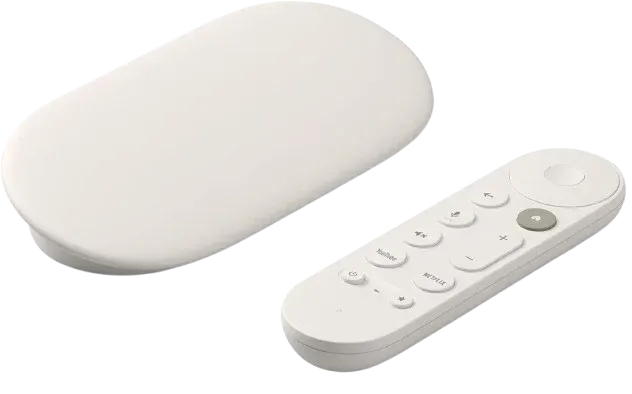
You can control Chromecast through apps with a built-in Cast button, a Chrome browser tab, or voice commands from a compatible Google Assistant device. For supported online content, your phone acts as a remote while Chromecast retrieves the stream directly, allowing you to continue using the phone for other tasks during playback.
What's the Best Chromecast Alternative 2025
Whether your Chromecast has stopped working or you don't have one yet, there are plenty of reliable streaming devices available that can easily replace it and let you cast or mirror your screen without any hassle. Let's take a closer look at the best alternative to Chromecast you can choose from.
#1. PigeonCast
First of all, the simplest method is to use a universal screen mirroring app that can help you continue the casting or mirroring activities without Chromecast. PigeonCast, for example, works smoothly across Android, iOS, Windows, macOS, Android TV, and Apple TV, which means you can easily connect your phone, tablet, or PC to virtually any screen or TV without any hassle.
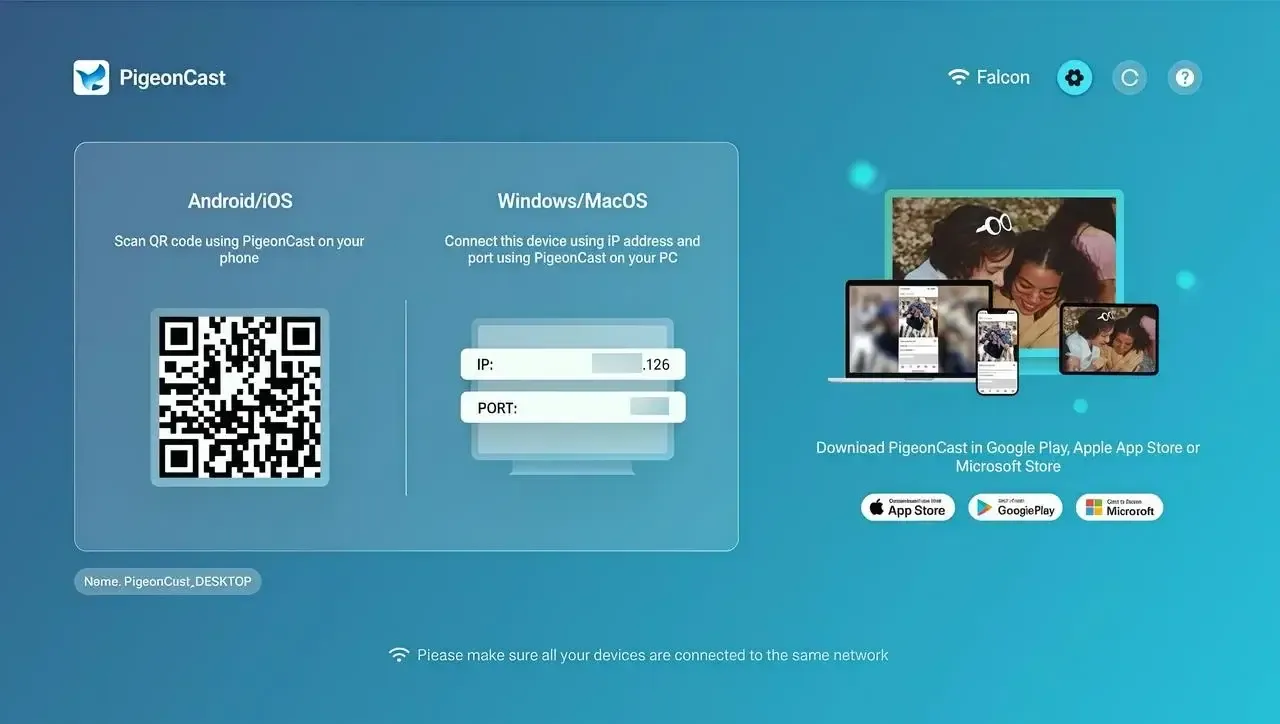
Step 1. Install the screen mirroring app and open it to get ready.

PigeonCast Screen Mirroring

Official Download



Step 2. Ensure your sender device and receiver device are connected to the same WiFi network.
Step 3. If you set up PigeonCast on your TV, tap the Cast button or Screen Mirroring on your sender device, and choose the PigeonCast icon from the available list.
Step 4. If prompted, follow the on-screen instructions to finish the pairing process. When the pairing succeeds, you can see that the screens are showing the same content.
#2. Amazon Fire TV Stick 4K Max
The Amazon Fire TV Stick 4K Max is a strong alternative to Google Chromecast. Unlike Chromecast, which depends on casting from another device, the Fire TV Stick has its interface, remote, and access to thousands of apps directly on your TV. It supports 4K Ultra HD streaming with Dolby Vision, HDR, and HDR10+ for excellent picture quality.
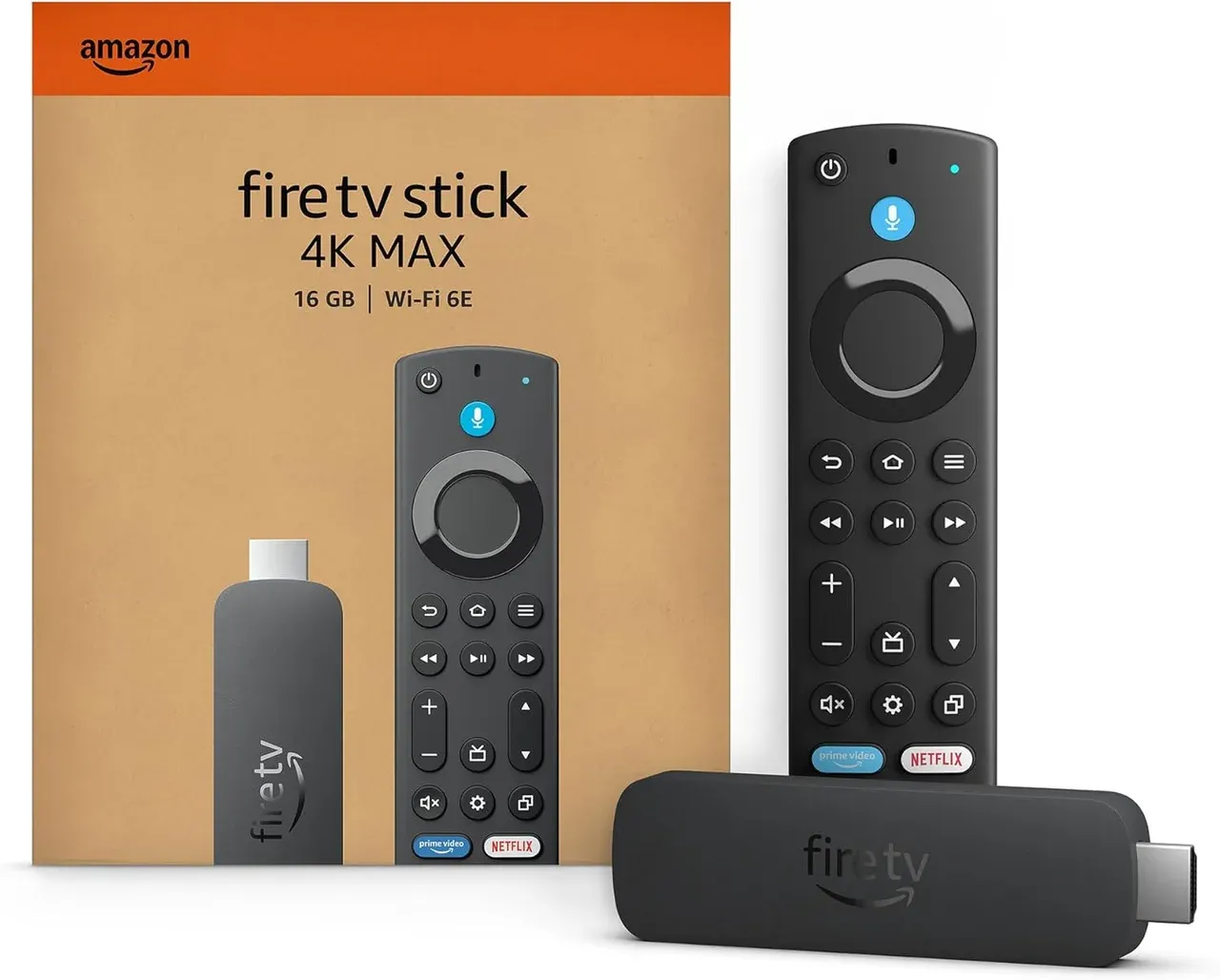
Step 1. Plug the FireStick into your TV's HDMI port and connect the included power adapter to a power outlet.
Step 2. Turn on your TV and select the HDMI input where the Fire TV Stick is connected.
Step 3. Follow the on-screen instructions to connect the Fire TV Stick to your home Wi-Fi network. Ensure your mobile device connects to the same WiFi as the FireStick.
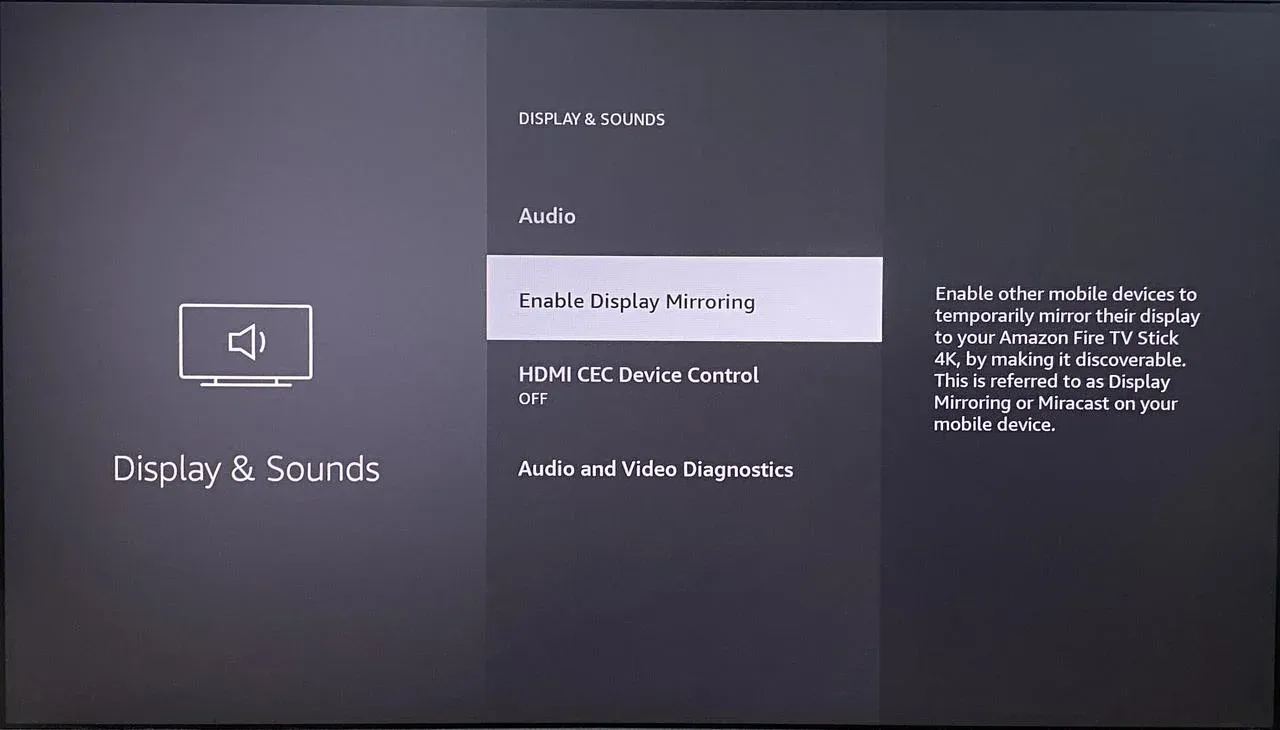
Step 4. On your Fire TV Stick, go to Settings > Display & Sounds > Enable Display Mirroring. This will open a screen waiting for your device to connect.
Step 5. On your Android phone or Windows PC, open the Cast or Connect option (usually found in the quick settings or display settings).
Step 6. Select your Fire TV Stick from the list of available devices, and your device's screen will now appear on your TV.
#3. Apple TV 4K (3rd Gen)
For Apple users looking for a reliable alternative Chromecast, the Apple TV 4K (3rd Gen) delivers a premium streaming and screen mirroring experience. With native support for AirPlay, it allows you to easily cast videos, photos, and even mirror your device's screen directly to your TV.
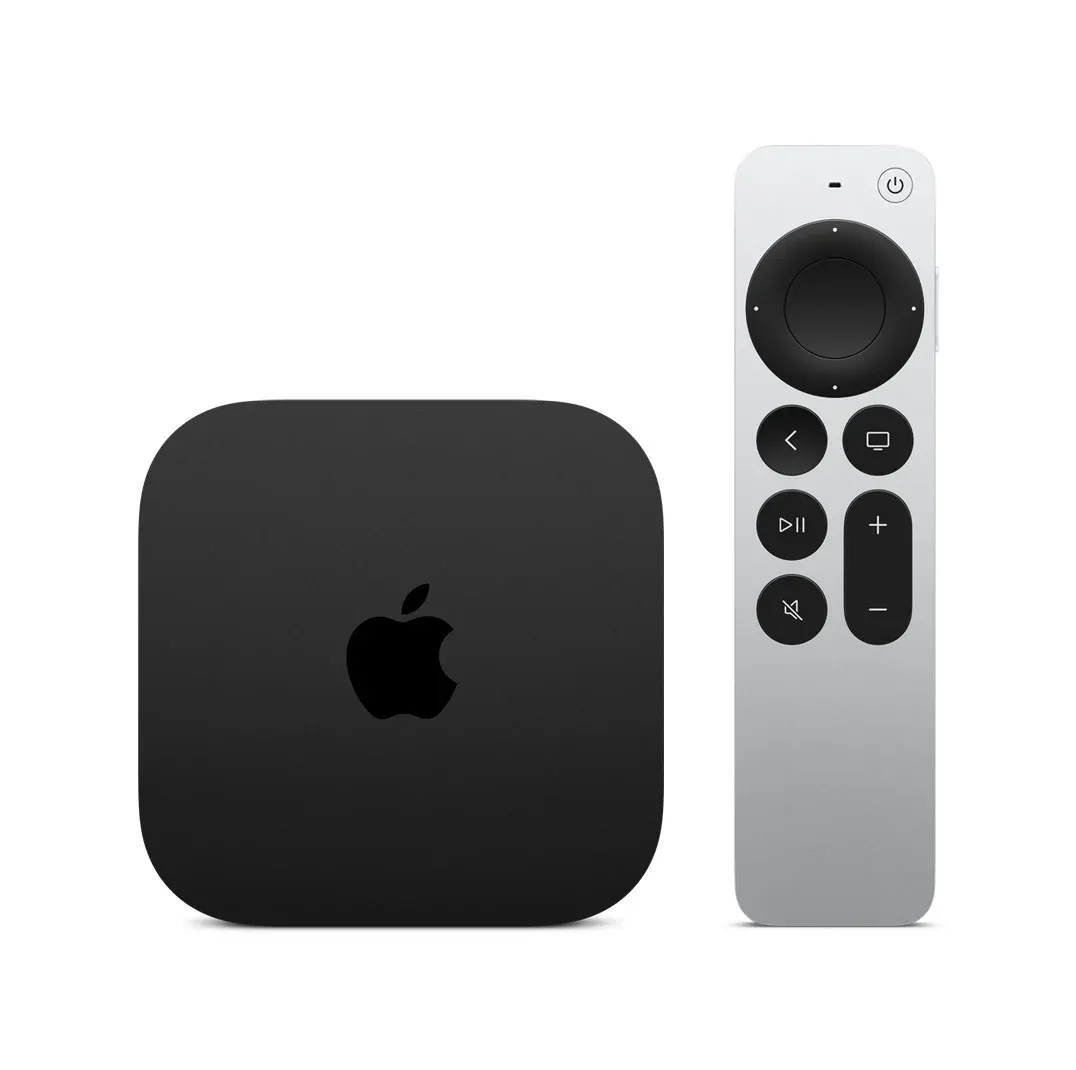
Step 1. Make sure your Apple TV and your iPhone, iPad, or Mac are connected to the same Wi-Fi network.
Step 2. On your iPhone, iPad, or MacBook, open Control Center by swiping down from the upper-right corner (or up from the bottom on older devices).
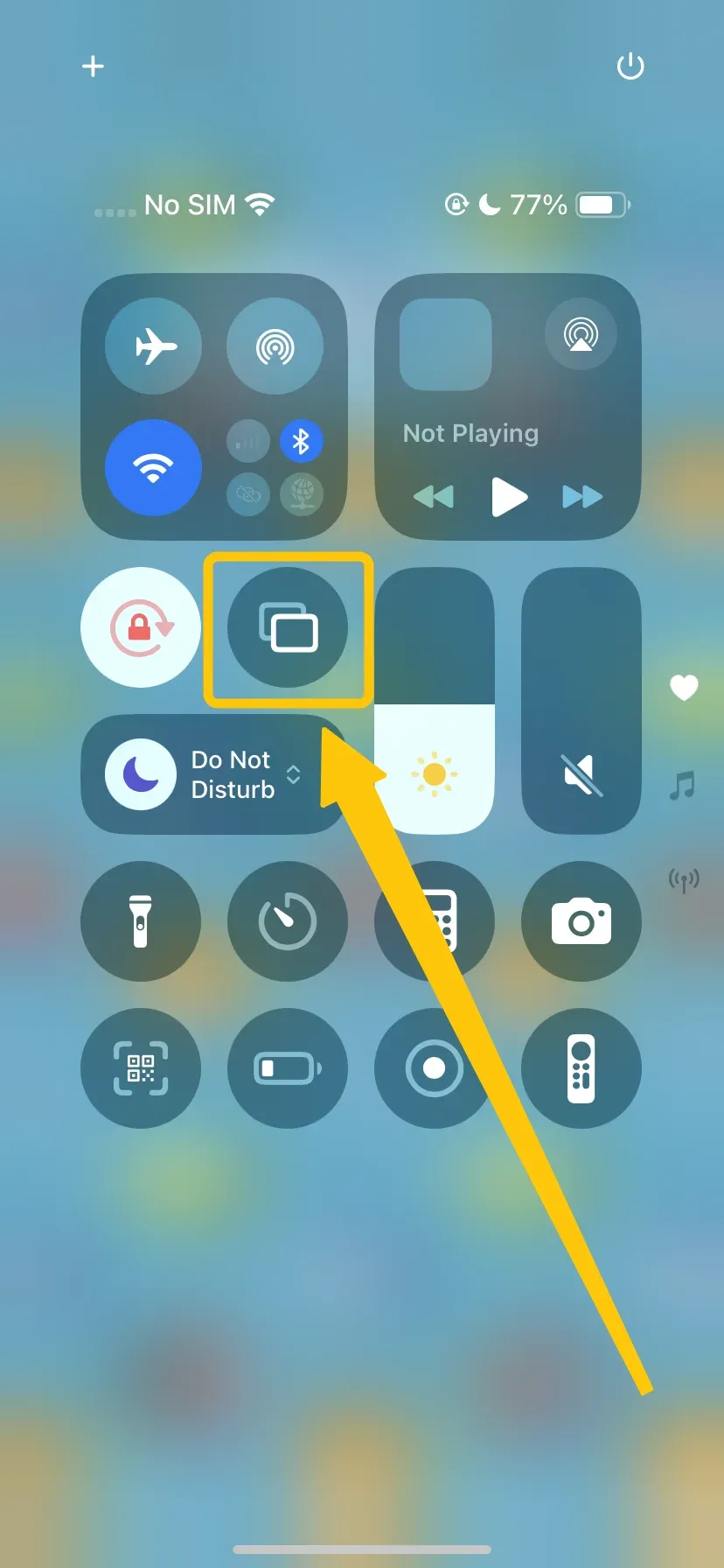
Step 3. Tap Screen Mirroring and select your Apple TV from the list to connect to.
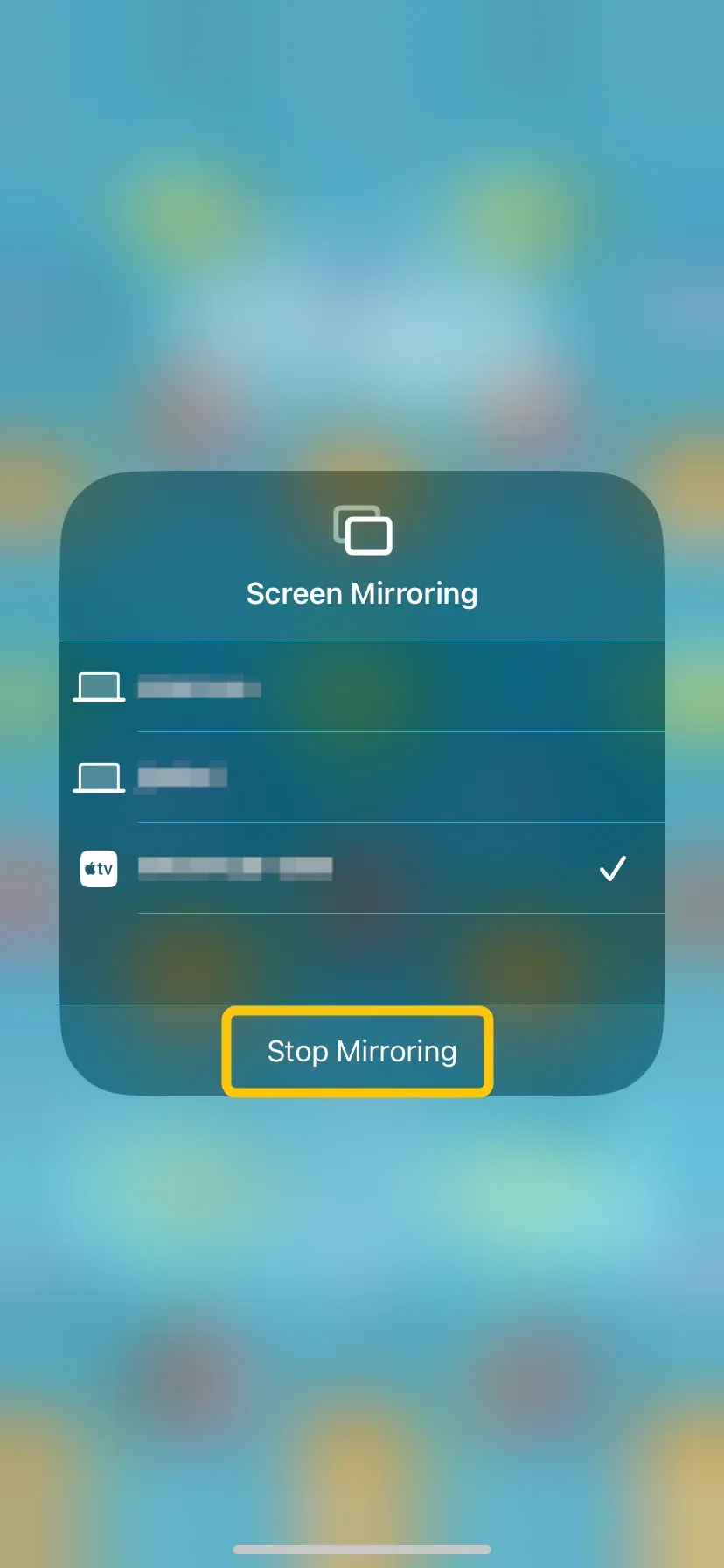
Step 4. Your Apple device's screen will appear on your TV. To stop mirroring, open Control Center again and tap Stop Mirroring.
#4. Roku Streaming Stick 4K
The Roku Streaming Stick 4K, also an alternative to Chromecast Ultra, is a popular choice for those seeking a simple yet powerful streaming device. Known for its easy setup and user-friendly remote, it offers access to a wide variety of streaming apps, including Netflix, Hulu, Disney+, and more.
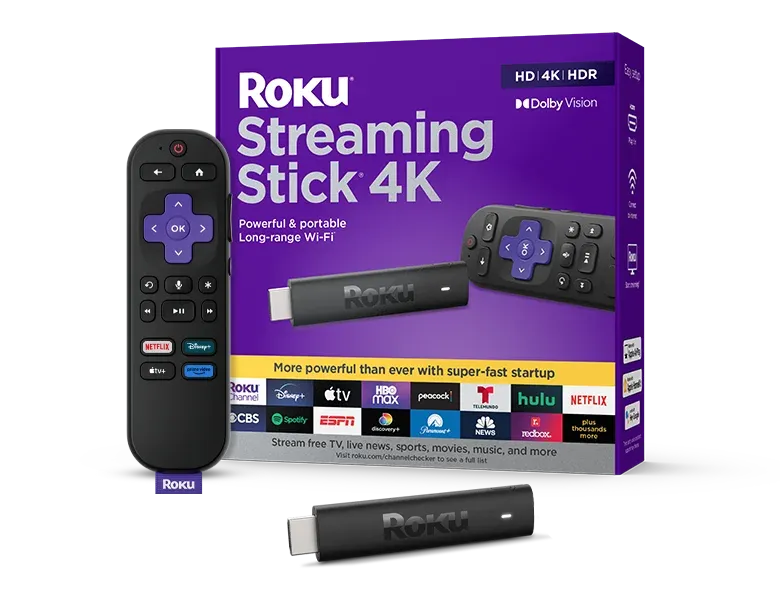
Step 1. Plug the Roku Streaming Stick into your TV's HDMI port, connect the power adapter, switch your TV to the correct HDMI input, and follow the on-screen setup to connect to Wi-Fi and sign in to your Roku account.
Step 2. Go to Settings > System > Screen Mirroring and set it to Prompt or Always allow to enable screen mirroring on Roku.
Step 3. Tap the Cast option or a similar name to connect the Roku from the device list:
- From Android devices: Open your device's Cast, Smart View, or Screen Mirroring option, select your Roku device, and confirm the connection on your TV if prompted.
- From Windows devices: Press Windows + K, select your Roku device from the list, and approve the connection on your TV.
- From iPhone or iPad: Roku does not support native AirPlay mirroring on all models, but the Roku Streaming Stick 4K does. Go to Settings > Apple AirPlay and HomeKit on your Roku, and turn on AirPlay. Then on your iPhone or iPad, tap Screen Mirroring in Control Center and select your Roku device.
#5. Samsung AllShare Cast
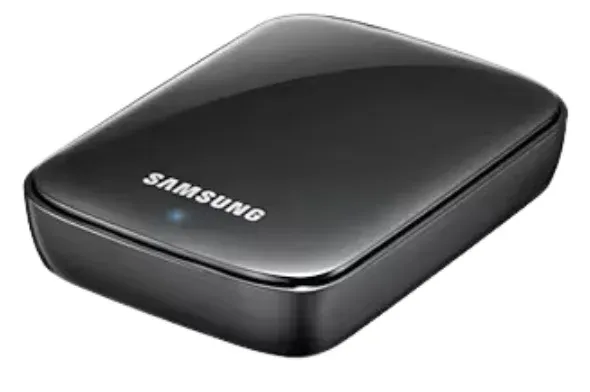
Designed for Samsung devices, Samsung AllShare Cast lets you wirelessly mirror your phone, tablet, or PC screen to a compatible TV or AllShare Cast dongle. This makes it easy to share videos, presentations, and apps on a bigger screen without needing extra cables. While it's mainly built for the Samsung ecosystem, it offers a reliable option for users who want simple screen mirroring beyond Chromecast.
#6. Xiaomi Mi Box S
Another solid Chromecast alternative is the Xiaomi Mi Box S. This Android TV-powered device not only supports screen casting but also gives you access to thousands of apps through Google Play, including Netflix, YouTube, and Disney+. With built-in Chromecast and Google Assistant, it doubles as both a streaming box and a smart home hub.
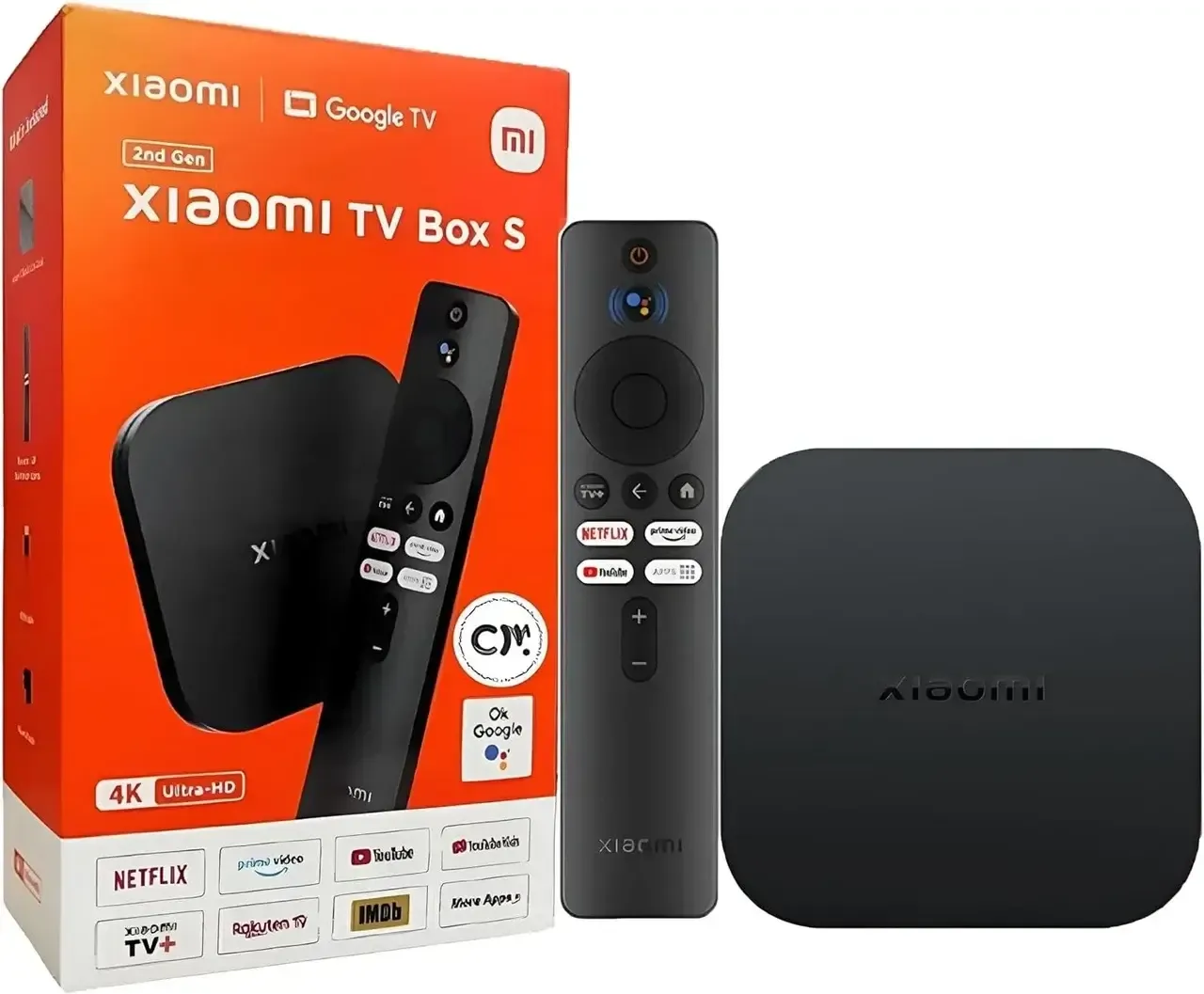
However, its hardware can feel underpowered at times, leading to occasional lag or slow performance with heavier apps. Storage is limited to just 8GB, which may not be enough if you plan to install multiple apps. Software updates from Xiaomi are less frequent compared to competitors, which could impact long-term reliability.
#7. Wired Google Chromecast Alternatives
While wireless casting is popular, wired connections of Chromecast Ultra alternatives remain one of the most reliable ways to get your content onto a big screen, especially if you want zero lag and don't want to rely on Wi-Fi. Here are the most common and practical wired options:
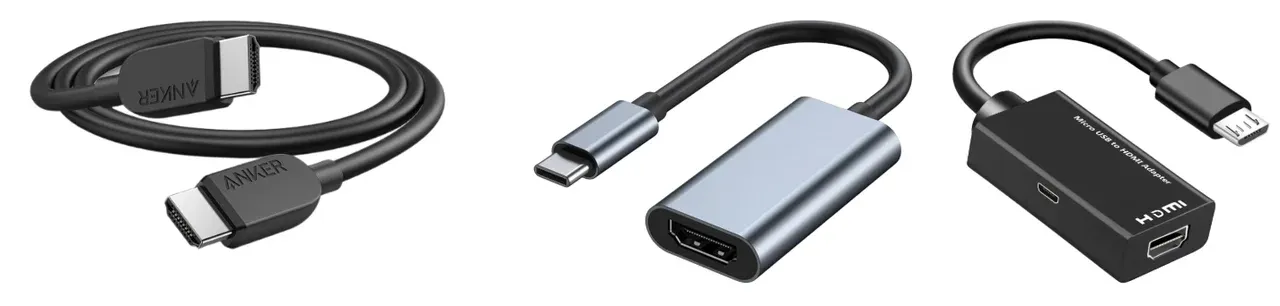
- HDMI Cable (Direct Connection): The most straightforward method, connect your laptop or device directly to your TV's HDMI port. No setup or internet needed.
- USB-C to HDMI Adapter**:** Many modern devices support video output through USB-C. Just plug in an adapter, then connect to your TV via HDMI.
- MHL Adapter (for Compatible Android Devices): If your phone supports MHL, use this adapter to connect your phone to your TV's HDMI port while charging at the same time.
The End
Chromecast is a convenient device that helps popularize streaming, but it's far from the only option in 2025. Whether you prefer wireless devices like Fire TV Stick, Apple TV, Roku, Samsung AllShare Cast, Xiaomi Mi Box S or practical wired connections like HDMI cables and USB-C adapters, there's an alternative Google Chromecast that fits your lifestyle perfectly.
Chromecast Alternative FAQ
Q: Is there a better option than Chromecast?
Yes, there are several great alternatives to Chromecast depending on your needs. Devices like the Amazon Fire TV Stick 4K Max, Roku Streaming Stick 4K, and Apple TV 4K (3rd Gen) offer built-in interfaces, remotes, and app stores, so you can stream directly without relying on another device.
Q: What device is replacing Chromecast?
There isn't a single device officially replacing Chromecast, but many users are switching to alternatives like the Amazon Fire TV Stick, Roku Streaming Stick, and Apple TV 4K. These devices offer built-in streaming apps, remotes, and extra features like screen mirroring, which make them more versatile and convenient than Chromecast's casting-only approach.
Q: Is Miracast or Chromecast better?
Miracast and Chromecast serve similar purposes but work differently, so which is better depends on your needs.
- Miracast creates a direct wireless connection between your device and the display, meaning it can work without Wi-Fi, ideal for quick mirroring from Windows PCs or many Android devices.
- Chromecast uses your Wi-Fi network to stream content directly from the internet, often delivering smoother playback and higher quality for videos, and it works with a wide range of apps.
If you want internet-based streaming with smart features, Chromecast is better. If you need offline, on-the-go mirroring, Miracast is more practical.
Q: How do I cast on my TV without Chromecast?
Many smart TVs have built-in casting or screen mirroring features like AirPlay (for Apple devices) or Miracast (for Windows and Android). You can also use streaming devices such as the Amazon Fire TV Stick, Roku Streaming Stick, or Apple TV 4K, which support both app-based streaming and screen mirroring.
Q: What's the cheapest Chromecast alternative?
The cheapest Chromecast alternatives are typically basic Miracast dongles, which offer simple screen mirroring without the need for Wi-Fi. Entry-level devices like the Roku Express or Amazon Fire TV Stick Lite also provide affordable options with streaming capabilities, making them budget-friendly choices for those who want an easy way to stream or mirror content without spending much.
Clara Rossi is an experienced technology editor and a seasoned expert in screen mirroring and casting technologies. With a keen eye for detail and a deep understanding of how to seamlessly connect devices, Clara excels at optimizing user experiences for effortless sharing and streaming. Whether you're seeking quick fixes or advanced tips, her expertise and responsiveness ensure that every query is met with a well-informed and efficient solution.