
In today's streaming world, there are multiple ways to mirror or cast your device's screen to a TV. Two popular options are Miracast and Chromecast. Both technologies let you share your content on a bigger screen, but they work differently, and the best choice depends on your devices, apps, and usage scenarios. In this guide, we'll discuss Miracast vs Chromecast, explore their pros and cons, and introduce a cross-platform solution for ultimate flexibility.
Miracast vs Chromecast: What's Miracast
Miracast, developed by the Wi-Fi Alliance, is a wireless display standard that enables you to mirror your device's screen directly to a TV or monitor. It operates via Wi-Fi Direct, meaning your devices can communicate without requiring an internet connection. Essentially, Miracast acts as a wireless HDMI connection, allowing for easy content sharing between devices.
Introduced in 2012, Miracast is supported on a wide range of devices, including Windows PCs, Android smartphones, and many smart TVs. On some devices, Miracast is marketed under different names, such as SmartShare, AllShare, Wireless Display, and others.
What are the pros and cons of Miracast? Here are:
- Pros:
- Works offline, making it ideal for presentations or situations without internet access.
- Low latency, suitable for gaming or real-time interactions.
- No additional hardware required if your devices support Miracast.
- Cons:
- Limited compatibility with iOS devices.
- Some devices may have connectivity issues or require additional setup steps.
- Not all apps support Miracast, limiting its use for streaming content.
Miracast vs Chromecast: What's Chromecast
Chromecast, a streaming device created by Google, allows you to stream or mirror content to a TV using a Wi-Fi connection. It primarily works through apps that support Google Cast, such as YouTube, Netflix, or other streaming services. Google Cast is the protocol that powers Chromecast, enabling the seamless casting experience across different devices.
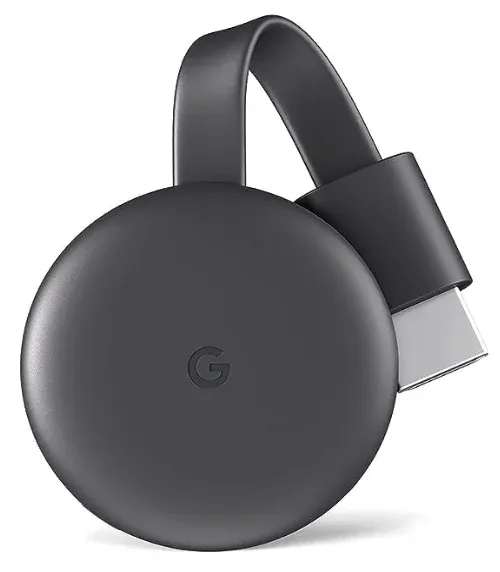
Compared to Miracast, Chromecast boasts better compatibility as it works on mobile phones like Android and iPhone, smart TVs, as well as laptops (like Windows and MacBook) via the Google Chrome browser. Chromecast can handle a wide variety of apps, giving users access to content streaming services directly from their device to their TV.
What are the pros and cons of Chromecast? Here are:
- Pros:
- Wide app support, allowing streaming from numerous services.
- Easy setup through the Google Home app.
- Supports high-definition streaming, including 4K on newer models.
- Cons:
- Requires a stable internet connection for streaming.
- Some apps may not support casting, limiting functionality.
- Slight latency when mirroring, though streaming is smooth.
Miracast vs Chromecast: Key Differences
How about Miracast vs Google Chromecast? When comparing Chromecast and Miracast, it's important to note that they aren't direct competitors. Chromecast is a hardware device, while Miracast is a wireless display protocol. In fact, comparing the two is more about comparing Miracast with Google Cast, the protocol that powers Chromecast.
| Feature | Miracast | Google Cast (Chromecast) |
|---|---|---|
| Connection Type | Direct device-to-TV via Wi-Fi Direct | Device-to-TV via Wi-Fi network (Google Cast) |
| Internet Required | No (works offline) | Yes (requires internet for streaming apps) |
| Compatible Devices | Windows, Android, and some smart TVs | Android, iOS, Windows, Mac (via Chrome), and smart TVs |
| Latency | Low (ideal for gaming or presentations) | Slight delay for mirroring; minimal for streaming |
| App Support | Limited (doesn't support all streaming apps) | Wide range of apps (YouTube, Netflix, Spotify, etc.) |
| Setup Complexity | Tricky to set up, depending on the device | Easy setup via Google Home app |
| Supported Features | Screen mirroring only | Screen mirroring & app-based streaming |
| Best For | Quick, offline mirroring and gaming | Streaming content and casting from multiple devices |
Miracast vs Chromecast: Which Is Better
When deciding between Chromecast vs Miracast, the right choice depends largely on your specific needs, the devices you're using, and whether or not you need an internet connection.
Mircast: Best for Offline Mirroring
Since Miracast uses Wi-Fi Direct, it excels in offline mirroring. If you need to mirror your device to a TV without relying on an internet connection, Miracast is the clear winner. This makes it perfect for situations like presentations, live demos, or sharing content in areas with unreliable internet.
Miracast: Low Latency for Real-Time Use
Another key advantage of Miracast is its low latency. This is particularly useful for applications like gaming, video conferencing, or live presentations, where even a slight delay can be disruptive. Miracast's direct connection ensures minimal delay, making it an optimal choice for tasks that require synchronization between your device and the TV.
Miracast: Incompatibility with Apple Devices
One of the drawbacks of Miracast is its limited compatibility with Apple devices. Unlike other platforms like AirPlay, Miracast does not natively support iPhones, iPads, or MacBooks. This makes Miracast less appealing for users in the Apple ecosystem.
If you own an iPhone and want to mirror its screen, you would need to look for other alternatives, such as AirPlay or third-party apps like PigeonCast that support multiple casting protocols.
Chromecast: Ideal for Streaming Apps
Chromecast, on the other hand, is designed with app-based streaming in mind. If you frequently stream content from services like YouTube, Netflix, or Spotify, Chromecast provides a more efficient solution for wirelessly casting your content to the TV.
Unlike Miracast, which is focused on mirroring, Chromecast uses the Google Cast protocol, allowing you to stream media directly from supported apps on your device. Whether you're watching movies, listening to music, or enjoying podcasts, Chromecast provides a smooth and reliable experience for streaming.
Note: Screen Mirroring and Casting are totally different features. Click here to see their differences.
Chromecast: 4K Streaming and Multi-Device Support
Chromecast also supports 4K streaming on its newer models, making it the better option if you're interested in watching high-definition content.
Additionally, Chromecast allows for multi-device casting, which is great if you want multiple users to stream content on the same TV without interrupting each other. This makes it a better option for homes or offices where people might want to cast content from various devices at once.
Miracast vs Chromecast: How to Use
When it comes to screen mirroring or casting, both Miracast and Chromecast offer straightforward ways to display your device's content on a bigger screen. However, each technology has its own setup process and device compatibility.
How to Use Miracast
Miracast works via Wi-Fi Direct, meaning devices communicate without needing an internet connection. Setting up Miracast can vary slightly depending on your device and operating system.
For example, most smart TVs have a setting to enable Miracast, often under Screen Mirroring, Wireless Display, or similar. After enabling Miracast on the TV, search for it from your Windows or Android device, and follow the connection process.
- On Android:
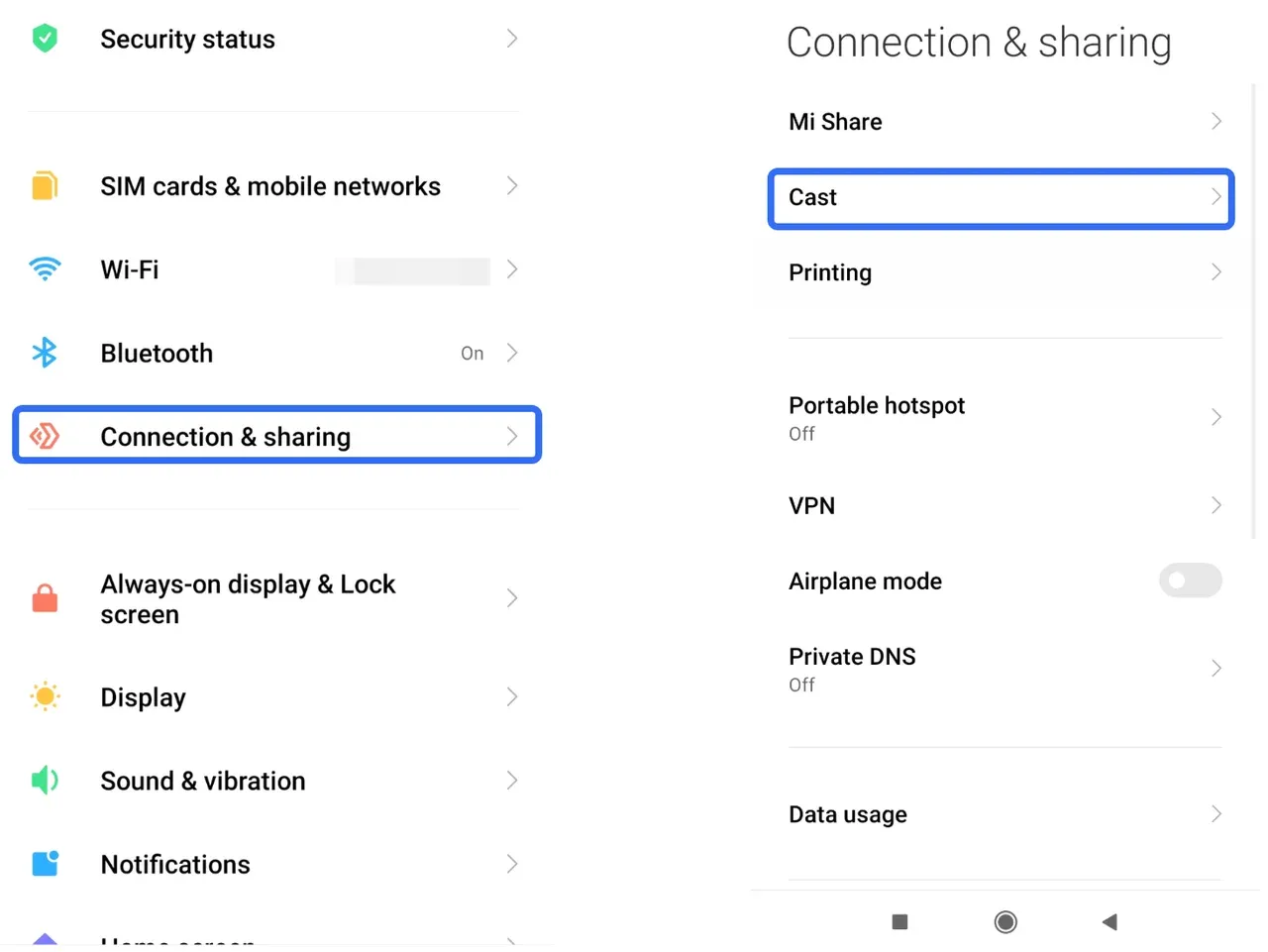
Step 1. Go to Settings > Connection or Display > Cast or Wireless Display.
Step 2. Enable Cast or Wireless Display and choose one available Miracast-enabled device.
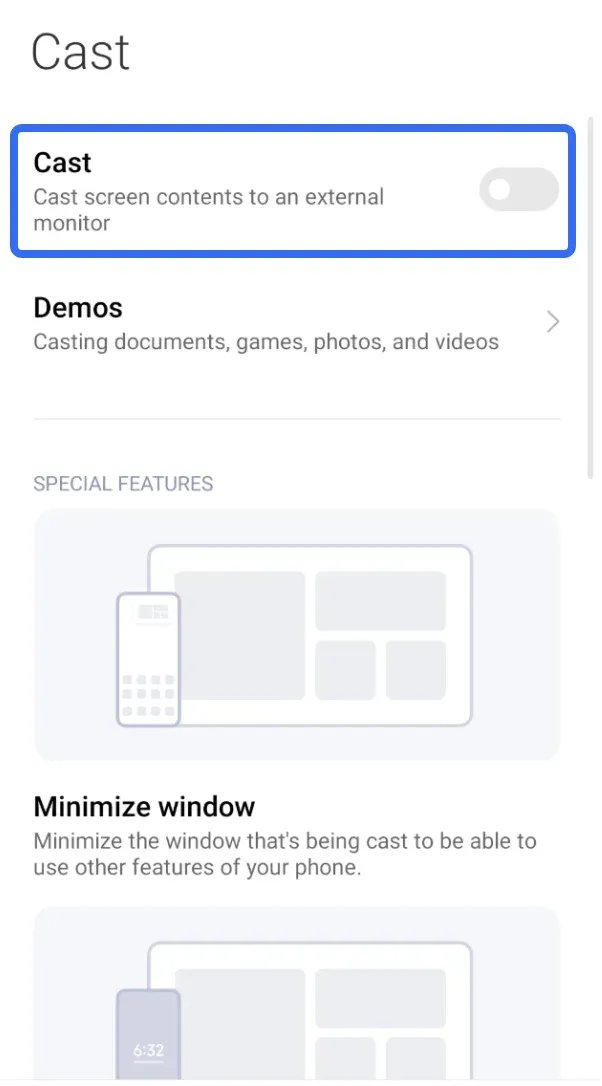
Step 3. Once connected, your screen will be mirrored to your TV.
- On Windows:
Step 1. Press the Windows + K button on your keyboard to launch the Cast menu.
Step 2. Choose your Miracast-enabled TV or device from the list.
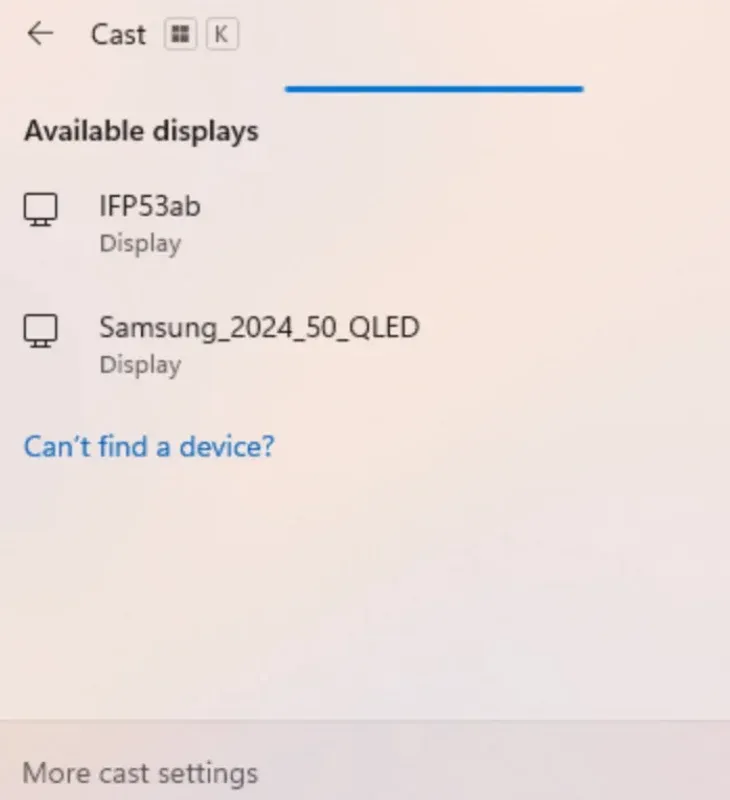
Step 3. Once connected, your screen will be mirrored to your TV.
How to Use Chromecast
Chromecast, powered by Google Cast, is a bit different from Miracast in that it requires a Wi-Fi network and internet connection for streaming. Here's how you can use Chromecast on iPhone and other compatible devices:
- On Android and iOS (via supported apps):
Step 1. Ensure your phone or tablet is connected to the same Wi-Fi network as your Chromecast.
Step 2. Launch apps like YouTube, Netflix, or Spotify, all of which support Google Cast.
Step 3. Look for the cast icon (a small rectangle with waves) at the top-right of the app.

Step 4. Choose your Chromecast device from the list.
Step 5. Your selected content will begin casting on your TV.
- On Windows or Mac (via Google Chrome):
Step 1. Ensure you have Google Chrome installed on your computer.
Step 2. Go to the webpage or content you want to stream.
Step 3. In the upper-right corner of Chrome, click the three vertical dots (menu).
Step 4. Choose Cast from the dropdown menu.
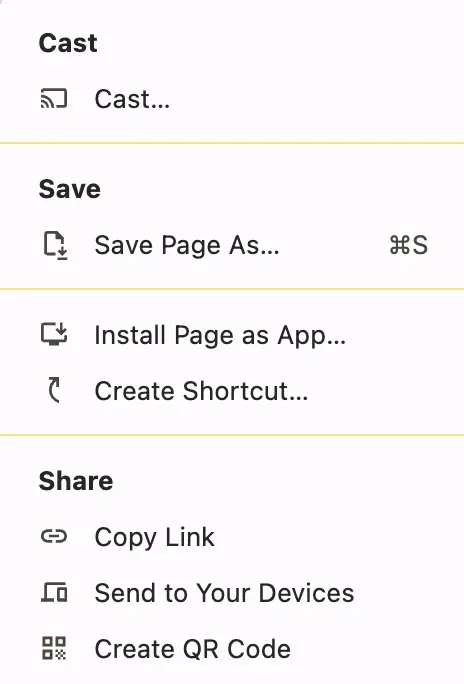
Step 5. Select your Chromecast device from the list.
Step 6. Your content will appear on the TV.
Try PigeonCast for Cross-Platform Streaming
While Miracast and Chromecast each offer distinct advantages for screen mirroring and casting, neither provides a seamless solution for all device ecosystems. If you find yourself switching between different devices—whether Android, iOS, Windows, or Mac—you might encounter compatibility issues with either Miracast or Chromecast. This is where PigeonCast comes in.

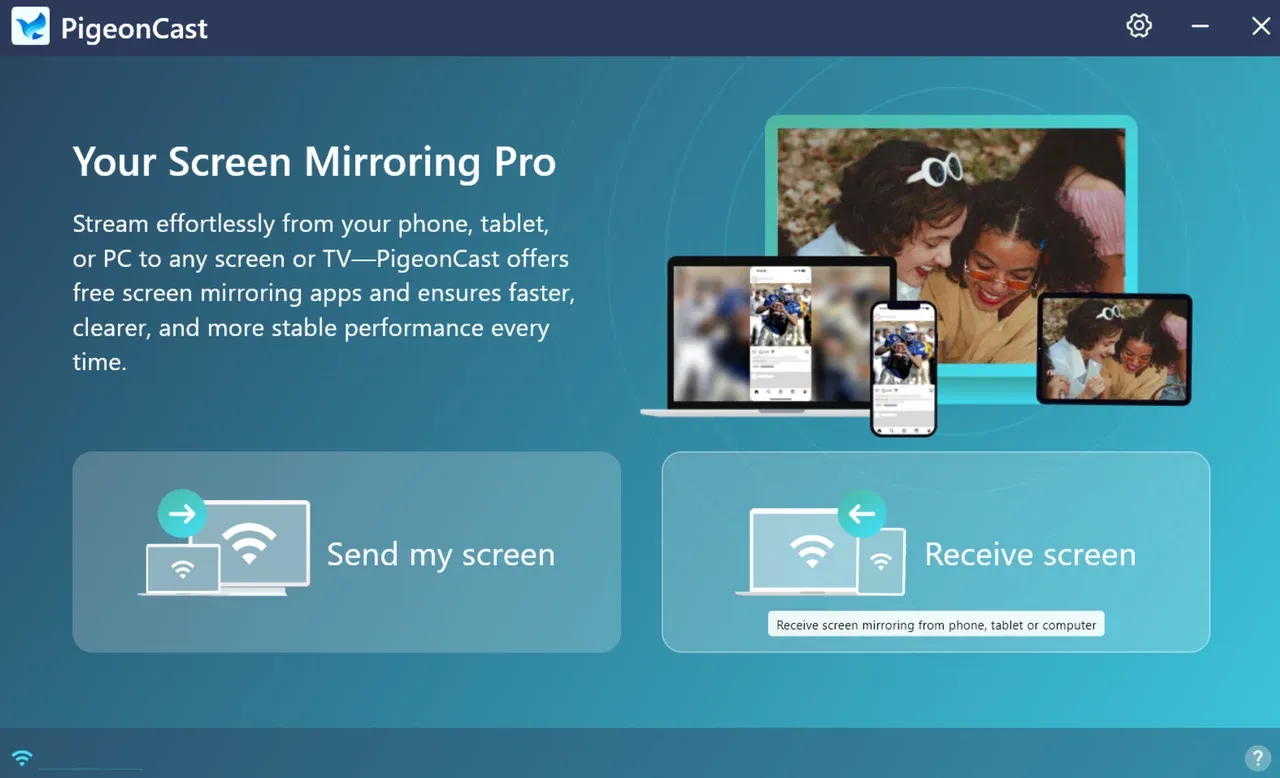
PigeonCast is a third-party tool that allows you to easily mirror or cast your screen across multiple devices:
- Cross-Platform Support: PigeonCast works on Android, iOS, Windows, Mac, Android TV, and Apple TV, ensuring you can stream or mirror content no matter what device you're using. Whether you're casting from a phone, tablet, laptop, or desktop, PigeonCast ensures a smooth experience.
- Multiple Streaming Protocols: With support for Google Cast, AirPlay, DLNA, and its own PigeonCast protocol, you don't have to choose between protocols. The third-party screen mirroring app lets you use the right method depending on the devices you have at hand.
- Ideal for Frequent Device Switchers: For users who often switch between Android, iOS, and Windows, PigeonCast offers a unified solution. You no longer need to worry about which protocol works best for each device or situation. PigeonCast simplifies cross-platform streaming in one app.
- Easy Setup on Devices: Just download the PigeonCast app on your device, launch it, and choose the device you want to connect to. The setup process is quick and user-friendly, with minimal steps to get you started.
Whether you need to mirror your Android screen to a Windows PC or stream content from your Mac to a TV, PigeonCast can handle it all without the hassle of switching between different apps or technologies.
Conclusion
Both Miracast (Wi-Fi Alliance) and Chromecast (Google) have their advantages: Miracast excels in direct, low-latency mirroring, while Chromecast shines in app-based streaming and multi-device casting. For users seeking cross-platform flexibility, apps like PigeonCast provide a one-stop solution, supporting multiple devices and protocols for hassle-free casting.
Miracast vs Chromecast FAQs
Q: Does Chromecast support Miracast?
No, Chromecast does not support Miracast. While Miracast is a protocol for wireless screen mirroring, Chromecast relies on the Google Cast protocol. They are different technologies and are not compatible with each other.
Q: Can I use Miracast with iOS devices?
No, Miracast does not natively support iOS devices. Apple devices use AirPlay for wireless streaming and mirroring. If you need to mirror an iPhone or iPad to a TV, AirPlay or third-party apps like PigeonCast are your best options.
Q: Can Chromecast mirror any app?
Chromecast can mirror content from apps that support Google Cast. Popular apps like YouTube, Netflix, and Spotify work seamlessly with Chromecast. However, Chromecast cannot mirror all apps, especially if the app doesn't support Google Cast.
Q: Is Miracast discontinued?
No, Miracast is not discontinued. It's still supported on a wide range of devices, particularly Windows PCs and Android smartphones. However, it is not as widely used as other streaming protocols like Google Cast and AirPlay, especially on Apple devices.
Q: What are the disadvantages of Chromecast?
- Requires a Wi-Fi connection and internet access for streaming.
- May experience slight latency when mirroring.
- Not all apps support Google Cast, limiting its functionality in some cases.
Q: Is Miracast worth it?
Miracast can be worth it if you need offline screen mirroring or are looking for a simple, direct connection without relying on the internet. It's great for gaming, presentations, and wireless displays. However, it's not the best solution for streaming content from apps, especially on iOS devices.
Q: Is Chromecast better than screen mirroring?
Chromecast is typically better than screen mirroring for streaming content from apps like Netflix or YouTube, as it provides a more stable and high-quality experience. Screen mirroring can be useful for specific tasks but may suffer from slight lag or quality loss, especially when streaming media.
Q: Can I install Miracast on my TV?
You don't need to install Miracast on your TV. Many modern smart TVs come with Miracast support. Simply enable screen mirroring or wireless display on your TV, and it will be ready to connect with compatible devices.
Q: Is Miracast the same as screen mirroring?
Miracast is essentially a screen mirroring protocol. It allows you to wirelessly mirror your device's display to a TV, but screen mirroring is a broader term that can refer to any method of sharing your device's screen. Miracast is just one of the protocols used for screen mirroring, alongside others like AirPlay or Google Cast.
Mia Clarke is a technology editor specializing in screen mirroring and casting solutions across multiple platforms. Mia provides clear, practical guides and in-depth insights to help users seamlessly connect their devices. Passionate about enhancing digital experiences, Mia is dedicated to keeping readers updated on the latest trends and tools in cross-platform screen sharing. Whether you’re looking to mirror your smartphone, laptop, or smart TV, Mia’s content delivers reliable, user-friendly advice to simplify your tech setup.