
If you search for Miracast, you are usually trying to answer one practical question:
Will these two devices actually mirror to each other, or am I wasting time inside casting menus?
Miracast is a wireless screen mirroring standard mainly used by Windows PCs, Android phones, and compatible TVs. It lets you duplicate your screen without HDMI cables, but support varies heavily between devices, operating systems, and TV brands.
That is why Miracast still matters and still confuses people at the same time. A Windows laptop may support Miracast perfectly while the TV does not. A smart TV may advertise “casting” support while meaning Chromecast or AirPlay instead. An iPhone user may search for Miracast settings that simply do not exist on iOS.
This guide explains what Miracast actually is, how Miracast works technically, which devices support it, why Miracast sometimes fails, how Miracast compares to Chromecast and AirPlay, and when a broader screen mirroring app makes more sense.
Quick Miracast Answers
| Questions | Short Answer |
|---|---|
| What is Miracast? | A wireless screen mirroring standard mainly used by Windows and Android devices |
| Does iPhone support Miracast? | Not natively |
| Does Miracast need Wi-Fi? | Usually yes, often through Wi-Fi Direct |
| Is Miracast the same as Chromecast? | No, Miracast mirrors your full screen while Chromecast focuses more on app-based casting |
| Is Miracast still supported? | Yes, especially on Windows PCs and many Android devices |
| Why is Miracast not working? | Device compatibility, weak receiver support, or platform differences are the most common causes |
| What is the easiest Miracast alternative? | Cross-platform screen mirroring apps are usually easier in mixed-device environments |
What Miracast Really Is
Miracast is a wireless display standard built around live screen mirroring. When it works, your phone, tablet, or computer sends what is on its screen to a TV or another display in real time.
That makes it useful for presentations, local video playback, quick photo sharing, and any situation where you want the whole screen to appear somewhere else without plugging in an HDMI cable.
The reason so many people still search for Miracast is that the name sounds universal. It feels like something every modern device should support. In practice, Miracast support depends on both sides of the connection.
A Windows PC may support it while the TV does not. A smart TV may advertise casting support while meaning Chromecast or AirPlay instead. An iPhone user may look for Miracast settings that simply are not part of iOS. If you already ran into that kind of confusion, the rest of this page should make the picture clearer.
Miracast also sits inside a larger wireless display landscape. It became the main Windows wireless display standard after earlier technologies such as Intel Wireless Display, while Microsoft still supports Miracast through Windows wireless display features and the Wi-Fi Alliance maintains certification records for compatible products.
If you want a deeper protocol comparison, AirPlay vs DLNA vs Cast vs Miracast breaks down the major systems more closely. For most readers, though, the practical takeaway is enough: Miracast mirrors the whole screen, while other systems often depend more heavily on app support or platform-specific integration.
How Miracast Technically Transmits Your Screen
Miracast works differently from app-based streaming systems like Chromecast or AirPlay video streaming.
Instead of telling a TV to independently play content from Netflix or YouTube, Miracast continuously transmits a live copy of your screen from one device to another.
Most Miracast connections rely on Wi-Fi Direct, which creates a peer-to-peer wireless connection between devices without needing a traditional router-based network setup. The sending device encodes the screen in real time, usually using H.264 video compression, and transmits it directly to the receiver.
That design explains several common Miracast behaviors:
| Behavior | Technical reason |
|---|---|
| Lag during gaming | Real-time screen encoding and wireless transmission add latency |
| Battery drain | Continuous wireless video encoding uses significant power |
| Stutter or disconnects | Weak Wi-Fi conditions hurt live video transmission |
| Black screens | Receiver compatibility or HDCP handling problems |
| Better performance on newer hardware | Newer Wi-Fi chips and drivers handle wireless display workloads more efficiently |
Miracast usually performs best for presentations, browsing, slides, casual video playback, and general screen sharing. However, it is usually less ideal for competitive gaming, precision real-time workflows, and ultra-low-latency applications.
This technical foundation also explains why Miracast experiences vary so much between devices. Two TVs may both advertise wireless display support but use very different hardware quality underneath.
How Miracast Works in Everyday Use
In daily use, Miracast feels simple when the device pair is friendly. You open the casting or screen mirroring menu on a Windows laptop or Android phone, choose a compatible display, and the screen appears on the TV a few seconds later.
That basic experience is why Miracast has stayed relevant for meetings, classrooms, and home setups that revolve around Windows and Android.
The part that trips people up is that Miracast behaves more like a live duplicate of your screen than a remote playback command.
When you use it, the sending device remains deeply involved in the session. If performance drops, if the Wi-Fi environment is unstable, or if the receiver has weak support, you feel that immediately through lag, disconnects, black screens, or poor image quality.
The table below gives a quick way to separate Miracast from the other names people often compare it with.
| Technology | What it usually sends | Where it feels strongest | What often causes confusion |
|---|---|---|---|
| Miracast | The live screen from your device | Windows and Android screen mirroring | Support varies across TV brands and Apple devices |
| Chromecast | App or browser casting to a receiver | Streaming apps and Google-friendly devices | People assume all TV casting is Miracast |
| AirPlay | Apple media streaming and mirroring | iPhone, iPad, Mac, Apple TV | Apple users search for Miracast when they really need AirPlay |
| PigeonCast | Screen mirroring across mixed devices | Homes and teams using different platforms | Readers expect native standards to cover every device equally |
If you want the Chromecast side of that comparison in more detail, Miracast vs Chromecast covers where each one makes more sense. If you mainly use Apple devices, Miracast vs AirPlay will usually answer the question faster.
Real-World Miracast Compatibility Expectations
Most Miracast frustration comes from expecting all “wireless display” features to behave the same way. In practice, compatibility depends heavily on the exact device pair, operating system, and TV implementation.
The table below is a practical compatibility snapshot based on vendor documentation, real-world device behavior patterns, and the recurring troubleshooting scenarios behind the Miracast guides published on this site.
| Device pair | Typical experience | Stability | Common issue |
|---|---|---|---|
| Mirror Windows 11 laptop to Miracast-ready LG TV | Usually connects within seconds and works reliably for presentations and screen sharing | Generally stable | Older LG models may hide the feature inside input menus |
| Mirror Samsung Galaxy S24 to Roku Express 4K | Often works for casual mirroring, but video smoothness varies by Roku model | Mixed | Lag and random disconnects during longer sessions |
| Mirror iPhone 16 to Miracast TV | Typically fails because iPhone does not natively prioritize Miracast | Unsupported natively | Users expect AirPlay devices and Miracast receivers to behave the same way |
| Mirror Chromebook to Miracast display | Some models partially support wireless display workflows, but behavior is inconsistent | Limited | ChromeOS casting expectations are often higher than actual Miracast support |
| Mirror Android phone to older smart TV with vague "cast" wording | Sometimes works, sometimes fails entirely depending on the TV protocol | Unpredictable | Many older TVs support Chromecast or DLNA instead of Miracast |
The pattern behind these combinations explains why broad Miracast searches quickly become device-specific troubleshooting searches.
Most users are not trying to understand the Miracast protocol itself. They are trying to predict whether their exact setup will behave reliably before spending another hour inside casting menus.
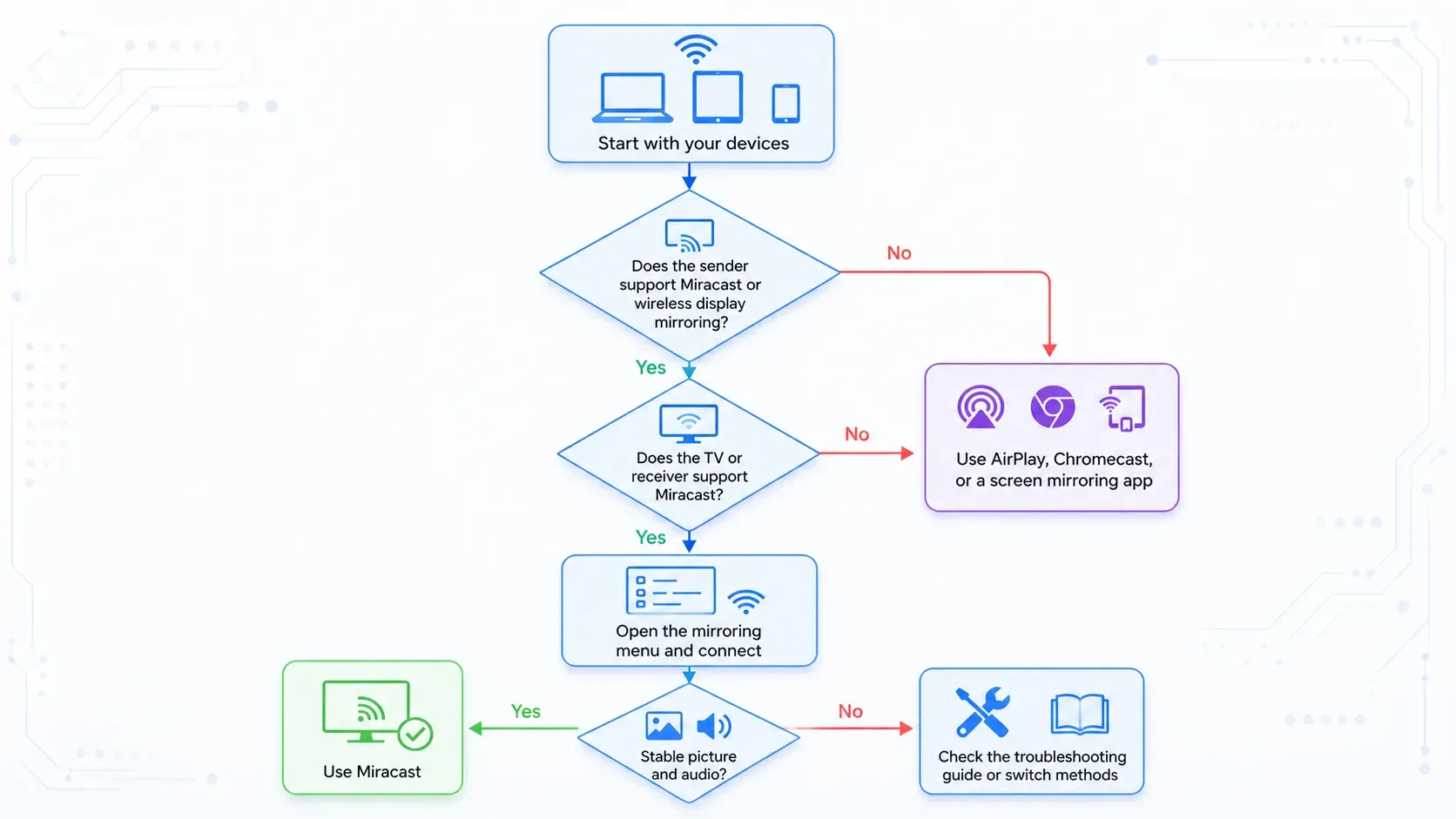
Which Devices Support Miracast
Device support is where most Miracast confusion begins, because users often assume the answer depends on the sender alone. In reality, you need a compatible sender and a compatible receiver, and the label shown on the device does not always tell the full story. Some manufacturers say “cast,” some say “wireless display,” and some hide the function behind brand-specific names.
Windows PCs and Laptops
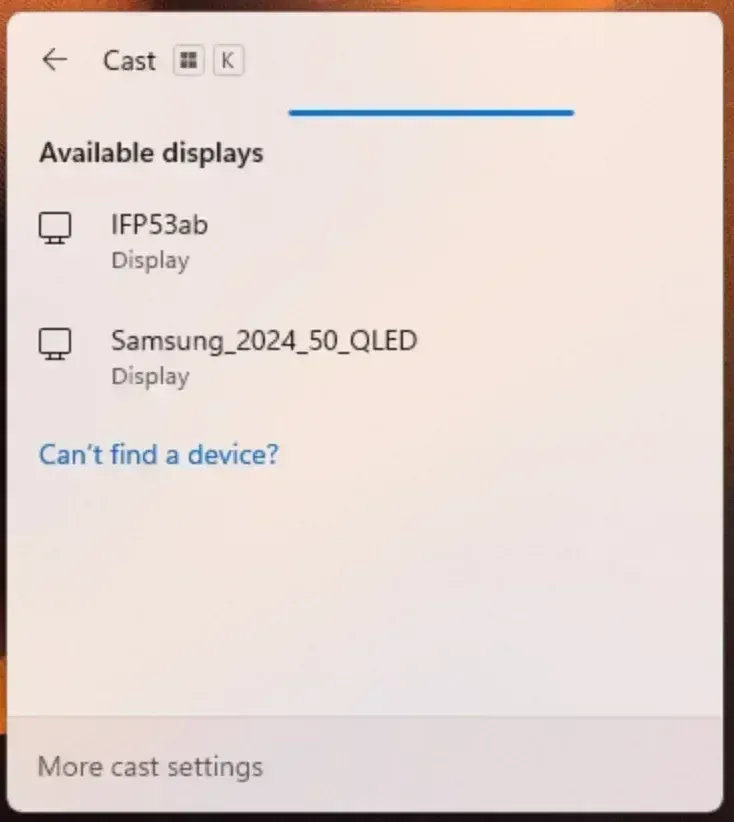
Windows is still one of the clearest homes for Miracast.
Many Windows laptops and desktops include wireless display support that works well with compatible TVs, monitors, and receivers. For office presentations, classroom use, and quick screen sharing from a PC, Miracast often remains the easiest native option to try first.
That said, Windows support still depends on hardware, drivers, and receiver compatibility.
If you want a closer look at how it works on Microsoft systems, Miracast Windows 10 and Miracast connection setup go deeper into the practical steps.
If you are dealing with enterprise displays or managed networks, Miracast over infrastructure is worth reading because it explains why some Windows projection sessions feel steadier in office environments than they do at home.
Android Phones and Tablets
Android is the other major device family where Miracast still makes sense.
Many Android phones and tablets support some form of wireless display mirroring, though the naming can vary a lot. Samsung users may see Smart View, while other brands may use Cast, Wireless Display, or Screen Mirroring.
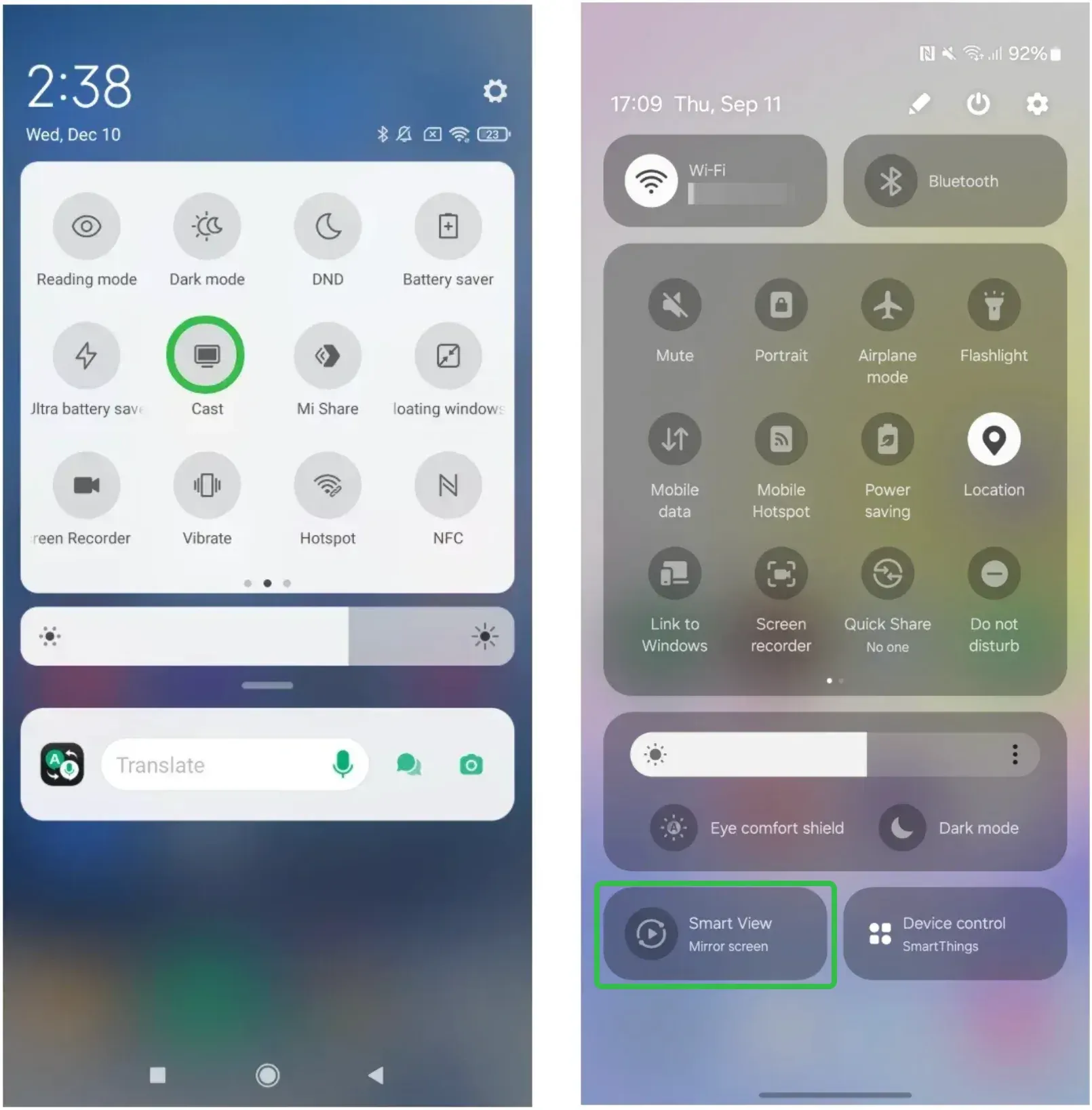
Some Android implementations remain closely aligned with Miracast, while others lean more toward Google Cast behavior. That is why Android users often end up checking brand-specific articles before they get a reliable answer.
Helpful follow-up pages include:
Smart TVs and Streaming Devices
TV support is where many readers lose the most time. A TV may support Miracast, Chromecast, AirPlay, DLNA, or only partial screen mirroring feature, and the marketing language is often vague.
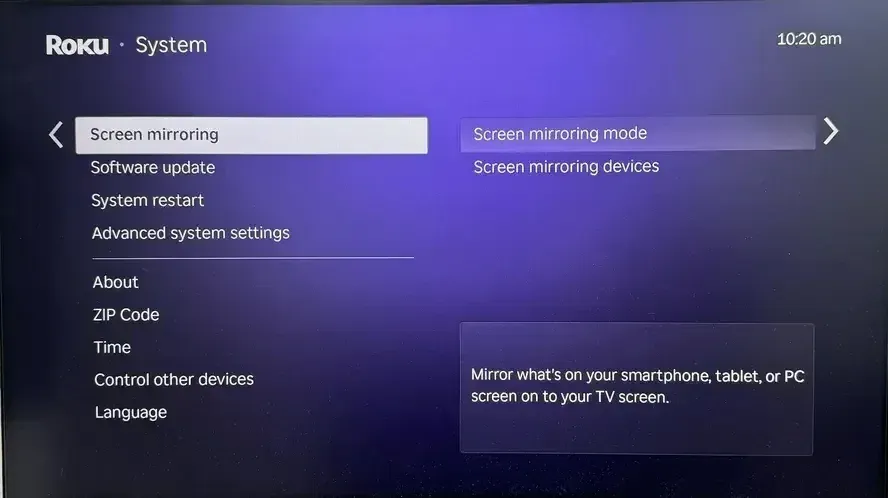
Even TVs from the same brand can vary by model year, operating system, and firmware version, which is why general statements about TV compatibility often age badly.
For a broader overview, start with:
Then narrow down by platform:
Dedicated receivers can also help in rooms where built-in support is unreliable:
MacBooks, iPhones, and Chromebooks
Apple and Chromebook users need a different expectation from the start. MacBooks and iPhones do not treat Miracast as a native first-choice system, so users who search for it on those devices usually end up discovering that they need another approach.
That is the reason pages like Miracast MacBook and Miracast iPhone exist in the first place.
The same goes for Miracast Chromebook, where the question is often less about finding a hidden Miracast switch and more about understanding what ChromeOS supports more naturally.
If you are using Apple hardware and want something that works without chasing edge-case adapters or partial support, this is usually where a screen mirroring app starts to make more sense than forcing the Miracast question.
Apple’s own support pages still center AirPlay for wireless streaming and mirroring, which is a useful reality check for anyone expecting iPhone or Mac menus to behave like Miracast-first devices.
Miracast Adoption Reality
One reason Miracast feels inconsistent today is that major tech ecosystems moved in different directions over the past decade.
Here’s how platforms actually break down today:
| Platform | Current wireless display priority |
|---|---|
| Microsoft | Windows Still supports Miracast heavily |
| Android | Mixed support depending on brand |
| Apple | Prioritizes AirPlay |
| Google TV ecosystem | Prioritizes Chromecast |
| Roku | Supports screen mirroring on selected models |
| Many smart TV brands | Reduced explicit Miracast branding after 2020 |
This split explains why Miracast can feel excellent in one environment and almost invisible in another.
It is not that Miracast disappeared entirely. It simply stopped becoming the universal standard many users expected.
When Miracast Is Worth Using
Miracast still earns its place when your devices already line up with it.
A Windows laptop in a meeting room, an Android phone in a living room, or a TV that supports Miracast cleanly can make the experience feel direct and convenient. You open the built-in menu, connect, and start sharing the whole screen without extra equipment or app-specific casting rules.
It is especially useful when the content on your screen matters more than app integration. Maybe you are presenting slides from a Windows laptop, mirroring photos from an Android phone, showing a website to a group, or playing a local video that does not have a cast button.
In those moments, Miracast still has a strong argument because it copies the screen you already have instead of asking you to use a different media system.
Miracast also fits people who want a native option first. If your device supports it well and your display supports it well, there is no reason to complicate the setup. The key is to stay honest about the moment when the setup stops being simple.
If you are spending too long verifying device support, rechecking menus, or dealing with inconsistent TV behavior, that is a sign to move on rather than keep treating Miracast as the only answer.
Why Miracast Often Frustrates People
Miracast earns a lot of search traffic because it sits right at the border between “easy when it works” and “surprisingly awkward when it does not.” The frustrating part is that the problems often look random from the user side even when they follow a pattern underneath.
Common causes include:
| Problem | What is usually means |
|---|---|
| TV never appears | Receiver may not support Miracast |
| Connection immediately fails | Weak compatibility between devices |
| Lag or stutter | Weak wireless conditions or poor receiver hardware |
| Works on Android but not iPhone | Platform ecosystem differences |
| TV says “cast” but does not mirror | The TV may support Chromecast instead |
Support quality also varies more than most readers expect. Two TVs from different brands may both claim screen mirroring support and still behave very differently once you start using them.
That is part of why so many users search for pages like Your device doesn't support Miracast or Miracast not working after the first attempt fails. The problem often turns out to be a mix of hardware support, software version, and receiver behavior rather than a single obvious mistake.
There is also a practical limit to how much patience Miracast deserves in a mixed-device setup. If one TV works with a Windows laptop, another works only with certain Android phones, and the iPhone in the same room needs a completely different method, your home setup may be telling you that a broader mirroring solution will save more time in the long run.
How to Set Up Miracast
The basic Miracast setup is short enough to learn quickly, but it still helps to follow the steps in order. Most failed attempts happen because users jump into the casting menu before they confirm whether the screen on the other side is actually ready for Miracast.
Step 1. Confirm that both devices support Miracast or wireless display mirroring.
On a Windows PC or Android phone, the sender usually has some kind of built-in casting or screen mirroring control. On the receiving side, the TV, display, or adapter must also support Miracast in a way that is active and visible.
Step 2. Turn on the receiving display and open its screen mirroring feature.
Some TVs leave this feature buried in inputs or connection menus, so it helps to check the exact model guide before you assume it is active.
Step 3. Open the mirroring menu on your sending device.
On Windows, this often appears through the Project or Connect menu. On Android, it may appear under Cast, Smart View, Screen Mirroring, or a similar name.
Step 4. Select the display and let the connection finish.
If the device appears and the session starts cleanly, test both picture and audio before you settle in.
Step 5. Switch methods if support still looks uncertain after one clean pass.
If the device never appears, or if the session starts and immediately becomes unstable, stop treating it like a quick setup problem. At that point, a compatibility issue is more likely than a missed tap.
Common Miracast Problems and What They Usually Mean
Miracast problems become easier to handle once you stop treating every failure as the same thing. “Miracast does not work” can mean the device is unsupported, the display is using a different casting standard, the mirroring feature is turned off, or the receiver simply does a poor job with the connection even though it appears on paper to support it.
When the display never shows up, start by asking whether you are chasing the right standard. That is especially important with Apple devices, Chromebooks, and TV platforms that emphasize Chromecast or AirPlay more than Miracast.
When the connection starts but the experience is poor, look for signs of weak support rather than only blaming your taps. Stutter, black screen behavior, and repeated disconnects usually mean the combination is technically possible but not especially dependable in practice.
When the problem is more specific to the receiver, go narrower. A Roku behaves differently from an LG TV. A Windows projection session in an office behaves differently from a home TV in a living room.
Miracast vs Chromecast vs AirPlay: Which One Should You Actually Use?
People often search for Miracast when the real question is much simpler: which wireless display system will work best with the devices I already own?
The answer usually depends less on the technology name itself and more on the ecosystem you use every day.
| Your setup | Usually the easiest choice |
|---|---|
| Windows laptop + Android phone + compatible TV | Miracast |
| Google TV + streaming apps + Chrome browser casting | Chromecast |
| iPhone + MacBook + Apple TV | AirPlay |
| Mixed devices across multiple platforms | Cross-platform screen mirroring apps |
Use Miracast
Miracast still makes the most sense when your setup already revolves around Windows and Android devices.
It works especially well for presentations, classrooms, wireless monitors, full-screen mirroring, and local media playback. Miracast is also useful when you want to mirror apps or content that do not include built-in cast buttons.
The biggest advantage is simplicity when compatibility already exists. You open the wireless display menu, connect, and mirror the entire screen without depending on app support.
Use Chromecast
Chromecast usually feels more natural for people who mainly stream online content from apps like YouTube, Netflix, Spotify, and Chrome browser tabs.
Unlike Miracast, Chromecast focuses more on telling the receiver to independently play media rather than continuously transmitting your full screen.
That often results in smoother streaming, better battery life, and less strain on the sending device.
Use AirPlay
AirPlay is usually the cleanest option inside Apple ecosystems.
If your setup already includes iPhone, iPad, MacBook, and Apple TV, AirPlay typically provides the smoothest experience with the fewest compatibility problems.
Apple devices do not prioritize Miracast natively, which is why many Apple users searching for Miracast eventually realize they were actually looking for AirPlay functionality instead.
Use a Cross-Platform Mirroring App
This is the situation many homes and teams eventually reach.
One person uses iPhone. Another uses Windows. The living room TV supports AirPlay. The guest room TV only partially supports Miracast.
At that point, the problem is no longer “How do I use Miracast?” The real problem becomes: “How do I stop thinking about protocols every time I want to mirror my screen?”
That is where broader Miracast alternatives often become more practical long term.
A Simpler Option for Mixed-Device Screen Mirroring
If your goal is to mirror across iPhone, Android, Windows, and different TVs without checking compatibility every time, a screen mirroring app can remove a lot of friction. Miracast works best inside a narrower range of devices, so readers with mixed-device environments often find that apps like PigeonCast simplify compatibility issues and cut down on repeated setup guesswork.
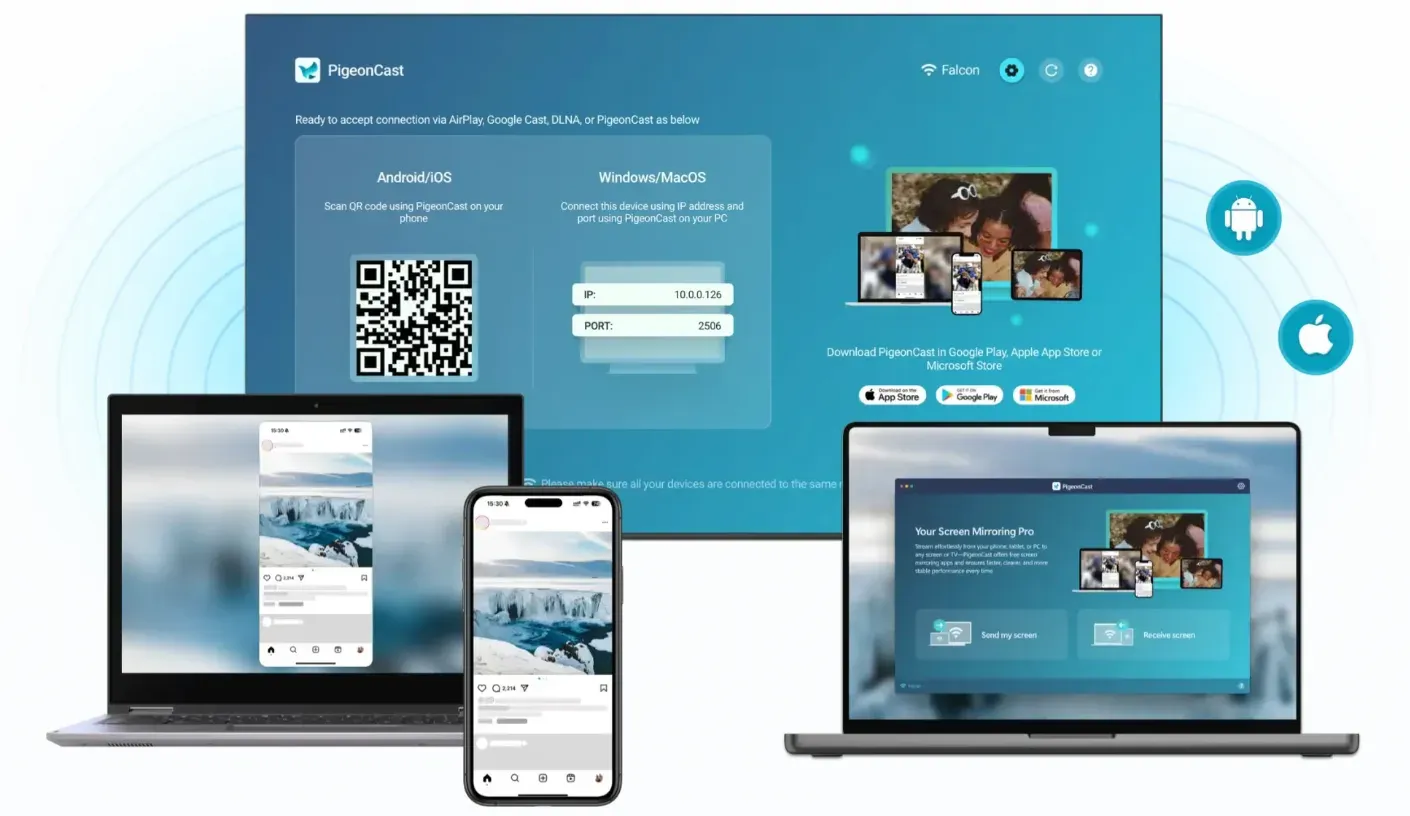
That does not mean Miracast should be ignored. If a Windows laptop connects cleanly to a Miracast-ready display, use it. If an Android phone mirrors to a compatible TV with no friction, use that too. The reason to look beyond Miracast usually comes later, when your devices change and the setup stops feeling predictable.


Overall Rating:



Official References and Platform Notes
Miracast articles tend to sound thin when they skip source anchors, so here are the main references behind the claims in this guide.
- Microsoft:
- Wi-Fi Alliance:
- Android and Google casting:
- Apple
Taken together, those references explain the platform split that users feel in practice. Microsoft still treats Miracast as part of Windows wireless display support. Apple still centers AirPlay. Google’s consumer guidance centers Google Cast. That is one of the clearest reasons Miracast feels dependable in some device families and peripheral in others.
Conclusion
Miracast still deserves attention because it solves a real need for Windows and Android users who want simple whole-screen mirroring on compatible displays. When the device pair lines up, it can feel quick, direct, and perfectly adequate for meetings, home video, and casual sharing.
Most of the frustration comes from expecting that same result across every brand and platform. Once you understand where Miracast support is strongest, where it tends to disappear, and when another casting system fits better, the decision gets much easier. Start with Miracast when your devices clearly support it.
If your home or team moves across too many platforms for that to stay simple, a broader screen mirroring app may save time and reduce guesswork.
Miracast FAQ
What is Miracast used for?
Miracast is mainly used for wireless screen mirroring between compatible devices such as Windows PCs, Android phones, smart TVs, and wireless displays.
Is Miracast the same as screen mirroring?
Miracast is one kind of screen mirroring, though people often use the broader phrase to describe several different technologies. In everyday use, Miracast usually means live wireless duplication of your screen from a compatible device to a compatible display.
Does Miracast need Wi-Fi?
People often ask this because they assume Miracast works exactly like app-based streaming. The answer depends on the devices and the connection method involved. If this is your main concern, Can you use Miracast without Wi-Fi covers the practical details more closely.
Why does Miracast work on some TVs but not others?
TV makers do not all support the same casting standards in the same way. One TV may support Miracast directly, another may favor Chromecast or AirPlay, and a third may advertise screen mirroring with limited real-world reliability.
Can iPhone use Miracast?
iPhone does not treat Miracast as its native wireless display standard. Apple users usually get better results with AirPlay or with a cross-platform screen mirroring app that supports mixed-device setups more naturally. Is Miracast available on iPhone explains the details.
What should I try first when Miracast is not working?
First confirm that both devices truly support Miracast and that the receiving display is using the correct mirroring mode. If that checks out and the session still fails, Fixing Miracast not working is the next guide to open.
What is the easiest Miracast alternative for mixed-device use?
For people switching between iPhone, Android, Windows, and different TVs, apps like PigeonCast are often easier to live with over time because they avoid many of the support gaps that make native Miracast feel unpredictable.
Mia Clarke is a technology editor specializing in screen mirroring and casting solutions across multiple platforms. Mia provides clear, practical guides and in-depth insights to help users seamlessly connect their devices. Passionate about enhancing digital experiences, Mia is dedicated to keeping readers updated on the latest trends and tools in cross-platform screen sharing. Whether you’re looking to mirror your smartphone, laptop, or smart TV, Mia’s content delivers reliable, user-friendly advice to simplify your tech setup.