
Miracast is a popular screen mirroring technology that works on many Android and Windows devices. However, iPhones use a different protocol called AirPlay, so native Miracast iPhone support isn't available. This guide will explain what this means, provide alternatives, and show step-by-step methods to mirror your iPhone screen to TVs, PCs, or other devices.
iPhone Doesn't Support Miracast
What is Miracast on iPhone? Miracast is a wireless display standard that lets devices mirror their screens directly to a compatible TV or receiver using Wi-Fi Direct, which means it can connect without a traditional Wi-Fi network or router. It's widely supported on Android devices, Windows PCs, and many smart TVs.
Can you Miracast from iPhone? However, iPhones do not support Miracast. Instead, Apple relies on AirPlay, its proprietary streaming technology, for screen mirroring. AirPlay is designed for seamless use within the Apple ecosystem, working across iOS, macOS, Apple TV, HomePod, and some AirPlay-enabled smart TVs. AirPlay typically uses Wi-Fi, but with AirPlay 2, it can also connect peer-to-peer in certain cases.
Miracast Vs AirPlay
Both technologies allow you to mirror your device's screen or stream media, but they vary in compatibility, connection methods, and features. The table below breaks down their main differences to help you choose the best solution for your devices and streaming needs.
| Feature | Miracast | AirPlay / AirPlay 2 |
|---|---|---|
| Developer / Platform | Developed by Wi-Fi Alliance; widely supported on Windows, Android, and some smart TVs | Developed by Apple; native on iOS, iPadOS, macOS, and Apple TVs |
| Connection Type | Wi-Fi Direct (peer-to-peer) | Wi-Fi network (requires the same Wi-Fi for devices) |
| Screen Mirroring | Yes, mirrors the entire device screen | Yes, mirrors screen or streams specific media (AirPlay 2 adds multi-room audio) |
| Audio & Video Streaming | Yes, supports video and audio; quality may vary depending on Wi-Fi | Yes, supports high-quality video and audio; AirPlay 2 adds multi-room audio and buffering improvements |
| Cross-Platform Support | Windows, Android, some TVs (no native support on iOS/macOS) | Apple ecosystem (iPhone, iPad, Mac, Apple TV); third-party apps required for non-Apple devices |
| Latency | Generally low; may vary depending on device and Wi-Fi | Very low on Apple devices; AirPlay 2 improves buffering for smoother playback |
| Setup | Simple; usually plug-and-play on compatible devices | Very simple on Apple devices; setup easier in Apple ecosystem |
| Use Cases | Mirroring Windows or Android devices to TVs or projectors | Streaming media or mirroring iOS/Mac devices to Apple TV or compatible devices |
| Pros | Works on many non-Apple devices; no internet required | High-quality streaming, low latency, multi-room audio (AirPlay 2), seamless with Apple devices |
| Cons | Limited support on iOS/macOS; quality depends on device | Mostly limited to Apple devices unless using third-party apps |
How to Miracast on iPhone
Since iPhones don't natively support Miracast, you may wonder if there's still a way to use Miracast with iPhones or other Apple devices. While you can't enable Miracast directly on an iPhone, some Miracast alternative methods and tools make it possible to connect your devices. Now, let's look at the direct way you can use Miracast for iPhone first.
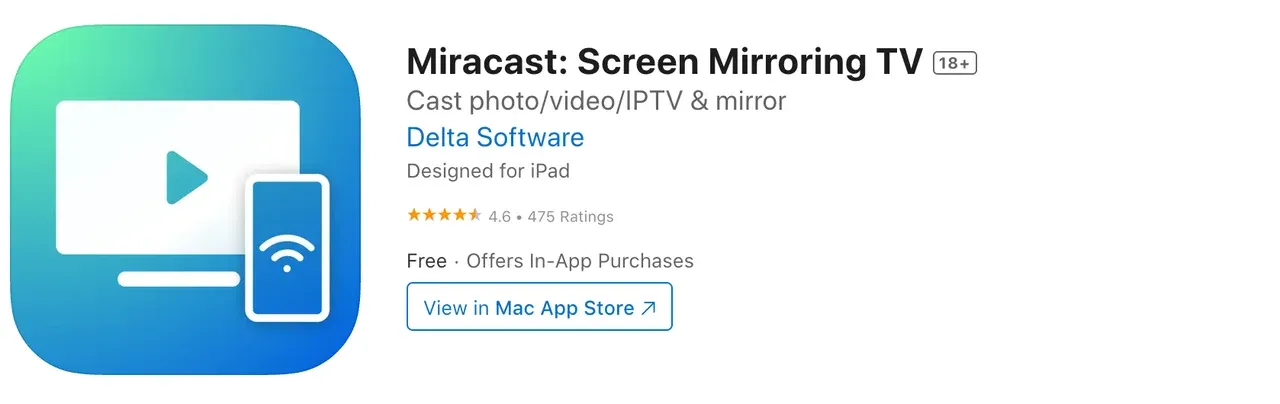
Step 1. Find a reliable app from the App Store and install it on your iPhone.
Step 2. Your iPhone and the target device (TV or PC) should be in the same Wi-Fi.
Step 3. Choose the mirroring mode and tap on Start Mirroring. (This step may be different and depends on the Miracast app you use.)
Step 4. On your TV, open the browser and enter the provided URL for casting.
Step 5. Now you can enjoy casting your iPhone on the smart TV.
How to Mirror iPhone to TV Without Miracast
Since Miracast isn't supported on iPhones, you'll need to look at other options if you want to mirror or stream from your iOS device. Fortunately, there are several reliable alternatives that work smoothly with iPhone. Let's explore some of the best choices below.
Way 1. Use AirPlay for AirPlay-compatible Devices
The most straightforward option for iPhone users is to use AirPlay, Apple's built-in streaming and mirroring feature. If your TV, speakers, or streaming device already supports AirPlay, you can connect instantly without extra apps or hardware. This makes AirPlay the go-to choice for anyone in the Apple ecosystem.
Step 1. Make sure your iPhone and the AirPlay-compatible device (such as Apple TV, smart TV, or speakers) are connected to the same Wi-Fi network.
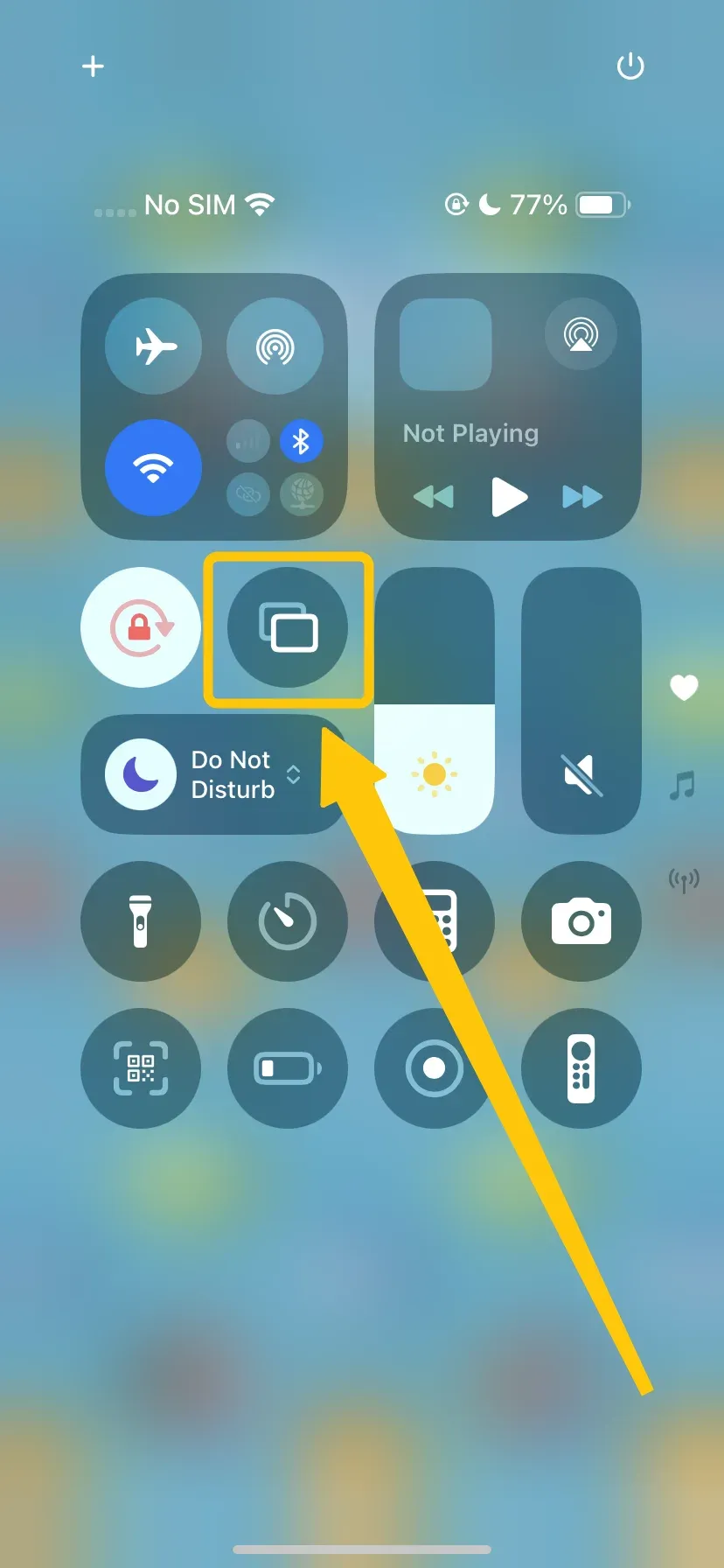
Step 2. To mirror your whole screen, tap Screen Mirroring from the Control Center and select your AirPlay device from the list.
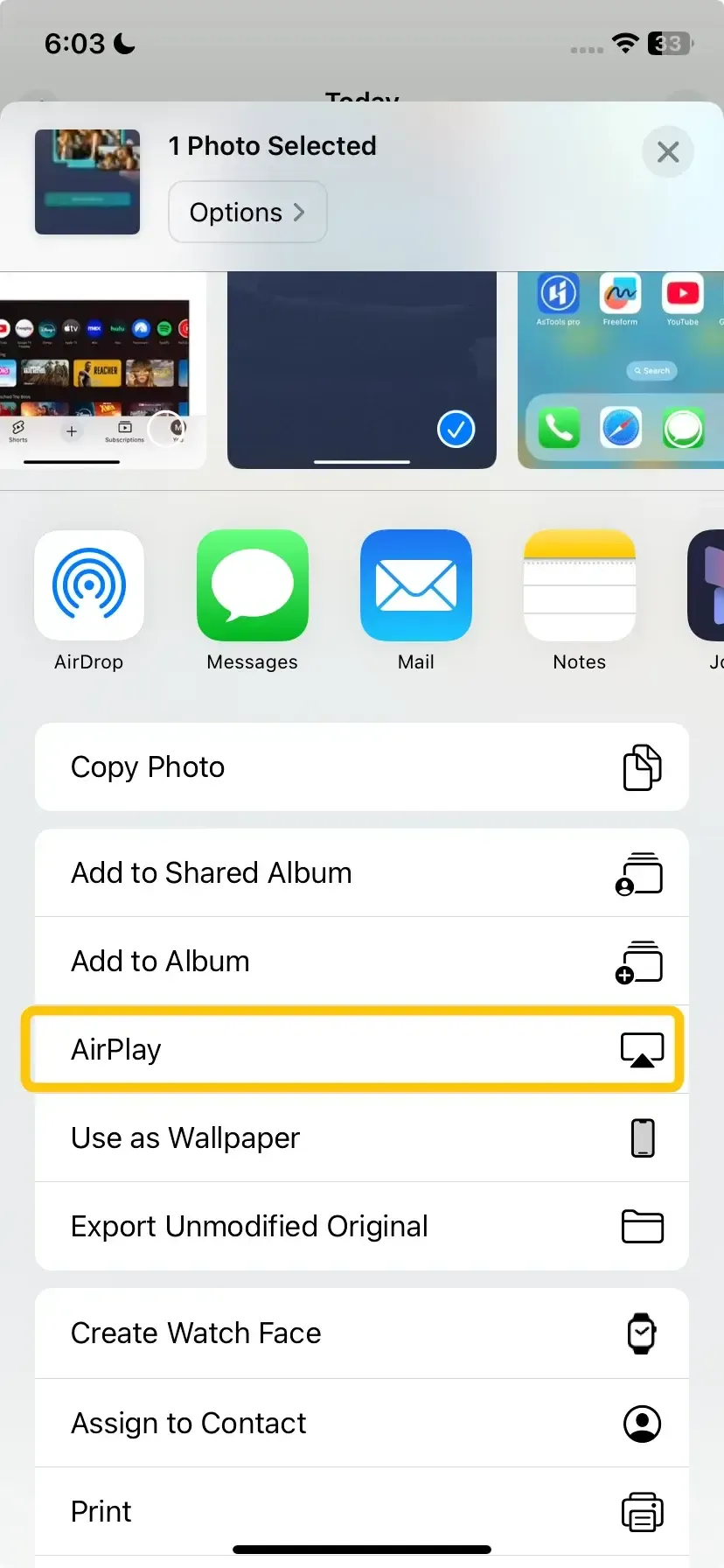
Step 3. To stream specific media (like a video or song), open the app (Photos, Music, YouTube, etc.), tap the AirPlay icon, and choose your AirPlay device.
Step 4. If a code appears on your TV or display, enter it on your iPhone to confirm the connection.
Step 5. Your iPhone will now mirror or stream content directly to the AirPlay-compatible device.
Way 2. Use PigeonCast: Universal Screen Mirroring
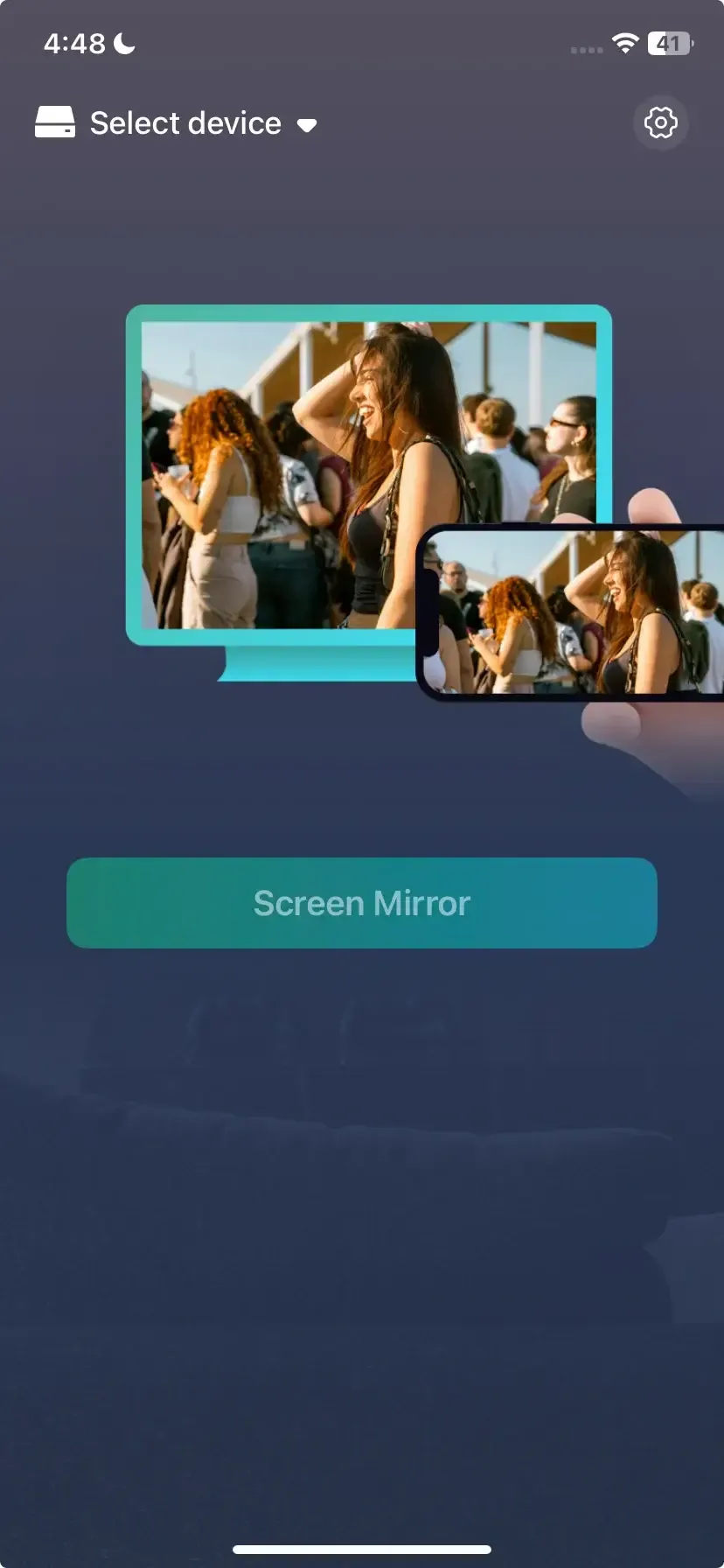
To make screen mirroring across different platforms simpler, a universal solution is often the best choice. That's where PigeonCast comes in. Designed to work seamlessly with iOS, Android, Windows, and smart TVs, it eliminates the compatibility barriers between AirPlay, DLNA and Google Cast.
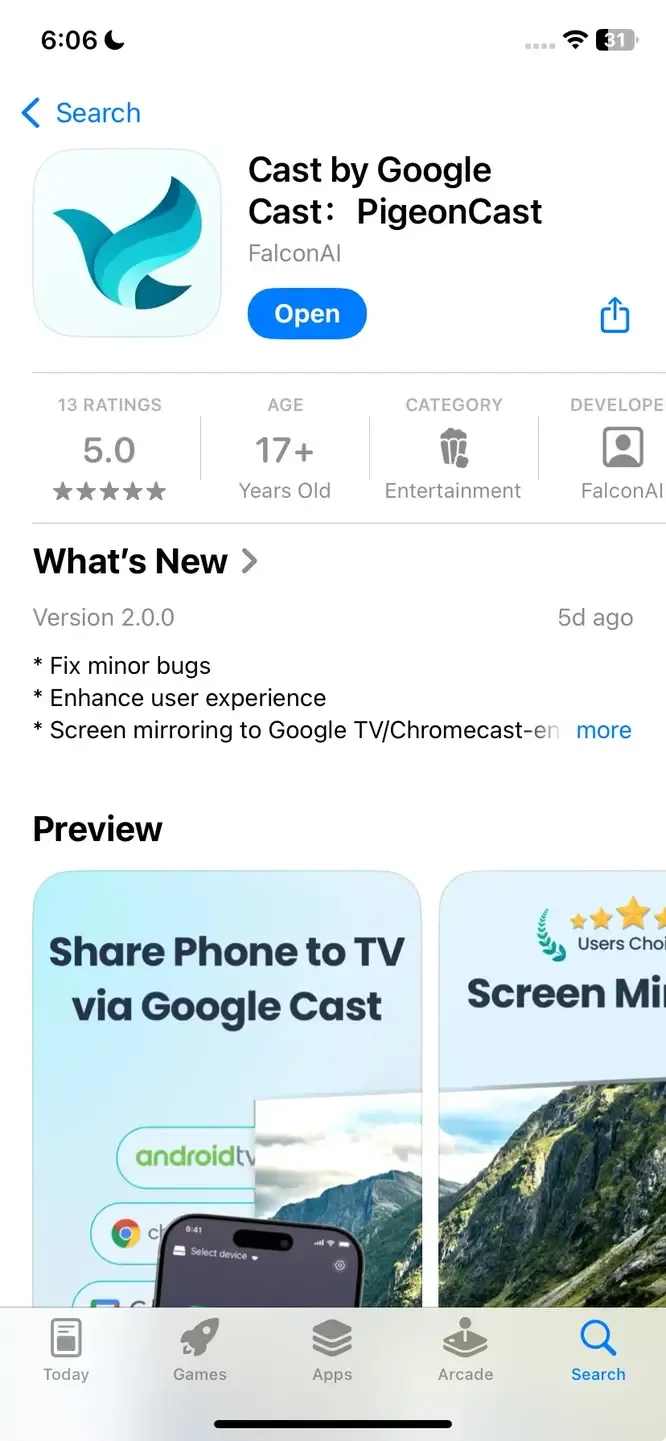
PigeonCast offers smooth, high-quality mirroring without extra hardware. With features like resolution and frame-rate control, low-latency streaming, and optional PIN protection, it is a simple and secure way to enjoy content from your iPhone on a bigger screen.

PigeonCast Screen Mirroring

Official Download


Step 1. Install the PigeonCast app on your iPhone.
Step 2. Ensure your devices are connected to the same wireless network.
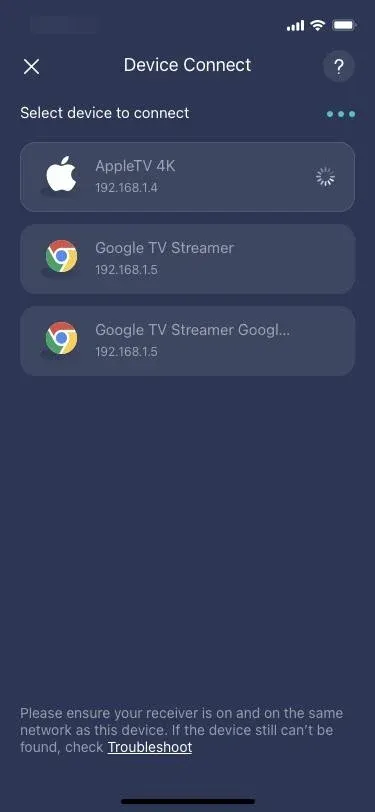
Step 3. Launch the app on your iPhone, and choose your receiver device from the available list.
Step 4. If prompted, enter the onscreen PIN code to confirm the mirroring performance.
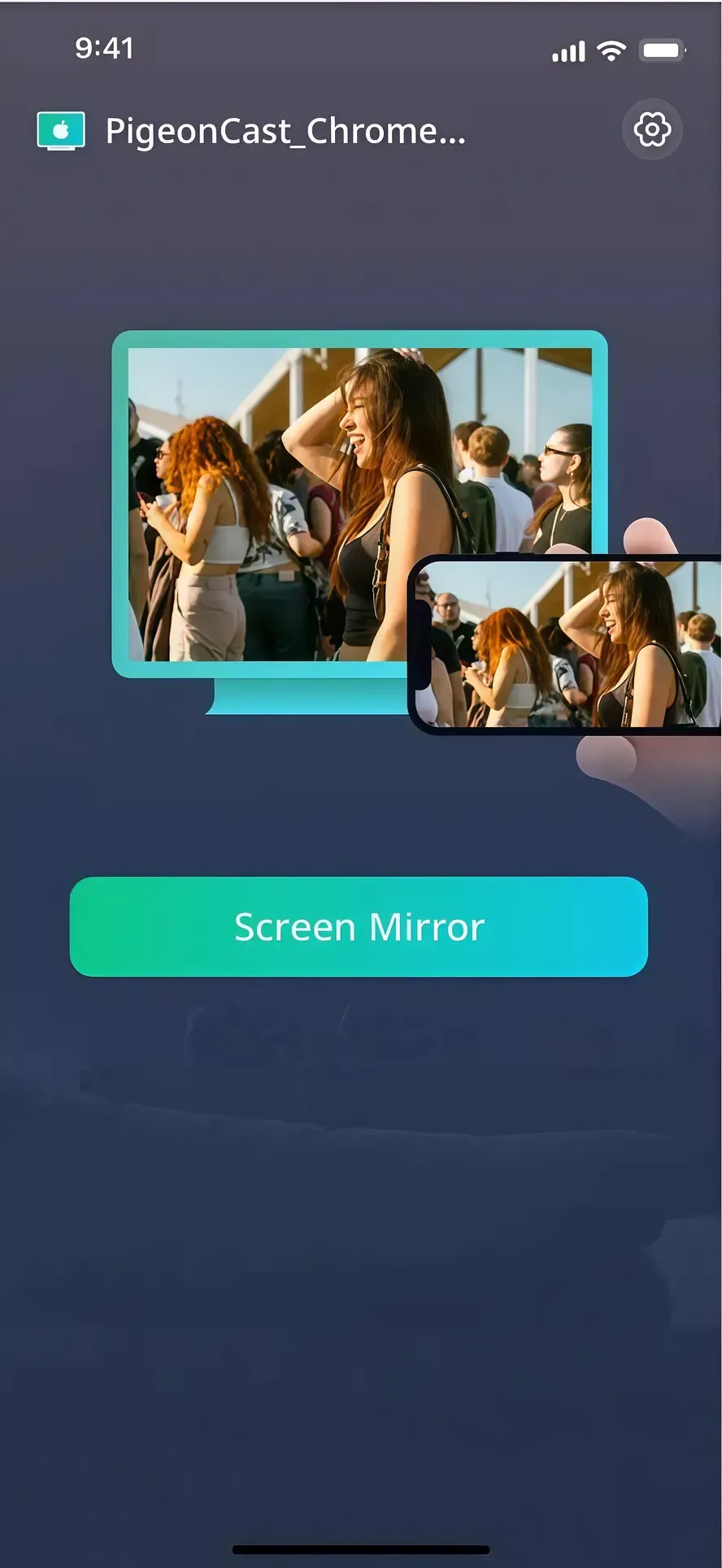
Step 5. When you finish the pairing process, you can then tap the Screen Mirror option to display your iPhone's screen on your receiver Android TV or Windows PC.
Way 3. Use Chromecast for Android Smart TVs
How to Use Miracast on iPhone? If your TV runs on Android and supports Chromecast, this can be an easy alternative to Miracast for iPhone users. With Chromecast, you can stream videos, photos, and apps from your iPhone directly to the TV using the Google Home app or supported apps like YouTube and Netflix. It doesn't mirror the entire iPhone screen like Miracast, but it works smoothly for media casting.
Step 1. Make sure your Android TV has Chromecast built-in (most Android Smart TVs do).
Step 2. Connect your iPhone and the TV to the same Wi-Fi network.
Step 3. Download and open the Google Home app on your iPhone.
Step 4. In the app, select your Android TV from the available devices.
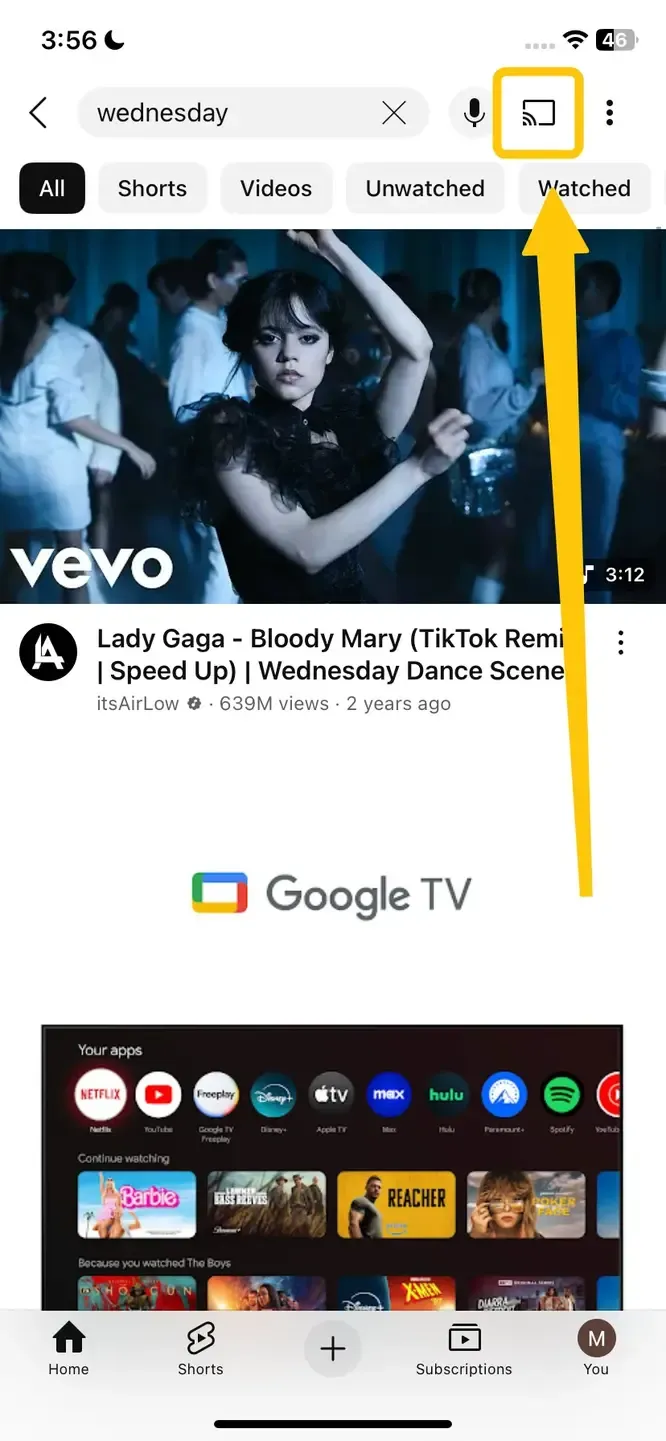
Step 5. Tap Cast my screen (or use the Cast icon inside supported apps like YouTube, Netflix, or Spotify).
Step 6. Confirm the prompt, and your iPhone content will appear on the TV.
Common Screen Mirroring Issues and Fixes
Even with reliable tools like AirPlay, Miracast, or PigeonCast, screen mirroring doesn't always work perfectly. Users may encounter issues such as devices not being detected, lag, or interrupted connections. Understanding these common problems and knowing how to fix them will help you enjoy a smoother and more consistent mirroring experience.
- iPhone not detecting device: Devices may not be on the same Wi-Fi network, or network visibility may be restricted. Ensure both your iPhone and receiver are connected to the same Wi-Fi network. Restart both devices if necessary.
- Lag or low-quality display: Weak Wi-Fi signal or network congestion. Move closer to the router, reduce interference, or switch to a less crowded Wi-Fi band if available.
- Connection drops: Update iOS, macOS, or the receiver's firmware, and try reconnecting. Weak signals, long distances, physical obstacles, network congestion, or power-saving settings may interrupt streaming.
- No Audio During Mirroring: Audio output may not be properly selected. On iPhone, open Control Center > Screen Mirroring > tap the AirPlay device > ensure audio output is enabled.
- Third-Party App Issues: App permissions or network settings may block streaming. Ensure the app has all necessary permissions, both devices are on the same Wi-Fi, and the latest version of the app is installed.
To Sum Up
Does iPhone support Miracast? Although iPhones do not natively support Miracast, AirPlay, and third-party iPhone Miracast apps like PigeonCast provide effective alternatives for screen mirroring. By following the step-by-step instructions above, you can mirror your iPhone screen to TVs, PCs, or other compatible devices seamlessly.
Miracast iPhone FAQ
Q: Can I connect my iPhone to Miracast?
No, iPhones cannot connect directly to Miracast because Apple devices use AirPlay for screen mirroring. To mirror an iPhone to a Miracast-enabled display, you need a third-party app like PigeonCast that bridges the connection.
Q: How do I mirror cast from iPhone to TV?
To mirror your iPhone to a TV, the easiest method is to use AirPlay with an Apple TV or an AirPlay 2-compatible smart TV. Ensure both your iPhone and TV are connected to the same Wi-Fi network, then open the Control Center on your iPhone, select Screen Mirroring, and choose your TV from the list.
If your TV doesn't support AirPlay, you can use a third-party app like PigeonCast, which allows your iPhone to cast to Android TVs, Windows PCs, and other Miracast-enabled displays for a smooth, high-quality mirroring experience.
Q: Is Miracast the same as AirPlay?
No, Miracast and AirPlay are not the same. AirPlay is Apple's proprietary streaming technology, designed for iOS, macOS, and Apple devices, and it typically requires a Wi-Fi network (though AirPlay 2 can work peer-to-peer in some cases).
Miracast is a universal wireless display standard supported by Android devices, Windows PCs, and many smart TVs, using Wi-Fi Direct to create a direct connection without a router. In short, AirPlay is optimized for Apple devices, while Miracast works across a broader range of platforms.
Q: Do you have to pay for Miracast on an iPhone?
No, you do not pay for Miracast itself, but iPhones cannot natively use Miracast. To mirror an iPhone to a Miracast-enabled device, you need a third-party app like PigeonCast, which may offer free basic features or require a one-time purchase or subscription for full functionality. The cost depends on the app you choose, not Miracast itself.
Clara Rossi is an experienced technology editor and a seasoned expert in screen mirroring and casting technologies. With a keen eye for detail and a deep understanding of how to seamlessly connect devices, Clara excels at optimizing user experiences for effortless sharing and streaming. Whether you're seeking quick fixes or advanced tips, her expertise and responsiveness ensure that every query is met with a well-informed and efficient solution.