

Miracast offers great flexibility for presentations, watching movies, or sharing content across multiple screens. However, setting it up can sometimes be tricky. If you're experiencing issues, this guide will walk you through troubleshooting steps to get Miracast Windows 10 or Windows 11 working smoothly.
Miracast on Windows 10/11: Quick Overview
Miracast acts as a Wireless HDMI cable, allowing you to project your PC screen to a TV or projector without physical wires.
-
The Shortcut: Press Windows Key + K to open the Cast menu instantly.
-
Compatibility: Most modern PCs with Windows 10/11 have Miracast built-in.
-
The Catch: It requires Wi-Fi Direct support. If your hardware lacks this, standard methods won't work.
Does Windows PC Have Miracast Built-in
Most modern Windows PCs do support Miracast, but it depends on your hardware and drivers. Miracast is built into Windows 8.1 and later. If you have Windows 10 or 11, you should be good to go, provided your PC has a compatible wireless display adapter and the correct graphics drivers.
The exact setup can also vary by laptop model; for example, screen mirroring to HP laptop may require checking Wi-Fi, graphics drivers, and the receiving method before you try to connect.
A Windows PC may not support Miracast in several situations, typically due to hardware or software limitations. Here are a few common scenarios where Miracast may not be available:
- Outdated or Incompatible Graphics Drivers
Your PC's graphics card may not support Miracast, or the drivers might be outdated. Some older Intel, AMD, or Nvidia GPUs don't support Miracast, especially on older laptops or desktop PCs.
- Lack of Wi-Fi Direct Support
Miracast uses Wi-Fi Direct to establish a connection between devices. If your PC's wireless adapter doesn't support Wi-Fi Direct, Miracast won't work. Many older Wi-Fi adapters do not have this feature.
- Older Operating System Versions
Windows 7 and Windows 8 (pre-8.1) do not support Miracast. If you're still using the older system, screen mirroring a Windows 7 PC to TV requires a different approach, such as HDMI or another compatible casting method.
- Lack of Wireless Display Adapter
Even if your PC supports Miracast, if your external monitor, TV, or device doesn't support it, the connection won't work. You'll need a compatible receiver like a smart TV with Miracast support or a dedicated wireless display adapter plugged into your TV.
- PC Doesn't Have a Wireless Network Adapter
If your PC doesn't have a built-in wireless network adapter (Wi-Fi), Miracast won't work. It needs a Wi-Fi Direct connection, so a wired-only connection would make this feature unavailable.
- Security or IT Restrictions
In some enterprise or managed environments (especially corporate laptops), IT administrators may disable Miracast for security or compatibility reasons, blocking the feature via Group Policy or other restrictions.
- Outdated Firmware or BIOS
Rarely, your laptop's firmware (BIOS/UEFI) may need to be updated to support newer wireless technologies, including Miracast. In such cases, checking for firmware or BIOS updates may help.
How to Get Miracast on My Windows PC
Before using Miracast, it's important to make sure your PC is compatible with the technology. If you're not sure, you can easily check by following these simple steps.
Stage 1. Check Whether Your Windows 10 PC Supports Miracast
Here is a two-step process to help you determine whether you can Miracast Windows 11 or Windows 10 Miracast successfully. If the test indicates that Miracast is not available, please proceed with the provided troubleshooting solutions.
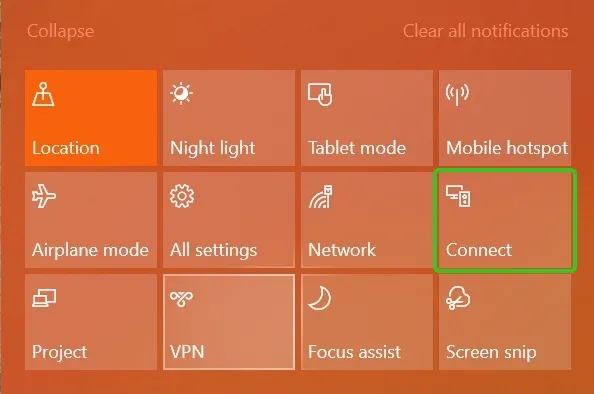
Step 1. Enable Wi-Fi on both devices, then press the Windows key and S on your keyboard simultaneously to open the search box.
Step 2. Type Connect in the search box to see if your Windows PC supports Miracast.
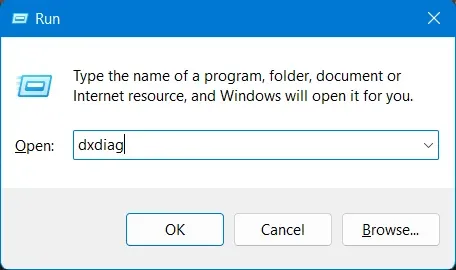
Alternatively, you can attempt to check the Miracast feature from the Run program on your Windows computer:
Step 1. Press the Windows + R shortcut key to open the Run program and continue typing dxdiag to open it on your Windows 10.
Step 2. In the DirectX Diagnostic Tool window, click on Save All Information and save the text file. Open the saved file and search for Miracast in the document. If it says Available, your PC supports Miracast.
Note: If the test says "Miracast: Not Available", it means your computer's hardware (motherboard or Wi-Fi card) lacks native Miracast support. In this case, standard Windows settings won't work. To fix this without buying new hardware, the most reliable way is to use a software solution like PigeonCast. It enables screen mirroring via standard Wi-Fi, bypassing the strict Miracast hardware requirements. [Jump to PigeonCast Setup]
Stage 2. How to Set Up Miracast for Windows 10
Once you've confirmed your device's compatibility, let's move on to setting up and conducting the Miracast download Windows 10. The provided guidelines are as follows:
Step 1. Miracast is typically built into most Windows devices. If it's unavailable or fails to open, you can download the Miracast driver for Windows 10 (or Windows 11) from the official support page.
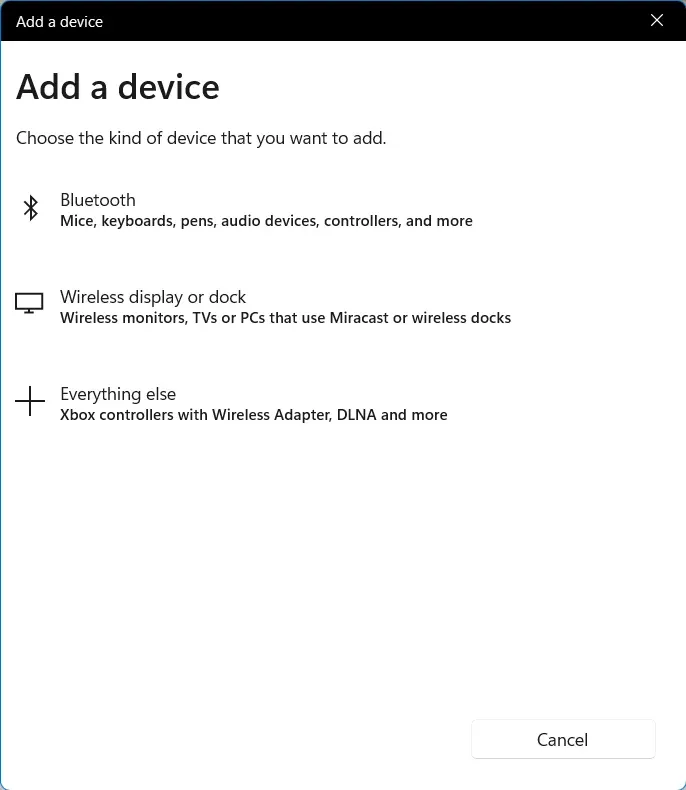
- To cast your Windows 10 PC to a wireless display:
- Navigate to Settings > Devices > Bluetooth & other devices > Add Bluetooth or other devices to set up the display.
- Select the Wireless display or dock option to detect your device and pair it to the start screen mirror.
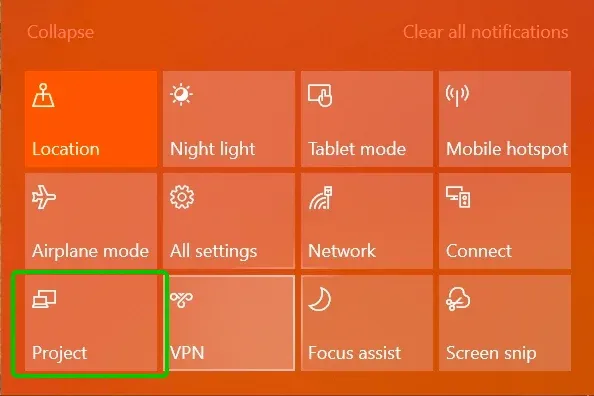
- To cast other compatible devices to Windows Miracast:
- Access the Notification > Project > Connect to a wireless display > Projecting to this PC option.
- Then, open your mobile device and tap the corresponding Cast selection to connect to your computer and start casting activities.
What Can I do If PC Doesn't Support Miracast - 4 Fixes
If you're experiencing issues with Miracast on your Windows device, don't worry, there are a few solutions to help you set up the wireless display. Let's explore these solutions for Windows 11 Miracast (Windows 10 included).
Best: Use a Universal Window Screen Mirroring App
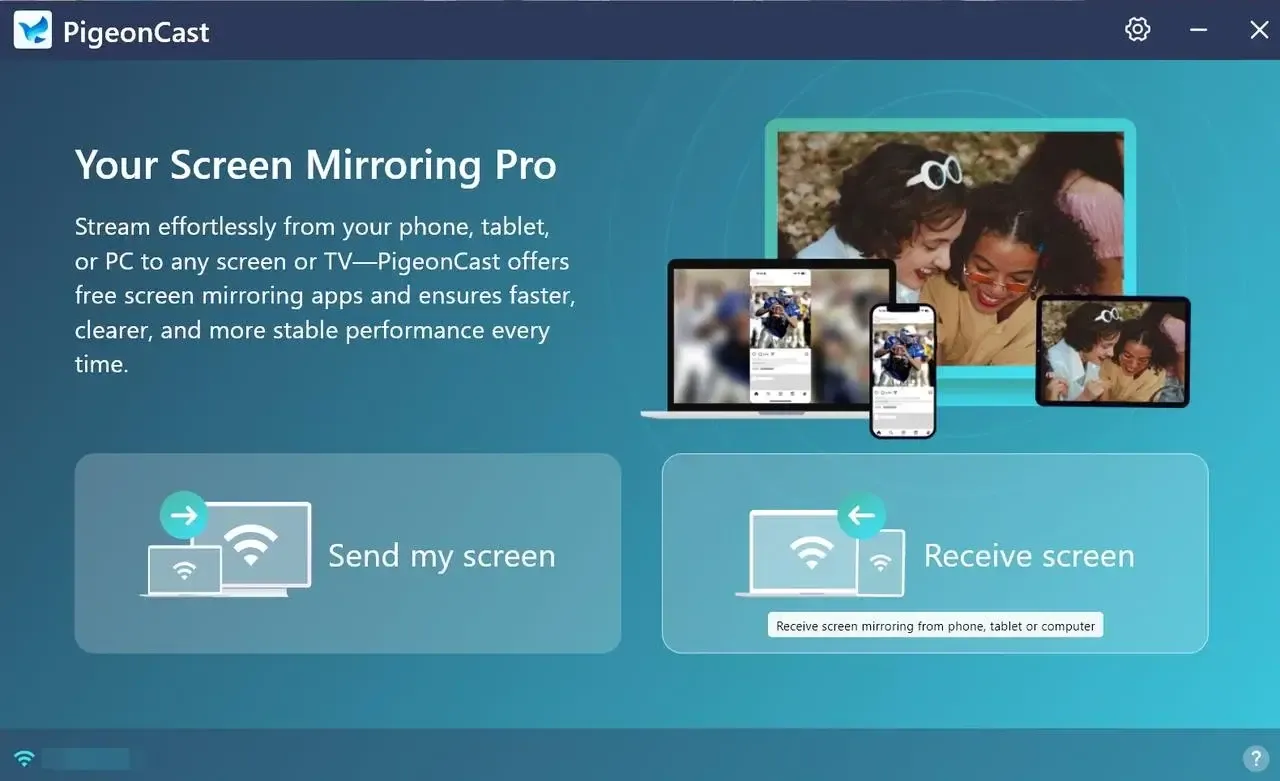
Luckily, there's a strong Windows Screen Mirroring app from PigeonCast, which can help you mirror or even as a receive from your phone both iPhone and Android, tablet, or PC to Windows with a perfect visual and audio experience.

PigeonCast Screen Mirroring

Official Download


Step 1. Install the app on your Windows, then ensure both your devices are connected to the same wireless network.
Step 2. Launch the app on your Windows, allow its permissions, and click Send my screen or Receiver screen option to choose the other device from the available device.

Step 3. If promoted, scan or input digital codes shown on the PC screen into your device to connect.
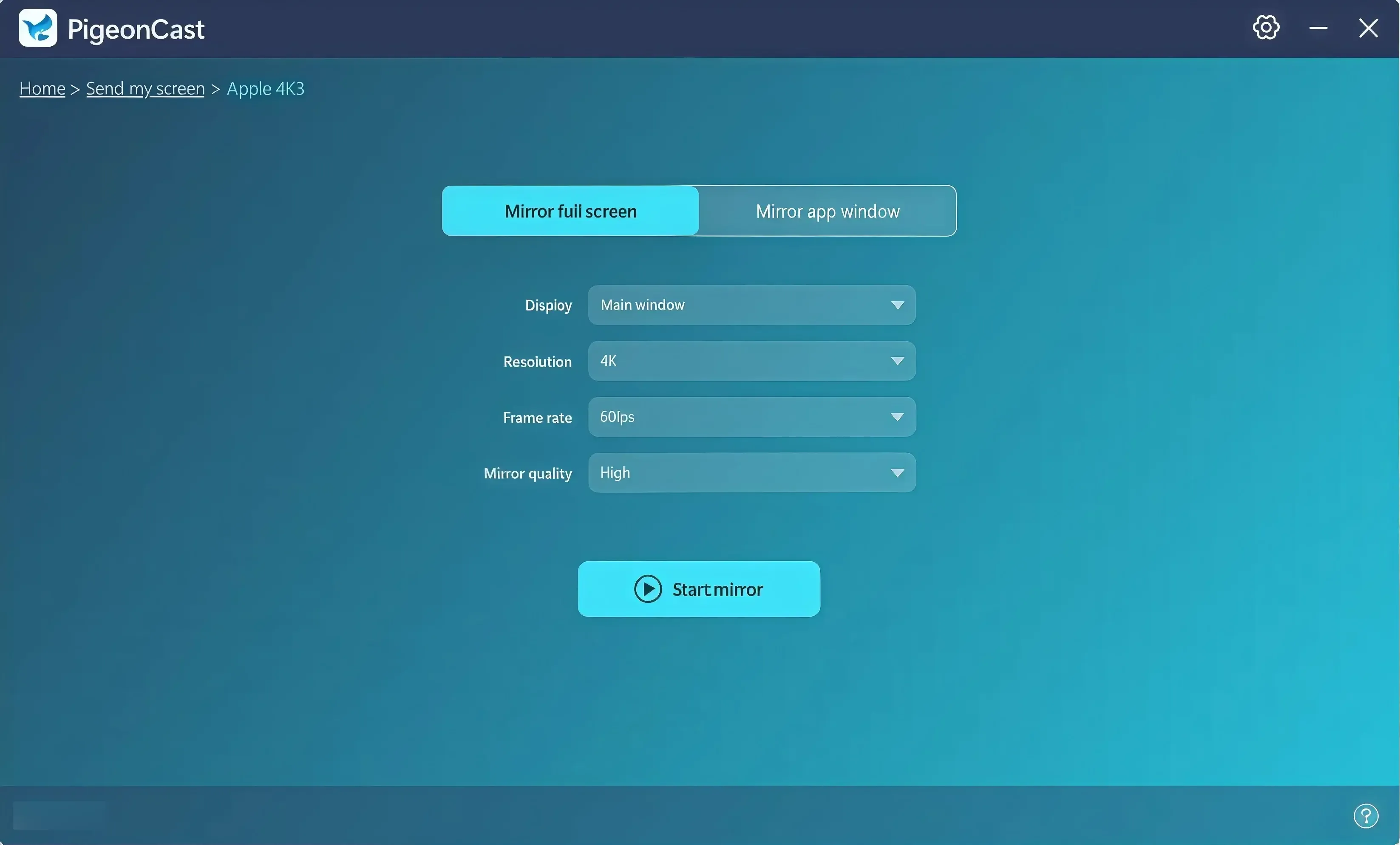
Step 4. When you finish the pairing process and finish the personalization settings, tap the Start mirror button on your mobile device to start the mirroring on the PC conputer.
Solution 1. Check the Wireless Network
Firstly, resolve Miracast connectivity issues on your Windows 10 device by checking the wireless network. Ensure that both devices are connected to the same Wi-Fi network for proper communication. You can also strengthen the network signal for your devices.
Solution 2. Change the Firewall Settings
Firewall settings are often the main cause of Miracast connectivity issues. To resolve this, you may need to adjust or temporarily disable the firewall on your Windows 10 or 11 device.
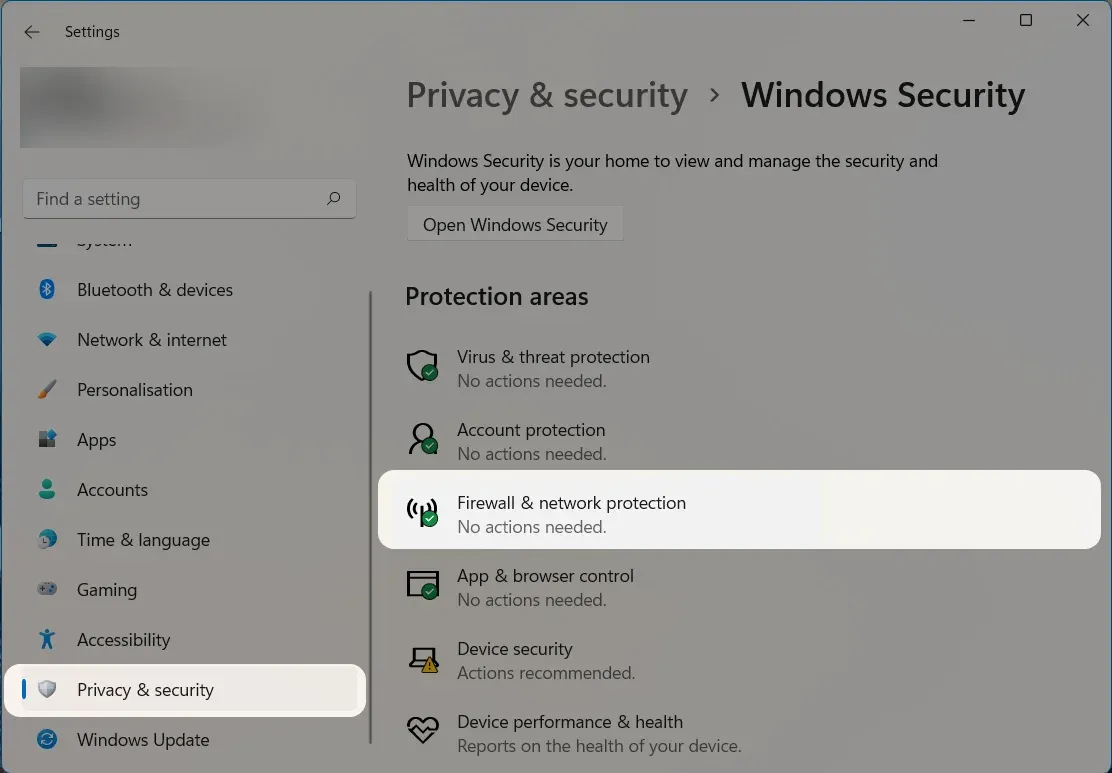
Step 1. Press Windows + I simultaneously to open Settings > Privacy & Security > Windows Security > Firewall & network protection option.
Step 2. For the particular network, select and proceed to turn off the Microsoft Defender Firewall.
Solution 3. Update Your PC's Drivers
If this error still appears, the drivers of your display or wireless card could be to blame. You can solve this problem by updating the drivers. The process is to implement:
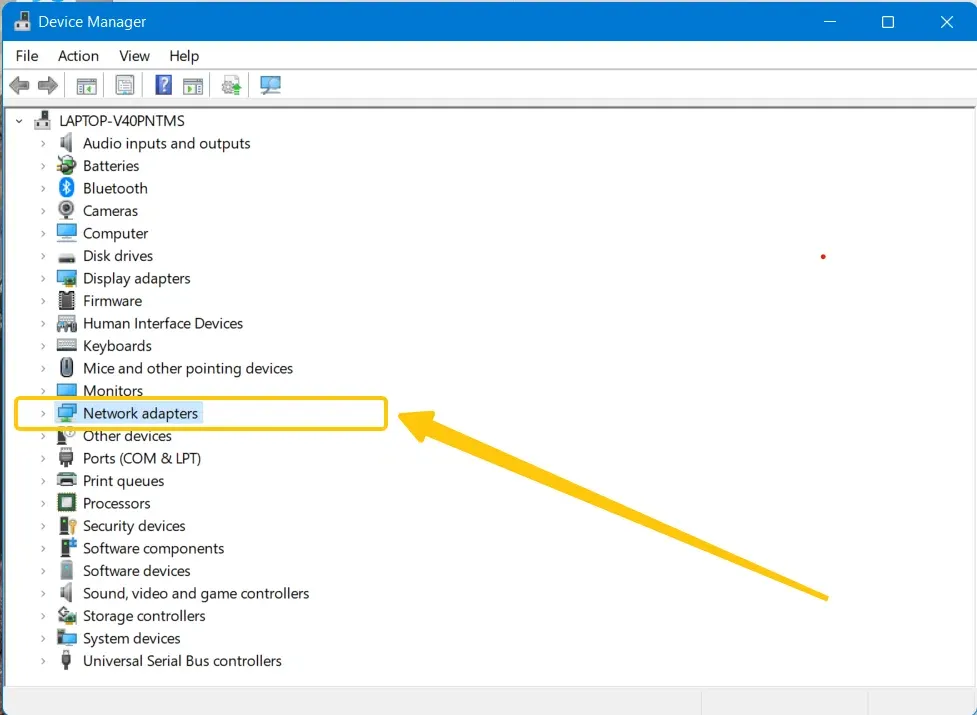
Step 1. Select the Search bar from the taskbar and continue searching for Device Manager > Network Adapters.
Step 2. Select the driver you want to update, right-click on it, and choose Update driver. Follow the on-screen instructions to complete the update process.
Quick Link: If your PC's manufacturer update isn't working, you can download the latest drivers directly from the official sources:
Solution 4. Disable Your VPN Software
Sometimes, VPN software can interfere with the Wi-Fi connection and prevent it from working properly. If you're using a VPN on your PC, make sure to disable it before setting up Miracast.
To Sum Up
What's Miracast and how do you enable it on your Windows PC? After reading this guide, you'll have all the answers. If you've never used a screen mirroring app before, now's a great time to download one and give it a try. If you find this post helpful, feel free to share it with others who may be facing the same issue.
Miracast Windows 10 FAQ
Can I use Miracast with a desktop PC without Wi-Fi?
Yes, you can use Miracast with a desktop PC without internet access, but your PC still needs wireless display support. Miracast works through Wi-Fi Direct, which creates a direct wireless connection between devices. That means:
- No internet connection is required
- A Wi-Fi adapter is still required on the desktop PC
- The Wi-Fi adapter and graphics hardware must support Miracast
How to Miracast on Windows 10?
Enable Wi-Fi on both devices, then press the Windows key and S on your keyboard simultaneously to open the search box. Type Connect in the search box to see if your Windows PC supports Miracast.
Why is Miracast not supported Windows 10?
Miracast may not be supported on some Windows 10 or 11 devices due to several factors, including hardware, outdated firmware, incompatible drivers, system settings, or IT policies.
How to fix Miracast Windows 10 not working?
To fix Miracast not working on Windows 10, start by checking if your device supports it: press Windows + R, type dxdiag, and check the saved report for "Miracast: Available". If it is supported but still not working, please try:
- Update your graphics and Wi-Fi drivers
- Ensure both devices are on the same Wi-Fi network
- Enable Projecting to this PC under Settings > System > Projecting to this PC.
- Turn on Network Discovery in Control Panel > Network and Sharing Center. Restart both devices and try connecting again.
How do I know if my PC is Miracast enabled?
- To check if your PC supports Miracast, press Windows + R, type dxdiag, and hit Enter.
- In the DirectX Diagnostic Tool, click Save All Information and save the file.
- Open the saved file and look for the "Miracast" section. If it says "Available", your PC supports Miracast. If it says "Not Available", your PC doesn't support it.
Does Windows 10 have screen mirroring?
Yes, Windows 10 does have screen mirroring through a feature called Connect. This allows you to wirelessly mirror your PC's screen to a compatible TV, projector, or another Windows device. To use it, make sure your devices are on the same Wi-Fi network, and then open the Connect app on your PC or use the Project option in the Action Center.
What are the disadvantages of Miracast?
While Miracast is convenient for wireless screen mirroring, it has a few downsides:
- Compatibility issues with certain older devices or drivers, leading to connection problems.
- Connection quality varies depending on your Wi-Fi network, sometimes resulting in lag or lower resolution.
- Miracast doesn't support advanced features like touch control on some devices, and it can drain your device's battery more quickly compared to wired connections.
Clara Rossi is an experienced technology editor and a seasoned expert in screen mirroring and casting technologies. With a keen eye for detail and a deep understanding of how to seamlessly connect devices, Clara excels at optimizing user experiences for effortless sharing and streaming. Whether you're seeking quick fixes or advanced tips, her expertise and responsiveness ensure that every query is met with a well-informed and efficient solution.