
Screen mirroring PC to TV Windows 7 in 2026 can feel like a challenge since the system lacks the native "Cast" features found in modern operating systems. This guide explains how to overcome Windows 7 compatibility limitations using a reliable HDMI connection, DLNA streaming, Chrome casting, and other wireless workarounds depending on your hardware and TV support.
Does Windows 7 Support Screen Mirroring
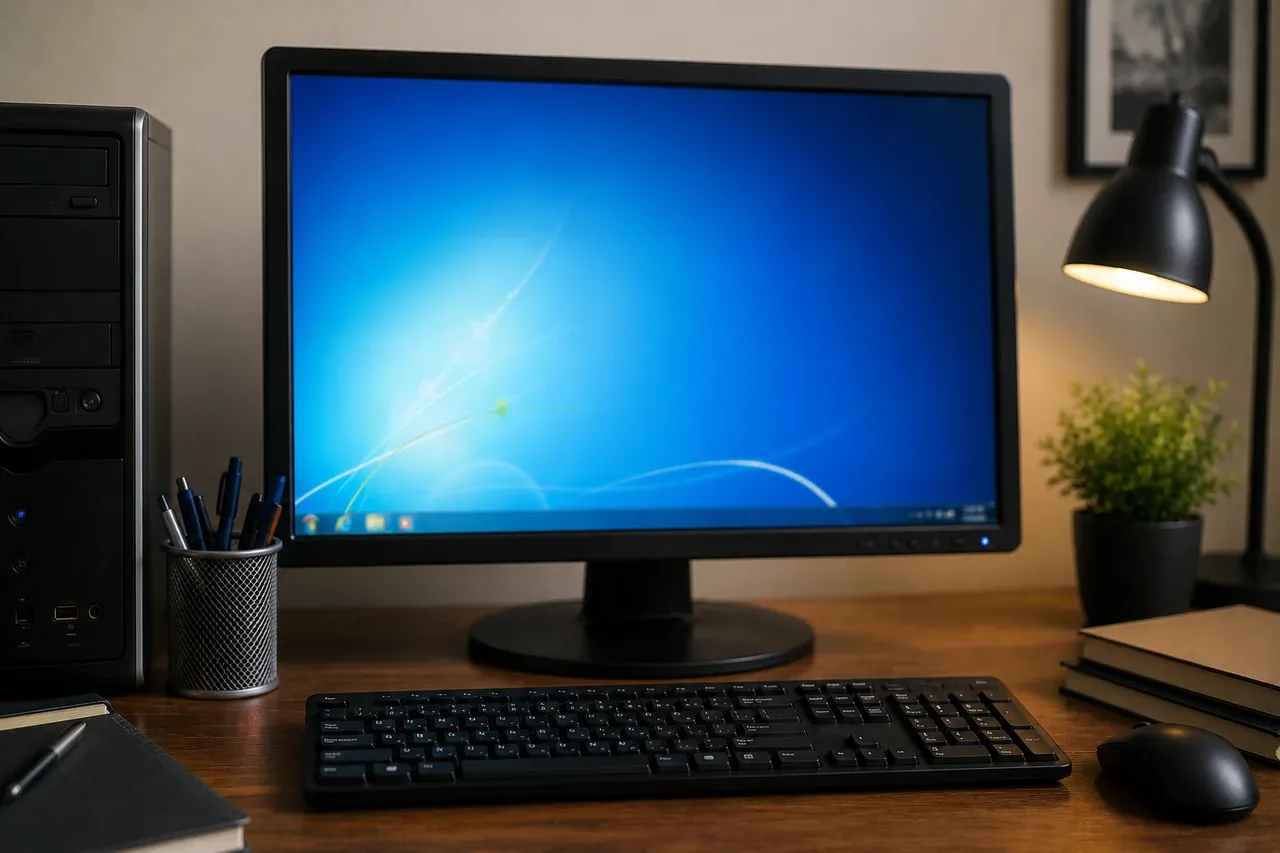
Yes, Windows 7 does support screen mirroring, but the experience is much more limited compared with Windows 10 or Windows 11. The system does not include built-in Cast features or native Miracast support. In practice, Windows 7 users usually rely on one of these methods:
-
HDMI connection: The most stable and universally compatible solution.
-
DLNA media streaming: Suitable for sharing photos, music, and videos, but not full real-time screen mirroring.
-
Third-party wireless casting tools: Some apps may help bridge compatibility gaps between Windows 7 and modern smart TVs, although support can vary depending on device hardware and drivers.
How to Screen Mirroring PC to Smart TV Windows 7
Windows 7 does not support modern wireless casting features like Miracast, and older technologies such as Intel WiDi have already been discontinued. Depending on your TV model and hardware compatibility, there are still several practical ways to connect your Windows 7 PC to a smart TV.
Option 1. Cast Chrome Browser to TV
If your smart TV or streaming device supports Chromecast, Google TV, or Google Cast, you can cast tabs or desktop directly from Chrome to TV on Windows 7.
Step 1. Install the latest available version of Google Chrome on your Windows 7 PC.
Step 2. Make sure your PC and TV are connected to the same Wi-Fi network.
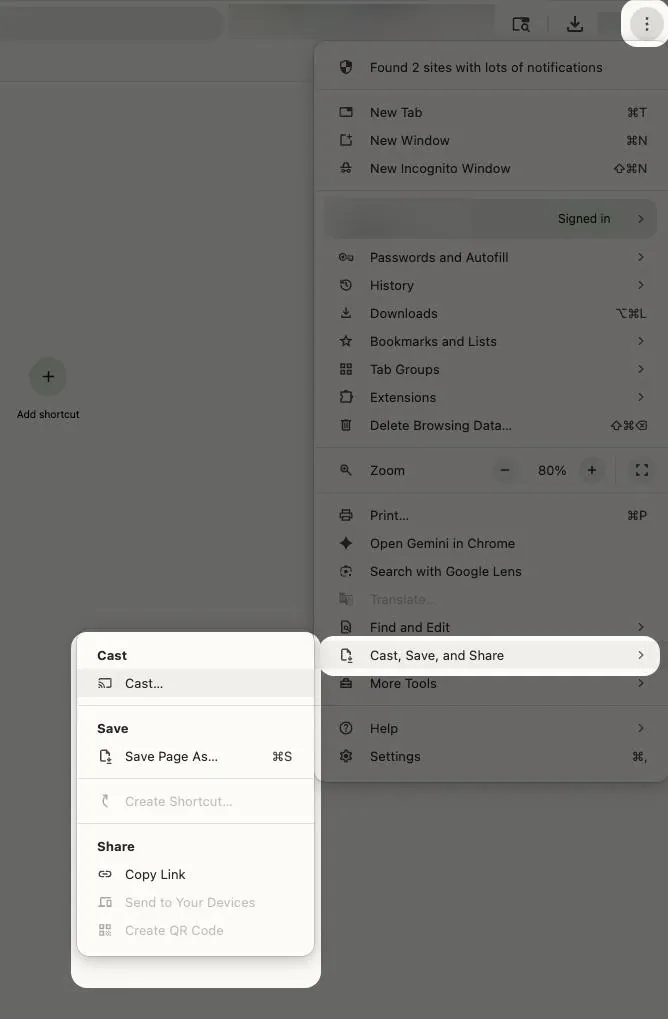
Step 3. Open Chrome and click the three-dot menu in the upper-right corner to select Cast, Save, and Share > Cast.
Step 4. Choose your TV or Chromecast-enabled device from the list.
Step 5. Select whether you want to cast a browser tab or your entire desktop to start screen mirroring PC to TV Windows 7 wireless.
Option 2. Use HDMI
Using an HDMI cable remains the most stable and universally compatible method for screen mirroring PC to TV Windows 7. It provides a direct connection with low latency and works well for gaming, presentations, and video playback. Here are the steps on how to screen mirroring PC to TV Windows 7 with HDMI:
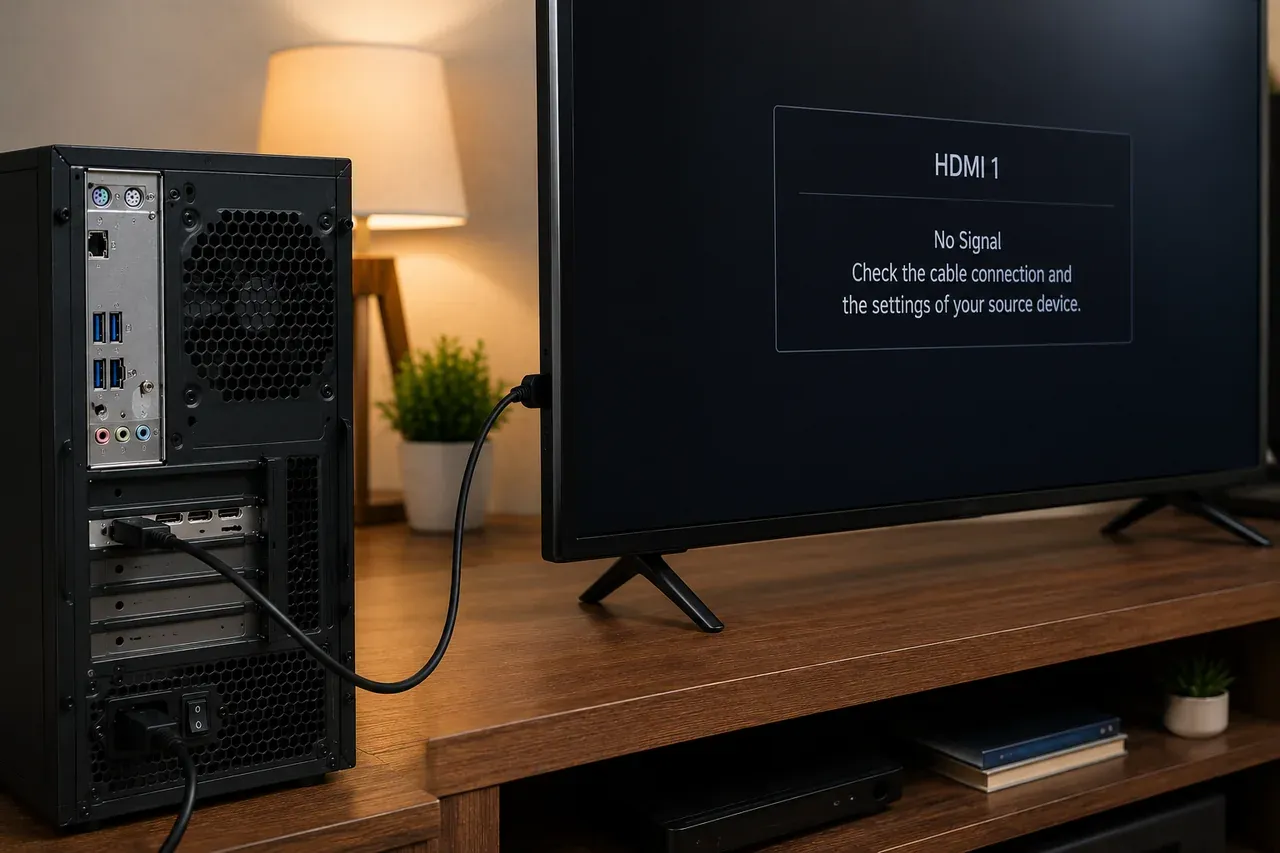
Step 1. Most Windows 7 laptops use a Standard HDMI (Type A) port, but some ultra-portables from that era may require a Mini-HDMI or Micro-HDMI adapter. Ensure you have a standard High-Speed HDMI cable to handle both 1080p video and digital audio through a single connection.
Step 2. Plug the cable into your PC and an available HDMI slot on your TV while both devices are powered on.
Step 3. Note the label next to the TV port (e.g., HDMI 1 or HDMI 2), and use your TV remote to switch the Input or Source to the corresponding HDMI port.
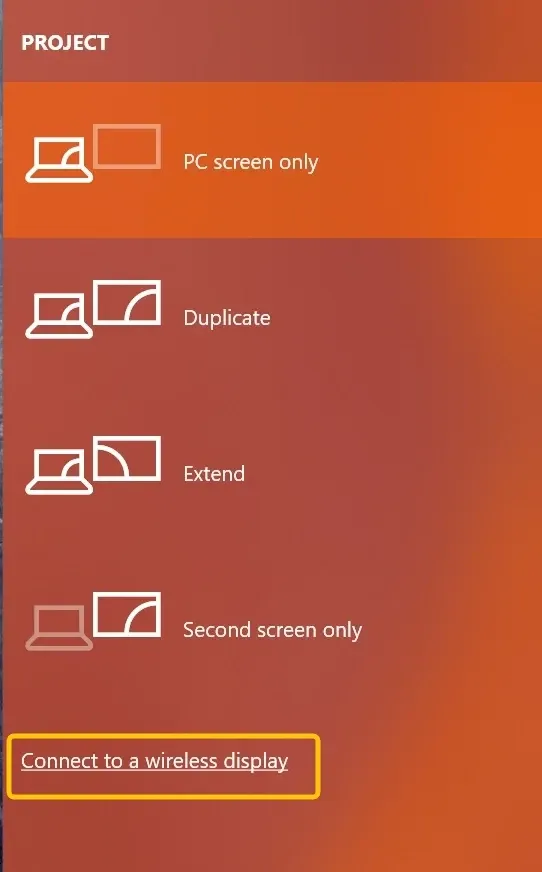
Step 4. Hold the Windows Key and tap P on your keyboard, and select Duplicate to show your PC screen on the TV.
Option 3. Upgrade Windows for Better Wireless Casting
If you frequently use wireless screen mirroring, upgrading to Windows 10 or Windows 11 can significantly improve compatibility and ease of use. Newer Windows versions support native wireless casting features such as Miracast and built-in Windows projection shortcuts like Windows + K.
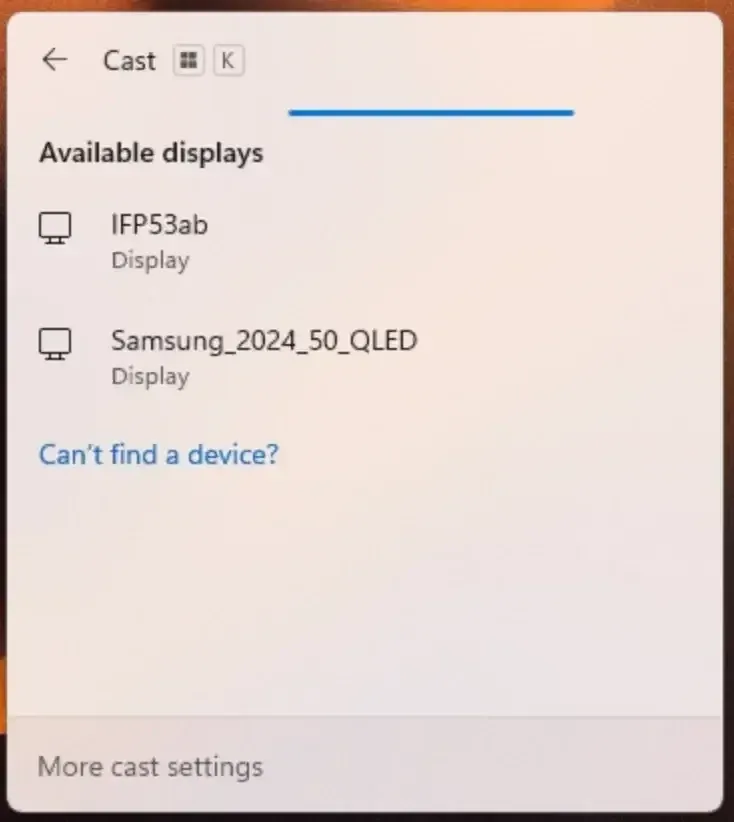
Step 1. After updating, ensure your Windows and the receiver device are covered by the same wireless network.
Step 2. Press Windows Key + K to launch the Cast menu and choose your device from the list.
Step 3. If prompted, follow the onscreen requisition to finish the connection.
Some users also use wireless casting tools such as PigeonCast on newer Windows systems to access additional casting protocols like Google Cast, AirPlay, and DLNA.
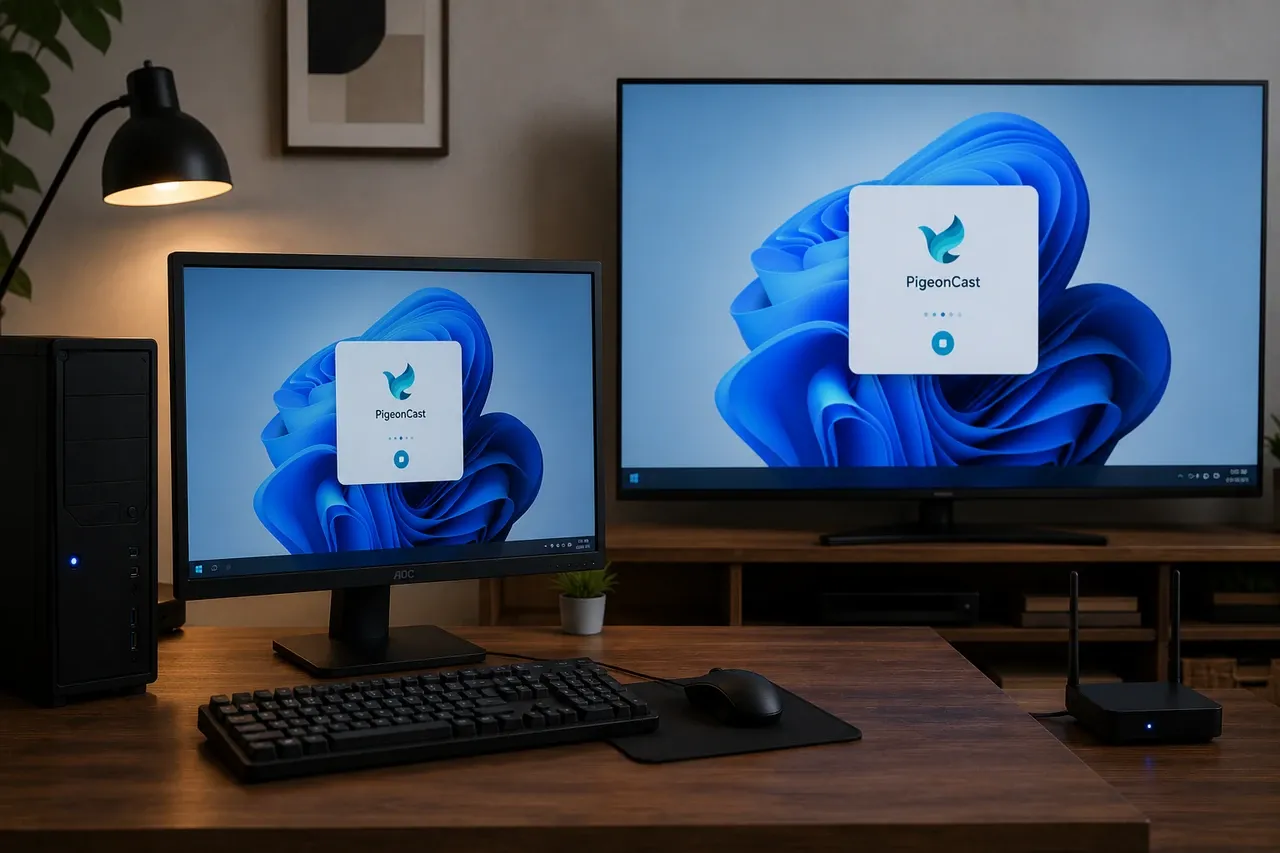
This free mirroring app for Windows is a premier cross-platform solution that integrates multiple protocols including AirPlay, DLNA, and Google Cast. This ensures maximum flexibility when connecting a Windows PC to various TV brands. It supports HD quality streaming (up to 4K) with minimal latency, making it suitable for everything from business presentations to home entertainment.


Overall Rating:



Step 1. Ensure both your Windows PC and TV are on the same Wi-Fi network.
Step 2. Download PigeonCast on your Windows PC from Microsoft Store and TV from the app shop if available.
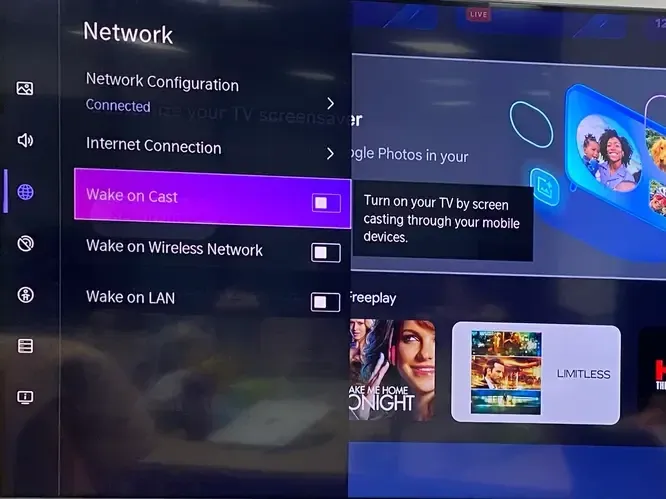
Step 3. Use your TV remote to navigate to the Source or Input menu and select Screen Mirroring. On many Smart TVs, you may need to go into Network Settings to toggle on "Wireless Display" or "Cast" to make the device visible.
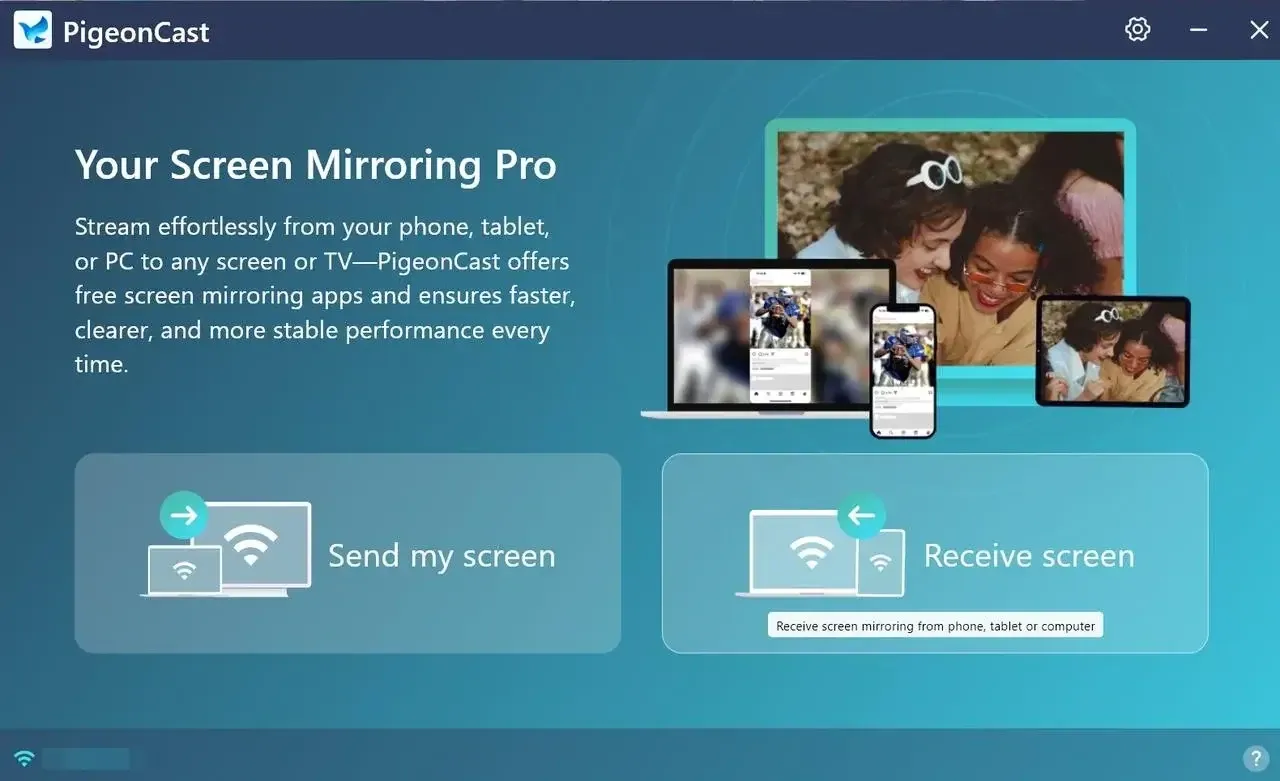
Step 4. Launch the PigeonCast app, tap Send my screen to choose your TV from the available list.
Step 5. Enter the onscreen PIN code to confirm the pairing process.
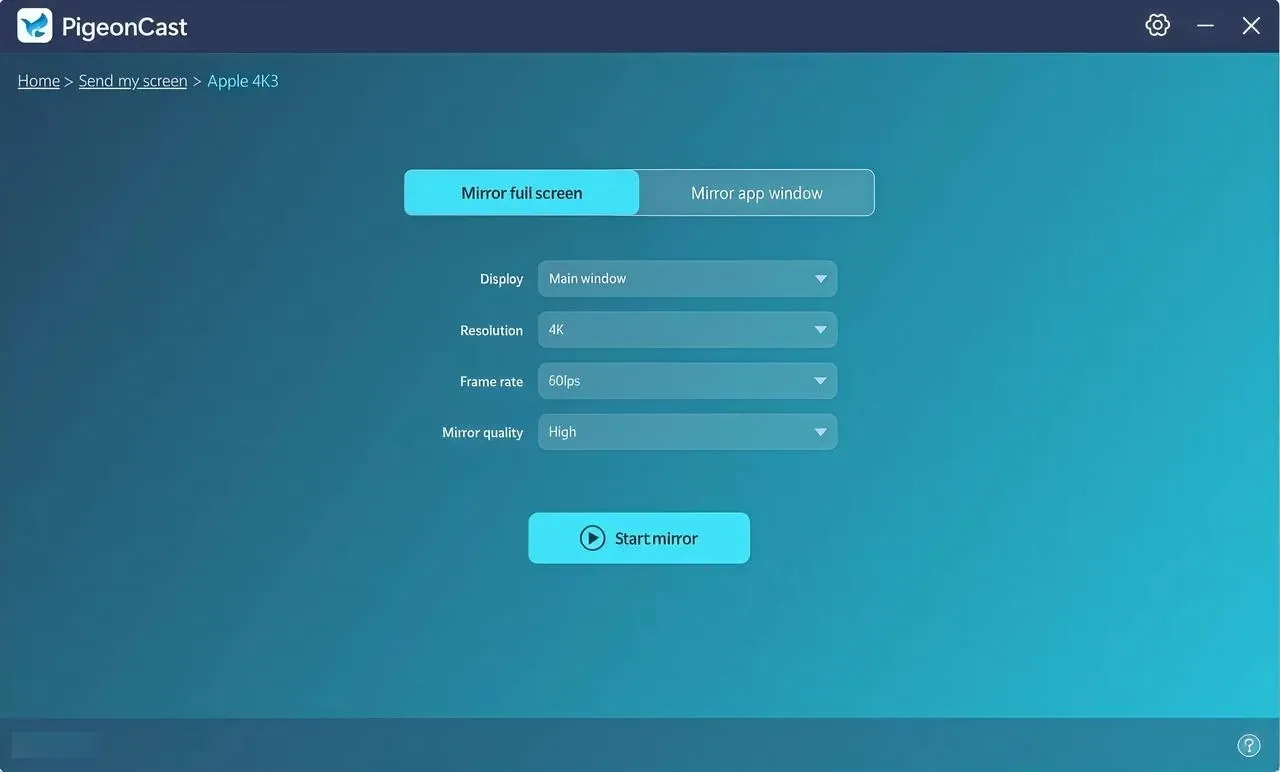
Step 6. When you finish the connection, you can then click Start mirror to begin mirroring activities from the computer to your smart television. You can even choose to cast a singe window app or the full screen.
Wrapping Up
Choosing the right method for Windows 7 mirror to TV depends mainly on your device compatibility and usage needs. HDMI is the best choice for stability and low latency, while Chrome casting offers a simple wireless option for supported TVs and streaming devices. If your current setup struggles with wireless casting, moving to a newer Windows version can make connecting to smart TVs much easier.
Screen Mirroring PC to TV Windows 7 FAQ
How to achieve screen mirroring PC to Samsung Smart TV Windows 7?
You can connect a Windows 7 PC to a Samsung Smart TV using Chrome casting, an HDMI cable, or compatible wireless casting tools depending on your TV model and available features. For the most stable connection and best compatibility, HDMI is usually the recommended option on Windows 7.
Is it possible to screen mirror PC to TV Windows 7 WiFi?
Yes, but wireless screen mirroring on Windows 7 is more limited than on newer operating systems because the system does not support native Miracast or built-in Cast features. Most users rely on Chrome casting, DLNA media streaming, or compatible wireless casting tools depending on their TV support and network setup.
How can I handle screen mirroring PC to LG Smart TV Windows 7?
If your LG Smart TV supports Chromecast or Google Cast, you can try wireless casting directly from Google Chrome on Windows 7. Connect both devices to the same Wi-Fi network, open Chrome, select Cast from the browser menu, and choose your LG TV from the device list. For a more stable connection, you can also connect your Windows 7 PC to the LG TV using an HDMI cable.
Why won't PC connect to TV with HDMI?
-
Loose or improperly connected HDMI cable
-
Faulty or damaged HDMI cable
-
Incorrect HDMI input selected on the TV
-
Defective HDMI port on the PC or TV
-
Graphics driver issues or incompatibility
-
Unsupported screen resolution or refresh rate
-
PC not detecting the external display
-
Hardware issues with the graphics card
-
Power or handshake (HDCP) communication failure between devices
Can I use a Windows 7 laptop as a second monitor?
Not natively. Windows 7 does not include built-in wireless display features for using a laptop as a second monitor, and most laptop HDMI ports only support video output rather than video input. If you need a dual-screen setup, using an external monitor or upgrading to a newer version of Windows will provide more flexible display options.
Does Windows 7 support Miracast for wireless display?
No, Windows 7 does not support Miracast because the operating system was released before Microsoft introduced native wireless display technology in Windows 8.1 and later versions.
-
Native Miracast software support
-
Required wireless display drivers (WDDM 1.3+)
-
Built-in wireless projection features
Clara Rossi is an experienced technology editor and a seasoned expert in screen mirroring and casting technologies. With a keen eye for detail and a deep understanding of how to seamlessly connect devices, Clara excels at optimizing user experiences for effortless sharing and streaming. Whether you're seeking quick fixes or advanced tips, her expertise and responsiveness ensure that every query is met with a well-informed and efficient solution.