
If you've ever wondered how your TV can play a video stored on your computer or how your phone can beam music to your speakers without a single cable, the answer might be DLNA. In today's world of smart devices and seamless connectivity, many people are curious about "what is DLNA" and whether it still matters. The truth is, even with modern alternatives like AirPlay and Chromecast, DLNA technology remains one of the simplest and most universal ways to stream media across devices. In this article, we'll dive into this technology.
What Is DLNA
DLNA stands for Digital Living Network Alliance, a standard first introduced in 2003. The idea behind DLNA was simple: to make digital devices "speak the same language" so that users could easily share media, including photos, music, and videos, across different devices in a home network.

In everyday terms, when people ask "what is DLNA?", the answer is this: it's a protocol that allows one device to store or host media (like your laptop or a media server) and another device to play it (like your smart TV or phone). For example, instead of copying a movie to a USB stick, you can stream it directly from your PC to your TV DLNA function.
Even in 2025, DLNA remains relevant for people who want a straightforward, reliable way to connect their devices without depending on cloud services or brand-specific solutions.
How Does DLNA Work
DLNA works by connecting devices over your home Wi-Fi or Ethernet network. It organizes devices into two main roles:
- DLNA Server – The source that shares content, such as a Windows PC, NAS drive, or a Plex server.
- DLNA Client (or Renderer) – The receiver that plays the content, such as a smart TV, speaker, or DLNA app on your phone.
This setup is what people often refer to as DLNA streaming. For instance, with TV DLNA, your television can automatically detect and play media stored on your computer. Unlike screen mirroring protocols, DLNA is designed for smooth file-based playback, which makes it stable and efficient for large video or music libraries.
Why Use DLNA Streaming Today
Some people might argue that DLNA feels "old school" compared to casting technologies like Google Cast or Apple AirPlay. But DLNA continues to shine in key areas: it's reliable, efficient for personal media libraries, and works across both older and newer devices without restrictions.
For anyone who values a simple, consistent solution, DLNA remains a highly practical choice:
- Universal compatibility
From TVs to smartphones to PCs, DLNA bridges devices effortlessly. DLNA Android often has built-in support, DLNA Windows users can turn it on through Windows Media Player, and even DLNA iPhone users can join with the help of apps. This cross-platform reach makes it ideal for households with mixed devices.
- Offline-friendly
DLNA is perfect for streaming your locally stored movies, music, and photos without relying on cloud accounts or internet speed—everything stays on your own network.
- Cable-free
DLNA streaming uses your Wi-Fi network, removing the hassle of HDMI or USB cables while keeping playback smooth and wireless.
- Consistency across devices
Unlike brand-specific protocols, DLNA is device-agnostic. It works with both older and newer hardware, making it ideal for anyone who wants a stable, long-term solution.
How to Use DLNA in Practice
So, how to use DLNA at home? The process is straightforward, even if you've never set it up before:
Step 1. Enable DLNA on your device. Many smart TVs come with TV DLNA settings pre-installed.
Step 2. Install a DLNA app, like VLC Media Player on a Windows PC.
Step 3. Connect to Wi-Fi. Ensure all devices are on the same network.
Step 4. Start DLNA streaming. Select the media you want to play, and your TV or speaker will recognize it instantly.
Within minutes, you'll be streaming videos, music, or photos without cables, cloud accounts, or complicated configurations.
DLNA Apps You Should Know
If you want to take full advantage of DLNA streaming, dedicated DLNA apps can make the process easier and more flexible. These apps act as bridges between your devices, helping you set up TV DLNA connections, organize your media library, and stream without hassle. Here are some of the most reliable options:
#1. VLC Media Player
VLC is more than just a free media player; it's also a powerful DLNA client. On DLNA Windows PCs, VLC can scan your home network, detect DLNA servers, and stream content directly. On Android and iPhone, the VLC app does the same, making it an excellent all-around solution for video, music, and even subtitles. Its open-source nature also ensures continuous updates and cross-platform support.
#2. BubbleUPnP (Android)
For Android users, BubbleUPnP is the best DLNA app for Android. It lets you browse and stream media from DLNA servers (like your PC or NAS) and cast to renderers such as smart TVs or Chromecast. It also supports advanced features like transcoding, playlist management, and integration with cloud services, perfect for users who want both DLNA and more modern streaming options.
#3. Kodi
Known as a customizable home theater system, Kodi can act as both a DLNA server and a DLNA client. That means you can use it to host your media library on a PC or NAS, and then stream it to any DLNA-enabled TV. It's highly flexible, with thousands of add-ons available, making it ideal for power users who want full control over their setup.
#4. Plex
Plex isn't a pure DLNA app, but it still supports DLNA compatibility while offering a modern, cloud-powered experience. With Plex, you can organize your entire media library with rich metadata (posters, descriptions, episode tracking) and stream it not only via DLNA TV but also through its own dedicated apps. This makes it a great choice for users who want DLNA's universal reach alongside a polished interface.
Each of these apps brings something unique: VLC for simplicity, BubbleUPnP for Android power users, Kodi for customization, and Plex for modern media organization. Together, they show that DLNA is still alive and well—just with more user-friendly options than ever before.
DLNA Alternatives: Cross-Platform Streaming
While DLNA apps above are excellent for anyone who wants to stick with traditional DLNA streaming, it's worth noting that DLNA is not the only option today. Some modern tools go beyond DLNA, offering cross-platform mirroring and support for multiple casting protocols. If you're looking for more flexibility, these DLNA alternatives are worth considering:
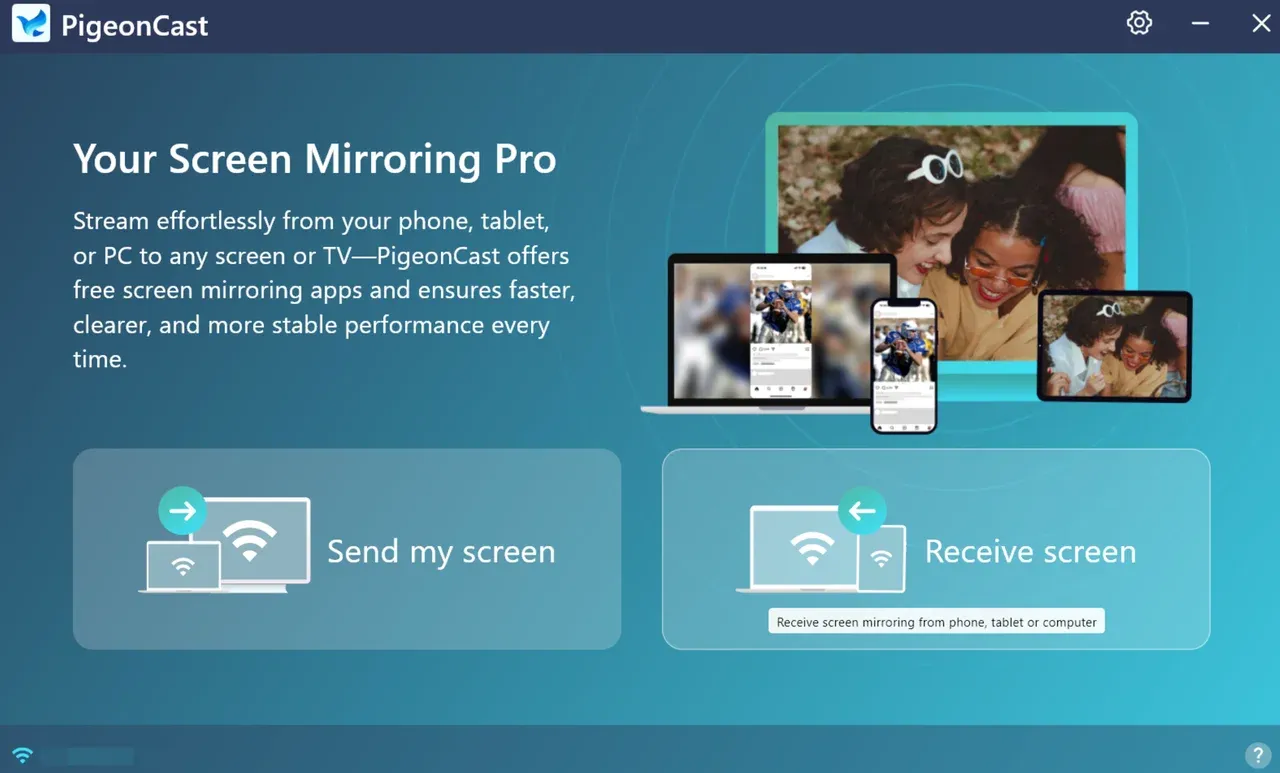
#1. PigeonCast (Recommended)

PigeonCast isn't just a DLNA app but also a cross-platform streaming solution. It supports DLNA on TVs, but its real strength lies in its own advanced mirroring protocol. This allows users to cast from Android, iPhone, Windows, or Mac to a wide range of TVs and devices, even if those devices don't natively support DLNA.
PigeonCast also supports AirPlay and Google Cast. In other words, PigeonCast combines the reliability of DLNA with the freedom of modern wireless casting. The app is completely free to download and easy to use. Simply install it on your devices and follow the on-screen steps to connect your phone to PC, Windows to Mac, or PC to TV.
#2. AirScreen
AirScreen is designed to be a multi-protocol receiver, supporting DLNA, AirPlay, Miracast, and Google Cast all in one app. This makes it especially useful in mixed-device households where some users are on iPhones, others on Android, and TVs come from different brands. It's a flexible alternative for anyone who doesn't want to be tied to a single protocol.
#3. ApowerMirror
ApowerMirror focuses on real-time screen mirroring, supporting both DLNA and other protocols. It works on Windows, Android, iOS, and Mac, making it useful not only for home entertainment but also for classrooms or work presentations. Its combination of DLNA playback and interactive screen mirroring makes it a versatile tool.
By exploring these alternatives, you can enjoy the reliability of DLNA streaming while also unlocking cross-platform flexibility. Whether you want a universal receiver like AirScreen or an advanced solution like PigeonCast, there's an option to match every streaming need.
Conclusion: DLNA Still Matters
So, what is DLNA streaming in today's digital world? It's not just an old standard; it's a reliable and practical way to stream your media across devices without worrying about brand compatibility or internet speed. From TV DLNA features to dedicated DLNA apps, it continues to serve millions of users who want a stable, cable-free, offline-friendly solution.
At the same time, the streaming landscape has evolved. Tools like PigeonCast show that you can enjoy DLNA streaming while also gaining cross-platform mirroring, multi-device support, and modern casting features. Other alternatives, such as AirScreen, JustStream, ApowerMirror, and AllCast, provide additional flexibility for users who want more than traditional DLNA offers.
In short, DLNA remains a cornerstone of home media sharing, and with the right apps or alternatives, you can combine its reliability with modern flexibility, ensuring a seamless streaming experience across all your devices.
What Is DLNA FAQs
Q: Is DLNA the same as Bluetooth?
No, DLNA and Bluetooth are different technologies. DLNA is designed for streaming media over a local network (Wi-Fi or Ethernet), allowing devices to share videos, music, and photos. Bluetooth, on the other hand, is mainly for short-range wireless communication, often used for audio streaming or file transfer. DLNA is better for high-quality media streaming across multiple devices.
Q: Should I disable DLNA?
You generally don't need to disable DLNA unless you have security concerns or don't use it. DLNA can expose your devices on the network, so if you're on a public Wi-Fi or want to limit network access, disabling it adds an extra layer of security. For home use on a trusted network, it's safe to keep DLNA enabled.
Q: Does DLNA work with iPhone?
Yes, iPhones can use DLNA, but not natively. You need a DLNA app such as VLC or Plex to stream content from your iPhone to a DLNA-enabled TV or server. These apps act as bridges to make iOS devices compatible with the DLNA protocol.
Q: What devices support DLNA?
Many modern and older devices support DLNA, including:
- Smart TVs (Samsung, LG, Sony, Panasonic)
- Windows and macOS computers
- Android and iOS devices (with a DLNA app)
- Media players like Kodi or Plex
- Network-attached storage (NAS) devices
Q: How to use DLNA in mobile?
- Install a DLNA app (e.g., VLC, BubbleUPnP).
- Connect your phone and target device (TV, PC, or media server) to the same Wi-Fi network.
- Open the app, select your media, and choose the target device to start streaming.
Q: Is DLNA better than AirPlay?
It depends on your needs. DLNA is universal, works across many brands, and supports offline media streaming. AirPlay is Apple-specific, seamless within the Apple ecosystem, and optimized for screen mirroring. If you want cross-platform flexibility, DLNA may be better; if you mainly use Apple devices, AirPlay is more convenient.
Q: Does Roku support DLNA?
Roku does not natively support DLNA. However, you can use third-party apps like Plex or VLC to stream content from a DLNA server to a Roku device.
Q: How do I know if my TV has DLNA?
Check your TV's specifications or user manual for terms like "DLNA," "Media Server," or "Network Sharing." Many smart TVs from Samsung, LG, Sony, and Panasonic include DLNA support under the network or media settings. You can also look for apps like VLC or Plex on your TV, which usually indicate DLNA compatibility.
Mia Clarke is a technology editor specializing in screen mirroring and casting solutions across multiple platforms. Mia provides clear, practical guides and in-depth insights to help users seamlessly connect their devices. Passionate about enhancing digital experiences, Mia is dedicated to keeping readers updated on the latest trends and tools in cross-platform screen sharing. Whether you’re looking to mirror your smartphone, laptop, or smart TV, Mia’s content delivers reliable, user-friendly advice to simplify your tech setup.