
Are you looking for a Miracast alternative? Here I'd like to share my pick with you, which is free and easy to use. With the free Miracast alternative, you can mirror screen or cast media between Android, iPhone, Windows computer, MacBook, Android TV, and Apple TV, and enjoy a lag-free watching experience. Let's check my pick.
Why Do You Need a Miracast Alternative
Miracast is a wireless streaming technology developed by the Wi-Fi Alliance. Miracast technology is used to stream content from smartphones, tablets, or laptops to Miracast-supported devices, including TVs, monitors, or projectors.
Miracast relies on Wi-Fi Direct (a technology that allows devices to connect directly to each other over Wi-Fi without needing a traditional wireless router or access point) and works without a Wi-Fi connection. Besides easy setup, no router, and cross-platform features, all these contribute to Miracast being a popular choice for screen mirroring or media casting.
Certainly, nothing is perfect; Miaracast also has its disadvantages:
- Limited compatibility: Although many Android phones and Windows PCs do support Miracast, iOS devices and many older devices don't have built-in Miracast.
- Limited transmission distance: Miracast works properly when the two devices are within 10 meters, and exceeding this range may cause signal interruption.
- Unreliable streaming quality: Streaming over Miracast may experience lag and even frame drops when signals are complex.
These cons encourage us to look for an alternative to Miracast.
5 Alternatives to Miracast Technology
If you're finding that Miracast isn't quite meeting your needs, or if you're simply looking for a more reliable solution, there are several great free Miracast alternatives to consider. Each of these options comes with its own set of features and benefits, so let's take a closer look at them:
1. AirPlay: Best Miracast Alternative for Apple Users
What's the best Miracast alternative for iPhone? AirPlay is Apple's answer to wireless streaming. If you're already within the Apple ecosystem, this is the most seamless solution. It works effortlessly among Apple devices, like iPhones, iPads, Macs, and Apple TVs. Whether you're sharing photos, videos, or mirroring your device's screen, AirPlay provides a smooth and stable experience.
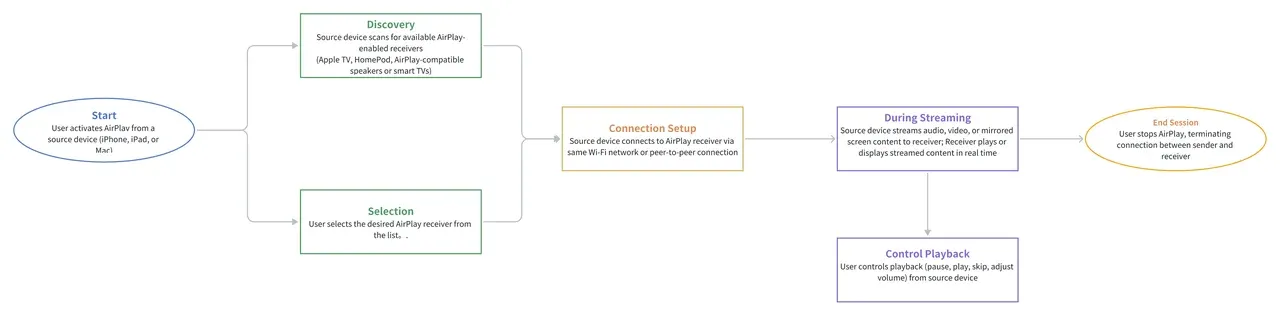
- Pros: High-quality streaming, no need for third-party devices (works directly with Apple devices)
- Cons: Limited to Apple devices, so it's not an option for Android or Windows users.
2. Google Cast: Best Miracast Alternative for Android Users
Google Cast is the go-to solution for those who want a versatile alternative to Miracast. With Google Cast, you can stream content to any Chromecast-enabled device, including smart TVs, and works flawlessly with Android phones, tablets, and even some Windows PCs. It also supports iOS and Mac devices through the Google Home app, making it a true cross-platform tool.

- Pros: Wide device compatibility, high-quality video streaming, great for apps like YouTube and Netflix.
- Cons: Requires a stable Wi-Fi network, and devices need to be connected to the same network.
3. DLNA: Best Miracast Alternative for Home Media Systems
DLNA (Digital Living Network Alliance) is designed for home networks, allowing you to stream music, videos, and photos between devices. While it's not as straightforward as AirPlay or Chromecast, DLNA works well with a wide range of devices, including TVs, Blu-ray players, and gaming consoles. If you're looking to set up a home media server, DLNA is a good option.
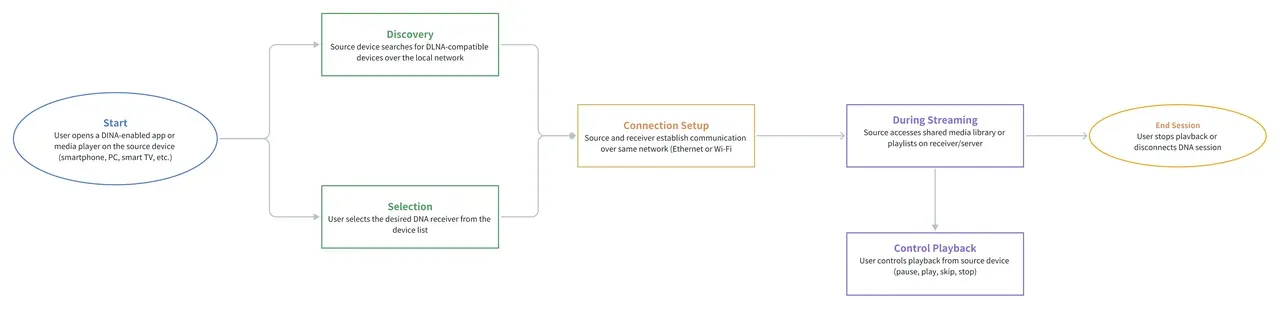
- Pros: Broad device support, ideal for media streaming across multiple devices in a home network.
- Cons: Setup can be more complex, and device compatibility might vary, especially with older models.
4. Wi-Fi Direct: Best Miracast Alternative for Router-Free Users
Wi-Fi Direct allows two devices to connect directly without the need for a traditional router or wireless access point. It's a versatile alternative that supports everything from file transfers to screen mirroring. Many Android devices support Wi-Fi Direct, and some smart TVs are compatible too.
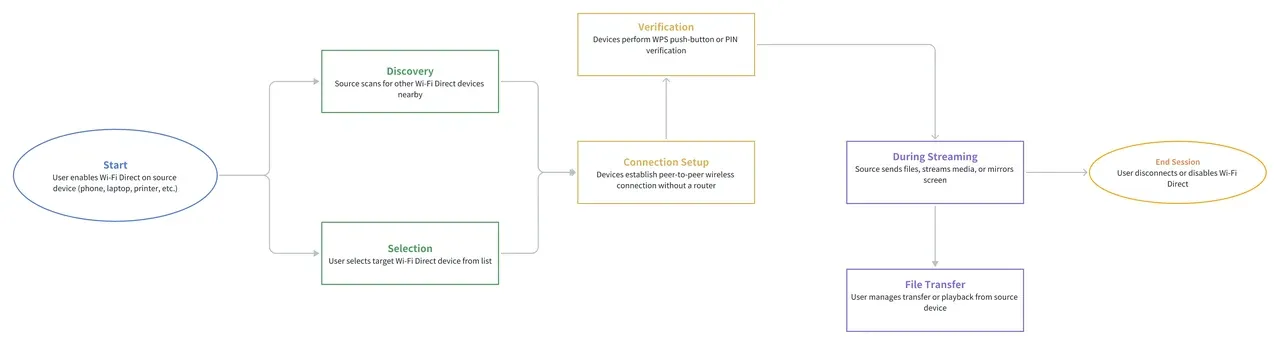
- Pros: No Wi-Fi network needed, fast peer-to-peer connection, ideal for quick setups.
- Cons: Shorter range compared to Miracast, and it might not be as stable on older devices.
5. Bluetooth: Best Miracast Alternative for Audio Streaming
While Bluetooth isn't ideal for high-definition video streaming, it's still a viable option for audio streaming. If you want to wirelessly play music or podcasts from your phone to Bluetooth-enabled speakers, this can be a solid solution. It's also widely supported across virtually all devices.
- Pros: Simple setup, great for audio, extremely widespread device compatibility.
- Cons: Limited to audio, poor performance for video streaming, shorter range.
Which Miracast Alternative Should You Choose
When deciding which Miracast alternative to go with, consider the devices you are using and the type of content you want to stream.
For Apple users, AirPlay will offer the best experience, while Google Cast is ideal for those looking for cross-platform compatibility. If you're primarily streaming media at home, DLNA and Wi-Fi Direct are worth exploring, and for audio-only streaming, Bluetooth is a solid, simple choice.
Ultimately, each of these alternatives brings something unique to the table, and you should choose based on your specific needs and device compatibility.
PigeonCast: The All-In-One Alternative to Miracast
If you're looking for an easy and reliable Miracast app alternative to stream content across multiple devices, PigeonCast apps might be what you need. It works seamlessly on Android, iPhone, Windows PCs, MacBooks, Android TVs, and Apple TVs, making cross-platform streaming simple and hassle-free.
Whether you're trying to mirror your smartphone screen to a TV, cast media from your laptop to a projector, or share content across different operating systems, PigeonCasts apps are designed to make it easy.
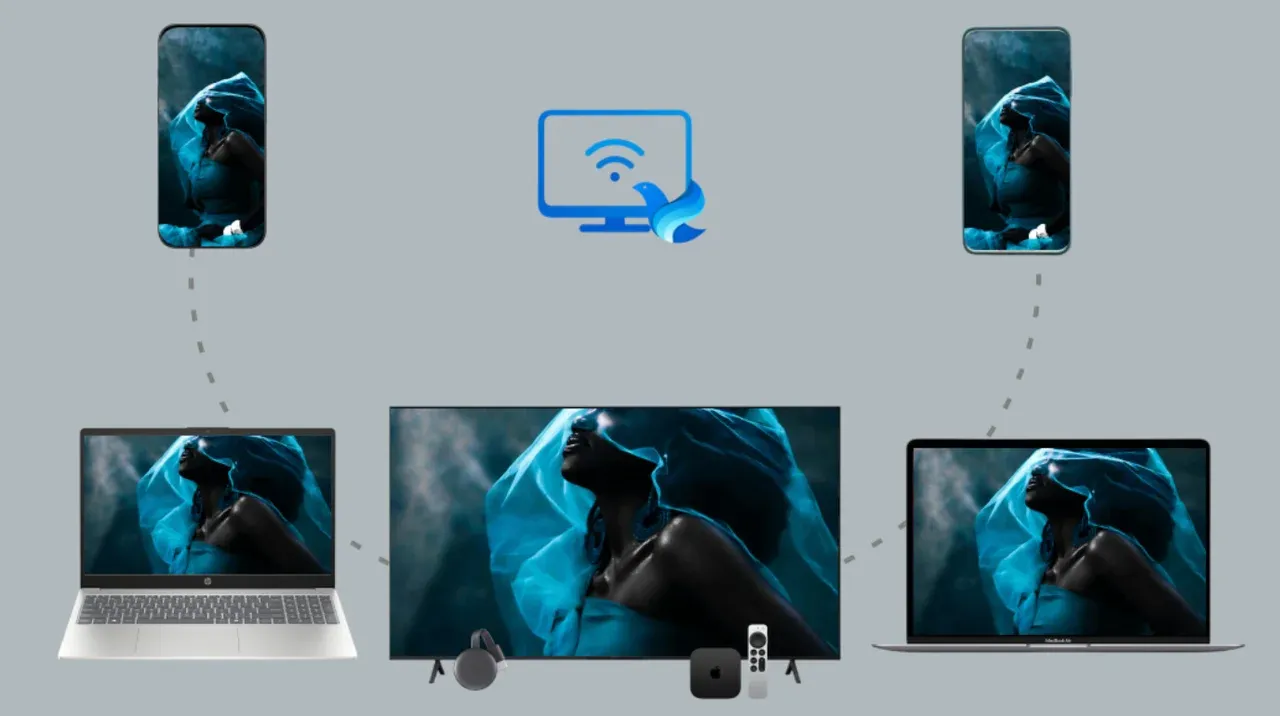
Why Choose PigeonCast
PigeonCast apps integrate many Miracast alternatives, including AirPlay, Google Cast, and DLNA, and have the following benefits:
- Cross-platform compatibility: Unlike Miracast, which has limited compatibility, PigeonCast ensures that you can easily connect devices across platforms. Whether you're using an Android phone with a Windows PC, or an iPhone with Apple TV, PigeonCast supports all these configurations, and many more.
- Easy setup: Setting up PigeonCast apps is quick and straightforward. Simply install the app on the source device, like Android, iOS, Windows, or Mac, and you're good to go. Or install the app on the app on the target device, like Windows, Mac, Android TV, or Apple TV, and you can connect your laptop to TV with ease.
- Lag-free experience: One of the main frustrations with screen mirroring is lag or poor performance, but with PigeonCast, you'll experience smooth, real-time streaming. Whether you're watching videos, giving presentations, or sharing photos, PigeonCast ensures minimal latency for a better viewing experience.
- Media casting: PigeonCast isn't just for mirroring your screen; it allows you to cast media such as videos, music, and even documents directly to your TV or projector, making it an ideal solution for both entertainment and work-related tasks.
When you compare PigeonCast to other alternatives like AirPlay or Google Cast, PigeonCast has a distinct advantage in terms of cross-platform support. While AirPlay is limited to Apple devices and Google Cast requires a specific device like Chromecast, PigeonCast works across nearly every platform, ensuring seamless casting and mirroring from your phone, tablet, or computer to your preferred display.
How about PigeonCast vs Miracst? For example:
- Compatibility: PigeonCast offers wider device support than Miracast, which is typically limited to Android and Windows devices.
- Ease of Use: Unlike Miracast, which can be tricky to set up on some older devices, PigeonCast simplifies the process and ensures smooth performance on both modern and older devices.
- Performance: With minimal lag and better connection stability, PigeonCast outperforms Miracast in many cases, especially when streaming high-quality media.
How to Use PigeonCast
If you are interested in PigeonCasta apps, you can get one of them from the official downloader center.

PigeonCast Screen Mirroring

Official Download


Step 1. Set up the app on your source device.
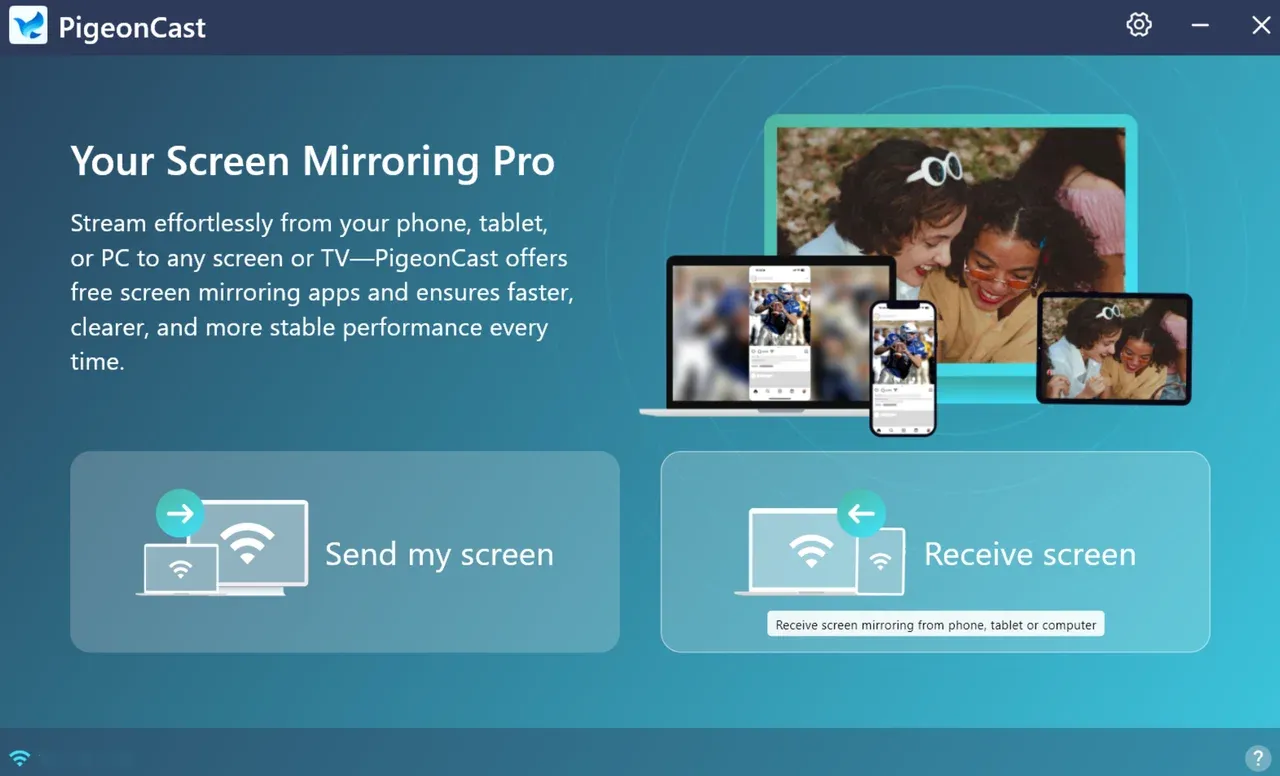
Step 2. Ensure that the source device is connected to the same network as your target device.
Step 3. Follow the app's instructions to start screen mirroring or media casting effortlessly.
The End
In the end, finding the right Miracast alternative comes down to flexibility, ease of use, and performance. Miracast had its moment, but in today's multi-device world, you need something that can keep up with every gadget you own. That's where PigeonCast shines: it bridges the gaps between platforms, delivers a smooth, lag-free experience, and makes streaming or mirroring as effortless as it should be.
Whether you're relaxing with a movie, presenting in a meeting, or sharing memories with friends, my pick, PigeonCast, helps you connect your screens without the technical headaches. It's the kind of tool you'll quickly wonder how you ever lived without.
Miracast Alternative FAQs
Q: What is the best free Miracast app?
Some popular free Miracast-compatible apps include Microsoft Wireless Display Adapter (for Windows) and Miracast: Screen Mirroring TV (for iPhone). The "best" option depends on your device type and streaming needs.
Q: Can you screen mirror without Miracast?
Yes. Alternatives like AirPlay, Google Cast, DLNA, Wi-Fi Direct, or apps like PigeonCast let you mirror your screen without Miracast, and these alternatives often come with better compatibility.
Q: Is Miracast discontinued?
Miracast is still available on many devices, especially Windows PCs and Android phones, but its popularity has dropped as newer, more flexible casting options emerged, like AirPlay, Google Cast, and DLNA.
Q: What if my device doesn't support Miracast?
You can use a third-party solution like PigeonCast, which is available on many platforms, including Android phones, iPhones, iPads, Windows PCs, MacBooks, Android TVs, and Apple TVs. The app supports Google Cast, AirPlay, and DLNA to stream content between different platforms.
Q: What is compatible with Miracast?
Most Windows 8.1 and later PCs, many Android devices running version 4.2 or newer, and some smart TVs support Miracast. Apple devices (like iPhones, iPads, and Macs) generally do not.
Q: How to fix Miracast not working?
Check if both devices support Miracast, ensure they're within range (about 10 meters), update your drivers or firmware, and restart both devices. If issues persist, try an alternative casting method.
Q: What are the disadvantages of Miracast?
Limited compatibility (especially with Apple devices), short range, and occasional lag or dropped frames when the signal isn't strong.
Q: Does Miracast use Wi-Fi or Bluetooth?
Miracast uses Wi-Fi Direct, which connects devices directly over Wi-Fi without a router. It does not use Bluetooth for video streaming.
Mia Clarke is a technology editor specializing in screen mirroring and casting solutions across multiple platforms. Mia provides clear, practical guides and in-depth insights to help users seamlessly connect their devices. Passionate about enhancing digital experiences, Mia is dedicated to keeping readers updated on the latest trends and tools in cross-platform screen sharing. Whether you’re looking to mirror your smartphone, laptop, or smart TV, Mia’s content delivers reliable, user-friendly advice to simplify your tech setup.