
How to connect phone to Mac? Using a MacBook is great for multitasking, but connecting your phone makes things even easier. You can sync messages, transfer files, and manage content directly from your Mac's screen. In today's guide, you will learn about connection methods not only for the iPhone but also an Android.
How to Connect Your Phone to Your Mac
Device connections are now commonly used in everyday settings, such as by teachers in classrooms, managers in offices, and content creators during live streams. Knowing how to connect your Mac to a phone is a practical skill. Whether you're using an iPhone or Android, this guide will walk you through how to connect Mac to phones step by step.
Your Top Pick: Use a Universal Mac Screen Mirror App
Before we dive into the details, let me introduce you to a handy screen mirroring MacBook app from PigeonCast. This app makes it easy to mirror your Android, iPhone, or iPad screen to your MacBook wirelessly. Once both devices are connected to the same network, you can seamlessly mirror content or transfer files with just a few taps.
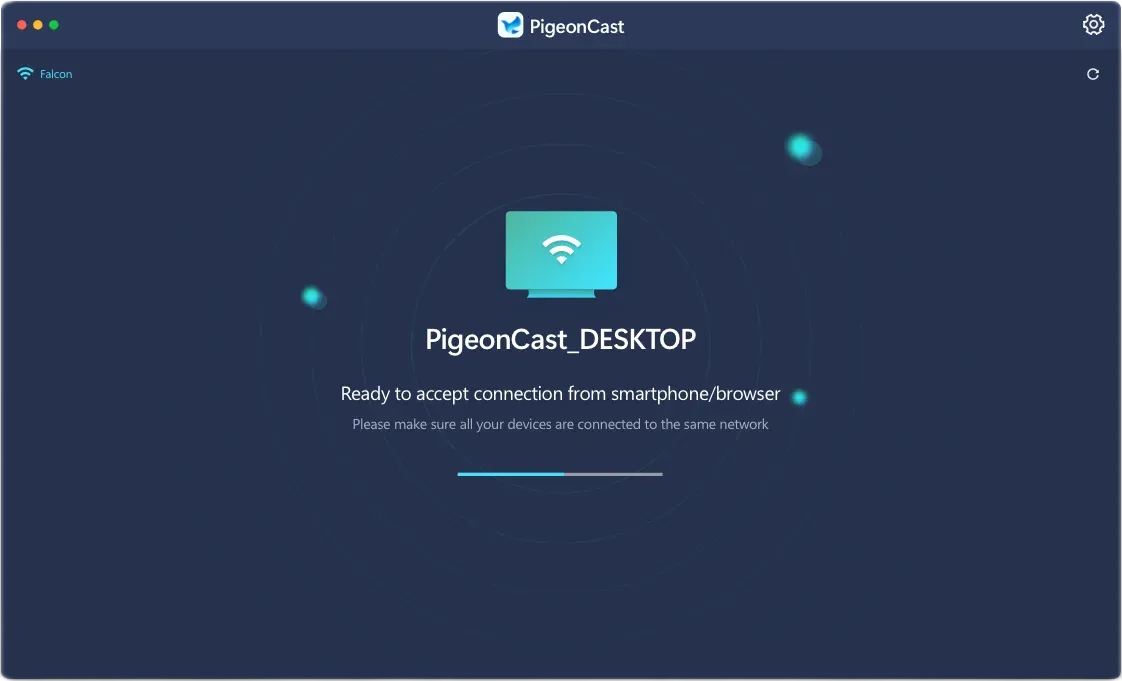

PigeonCast Screen Mirroring

Official Download



Step 1. Install the Mac screen mirror app on your Mac, launch the app on your Mac, and allow its permissions.
Step 2. Ensure your phone and Mac are connected to the same wireless network.
Step 3. Catch your phone, tap the Screen Mirroring or Cast option to choose your Mac from the device list.

Step 4. If prompted, enter the onscreen codes on your phone to finish the pairing. Once it succeeds, you can start MacBook Pro screen mirroring.
How to Connect iPhone to Mac
Let's start with the iPhone, since it's also part of the Apple ecosystem. Besides the app mentioned earlier, there are four straightforward and reliable ways to connect your iPhone to your Mac, making real-time syncing and multitasking smooth and efficient.
Way 1. Use Screen Mirroring
One of the easiest ways to connect your iPhone to your Mac is through the Screen Mirroring feature found in the Control Center. This lets you mirror iPhone screen to Mac, which is great for viewing content or presentations on a larger display.
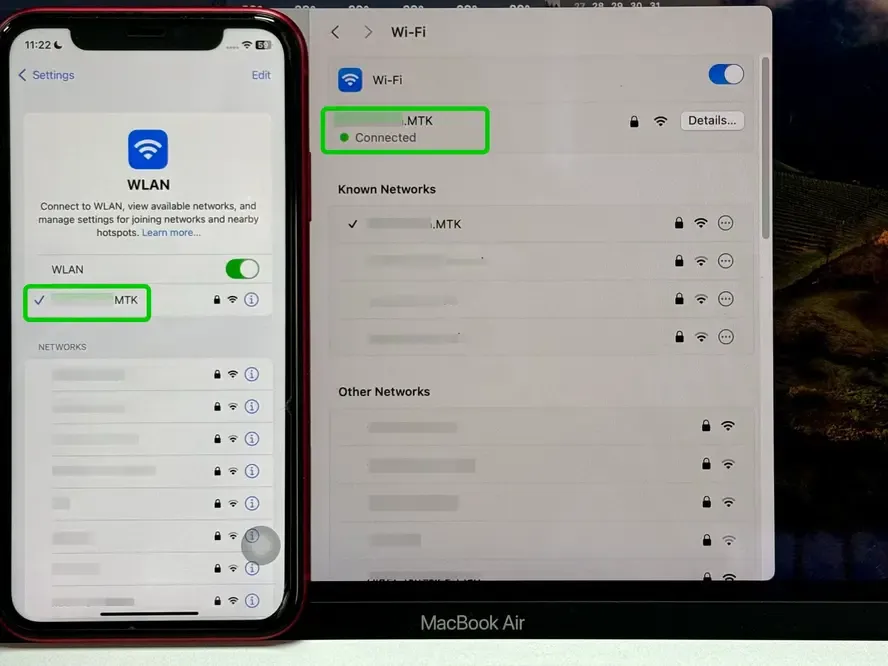
Step 1. Ensure the WiFi network connected to your iPhone and Mac is the same one.
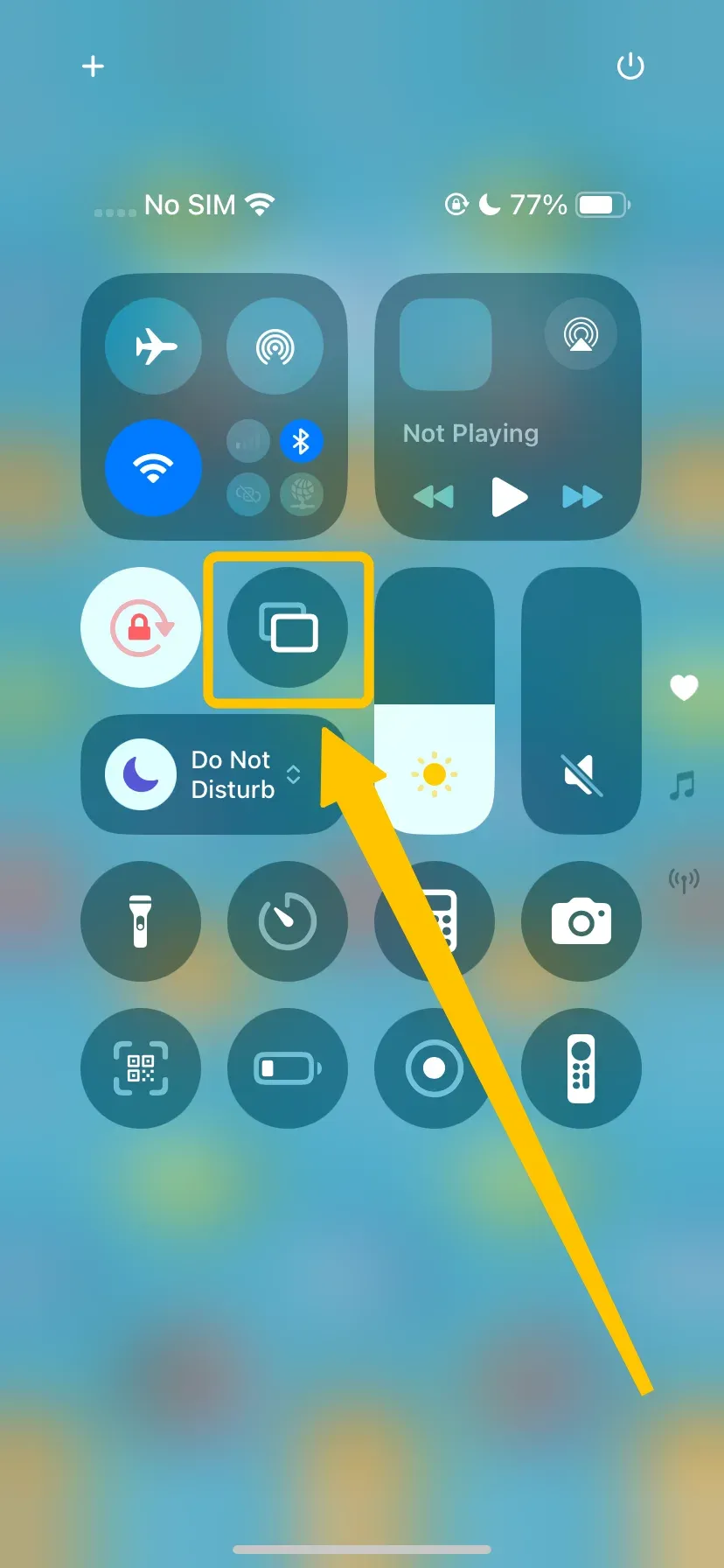
Step 2. Tap the Screen Mirroring feature in the Control Center and choose your MacBook from the device list.
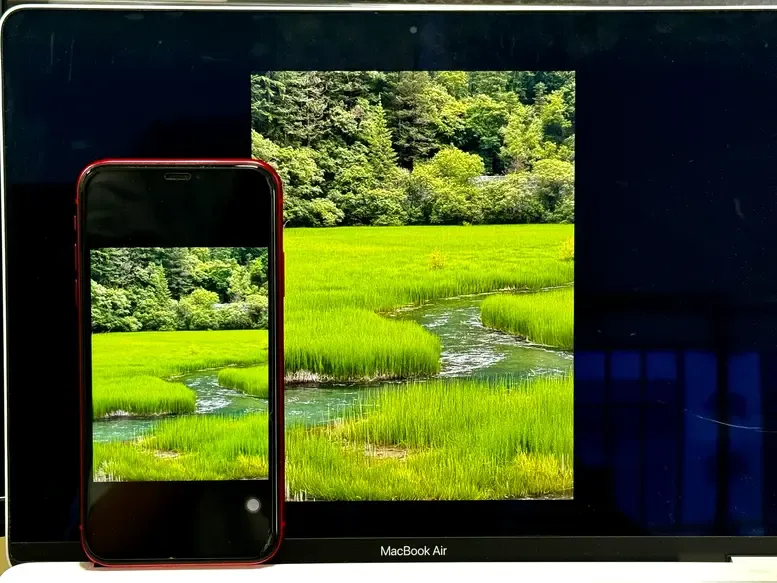
Step 3. After finishing the connection process, you can see your iPhone screen on your MacBook screen.
Way 2. Use AirDrop (Wireless File Transfer)
How do I connect my phone to my Mac? AirDrop is a convenient built-in feature on Apple devices that allows you to transfer files wirelessly between your iPhone and Mac. It's also ideal for quickly sharing photos, videos, documents, or notes, especially if you regularly move files between your iPhone and Mac.
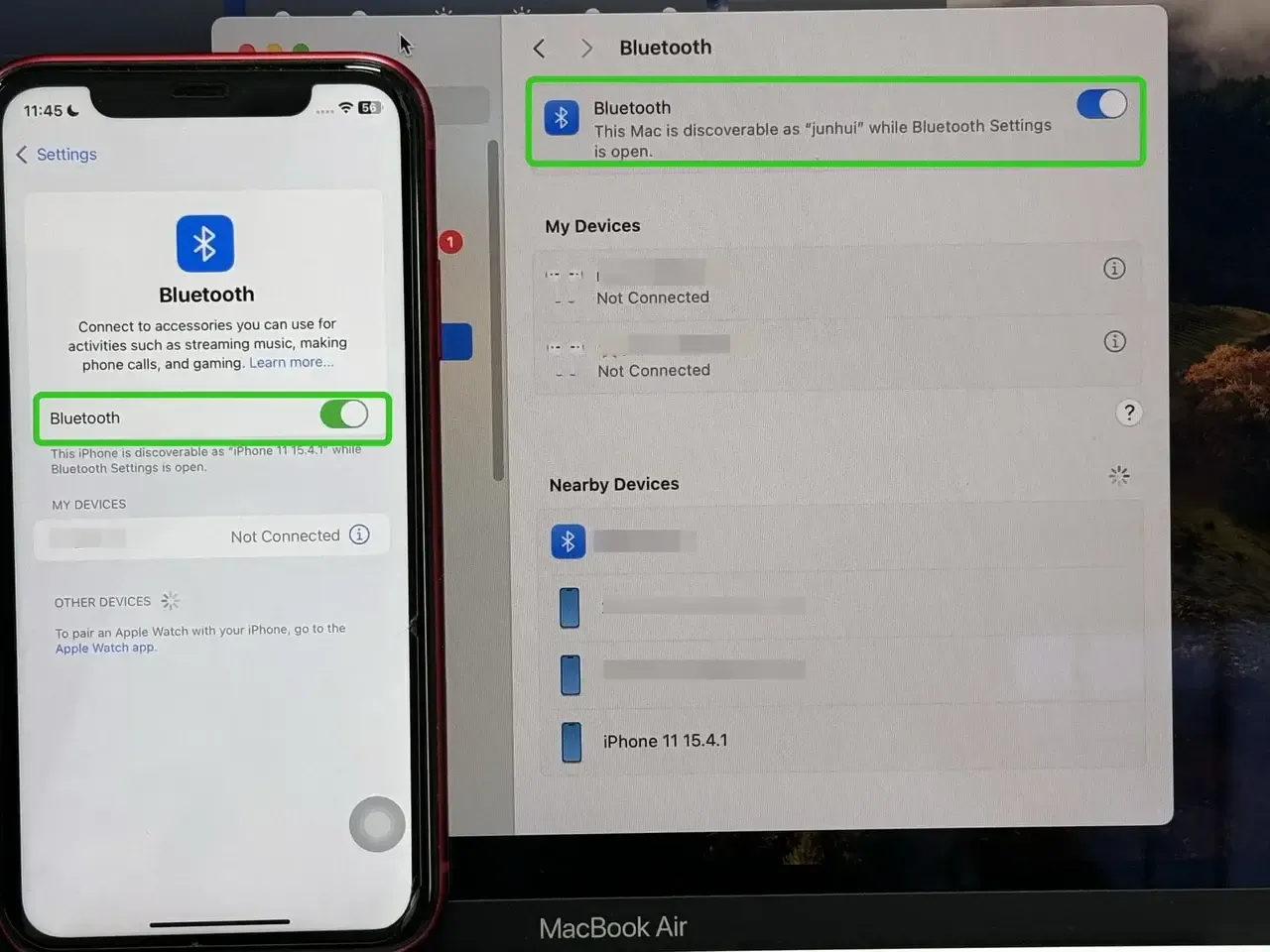
Step 1. Turn on Wi-Fi and Bluetooth on both your iPhone and Mac.
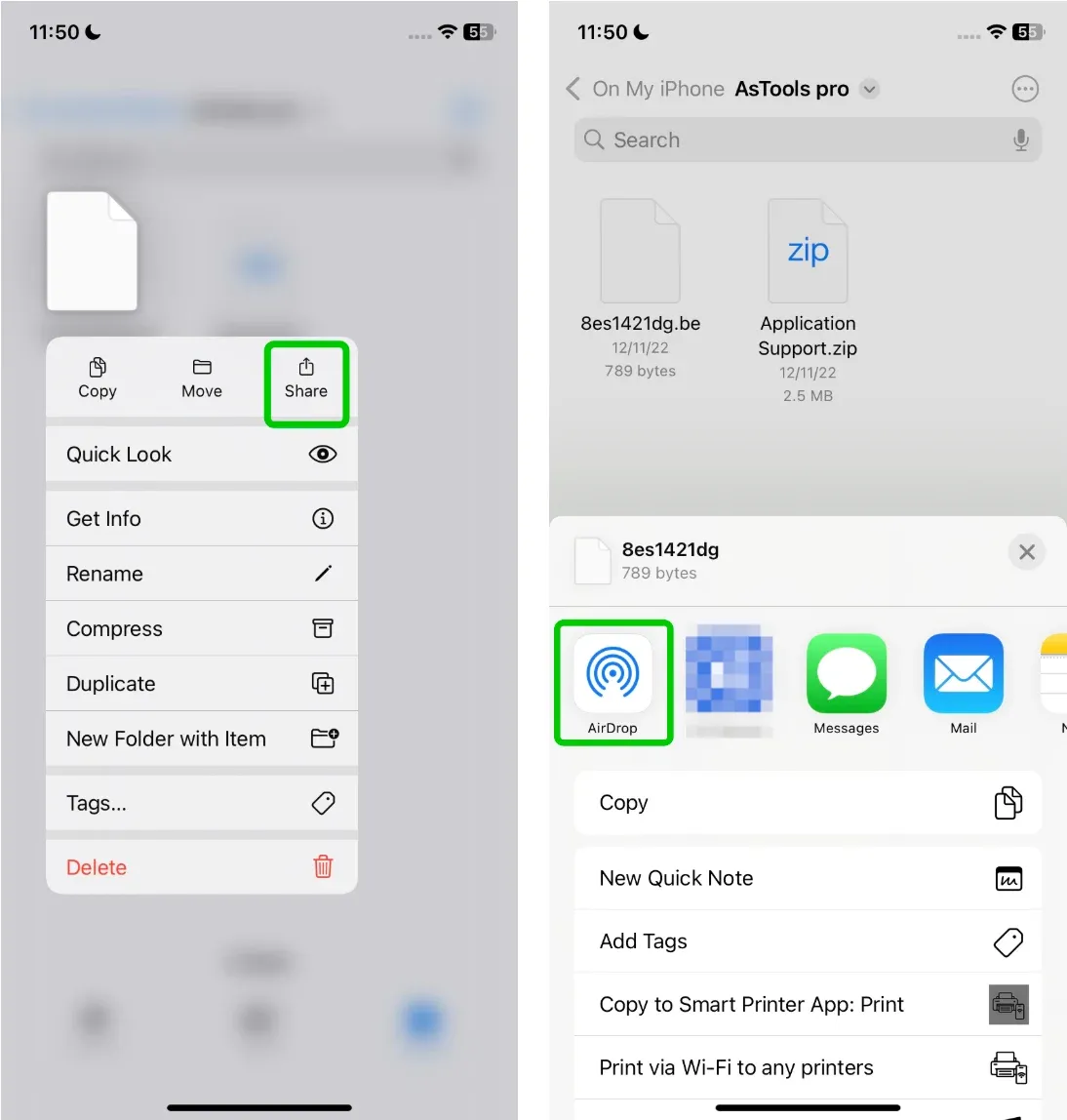
Step 2. On your iPhone, open the file you want to share, tap the Share icon, and choose AirDrop.
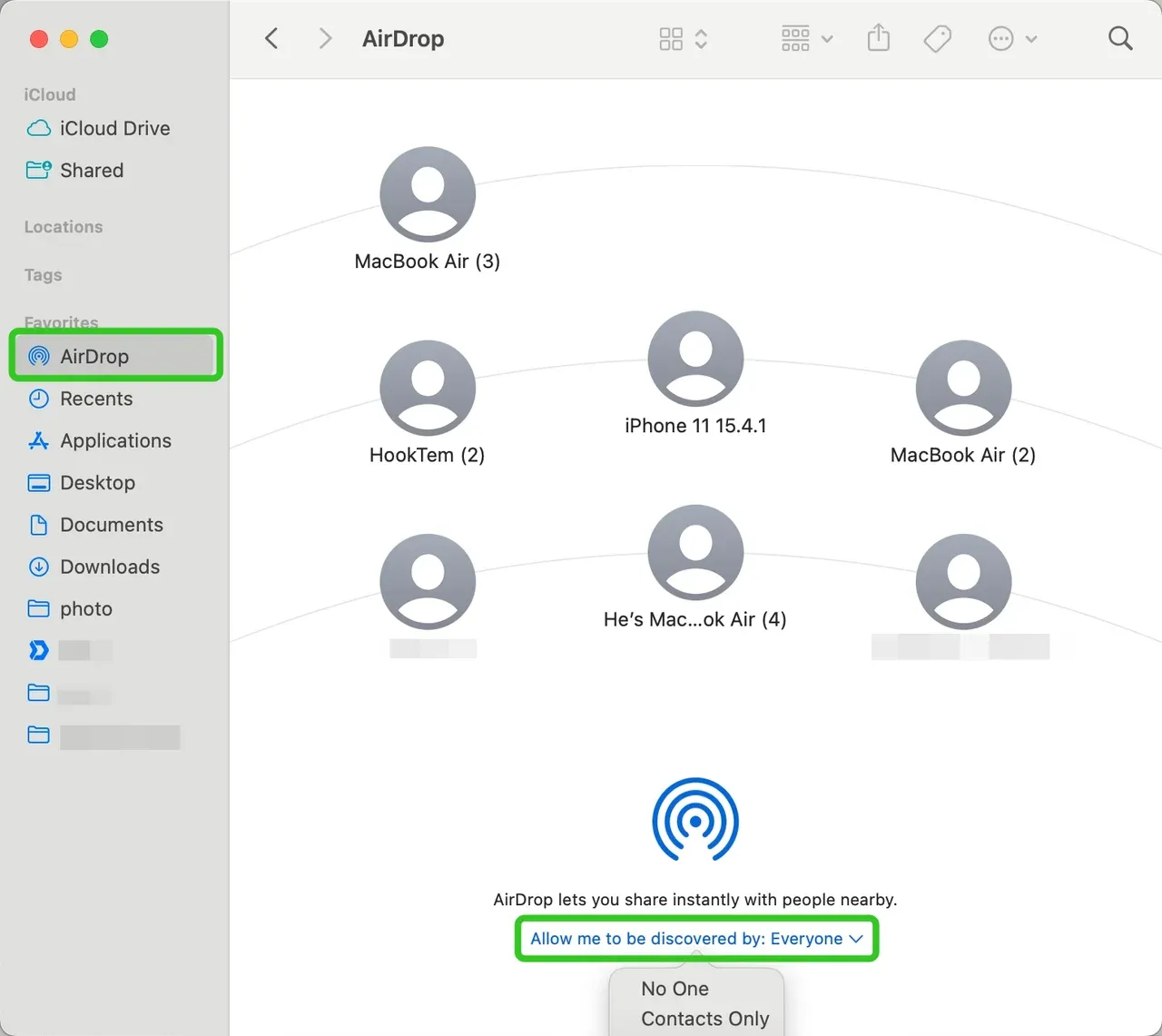
Step 3. On your Mac, open Finder, go to AirDrop, and set your visibility to Everyone or Contacts Only.
Step 4. On your iPhone, tap your Mac's name when it appears and accept the transfer on your Mac to receive the file.
Way 3. Use iCloud (Sync Files, Photos & More)
How to connect my phone to my Mac? iCloud is Apple's cloud platform that keeps your content synced across devices. Once enabled, it automatically syncs files, photos, contacts, and more between your iPhone and Mac using your Apple ID.

Every Apple ID includes 5GB of free iCloud storage. However, that space can fill up quickly, especially if you're syncing photos or large files. If you need more storage, Apple offers paid plans starting from $0.99/month for 50GB, with larger plans available (e.g., 200GB, 2TB) under the iCloud+ subscription.
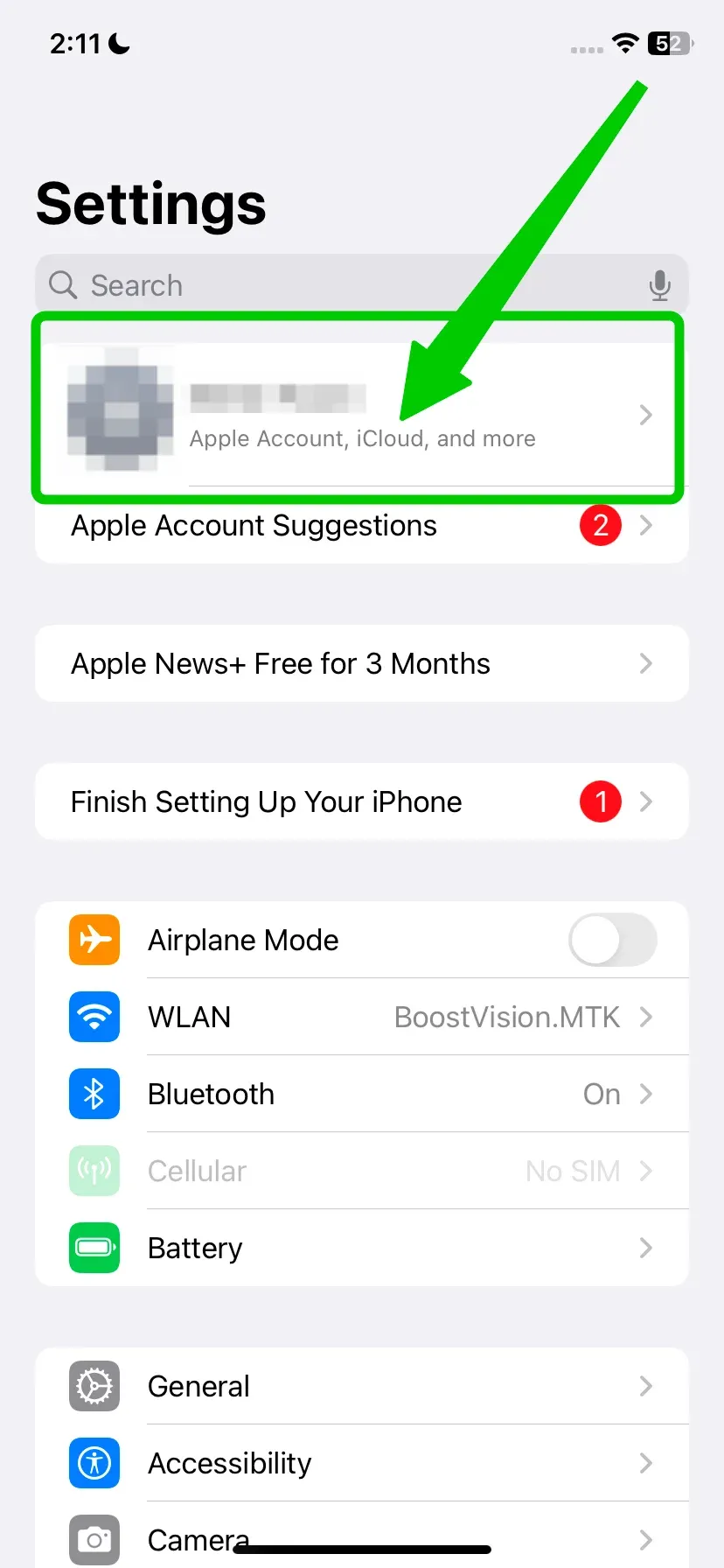
Step 1. On iPhone, go to Settings > [Your Name] > iCloud.
Step 2. Enable iCloud Drive, Photos, Contacts, or other items you want synced.
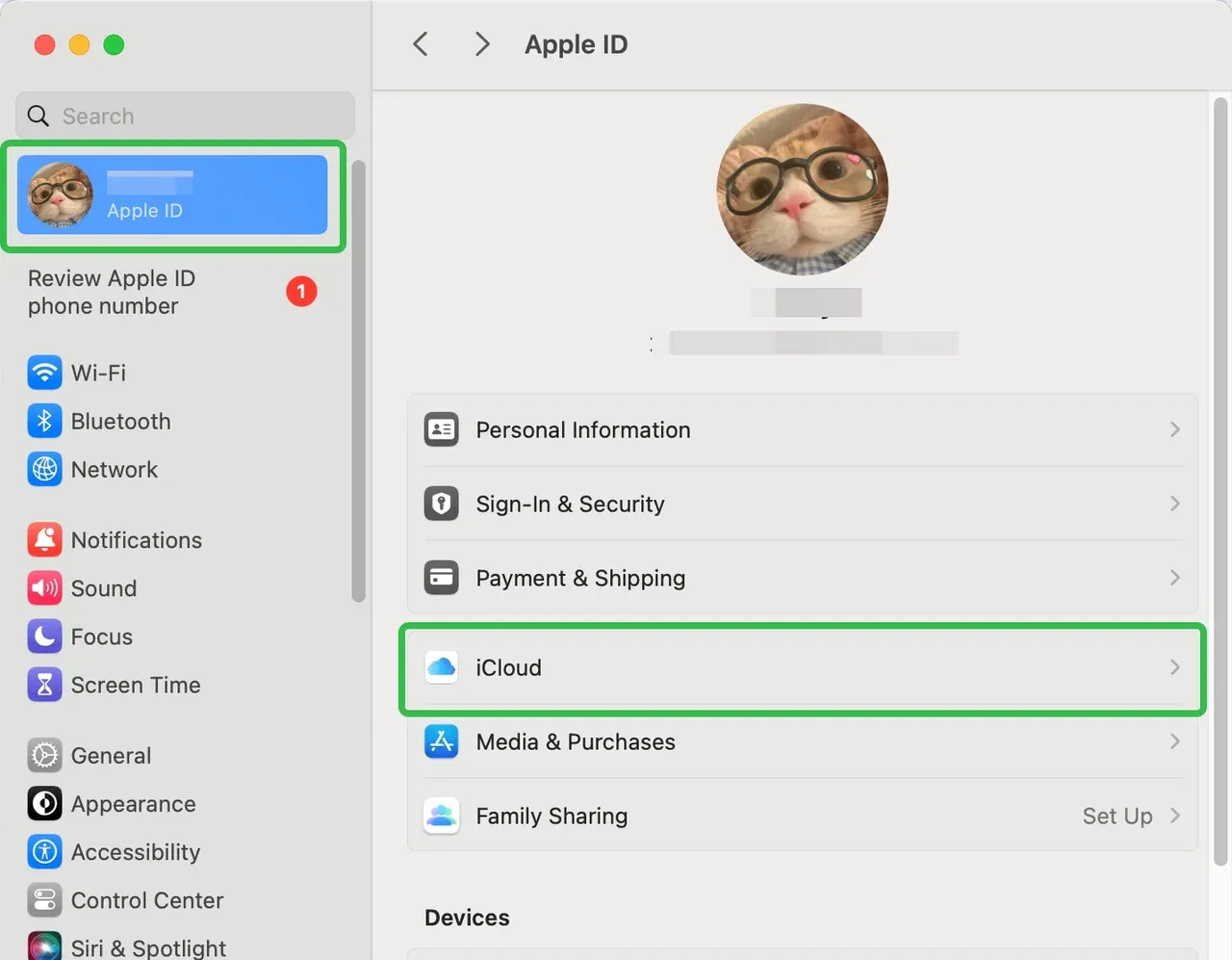
Step 3. On Mac: go to System Settings > Apple ID > iCloud.
Step 4. Turn on the same services (e.g., iCloud Drive, Photos).
Step 5. Access your synced data from the Finder > iCloud Drive or the Photos app.
Way 4. Use a USB Cable (Finder or iTunes)
How to connect phone to Mac Book Pro? When you plug your iPhone into the Mac via a USB cable, it establishes a wired connection that allows full access to your phone's data through Finder (on macOS Catalina or later) or iTunes (on older macOS versions). It's great for you to create local backups, manage music or documents, or restore an iPhone.
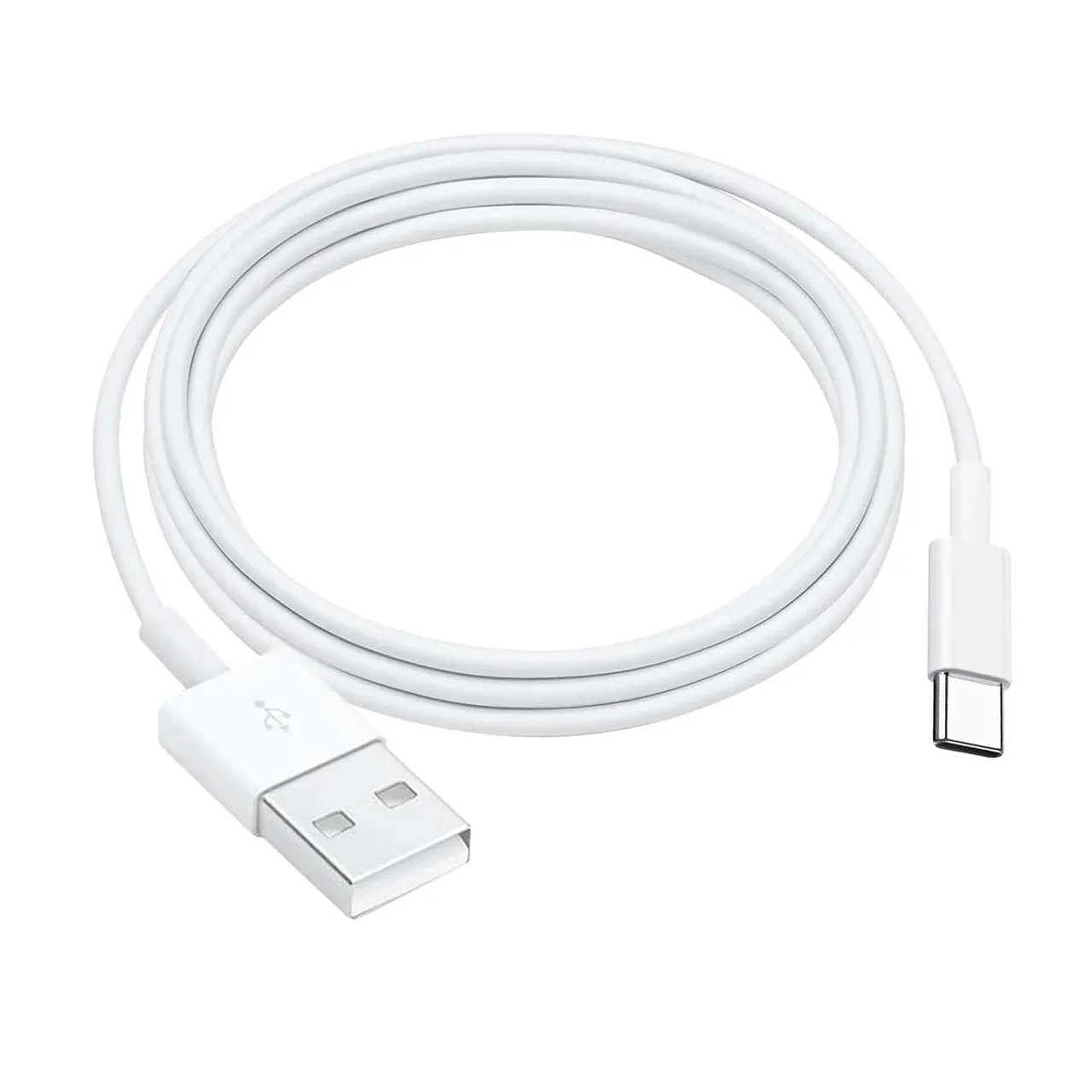
Step 1. Plug your iPhone into your Mac using the Lightning cable.
Step 2. On the iPhone, tap Trust This Computer and enter your passcode.
Step 3. Open Finder (Catalina or later) or iTunes (Mojave or earlier).
Step 4. Click on your iPhone in the sidebar and use the tabs to sync files, update software, or back up your device.
How to Connect Android Phone to Mac
Wondering if it's possible to connect an Android phone to a Mac? Good news, it's totally doable! While Macs and Android devices don't have the same seamless integration that Apple products do with each other, there's still two easy ways to link them up for file transfers, syncing photos, and more. Plus, you can also use PgieonCast's Mac mirroring app for seamless and wireless connection.
Download button for Mac mirroring app
Way 1. Use Bluetooth
How to connect my phone to Mac? Bluetooth offers a wireless method for connecting Android devices to a Mac, although it's slower and less reliable than USB. It's suitable for transferring small files like PDFs, images, or notes, and doesn't require any app installation. It's best used for occasional, lightweight sharing when Wi-Fi or cables aren't available.
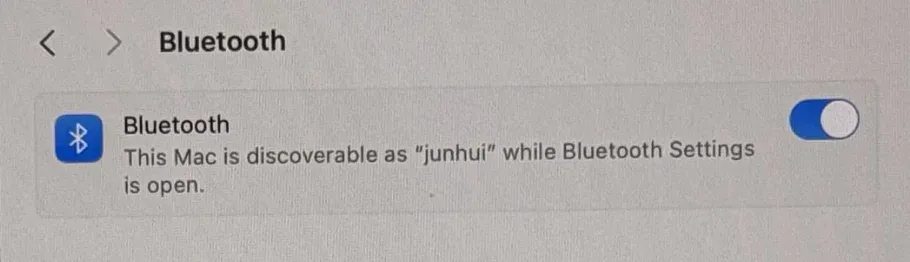
Step 1. Enable Bluetooth via System Settings > Bluetooth on Mac.
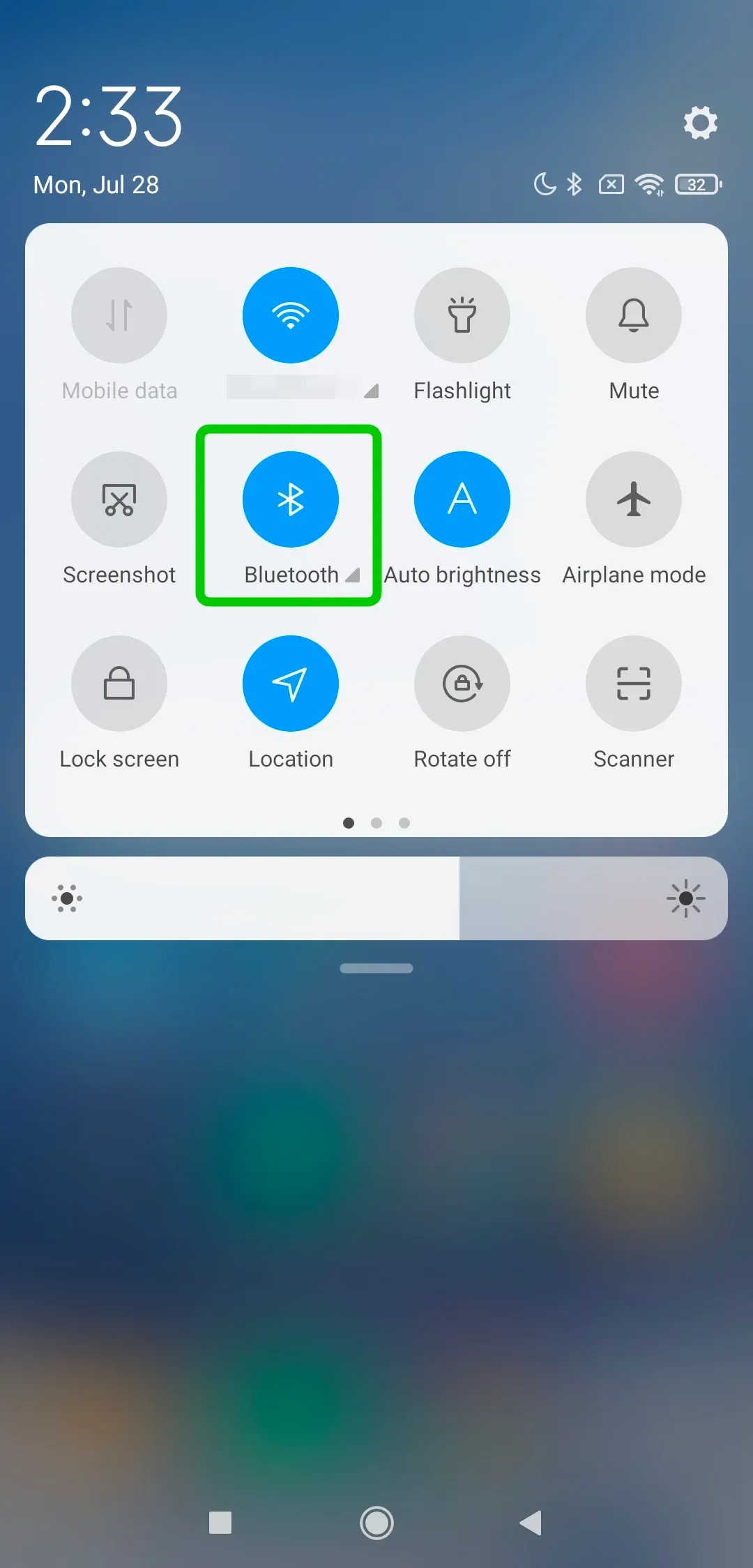
Step 2. Turn on Bluetooth in Settings on Android, and make your phone discoverable.
Step 3. Select your phone from the list of nearby devices on your Mac, and click Pair.
Step 4. Confirm the pairing on both devices, and use the Bluetooth File Exchange app on Mac to send or receive files.
Way 2. Use USB Connection
If wireless methods aren't your preference or you're facing connectivity issues, using a USB cable is a simple and reliable alternative for transferring files between your Android phone and Mac. This method doesn't require any additional apps or network setup, making it especially useful for quick file transfers or when you're in areas with limited internet access.
Step 1. Grab the USB cable that came with your Android device (or a compatible one you trust), and plug it into both your phone and your Mac.
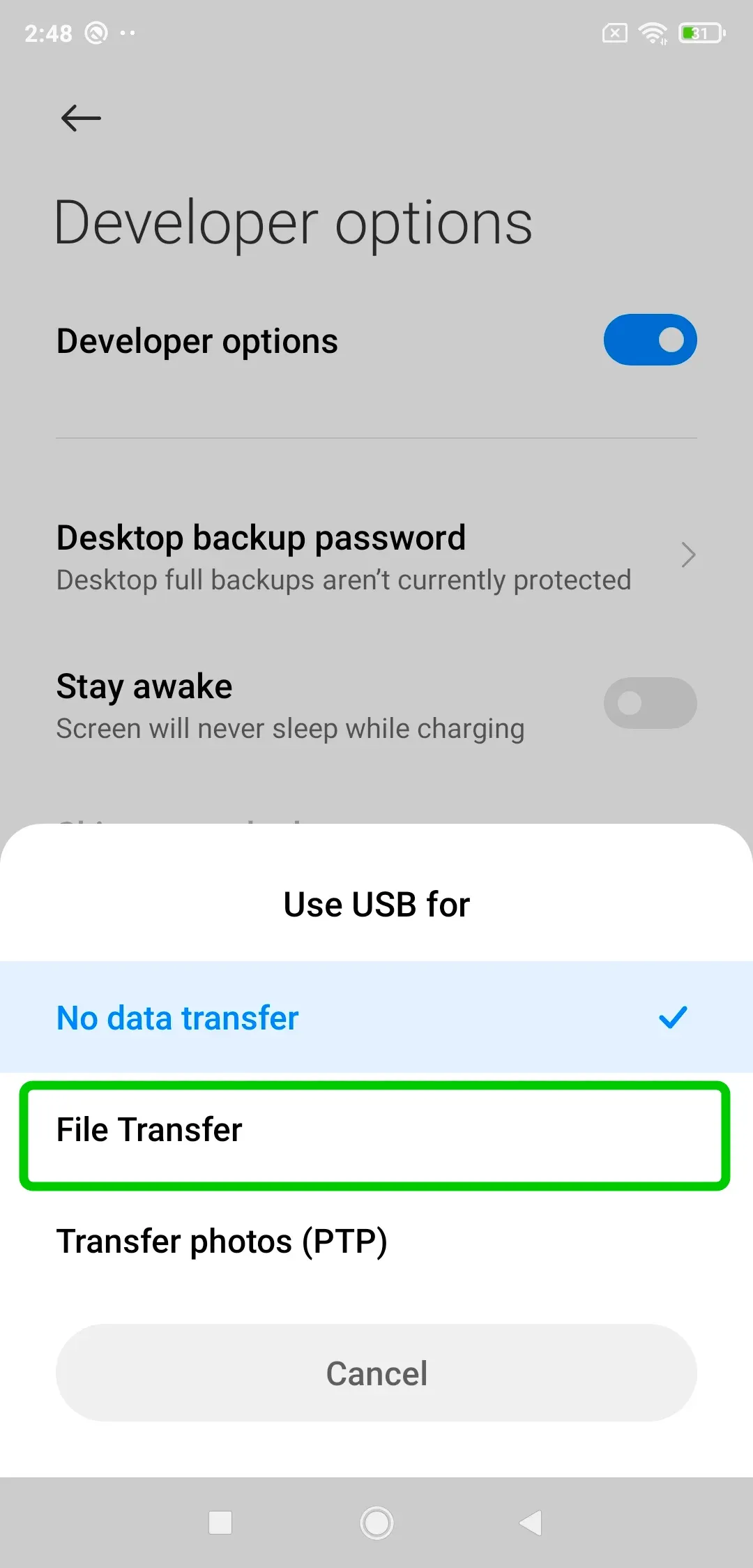
Step 2. Once connected, your Android phone will display a prompt. Tap the notification and choose File transfer or Transfer files from the list of connection options.
Step 3. Your Android phone will now appear as an external device on your Mac. Open Finder on your Mac, and you should see your Android phone listed in the sidebar. Click on it to access your Android phone's files on your Mac.
Conclusion
How to connect my Mac to my phone? Whether you have an iPhone or an Android, connecting it to your Mac is simple once you know the right method. Just pick the option that works best for your device and needs. Follow the steps above, and you'll be set up in just a few minutes!
How to Connect Phone to Mac FAQ
Q: How do I pair my iPhone with my Mac?
- Make sure both devices are signed in to the same Apple ID and connected to the same Wi-Fi network.
- Enable Bluetooth on both your iPhone and Mac.
- For file transfers, you can use AirDrop by opening the AirDrop menu on both devices and selecting your Mac from the list on your iPhone. If you're looking to sync data, use iCloud or connect your iPhone with a USB cable to your Mac for syncing via Finder or iTunes.
Q: How can I connect my phone screen to my Mac?
To connect your phone screen to your Mac, you can use AirPlay for an iPhone or a third-party app like PigeonCast for both iPhone and Android.
- For iPhones, simply swipe down from the top-right corner to open the Control Center, tap "Screen Mirroring", and select your Mac.
- For Android, download a screen mirroring app, ensure both devices are on the same Wi-Fi network, and follow the app's instructions to cast your screen to the Mac.
Q: How to connect a phone to a Mac with a USB?
To connect your phone to a Mac with a USB cable, simply plug the USB end into your Mac and the other end into your phone.
- For iPhones, open Finder (on macOS Catalina and later) or iTunes (on older macOS versions), and your phone should appear under "Locations" or "Devices".
- For Android phones, you may need to enable "File Transfer" mode on your phone when prompted, and the device should show up in Finder or as an external drive, allowing you to transfer files.
Q: How to connect a phone to a Mac without a USB?
To connect your phone to a Mac without a USB, you can use wireless methods like AirDrop or Bluetooth.
- For iPhones, AirDrop allows you to easily transfer files and share content between your phone and Mac as long as both are on the same Wi-Fi network.
- For Android phones, you can use a third-party app like PigeonCast to mirror your screen or transfer files wirelessly, ensuring both devices are connected to the same network.
Q: How to do iPhone mirroring on Mac?
To mirror your iPhone to your Mac, make sure both devices are on the same Wi-Fi network. Then, on your iPhone, swipe down from the top right corner to open Control Center and tap on "Screen Mirroring". From the list of available devices, select your Mac. Your iPhone screen should now appear on your Mac.
Clara Rossi is an experienced technology editor and a seasoned expert in screen mirroring and casting technologies. With a keen eye for detail and a deep understanding of how to seamlessly connect devices, Clara excels at optimizing user experiences for effortless sharing and streaming. Whether you're seeking quick fixes or advanced tips, her expertise and responsiveness ensure that every query is met with a well-informed and efficient solution.