
If you've ever wished to view your mobile content on a larger screen, you may have wondered, Can I mirror my phone to my laptop? Whether you want to watch videos, view photos, or play mobile games on a bigger display, mirroring your phone to your computer is easier than you might think. With technology continuously evolving in 2026, several reliable methods now exist for this process. But how exactly can you mirror your phone to your laptop, and what are the best ways to do it?
In this guide, we'll walk you through the process of mirroring your phone to your laptop, step by step, highlighting the simplest and most effective solutions for both Android and iOS devices. If you've ever asked yourself, "how can I mirror my phone to laptop?", keep reading to learn about the best methods for 2026.
The Technology Behind Phone-to-Laptop Mirroring
Yes, you can mirror your phone to your laptop, and the key to this lies in the technology that turns your laptop into a receiver. Traditionally, laptops are seen as senders, used to stream content to TVs or projectors. However, in the case of phone-to-laptop screen mirroring, your laptop needs to act as a receiver of the content from your phone.
How Laptops Act as Receivers
For this process to work, your laptop must support certain screen mirroring protocols that allow it to receive signals from your phone. Here's how it happens:
- Miracast (Android and Windows)
In the case of Miracast, a Wi-Fi Direct technology, your Android phone sends a signal directly to your Windows laptop. The laptop acts as a receiver of this signal, displaying your phone's content on the screen. Essentially, Miracast creates a wireless connection between your phone and laptop without the need for a router.
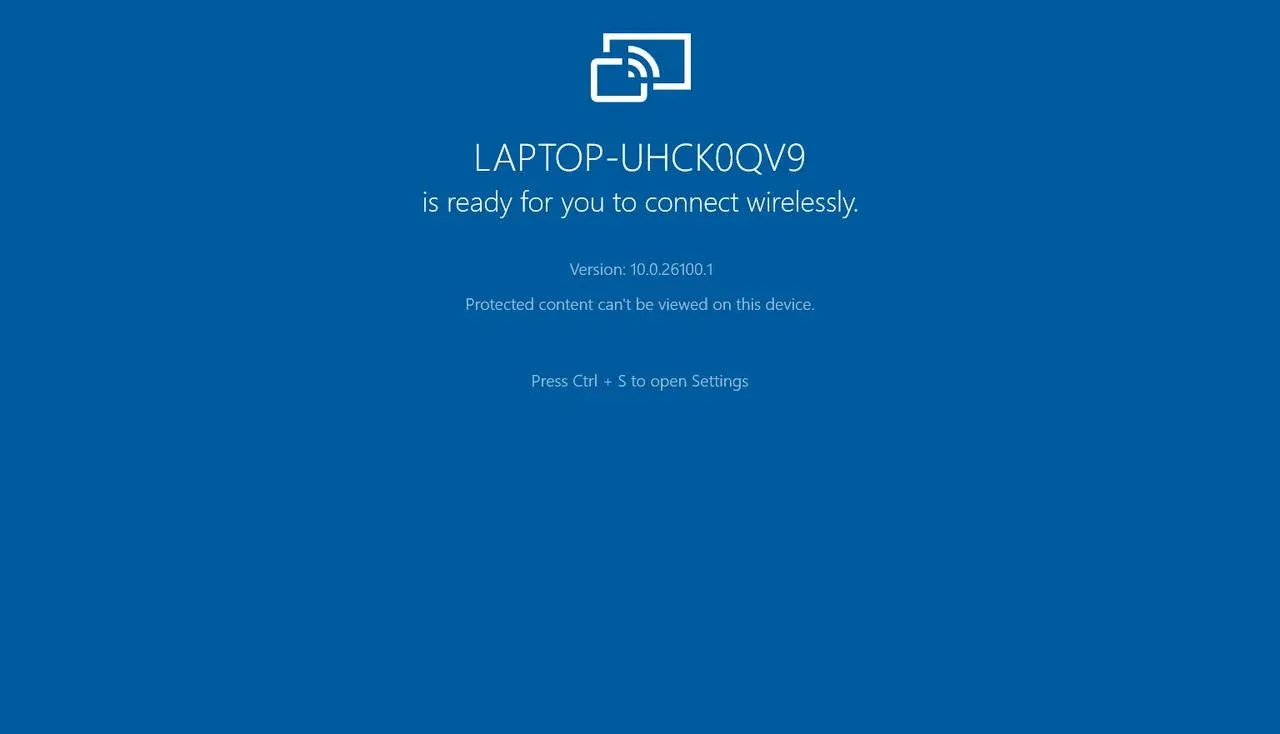
In this setup, your Windows PC must have the Wireless Display feature enabled, which turns the PC into a compatible receiver for your phone's display.
- AirPlay (iOS and Mac)
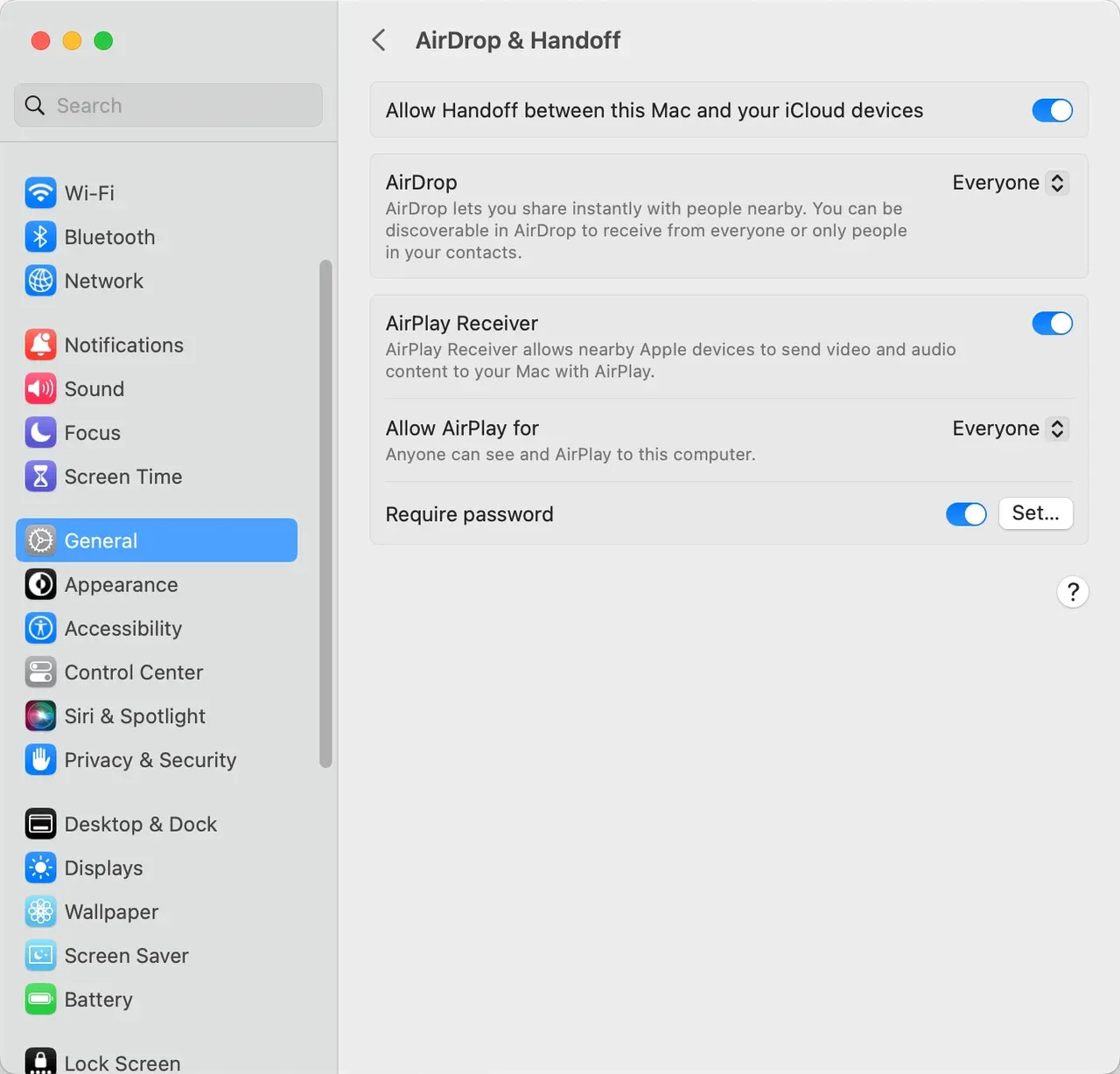
AirPlay enables iPhones to stream their screens or media content to a MacBook. Just like Miracast, your MacBook acts as a receiver that accepts the content from your iPhone. For AirPlay, your MacBook needs to have the AirPlay Receiver option enabled in the system settings. This allows it to accept mirrored content from your iPhone or iPad.
- Third-Party Screen Mirroring Apps (PigeonCast)
Sometimes, the built-in solutions like Miracast and AirPlay may not be supported across devices, especially if you're using a mix of Android phones with MacBooks or iPhones with Windows laptops. That's where third-party apps like PigeonCast step in.

Free screen mirroring apps like PigeonCast turn your laptop into a receiver, allowing it to accept screen mirroring from both Android and iOS devices. These apps work across platforms, making it easier for your phone to send content to your laptop, regardless of the OS.
So, how can I mirror my phone to my laptop depends on the devices you're using. If you have an Android phone with a Windows PC or an iPhone with a Mac, the built-in solutions like Miracast or AirPlay make the process simple and seamless. However, if you're using an Android phone with a MacBook or an iPhone with a Windows laptop, third-party solutions like PigeonCast are your best bet.
How to Mirror My Phone to My Laptop
Now that you understand the technical background and compatibility considerations, let's go through the actual process of mirroring your phone to your laptop.
Method 1: Use PigeonCast for Cross-Platform Mirroring
PigeonCast is an easy-to-use app that supports cross-platform screen mirroring. It's particularly useful if you're connecting Android to MacBook or iPhone to Windows PC.
See how to cast from phone to laptop with the app:
Step 1. Ensure your phone and laptop are connected to the same Wi-Fi network
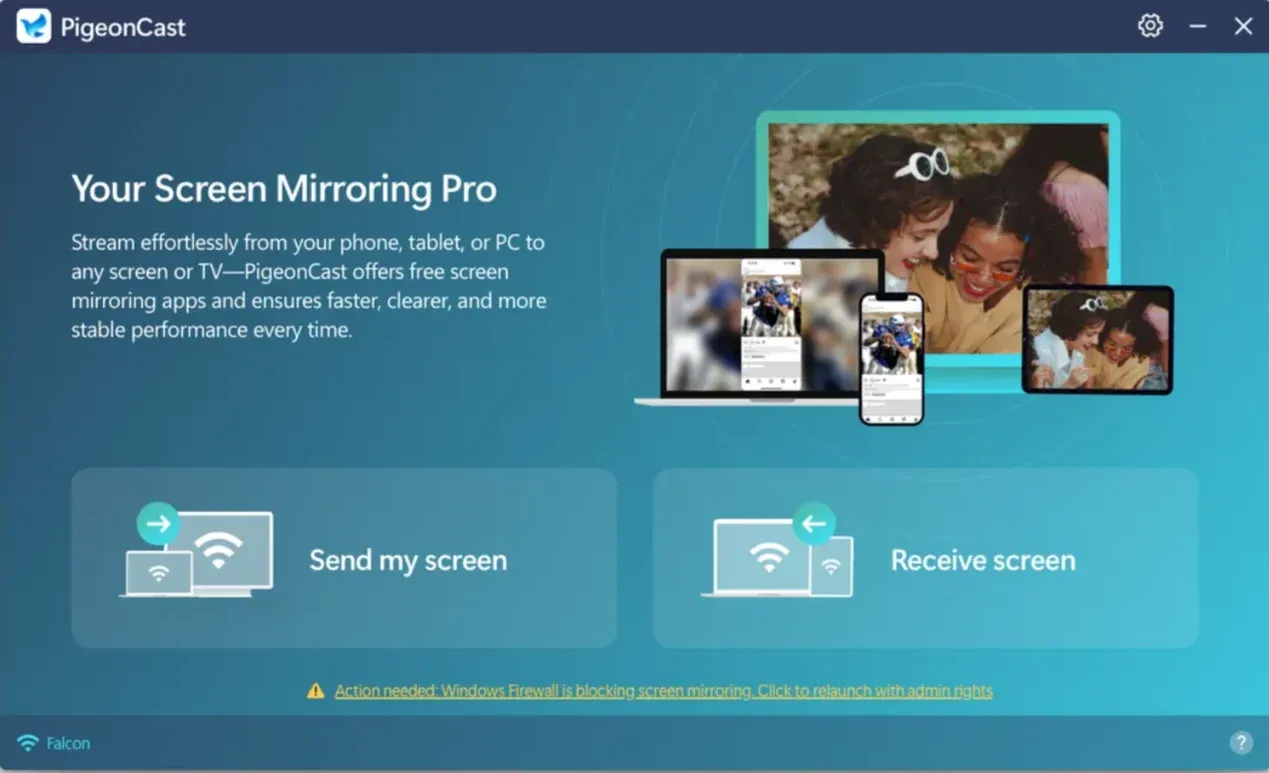
Step 2. On your laptop, go to the App Store or Microsoft Store to download PigeonCast. After installation, launch the app and click the Receive screen option.


Overall Rating:



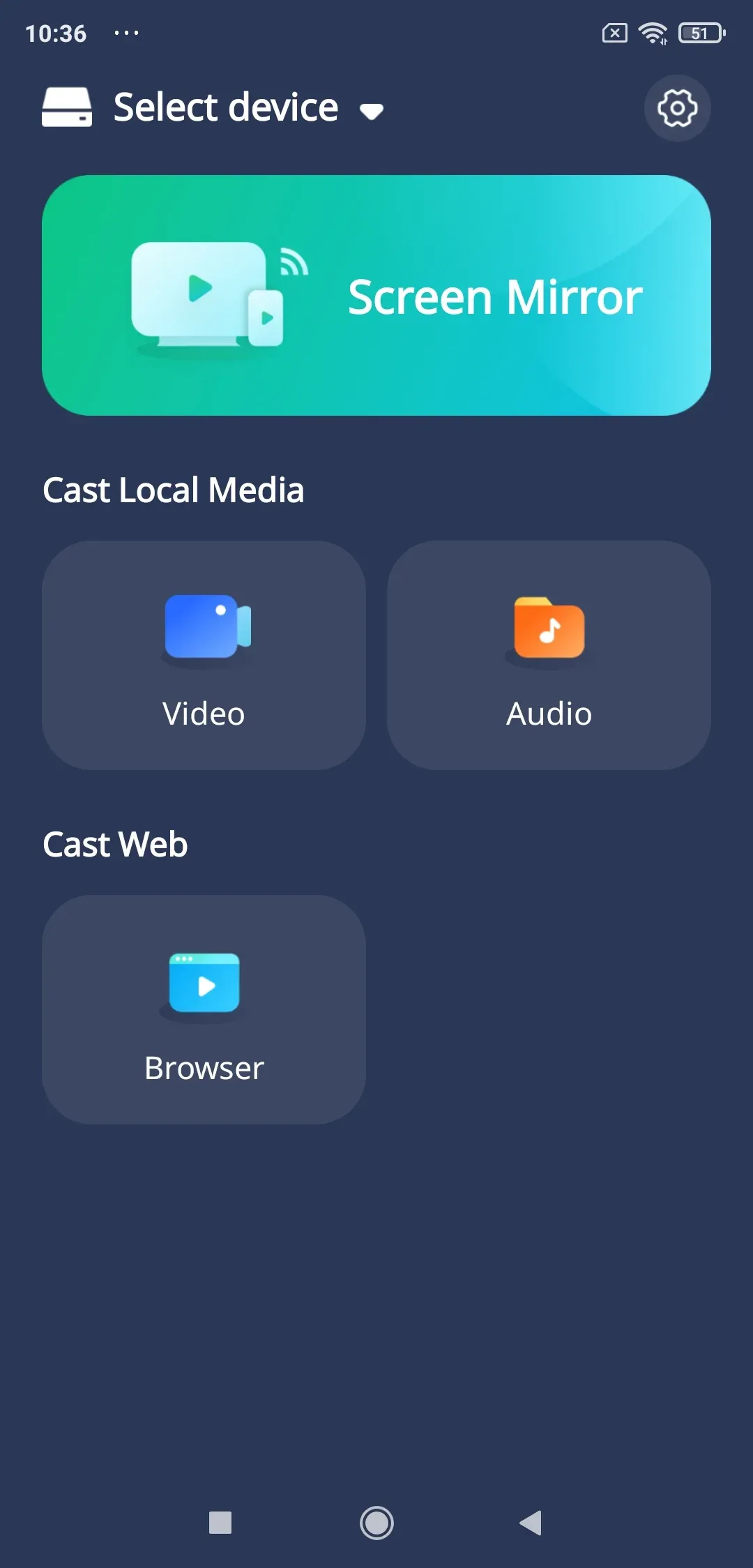
Step 3. On your phone, go to the App Store or Google Play Store to download PigeonCast.
Overall Rating:

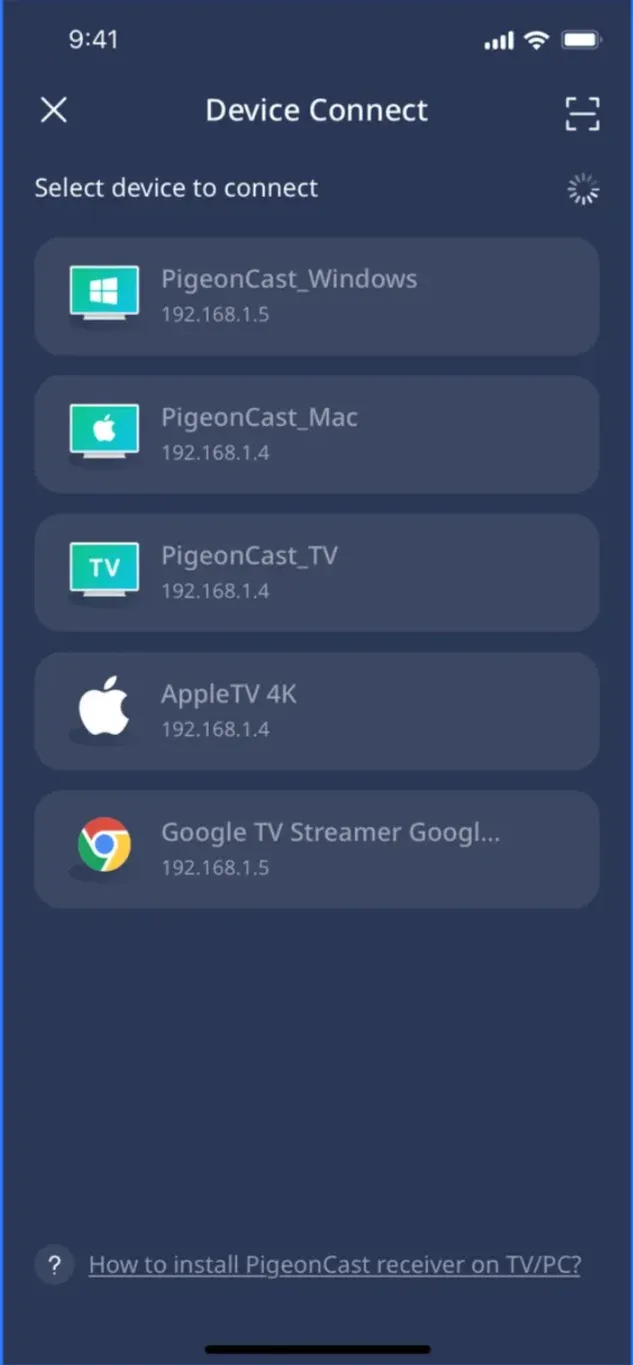
Step 4. When PigeonCast on your phone detects your laptop, choose it; or scan the displayed QR code on your laptop screen by tapping the Scan button in the right upper corner of the device list.
Step 4. Tap the Screen Mirror button on your phone screen after connection, and PigeonCast will display your phone screen on your laptop.
Method 2: AirPlay for iPhone to MacBook
If you have an iPhone and a Mac, AirPlay offers a straightforward way for phone-to-laptop mirroring.
Follow the AirPlay guide on how to mirror my phone to my laptop:
Step 1. Ensure your iPhone and Mac are on the same Wi-Fi network.
Step 2. On your Mac, go to Settings > General > AirDrop & Handoff and ensure AirPlay Receiver is enabled.
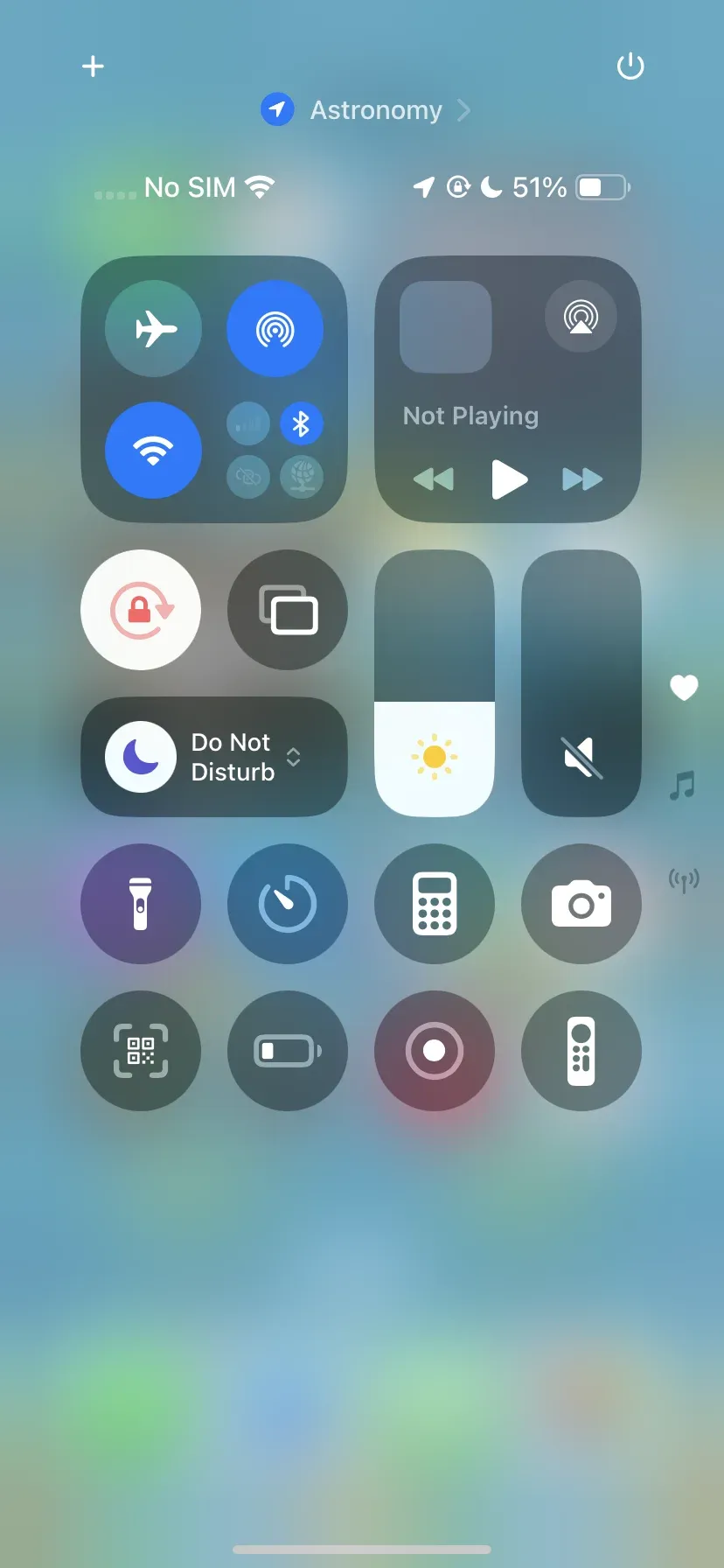
Step 3. On your iPhone, open Control Center, tap Screen Mirroring, and choose your MacBook.
Step 4. Your iPhone screen will appear on your MacBook.
Method 3: Use Miracast for Android to Windows
Miracast is perfect for Android-to-Windows mirroring. It's simple and doesn't require a third-party app. Here's how to cast from phone to laptop:
Step 1. Enable Wireless Display on your Windows PC.
- Go to Settings > Optional Features > View Features.
- Scroll down to the Wireless Display option, click the checkbox, and choose Next.
- Choose the Add button, and Windows downloads and installs the feature.
- Find the Wireless Display app on your PC and run it.
Step 2. Ensure both devices are on the same network.
Step 3. Choose Cast or Smart View from the Quick Settings on your Android phone, and select your PC.
Final Thoughts
Can I cast my phone to my laptop? Yes, to mirror your phone to your laptop, just turn your laptop into a receiver of the content being sent from your phone. By using technologies like Miracast, AirPlay, or third-party apps like PigeonCast, you can transform your laptop into a versatile receiver, capable of displaying everything from videos to photos and even games.
Can I Mirror My Phone to My Laptop FAQs
How do I display my phone screen on my laptop?
To display your phone's screen on your laptop, you can use screen mirroring protocols like Miracast, AirPlay, or third-party apps like PigeonCast. Ensure both your phone and laptop are connected to the same Wi-Fi network, and select your laptop as the target device for mirroring.
Can I mirror my iPhone to my laptop?
Yes. If you have a MacBook, you can use AirPlay to mirror your iPhone's screen. With a Windows laptop, you can mirror your iPhone to a PC without AirPlay by using a compatible app-to-app connection or a supported USB mirroring tool.
Can I use my laptop as a monitor for my phone?
Yes, you can. With tools like Miracast (for Android to Windows) or PigeonCast (for both Android and iPhone to Windows or Mac), you can use your laptop as a monitor to display content from your phone, effectively turning your laptop into a second screen.
How do I mirror my Samsung phone to my computer?
To mirror a Samsung phone, you can use Miracast if you're using a Windows laptop, or Smart View (Samsung's version of Miracast). Alternatively, apps like PigeonCast also support seamless screen mirroring between your Samsung phone and your laptop.
How to mirror phone to laptop with USB?
While most wireless methods work well for screen mirroring, you can also mirror your phone to your laptop using a USB connection with apps like Vysor for Android. Simply connect your phone to the laptop via USB, enable USB debugging on your phone, and follow the app's instructions to begin mirroring.
Mia Clarke is a technology editor specializing in screen mirroring and casting solutions across multiple platforms. Mia provides clear, practical guides and in-depth insights to help users seamlessly connect their devices. Passionate about enhancing digital experiences, Mia is dedicated to keeping readers updated on the latest trends and tools in cross-platform screen sharing. Whether you’re looking to mirror your smartphone, laptop, or smart TV, Mia’s content delivers reliable, user-friendly advice to simplify your tech setup.