
While AirPlay is Apple's native solution for screen mirroring, it's often limited to Apple TV and AirPlay 2‑compatible smart TVs. But what if you want to mirror iPhone to PC without AirPlay? The good news is that it's absolutely possible, and this guide will walk you through several reliable methods.
Can You Mirror iPhone Screen to PC Without AirPlay
Yes, you can. AirPlay is just one of many tools available for screen mirroring. Whether you're giving a presentation, playing mobile games on a bigger screen, or simply managing your phone's display from your computer, several AirPlay alternatives exist that don't rely on AirPlay.
How to Mirror iPhone to PC With No AirPlay
To mirror your iPhone to a PC without AirPlay, you generally have two main avenues: using a dedicated third-party application or establishing a physical cable connection. Each approach has its own advantages, whether you prioritize wireless convenience or lag-free, stable performance.
Way 1. Use Free PigeonCast
If you're looking to bypass AirPlay but still need a wireless solution, PigeonCast is an excellent app for mirroring your iPhone screen to your Windows PC. This free screen mirroring app works seamlessly across Android, iOS, Windows, Mac, and various TV platforms, so your PC can act as the receiving screen even when native AirPlay is not available.
The same idea applies to Windows laptops. If you want to screen mirror iPhone to Dell laptop, the Dell device needs a receiver app running first, because it will not appear as a native AirPlay target by default.

Step 1. Ensure your iPhone and Windows PC are connected to the same wireless network.


Overall Rating:



Step 2. Install PigeonCast on your iPhone and Windows PC from the app store.
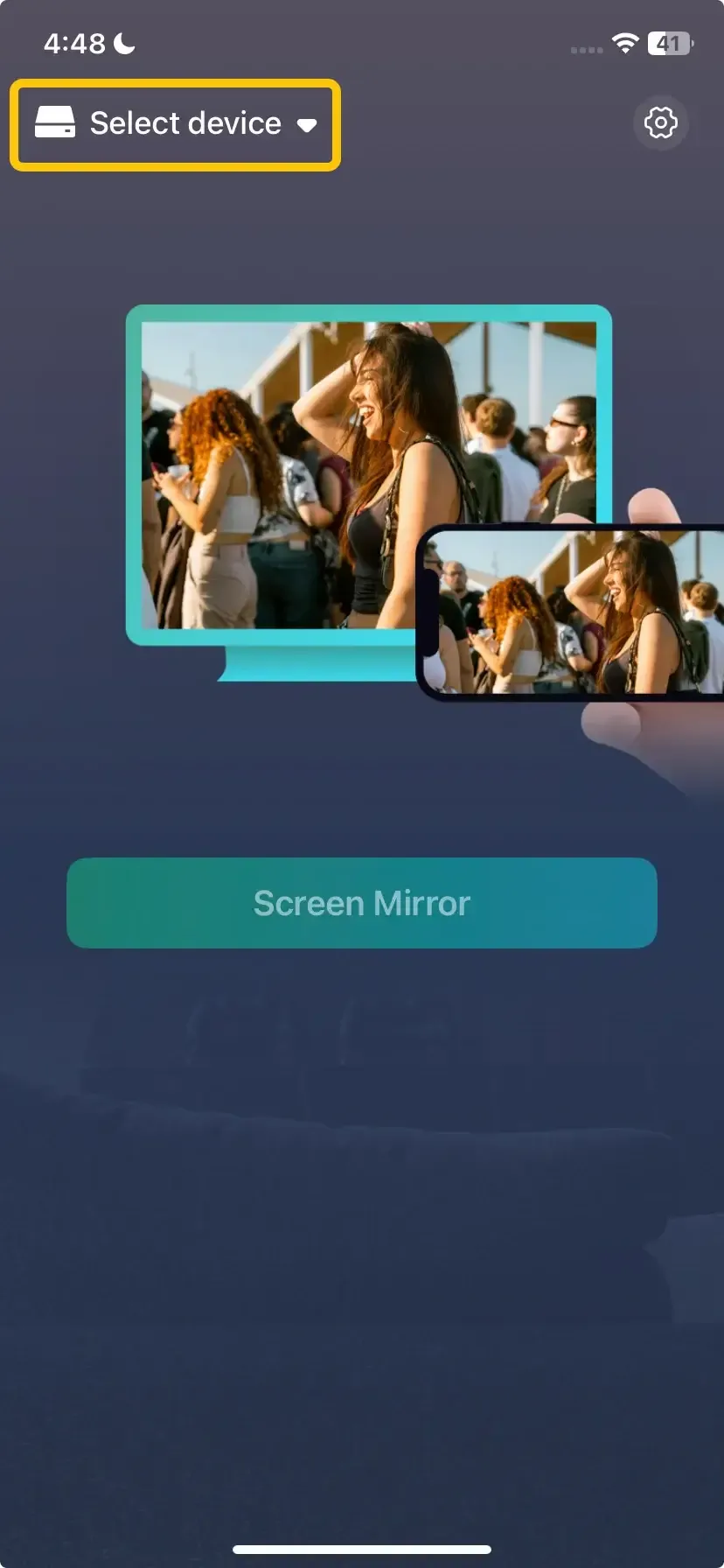
Step 3. Launch the app on your devices, tap Select device on the iPhone to choose your Windows PC from the available list.
Step 4. Enter the onscreen PIN code to confirm the connection performance.
Step 5. Once you finish the pairing process, you can see your iPhone's screen shown on the PC computer smoothly.
Way 2. Use USB Cable
If you prefer a more stable and lag-free connection, you can mirror your iPhone screen to your PC via a USB cable. While this method requires a cable, it avoids any issues related to Wi-Fi interference and offers a more reliable solution.
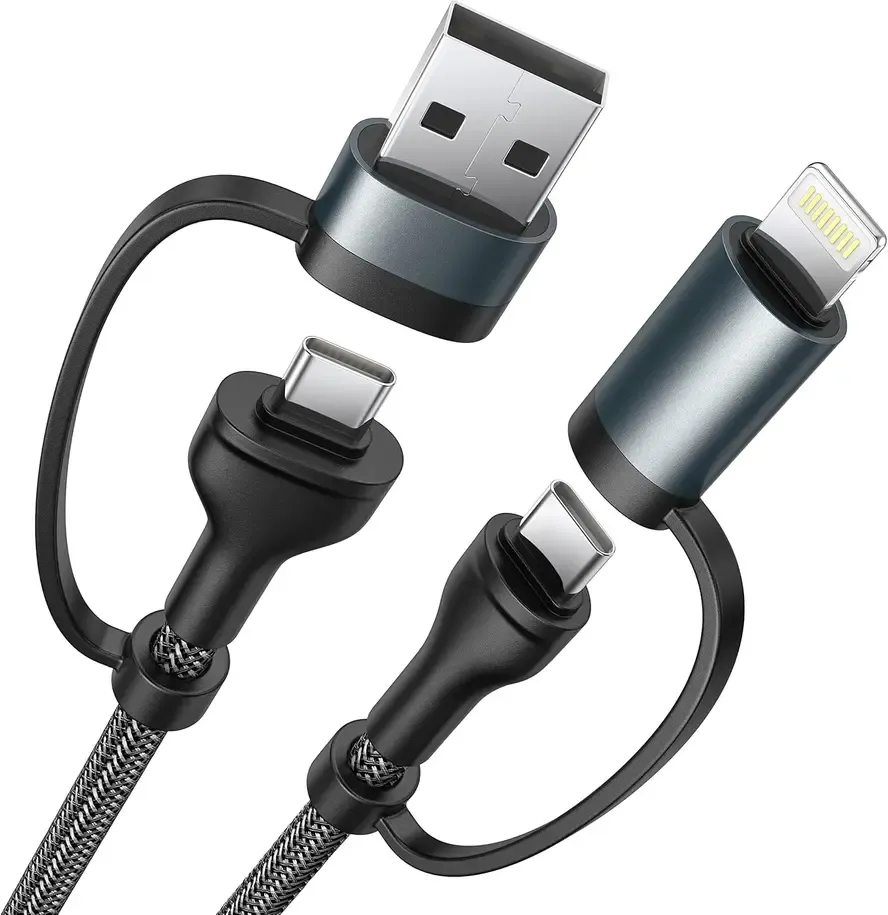
Step 1. Connect your iPhone to your Windows PC using a Lightning to USB-A, Lightning to USB-C, or USB-C to USB-C.
Step 2. On your Windows PC, you need mirroring software that supports a wired connection. Excellent choices include ApowerMirror, LonelyScreen, or 3uTools. Download and install your chosen software.
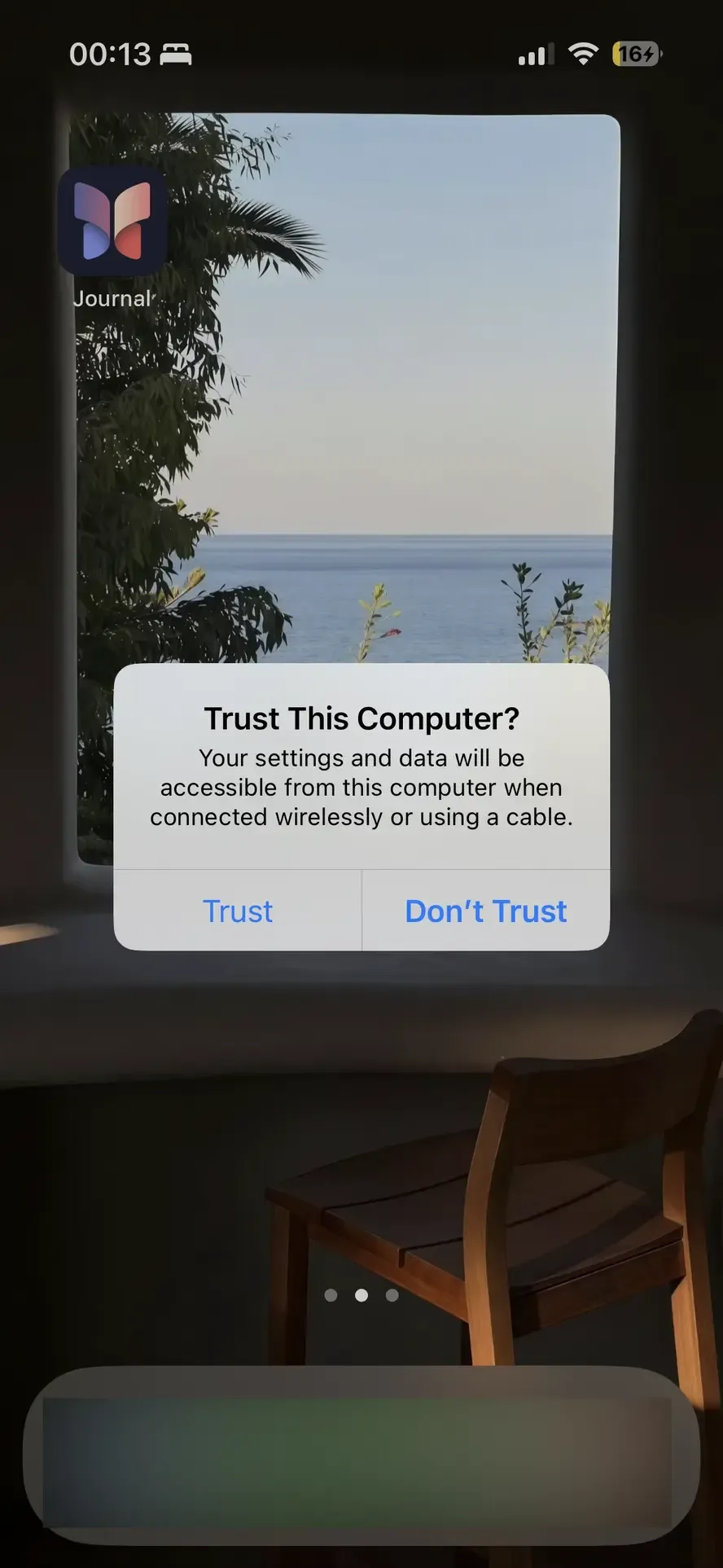
Step 3. Open the software on your PC. On your iPhone, a prompt will ask Trust This Computer?. Tap Trust and enter your passcode.
Step 4. In the PC software, look for a "USB" or "Wired" connection option. Select it, and your iPhone screen will instantly appear on your Windows desktop.
Wrapping Up
While AirPlay is a popular choice for screen mirroring within the Apple ecosystem, it's not the only solution when you want to mirror your iPhone to a PC. As we've seen, you can use PigeonCast to mirror iPhone to PC without Airplay free. Alternatively, using a cable connection provides a stable, lag-free experience for those who prefer a wired solution.
Mirror iPhone to PC Without AirPlay FAQ
Can you mirror an iPhone to a Windows PC?
Yes, you can mirror an iPhone to a Windows PC. This can be done using third-party applications like PigeonCast for wireless mirroring or by connecting your iPhone via a USB cable and using software like ApowerMirror or LonelyScreen.
Can I mirror my iPhone without AirPlay?
Yes, you can mirror your iPhone without AirPlay. You can use third-party apps like PigeonCast for wireless mirroring or connect your iPhone via a USB cable. These methods provide alternative ways to mirror your iPhone screen without relying on AirPlay.
How to screen mirror iPhone to PC without apps?
If you want to avoid installing additional software completely, your best option would be to use Windows built-in Xbox app (which has some compatibility) or iTunes for a more basic screen mirroring setup. However, without apps, the process will be limited, and screen mirroring performance might not be as smooth or feature-rich.
Clara Rossi is an experienced technology editor and a seasoned expert in screen mirroring and casting technologies. With a keen eye for detail and a deep understanding of how to seamlessly connect devices, Clara excels at optimizing user experiences for effortless sharing and streaming. Whether you're seeking quick fixes or advanced tips, her expertise and responsiveness ensure that every query is met with a well-informed and efficient solution.