
Trying to view your iPhone screen on a Dell laptop sounds simple, but it often turns into a frustrating search for a meeting, a demo, or a quick screen share. Apple and Dell sit in two different ecosystems, and screen mirroring support between them is far from seamless.
The good news is that screen mirroring is possible. The bad news is that not every method still works in 2026. In this guide, we walk you through what options exist today, which ones are outdated, and how to screen mirror iPhone to Dell laptop using a method that actually holds up in real use.
Is Dell Mobile Connect iPhone Possible
Yes, it is possible to mirror an iPhone to a Dell laptop, but not through a built-in feature like AirPlay on an iPhone. Apple and Windows follow different screen sharing standards, which means there is no native, system-level way to mirror an iPhone directly to a Dell device.
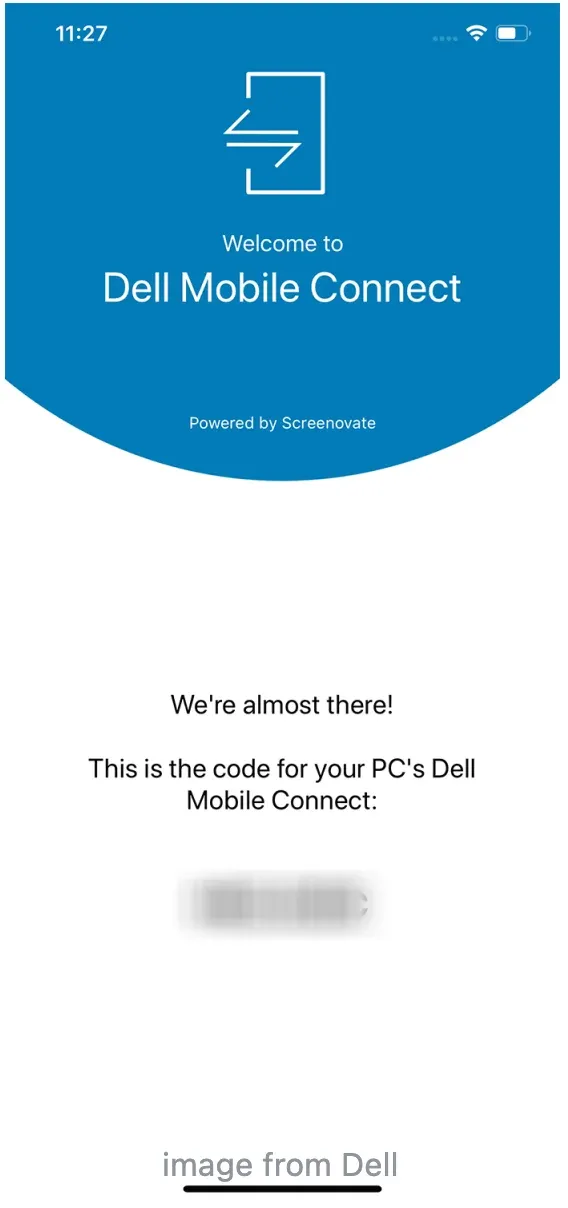
Over the years, Dell and Microsoft have introduced their own phone integration tools to narrow this gap. On paper, they look like solutions for users asking how to mirror iPhone to Dell laptop. In practice, though, both options come with clear limitations that make them unreliable for real screen mirroring today.
- Dell Mobile Connect (official but discontinued)
Dell Mobile Connect was Dell's official attempt to connect phones with Dell laptops. It supported notifications, basic controls, and limited screen sharing for some devices.
However, Dell officially discontinued this service and advised users to uninstall it by early 2023 or 2024 for better system performance. As a result, it is no longer a practical or supported way to mirror an iPhone screen.
If you still come across guides recommending Dell Mobile Connect, they are outdated and no longer reflect the current reality.
- Microsoft Phone Link (useful, but not true mirroring)
Microsoft Phone Link is sometimes suggested as an alternative, especially for Windows users. It works well for notifications, calls, and light phone interactions.
For iPhones, however, Phone Link does not offer full, real-time screen mirroring. You cannot display your entire iPhone screen live on a Dell laptop, which makes it unsuitable if your goal is actual screen sharing.
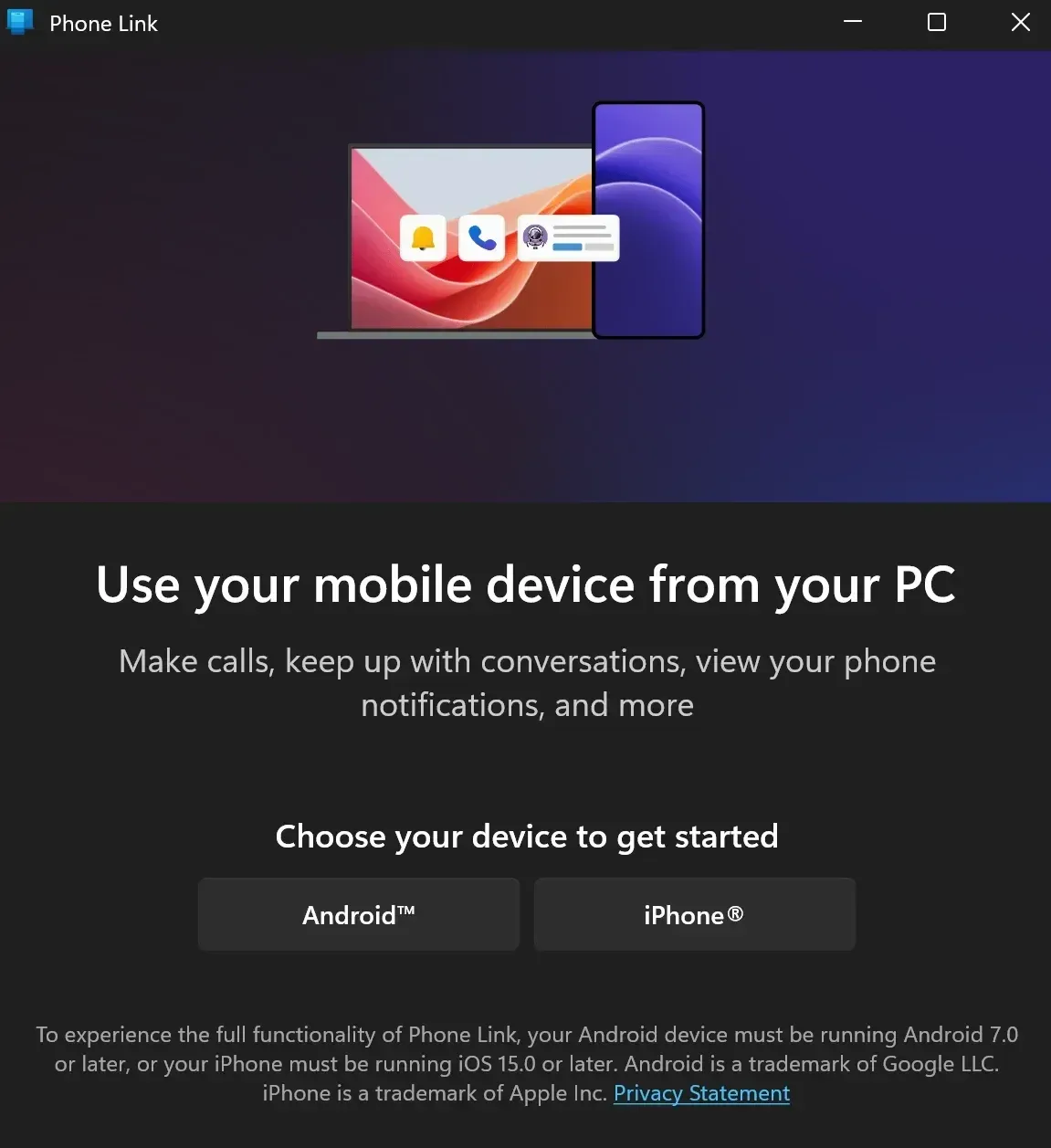
Phone Link can still be useful for productivity tasks, and it is worth mentioning for readers exploring ecosystem tools. But it does not answer the core question of how to mirror iPhone to Dell laptop in a reliable way.
Because of these limits, users who need smooth, real-time screen mirroring usually turn to dedicated tools instead.
How to Screen Mirror iPhone to Dell Laptop
Once you rule out discontinued or limited system tools, the path forward becomes much clearer. If you want to mirror your iPhone screen to a Dell laptop in real time, you need a solution built specifically for screen sharing rather than phone management.
Dedicated screen mirroring apps focus on one job and do it well. Instead of trying to force compatibility between Apple and Windows at the system level, they provide a direct, stable way to display your iPhone screen clearly on a larger Dell display. For users who want to know how to screen mirror iPhone to Dell laptop without trial and error, this approach tends to be the most consistent.
PigeonCast fits naturally into this category. It is a lightweight screen mirroring tool designed for cross-platform use. It works well for users who want a straightforward way to mirror an iPhone to a Windows 10/11 laptop without complicated setup or hidden system requirements.

Why choose PigeonCast for iPhone-to-Dell screen mirroring:
- Free to get started
- Works across iOS and Windows
- Supports HD screen mirroring
- Designed for real-time display rather than file syncing
- Suitable for demos, presentations, and everyday viewing
Instead of relying on system-level integrations, PigeonCast focuses on stability and clarity, which matters more in real-world screen mirroring scenarios.
What you need before screen mirroring iPhone to Dell laptop:
- An iPhone running a recent iOS version
- A Dell laptop with Windows 10 or 11 installed
- Both devices connected to the same Wi-Fi network
How to screen iPhone from iPhone to Dell laptop with PigeonCast:
Step 1. Install PigeonCast on your iPhone and Dell laptop.


Overall Rating:



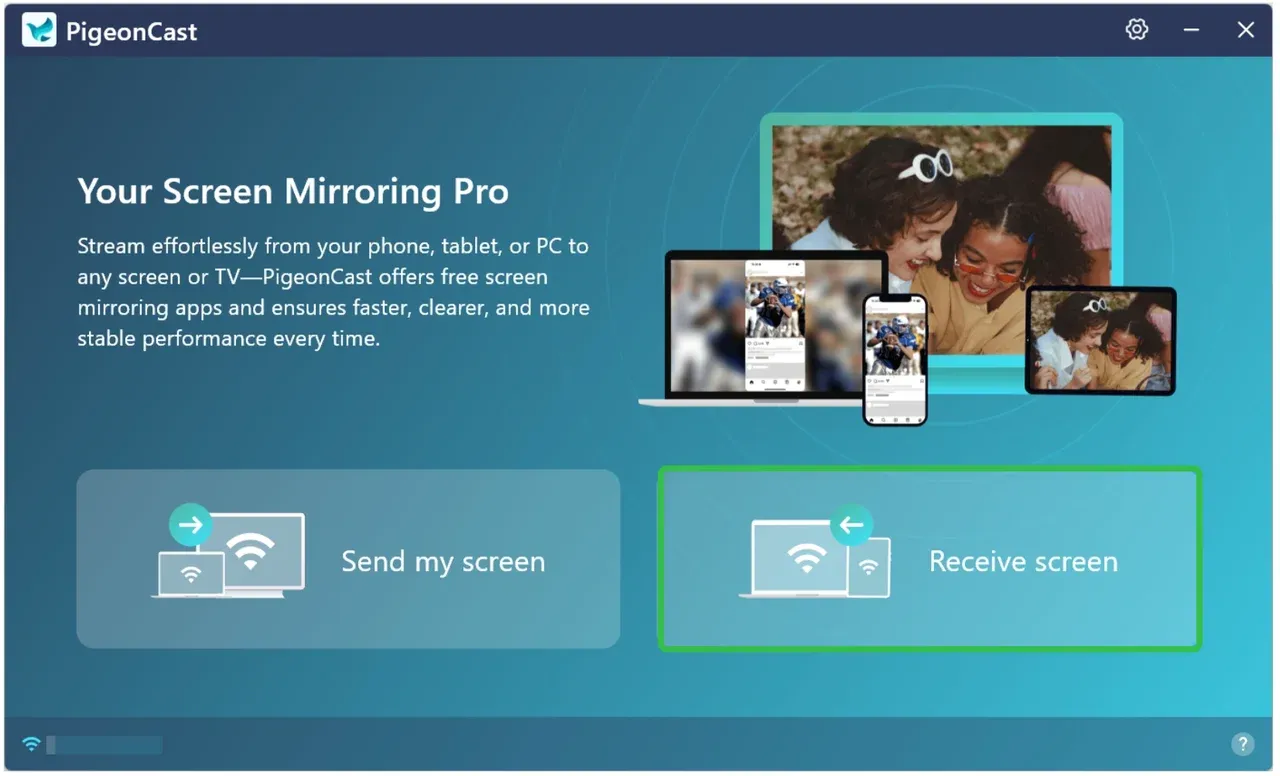
Step 2. Launch the PigeonCast app on your laptop and click the Receive screen option.
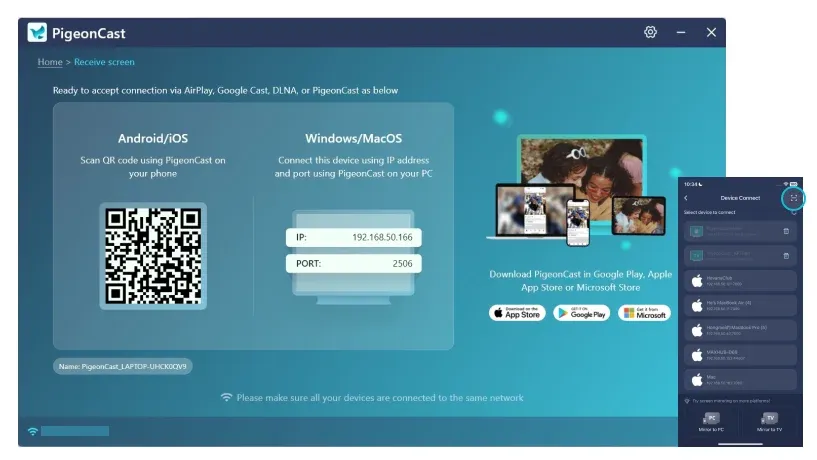
Step 3. Open the PigeonCast app on your iPhone and choose your Dell laptop from the list. For a quick pairng, alternatively, tap the Scan button on the Device Connect interface and use your phone scan the QR code displayed on your laptop.
Step 4. Once connected, tap the Screen Mirror option on your iPhone, fine-tune resolution, bitrate, and sound to match your preference, and tap the Start mirror option.
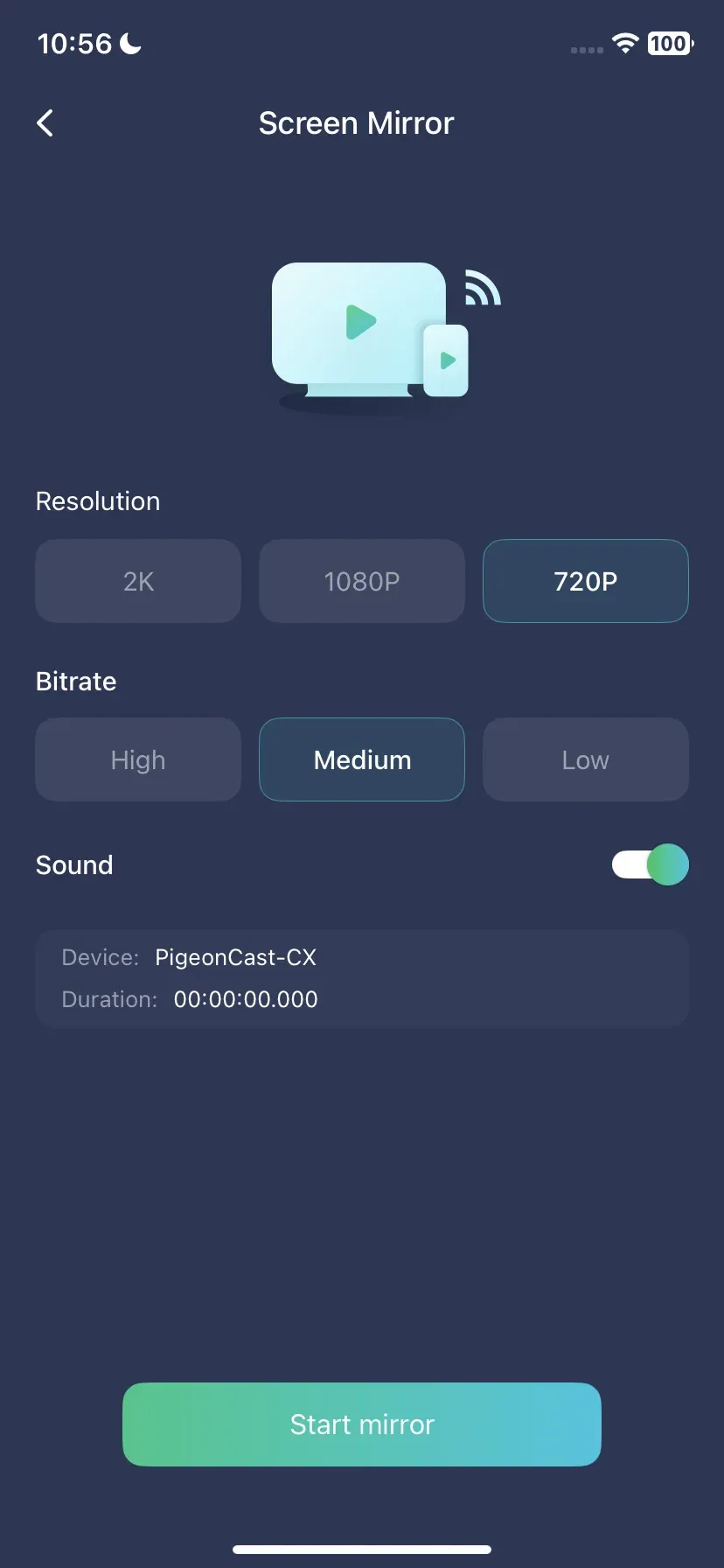
At this point, screen mirroring runs in real time, with minimal delay and no extra cables.
Final Words
Screen mirroring between an iPhone and a Dell laptop is no longer about finding a hidden system switch. It is about choosing the right approach for today's ecosystem. Official tools like Dell Mobile Connect are no longer part of the picture, and options such as Phone Link serve a different purpose altogether.
If you are trying to figure out how to screen mirror on Dell laptop in a way that actually works, the key is to look beyond system-level features and focus on tools built specifically for mirroring. When the method matches the task, the process becomes predictable instead of experimental.
Once set up, screen mirroring stops being a technical hurdle and starts doing what it should. It lets you share, demonstrate, and view your iPhone screen on a Dell laptop without constant adjustments or second guesses. And for most users, that clarity matters more than any extra feature list.
How to Screen Mirror iPhone to Dell Laptop FAQs
Do Dell laptops have screen mirroring?
Dell laptops do not have a built-in screen mirroring feature for iPhones. Most Dell devices run Windows, which does not natively support Apple's AirPlay protocol. However, Dell laptops can mirror their own screen to a TV or other external display using Windows features such as Miracast. If that's what you're trying to do, here's how to screen mirror on a Dell laptop. They can also receive screens from some Android devices, while iPhone-to-Dell mirroring generally requires a compatible third-party tool that bridges iOS and Windows.
Can I mirror my iPhone to my Dell computer?
Yes, you can mirror an iPhone to a Dell computer, but not through native system settings alone. Apple limits direct screen sharing with non-Apple computers, so Windows-based laptops need additional software like PigeonCast to receive an iPhone's screen.
As long as both devices are connected to the same network and the mirroring tool supports iOS, real-time screen mirroring is possible for tasks like presentations, demos, and content sharing.
How to screen mirror from iPhone to laptop?
The general process is the same across most laptops, regardless of brand:
- Install a screen mirroring app that supports iOS.
- Make sure your iPhone and laptop are on the same Wi-Fi network.
- Open screen mirroring on your iPhone from Control Center.
- Select your laptop from the available devices.
MacBooks support this natively through AirPlay. Windows laptops, including Dell models, require a dedicated mirroring solution to receive the screen.
Can I screen mirror to any laptop?
In theory, yes. In practice, it depends on the operating system and the tools available.
Mac laptops support iPhone screen mirroring out of the box through AirPlay. Windows laptops do not support AirPlay natively, but they can still mirror an iPhone screen using compatible third-party software like PigeonCast.
As long as the laptop can run screen mirroring software and connect to the same network as your iPhone, screen mirroring is usually possible regardless of brand.
Mia Clarke is a technology editor specializing in screen mirroring and casting solutions across multiple platforms. Mia provides clear, practical guides and in-depth insights to help users seamlessly connect their devices. Passionate about enhancing digital experiences, Mia is dedicated to keeping readers updated on the latest trends and tools in cross-platform screen sharing. Whether you’re looking to mirror your smartphone, laptop, or smart TV, Mia’s content delivers reliable, user-friendly advice to simplify your tech setup.