
Can you screen mirror from iPhone to Chromebook? You cannot natively screen mirror an iPhone to a Chromebook. That limitation is not about settings or cables. It comes from how Apple and Google built their systems. iPhones rely on AirPlay. Chromebooks rely on Google Cast. These two protocols do not talk to each other.
So if you are searching for how to screen mirror iPhone to Chromebook and expecting a one-tap solution like iPad to Mac, it does not exist right now. However, the story does not end here. You still have several ways to view iPhone content on a Chromebook, depending on what you actually need to do. Let's dive into iPhone-to-Chromebook screen mirroring.
Why iPhone and Chromebook Do Not Mirror Directly
Apple built AirPlay for its own ecosystem. Google built Cast for Chrome OS and Android. Neither company added native support for the other.
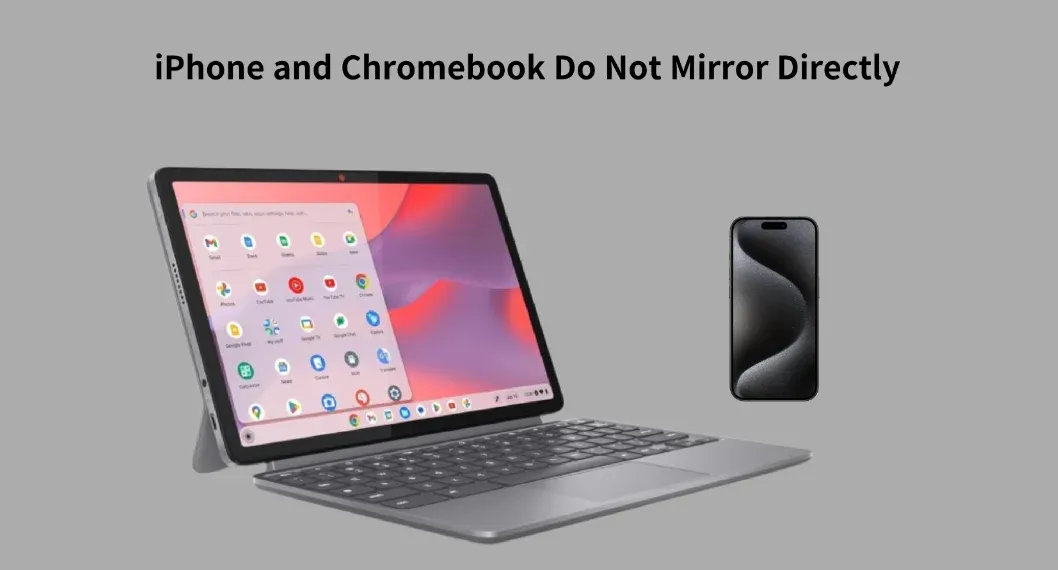 Because of this:
- iPhone cannot detect Chromebooks in the Screen Mirroring menu
- Chromebook cannot act as an AirPlay receiver by default
- USB mirroring is not officially supported on Chrome OS
How to Screen Mirror iPhone to MacBook
AirPlay and Google Cast are both well-designed. But when it comes to iPhone to Chromebook screen mirroring, they are not useful together. At least for now, there is no native solution that connects an iPhone directly to a Chromebook.
So what can you do instead? At this point, screen mirroring depends on a few practical workarounds rather than official support. The following three methods reflect what is actually possible today.
Method 1: Use a Third-Party App That Bridges AirPlay and Chrome OS
This is the closest you will get to screen mirroring iPhone to Chromebook today.
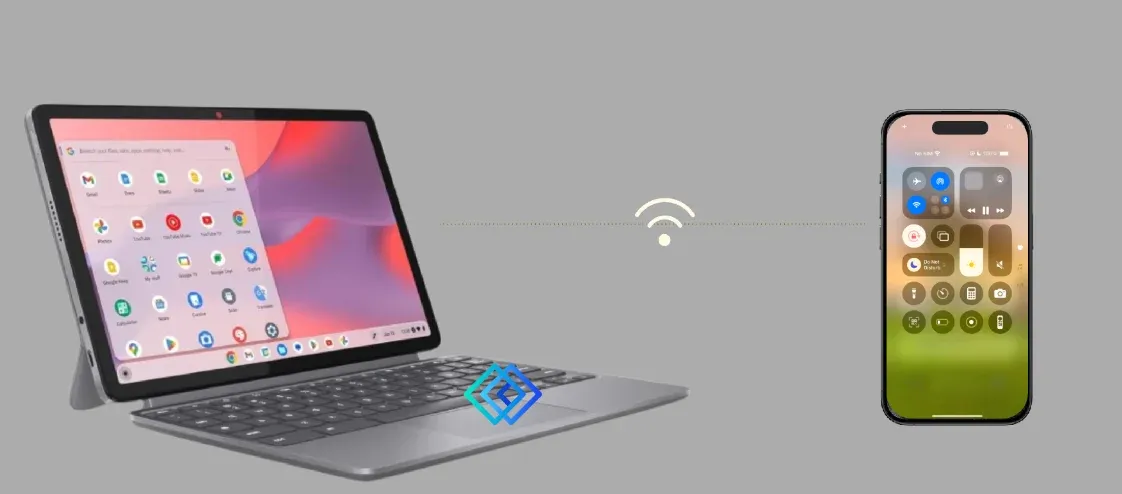
Some third-party tools act as a bridge by functioning as an AirPlay 2 receiver. Instead of relying on native support, they receive your iPhone's AirPlay stream and display it within a Chrome OS compatible environment.
How to screen mirror on Chromebook from iPhone using an AirPlay 2 receiver:
Step 1. Install a compatible screen mirroring app on Chromebook (such as LetsView, AirSever, etc.)
Step 2. Make sure both devices are on the same WiFi network.
Step 3. On your iPhone, go to the Control Center and tap Screen Mirroring.
Step 4. Select the app receiver instead of a native device.
Method 2: Cast Specific Apps Like YouTube from iPhone
Some iPhone apps support Google Cast directly, even though Chromebooks do not support system-level screen mirroring. YouTube is the most common example.
How it works:
Step 1. Open the YouTube app on your iPhone.
Step 2. Tap the Cast icon.
Step 3. Select your Chromebook if it appears.
Step 4. Control playback from the iPhone.
Important note: this does not turn your Chromebook into a screen mirroring receiver. The iPhone is not sending its screen. Instead, YouTube opens a web-based player on the Chromebook, streaming the video directly from YouTube's servers rather than from your iPhone.
This is not full screen mirroring, but it is reliable for video playback and avoids extra software.
Method 3: Share iPhone Content Through the Browser
How to screen share iPhone to Chromebook? If your goal is not live interaction, this method is often cleaner.
You can connect iPhone to Chromebook by using cloud-based access instead of screen mirroring. For example:
- Upload photos or videos to Google Drive and open them in Chrome on your Chromebook
- Share presentation slides through Google Slides
- Use iCloud web access for documents
How to Screen Mirror iPhone to Chromebook With USB
You may have noticed that no USB connection method was mentioned above. That's because, at the moment, there is no true wired solution for screen mirroring an iPhone to a Chromebook.
Many people search for how to screen mirror from iPhone to Chromebook with USB, hoping for a more stable, cable-based workaround. However, Chrome OS does not support wired iPhone screen mirroring.
Even when using a USB cable:
- The iPhone does not expose display output to Chromebooks
- Chrome OS lacks native drivers for iOS display mirroring
- Most third-party tools still rely on network-based rendering, not direct video output
In practice, USB connections on a Chromebook are mainly used for charging or file transfers—not real-time screen mirroring.
Amplifying iPhone Screen Mirroring Beyond Chromebook
If you frequently mirror your iPhone for work, presentations, or content creation, relying only on a Chromebook can quickly feel limiting.
That's because Chromebook support for iPhone screen mirroring is fundamentally constrained. Bridging apps can help in specific cases, but they are not designed for long, stable, or high-quality mirroring sessions.
This is where expanding your setup makes sense.
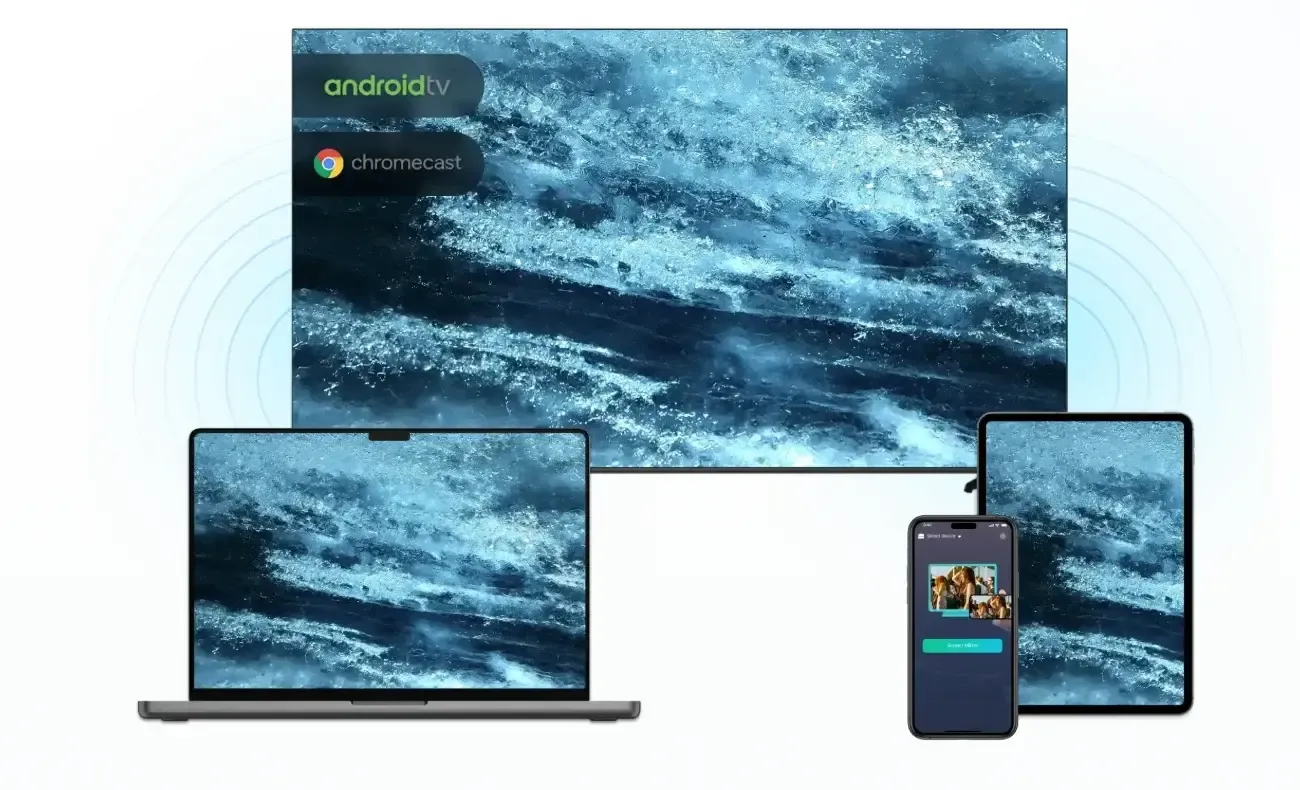
Tools like PigeonCast focus on platforms where iPhone screen mirroring is actually stable and well supported—such as Windows PCs, Android TV, and Fire TV devices. While PigeonCast does not currently support mirroring from iPhone to Chromebook, it works reliably in environments built around AirPlay and casting rather than workarounds.
How to use PigeonCast for universal iPhone screen mirroring:
Step 1. Download and install PigeonCast on your iPhone and the receiving device, such as Windows PC or TV.


Overall Rating:



Step 2. Ensure the two devices are on the same Wi-Fi network.
Step 3. Launch PigeonCast on both sides and follow the onscreen instructions to start HD screen mirroring.
Final Thoughts
If you are still asking, can you screen mirror from iPhone to Chromebook, the honest answer remains the same: not directly, and not natively.
That doesn't mean you are stuck. Use bridging apps when you need a temporary live display. Use the browser when you only need access, not interaction. Use stronger mirroring tools on platforms that actually support real-time screen mirroring.
And most importantly, stop chasing unsupported USB tricks. Once you accept the platform limits, the path forward becomes much simpler.
How to Mirror iPhone to Chromebook FAQs
How do I connect my iPhone to my Chromebook?
You can connect your iPhone to a Chromebook using WiFi-based third-party apps, cloud services, or app-specific casting features. Chrome OS does not support direct AirPlay connections, so native iPhone-to-Chromebook screen mirroring is not available.
Can you screen mirror from iPhone to Chromebook?
Not natively. iPhones rely on AirPlay for screen mirroring, and Chromebooks do not support AirPlay receivers by default. To mirror your screen, you must use third-party bridging tools or indirect sharing methods.
Is USB screen mirroring possible?
No. Chrome OS does not support wired iPhone display mirroring. Even with a USB cable connected, iOS does not expose its screen output to Chromebooks, and Chrome OS lacks the required drivers to receive it.
How to screen mirror from iPhone to Chromebook without apps?
Full screen mirroring is not possible without apps. Without installing additional software, your only options are browser-based access, such as opening cloud files, streaming web content, or using web versions of supported services. These methods do not mirror the live iPhone screen.
How to cast phone to Chromebook?
Casting depends on the app you are using. Some iPhone apps, such as YouTube, support Google Cast, which allows you to send video playback to a Chromebook browser. This is not full screen mirroring, but app-level casting.
Can you screen mirror from iPhone to Google Chrome?
Not directly. Google Chrome does not support AirPlay. You may see content appear in Chrome when using web-based players or casting-supported apps, but this is content streaming, not real-time iPhone screen mirroring.
Can you show an iPhone screen on a laptop?
Yes, but it depends on the laptop and software. MacBooks support iPhone mirroring via AirPlay. Windows laptops require third-party tools like PigeonCast. Chromebooks can only display the iPhone screen through bridging apps or browser-based workarounds, not native mirroring.
How do I turn on iPhone mirroring?
On your iPhone, open Control Center, tap Screen Mirroring, and select a compatible receiver. The receiver must support AirPlay. If no compatible device appears, mirroring is not available for that target.
How do I connect my iPhone screen to my laptop wirelessly?
You need a wireless screen mirroring solution that supports iOS. MacBooks work natively with AirPlay. Windows PCs and Chromebooks require third-party apps, like PigeonCast or LetsView.
What is the app that connects iPhone to laptop?
- For a Mac, no app is needed—AirPlay handles screen mirroring.
- For a Windows PC or Chromebook, you need a third-party app that acts as an AirPlay receiver, like PigeonCast or LetsView.
Mia Clarke is a technology editor specializing in screen mirroring and casting solutions across multiple platforms. Mia provides clear, practical guides and in-depth insights to help users seamlessly connect their devices. Passionate about enhancing digital experiences, Mia is dedicated to keeping readers updated on the latest trends and tools in cross-platform screen sharing. Whether you’re looking to mirror your smartphone, laptop, or smart TV, Mia’s content delivers reliable, user-friendly advice to simplify your tech setup.